






How to set serial to Ethernet from Flight Control to Mission Planner or QGroundControl or Pixhawk, Ethernet to Serial. How to Serial-to-network or network-to- serial on drone radio link?


Wireless Video Transmission
Firmware versions after 202404 configure the Air unit serial port. The operation guid is for Vcan1933 and Vcan1933-8W.
The function of serial switching or network switching mainly includes serial port input, network port output or network port input, serial port output and so on. Firmware versions after 202404 use the serial port configuration of the configuration sky for TCP or UDP transmission. The following is an example of TCP/UDP transmission from two ground stations, Mission Planner and QGC.
Table of Contents
Mission Planner (TCP mode)
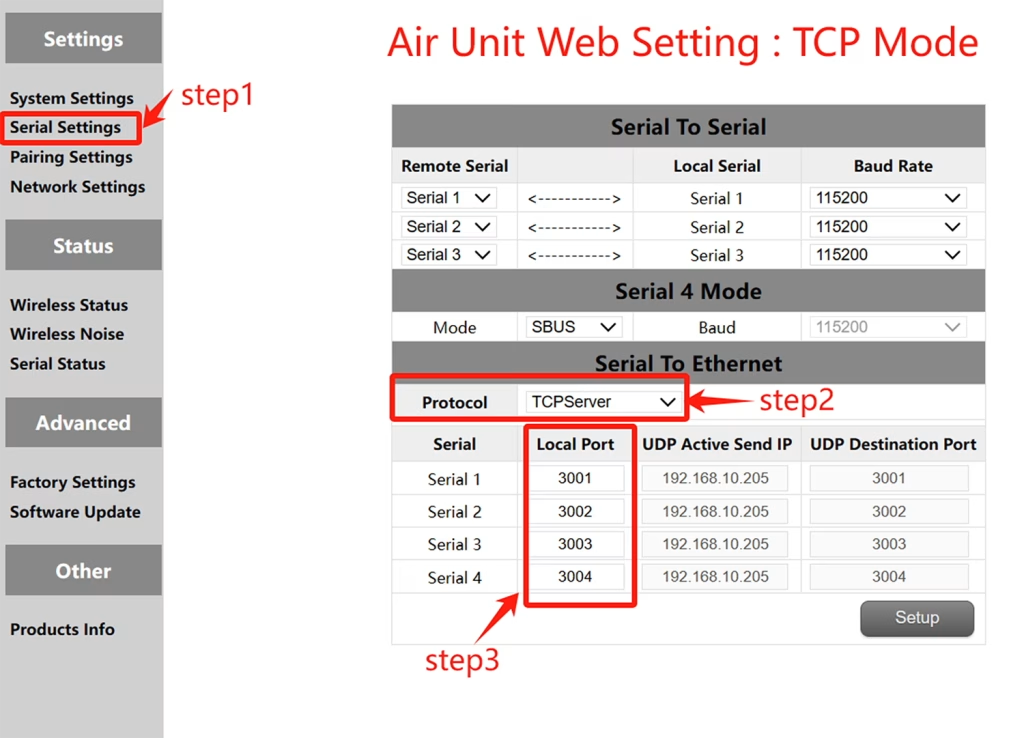
TCP configuration (Air unit serial port )
- Step 1: Open the – Serial Settings bar of the air unit web page.
- Step 2: Change the serial-to-network protocol to TCP server.
- Step 3: Determine the local port number. The default port number of serial ports 1 to 3 is 3001-3003. Click Set.
Mission Planer TCP configuration
- Step 1: Open the Mission Planner.
- Step 2: MP Select TCP mode, do not use the serial port baud rate, click the Connect button. Enter host name/IP: 192.168.10.252 (Default IP address of the sky end). Enter remote port: 3001 /3002/3003. The port number depends on which serial port is connected to the sky serial port
Mission Planner (UDP mode)
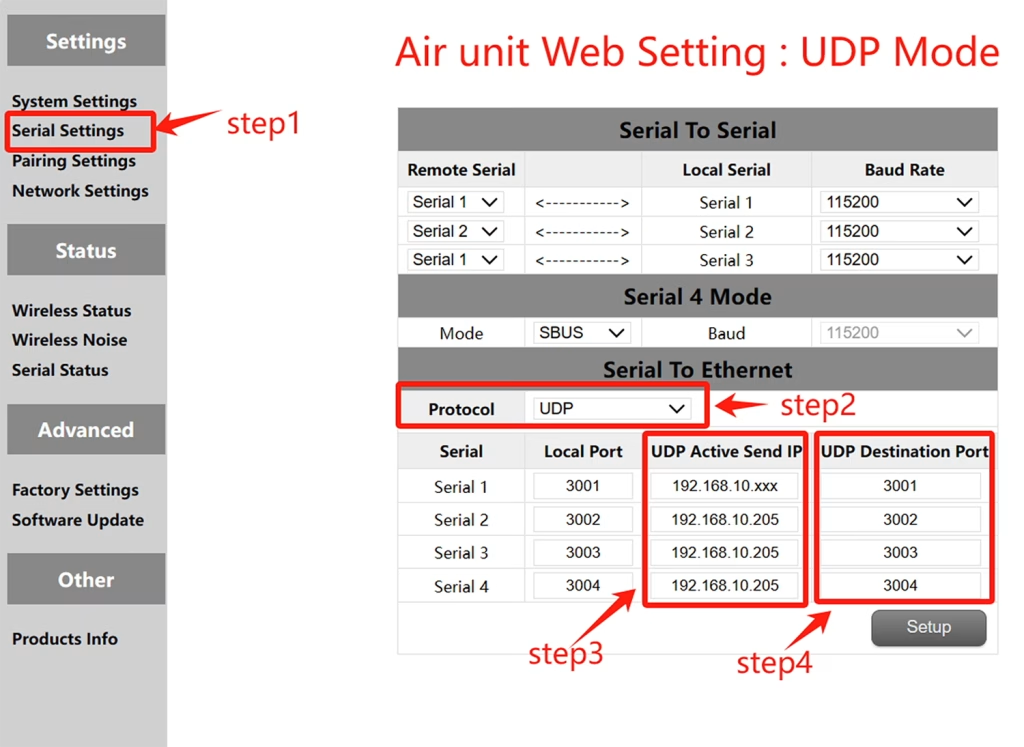
UDP configuration (Air serial port)
- Step 1: Open the – Serial Settings bar of the air unit web page.
- Step 2: Change the serial-to-network protocol to UDP server.
- Step 3: Enter the active UDP IP address of the serial port. It is the IP address of the computer on which MP is installed.
- Step 4: Determine the UDP target port number. The default target port number of serial ports 1 to 3 is 3001-3003. You can also set the target port number to different ones based on customer requirements. Finally click the Settings button.
Mission Planer UDP configuration
- Step 1: Open the Mission Planner ground station.
- Step 2: MP select UDP mode, the serial port baud rate is not required, click the Connect button.
Enter Local port: Enter the UDP destination port number of the sky port. The default value is 3001-3003.
QGroundControl adopts TCP mode
TCP configuration of the air serial port
- Step 1: Open the – Serial Settings bar of the air unit web page。
- Step 2: Change the serial-to-network protocol to TCP server.
- Step 3: Determine the local port number. The default port number of serial ports 1 to 3 is 3001-3003. Click Set.
QGroundControl TCP configuration
- Step 1: Open the QGroundControl ground station and click the icon in the top left corner.
- Step 2: Click Application Settings, select Communication connection, and click Add Option.
- Step 3: Type Select the TCP mode and enter Server Address: 192.168.10.252(IP address of the sky end).
Input port: 3001 (serial port 1); 3002 (serial port 2); 3003 (Serial port 3).
QGroundControl adopts UDP mode
UDP configuration of the air serial port
- Step 1: Open the – Serial Settings bar of the air unit web page.
- Step 2: Change the serial-to-network protocol to UDP server.
- Step 3: Enter the active UDP IP address of the serial port. It is the IP address of the computer on which MP is installed.
- Step 4: Determine the UDP target port number. The default target port number of serial ports 1 to 3 is 3001-3003. You can also set the target port number to different ones based on customer requirements. Finally click the Settings button.
QGroundControl UDP configuration
- Step 1: Open the QGroundControl ground station and click the icon in the top left corner.
- Step 2: Click Application Settings, select Communication connection, and click Add Option.
- Step 3: Type Select the UDP mode and enter port: The default UDP destination port number 3001-3003.
Enter Server Address (optional) : 192.168.10.252(the default IP address of the air unit).
Wireless Video Transmission
View or Download the operation of serial-to-network or network-to-serial on drone radio link.
Ask A Question
Thank you for your response. ✨