






Web Device Management UI for long-range wireless video data link transmitter and receiver
Users can view the current parameter configuration through the Web devices management UI and modify it according to the needs of the application, the user can access the device through the Network Port Browser, and the default IP address of the Sky end is 192.168.1 12, the default address of the ground end is 192.168.1 11.
Note: To change any configuration parameters via the web UI, users need to reboot the hardware system for the changed configuration to take effect.
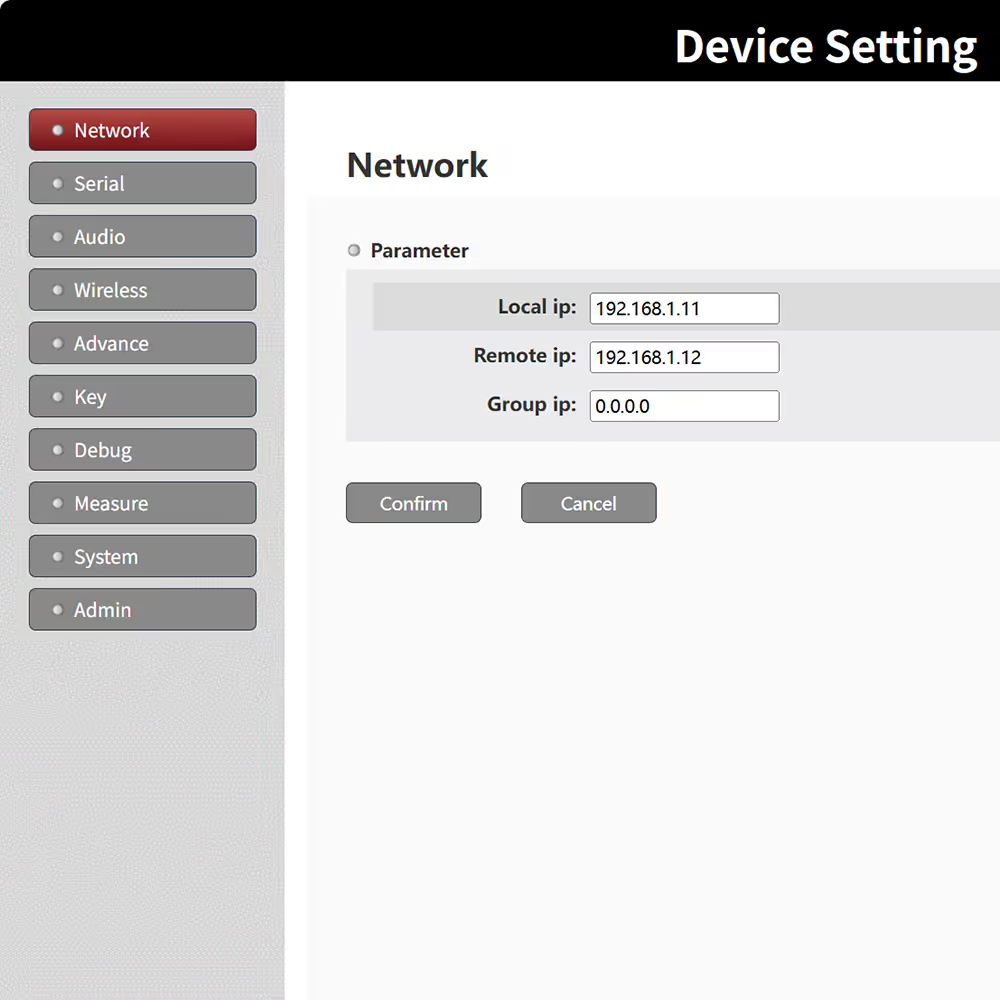
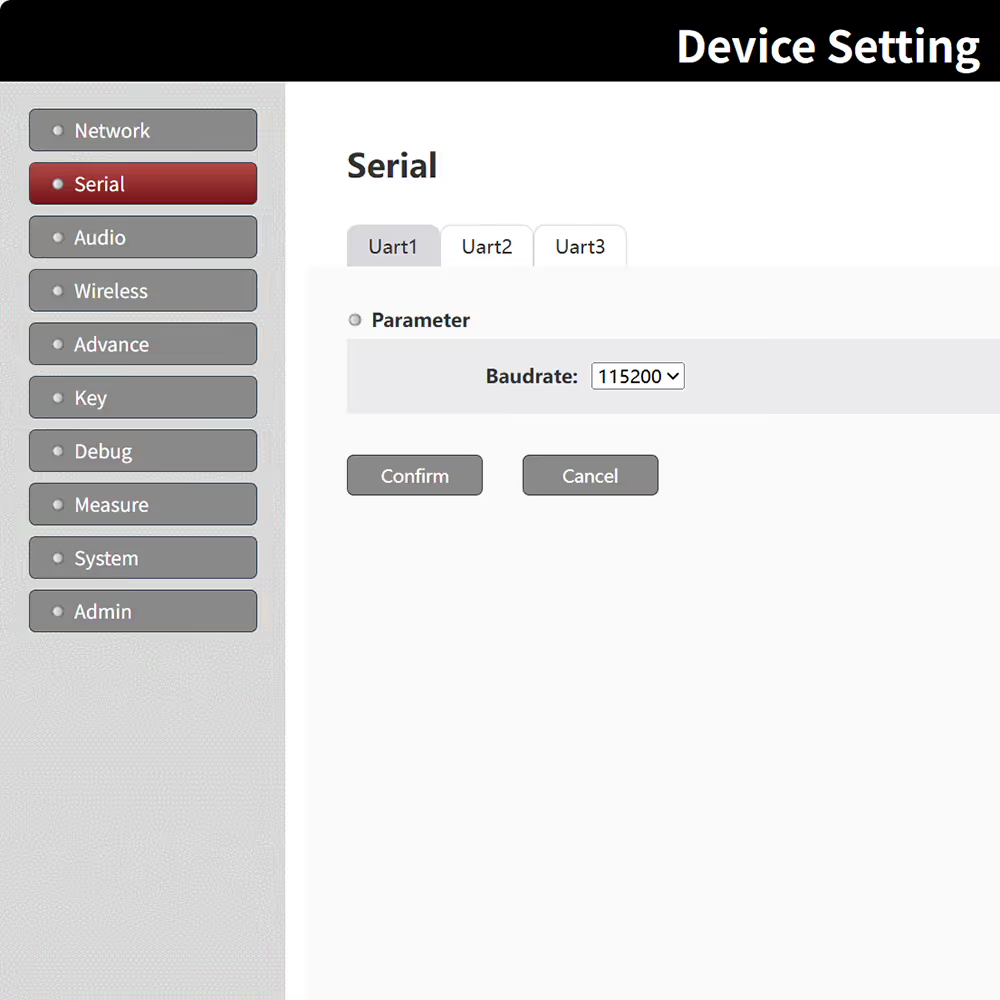
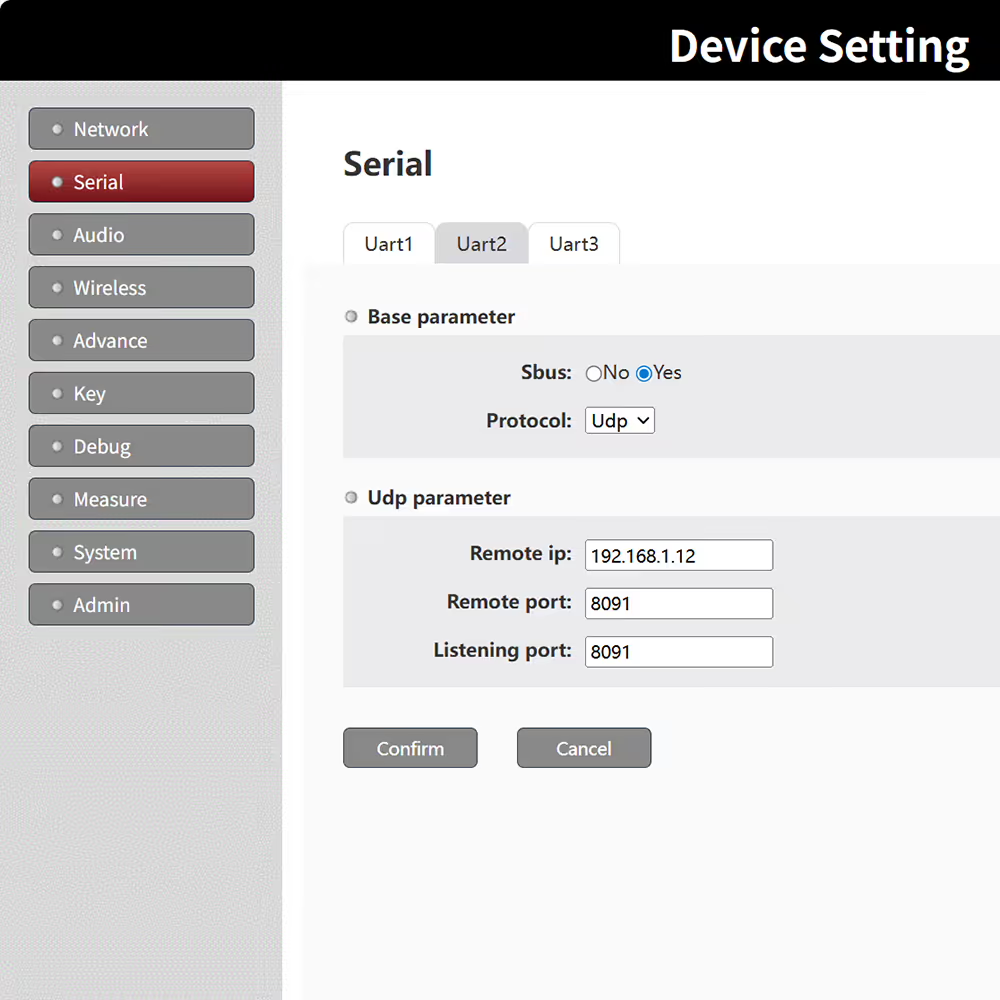
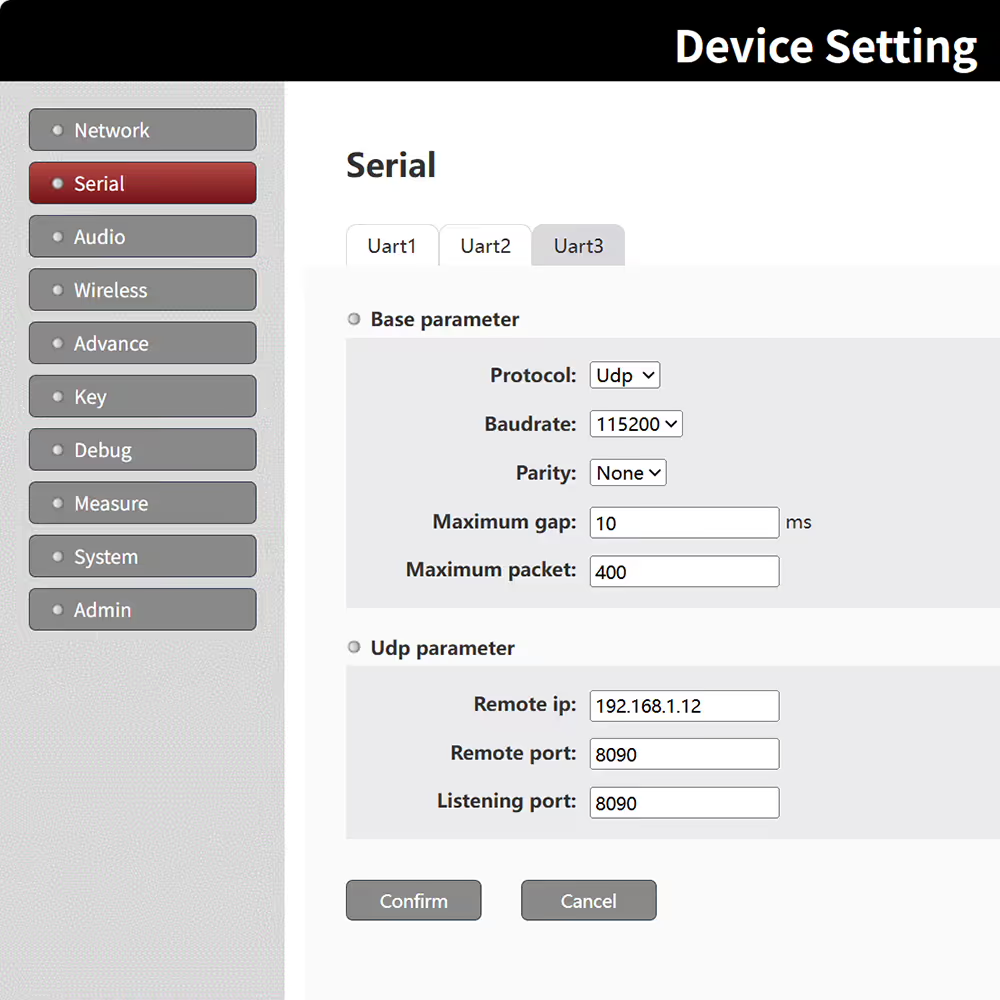
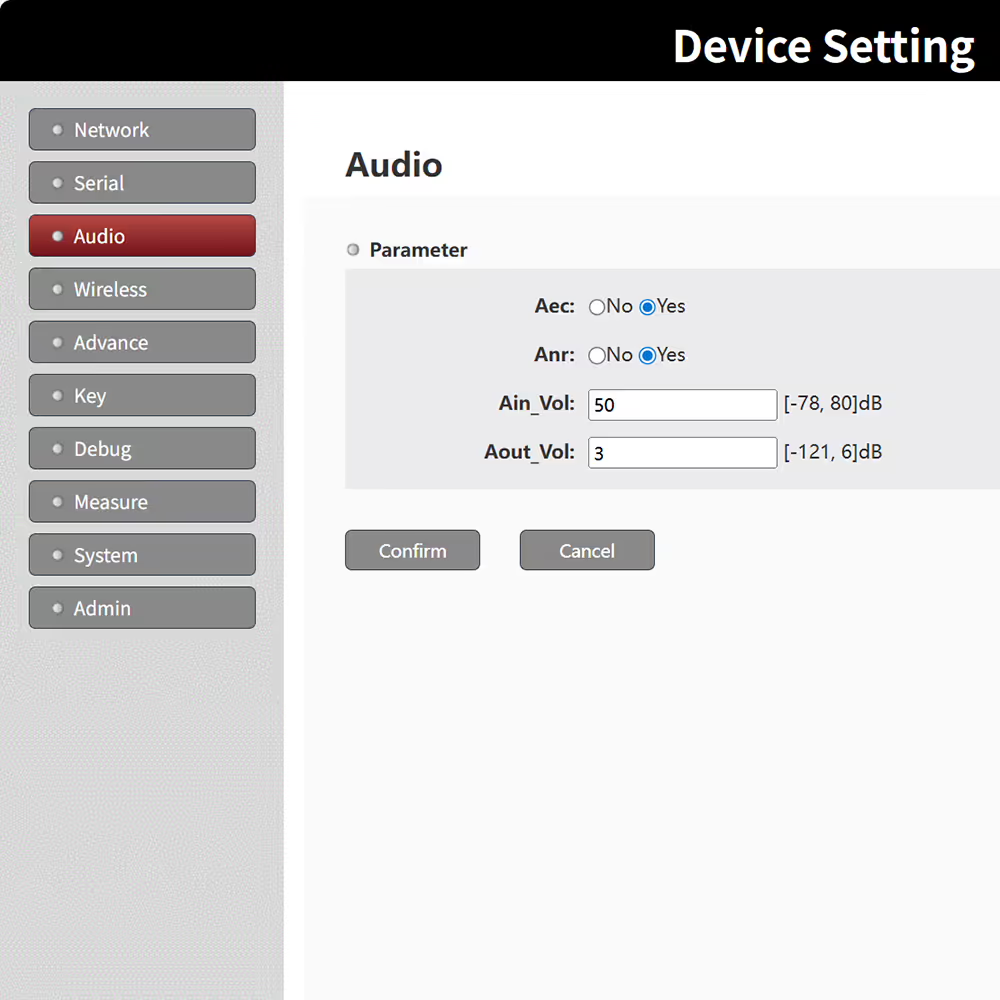
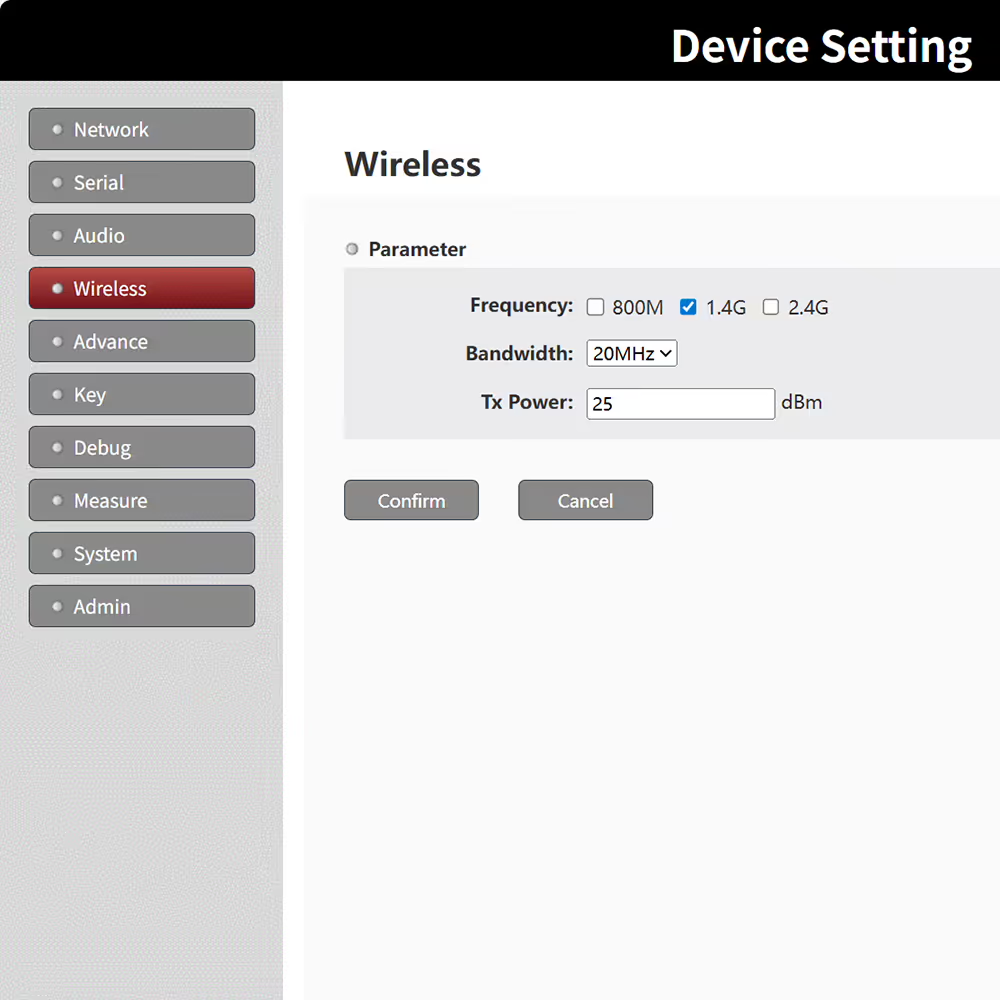

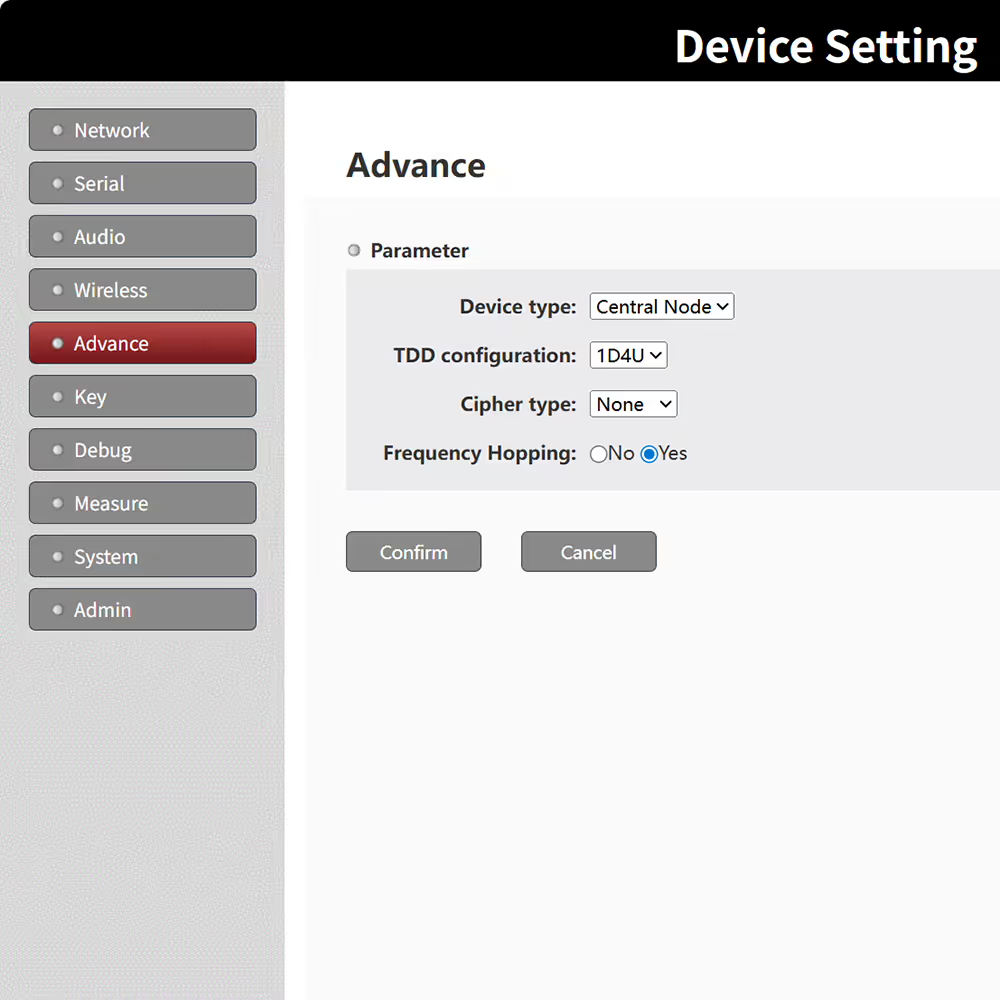
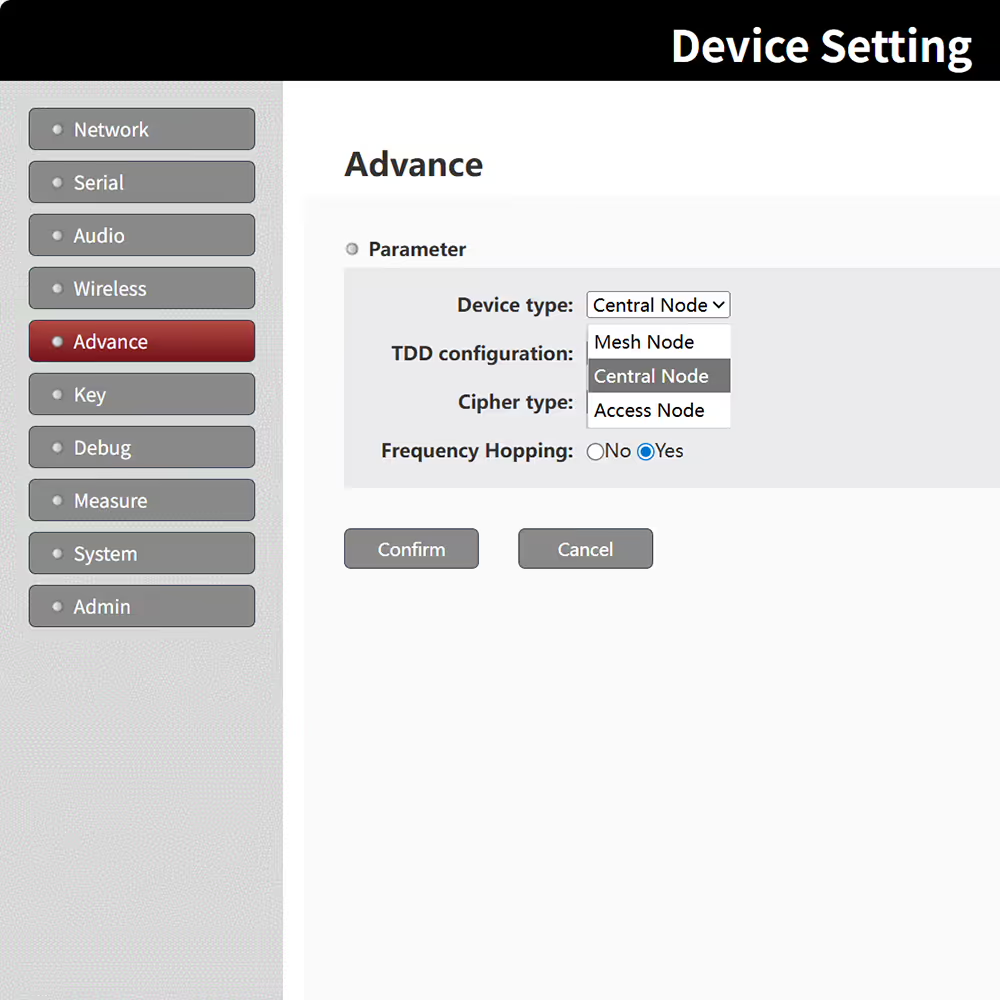

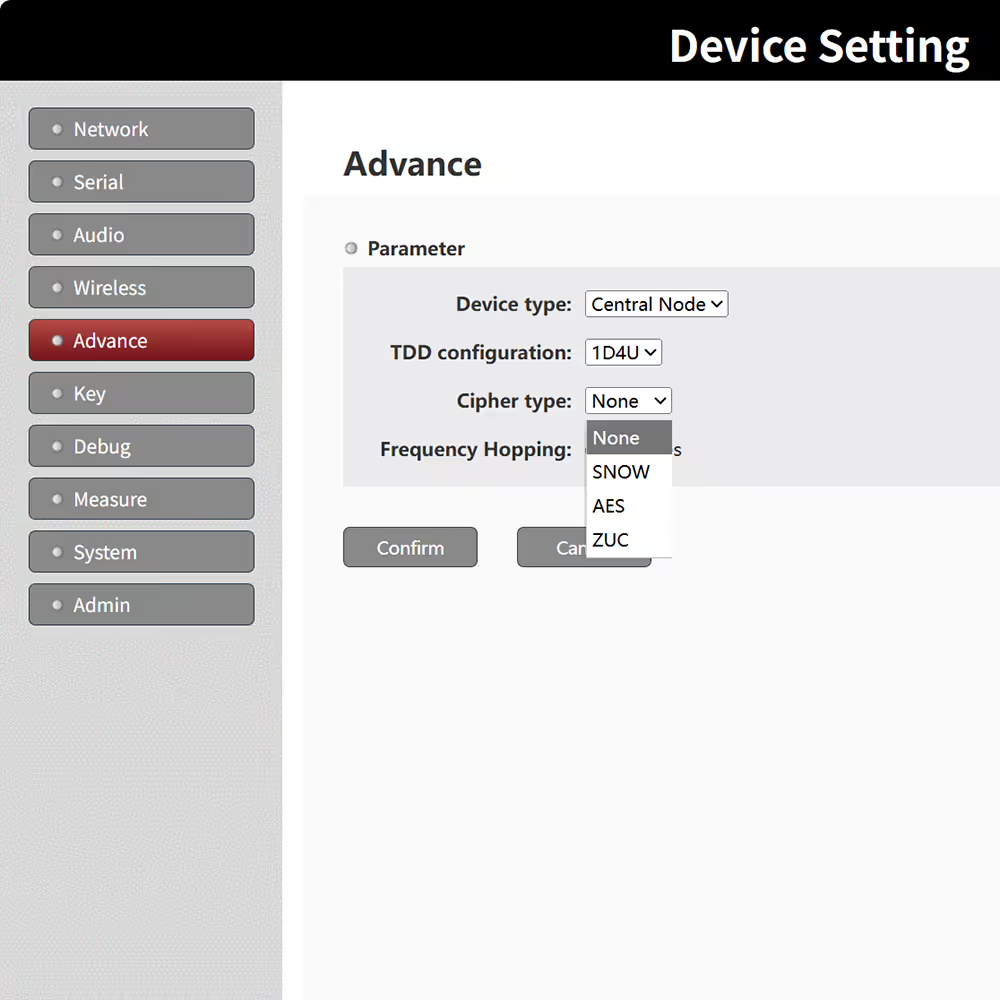
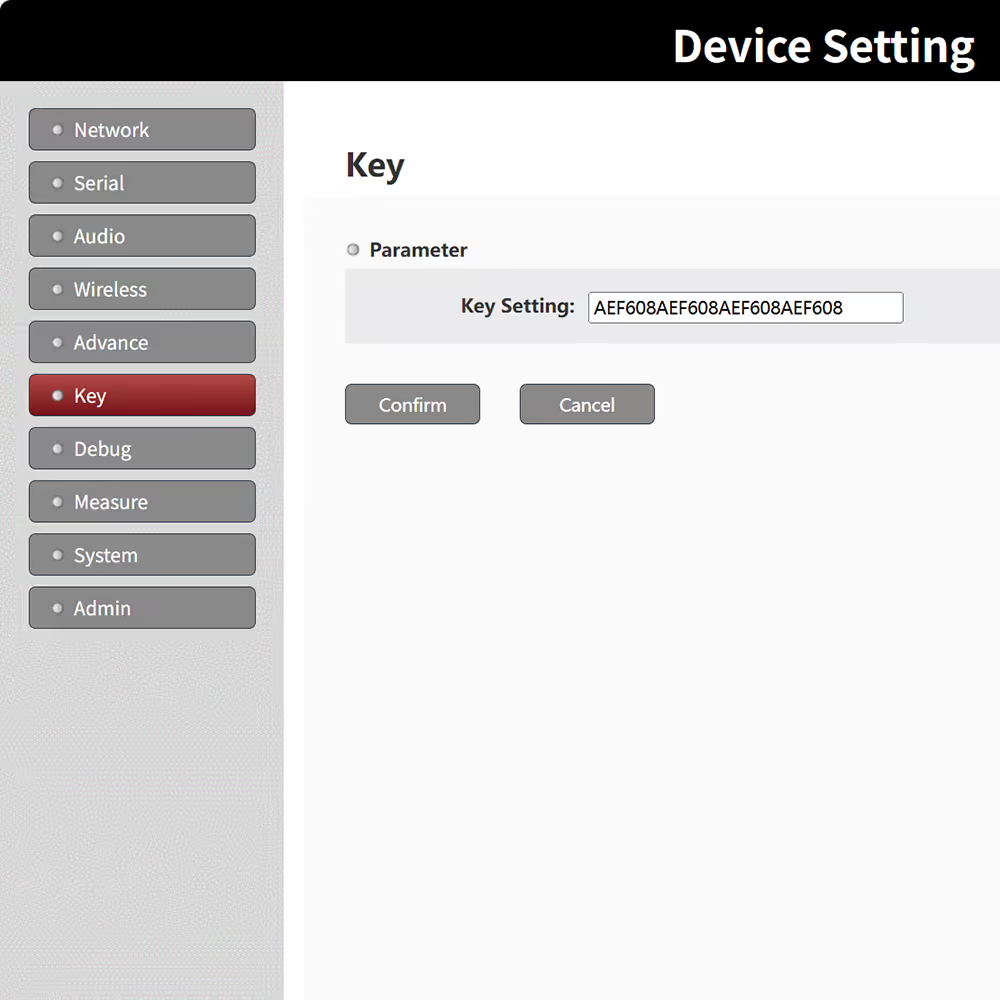
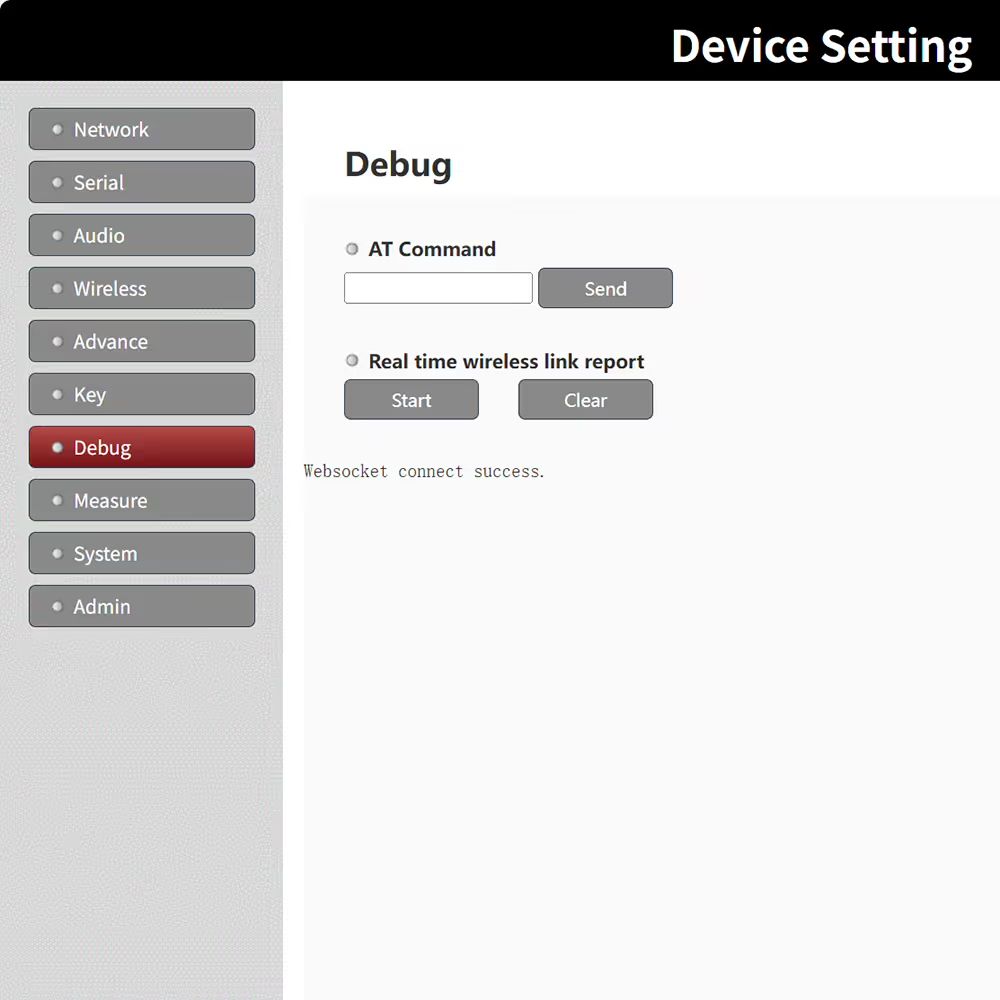
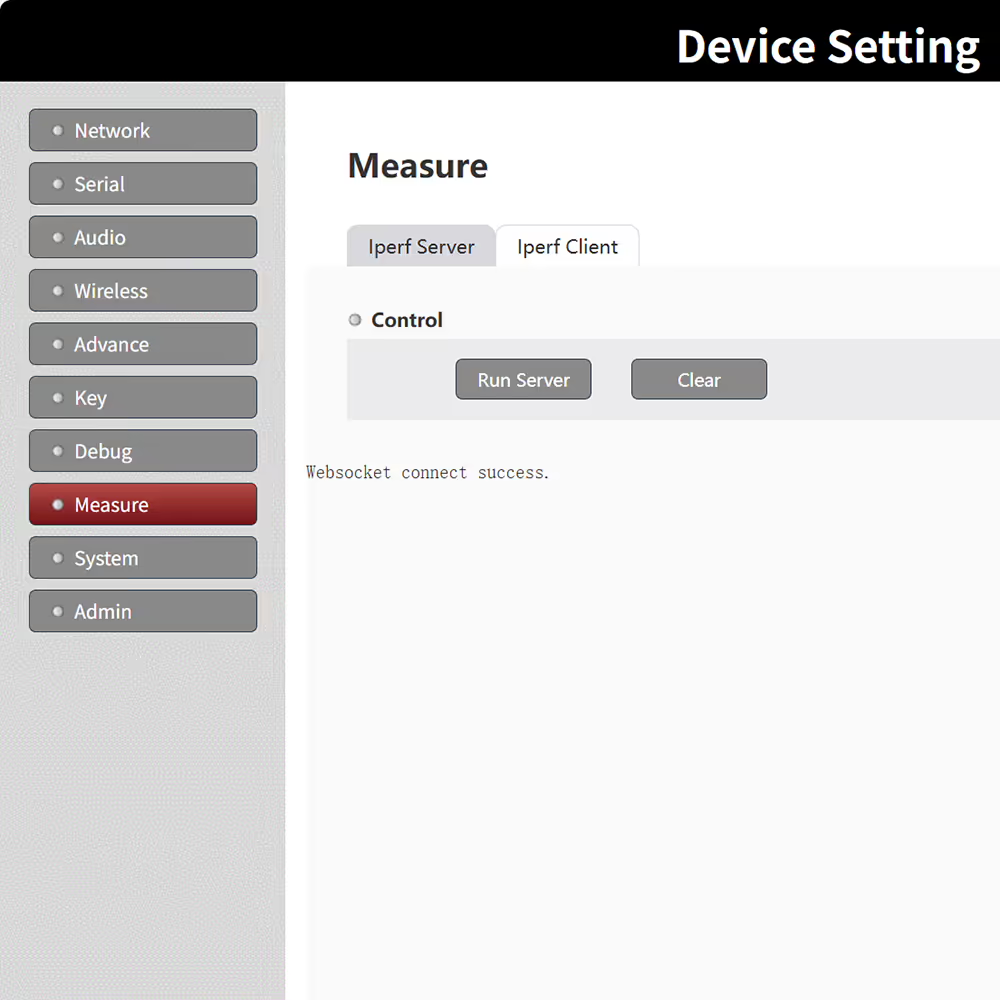

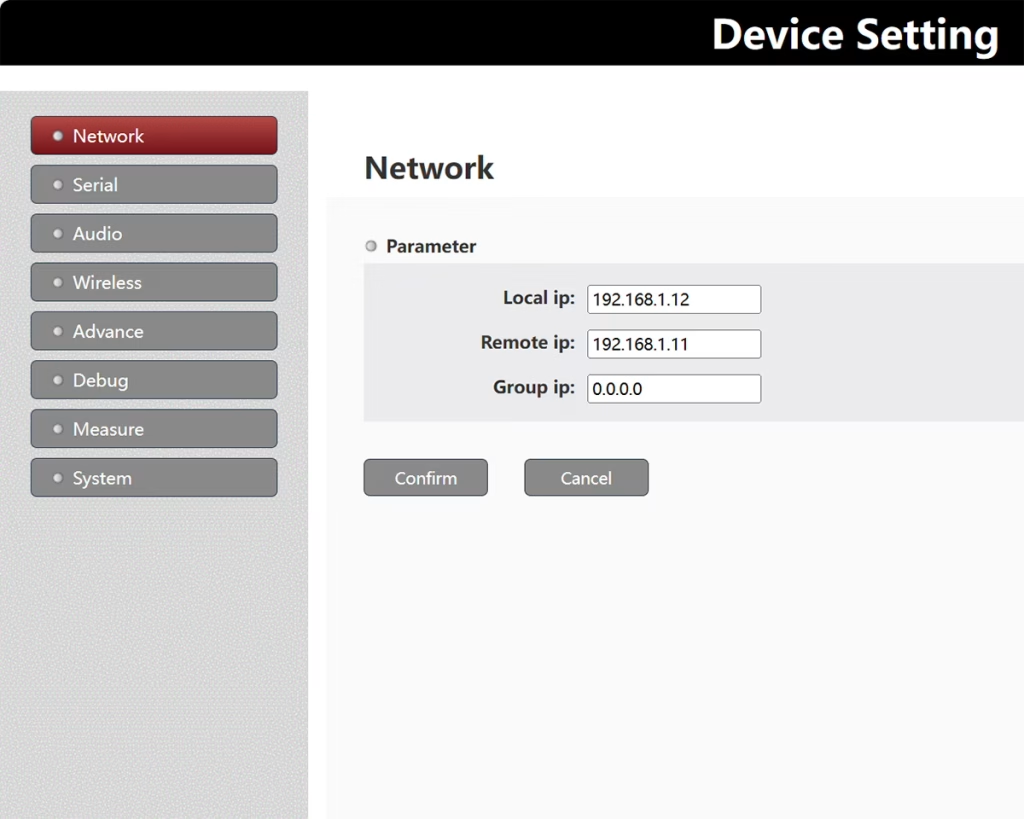
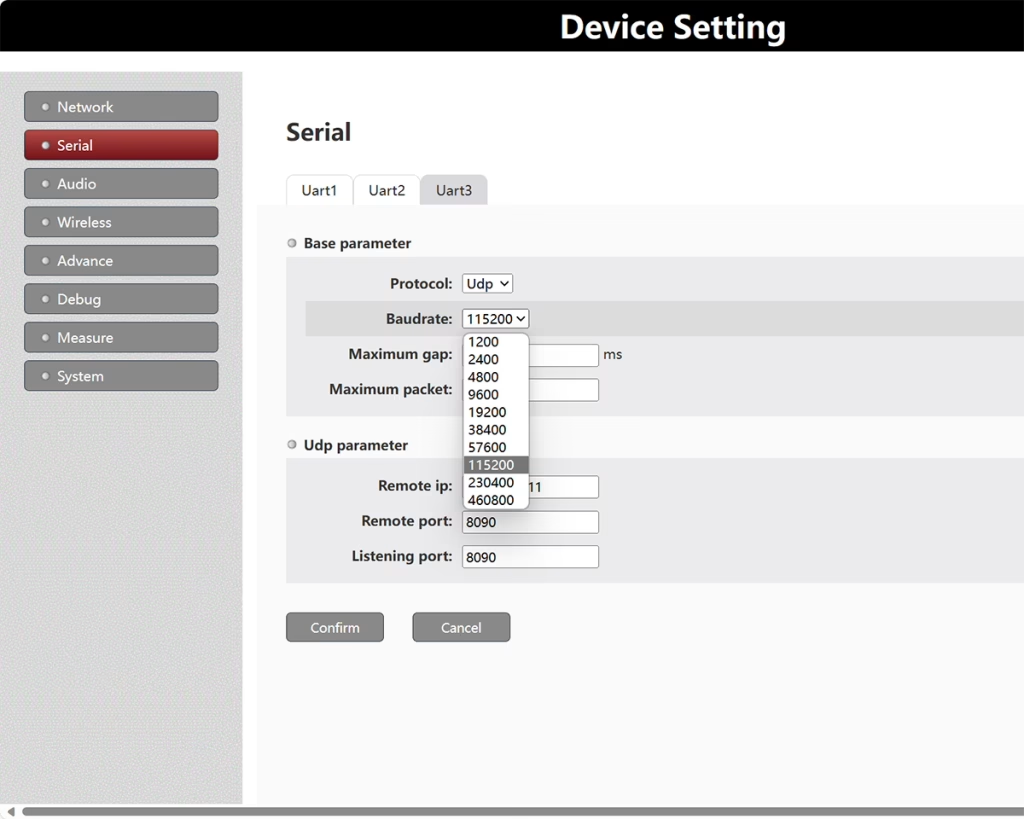
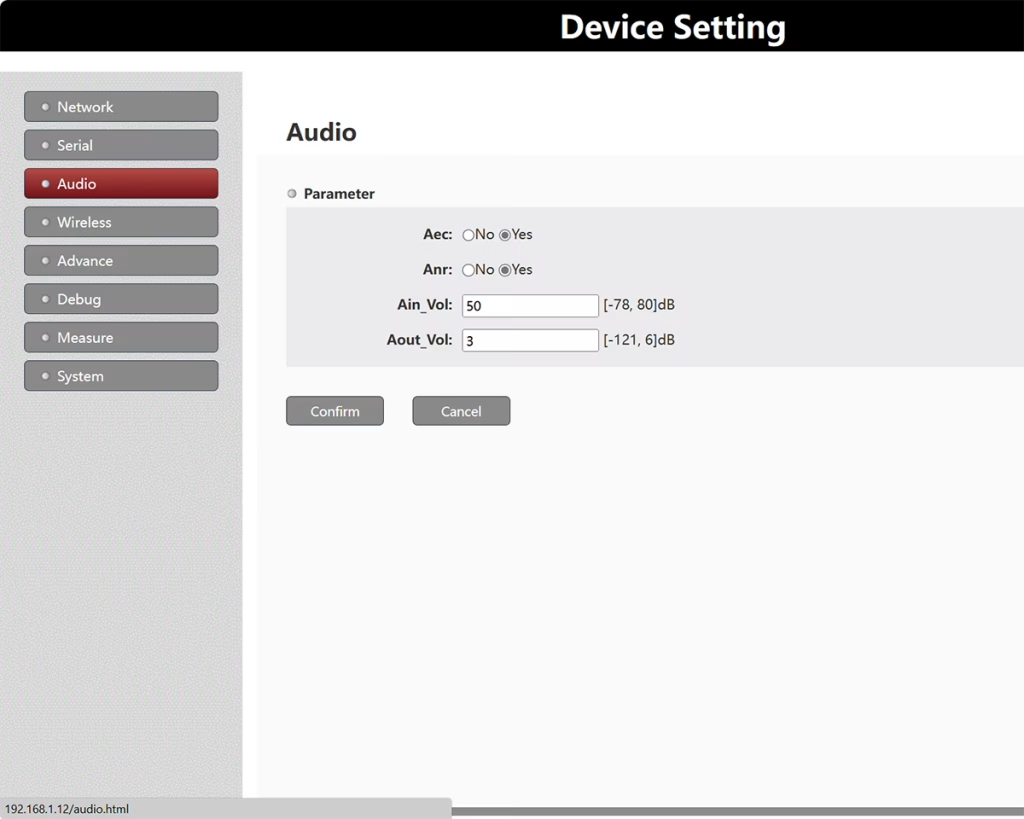
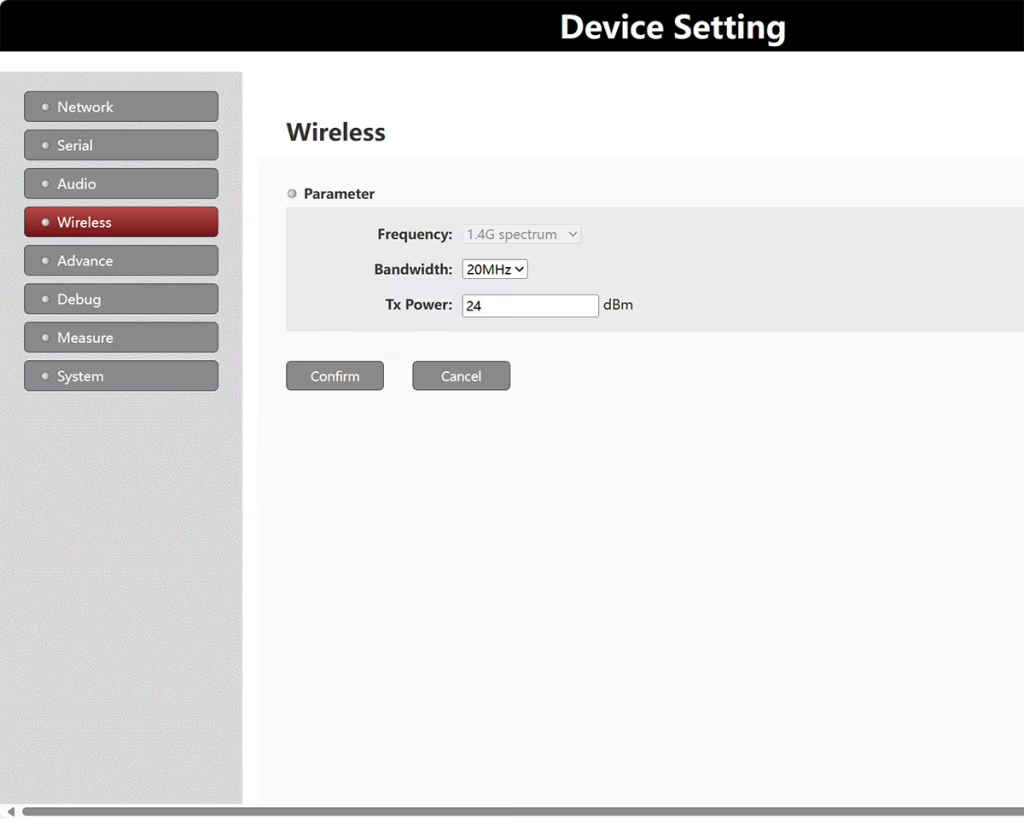
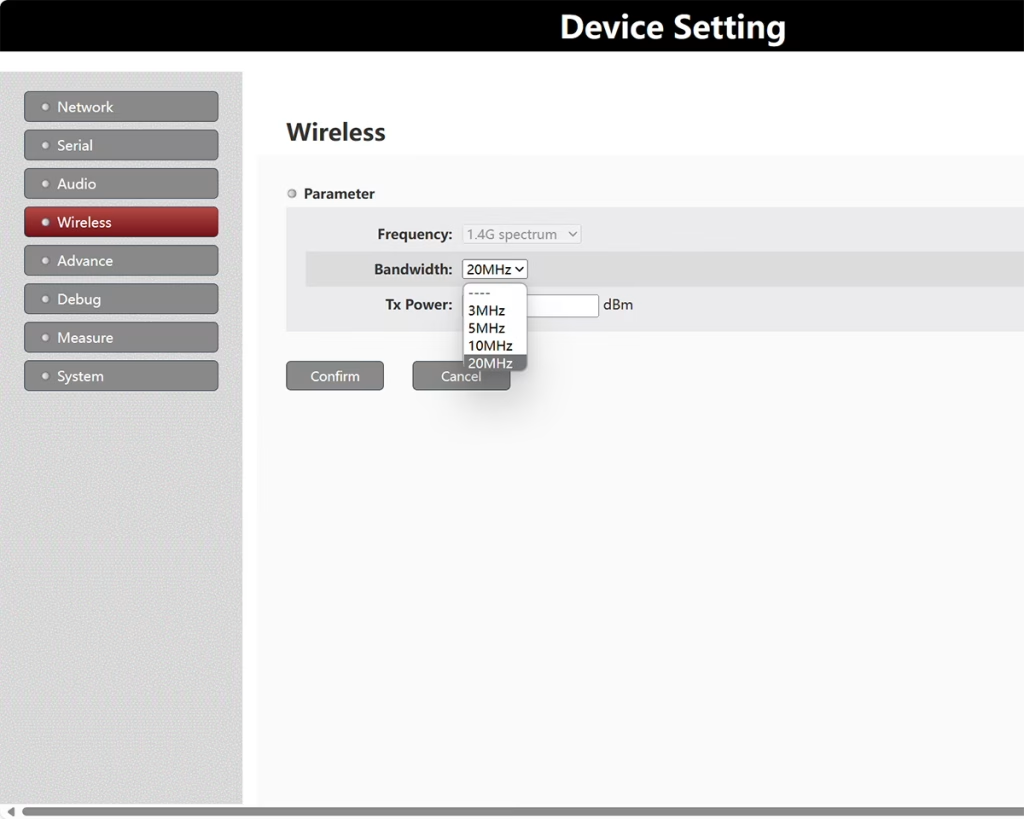


Local IP: Nearby your computer, almost is the wireless video data receiver’s IP address;
Remote IP: Nearby the camera, almost the wireless video data transmitter’s IP address.
Group IP: If you do not want to use broadcast mode, you can use multicast mode, the above Remote IP is changed to the multicast address, and all devices participating in multicast reception need to configure the same multicast address.
192.168.1.255 represents broadcast mode transmission
192.168.1.x represents point-to-point transmission
Note: DLB only supports multicast addresses in the 224.0.0.0~224.0.0.255 segments, considering that some addresses are reserved, it is recommended to use addresses above 224.0.0.23.
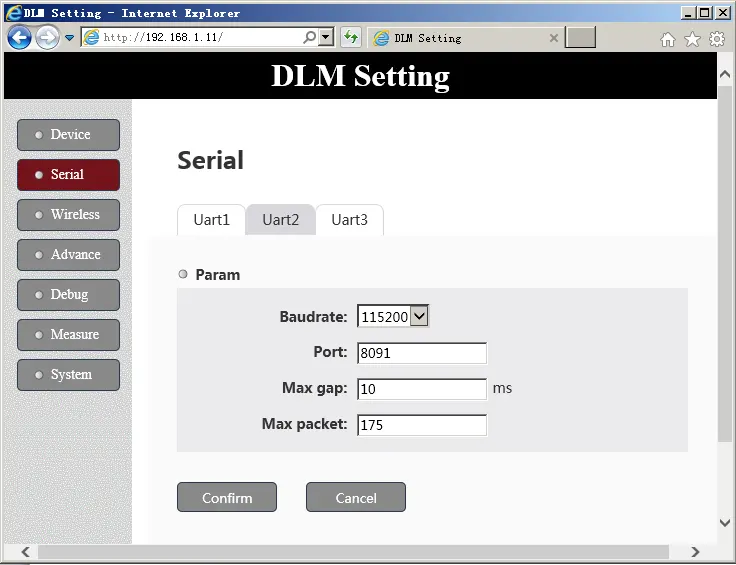
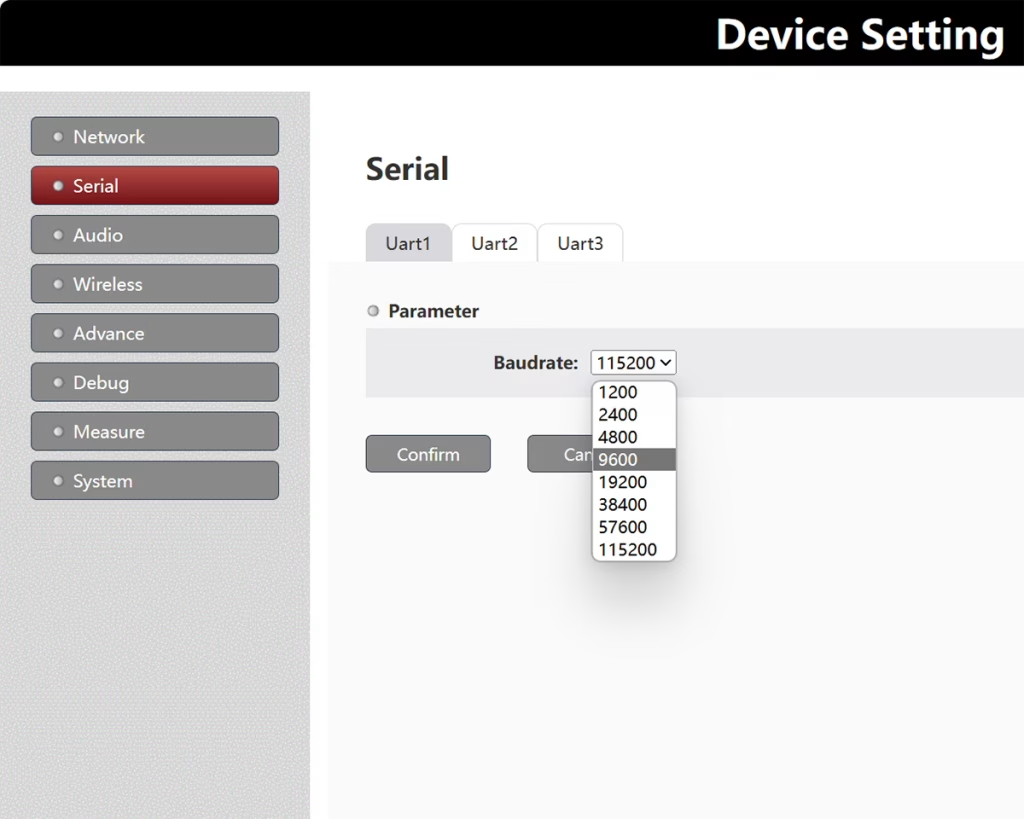
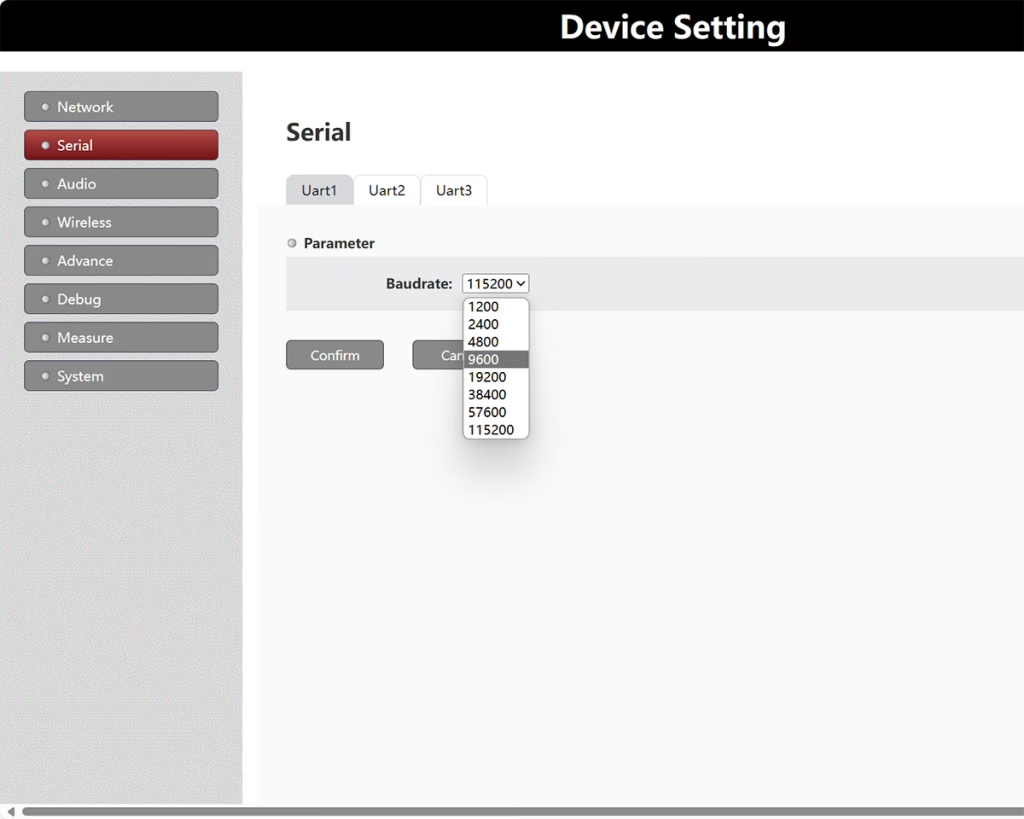
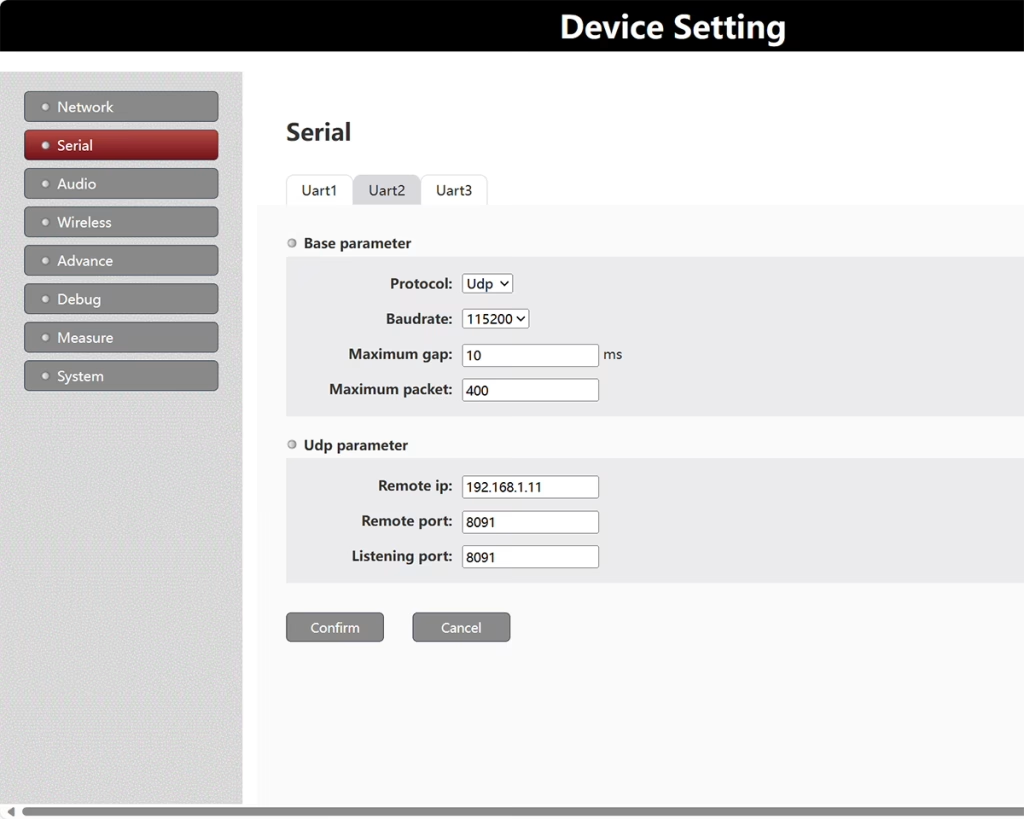
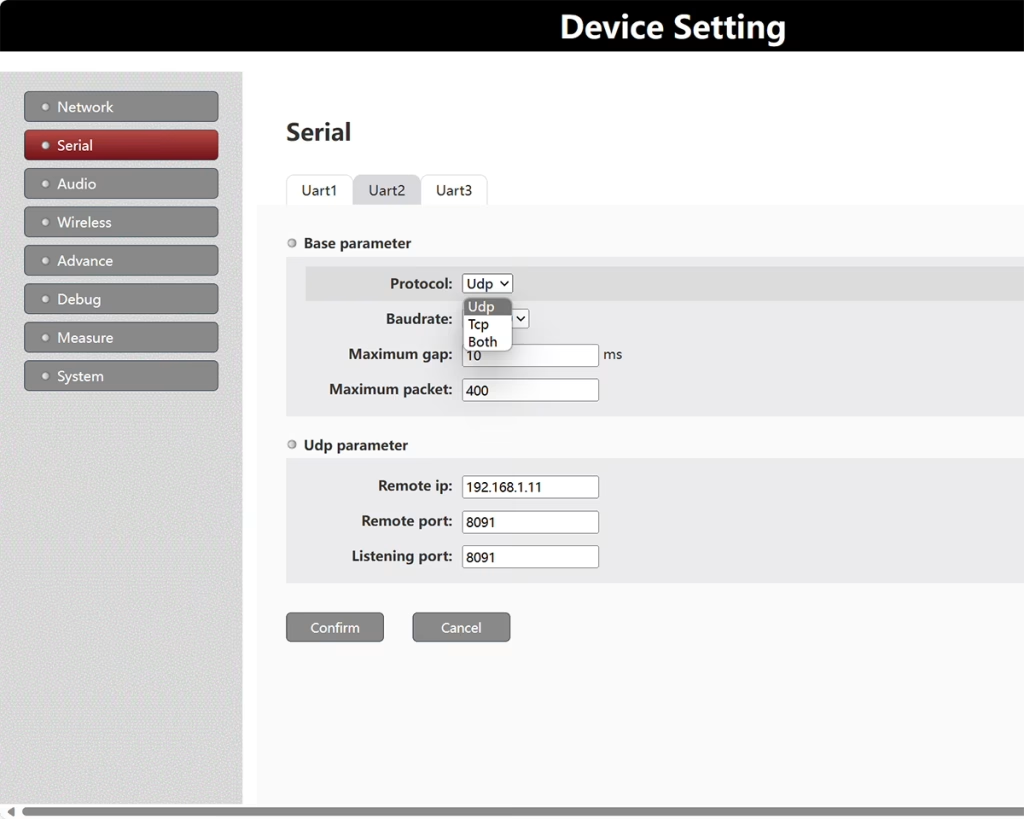
Uart1/Uart2/Uart3 correspond to D1/D2/D3 interfaces
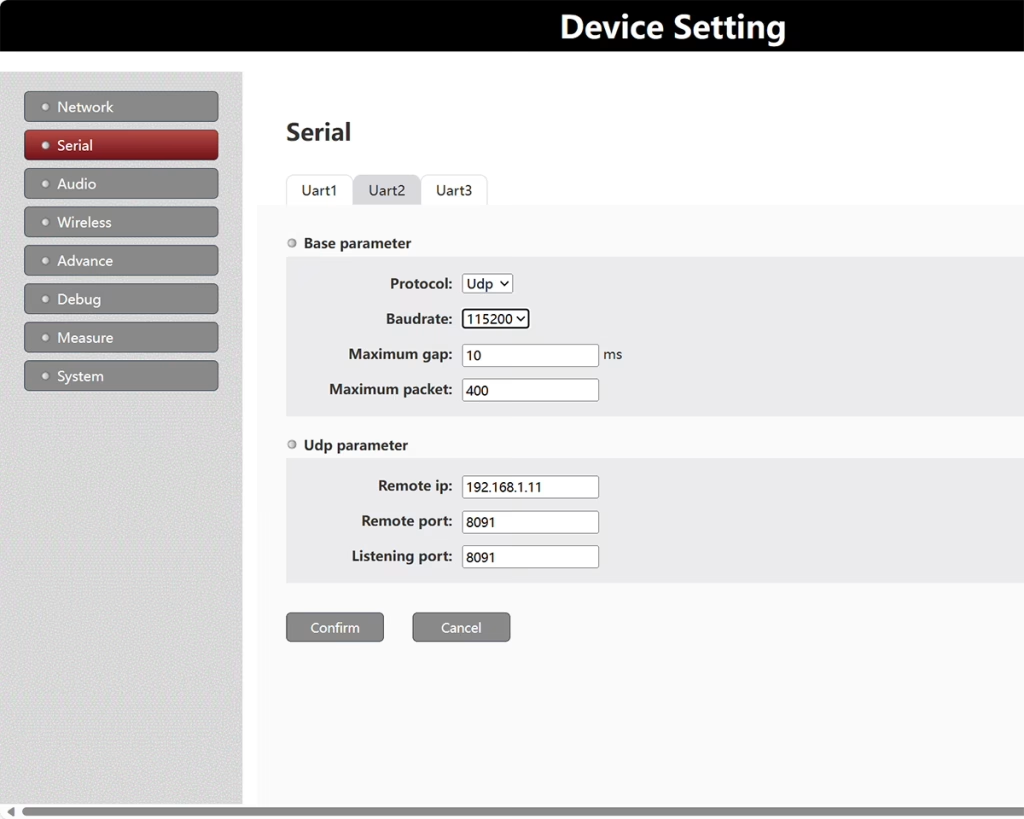
Baudrate: Sets the baud rate of the corresponding data serial port on the local and remote devices.
Remote Port: UDP transmits the send port (different UARTS have to be configured with different port numbers. )
Listening Port: UDP transmits the receive port (different UARTS have to be configured with different port numbers).
Maximum gap(ms): Set the maximum transmission interval of the corresponding serial port data (used to capture the end of the serial port data frame, it is recommended to configure it to be smaller than the actual transmission).
Maximum packet: Set the maximum sending frame size of the corresponding serial port data (the one that needs to be configured is larger than the actual transmission). note: When using UDP broadcast mode transmission, ensure that the values of the Remote Port and Listening Port are different.
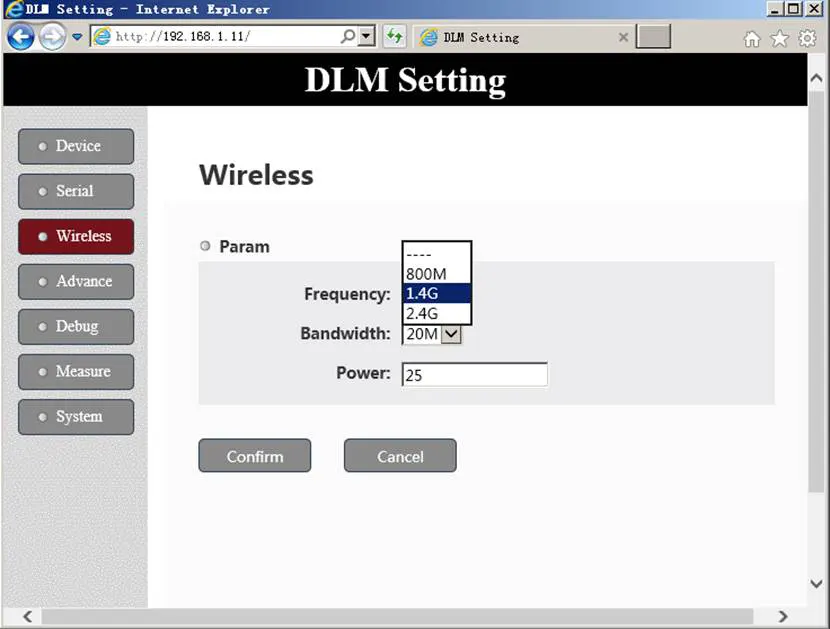
Frequency: Wireless band (800M/1.4G/2.4G).
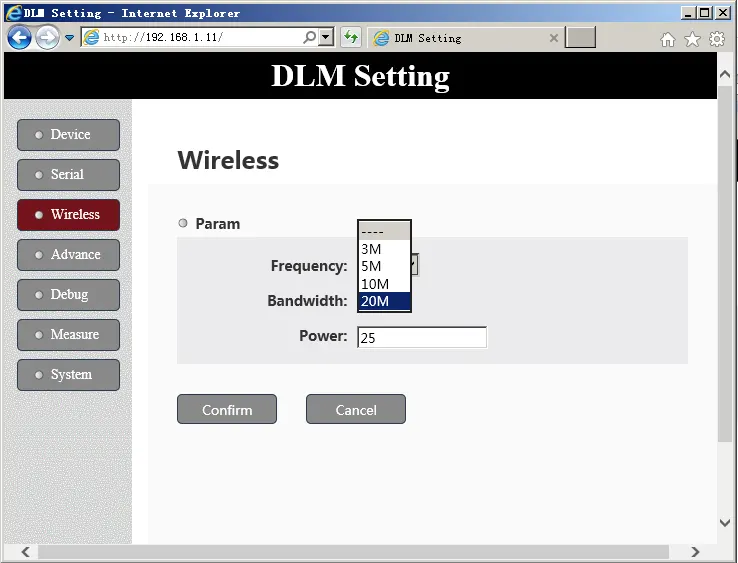
Bandwidth: Wireless bandwidth (3M/5M/10M/20M).
Power: (without PA) output power (dBm).
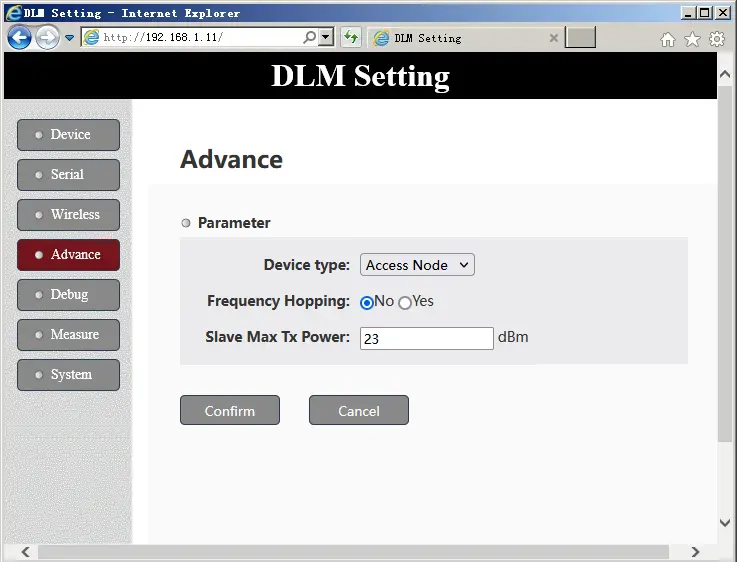
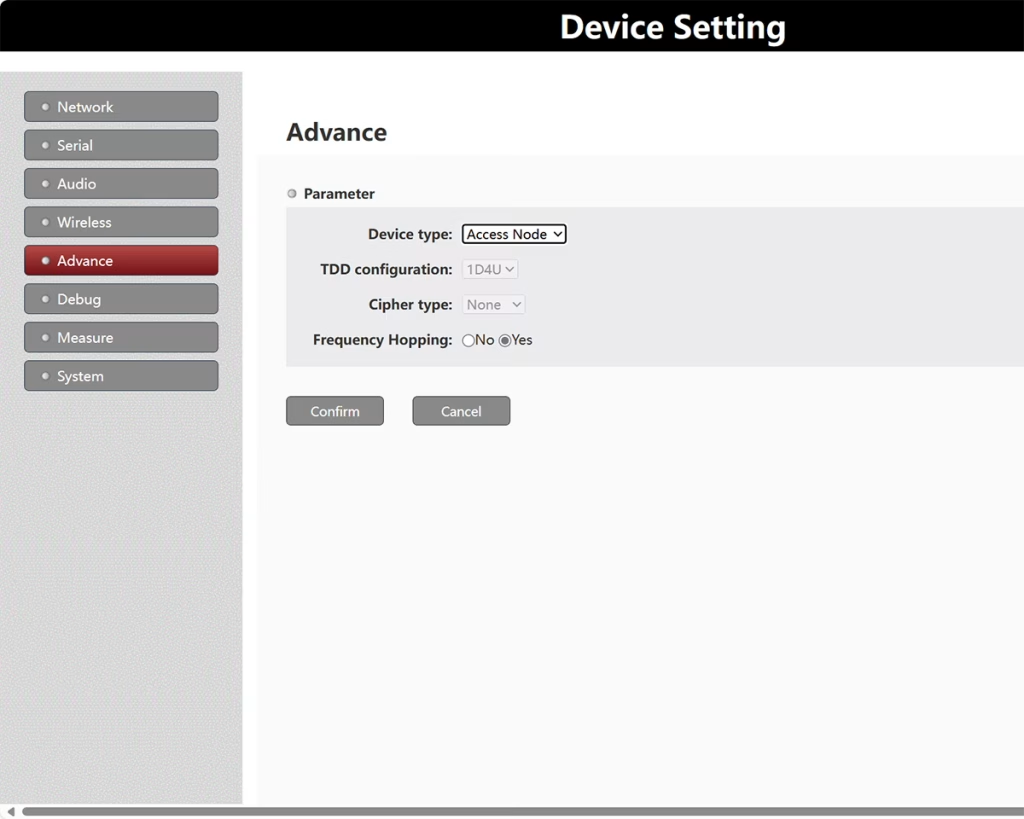
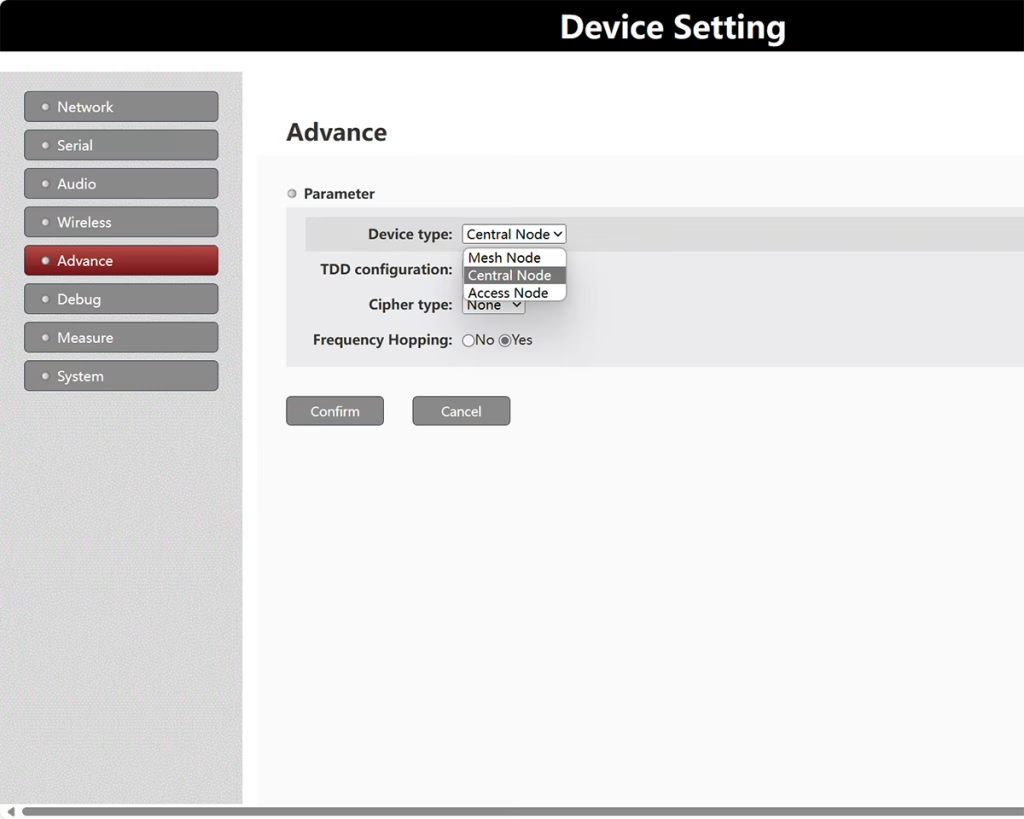
Device Type: Central Node or Access Node.
Frequency Hopping: Automatic frequency hopping switch.
SMTP( Slave Max Tx Power): Access node maximum transmits power (dBm).
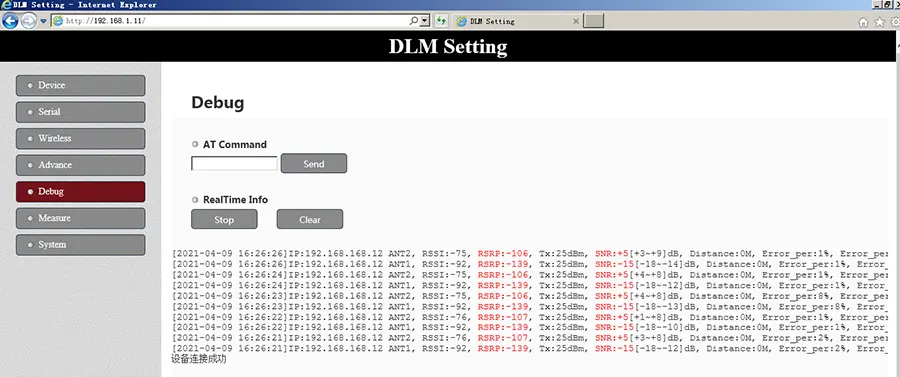
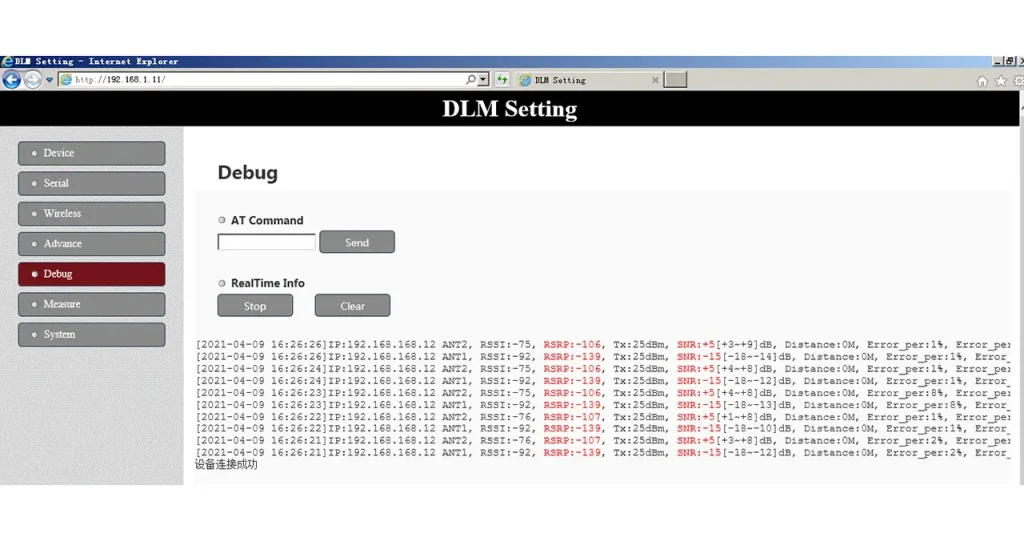
The Debug page is used to manually send AT commands or view real-time wireless feedback data.
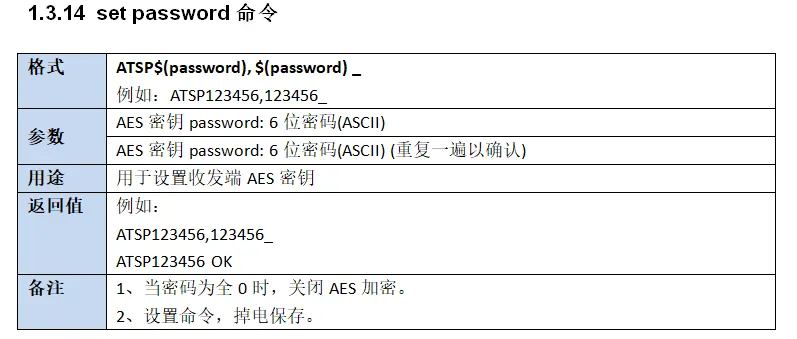
Set Password command
| Format | ATSP$(password),$(password) For example ATSP123456,123456 |
| Parameters | AES key password: 6-bit password (ASCII) AES key password: 6-bit password (ASCII) (repeat to confirm) |
| Purpose | Used to set the AES key of the transceiver |
| Return value | For example ATSP123456,123456_ ATSP123456 OK |
| Remarks | 1. When the password is all 0, turn off AES encryption. 2. Set command, save when power off |
Once you’re on the Debug page, the browser shakes the WebSocket handshake with the devices, and after the handshake passed, the browser prints “WebSocket connect success.” “Indicates that the handshake was successful; otherwise it displays “WebSocket connect failed, please refresh the web page and try again!” At this time, you need to re-enter the Debug page to shake hands again, until the prompt handshake is successful, and then you can perform follow-up operations.
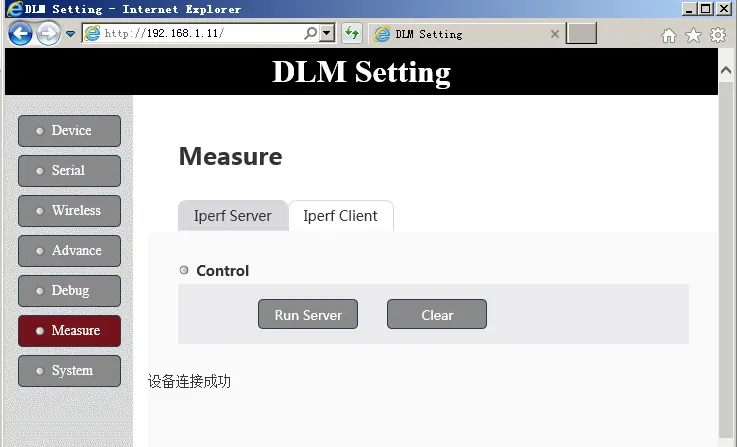
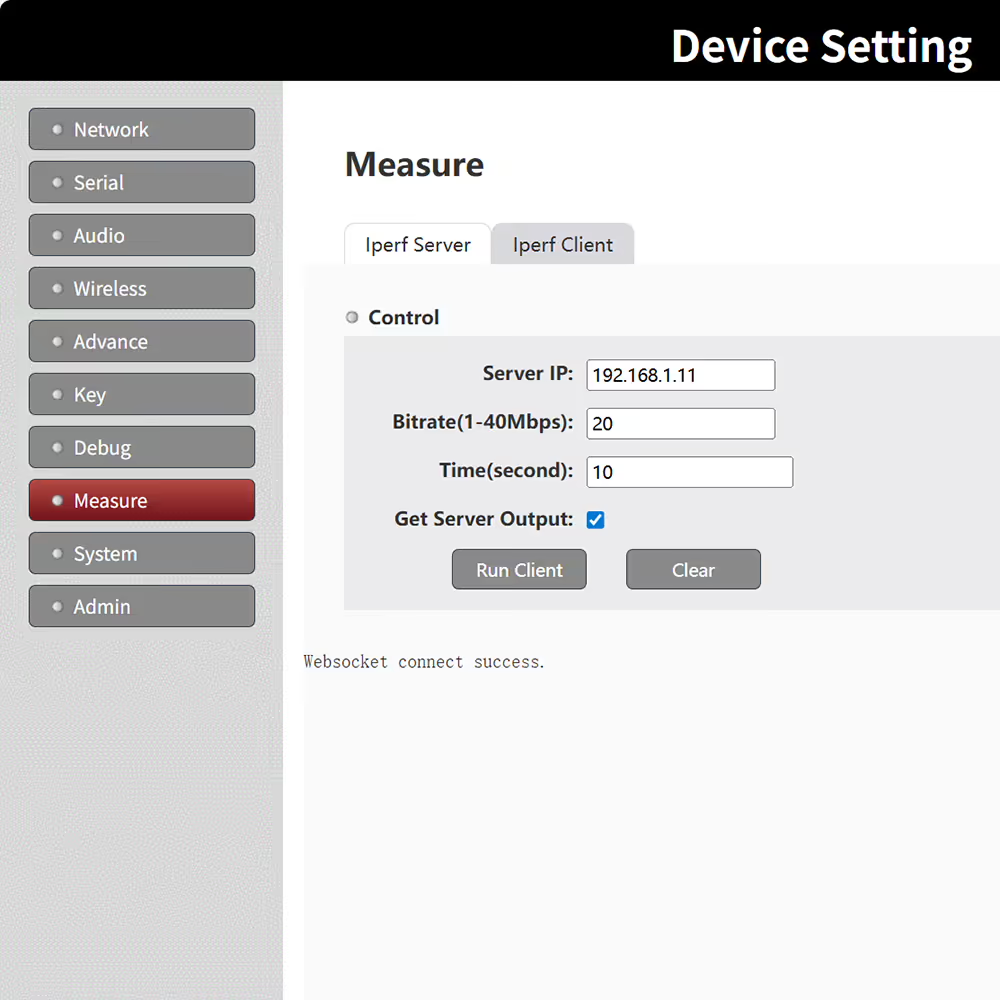
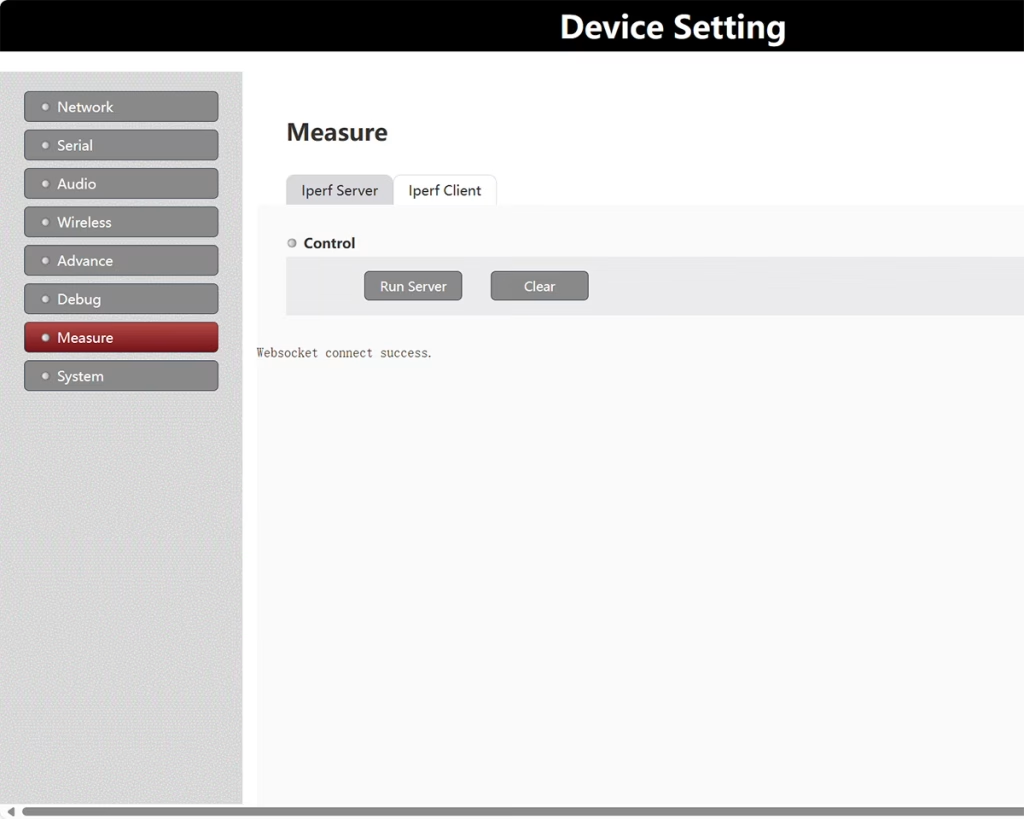
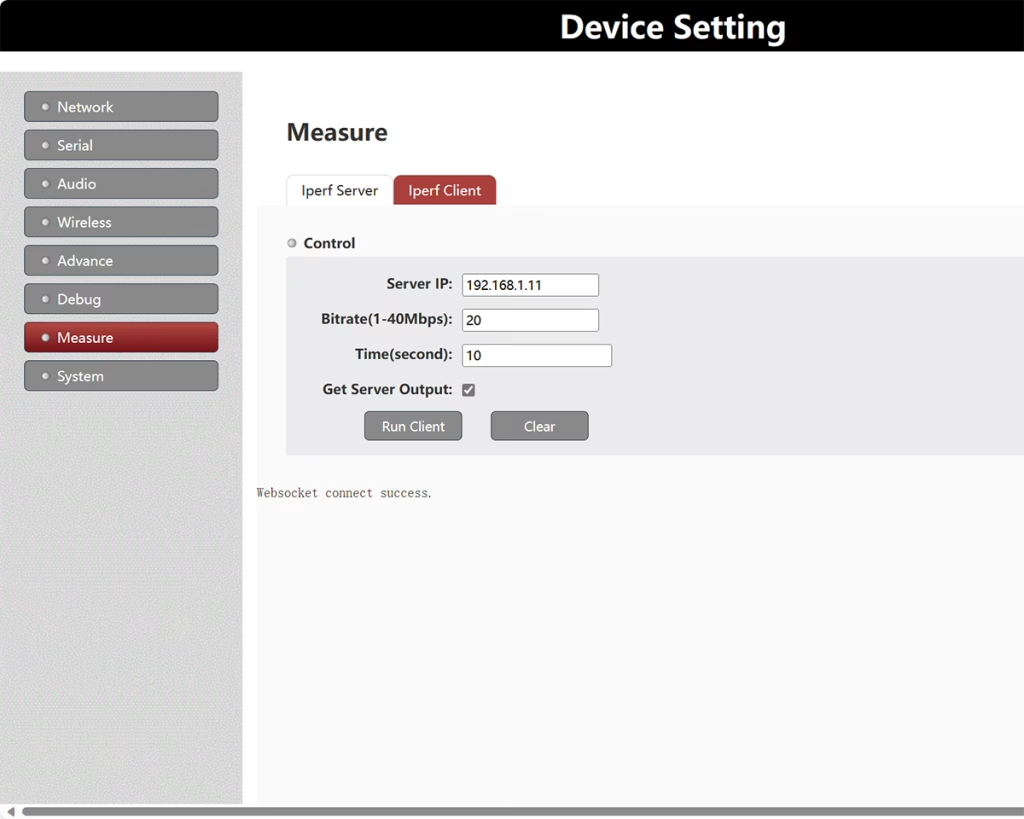
Measure pages are used to call built-in iperf3 programs for testing (UDP mode).
Once you’re on the measure page, the browser will shake hands with the devices by WebSocket, and after the handshake passed, the browser prints “WebSocket connect success.” “Indicates that the handshake was successful; otherwise it displays “WebSocket connect failed, please refresh the web page and try again!” At this time, you need to re-enter the Measure page to shake hands again and know that the handshake is successful before you can perform follow-up operations.
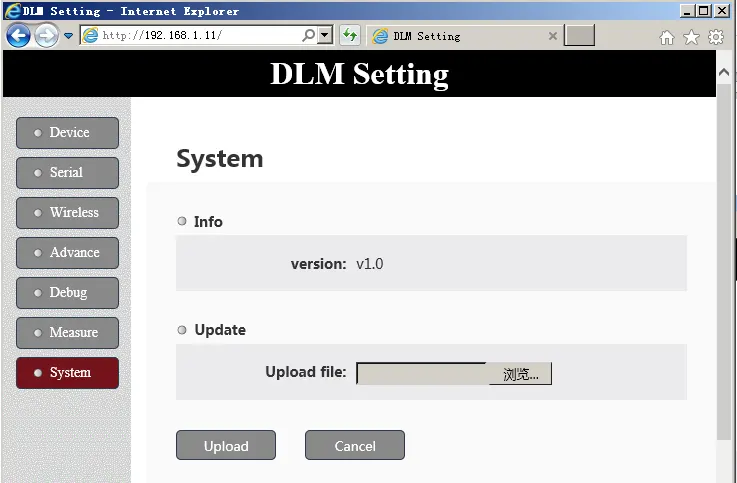
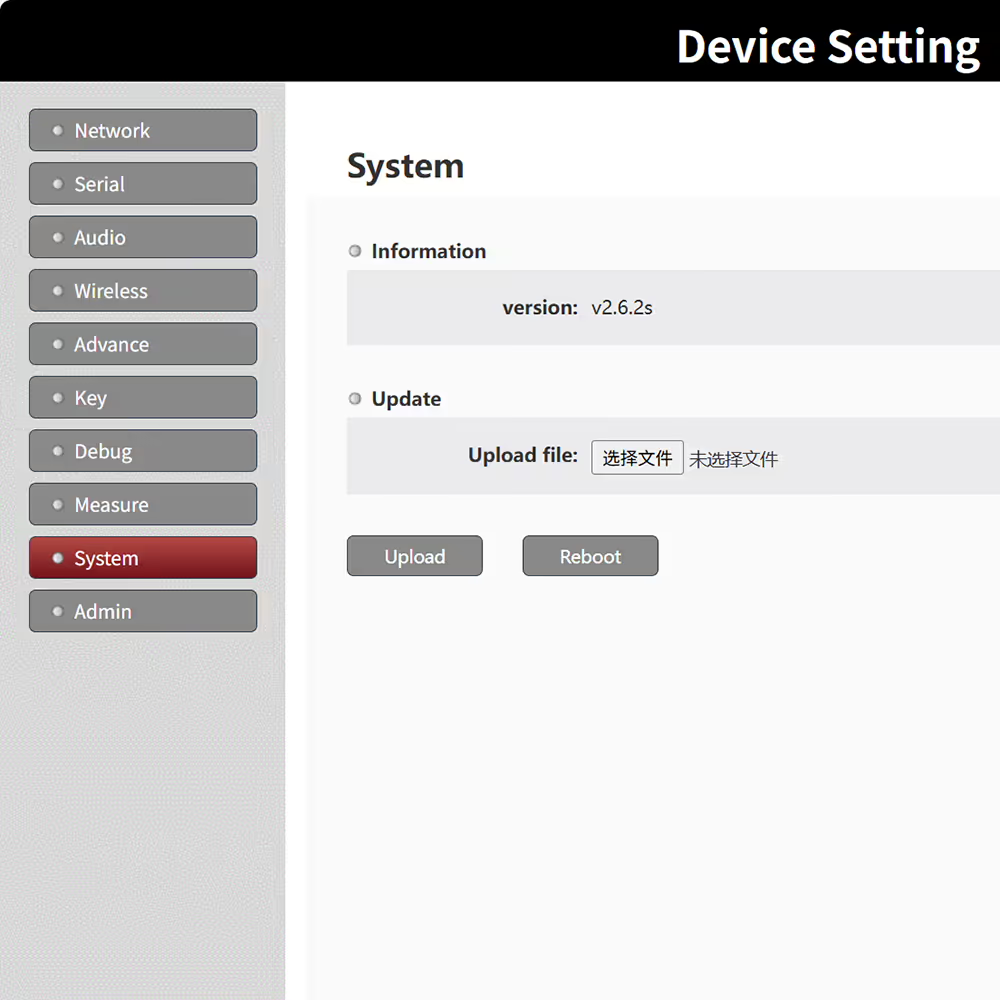
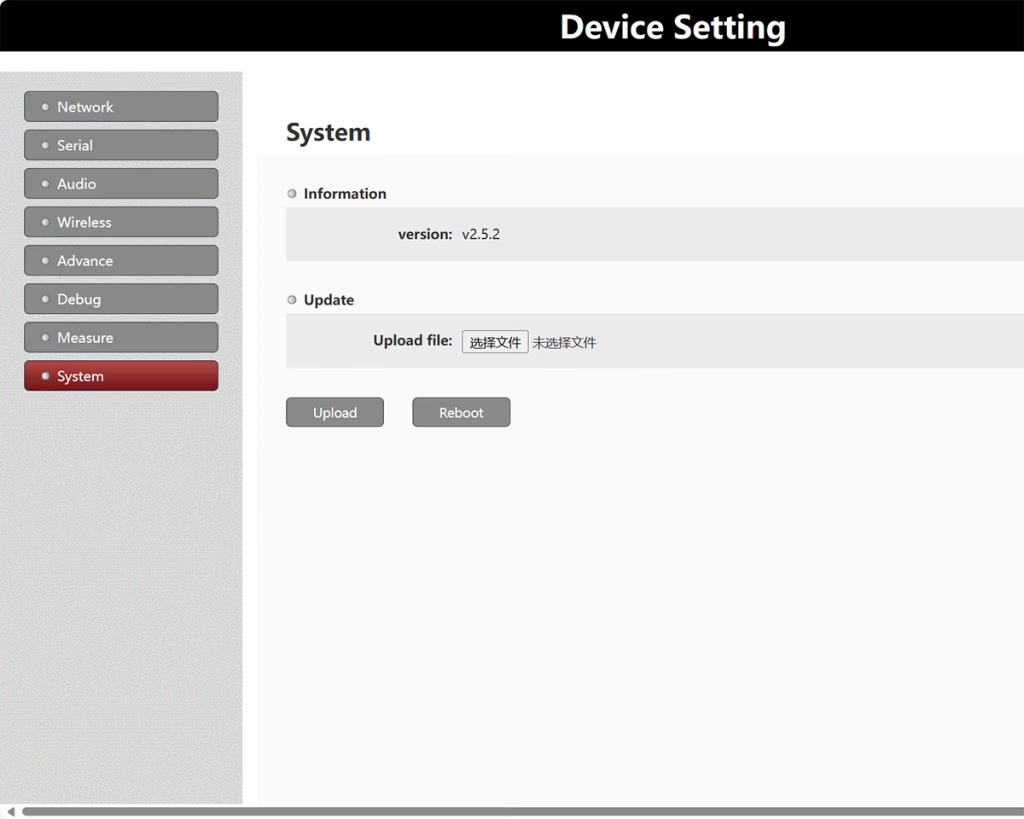
This menu is used to view the device’s system software firmware version and to update the software firmware via the Web UI.
If you have any questions about the operation of Web Device Management UI, please feel free to contact us.
-
 Best FPV Video Transmitter Module 170-860Mhz Wireless RF audio video Transmitter for FPV Camera 3W PA 50km
 -
 drone swarm mesh network 100km 60Mbps radio link 4-nodes 2X frequency hopping 2X 5-watt power amplifier
 -
 IP Mesh 100Mbps wireless video data transceiver 2X5W PA 16 hop
 -
 Drone Link for long-range Video Data Radio Telemetry Wireless transmission between UAV and Ground Control Station
 -
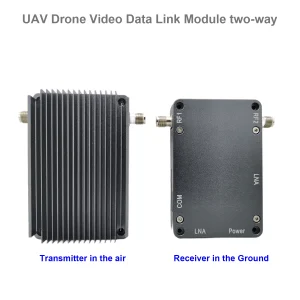 UAV drone video data link module wireless video transmitter and receiver for camera long-range TDD transceiver two-way vcan1401
 -
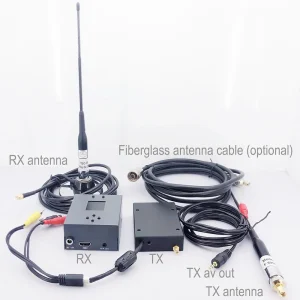 COFDM video transmitter-receiver AV in HDMI out FPV, Wireless 10km-15km-30km long-range cheaper and longer COFDM-912T
 -
 1740-1840Mhz 2WPA 30KM long range drone video transmitter and receiver with Sbus TTL
 -
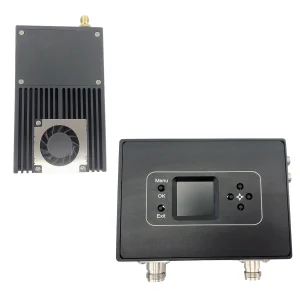 30Km long distance COFDM HDMI Wireless Video Transmitter Receiver full Set Audio Video TX RX for UAV Drone 1080P 908T
 -
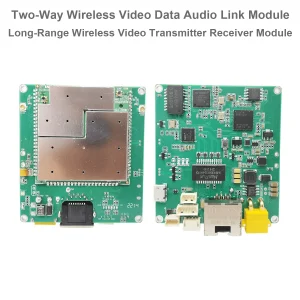 Two-way UAV Wireless Video Data RC Control Link module long-range bidirectional transceiver Transmitter-Receiver Vcan1681
 -
 long range wireless video data transmitter and receiver for drone UAV robot
 -
 Wireless Video Transmitter and Receiver for Camera, HDMI HD H265 264 encoder 1W/2.5W PA 1080P60 Vcan1726
 -
 22km 55km 80km 100km 150km long-distance wireless video transmitter receiver transmission transceiver PA 2W 5W 10W
 -
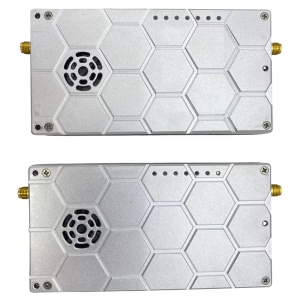 drone video data telemetry transmitter-receiver UAV radio link tdd transceiver
 -
 10W PA 150KM airborne video data link long-range UAV wireless transmission transmitter receiver broadband tactical handhold
 -
 30-millisecond Drone UAV HDMI Wireless video transmitter Ultra-low-latency wireless transmission system Vcan1729
 -
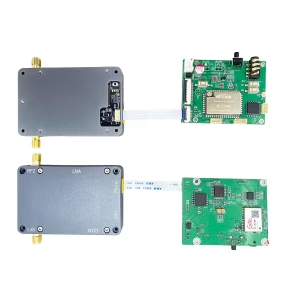 ip mesh MANET transceiver with bidirectional audio-IP board for robot UAV Drone
 -
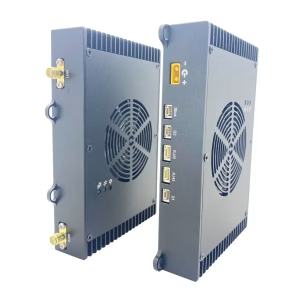 150km 100Mpbs frequency hopping at 2bands UAV radio link high transmission rate and anti-interference
 -
 Drone mesh wireless video data link 150-200km longe-range centerless ad hoc network transceiver
Table of Contents
Web Device Management UI for Long-Range Wireless Video Data Link Transmitter and Receiver
The Web Device Management UI provides a comprehensive interface for configuring, monitoring, and managing long-range wireless video data link transmitters and receivers. This user-friendly interface allows operators to access the system through a web browser over the network, enabling real-time monitoring and remote configuration of all connected devices. Users can view current parameter settings, modify configurations according to the application requirements, and optimize the performance of wireless video transmission systems for UAVs, UGVs, USVs, and other long-distance monitoring setups.
By default, the Sky (transmitter) end has an IP address of 192.168.1.12, and the Ground (receiver) end has an IP address of 192.168.1.11. Users can connect to these IP addresses using any standard web browser. It is important to note that after changing any configuration parameters via the Web UI, a system reboot is required for the changes to take effect.
Key Configuration Functions
- IP Address and Networking Configuration – Users can set static IP addresses, assign gateway and subnet masks, and configure network roles for both transmitters and receivers. Each unit can be set as a central node or access node, supporting flexible deployment in point-to-point, point-to-multipoint, or full mesh topologies.
- Serial Port Management (UART1, UART2, UART3) – The UI allows configuring all connected serial ports. This includes setting the baud rate, transmission mode (UDP/TCP), remote port, listening port, maximum gap time, and maximum packet size. Proper configuration ensures seamless integration with telemetry systems, PTZ camera controls, or other sensor devices.
- Audio and Video Parameter Configuration – Users can adjust audio sampling, encoding parameters, and video transmission quality settings. This ensures that both audio and video signals are transmitted with high fidelity over long distances while maintaining low latency.
- Frequency and Bandwidth Settings – The Web UI provides full control over the operating frequency band (e.g., 800 MHz, 1.4 GHz, 2.4 GHz) and bandwidth selection (3 MHz, 5 MHz, 10 MHz, 20 MHz). Operators can select appropriate frequency channels to avoid interference in busy RF environments. Frequency hopping (FHSS) can also be enabled for improved resilience against interference.
- Bandwidth Allocation for Uplink and Downlink – In bidirectional systems, bandwidth can be allocated independently for uplink (receiver to transmitter) and downlink (transmitter to receiver). This allows users to optimize the system for video-heavy downlink or control-data-heavy uplink as required.
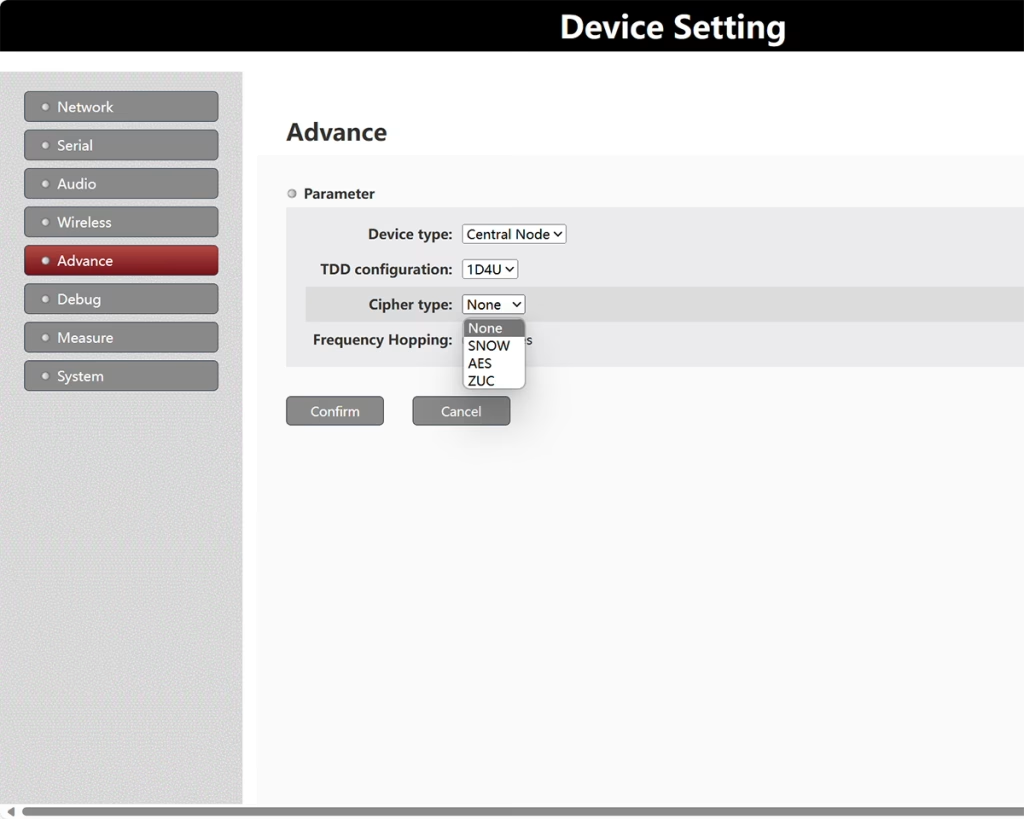
- Encryption and Security – The Web UI supports multiple encryption methods, including SNOW, AES, and ZUC. Users can configure AES-256 encryption by setting a six-character ASCII password using the ATSP command, ensuring secure data transmission. Setting the password to all zeros disables encryption. Once configured, the encryption key is stored and remains active even after a system power cycle.
- Debug Page – The debug interface allows operators to manually send AT commands to the device for advanced configuration and troubleshooting. The WebSocket handshake must be completed successfully before executing commands. When the handshake is successful, the browser displays “WebSocket connect success,” confirming proper communication with the device.
- Performance Testing with Iperf3 – The Measure page integrates the built-in Iperf3 tool to test network throughput in real-time. Users can test UDP or TCP data rates between the transmitter and receiver to ensure optimal system performance. Successful WebSocket handshake verification is required before running performance tests.
- System Management and Firmware Upgrade – The Web UI provides tools to view the current firmware version and update the system software directly from the browser. Users can also set or modify the management page password to secure access.
- Multicast and Broadcast Configuration – For group video transmission, the system supports multicast mode, where a single transmitter sends video to multiple receivers using a shared multicast IP address. Broadcast mode uses 192.168.1.255, while point-to-point communication uses 192.168.1.x addresses. Multicast addresses should be selected within the 224.0.0.0–224.0.0.255 range, preferably above 224.0.0.23 to avoid reserved addresses.
- Local vs Remote IP – The Local IP typically refers to the receiver’s network address near the operator, while the Remote IP corresponds to the transmitter near the camera. Correct configuration ensures proper routing of video and control data over the network.
Advanced Functions and Notes
- All parameter changes require a system reboot to take effect.
- The UI allows fine-tuning of maximum packet size and transmission interval to optimize data integrity and latency.
- Multiple UART interfaces allow integration with telemetry systems, RC control, and sensor networks.
- The UI supports both AES-256 encryption and user-defined passwords for secure wireless links.
- Built-in diagnostic tools, including real-time signal strength monitoring and handshake status verification, simplify troubleshooting.
- Firmware upgrades can be performed remotely via the browser without physical access to the device.
The Web Device Management UI provides a centralized and efficient way to manage long-range wireless video data links. Whether deployed on UAVs, UGVs, USVs, or stationary monitoring systems, this interface gives operators full control over network parameters, security, serial port configurations, video/audio settings, and system performance. By enabling remote access, performance testing, and firmware management, the Web UI significantly reduces setup time, improves system reliability, and allows operators to adapt quickly to changing field conditions.
In conclusion, the Web Device Management UI is an essential tool for professionals working with long-range wireless video transmission systems, offering advanced management capabilities, secure configuration options, and intuitive monitoring to maximize the performance of COFDM or OFDM-based wireless networks.
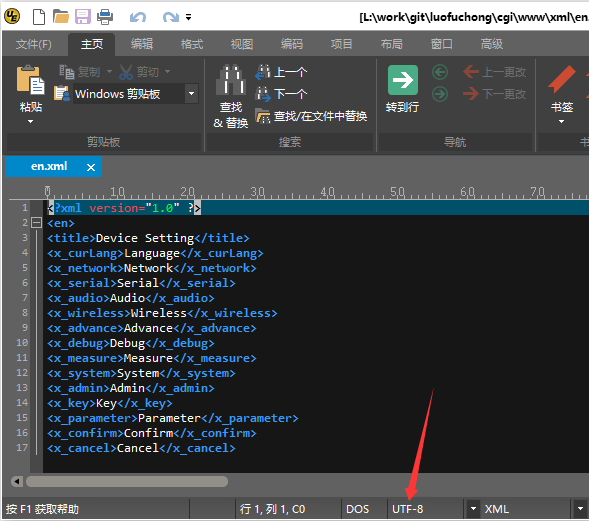
Q: Can I translate the device’s web interface into my local language and add custom logos? Is there an API for editing modules ourselves?
A: Yes, it is possible to customize your device’s web interface. We provide the language files and the original English source text. You can translate the interface into Russian and supply your custom logo images. Our software engineers will then create an updated version of the firmware/software with your changes.
Important: Please ensure that all menu language files are edited in UTF-8 encoding to prevent display issues or garbled text. Currently, we do not provide a public API for direct edits, but this method allows full customization of your device’s web interface.
Ask A Question
Thank you for your response. ✨