




UI de gerenciamento de dispositivos da Web para transmissor e receptor de link de dados de vídeo sem fio de longo alcance
Os usuários podem visualizar a configuração atual dos parâmetros por meio da interface de gerenciamento de dispositivos da Web e modificá-la de acordo com as necessidades da aplicação, o usuário pode acessar o dispositivo através do Network Port Browser, e o endereço IP padrão do Sky End é 192.168.1 12, o endereço padrão da extremidade terrestre é 192.168.1 11.

Nota: Para alterar quaisquer parâmetros de configuração por meio da UI da web, os usuários precisam reinicializar o sistema de hardware para que a configuração alterada tenha efeito.
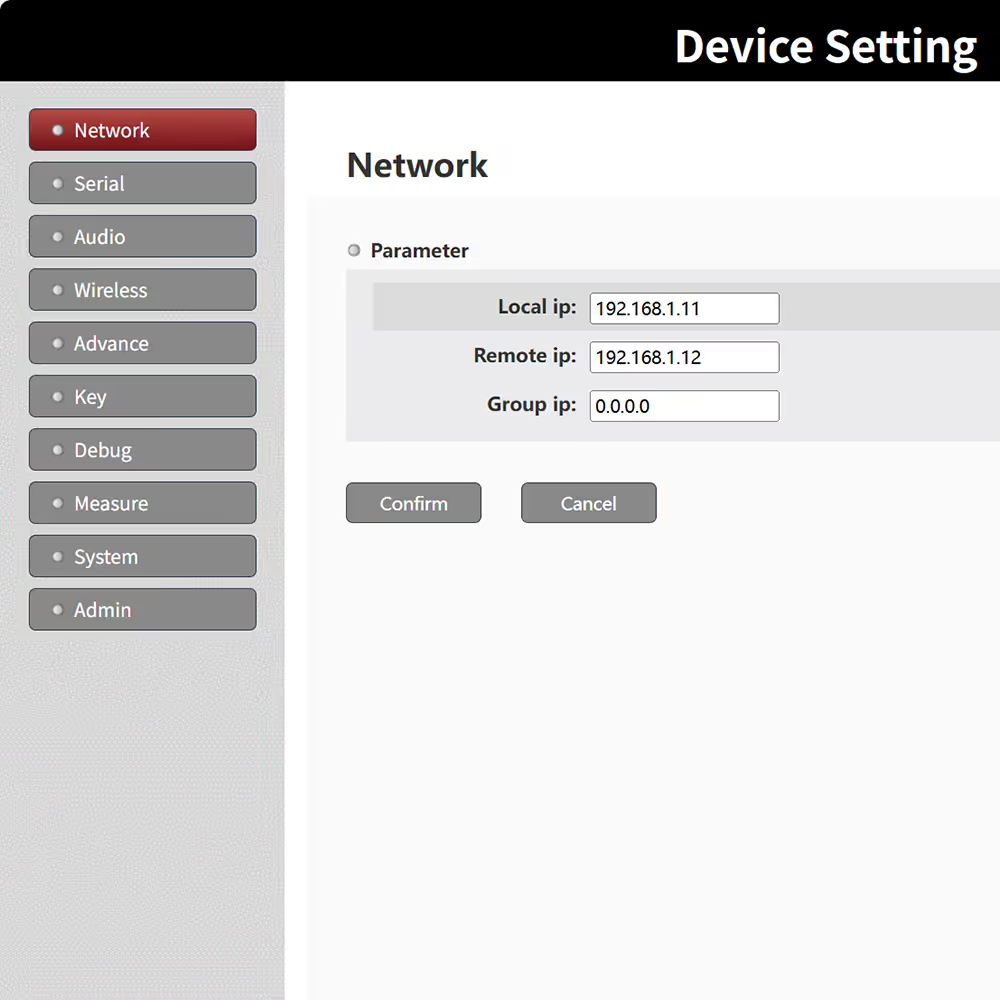
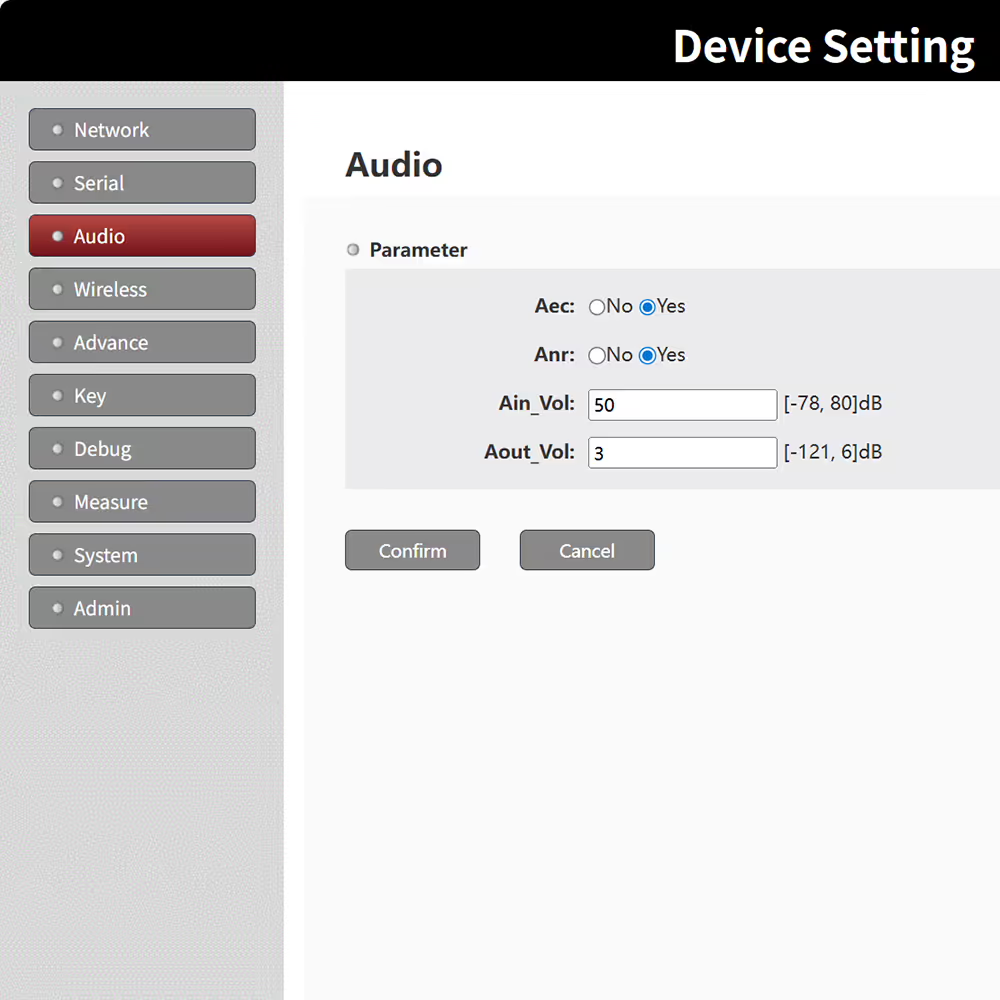



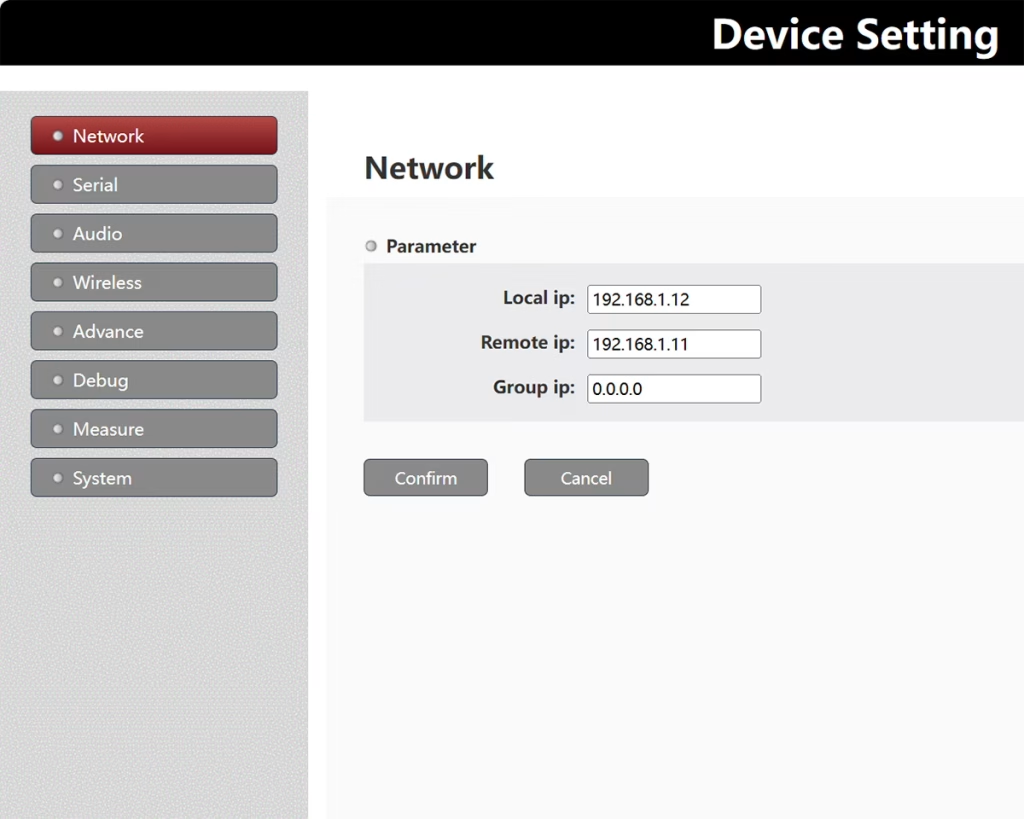


IP local: Perto do seu computador, quase é o endereço IP do receptor de dados de vídeo sem fio;
IP remoto: Perto da câmera, quase o endereço IP do transmissor de dados de vídeo sem fio.
IP do grupo: Se você não quiser usar o modo de transmissão, você pode usar o modo multicast, o IP remoto acima é alterado para o endereço multicast, e todos os dispositivos participantes na recepção multicast precisam configurar o mesmo endereço multicast.
192.168.1.255 representa transmissão em modo de transmissão
192.168.1.x representa transmissão ponto a ponto
Nota: DLB suporta apenas endereços multicast nos segmentos 224.0.0.0~224.0.0.255, considerando que alguns endereços são reservados, é recomendado usar os endereços acima 224.0.0.23.
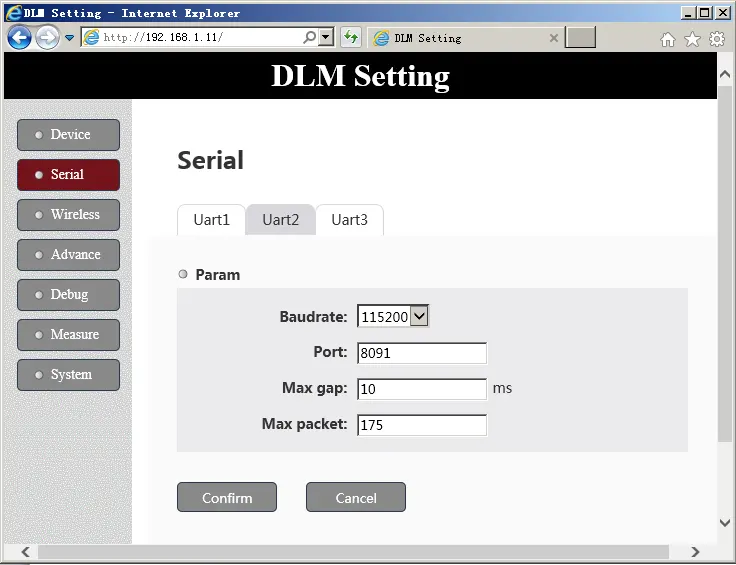
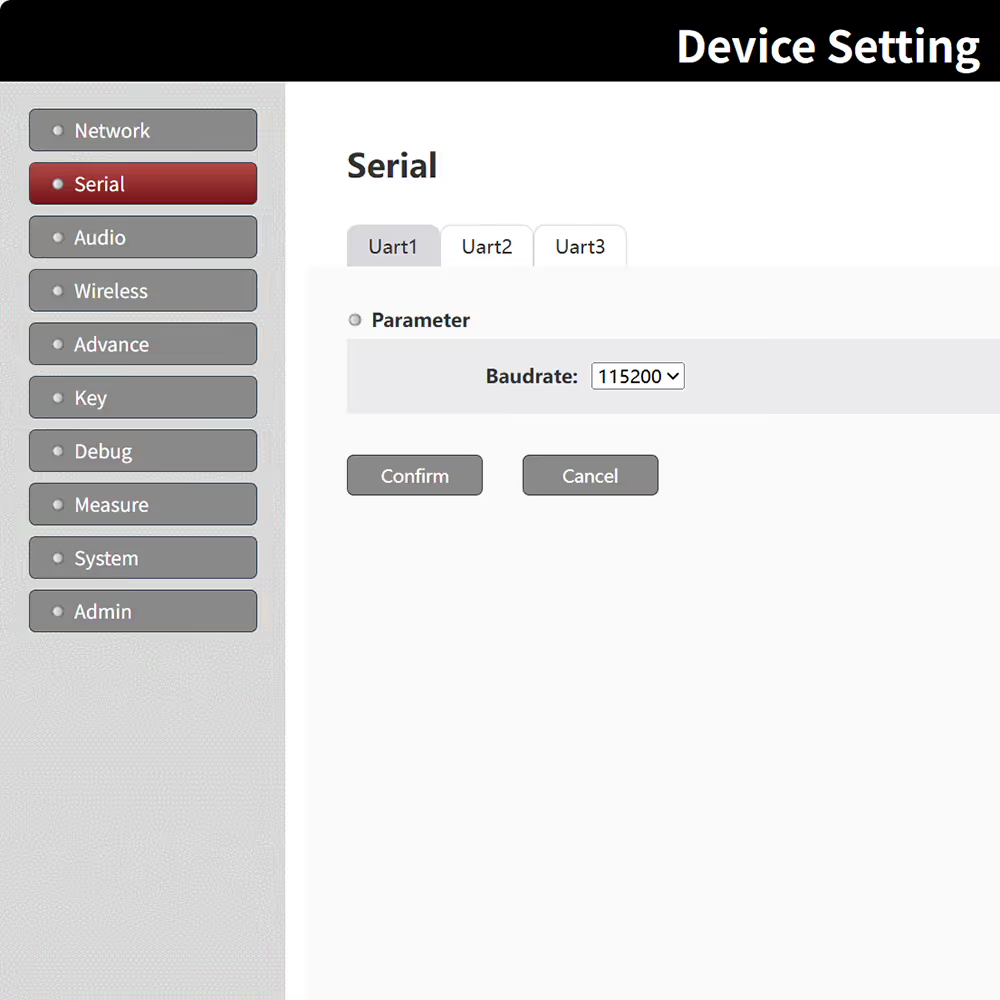
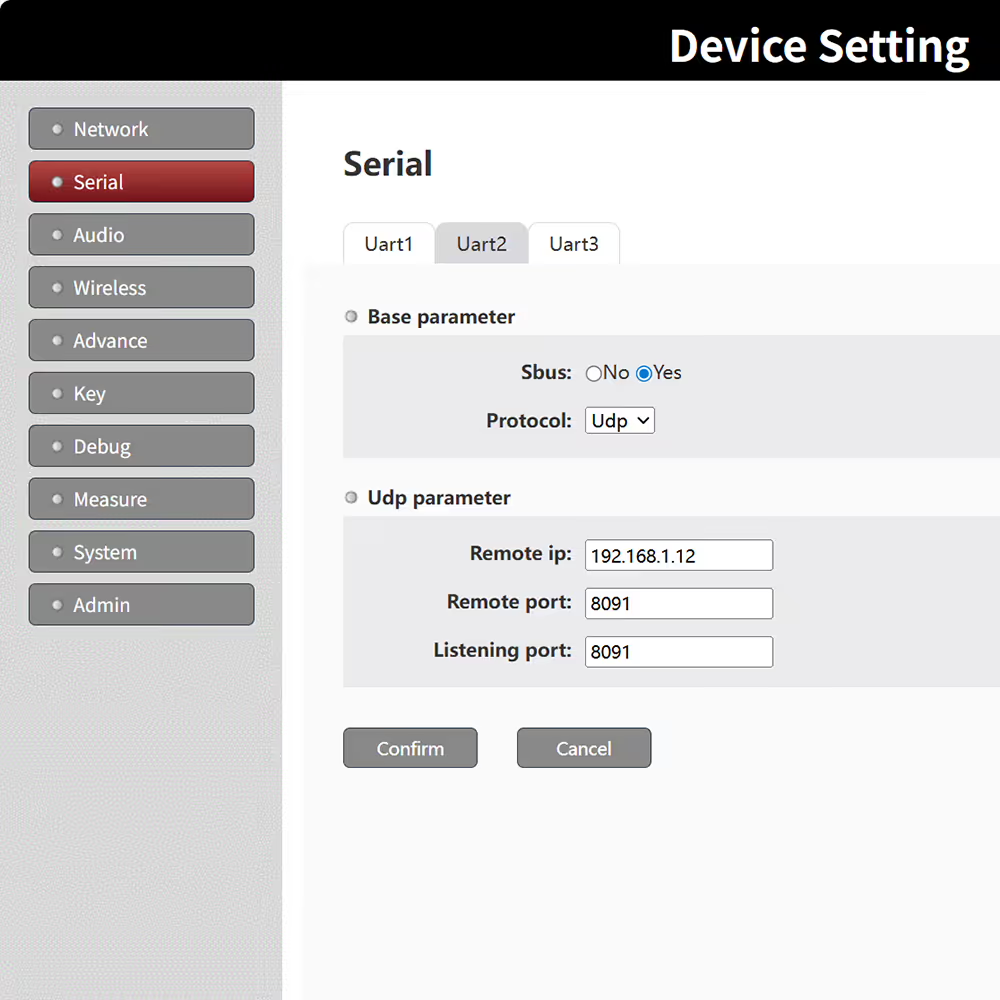
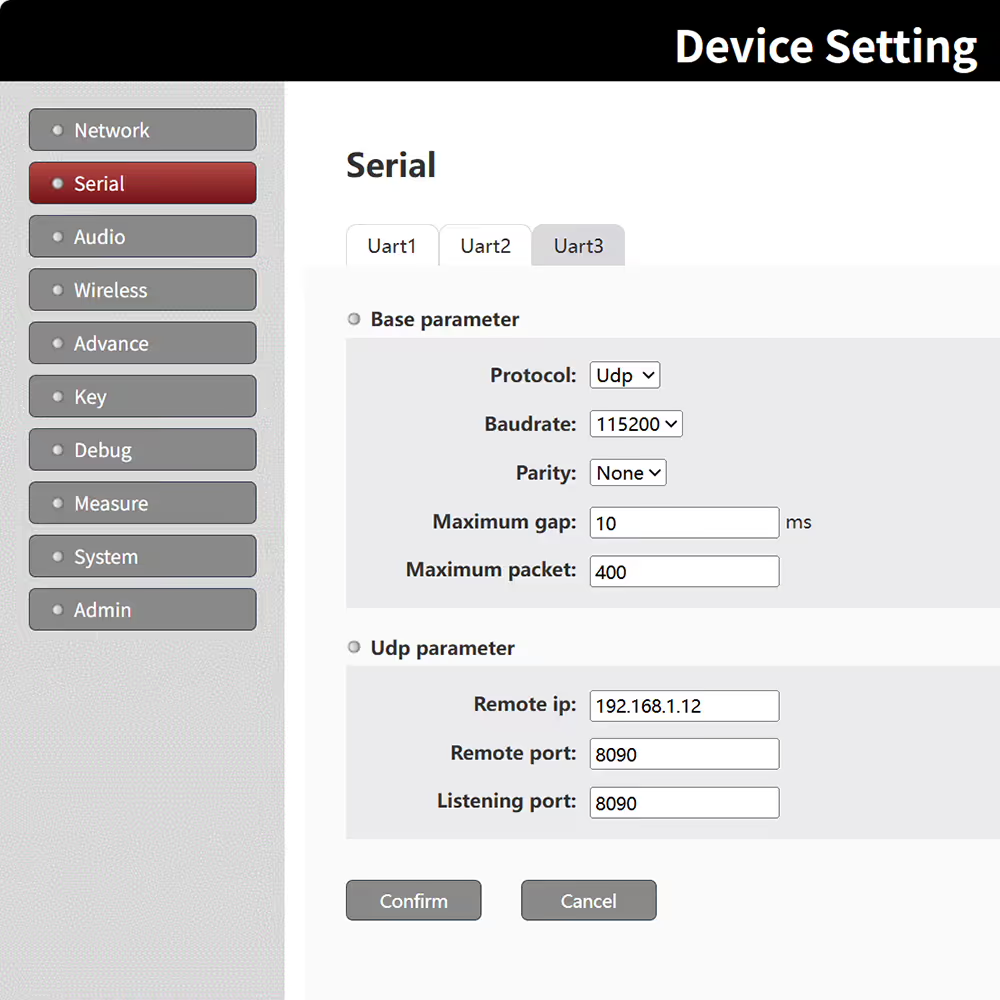
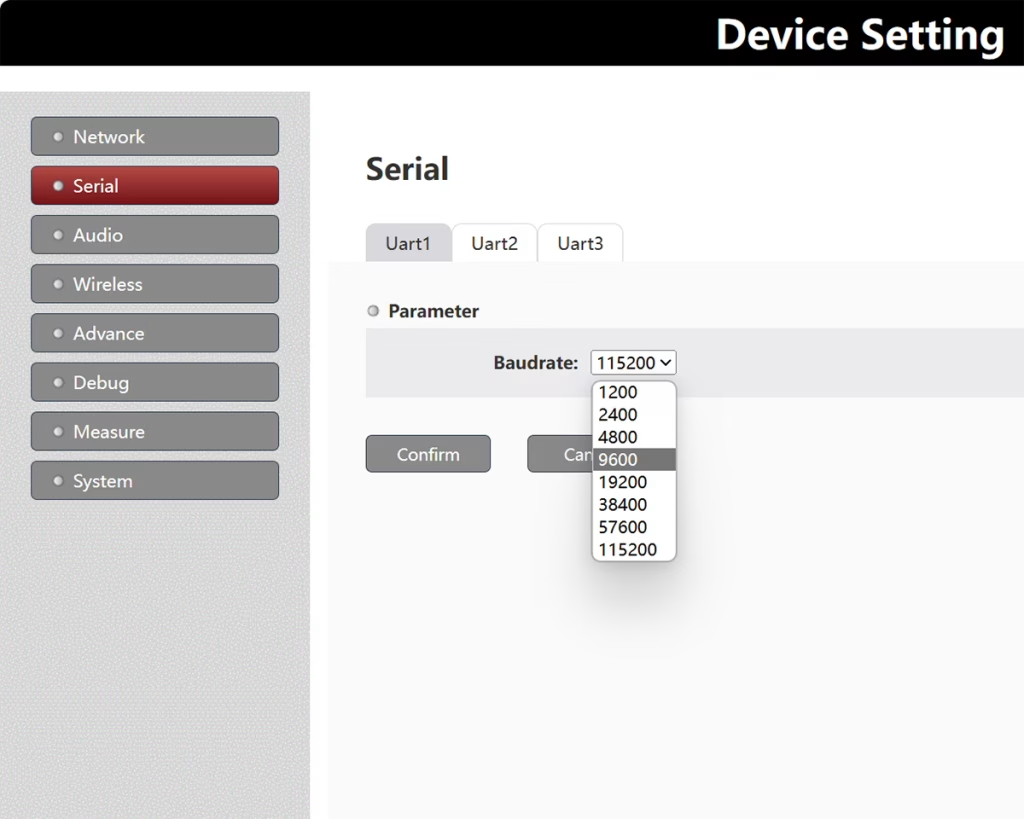
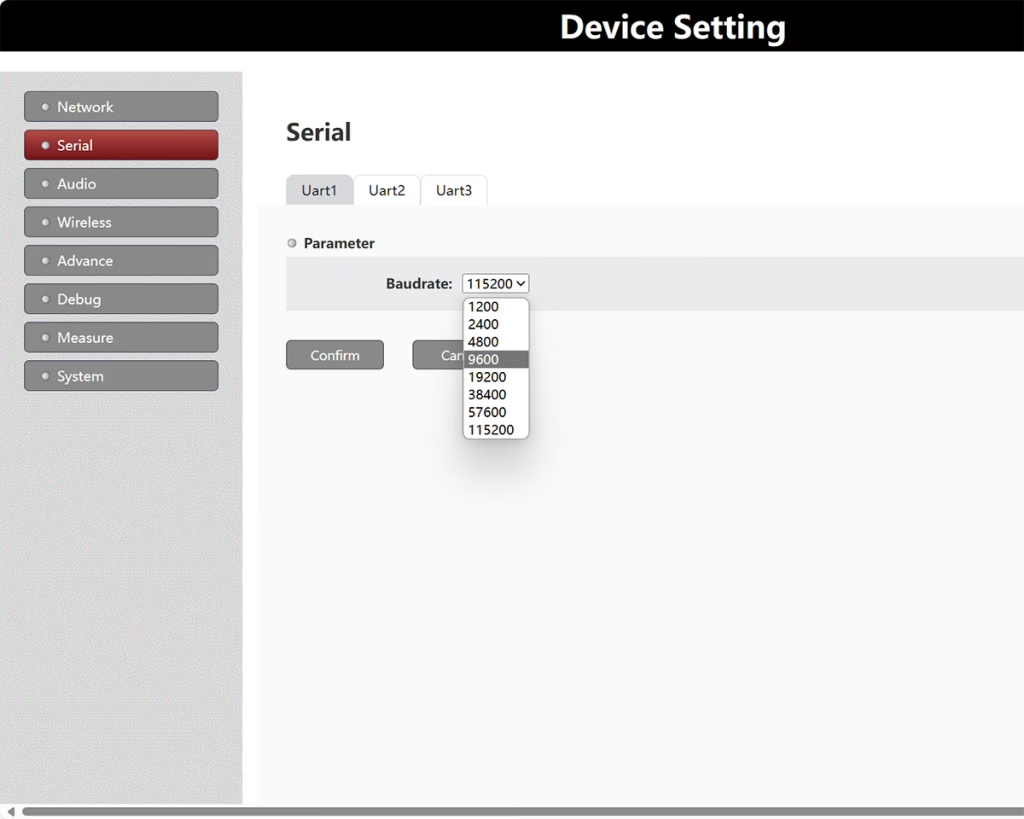
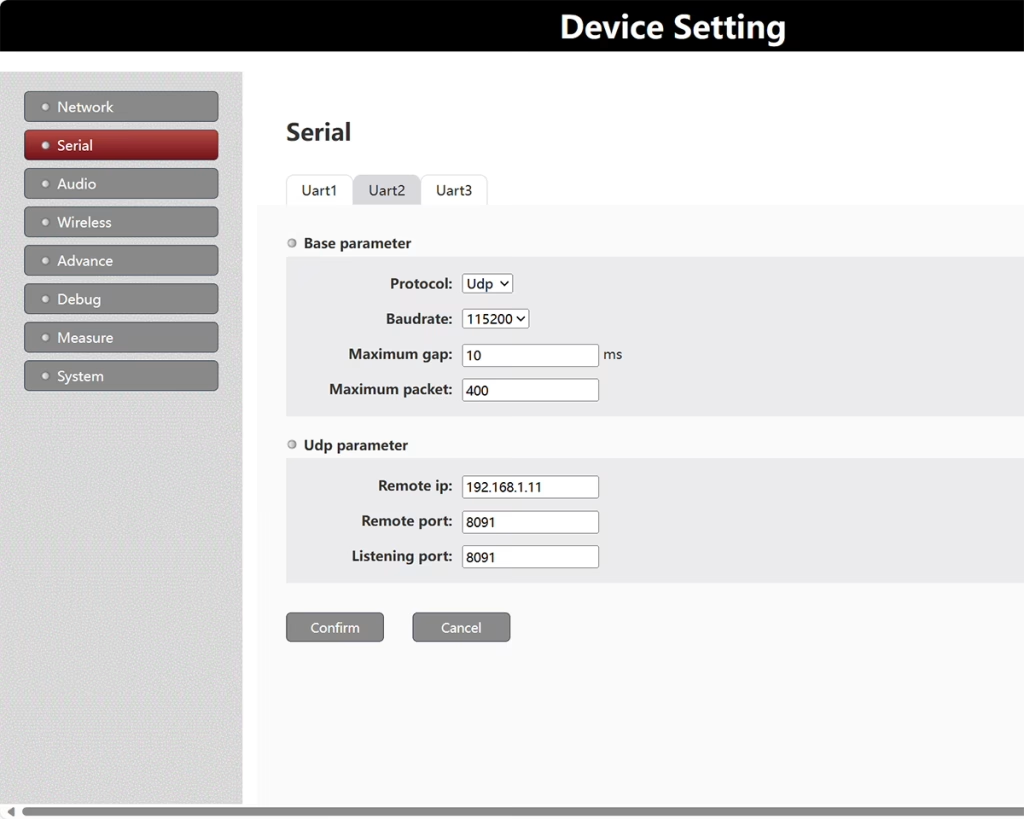
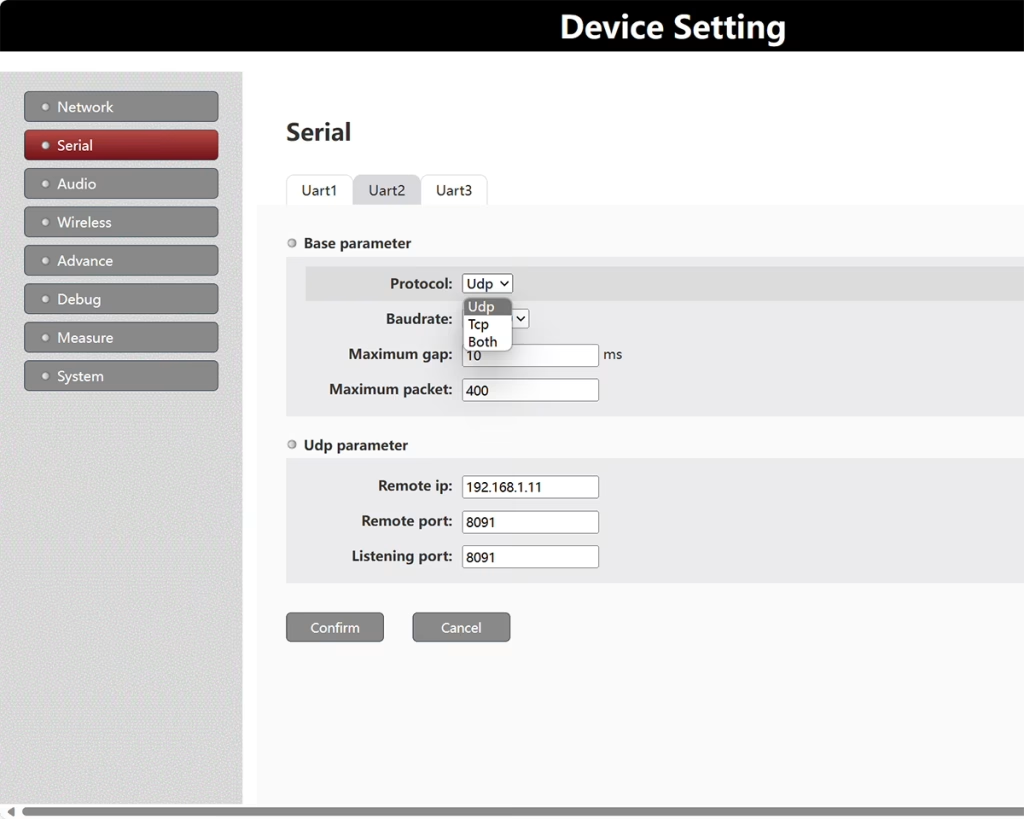
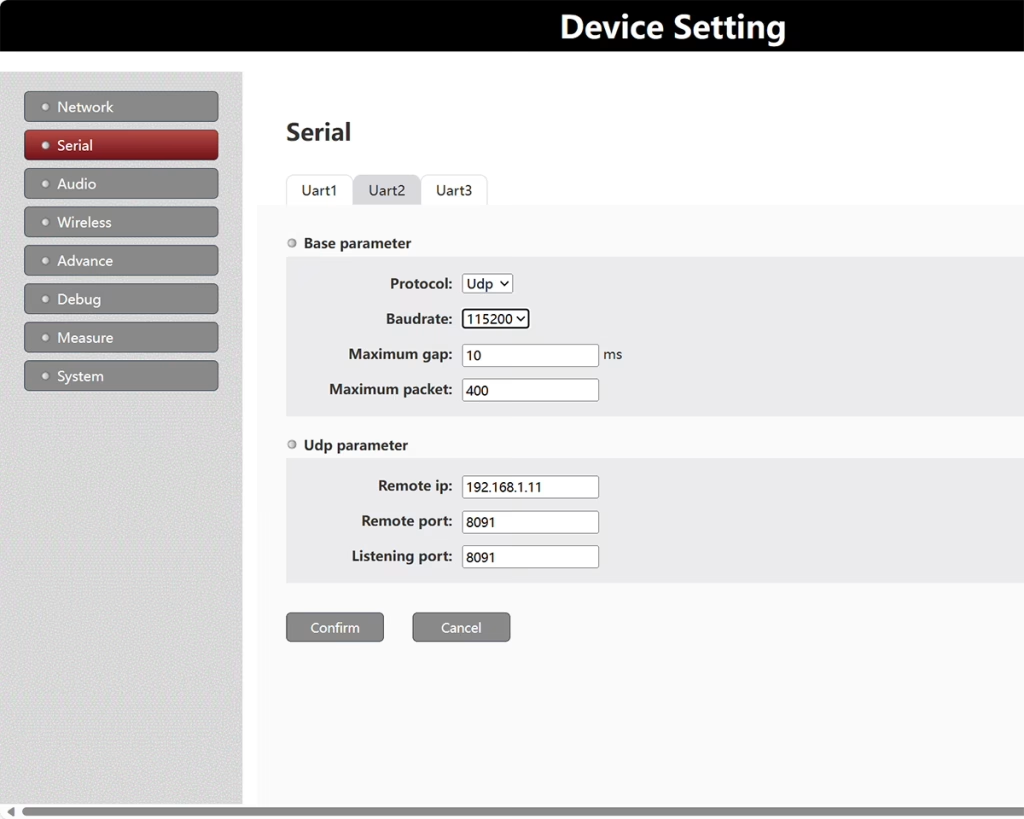
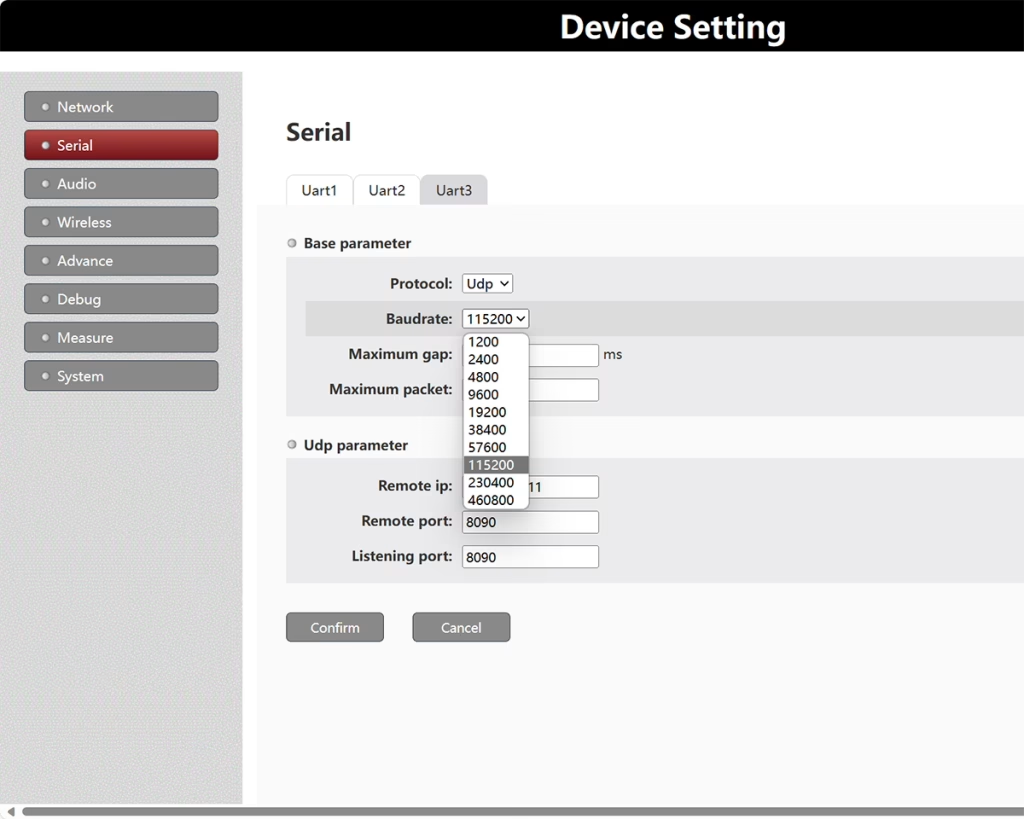
Uart1/Uart2/Uart3 correspondem às interfaces D1/D2/D3
Taxa de transmissão: Define a taxa de transmissão da porta serial de dados correspondente nos dispositivos locais e remotos.
Porta remota: UDP transmite a porta de envio (diferentes UARTS devem ser configurados com diferentes números de porta. )
Porta de escuta: UDP transmite a porta de recepção (diferentes UARTS devem ser configurados com diferentes números de porta).
Lacuna máxima(EM): Defina o intervalo máximo de transmissão dos dados da porta serial correspondente (usado para capturar o final do quadro de dados da porta serial, é recomendado configurá-lo para ser menor que a transmissão real).
Pacote máximo: Defina o tamanho máximo do quadro de envio dos dados da porta serial correspondente (aquele que precisa ser configurado é maior que a transmissão real). observação: Ao usar transmissão em modo de transmissão UDP, certifique-se de que os valores da Porta Remota e da Porta de Escuta sejam diferentes.
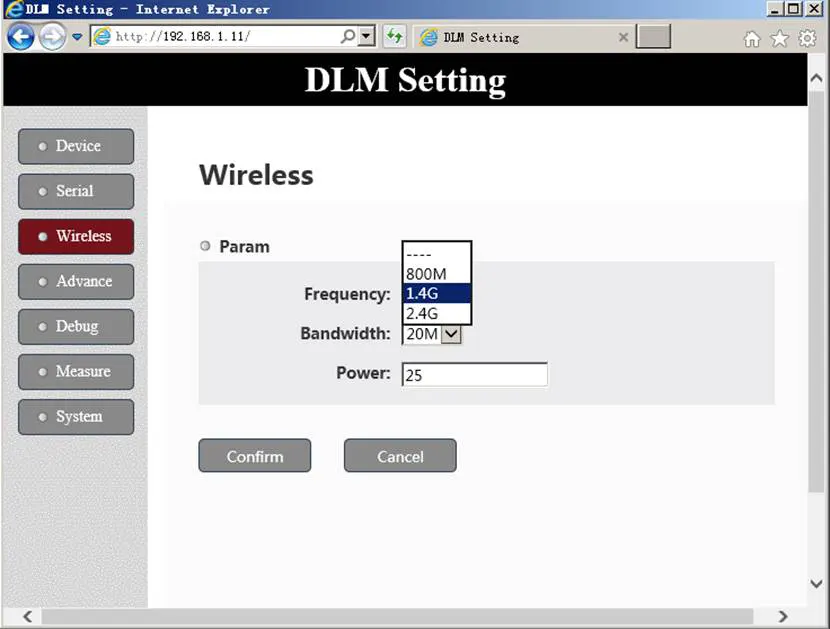
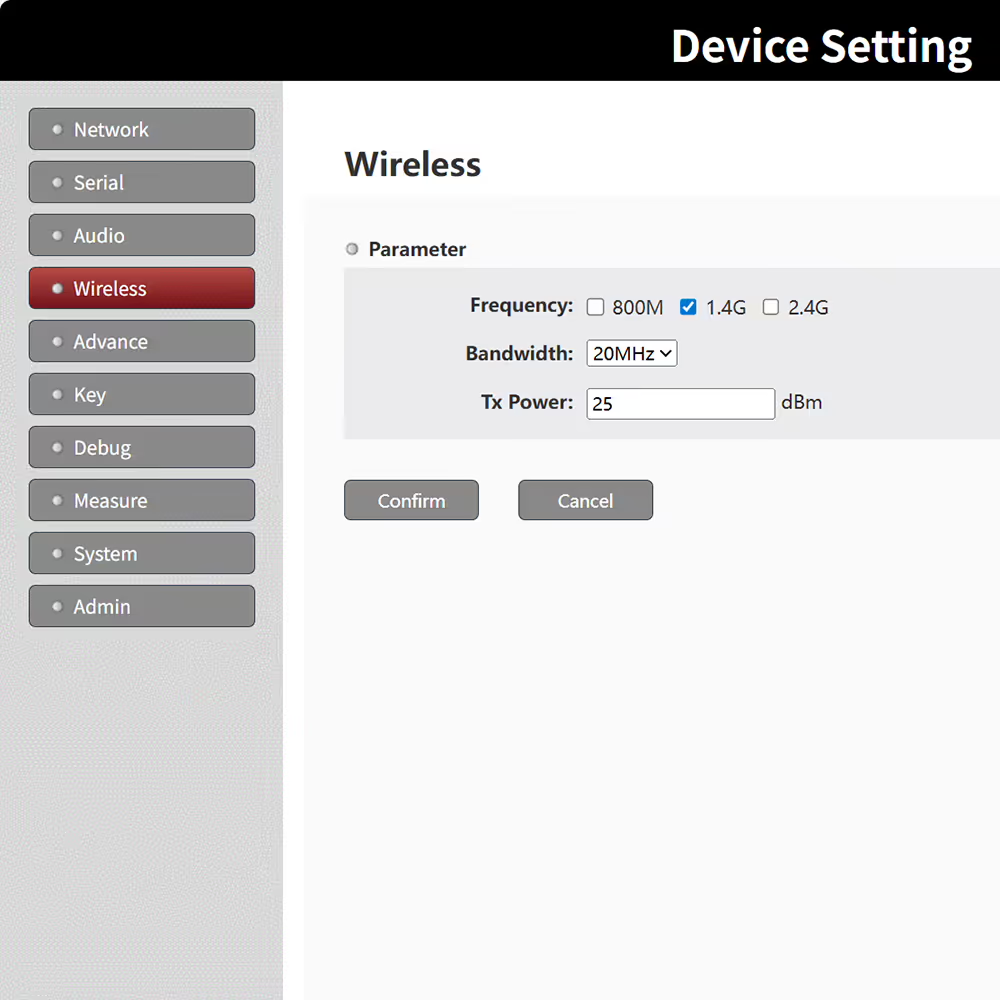
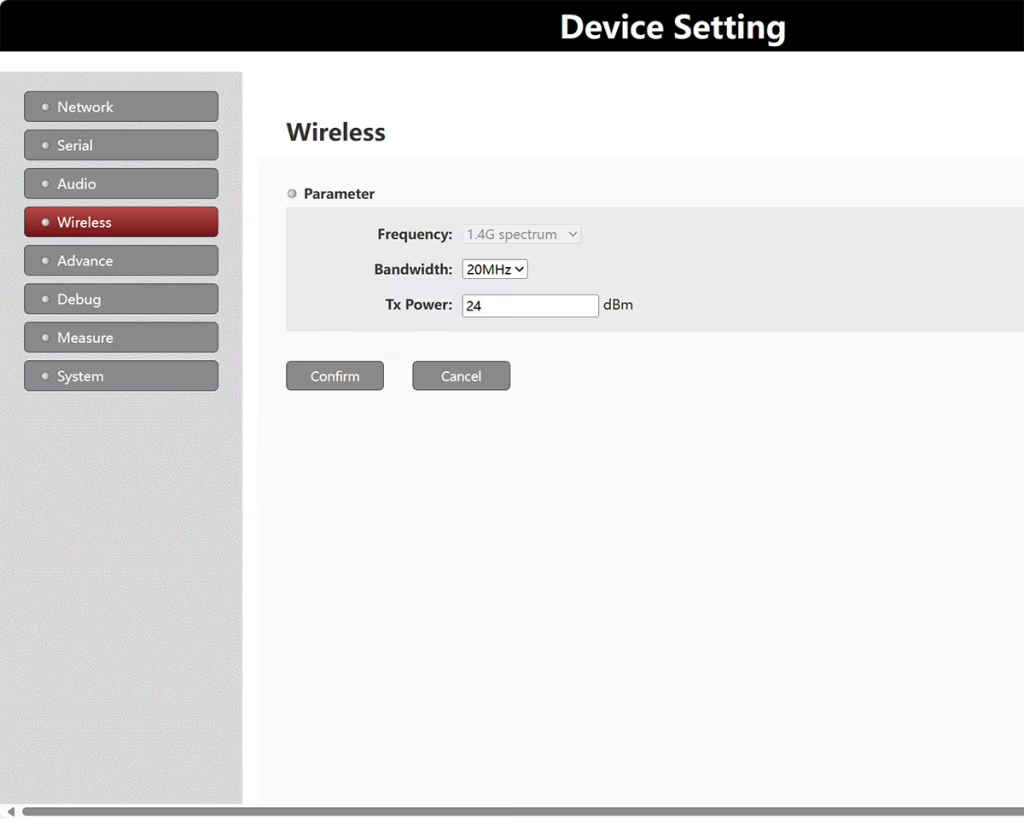
Freqüência: Banda sem fio (800M/1.4G/2.4G).
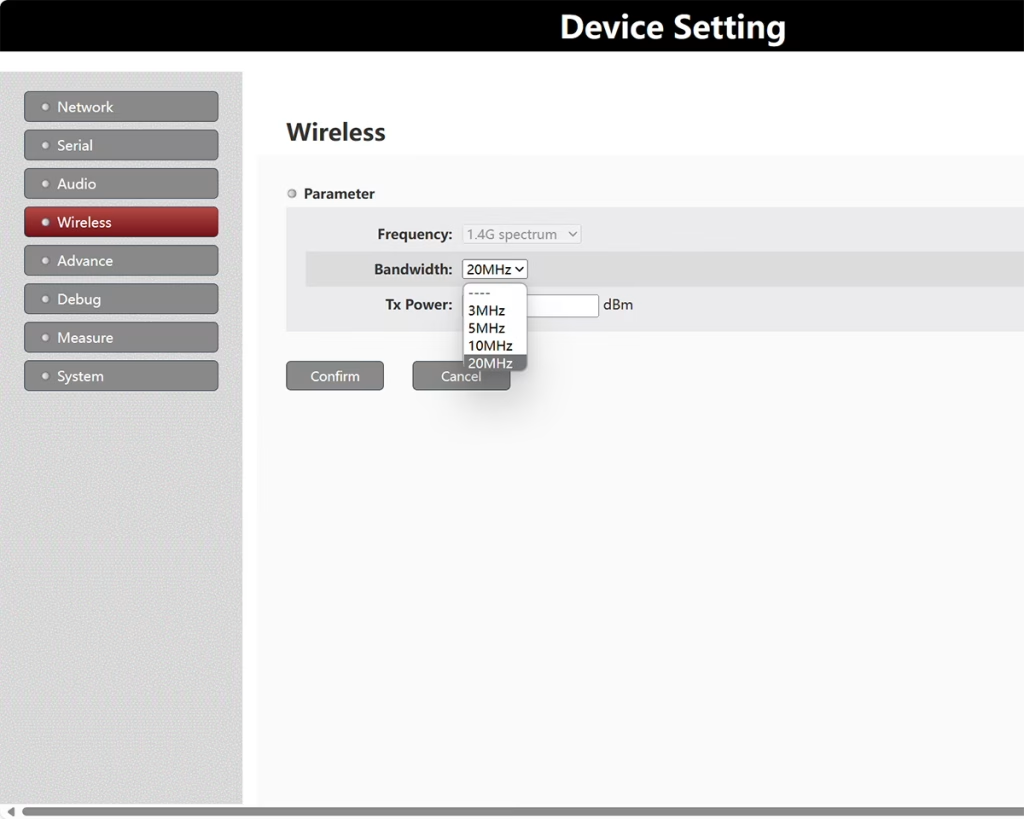
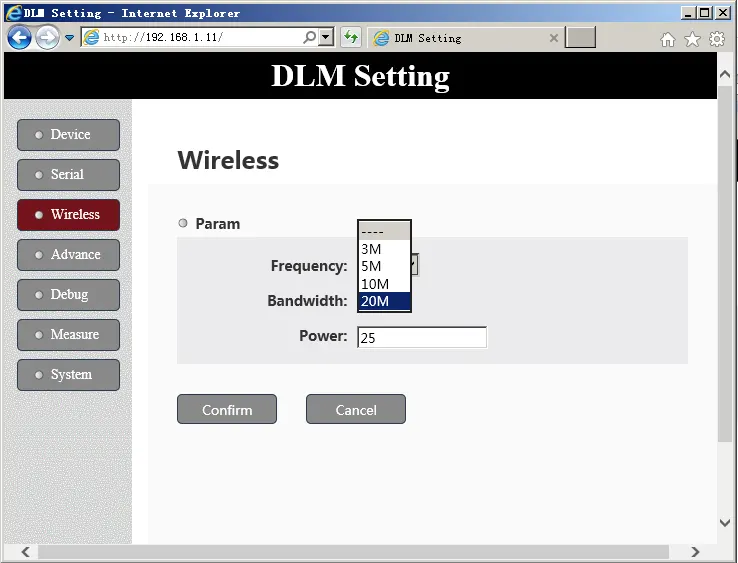
Bandwidth: Largura de banda sem fio (3M/5M/10M/20M).
Poder: (sem PA) potência de saída (dBm).
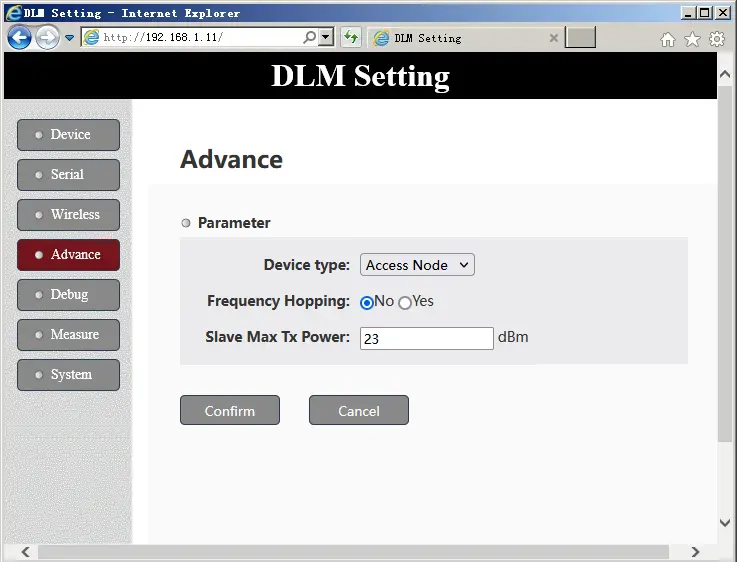
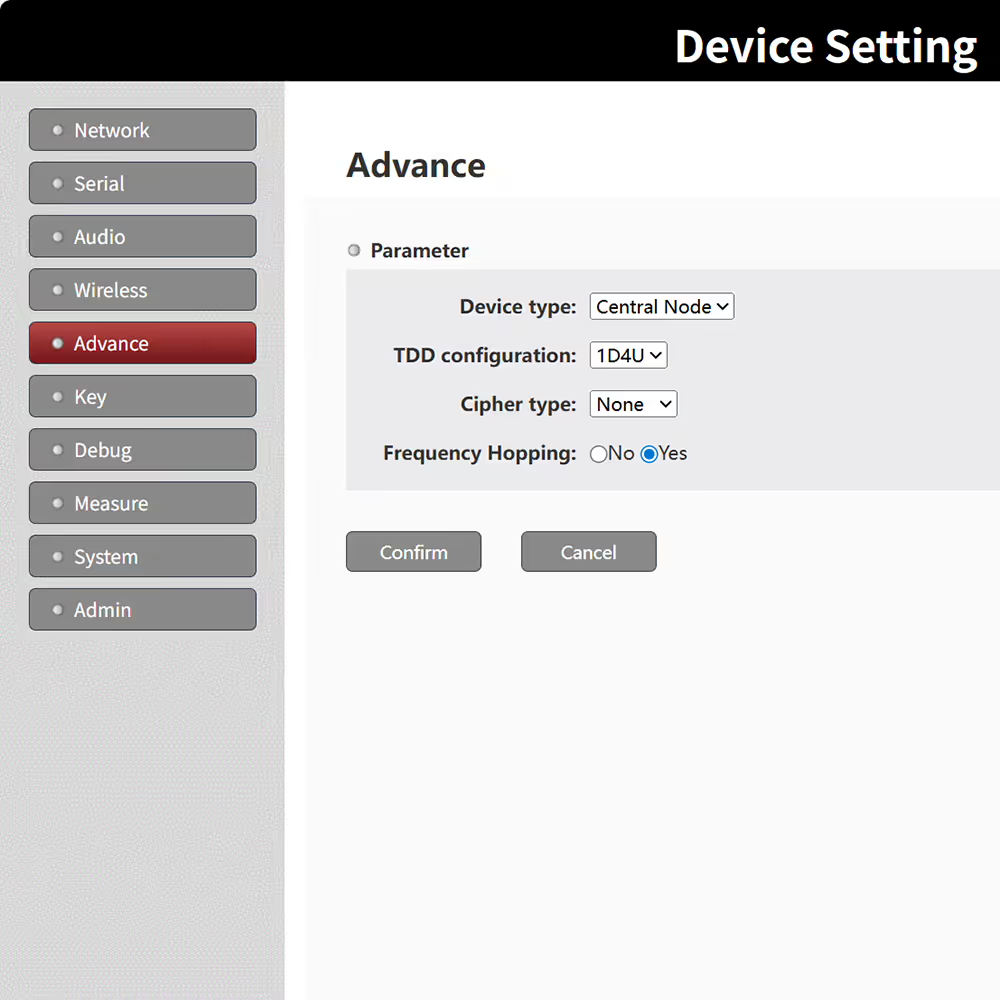
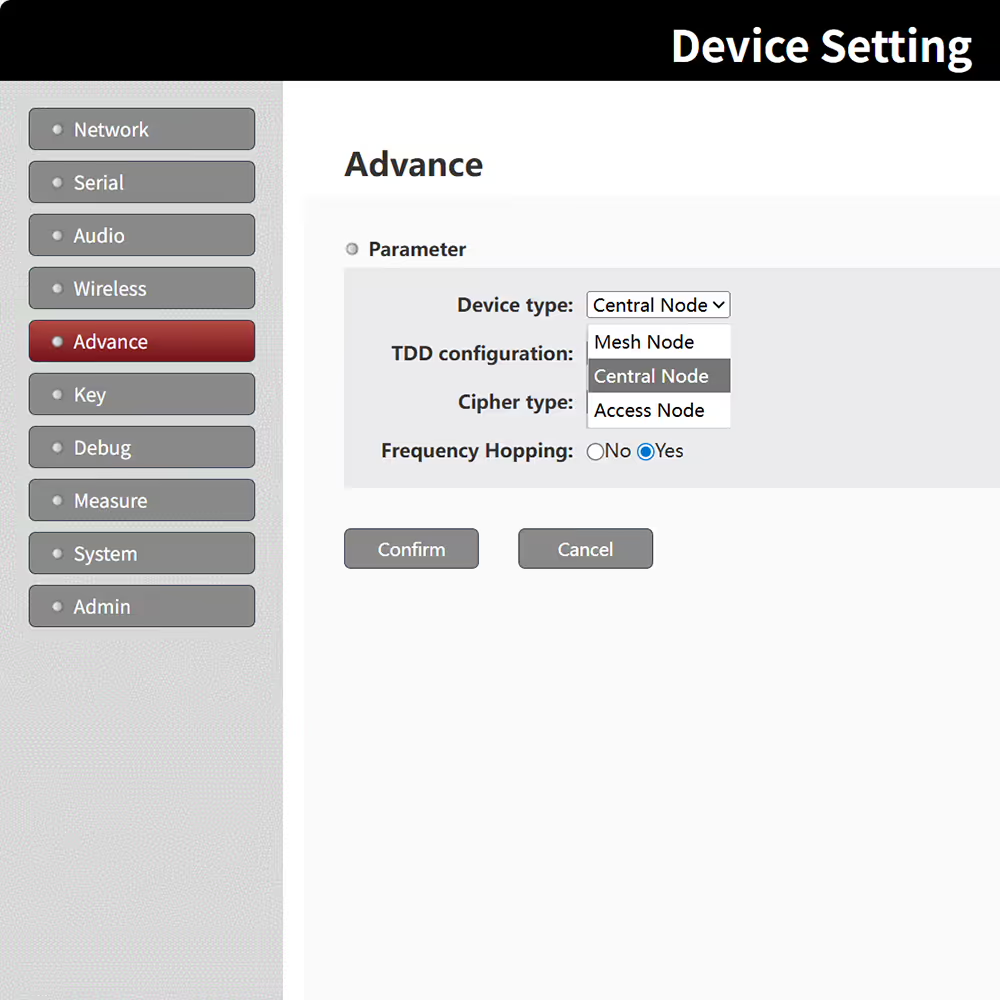
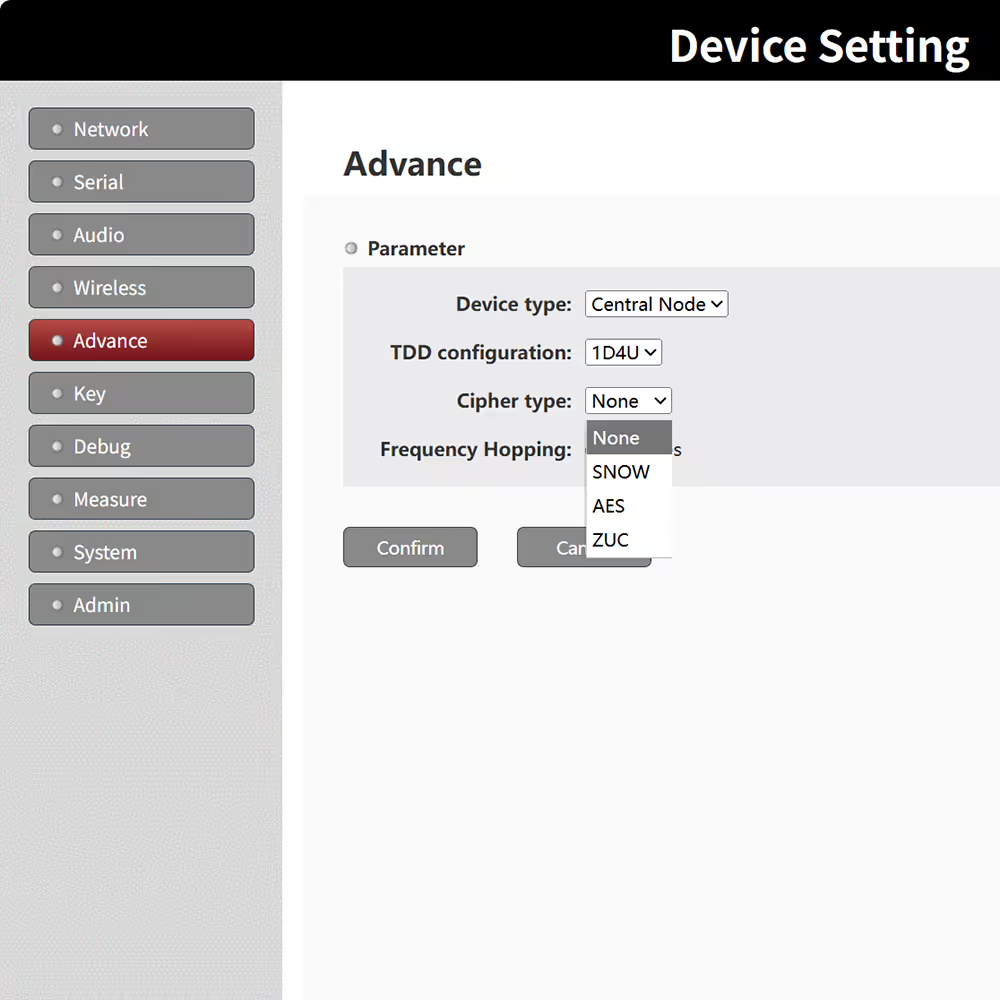
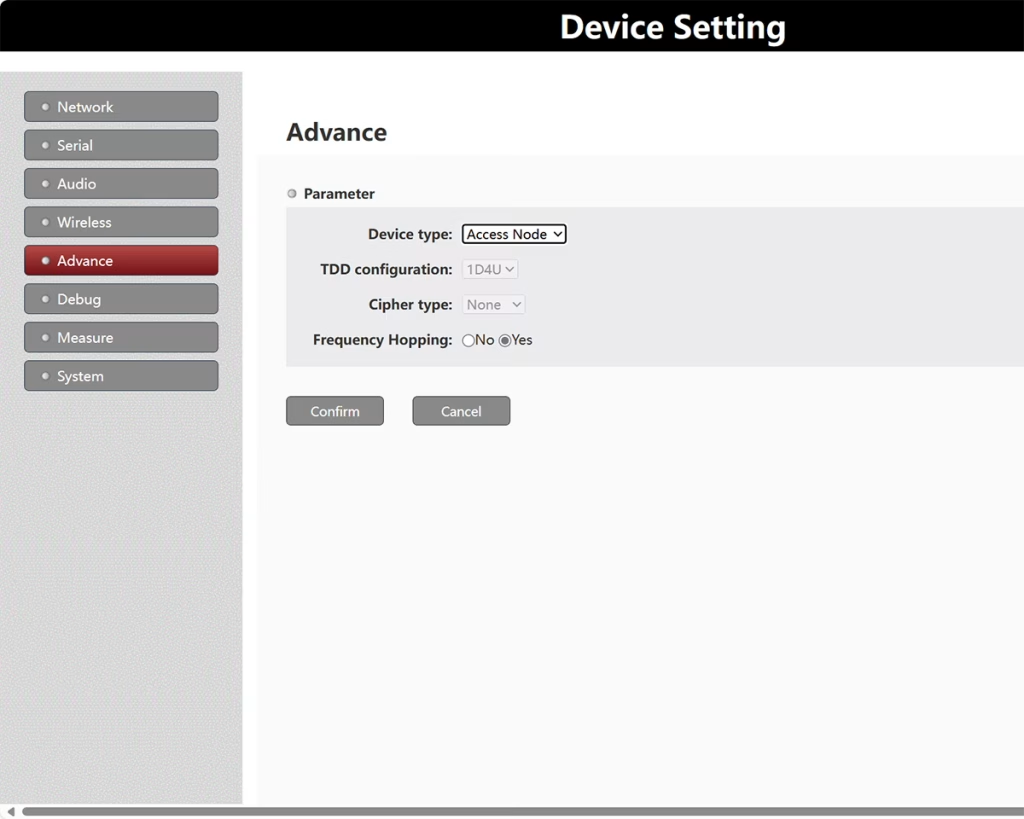
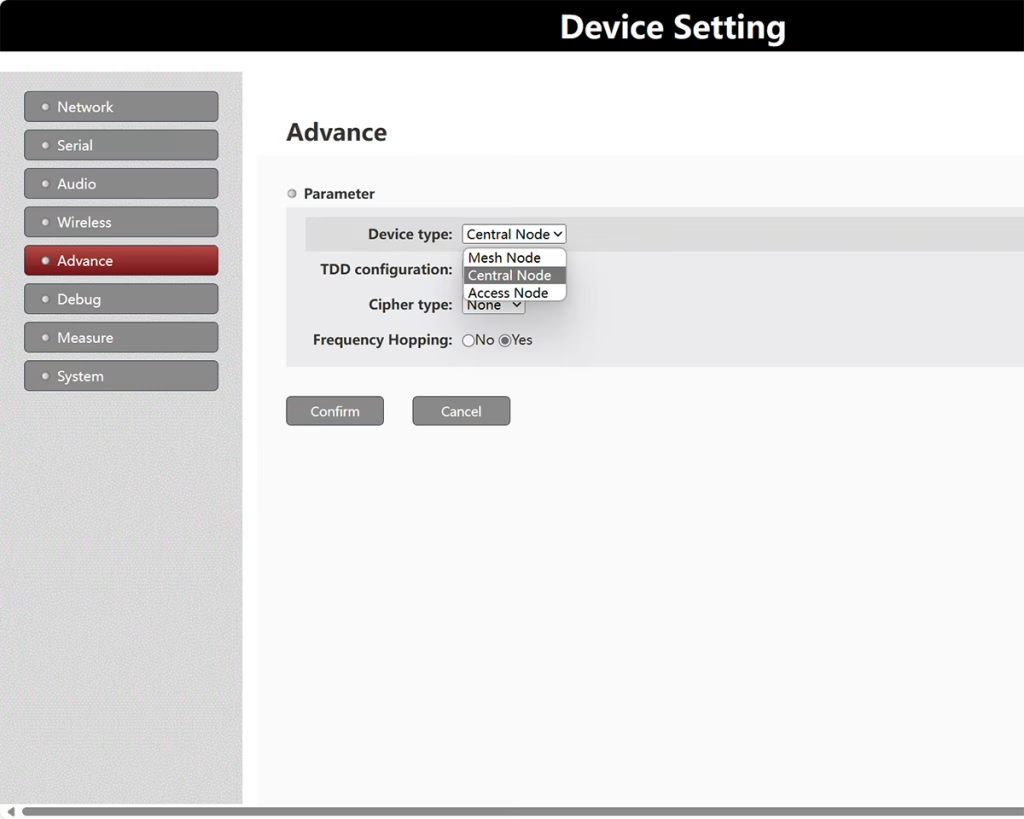
Tipo de dispositivo: Nó Central ou Nó de Acesso.
Salto de frequência: Chave automática de salto de frequência.
SMTP( Potência Tx Máxima Escrava): O máximo do nó de acesso transmite energia (dBm).
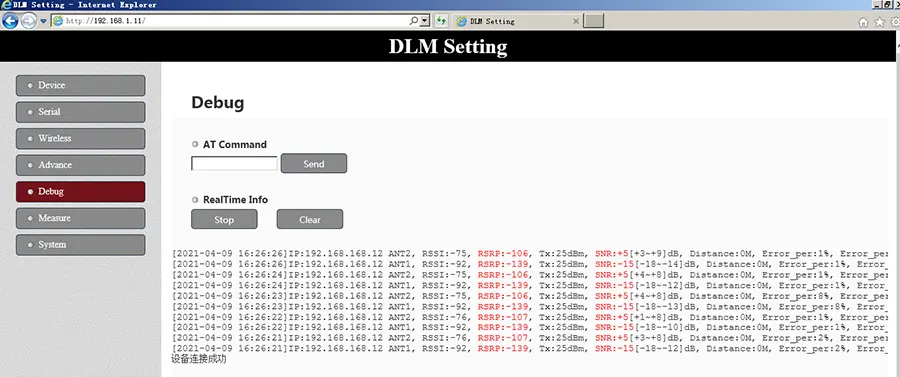
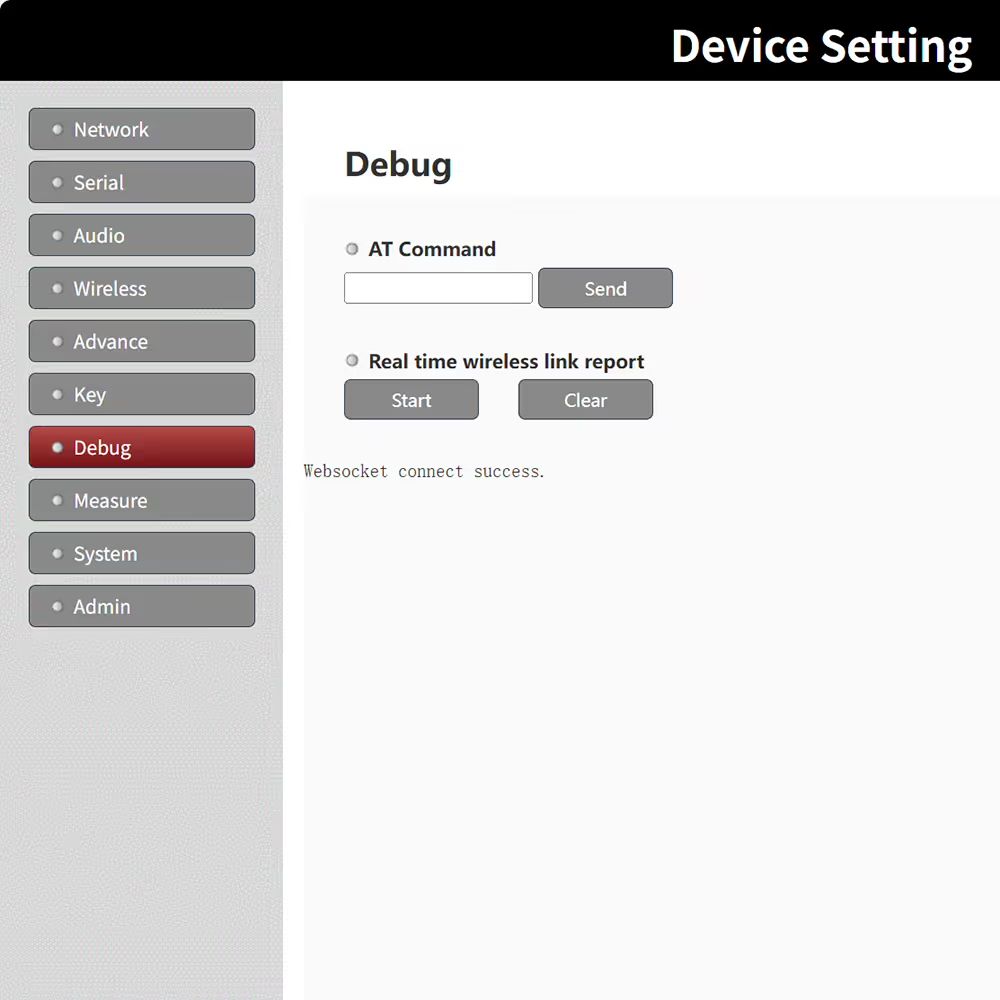
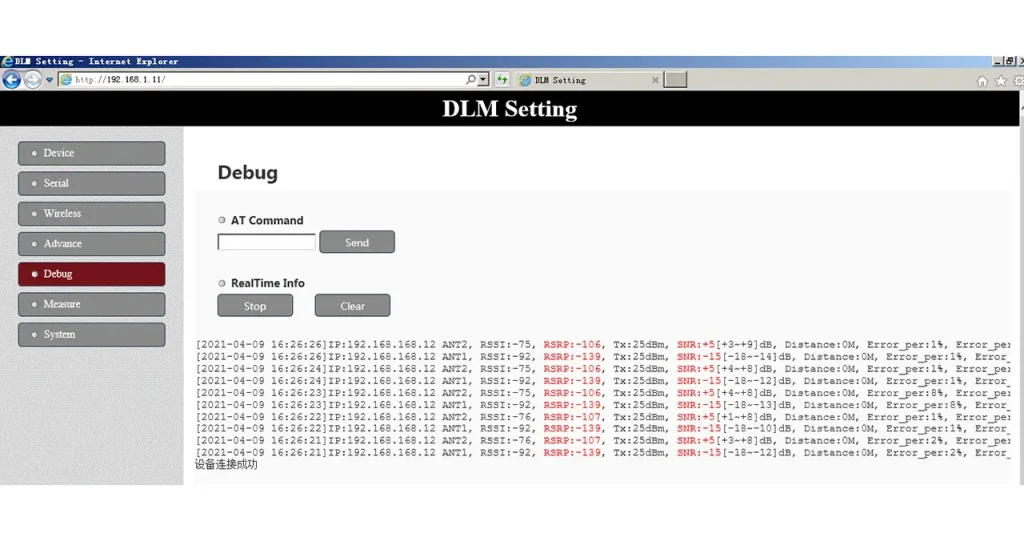
A página Debug é usada para enviar manualmente comandos AT ou visualizar dados de feedback sem fio em tempo real.
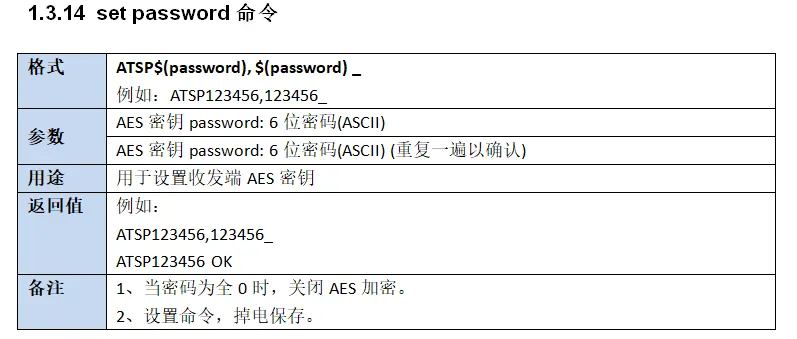
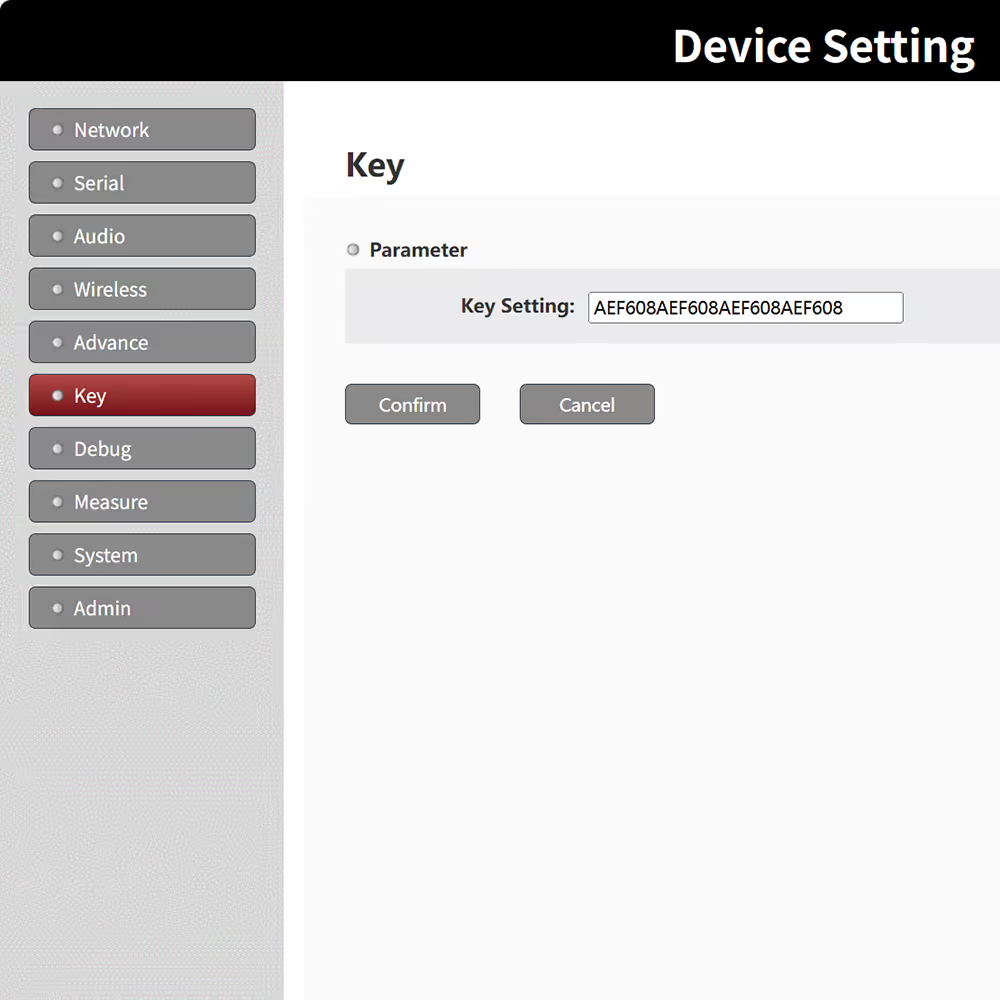
Comando Definir senha
| Formatar | ATSP$(senha),$(senha) Por exemplo ATSP123456,123456 |
| Parâmetros | Senha da chave AES: 6-senha de bits (ASCII) Senha da chave AES: 6-senha de bits (ASCII) (repita para confirmar) |
| Propósito | Usado para definir a chave AES do transceptor |
| Valor de retorno | Por exemplo ATSP123456,123456_ ATSP123456 OK |
| Observações | 1. Quando a senha é tudo 0, desativar a criptografia AES. 2. Definir comando, salvar quando desligar |
Quando estiver na página de depuração, o navegador agita o handshake do WebSocket com os dispositivos, e depois que o aperto de mão passou, o navegador imprime “WebSocket conecta sucesso.” “Indica que o handshake foi bem-sucedido; caso contrário, ele exibe “Falha na conexão do WebSocket, atualize a página da web e tente novamente!” Neste momento, você precisa entrar novamente na página de depuração para apertar a mão novamente, até que o handshake imediato seja bem-sucedido, e então você pode realizar operações de acompanhamento.
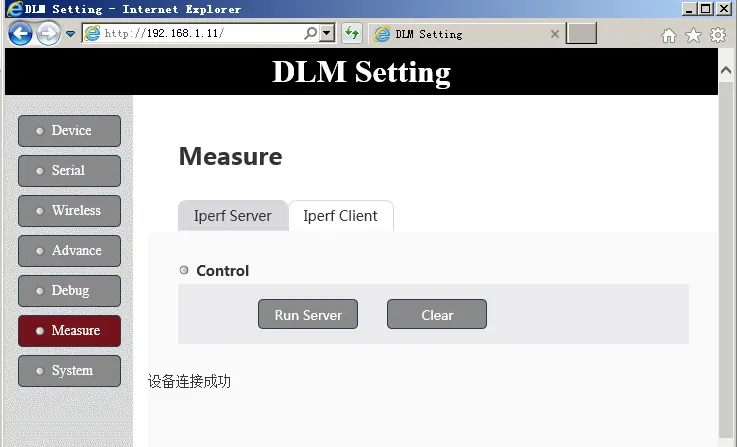
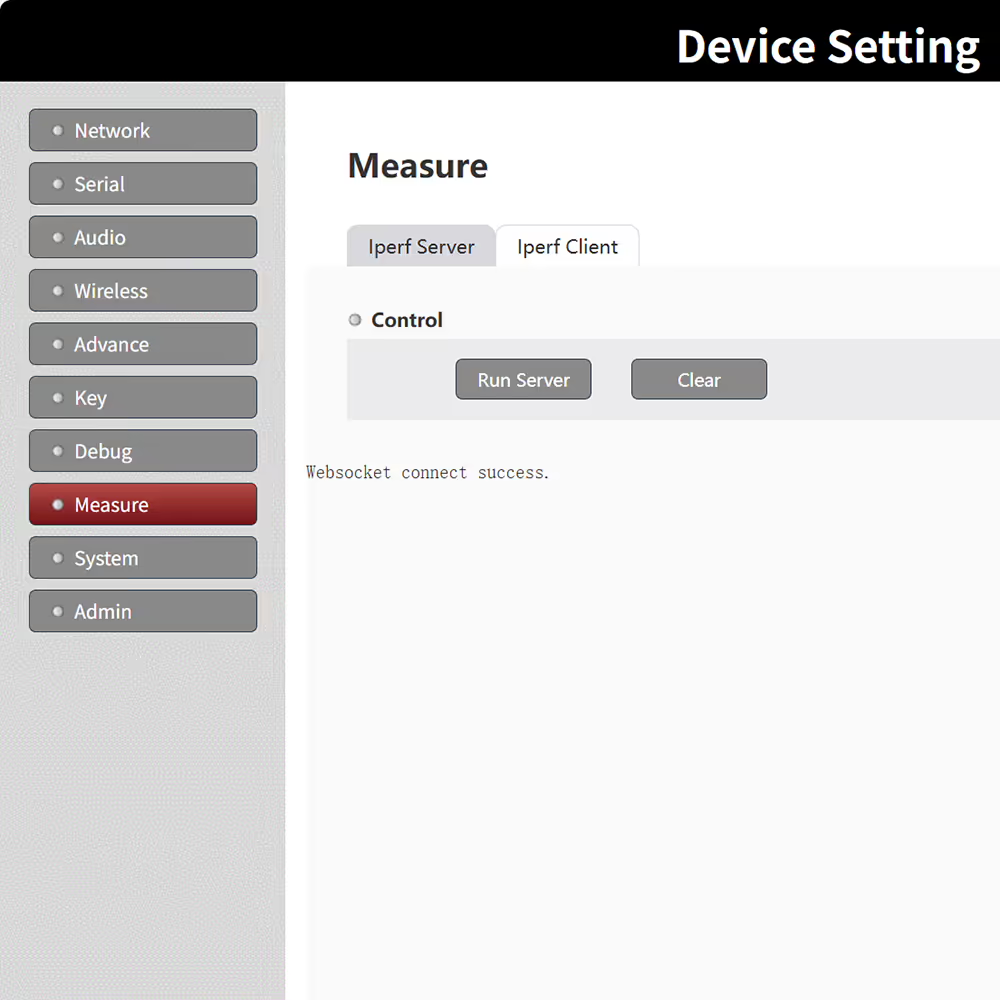
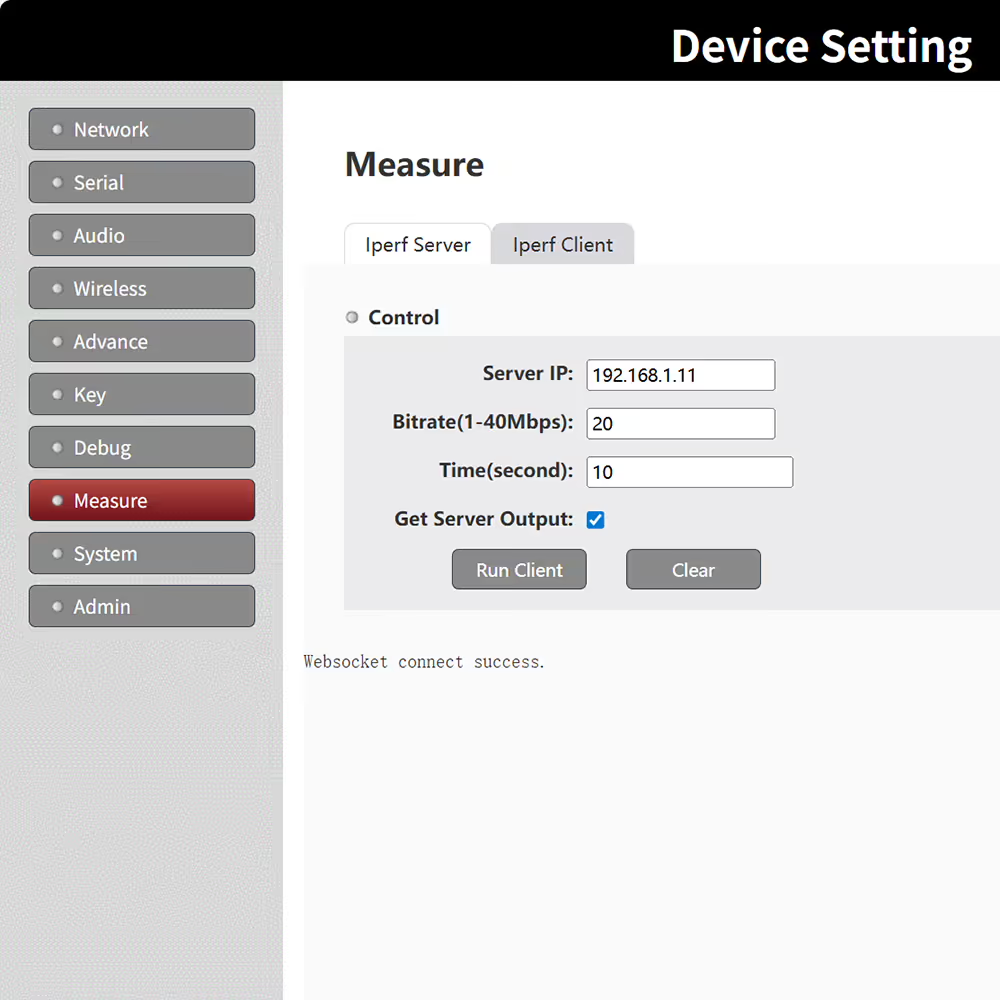
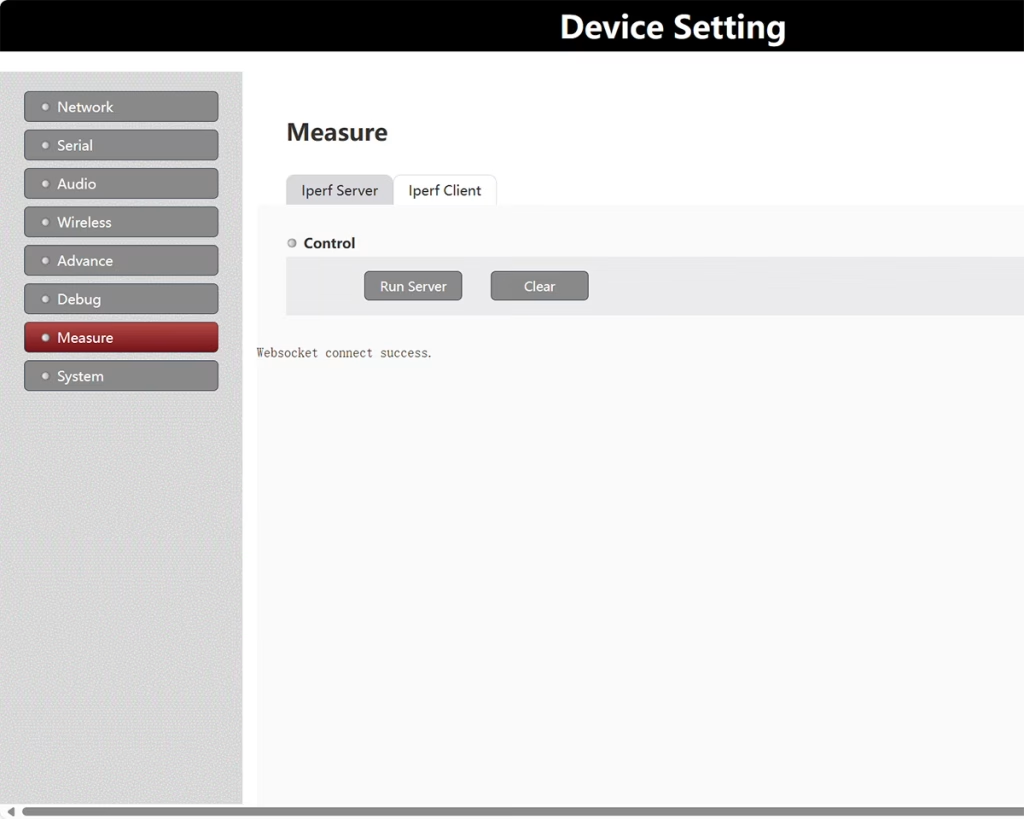
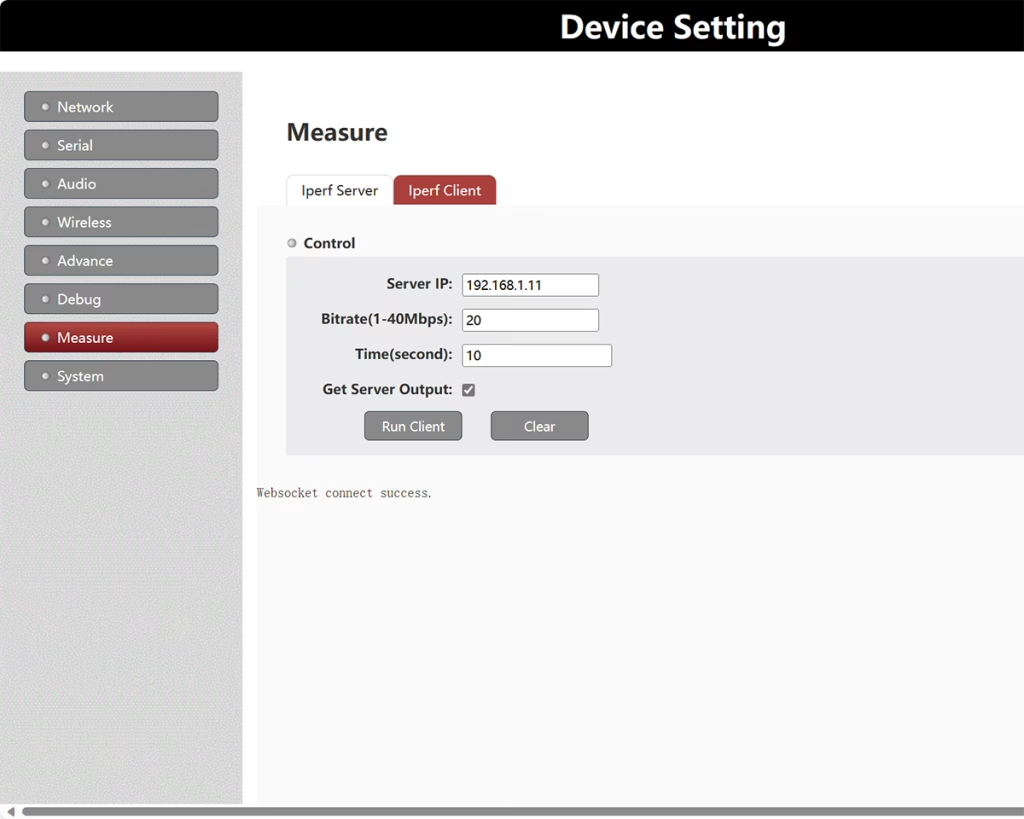
As páginas de medição são usadas para chamar programas iperf3 integrados para teste (Modo UDP).
Quando estiver na página de medidas, o navegador apertará a mão dos dispositivos por WebSocket, e depois que o aperto de mão passou, o navegador imprime “WebSocket conecta sucesso.” “Indica que o handshake foi bem-sucedido; caso contrário, ele exibe “Falha na conexão do WebSocket, atualize a página da web e tente novamente!” Neste momento, você precisa entrar novamente na página Medir para apertar a mão novamente e saber que o aperto de mão foi bem-sucedido antes de poder realizar operações de acompanhamento.
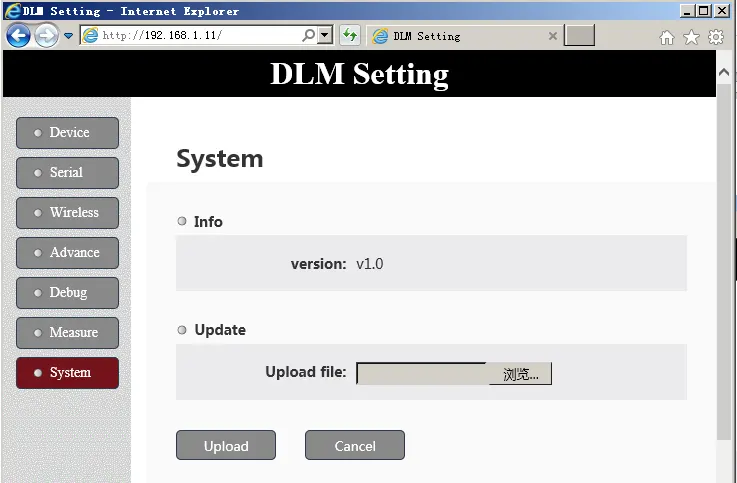
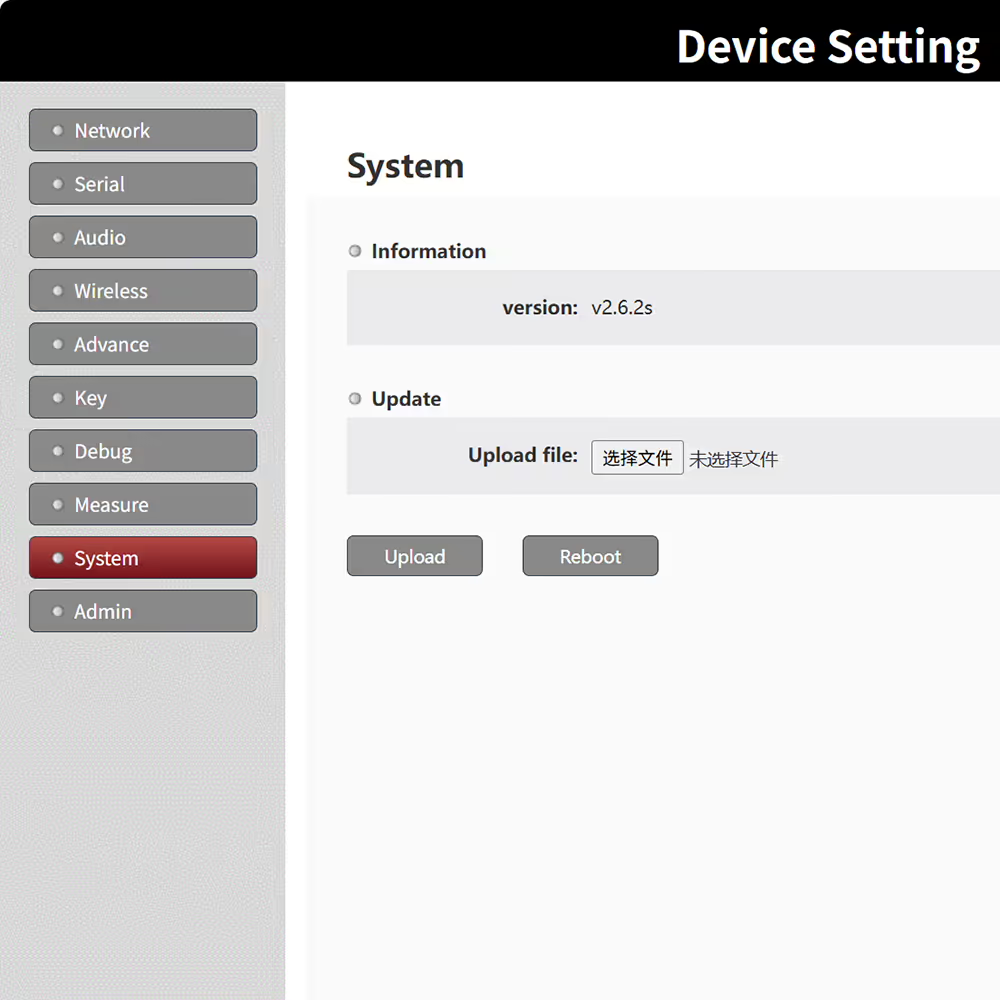
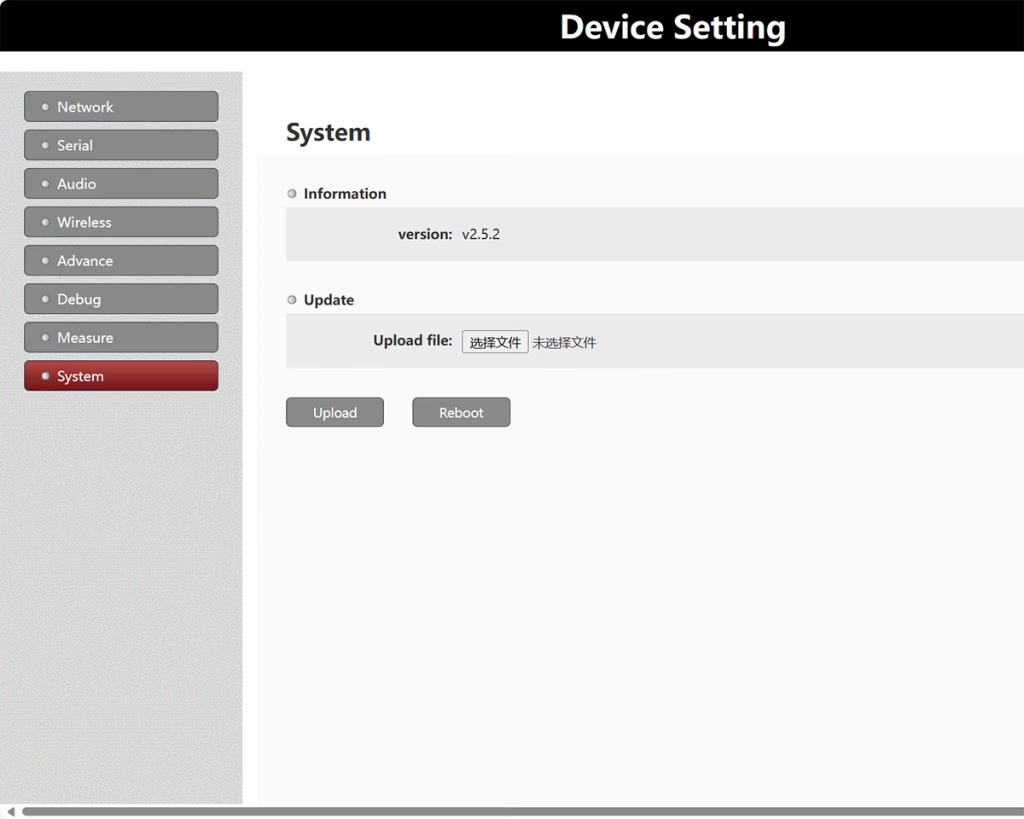
Este menu é usado para visualizar a versão do firmware do software do sistema do dispositivo e para atualizar o firmware do software através da Web UI.
Se você tiver alguma dúvida sobre a operação da UI de gerenciamento de dispositivos da Web, não hesite em contactar-nos.


-
 Rede de malha de enxame de drones Rede de 100 km de 60 Mbps Link de 4-NODES 2X Pumping de frequência 2x amplificador de energia de 5 watts
 -
Módulo transmissor de vídeo FPV 170-860Mhz Transmissor de áudio e vídeo RF sem fio para câmera FPV 3W PA 50km
-
IP malha de 100 Mbps transceptor de dados sem fio 2x5w PA 16 saltar
-
Link Drone para transmissão sem fio de telemetria de rádio de dados de vídeo de longo alcance entre o UAV e a estação de controle de solo
-
Módulo de link de dados de vídeo uav, transmissor e receptor de vídeo sem fio para câmera, transceptor tdd de longo alcance, bidirecional vcan1401
-
Transmissor-receptor de vídeo COFDM AV em saída HDMI FPV, Sem fio 10km-15km-30km de longo alcance mais barato e mais longo COFDM-912T
-
1740-1840MHZ 2WPa 30km de longo alcance Transmissor de vídeo e receptor com SBUS TTL
-
30Km de longa distância COFDM HDMI receptor transmissor de vídeo sem fio conjunto completo de áudio e vídeo TX RX para drone UAV 1080P 908T
-
UAV bidirecional de dados de vídeo sem fio Módulo de link de controle RC Transceptor bidirecional de longo alcance Transmissor-Receptor Vcan1681
-
Transmissor e receptor de dados de vídeo sem fio de longo alcance para robô de drone uav robô
-
Transmissor e receptor de vídeo sem fio para câmera, HDMI HD H265 264 codificador 1W/2,5W PA 1080P60 Vcan1726
-
22km 55km de 80 km 100km 150km de longa distância transmissor de vídeo sem fio transceptor de transmissão PA 2W 5W 10W
-
Dados de vídeo de drone Dados de telemetria Receptores de transmissor UAV Link TDD Transceptor TDD
-
10W PA 150KM link de dados de vídeo aéreo de longo alcance UAV transmissor de transmissão sem fio receptor de banda larga pega tática
-
30-milissegundo Drone UAV Transmissor de vídeo sem fio HDMI Sistema de transmissão sem fio de latência ultrabaixa Vcan1729
-
Transceptor de manet de malha IP com placa de áudio-ip bidirecional para robô uav drone
-
150km 100mpbs pulando de frequência em 2 bands Radio UAV Link Alta taxa de transmissão e anti-interferência
-
Link de dados de vídeo sem fio da malha do zangão 150-200km transceptor de rede ad hoc centerless de longo alcance







Índice
UI de gerenciamento de dispositivos da Web para transmissor e receptor de link de dados de vídeo sem fio de longo alcance
o IU de gerenciamento de dispositivos da Web fornece uma interface abrangente para configurar, monitoramento, e gerenciamento de transmissores e receptores de link de dados de vídeo sem fio de longo alcance. Esta interface amigável permite que os operadores acessem o sistema através de um navegador da web na rede, permitindo monitoramento em tempo real e configuração remota de todos os dispositivos conectados. Os usuários podem visualizar as configurações de parâmetros atuais, modificar configurações de acordo com os requisitos da aplicação, e otimizar o desempenho de sistemas de transmissão de vídeo sem fio para UAVs, na UGV, USVs, e outras configurações de monitoramento de longa distância.
Por padrão, o Céu (transmissor) fim tem um endereço IP de 192.168.1.12, e o Chão (receptor) fim tem um endereço IP de 192.168.1.11. Os usuários podem se conectar a esses endereços IP usando qualquer navegador padrão. É importante observar que após alterar quaisquer parâmetros de configuração através da UI da Web, um a reinicialização do sistema é necessária para que as alterações entrem em vigor.
Principais funções de configuração
- Endereço IP e configuração de rede – Os usuários podem definir endereços IP estáticos, atribuir máscaras de gateway e sub-rede, e configurar funções de rede para transmissores e receptores. Cada unidade pode ser definida como um nó central ou nó de acesso, apoiando a implantação flexível em ponto a ponto, ponto-multiponto, ou topologias de malha completa.
- Gerenciamento de porta serial (UART1, UART2, UART3) – A UI permite configurar todas as portas seriais conectadas. Isto inclui definir o taxa de transmissão, modo de transmissão (UDP/TCP), porta remota, porta de escuta, tempo máximo de intervalo, e tamanho máximo do pacote. A configuração adequada garante integração perfeita com sistemas de telemetria, Controles de câmera PTZ, ou outros dispositivos sensores.
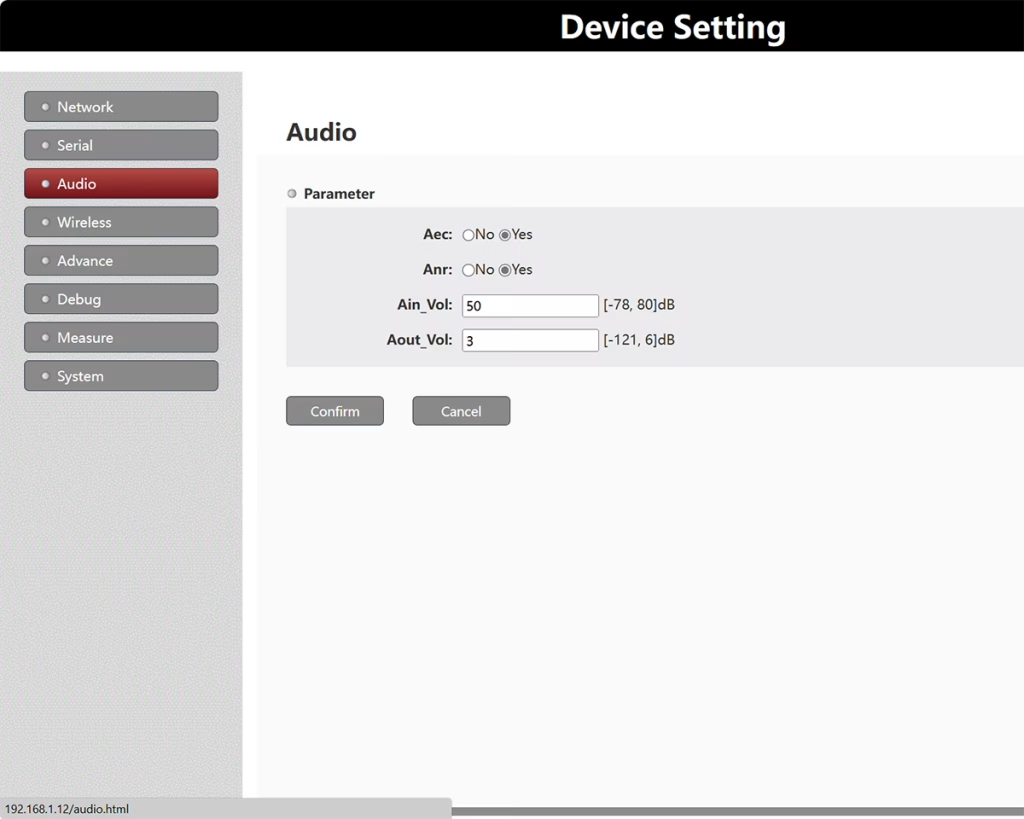
- Configuração de parâmetros de áudio e vídeo – Os usuários podem ajustar a amostragem de áudio, parâmetros de codificação, e configurações de qualidade de transmissão de vídeo. Isso garante que os sinais de áudio e vídeo sejam transmitidos com alta fidelidade por longas distâncias, mantendo baixa latência.
- Configurações de frequência e largura de banda – A UI da Web fornece controle total sobre o banda de frequência operacional (por exemplo, 800 MHz, 1.4 GHz, 2.4 GHz) e seleção de largura de banda (3 MHz, 5 MHz, 10 MHz, 20 MHz). Os operadores podem selecionar canais de frequência apropriados para evitar interferência em ambientes de RF movimentados. Salto de frequência (FHSS) também pode ser habilitado para melhorar a resiliência contra interferências.
- Alocação de largura de banda para uplink e downlink – Em sistemas bidirecionais, a largura de banda pode ser alocada independentemente para uplink (receptor para transmissor) e downlink (transmissor para receptor). Isso permite que os usuários otimizem o sistema para downlink com muitos vídeos ou uplink com muitos dados de controle, conforme necessário.
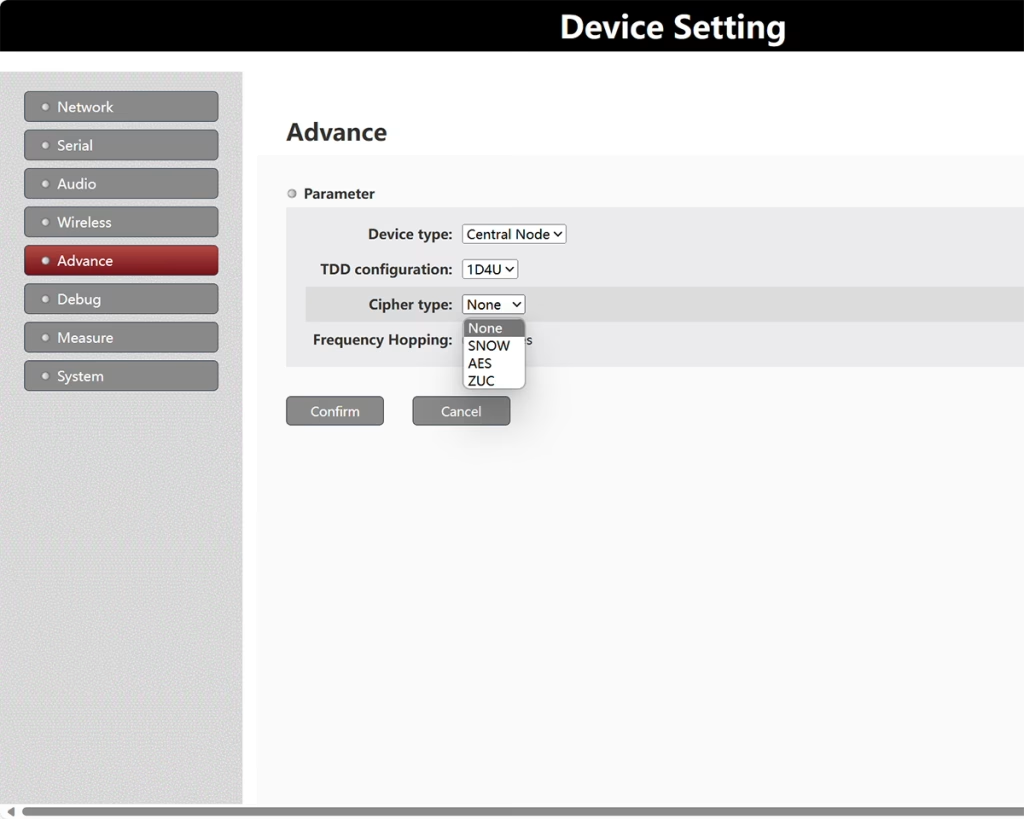
- Criptografia e segurança – A UI da Web oferece suporte a vários métodos de criptografia, incluindo NEVE, AES, e ZUC. Os usuários podem configurar a criptografia AES-256 definindo uma senha ASCII de seis caracteres usando o Comando ATSP, garantindo transmissão segura de dados. Definir a senha com zeros desativa a criptografia. Uma vez configurado, a chave de criptografia é armazenada e permanece ativa mesmo após um ciclo de energia do sistema.
- Página de depuração – A interface de depuração permite que os operadores enviem manualmente Comandos AT ao dispositivo para configuração avançada e solução de problemas. O handshake WebSocket deve ser concluído com sucesso antes de executar comandos. Quando o aperto de mão é bem sucedido, o navegador exibe “WebSocket Connect Success,”confirmando a comunicação adequada com o dispositivo.
- Teste de desempenho com Iperf3 - O Página de medição integra a ferramenta Iperf3 integrada para testar o rendimento da rede em tempo real. Os usuários podem testar as taxas de dados UDP ou TCP entre o transmissor e o receptor para garantir o desempenho ideal do sistema. A verificação bem-sucedida do handshake do WebSocket é necessária antes de executar testes de desempenho.
- Gerenciamento de sistema e atualização de firmware – A UI da Web fornece ferramentas para visualizar o atual versão do firmware e atualize o software do sistema diretamente do navegador. Os usuários também podem definir ou modificar o senha da página de gerenciamento para garantir o acesso.
- Configuração de multicast e transmissão – Para transmissão de vídeo em grupo, o sistema suporta modo multicast, onde um único transmissor envia vídeo para vários receptores usando um endereço IP multicast compartilhado. O modo de transmissão usa 192.168.1.255, enquanto a comunicação ponto a ponto usa endereços 192.168.1.x. Os endereços multicast devem ser selecionados dentro do intervalo 224.0.0.0–224.0.0.255, de preferência acima 224.0.0.23 para evitar endereços reservados.
- IP local vs remoto - O IP local normalmente se refere ao endereço de rede do receptor próximo à operadora, enquanto o IP remoto corresponde ao transmissor próximo à câmera. A configuração correta garante o roteamento adequado de vídeo e dados de controle pela rede.
Funções e notas avançadas
- Todas as alterações de parâmetros requerem um reinicialização do sistema para entrar em vigor.
- A UI permite o ajuste fino de tamanho máximo do pacote e intervalo de transmissão para otimizar a integridade e a latência dos dados.
- Múltiplas interfaces UART permitem integração com sistemas de telemetria, Controle RC, e redes de sensores.
- A IU oferece suporte a ambos Criptografia AES-256 e senhas definidas pelo usuário para links sem fio seguros.
- Ferramentas de diagnóstico integradas, incluindo monitoramento de intensidade de sinal em tempo real e verificação de status de handshake, simplificar a solução de problemas.
- As atualizações de firmware podem ser realizadas remotamente através do navegador, sem acesso físico ao dispositivo.
o IU de gerenciamento de dispositivos da Web fornece uma maneira centralizada e eficiente de gerenciar links de dados de vídeo sem fio de longo alcance. Seja implantado em UAVs, na UGV, USVs, ou sistemas de monitoramento estacionários, esta interface oferece aos operadores controle total sobre os parâmetros da rede, segurança, configurações de porta serial, configurações de vídeo/áudio, e desempenho do sistema. Ao ativar o acesso remoto, testes de desempenho, e gerenciamento de firmware, a UI da Web reduz significativamente o tempo de configuração, melhora a confiabilidade do sistema, e permite que os operadores se adaptem rapidamente às mudanças nas condições do campo.
Para concluir, o IU de gerenciamento de dispositivos da Web é uma ferramenta essencial para profissionais que trabalham com sistemas de transmissão de vídeo sem fio de longo alcance, oferecendo recursos avançados de gerenciamento, opções de configuração segura, e monitoramento intuitivo para maximizar o desempenho de redes sem fio baseadas em COFDM ou OFDM.
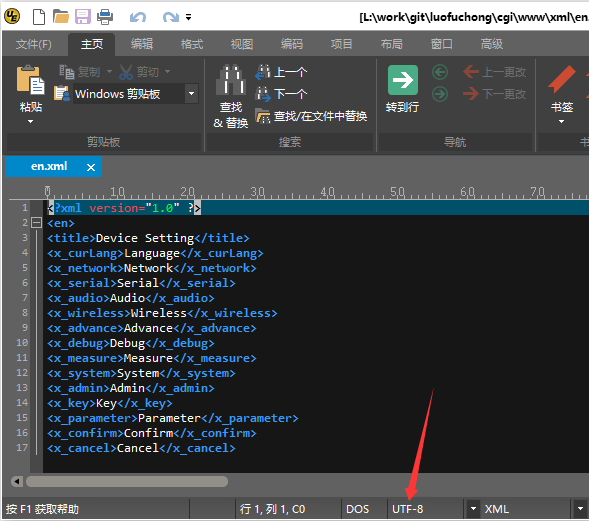
Q: Posso traduzir a interface web do dispositivo para o meu idioma local e adicionar logotipos personalizados? Existe uma API para editar nós mesmos os módulos?
UMA: Sim, é possível personalizar a interface web do seu dispositivo. Nós fornecemos o arquivos de idioma e o texto original em inglês. Você pode traduzir a interface para o russo e fornecer seu imagens de logotipo personalizado. Nossos engenheiros de software criarão uma versão atualizada do firmware/software com suas alterações.
Importante: Por favor, certifique-se de que todos os arquivos de idioma do menu são editados na codificação UTF-8 para evitar problemas de exibição ou texto distorcido. Atualmente, não fornecemos uma API pública para edições diretas, mas este método permite personalização total da interface web do seu dispositivo.
Faça uma pergunta
Sua mensagem foi enviada