





FAQ: Can the LO frequency of the downconverter be modified (e.g., from 1750 MHz to 875 MHz or 750 MHz)?
Q: Hello, can the down converters we bought from you be modified to cut the LO frequency in half? They currently operate at 1750 MHz—can they work around 875 MHz or be set to 750 MHz?
A: Yes, the LO (Local Oscillator) frequency can be modified. However, we strongly recommend that the modification be carried out by our engineers, or that you return the unit to us for adjustment to ensure optimal performance and stability.
If you prefer to modify it yourself, it is also possible by following the procedure below.
🔧 Self-Modification Guide
Table of Contents
1. Hardware Setup
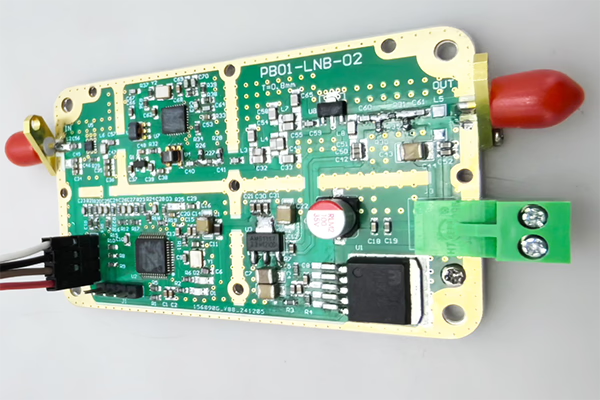
- Open the metal enclosure of the FDC (Frequency Down Converter).
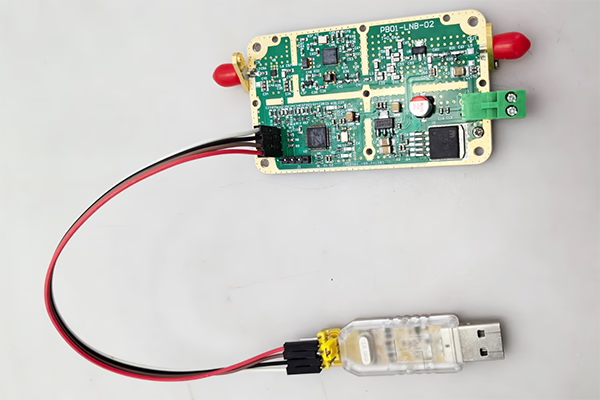
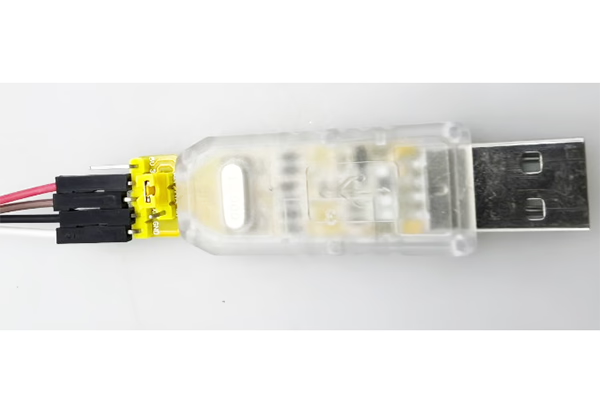
- Connect the device to your computer using a USB-to-TTL adapter.
Wiring (3 connections only):
- TX → RX
- RX → TX
- GND → GND
You may also make the cable yourself if needed.

2. Software Control via Serial Port
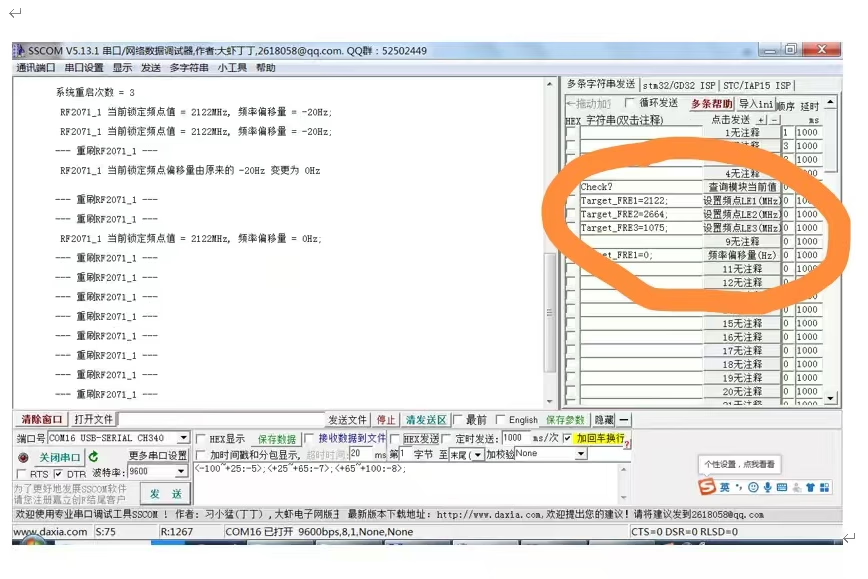
Use a serial terminal tool to send commands to the module.
3. Check Current Status
Command:
check?
Description:
- Returns the current operating status and detected frequency values.
Important:
- The command must end with a question mark (?), otherwise it will be invalid.
4. Modify LO Frequency
You can adjust the LO frequency by sending the following commands:
Target_FRE1=XXXX;
Target_FRE2=XXXX;
Target_FRE3=XXXX;
Explanation:
XXXX= desired frequency value (unit: MHz)- Each command corresponds to a specific LO module (LE1 / LE2 / LE3)
- The system will automatically relock to the new frequency after setting
Examples:
- Set LO to 875 MHz:
Target_FRE1=875;
- Set LO to 750 MHz:
Target_FRE1=750;
Important:
- Each command must end with a semicolon (;), otherwise it will be invalid.
⚠️ Important Notes
- Ensure the target LO frequency is within the supported operating range of the hardware.
- Changing the LO may affect IF output frequency and system performance.
- Improper configuration may lead to signal instability or loss of lock.
✅ Recommendation
For best results and to avoid potential issues, we recommend:
- Contacting our engineering team for guidance, or
- Returning the unit to us for professional modification and calibration
If you have any questions or need the configuration software, feel free to contact us.
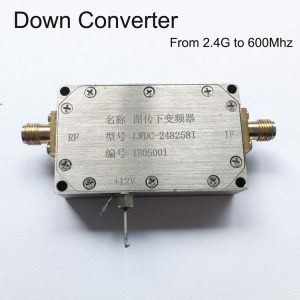
BDC Block Down Converter

BDC Block Down Converter
3200-3800MHz to 200-800MHz COFDM Down Converter BDC – RF Frequency Shifter
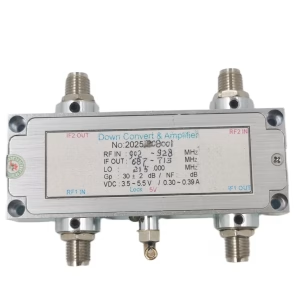
BDC Block Down Converter
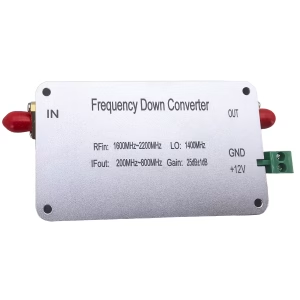
BDC Block Down Converter
1600-2200 MHz frequency down converter to 200-800 MHz mixer BDC
BDC Block Down Converter

BDC Block Down Converter
BDC Block Down Converter
Frequency 2100-2500Mhz down to 350-750Mhz COFDM RF Down Converter BDC
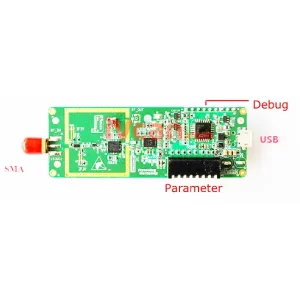
BDC Block Down Converter
Frequency Down Converter 2.4G to 250Mhz DVB-T COFDM Digital HDTV RF Microwave Module Board
FAQ
If you need to adjust the LO (local oscillator) range of the downconverter, you must first remove the bottom screws and open the top cover of the downconverter. Only then will you be able to access the internal connector and plug in the USB-to-UART adapter.
Q: What are TX and RX? I cannot find them on the converter.
A: TX and RX are standard UART communication signals:
- TX (Transmit): data output from the device
- RX (Receive): data input to the device
They are not separate modules; they are already labeled on the interface pins of the converter.
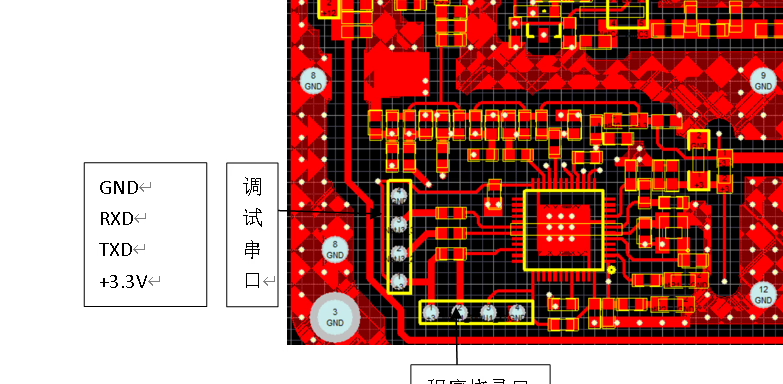
Q: What pins are available on the connector?
A: The connector has four pins:
- GND – Ground
- TX – Transmit
- RX – Receive
- 3.3V – Power supply (NOT 5V)
Q: How should I wire it correctly?
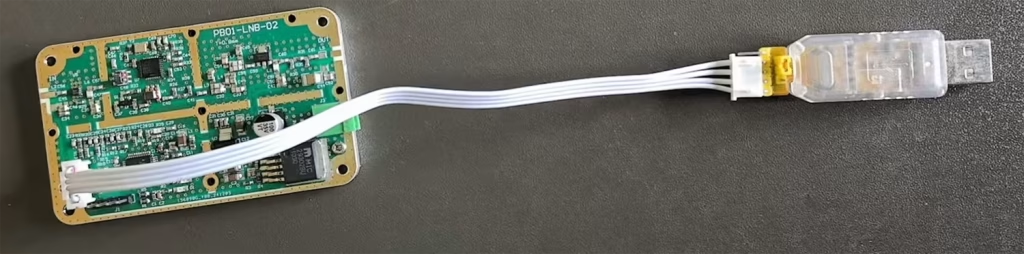
A: Please connect as follows:
- GND → GND
- TX → RX (cross connection)
- RX → TX (cross connection)
- 3.3V → Power supply input (from USB-to-UART adapter or regulated 3.3V source)
⚠️ Important: TX and RX must be crossed; otherwise, communication will not work.

Q: Can I use 5V power?
A: ❌ No, 5V is not allowed.
✔ Only 3.3V power supply is supported.
Using 5V will damage or burn out the downconverter.
Q: Can I power it via USB?
A: Yes. If your USB-to-UART adapter provides a stable 3.3V output, you can:
- Use USB 3.3V to power the downconverter
- Connect TX / RX / GND for communication
Q: Software usage
A: After correct wiring, you can use SSCOM software to:
- Open the serial port
- Communicate with the device
- Adjust the local oscillator (LO) frequency and other parameters
Important safety notes ⚠️
- Ensure the connector is inserted in the correct orientation
- Do NOT plug it in backwards
- Do NOT use 5V power
- Incorrect wiring may permanently damage the downconverter
Ask A Question
Thank you for your response. ✨