






AP vs. STA Wi-Fi Mode on CVBS to IP Encoder Module: What’s the Difference and Which Should You Use?
Table of Contents
Introduction
As more legacy analog video systems transition to IP-based architectures, Wi-Fi-enabled encoder modules are becoming the bridge between traditional CVBS video signals and modern IP networks.
Among these, the CVBS to IP Encoder with Wi-Fi module stands out as a lightweight, low-latency solution for drone FPV, vehicle monitoring, and industrial IoT applications.
But many users are confused by the two Wi-Fi operating modes — AP (Access Point) and STA (Station).
Both use the same module, but the way they work and the scenarios they suit are quite different.
In this article, we’ll explain their differences in detail and help you choose the right mode for your project.
1. What Is an AP (Access Point) Mode?
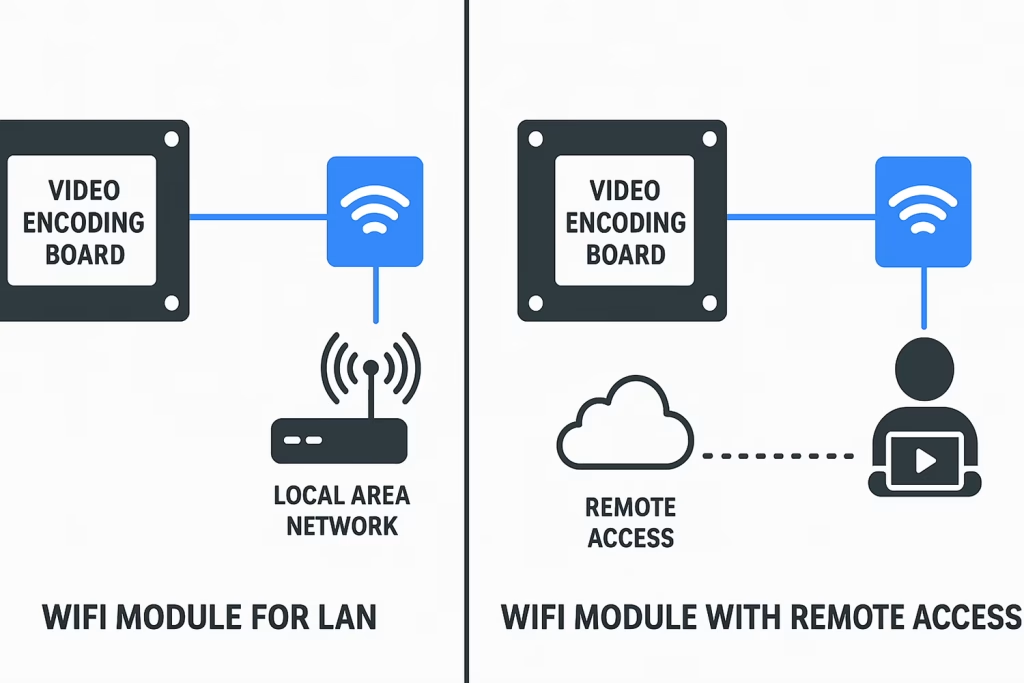
In AP Mode, the encoder board itself becomes a small Wi-Fi hotspot.
It creates its own SSID (for example, VcanEncoder_01), and your laptop, phone, or tablet can connect directly to it — no router or Internet connection required.
Once connected, you can access the encoder’s web interface or real-time video stream by entering its local IP address (usually 192.168.1.188) in a browser or media player.
In simple terms:
The encoder board becomes the “center” of the Wi-Fi network, and your device connects directly to it.
Key Characteristics of AP Mode:
- Works without any external router or Internet access
- Provides local wireless connectivity up to 30–100 meters
- Low latency and high reliability, similar to a cable connection
- Ideal for on-site preview, field setup, drone FPV, or temporary monitoring
Example Use Case:
A drone’s analog FPV camera connects to the CVBS encoder board, which broadcasts a Wi-Fi hotspot.
Your ground control station connects to this Wi-Fi and receives the video feed instantly — completely wire-free.
2. What Is a STA (Station) Mode?
In STA Mode, the encoder board acts as a Wi-Fi client instead of a hotspot.
It connects to an existing router, mobile hotspot, or access point — just like your phone connects to Wi-Fi.
Once connected, the encoder becomes part of the larger local network or even the Internet, depending on the router’s setup.
This allows remote devices to access the encoder’s IP stream through LAN, WAN, or cloud servers.
In simple terms:
The encoder joins an existing Wi-Fi network instead of creating its own.
Key Characteristics of STA Mode:
- Requires a router or Wi-Fi access point
- Can connect to the Internet for remote access
- Supports DDNS, public IP, or P2P cloud connections
- Suitable for IoT integration, industrial monitoring, or off-site remote viewing
Example Use Case:
An industrial camera connected to the encoder streams to a factory router.
The engineer can view the live video from another building or even from home using the public IP or DDNS address.
3. AP Mode vs. STA Mode — What’s the Difference?
| Feature | AP Mode (Access Point) | STA Mode (Station) |
|---|---|---|
| Network Role | Encoder creates its own Wi-Fi network | Encoder connects to an existing Wi-Fi network |
| Internet Required | No | Yes (if remote access needed) |
| Connection Range | Typically 30–100 meters | Depends on router coverage |
| Latency | Very low (100–150 ms typical) | Slightly higher (150–300 ms typical) |
| Accessibility | Only within local Wi-Fi range | Anywhere via Internet |
| Setup Complexity | Simple plug-and-play | Requires router configuration |
| Best For | FPV drones, field testing, portable setups | Remote surveillance, industrial IoT, cloud access |
4. How to Switch Between AP and STA Mode
Most encoder boards, such as the Vcan CVBS AV Analog to IP Encoder + Wi-Fi Module, allow you to switch between the two modes through the web configuration page or a serial command interface.
Step-by-Step (Example):
- Power up the encoder board.
- Connect your PC to the encoder’s Wi-Fi network (AP mode).
- Open a browser →
192.168.1.188. - Log in and navigate to Network Settings → Wi-Fi Mode.
- Choose either AP or STA mode.
- For STA mode, enter your router’s SSID and password.
- Save and reboot — the encoder will connect to the new network.
Tip: If you lose connection after switching to STA mode, use an IP search tool to locate the new address assigned by the router.
5. When to Use AP Mode
You should choose AP Mode when:
- You need quick, local access without any Internet setup
- You’re testing, calibrating, or configuring the device on-site
- The encoder is installed on a moving platform like a drone or robot
- You want a direct connection for lowest possible latency
Best Applications:
- Drone FPV and UAV image transmission
- Mobile inspection or temporary setup
- Local wireless display or testing environment
6. When to Use STA Mode
You should choose STA Mode when:
- The encoder needs to transmit video beyond local range
- You want to view or control the device from a remote location
- You plan to integrate it with NVR, VMS, or cloud services
- You need multiple encoders accessible on the same network
Best Applications:
- Vehicle monitoring and remote fleet tracking
- Industrial process monitoring and IoT integration
- Long-range security or smart home systems
- Remote video relay and live streaming over Internet
7. Real-World Example: CVBS Encoder with Wi-Fi for Drone and IoT
Let’s take the CVBS AV Analog to IP Encoder with Wi-Fi Module as a real-world example.
- In AP mode, the encoder directly transmits video from an analog FPV camera to a tablet on the ground — no router, no cables.
- In STA mode, the same board connects to a mobile 4G Wi-Fi router and streams live video to a remote monitoring center or cloud server.
Both modes use the same hardware — the only difference is network topology and how you access the stream.
8. Performance Notes
- Latency: Ethernet < Wi-Fi (AP) < Wi-Fi (STA). For critical applications like FPV, always use AP or wired Ethernet.
- Security: In STA mode, router-based encryption (WPA2/WPA3) applies; in AP mode, set a strong password for the SSID.
- Bandwidth: H.265 encoding minimizes bitrate requirements — typically 0.5–2 Mbps is enough for 720p@30fps.
- Compatibility: Both modes support RTSP, ONVIF, UDP, and WebRTC streaming protocols.
9. FAQ
Q1. Can the encoder use AP and STA modes at the same time?
Some modules support dual-mode (AP+STA) operation, but this depends on firmware. In most cases, only one mode can be active at a time.
Q2. Which mode gives lower latency?
AP mode provides lower latency because it eliminates router routing and Internet delay.
Q3. Does STA mode need a public IP?
Only if you want to access it over the Internet. For local router access, a LAN IP is enough.
Q4. Can I use STA mode with mobile hotspots?
Yes, if the hotspot provides DHCP and Internet sharing. It’s ideal for mobile setups.
Q5. What happens if Wi-Fi signal drops?
The encoder will automatically reconnect. For critical use, consider Ethernet or add a 4G fallback module.
Q5: I will connect to IoT devices based on ESP32-S3. Which WiFi module function should I choose—AP mode or STA mode?
A5: Based on your application with ESP32-S3 IoT devices, we recommend using the WiFi module in Local Network Mode (LAN only).
The ESP32-S3 can directly communicate with the encoder board within the same WiFi network, so remote-access WiFi is not required for this type of IoT application.
This setup is simpler, more stable, and offers lower latency, making it ideal for ESP32-S3 IoT integration.
10. Conclusion
Understanding the difference between AP and STA Wi-Fi modes is essential for deploying your CVBS to IP Encoder Module effectively.
- Use AP Mode when you need a fast, direct, cable-free local connection — perfect for drone FPV, local monitoring, or testing.
- Use STA Mode when you need remote access, cloud integration, or multi-device networking.
With flexible dual-mode Wi-Fi capability, modern CVBS encoder modules empower developers and system integrators to build everything from portable FPV transmitters to global IoT surveillance networks — bridging the gap between traditional analog video and the connected digital world.
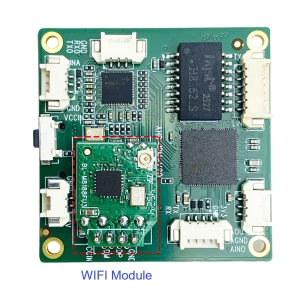
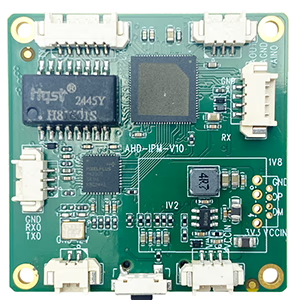
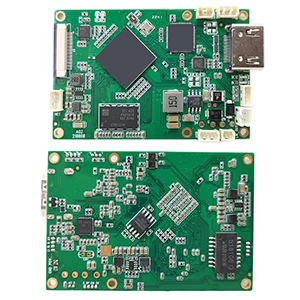
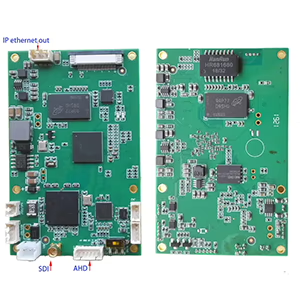
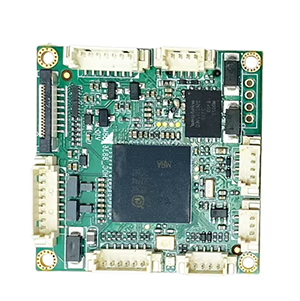
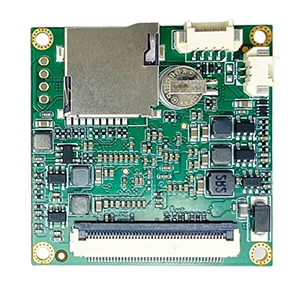
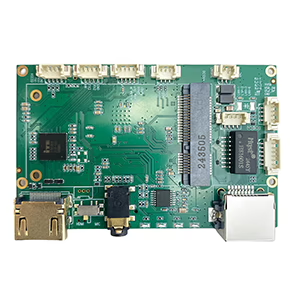
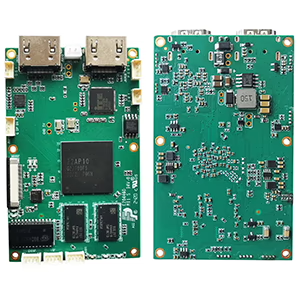
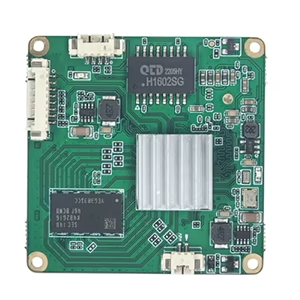
CVBS HDMI to IP Encoder
Encoder Modules Boards
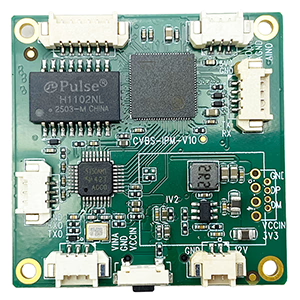
Decoder Modules Boards
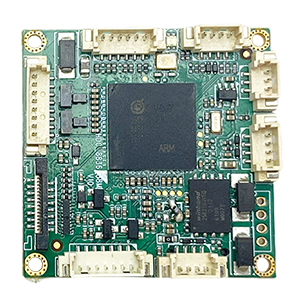
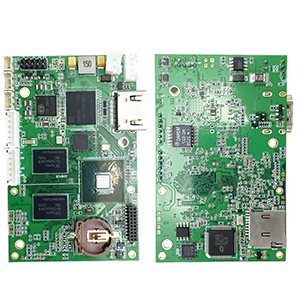
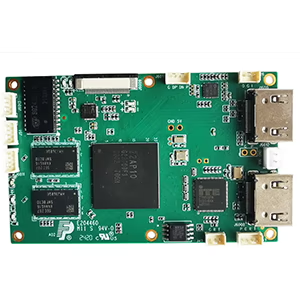
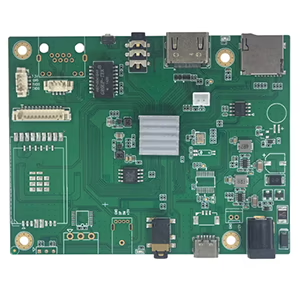
Available for Customization
New Encoder Products
| No. | Product Name | Configuration | Key Features | Status |
|---|---|---|---|---|
| 1 | Dual-Channel USB UVC Visible Light Video Encoder | 2× USB input | Supports dual USB camera video encoding, and RTSP streaming; local CVBS/HDMI output; switchable display modes | Mass Production |
| 2 | Dual-Channel Encoder (1× USB Visible Light + 1× USB Thermal Imaging camera) | 2× USB input | Supports dual USB camera (visible + thermal) capture, encoding, and RTSP streaming; local CVBS/HDMI output; switchable display modes | Mass Production |
| 3 | RTSP Decoder HDMI/CVBS Display Module | HDMI + CVBS output | Supports up to 4×1080P@30fps RTSP stream decoding; Support video streaming protocol forwarding; HDMI/CVBS output display | Sample Available |
| 4 | RTSP Decoder HDMI/CVBS Display Module with 4.3"/5" LCD | HDMI output + LCD screen | Supports up to 4×1080P@30fps RTSP stream decoding; protocol forwarding; HDMI/CVBS output display | Debugging |
| 5 | Dual-Channel Encoder (1× USB Visible Light + 1× CVBS Analog) | 1× CVBS + 1× USB UVC input | Dual video (USB + CVBS), encoding and RTSP streaming; local CVBS/HDMI output; switchable display modes | Debugging |
| 6 | Dual-Channel Encoder (1× USB UVC + 1× AHD Analog) | 1× AHD + 1× USB UVC input | Dual video capture (USB + AHD), encoding and RTSP streaming; local CVBS/HDMI output; switchable display modes | Debugging |
| 7 | Dual-Channel Encoder (1× CVBS + 1× AHD Analog Video) | CVBS + AHD 2 video input | Dual analog video capture, encoding and RTSP streaming; local CVBS/HDMI output; switchable display modes | Debugging |
| 8 | Dual-Channel Encoder (1× CMOS Camera + 1× USB Thermal Imaging camera) | 1× USB interface | Supports CMOS + USB thermal camera capture, encoding and RTSP streaming; local CVBS/HDMI output; switchable display modes | Mass Production |
For customized video input/output conversion solutions not listed in our products, please contact us for OEM/ODM support. We can develop tailored products based on your requirements.
Ask A Question
Thank you for your response. ✨