






1. パッケージの内容
空気 単位 & 接地 単位
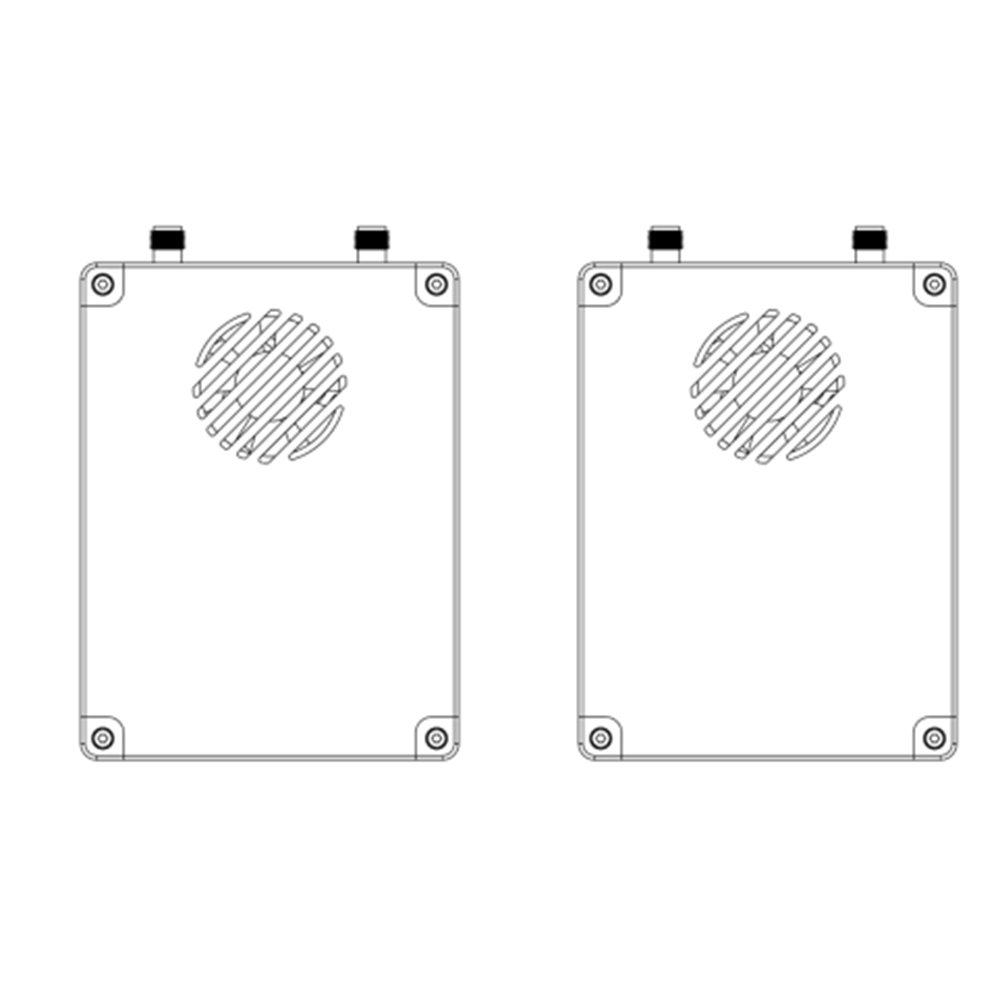
Air unit antenna × 2
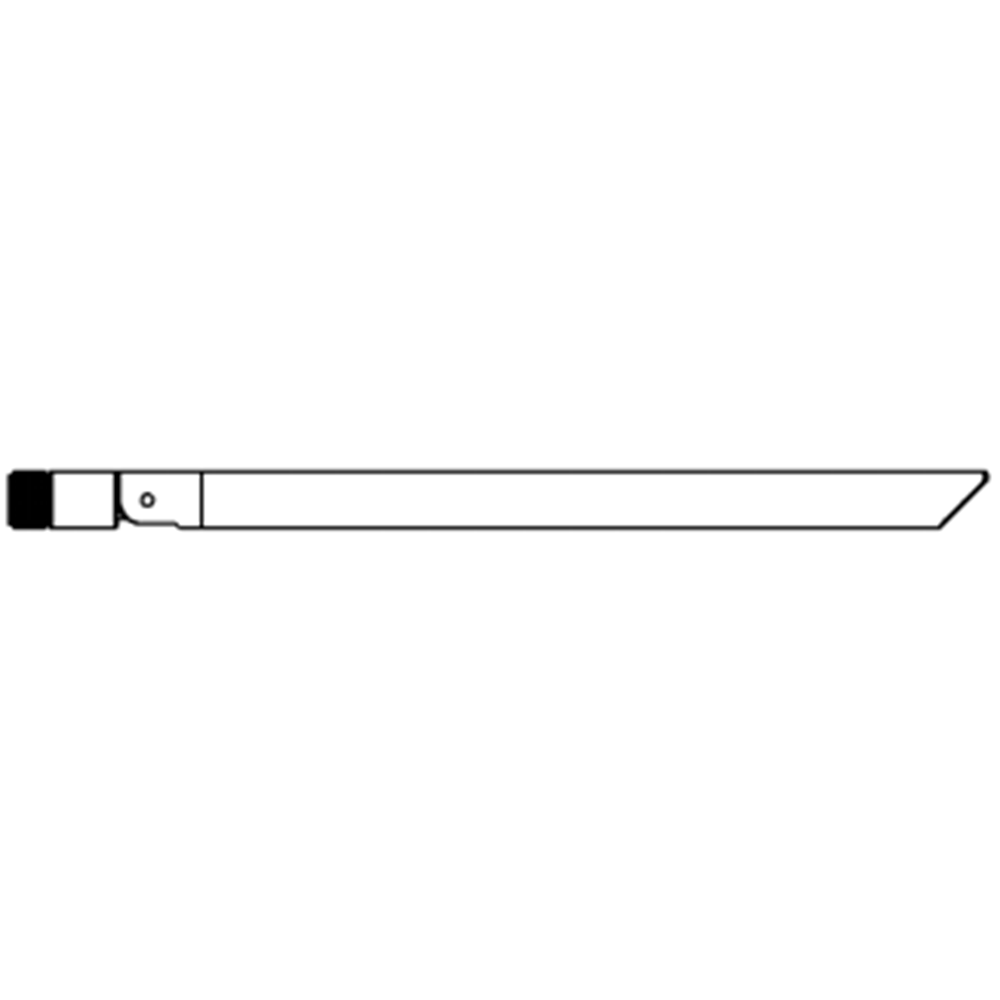
Ground unit antenna × 2

空気 単位 ケーブル
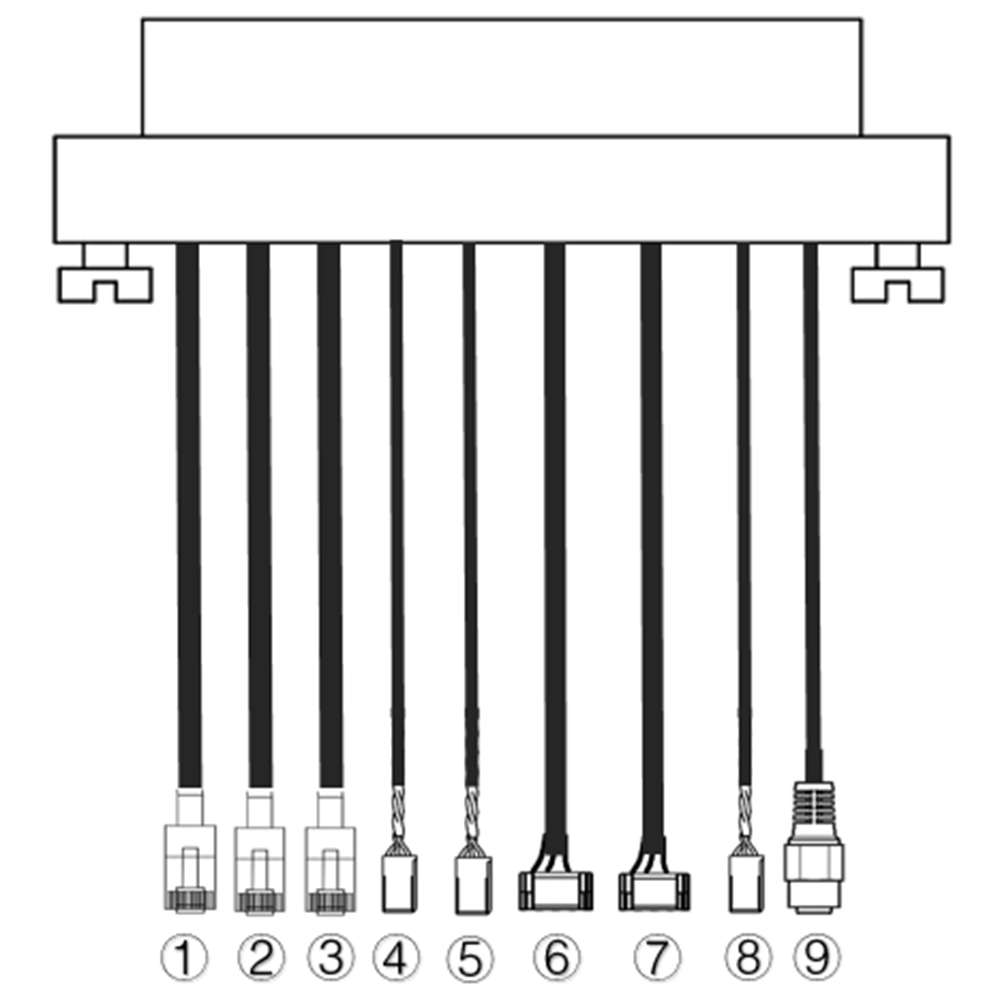
| いいえ. | インタフェース |
| 1,2,3 | イーサネット |
| 4,5 | S.BUS, 写真のように, インクルード 1セント pin from the left of dupont connector is S.BUS signal, インクルード 3rd Gです. |
| 6,7 | テレメトリーシリアル, 写真のように, インクルード 2nd GH1.25コネクタの左からのピンがRxです, インクルード 3rd 送信です, インクルード 6目 Gです. (デフォルトではTTL, RS232/422の代替品) |
| 8 | PPM, 写真のように, インクルード 1セント pin from the left is PPM signal, インクルード 3rd Gです. |
| 9 | 力 |
Ground unit cables
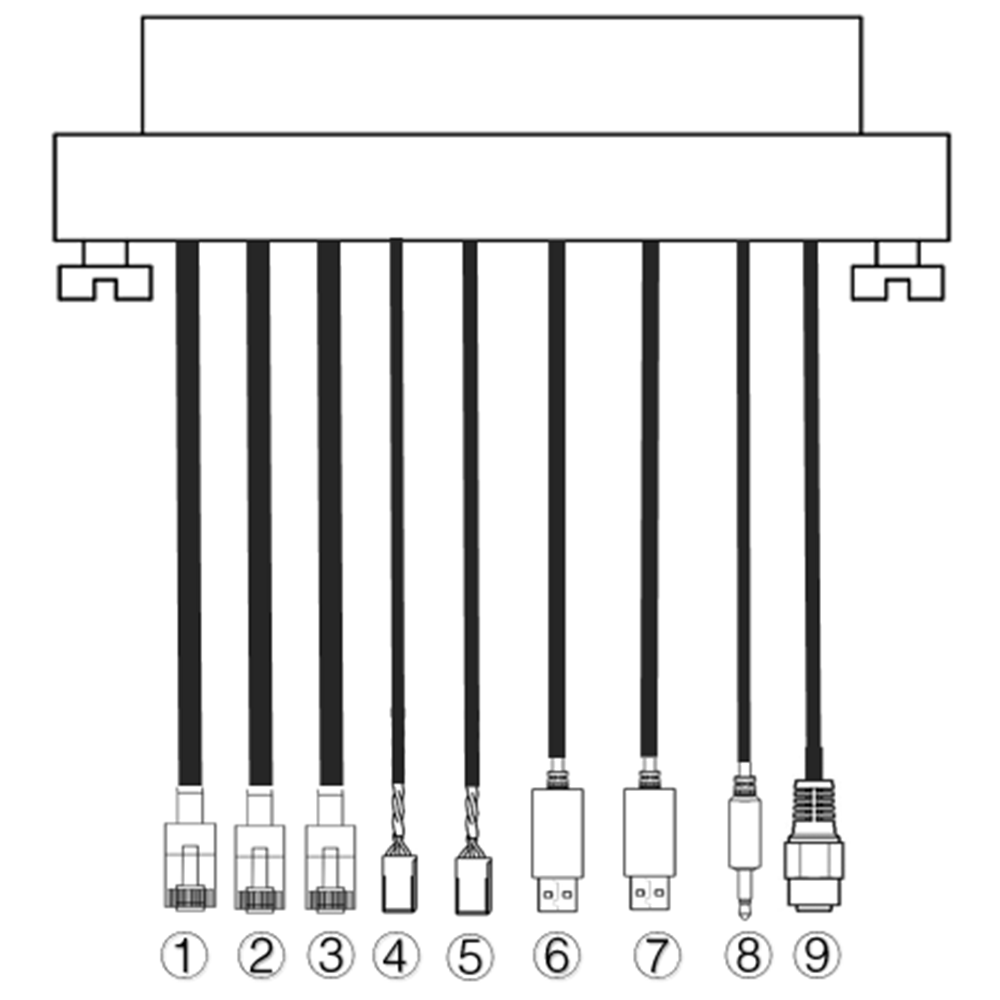
| いいえ. | インタフェース |
| 1,2,3 | イーサネット |
| 4,5 | S.BUS, 写真のように, インクルード 1セント 左からのピンがS.BUS信号, インクルード 2nd 5V+です, インクルード 3rd Gです. |
| 6,7 | シリアルUSB(デフォルトでは TTL-USB, RS232/422の代替品) |
| 8 | PPM |
| 9 | 力 |
2. 製品 説明
2.1. Parameters
| パラメーター | 価値 |
| 周波数 | 1330〜1450MHz |
| バンド幅 | 10メガヘルツ (アップリンク), 10メガヘルツ (ダウンリンク) |
| 力 | 33dBmの |
| 変調 | OFDM |
| 星座 | BPSK, QPSK, 16QAM |
| FEC | LDPC(1/2, 2/3, 3/4, 5/6) |
| デュプレックス | TDD |
| ダウンリンクのスループット | 2.3Mbps ~ 8bps |
| アップリンクのスループット | 600kbpsの |
| 暗号化 | AES 256 |
| インタフェース | イーサネット, USB, TTL, RS232, RS422, PPM/S.BUS |
| 消費電力 | 18W(エアユニット); 10W(地上ユニット) |
| 潜在 | <300ミズ (カメラ依存) |
| 寸法 | 92.5*70.3*25ミリ |
| 重量 | 198グラム |
| 定格電圧・電流 | DC24V/1.2A (または6Sリチウム電池) |
| 作業温度 | -40°C ~60°C |
2.2. 空気 単位 インターフェース
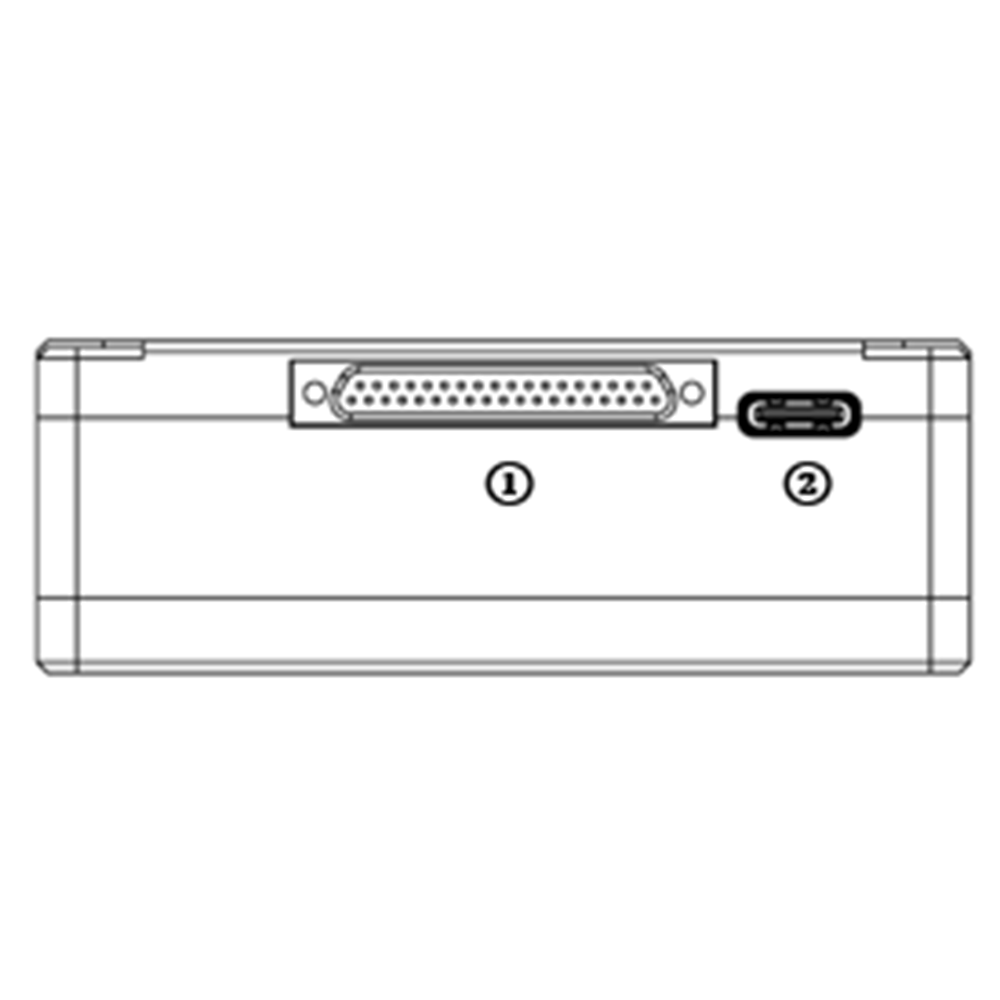
- J30J connector
It’s a J30J-37 pin connector providing power/Ethernet/serial/PPM/S.BUS.
- USBポート
Connect this port to the USB port of a PC, and use the wireless video link PC program to upgrade firmware and set parameters of the air unit.
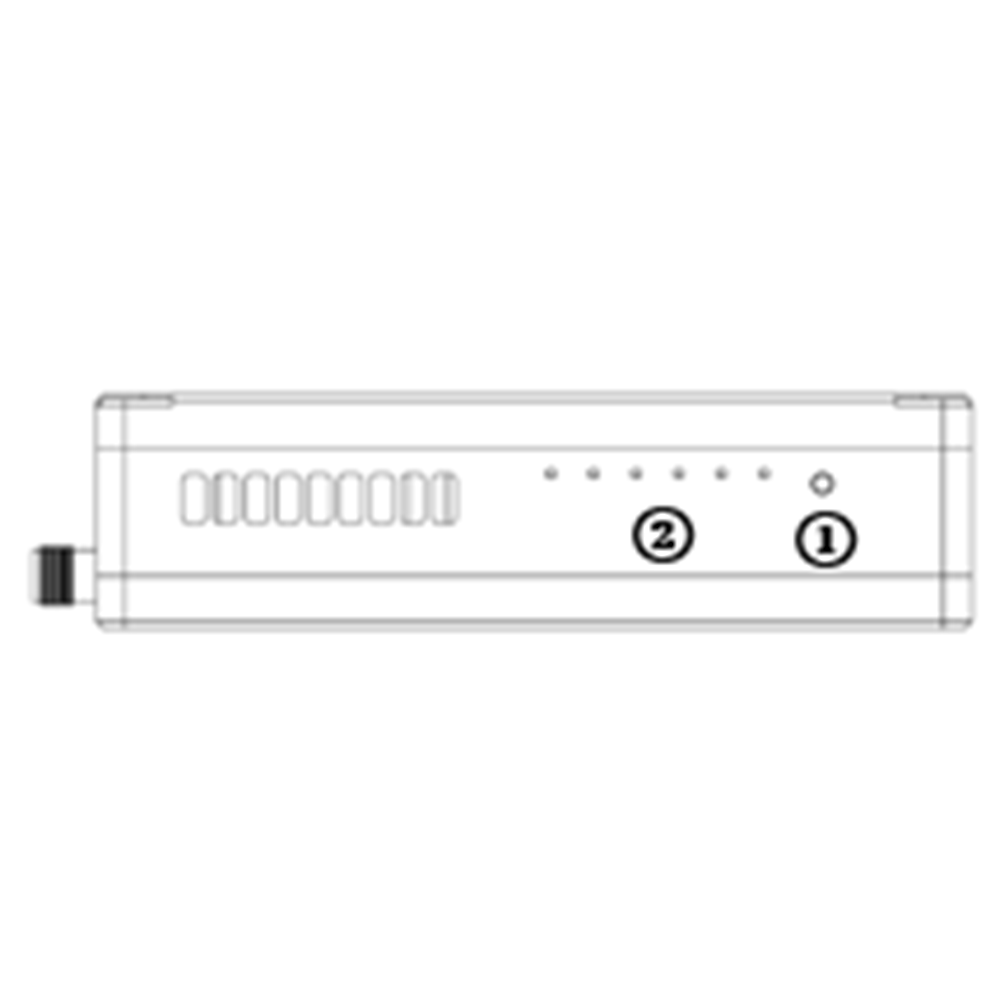
- Binding button
Press-and-hold this button to perform the binding operation. Bound already before factory delivery, no need to bind again by user.
- LED
左から右へ: 電源インジケータ (1), Ethernet link indicator (2~4), UL/DL radio link indicator (5~6) not used for air unit. LED6 will be flashing during bind process.
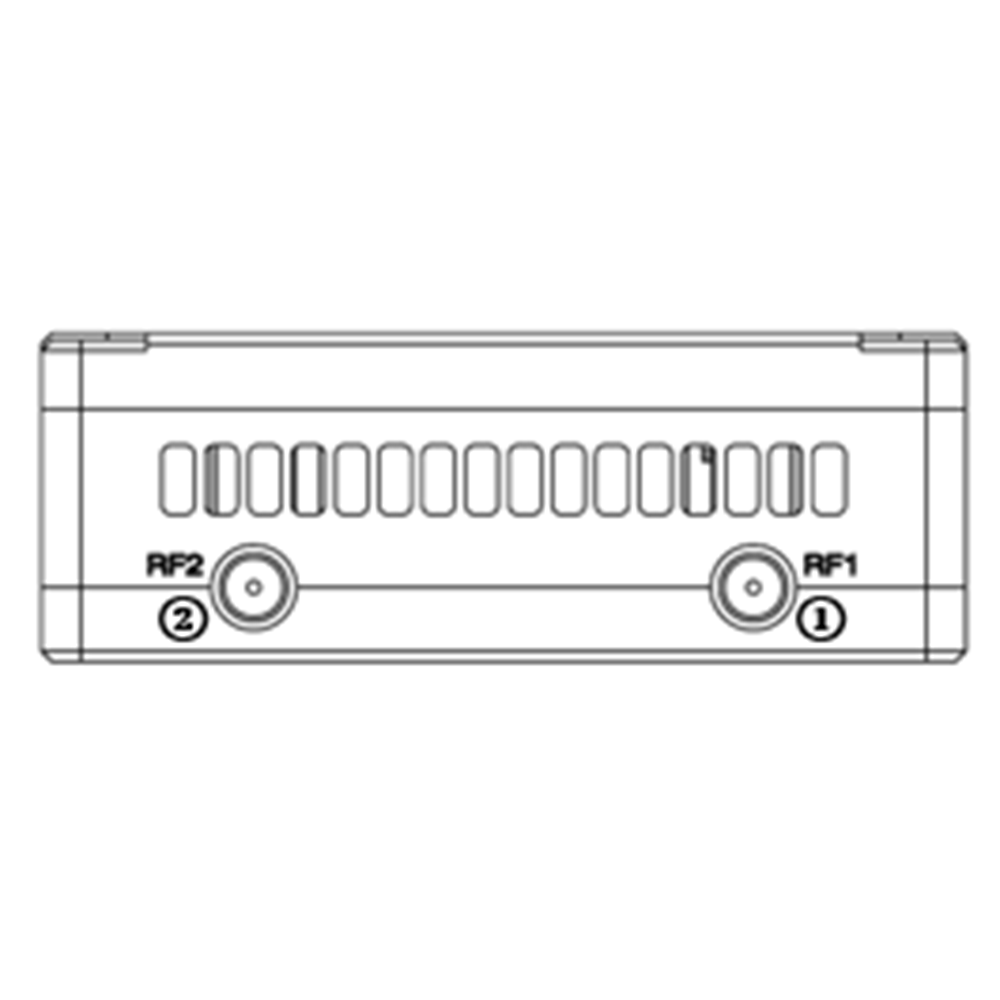
- RF1 Port
を接続します。 1セント air unit antenna to this port.
- RF2 Port
Connect the 2nd air unit antenna to this port.
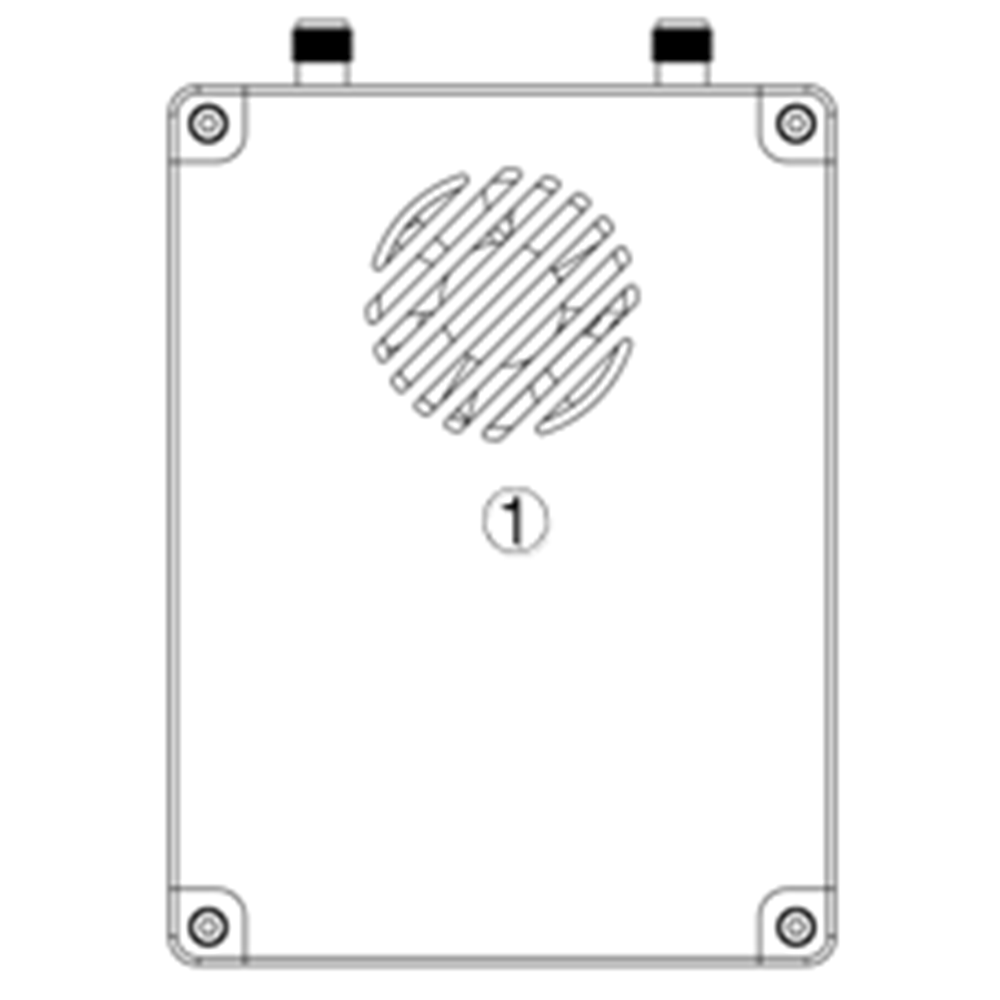
- Fan Ventilation Outlet
Don’t block this fan ventilation outlet to ensure effective cooling.
2.3. 接地 単位 インターフェース
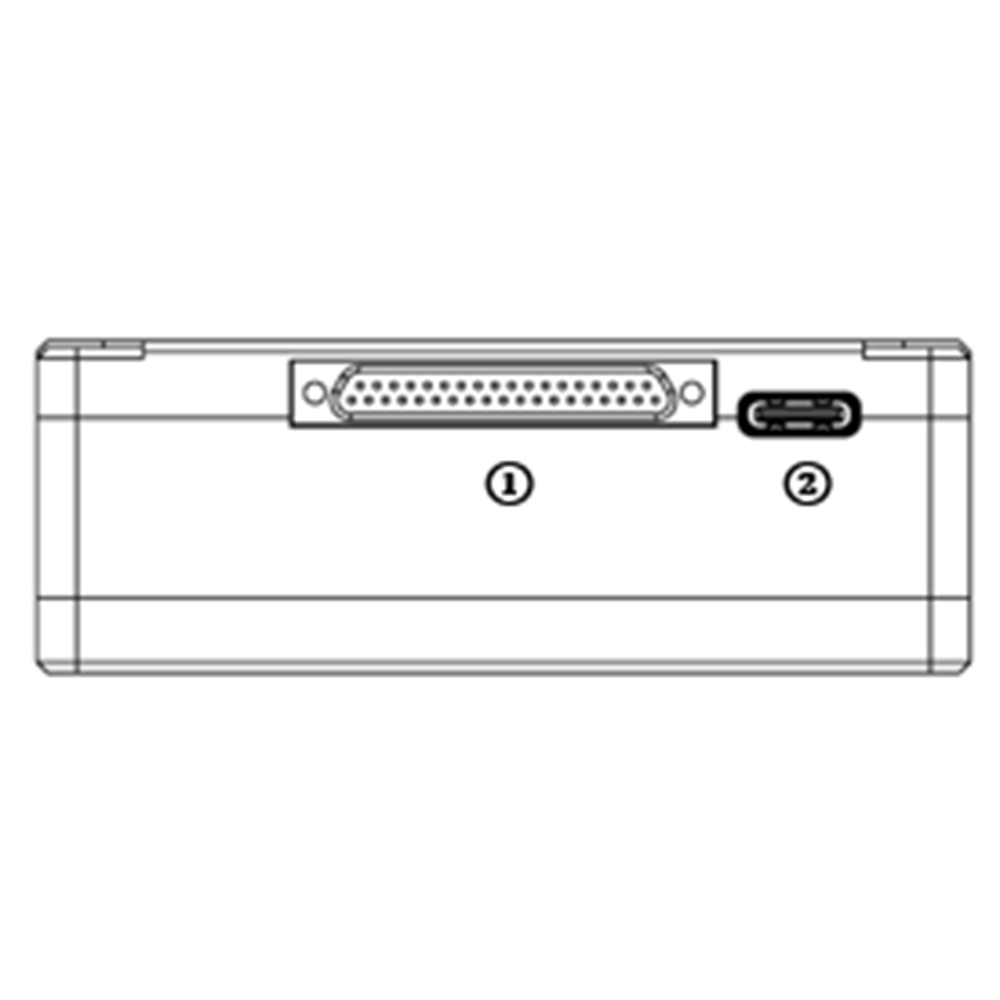
- J30J connector
It’s a J30J-37 pin connector providing power/Ethernet/serial/PPM/S.BUS.
- USBポート
Connect this port to the USB port of a PC, and use the wireless video link PC program to upgrade firmware and set parameters of the air unit.
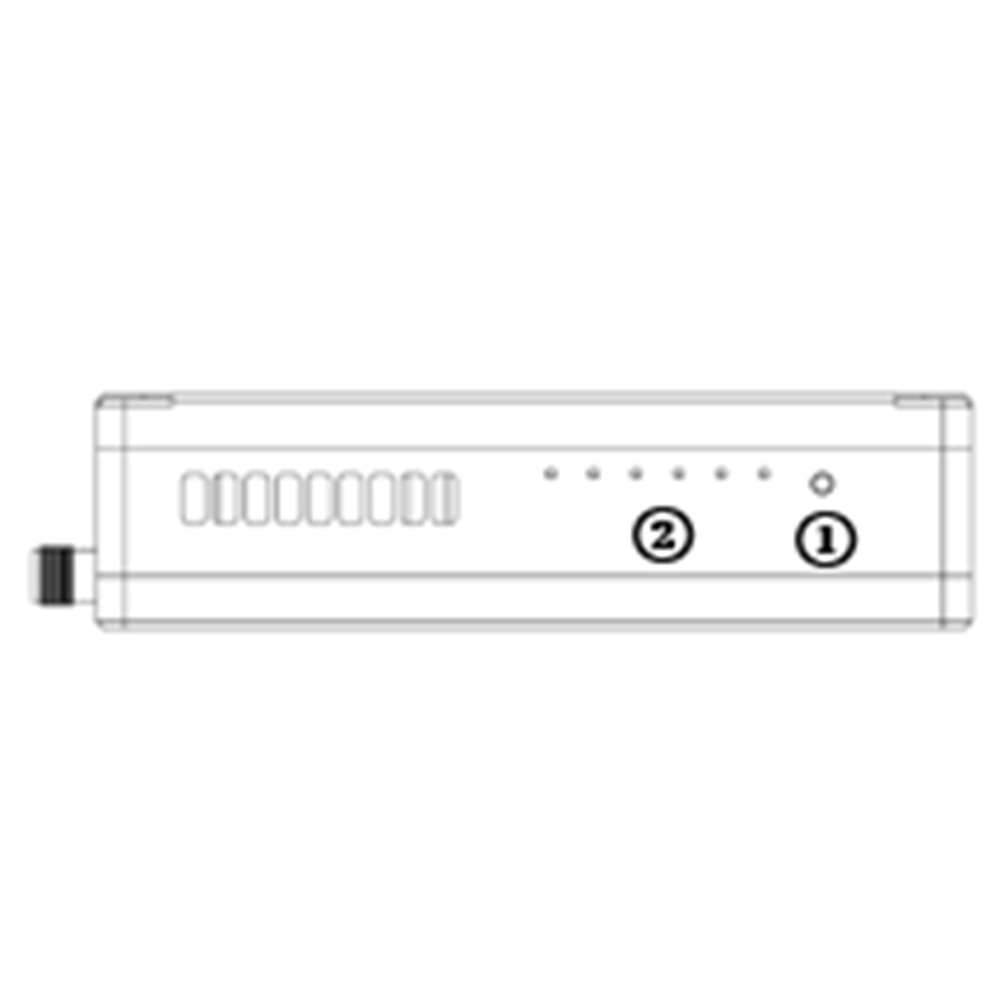
- Binding button
Press-and-hold this button to perform the binding operation. Bound already before factory delivery, no need to bind again by user.
- LED
左から右へ: 電源インジケータ (1), Ethernet link indicator (2~4), UL/DL radio link indicator (5~6). LED6 will be flashing during bind process.
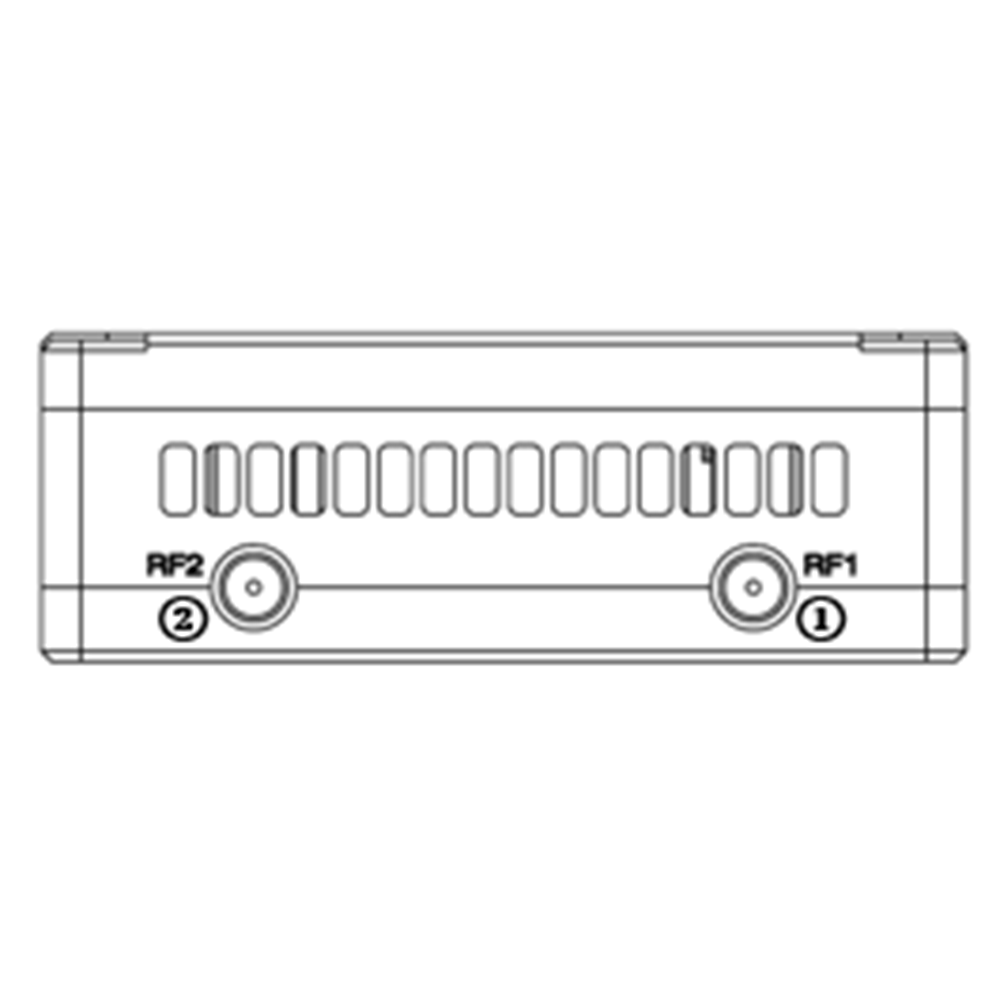
- RF1 Port
を接続します。 1セント air unit antenna to this port.
- RF2 Port
Connect the 2nd air unit antenna to this port.
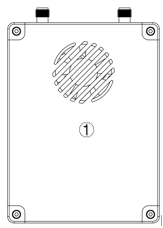
- Fan Ventilation Outlet
Don’t block this fan ventilation outlet to ensure effective cooling.
3. System 設定
3.1. 空気 単位 インスト
目次
3.1.1. Antenna インストール
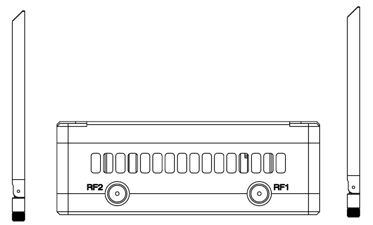
Screw the air unit antennas on the RF ports.
注意:
- To avoid equipment damage, install antennas before powering on the units.
- When mount air unit to drone, make sure the antennas are not both blocked by any part of the drone.
- Both antennas need to be installed.
3.1.2. Power supply
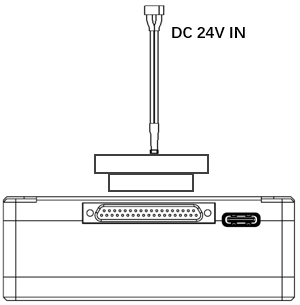
Insert the J30J connector to the J30J port of air unit and connect battery/power source to the power port at the other end.
注意:
- To avoid equipment damage, install antennas before powering on the units.
- Recommended rated voltage/current is DC24V/1.2A (または6Sリチウム電池).
3.1.3. Connect camera
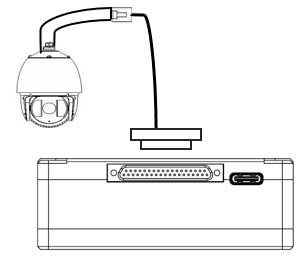
Connect the video output port of the IP camera to the Ethernet video input port of the air unit.
3.1.4. Connect flight controller (RC & テレメトリー)
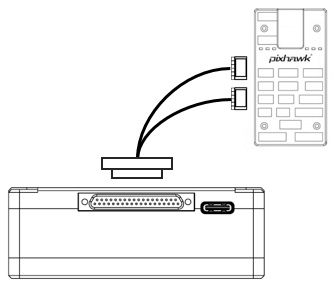
Insert the J30J connector to the J30J port of air unit and connect the other end of the serial cable to the telemetry port of a flight controller.
Insert the J30J connector to the J30J port of air unit and connect the other end of the RC cable to the PPM/S.BUS port of a flight controller.
3.2. Ground Unit Installation
3.2.1. Antenna installation
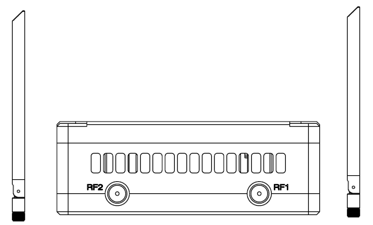
Screw the ground unit antennas on the RF ports.
注意:
- To avoid equipment damage, install antennas before powering on the units.
- Both antennas need to be installed.
- Adjust the antenna to be vertical to the ground during operation.
3.2.2. Power supply
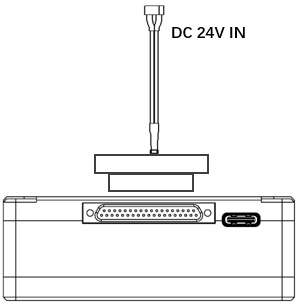
Insert the power connector of a power source into the power port of the ground unit
Note:
- Recommended rated voltage/current is DC12V/1.2A (or 3S lithium battery).
- To avoid equipment damage, install antennas before powering on the units.
3.2.3. Telemetry connection
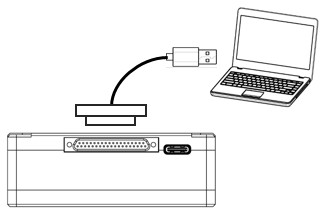
Insert the J30J connector to the J30J port of ground unit and connect the other end of supplied serial cable to the telemetry port of the ground control station.
注意:
- Ensure the baud rate of ground station and the baud rate of wireless video link module are configured to be the same.
- Ensure the serial cable sequence matches the interface definition of wireless video link module.
3.2.4. Connect remote controller
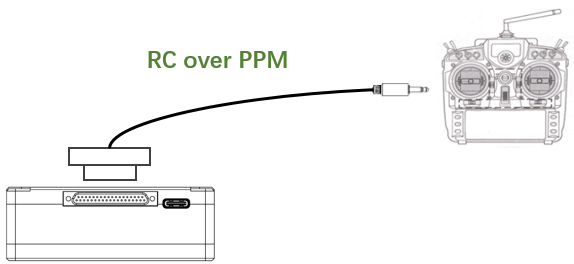
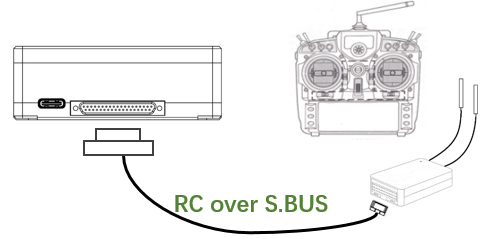
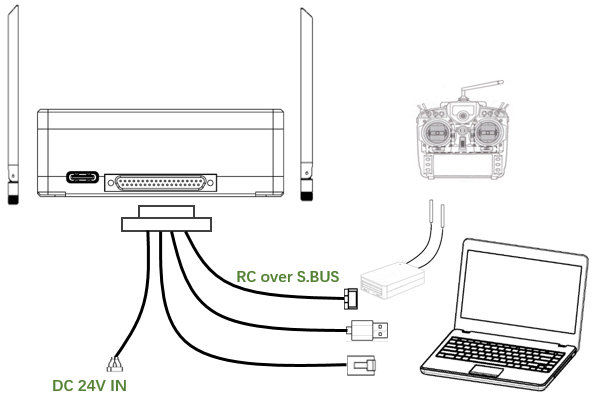
Using PPM mode: Insert the trainer port connector of the supplied RC cable to the trainer port of a remote controller and Insert the J30J connector to the J30J port of ground unit. Using S.BUS mode: Insert the J30J connector to the J30J port of ground unit, connect the other end to a S.BUS receiver, and the S.BUS receiver communicates with the remote controller wirelessly.
Note:
- Ensure the RC cable’s pin-out matches the interface pin-out of wireless video link module.
- If a S.BUS receiver is used, there should be enough guard band between the working frequency band of the receiver and the working frequency band of wireless video link module.
3.2.5. Setup video output
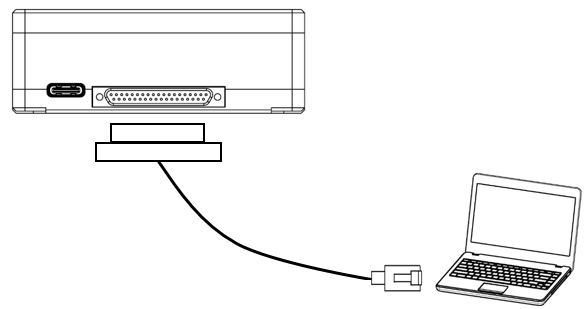
Insert the J30J connector to the J30J port of ground unit and connect the other end of supplied Ethernet cable to PC or the ground control station. Make sure IP addresses of camera and PC are in the same subnet.
3.2.6. つかいます ワイヤレスビデオリンク システム
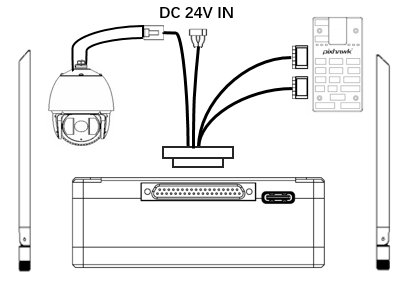
- Install antennas to the air unit.
- Connect IP camera output to Ethernet port of the air unit.
- Connect the PPM/S.bus port of the flight controller to the RC port of the air unit.
- Connect the telemetry port of the flight controller to the serial port of the air unit.
- Connect a 24V DC power source to the power port of the air unit and turn it on.
- If the latest firmware is needed, connect the air unit to a PC using USB cable and run wireless video link PC program to upgrade the firmware of the unit to the latest one.
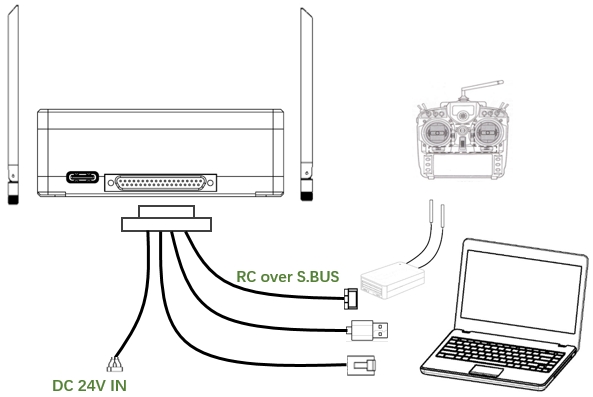
- Install antennas to the ground unit.
- Configure the remote controller to be in trainer mode. If PPM mode is used, connect the remote controller interface of the ground unit to the trainer port of the remote control. If S.BUS mode is used, a S.BUS receiver needs to be connected to the ground unit using supplied cable, and the connection between the S.BUS receiver and the remote controller need to be established.
- Connect the USB port of a ground control station to the serial port of the ground unit through a Serial-2-USB adaptor to use telemetry link.
- Connect the Ethernet port of a GCS or PC to the RJ45 connector of ground unit to get IP video/telemetry (telemetry over Ethernet).
- Turn on the ground unit.
- If the latest firmware is needed, connect the ground unit to a PC using USB cable and run wireless video link PC program to upgrade the firmware of the unit to the latest one.
- After downlink and uplink are established, both LEDs of the ground unit will be on.
4. ソフトウェア
4.1. インスト
wireless video link provide program installation files, program file name: wireless video link Wireless App Setup.exe. The installer icon is as following:
Double-click the installer to install and customize the program installation directory. 設定後, click “Next” to move to the next step. To cancel the installation, click “Cancel”.
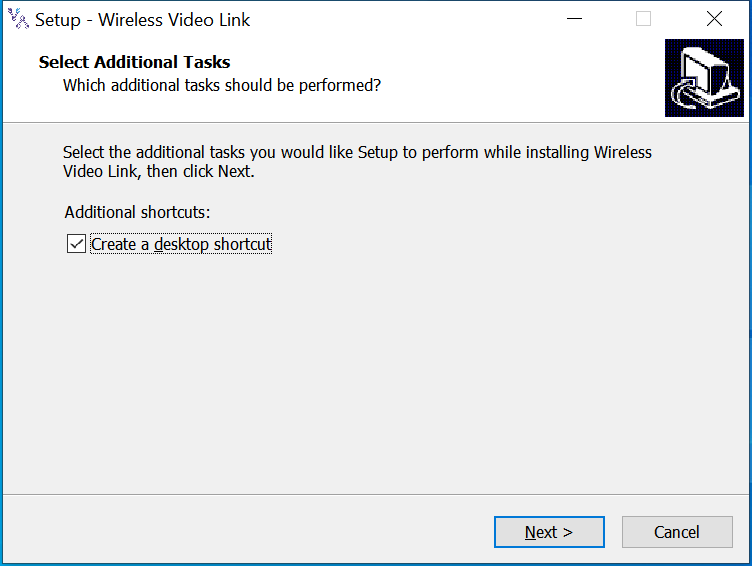
Check the “Create desktop shortcut” if desktop shortcut is needed. If it is not checked, the desktop shortcut will not be created. 設定後, click “Next” to move to the next step. To go back to the previous step, click “Back”. To cancel the installation, click “Cancel”.
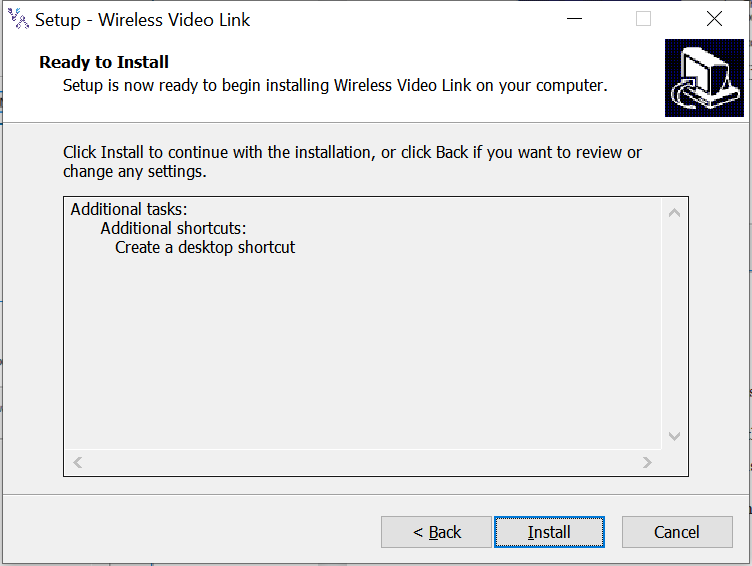
Click “Install” to proceed with the installation. To go back to the previous step, click “Back”. To cancel the installation, click “Cancel”.
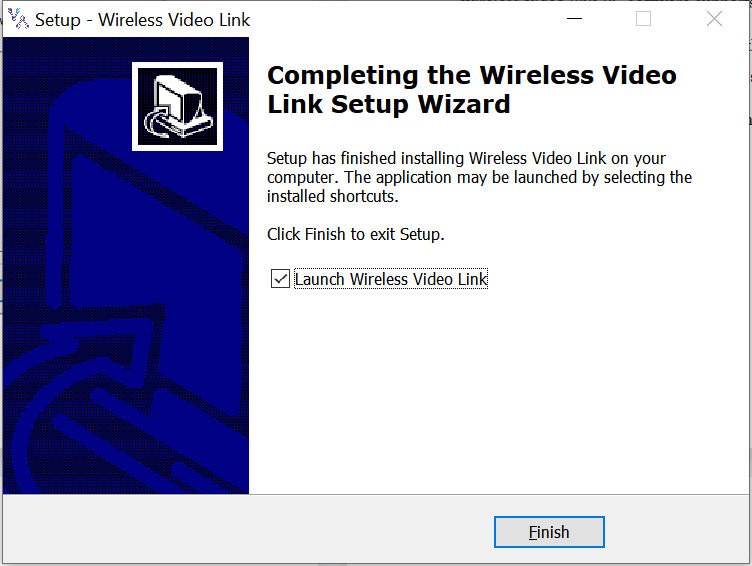
注意: Please disable the anti-virus software, otherwise the anti-virus may prevent the driver from being installed during the driver installation.
この時点で, the software installation is done and the driver installation is completed.
4.2. ソフトウェア 言語
wireless video link PC software supports both Chinese and English.
The software will display in Chinese if the operating system of the PC is in Chinese, otherwise the software displays in English.
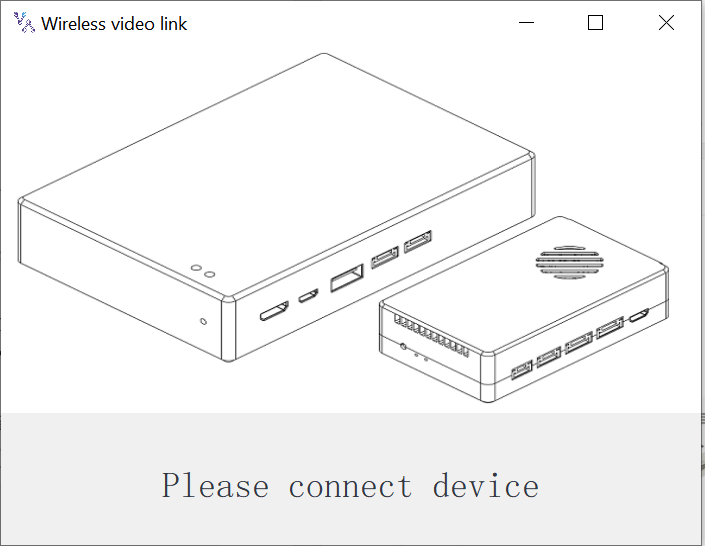
If the device is not connected to the computer properly, wireless video link PC software shows the following picture:
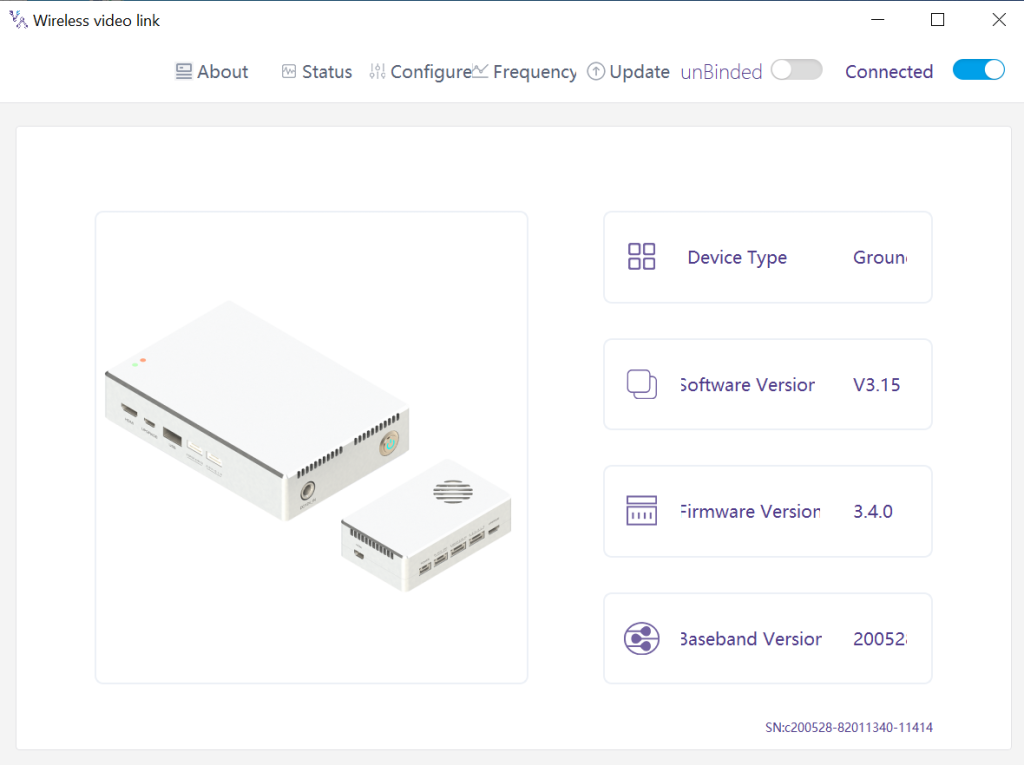
If the device is connected to the computer properly, wireless video link PC software shows the following picture:
4.3. Device Info
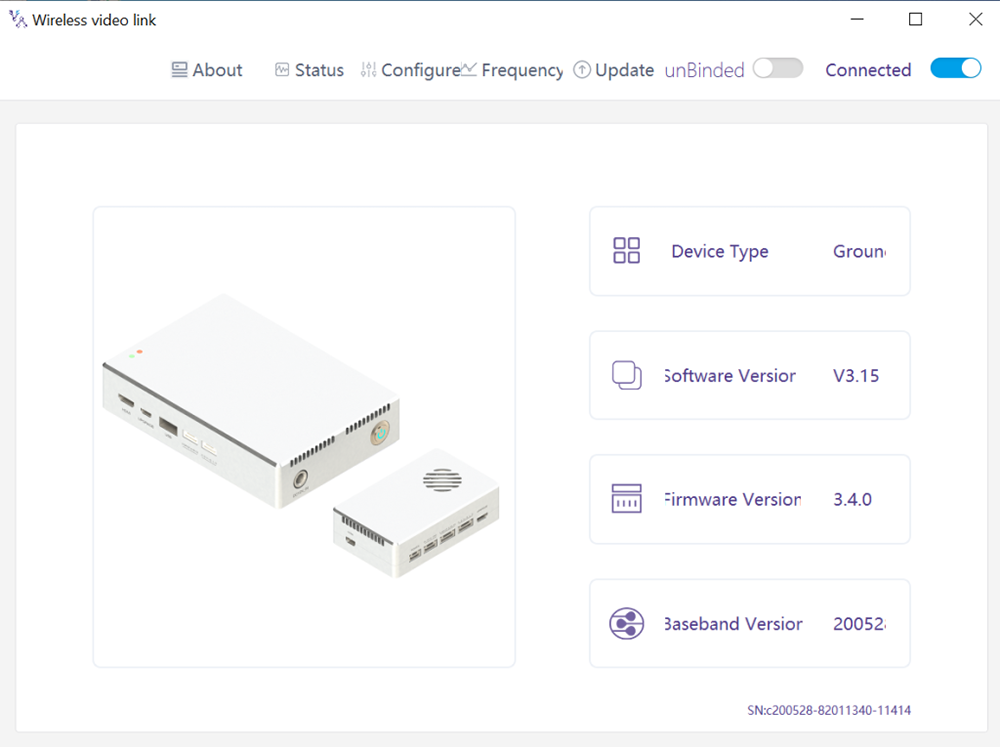
Information on the homepage: device type, software version, ファームウェアのバージョン, and baseband version.
4.4. 状態
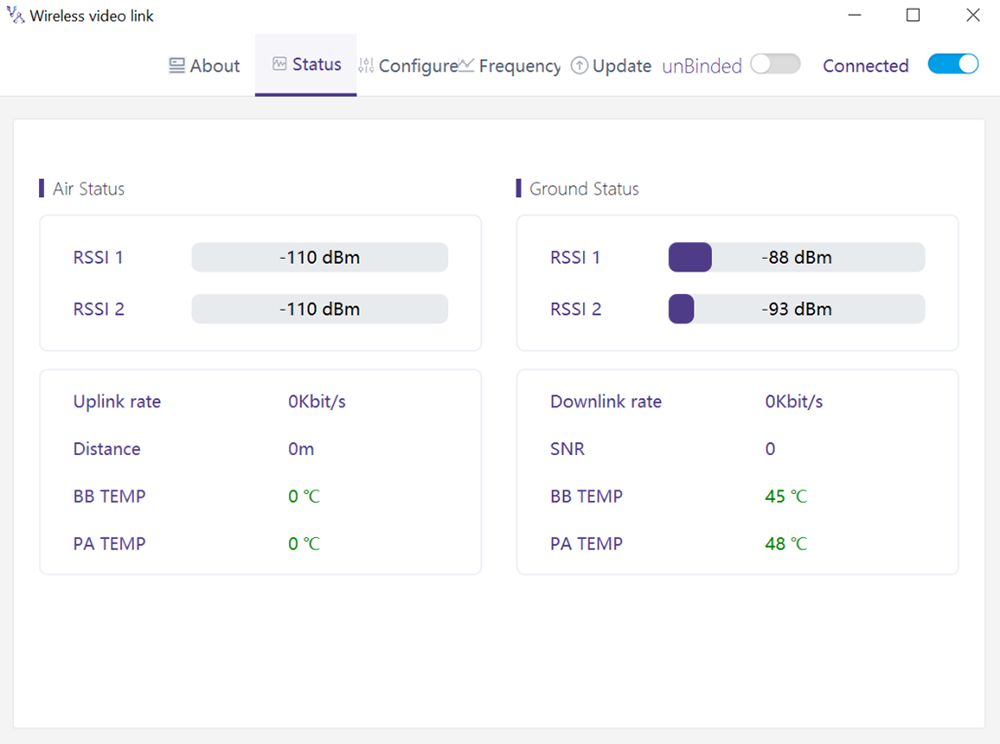
Read the status information of air unit and ground unit under “Status” page section:
空気: RSSI 1 & RSSI 2, Uplink rate, 距離, BB TEMP, PA TEMP.
接地: RSSI 1 & RSSI 2, Downlink rate, SNR, BB TEMP, PA TEMP.
4.5. コンフィギュレーション
To change configuration, device need to be bound and wireless connection between air unit and ground unit needs to be established.
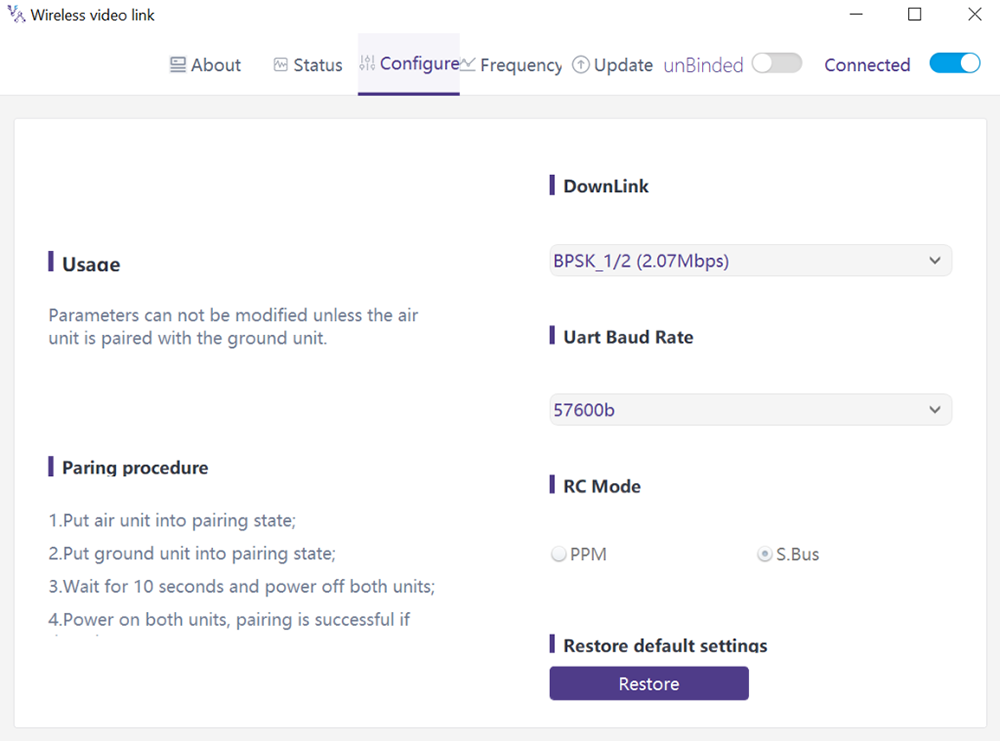
4.5.1. Downlink Mode configuration
To change downlink mode, device need to be bound and wireless connection between air unit and ground unit needs to be established
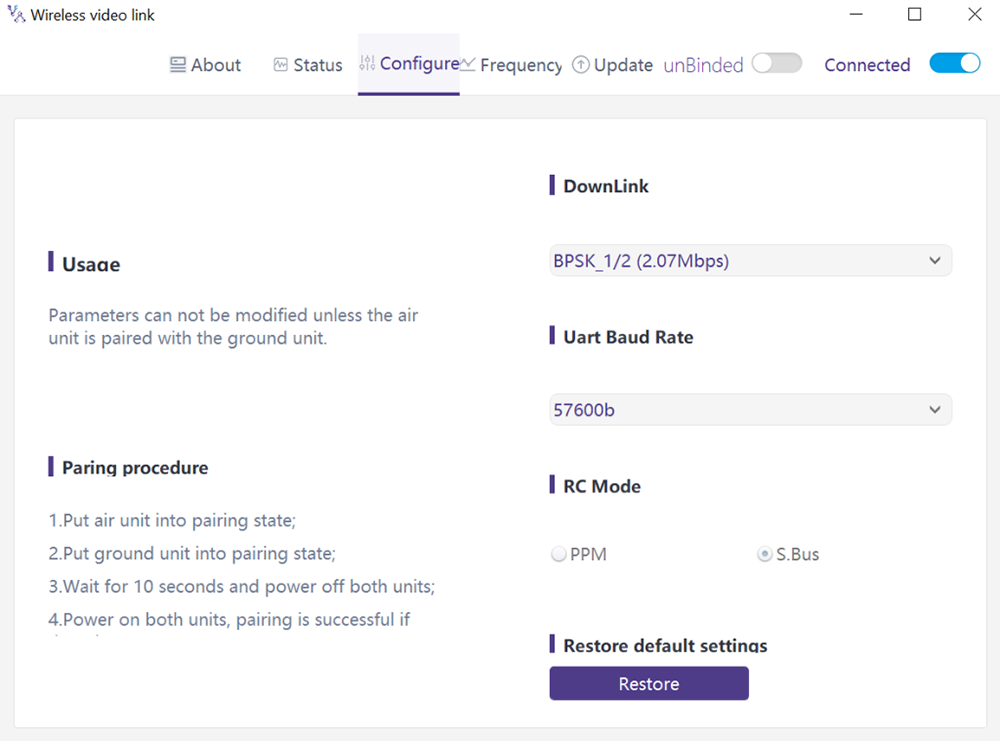
がある 8 options for downlink mode from the drop-down menu (see the following screenshot):
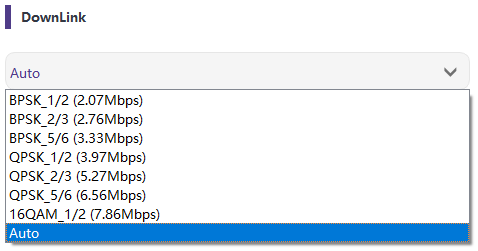
When it’s selected as Auto, modulation scheme will be dynamically adaptive based on real-time signal quality.
4.5.2. Baud rate configuration
がある 4 options for serial port baud rate (see the following screenshot).
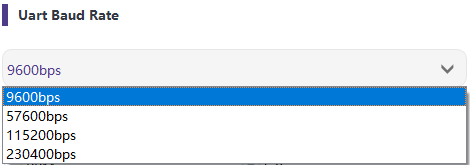
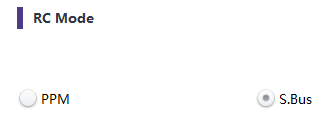
4.5.3. リモート control モード 構成
There are two options for remote control mode, PPM and S.BUS (see the following screenshot).
4.5.4. Restore デフォルト 設定
Click “Restore” to restore default settings.

4.6. 周波数
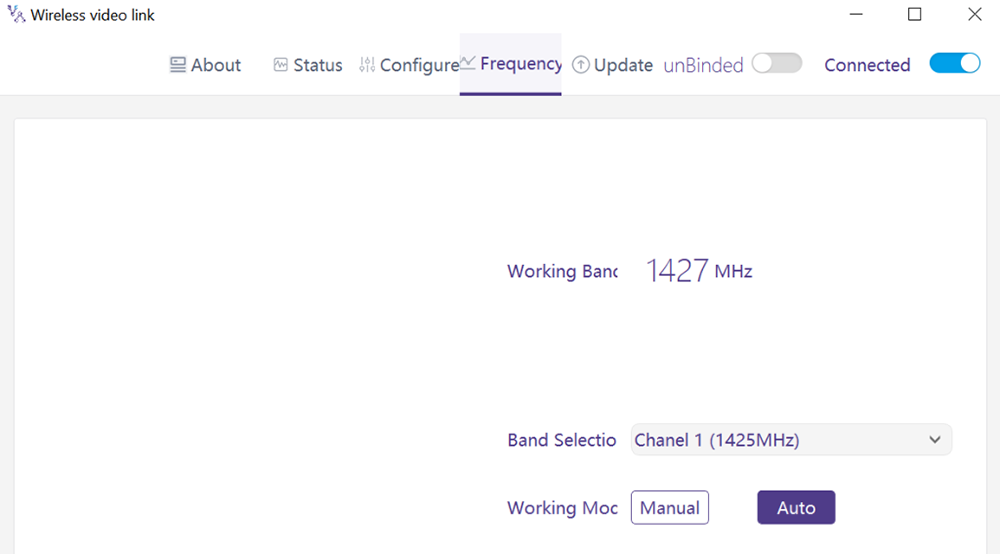
Frequency related information/parameters can be checked/set at page of frequency.
4.6.1. Frequency working mode
作業モード:マニュアル, オート.
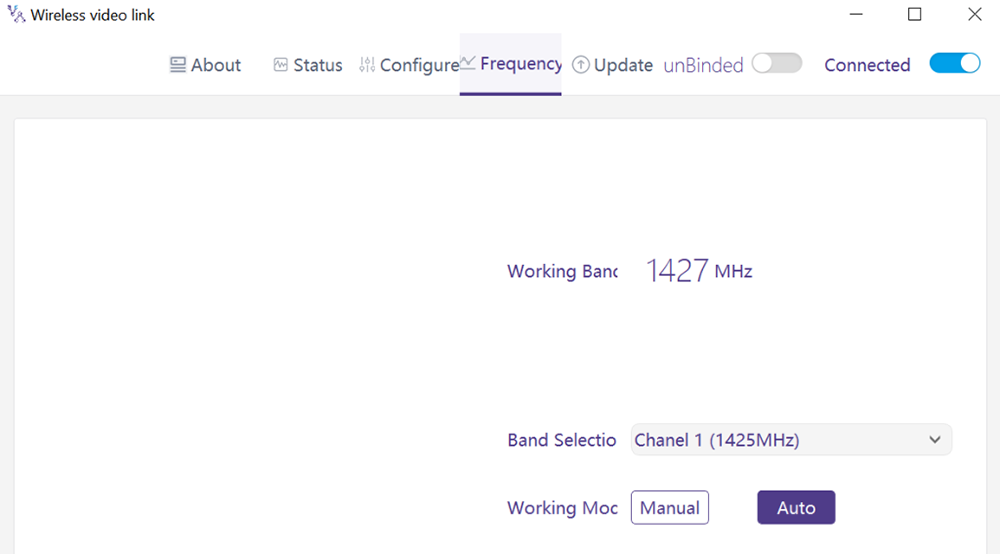
マニュアルモード: The user manually selects the working frequency.
Auto mode: The system selects the working frequency based on the frequency scanning.
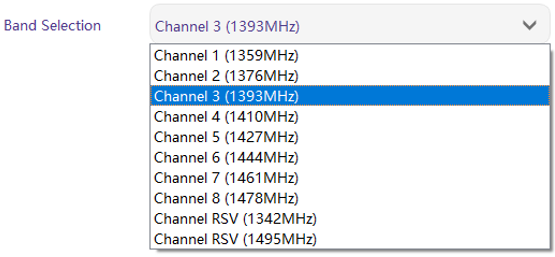
4.6.2. 周波数選択
Under the manual mode, working frequency can be selected from the drop-down menu. Please select and use the channels in accordance with the product specification (1330〜1450MHz).
4.7. アップグレード
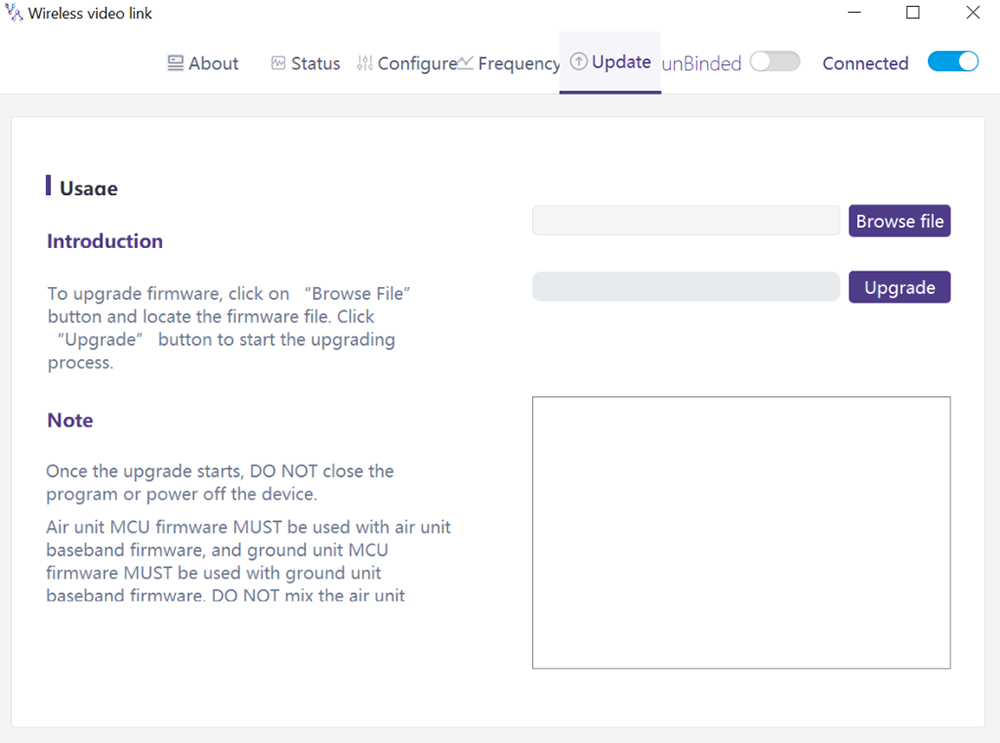
注意: air unit and ground unit need to be upgraded separately using the USB cable to connect wireless video link PC software.
Goes to the Upgrade page. アップグレードファイルを選択します, click the “Upgrade” purple button to upgrade.
4.8. Webpage Management
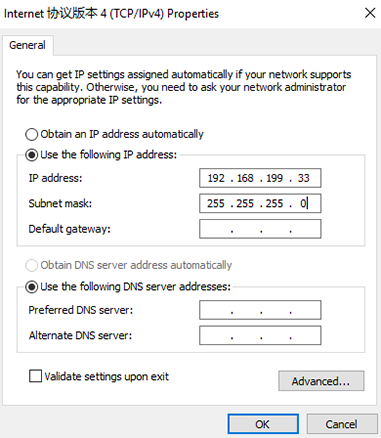
Besides PC app management via USB, webpage management via Ethernet is also supported. Directly connect PC to air unit/ground unit by Ethernet cable, set PC IP address as 192.168.199.33/24, and visit 192.168.199.18 (エアユニット)/192.168.199.16 (地上ユニット) through webpage.
Under StatusàBaseband status, there’s detailed information like RSSI, SNR, TxPower, LDPC stats, telemetry stats, 等.
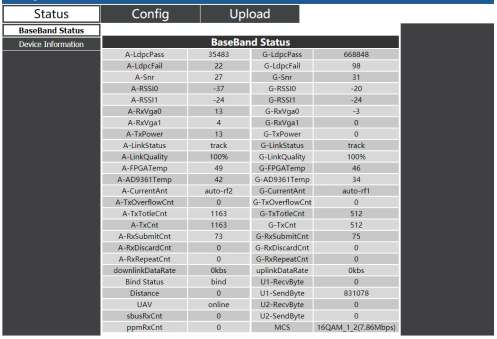
Under Status Device information, there’s information of SN and firmware version.

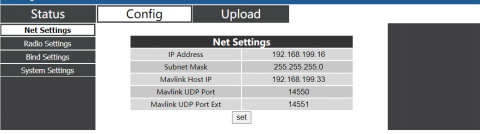
Under ConfigàNet settings, there’re IP address of unit itself, telemetry destination IP address and UDP ports, all of these parameters can be changed as per user’s request.
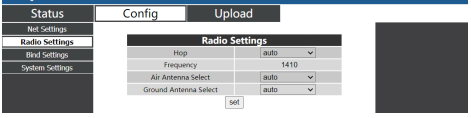
Under ConfigàRadio settings, there’re hop, 周波数, antenna selection can be set. When hop is auto, user do not need to/cannot set frequency, system dynamically selects the best frequency to use by itself, in other words, when hop is manual, user can set frequency manually.
Under Config Bind setting, bind process can be triggered by clicking bind instead of physical bind button.

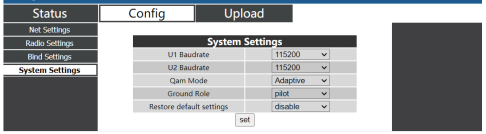
Under Config System settings, baud rate for U1/U2 two serial ports can be set. When QAM mode is set as adaptive, unit will dynamically change modulation scheme based on real-time signal quality. Role of pilot has bi-directional transmission while observer only has downlink data.
Under Upload Upload, browser and select file to be upgraded first, then click send to trigger the process.

5. アプリケーション
5.1. アプリケーション の リモコン
wireless video link modules support PPM and S. BUS protocol.
If PPM mode is used, please use wireless video link standard PPM cable to connect the ground unit and the remote controller’s trainer port.
If S. BUS mode is used, additional S.BUS receiver is needed. The ground unit is connected to the receiver. Then S. BUS receiver establishes wireless communication with the remote controller.
Both modes require the remote controller to be configured to the corresponding working mode.
If S. BUS receiver is used, please use a receiver whose working frequency is different from that of wireless video link module.
When PPM mode is used, the air unit needs to connect to the PPM RC port of a flight controller.
When S. BUS mode is used, the air unit needs to connect to the DSM/S. BUS RC port of a flight controller.
5.1.1. FRSKY リモート controller
- PPMモード
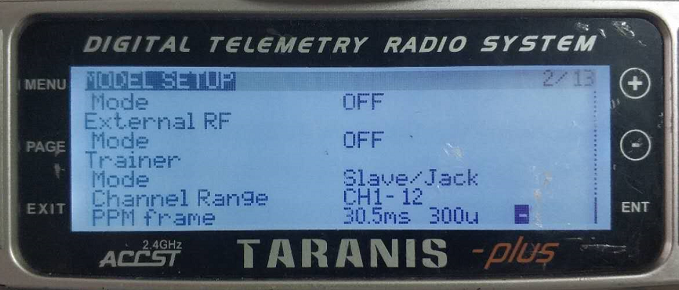
Model setup – Trainer – mode: If mode is configured to Slave/Jack, then the remote controller is in PPM mode.
Model setup – Internal RF: It needs to be configured to be off, and S. bus mode will be disabled.
- S.BUSモード
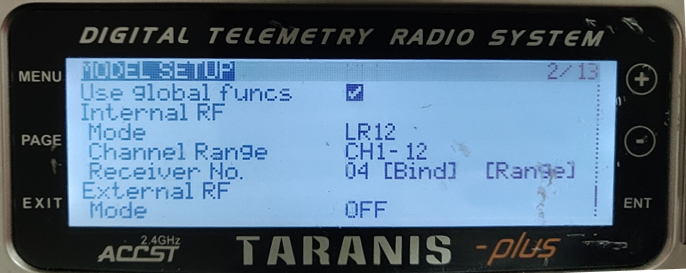
Model setup – Internal RF: LR12, D8, D16, OFF. Configuration of different parameters follow those of the receiver. If configured as OFF, S. bus mode will be disabled.
5.1.2. Futaba リモート controller
- S.BUSモード
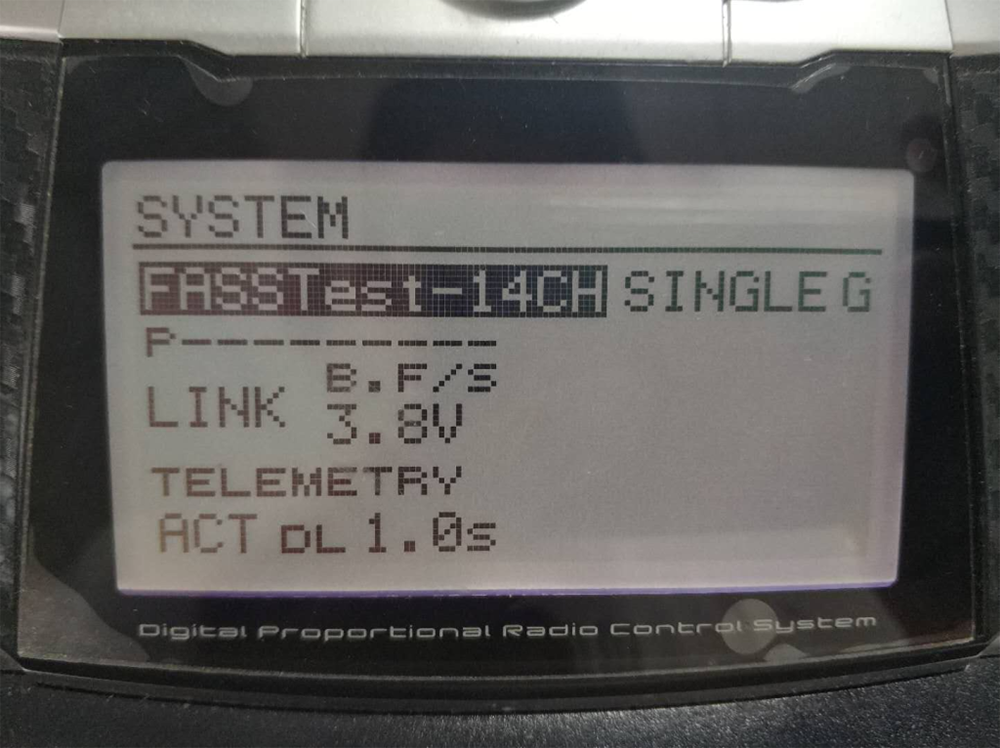
Linkage menu – システム: FASSTest-14CH, FASSTest 12CH, マルチを保持, 7CHを保持, S-FHSS. Configuration of different parameters follow those of the receiver.
- PPMモード
wireless video link standard PPM cable is used to connect to Futaba trainer cable (one end is connected to the trainer port of Futaba controller, the other end is 3.5mm connector). PPM mode can be used directly without additional configuration.
5.2. テレメトリー 接続
The telemetry Port of air unit connects “TELEM1” Port of a flight control(ピクホーク4).
5.3. 得る ライブ ビデオ
Get real-time video through RTSP on media players like QGC/VLC. Make sure IP addresses of PC and camera are in the same subnet.
6. ノート
6.1. リンク パフォーマンス
- RF cable connector/Antenna connector check
Before flight, check if the antennas are connected to the modules. Running module without antennas connected results in very short range and can potentially damage the module. It is recommended to check the connection of all RF connectors. Loose connection can degrade the range significantly.
- Antenna placement
Place the two air antennas so that no matter what position the drone is, at least one antenna is not blocked by the payload from the ground station.
If the drone will fly in full throttle, it will lean forward. Install the air antenna so that it is close to be vertical to the ground when the drone moves forward in full throttle.
- Battery level
The reception performance will degrade if the battery runs low, even though it might still power the units up.
6.2. RC リンク & リモート controller
The RC link of wireless video link module supports the PPM and S.BUS protocols. If the PPM protocol is used, you need to configure the remote controller to PPM mode and turn off the wireless transmission of the remote controller. S.BUSプロトコルを使用する場合, the wireless working frequency of the receiver connected to the remote controller must work in different frequency bands with the working frequency of wireless video link module and have a certain isolation guarantee.
If you do not use the RC link of wireless video link module, you should pay attention to the remote link working frequency of the remote controller when using the RC link of the remote controller. If it is in the same frequency band as the working frequency of wireless video link module, it will cause interference with each other.
Avoid interference with wireless video link module by the wireless link of the remote controller or receiver when using wireless video link system.
6.3. Firmware update
ファイルをアップグレードする: FPGA upgrade file for air unit, FPGA upgrade file for ground unit, MCU1 upgrade file for air unit, MCU1 upgrade file for ground unit, MCU2 upgrade file for air unit, MCU2 upgrade file for ground unit.
Upgrade files are upgraded using wireless video link PC software. アップグレード中, the power cannot be powered off and the normal connection of USB cable should be ensured at the same time. アップグレードが失敗した場合, the power cannot be powered off, もう一度直接アップグレードしてみてください. さもないと, it will be necessary to return to us to use special burning tools for firmware burning.
6.4. Bind インクルードperation
“Bind” is used to pair an air unit with ground unit.
To pair an air unit and a ground unit:
- Both air unit and ground unit are powered on.
- Connect the air and ground unit.
- Press the physical bind button of the air unit, last 5s+. The LED light next to the bind button flashes green, バインディング状態にあることを示します.
- Press the physical bind button of the ground unit, last 5s+. The LED light next to the bind button flashes green, バインディング状態にあることを示します.
- When the link indicator LEDs of ground unit are always on, it indicates that the air and ground unit is bound.
注意:
(1) If modules binding with different firmware version, the binding operation may fail.
(2) If the program of the air unit or the ground unit is burned incorrectly, such as burning the air unit to the ground unit, and performing the binding operation between the wrong air unit and the ground unit, the binding operation will fail.
(3) Units are bound already before factory delivery, customer do not need to bind again after unboxing.
(4) If unit is restored to factory setting, bind again is needed.
6.5. PC Windows firewall
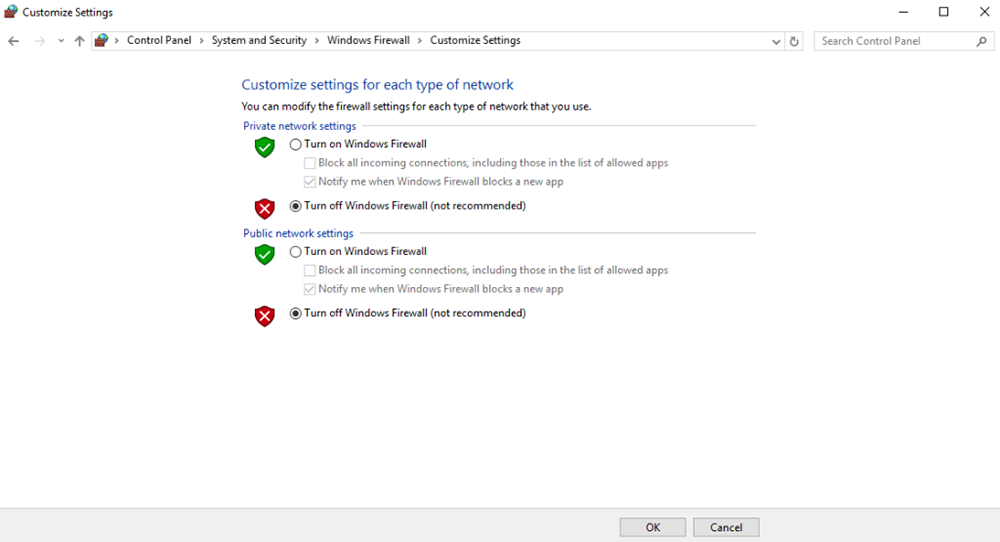
Make sure PC firewall is disabled in case video and/or telemetry is blocked. Here take Windows10 operation system for reference. パス: Control Panel\System and Security\Windows Firewall\Customize Settings.
Set Private/Public network settings as ‘Turn off Windows Firewall’ as below, click ‘OK’.
6.6. Set PC IP address
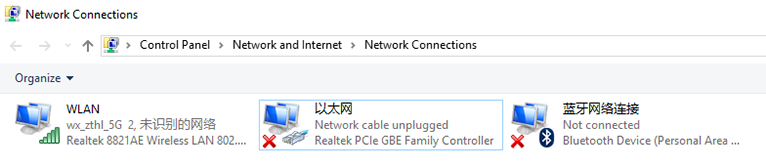
PC IP address should be set correctly when watch video in PC, IP address can be set following below steps:
Double click ‘Ethernet’ at Control Panel\Network and Internet\Network Connections,
Double click ‘Internet protocol version 4(TCP/IPv4)’, set PC IP address like below, click ‘OK’ finish.
6.7. J30J-37 connector pin definition
| 名 | ピン |
| 力 | 1,2,20 |
| GND | 3,10,15,21,22,29,31 |
| イーサネット1 TX+ | 7 |
| イーサネット1送信- | 26 |
| イーサネット1 RX+ | 6 |
| イーサネット1 RX- | 25 |
| イーサネット2 TX+ | 5 |
| イーサネット2送信- | 24 |
| イーサネット2 RX+ | 4 |
| イーサネット2 RX- | 23 |
| イーサネット3 TX+ | 8 |
| イーサネット3送信- | 27 |
| イーサネット3 RX+ | 9 |
| イーサネット3 RX- | 28 |
| SBUS_V | 11 |
| PPM | 12 |
| GPS_SYNC | 13 |
| 予約済み | 14 |
| 232TX1 または 422Y2 | 16 |
| 232RX1または422A2 | 17 |
| 232TX2または422Y1 | 18 |
| 232RX2または422A1 | 19 |
| SBUS1 | 30 |
| SBUS2 | 32 |
| 予約済み | 33 |
| 422Z2 または TTLTX1 | 34 |
| 422B2 または TTLRX1 | 35 |
| 422Z1またはTTLTX2 | 36 |
| 422B1 または TTLRX2 | 37 |
7. FAQ
| Q1: How does the ワイヤレスビデオリンク module supply power? |
| 航空ユニット: DC, power supply range: 9-26V, recommended to use 24V. |
| 地上ユニット: DC, power supply range: 9-26V, recommended to use 24V. |
| Q2: できる? ワイヤレスビデオリンク module be powered on before antennas installation? |
| The antennas must be installed before power on. |
| Q3: How many antennas do ワイヤレスビデオリンク‘s air unit need to be installed? |
| Two antennas need to be installed. |
| Q4: How many antennas do ワイヤレスビデオリンク‘s ground unit need to be installed? |
| Two antennas need to be installed. |
| Q5: Can different types of remote controllers be used to control drone? |
| はい, just output standard PPM signals through the coach port, or use S. BUS receiver. |
| Q6: Can two air units be installed on a drone? |
| いいえ, a drone can only have one air unit. |
| Q7: Can two ground units be installed at the receiving end? |
| The ptp system can only install one ground unit; the ptmp system supports more than one ground units. |
| Q8: What if the uplink/ダウンリンク LED indicator is not on? |
| Please follow the following steps: |
| 1) Please check the power supply of the air and ground unit is normal. |
| 2) Please check the antennas installation of the air and ground units is normal: whether the antennas is blocked; whether the antennas connection is loose; whether the RF cable and port is not tightened; |
| 3) Check whether the TX frequency of the ground unit is consistent with the RX frequency of the air unit with Taiysnc PC App. |
| 4) Check the TX power of the ground unit with Taiysnc PC App. |
| 5) If above steps cannot solve the problem, please contact wireless video link technical support staff. |
| Q9: Telemetry connection cannot be setup properly? |
| Please follow the following steps: |
| 1) Please check whether the link status is normal. |
| 2) Please check whether the serial telemetry cable connection between flight controller and air unit is correct and that between ground unit and ground station is correct. |
| 3) Check whether the baud rates are the same. |
| 4) If above steps cannot solve the problem, please contact wireless video link technical support staff. |
| Q10: RC connection cannot be setup properly? |
| Please follow the following steps: |
| 1) Please check whether the link status is normal; |
| 2) Please check whether the RC connecting between flight controller and air unit is correct and that between ground unit and remote controller is correct; |
| 3) PPMモードを使用する場合, check the mode configuration of the remote controller; if using S. BUS mode, check the configuration of the receiver and remote controller; |
| 4) Please check whether the RC connection of the air and ground unit is correct. We provides standard cables. If you make it by yourself, please check the pin; |
| 5) Please check whether the RC mode is configured correctly in wireless video link app; |
| 6) If above steps cannot solve the problem, please contact wireless video link technical support staff. |
| Q11: What if there’s no video output? |
| Please follow the following steps: |
| 1) Please check whether the link status is normal; |
| 2) Please check whether the Ethernet cable and camera is normal; |
| 3) Please check whether the RTSP address is correct; |
| 4) Please check whether PC IP address and camera IP address are in the same subnet; |
| 4) If above steps cannot solve the problem, please contact wireless video link technical support staff. |
| Q12: What if the video suffers from distortion? |
| Please follow the following steps: |
| 1) Please confirm whether the downlink mode configuration is larger than the video bit rate; |
| 2) Please check whether the Ethernet connection of air unit cable is reliable; |
| 3) Whether the connection of Ethernet cable of ground unit is reliable; |
| 4) Please check If there is interference exists, change the working frequency if need; |
| 5) 干渉がなければ, whether the limit distance of communication link has been reached; |
| 6) If above steps cannot solve the problem, please contact wireless video link technical support staff. |
| Q13: What if the transmission distance of the module is shorter than expectation? |
| Please follow the following steps: |
| 1) Please verify whether the antenna and RF cable are installed correctly and check whether they are supplied Falcon accessories. |
| 2) Please ensure that the air antennas are not both blocked by the payload, there is no obvious blocking at the ground unit near the antennas, and the antennas of the air and ground units are perpendicular to the ground. |
| 3) Please check whether the module works with full RF power output. |
| 4) Please check whether the downlink mode configuration is proper or not, the high throughput downlink modes can significantly reduce the transmission distance. |
| 5) Please check whether the working frequency is obviously interfered or not. |
| 6) Please check whether there is serious obstruction between the air and the ground unit during flight, and the complex geographical environment will also affect the transmission distance. |
| 7) If above steps cannot solve the problem, please contact wireless video link technical support staff. |
質問する
ご回答をありがとうございました。 ✨