






1. תכולת החבילה
אוויר יחידה & קרקע, אדמה יחידה
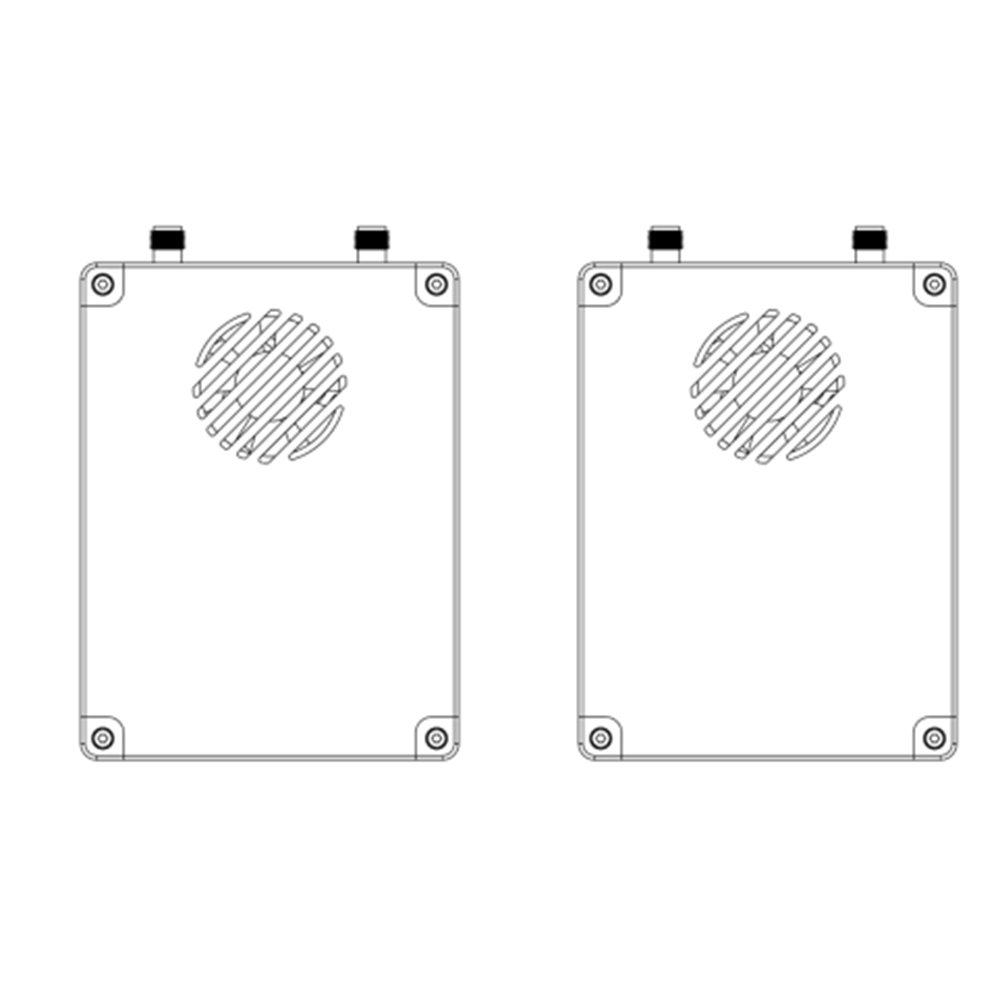
אאנטנת יחידת ir × 2
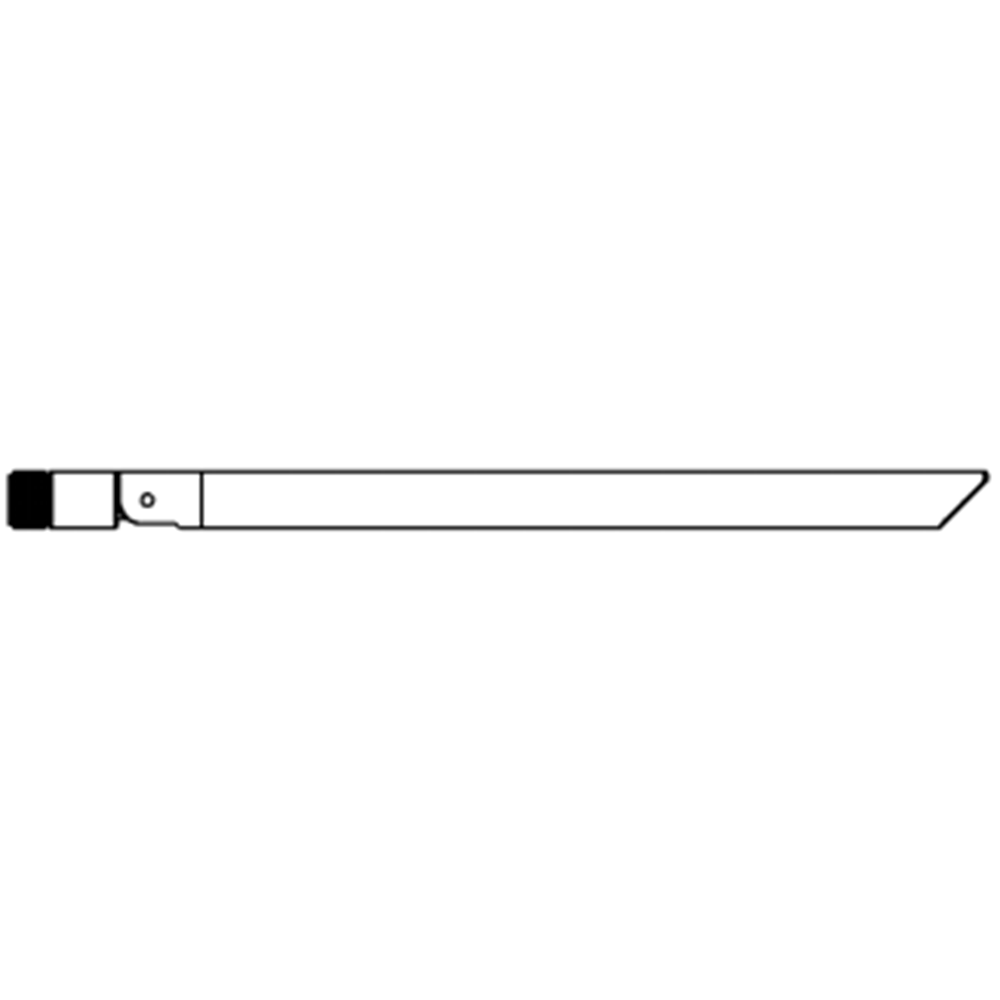
Gאנטנת יחידה עגולה × 2

אוויר יחידה כבלים
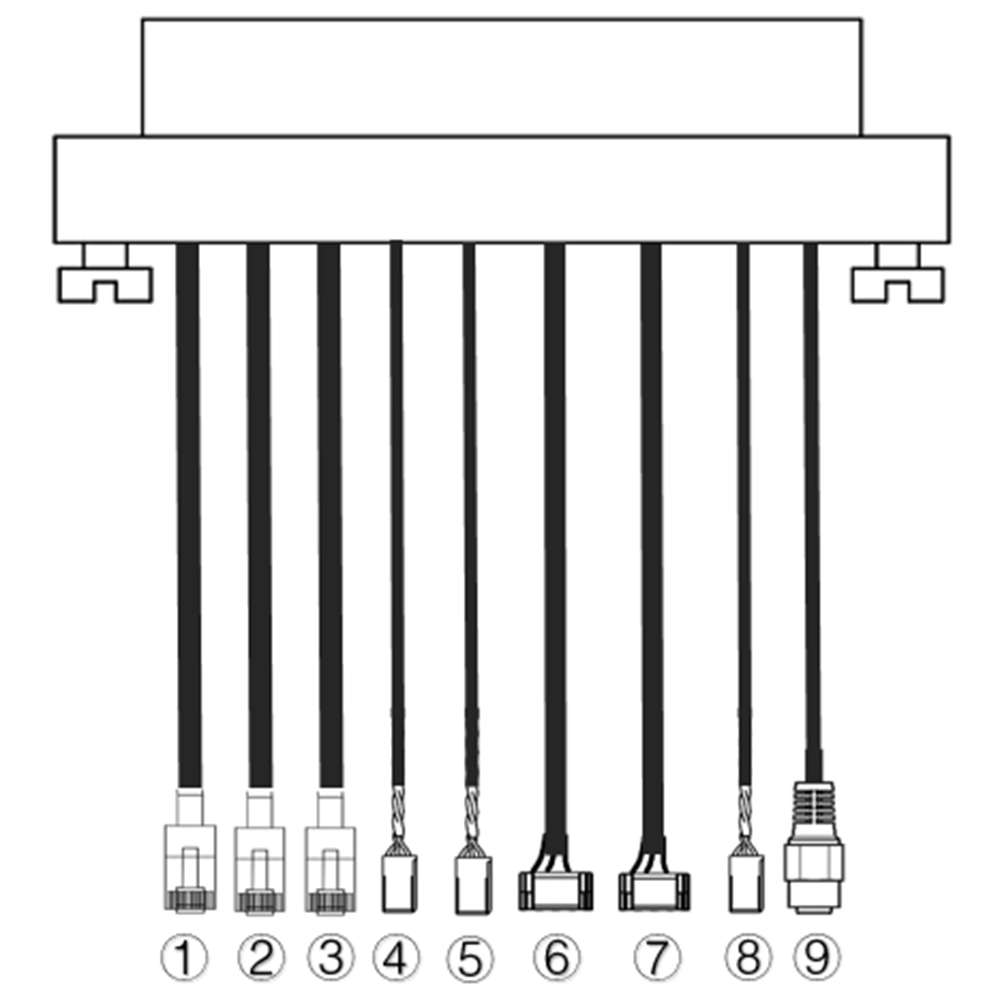
| לא. | מִמְשָׁק |
| 1,2,3 | אתרנט |
| 4,5 | S.BUS, כפי שמוצג בתמונה, ה 1רחוב הפין משמאל למחבר ה-dupont הוא אות S.BUS, ה 3מחקר ופיתוח הוא G. |
| 6,7 | טלמטריה טורית, כפי שמוצג בתמונה, ה 2נד הפין משמאל של מחבר GH1.25 הוא Rx, ה 3מחקר ופיתוח הוא Tx, ה 6ה' הוא G. (TTL כברירת מחדל, חלופה RS232/422) |
| 8 | PPM, כפי שמוצג בתמונה, ה 1רחוב פין משמאל הוא אות PPM, ה 3מחקר ופיתוח הוא G. |
| 9 | כּוֹחַ |
הארקה כבלי יחידה
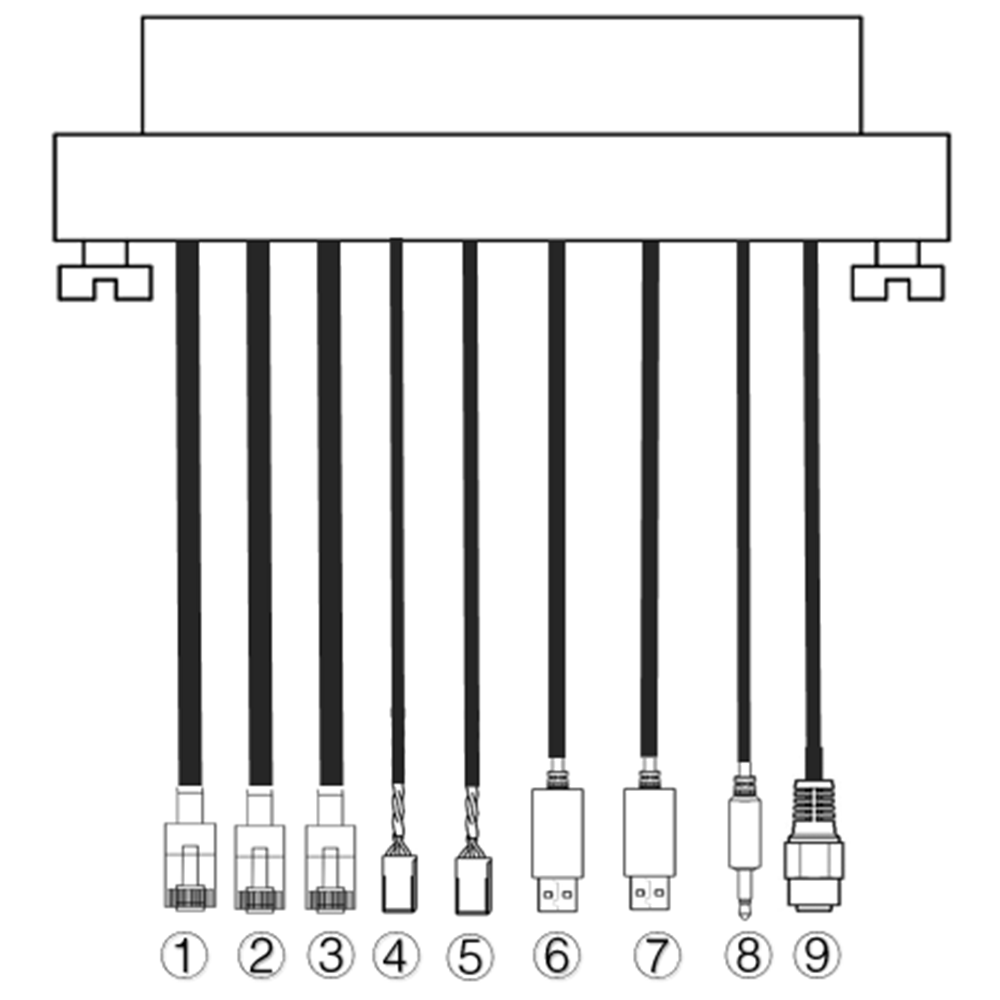
| לא. | מִמְשָׁק |
| 1,2,3 | אתרנט |
| 4,5 | S.BUS, כפי שמוצג בתמונה, ה 1רחוב סיכה משמאל היא אות S.BUS, ה 2נד הוא 5V+, ה 3מחקר ופיתוח הוא G. |
| 6,7 | טורי-USB(TTL-USB כברירת מחדל, חלופה RS232/422) |
| 8 | PPM |
| 9 | כּוֹחַ |
2. מוצר תאור
2.1. Pערכות
| פרמטרים | ערך |
| תדירות | 1330~1450MHz |
| רוחב הלהקה | 10MHz (קישור למעלה), 10MHz (קישור למטה) |
| כּוֹחַ | 33dBm |
| וויסות | OFDM |
| קבוצת כוכבים | BPSK, QPSK, 16QAM |
| FEC | LDPC(1/2, 2/3, 3/4, 5/6) |
| דופלקס | TDD |
| תפוקת קישור למטה | 2.3Mbps ~ 8bps |
| תפוקת קישור מעלה | 600kbps |
| הצף | AES 256 |
| מִמְשָׁק | אתרנט, יו אס בי, TTL, RS232, RS422, PPM/S.BUS |
| צריכת חשמל | 18W(יחידת האוויר); 10W(יחידת קרקע) |
| חביון | <300גברת (תלות במצלמה) |
| מֵמַד | 92.5*70.3*25מ"מ |
| מִשׁקָל | 198g |
| מתח/זרם מדורג | DC24V/1.2A (או סוללת ליתיום 6S) |
| טמפרטורת עבודה | -40°C ~60°C |
2.2. אוויר יחידה ממשקים
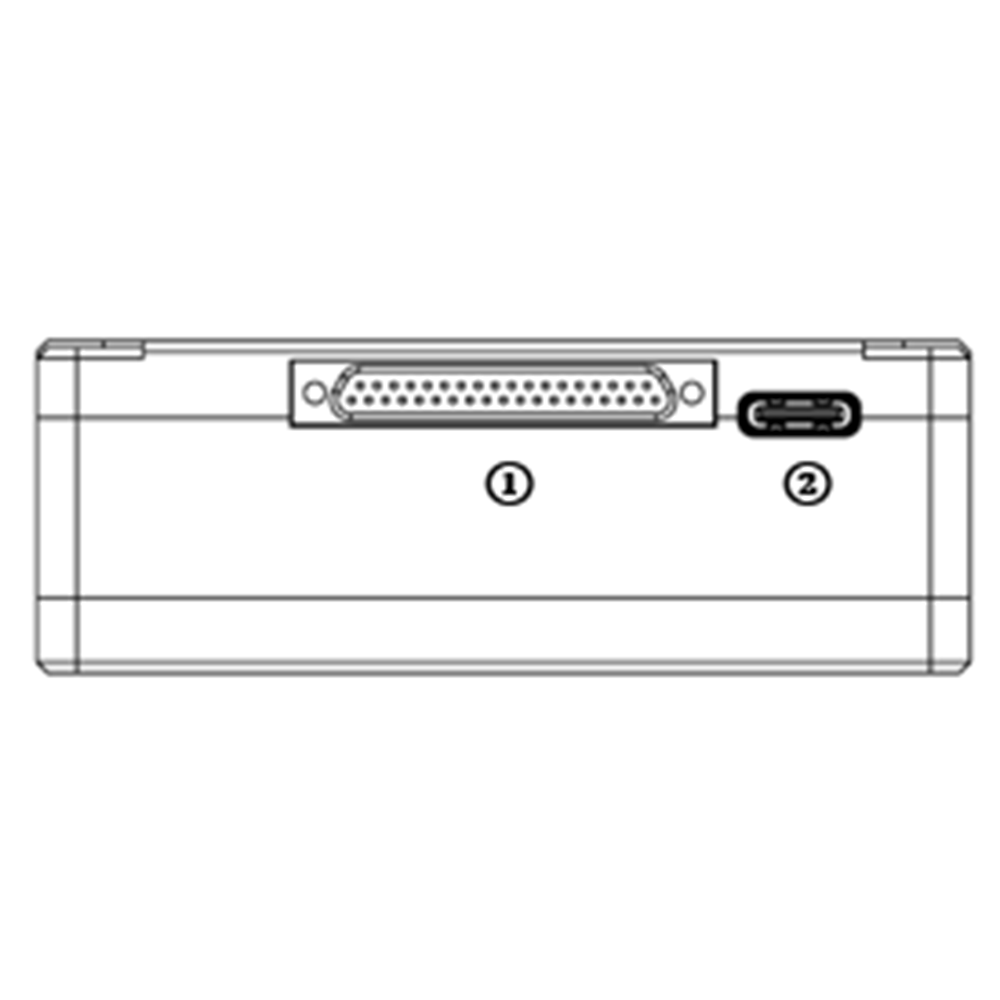
- מחבר J30J
זה מחבר J30J-37 פינים המספק חשמל/אתרנט/טורי/PPM/S.BUS.
- יציאת USB
חבר יציאה זו ליציאת USB של מחשב, והשתמש בתוכנת המחשב האלחוטי וידאו קישור כדי לשדרג קושחה ולקבוע פרמטרים של יחידת האוויר.
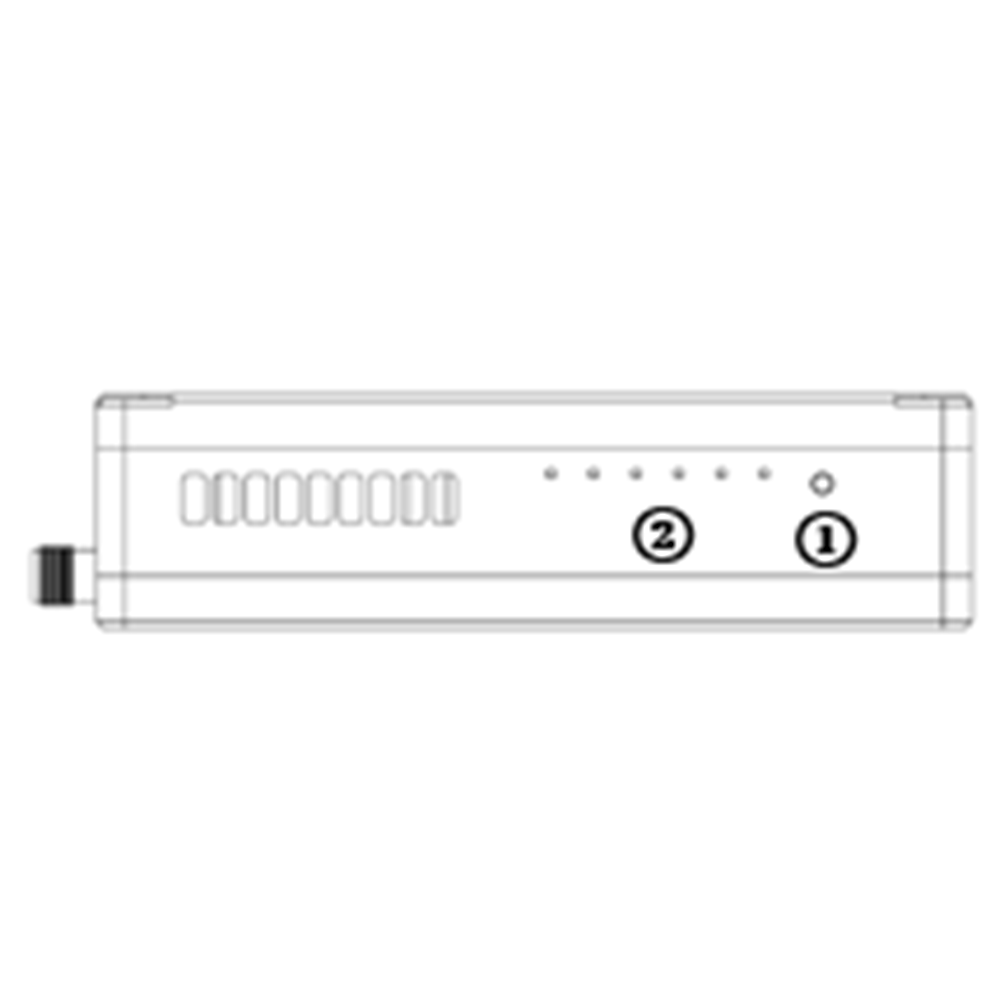
- כפתור מחייב
לחץ והחזק את הלחצן הזה כדי לבצע את פעולת הכריכה. כרוך כבר לפני משלוח המפעל, אין צורך להתחבר שוב על ידי המשתמש.
- נוריות
משמאל לימין: מחוון העוצמה (1), מחוון קישור Ethernet (2~4), מחוון קישור רדיו UL/DL (5~6) לא משמש ליחידת אוויר. LED6 יהבהב במהלך תהליך הקישור.
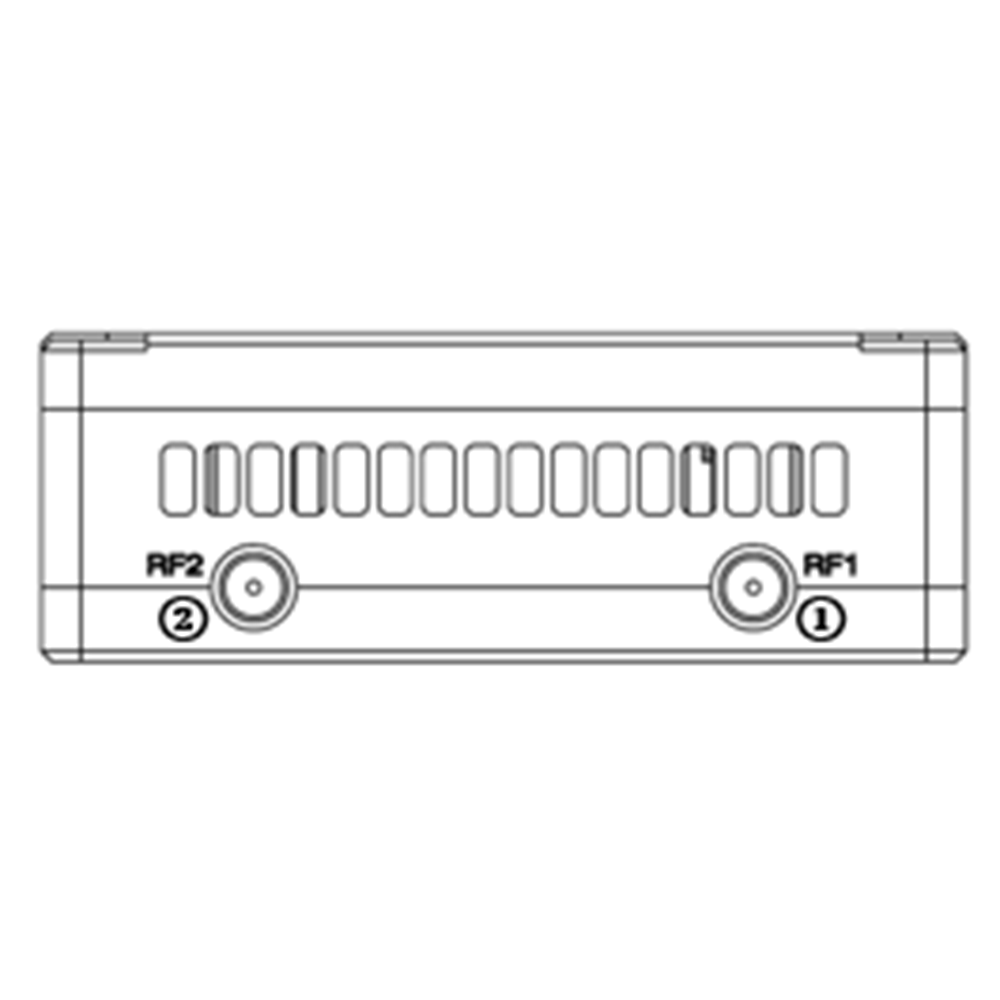
- יציאת RF1
חבר את 1רחוב אנטנת יחידת האוויר ליציאה זו.
- יציאת RF2
חבר את אנטנת יחידת האוויר השנייה ליציאה זו.
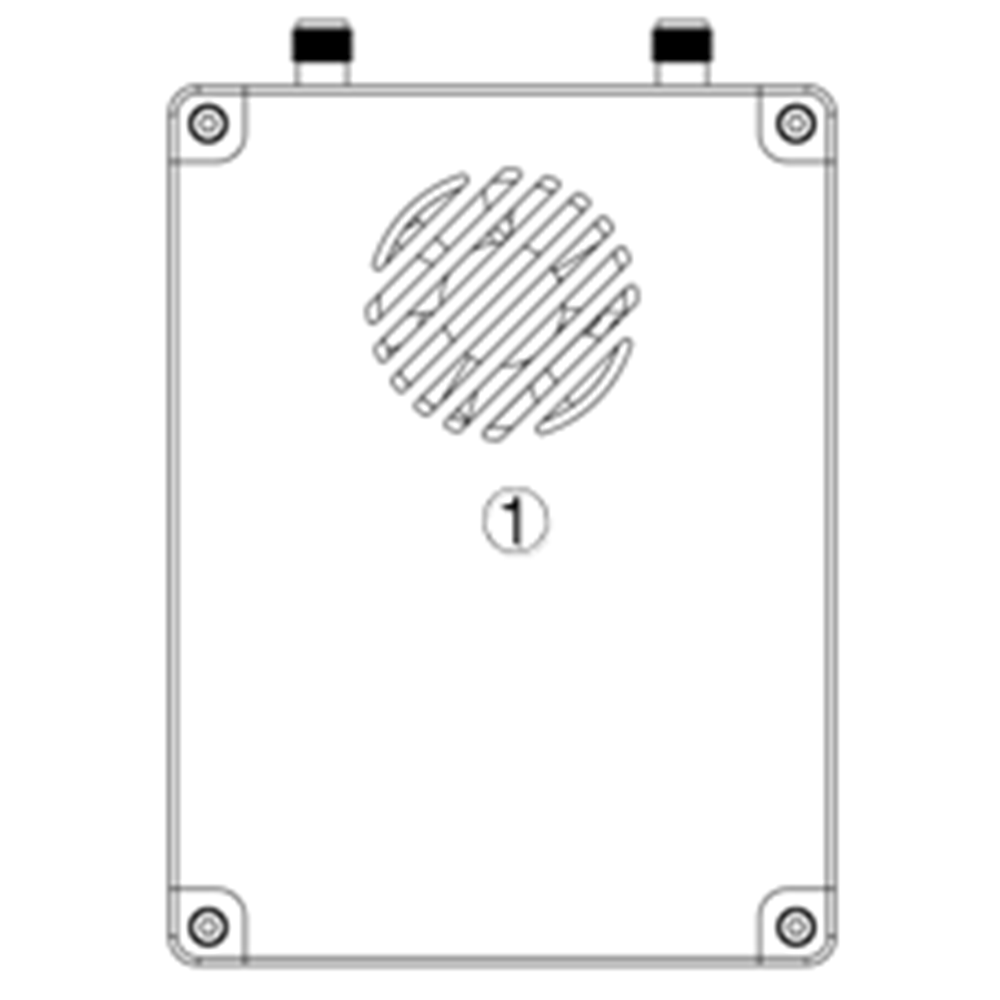
- יציאת אוורור מאוורר
אל תחסום את שקע האוורור של המאוורר כדי להבטיח קירור יעיל.
2.3. קרקע, אדמה יחידה ממשקים
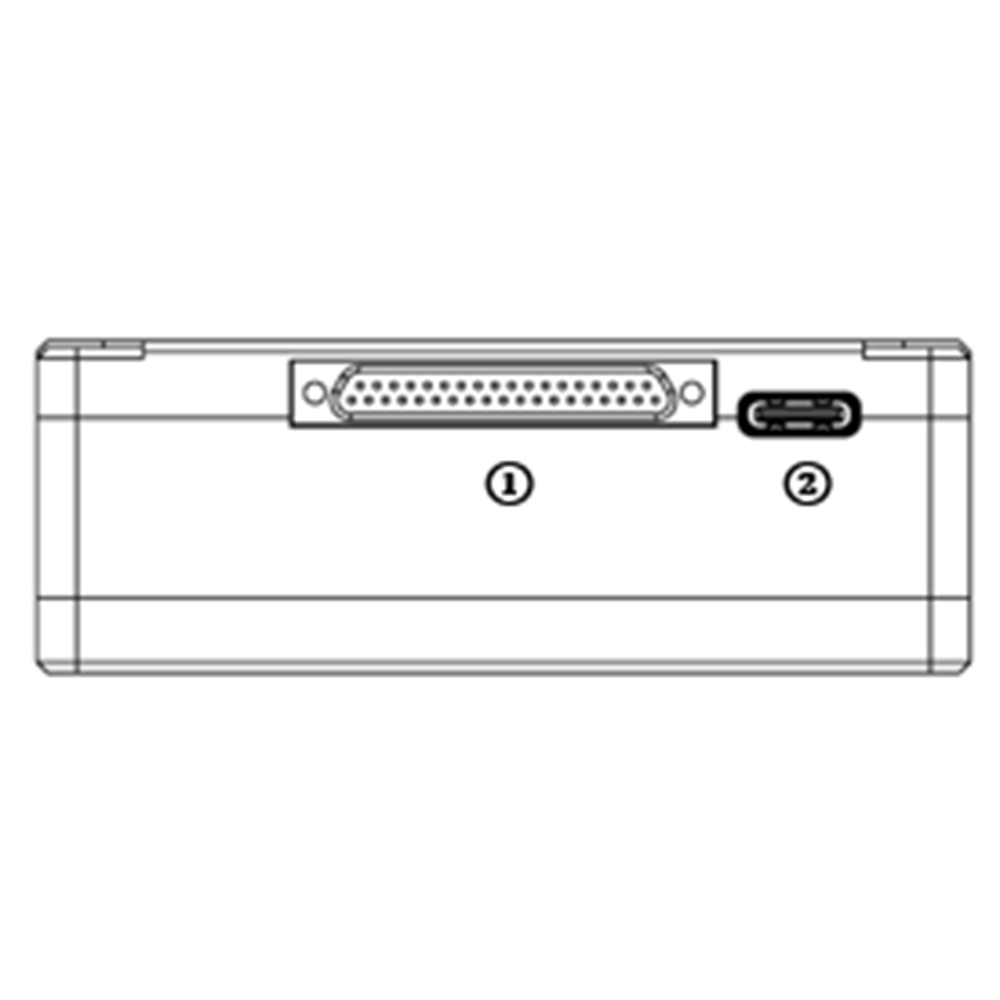
- מחבר J30J
זה מחבר J30J-37 פינים המספק חשמל/אתרנט/טורי/PPM/S.BUS.
- יציאת USB
חבר יציאה זו ליציאת USB של מחשב, והשתמש בתוכנת המחשב האלחוטי וידאו קישור כדי לשדרג קושחה ולקבוע פרמטרים של יחידת האוויר.
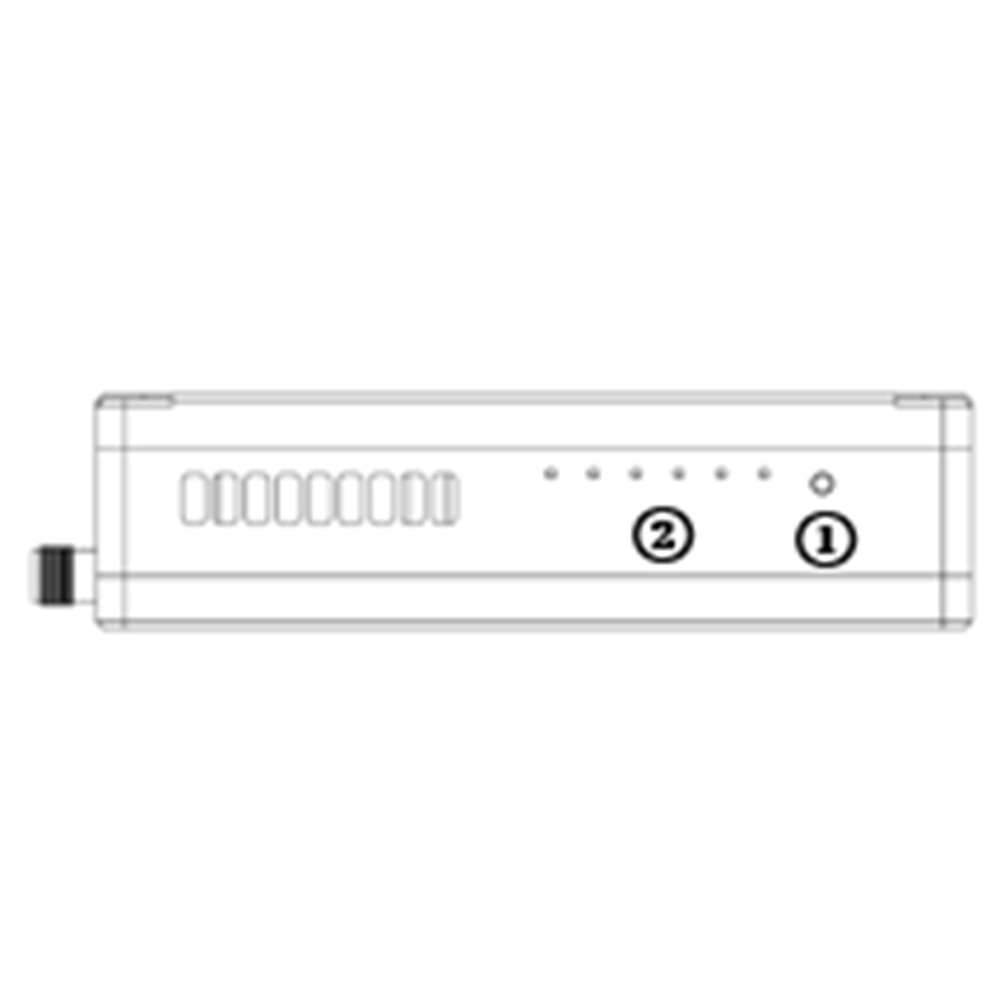
- כפתור מחייב
לחץ והחזק את הלחצן הזה כדי לבצע את פעולת הכריכה. כרוך כבר לפני משלוח המפעל, אין צורך להתחבר שוב על ידי המשתמש.
- נוריות
משמאל לימין: מחוון העוצמה (1), מחוון קישור Ethernet (2~4), מחוון קישור רדיו UL/DL (5~6). LED6 יהבהב במהלך תהליך הקישור.
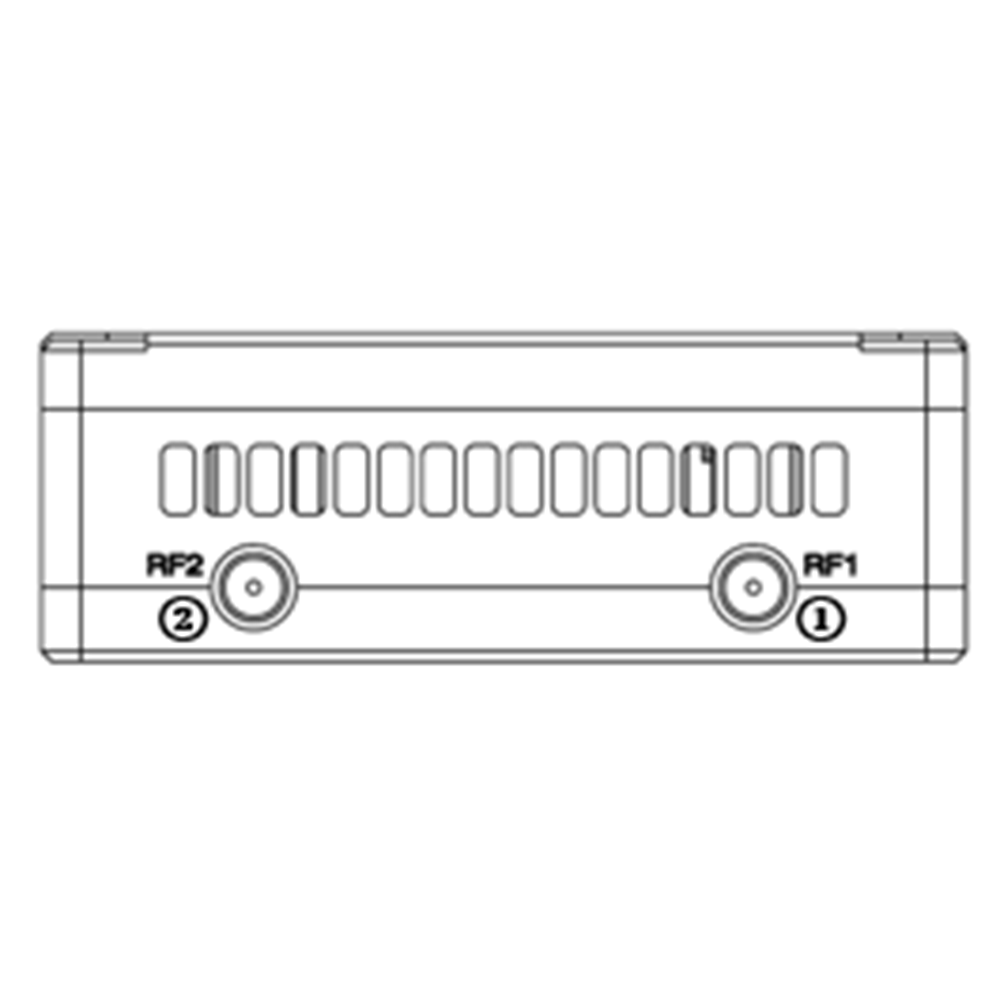
- יציאת RF1
חבר את 1רחוב אנטנת יחידת האוויר ליציאה זו.
- יציאת RF2
חבר את אנטנת יחידת האוויר השנייה ליציאה זו.
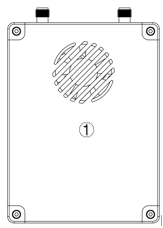
- יציאת אוורור מאוורר
אל תחסום את שקע האוורור של המאוורר כדי להבטיח קירור יעיל.
3. Sמערכת הגדרה
3.1. אוויר יחידה הַתקָנָה
תוכן העניינים
3.1.1. אהוא אמר הַתקָנָה
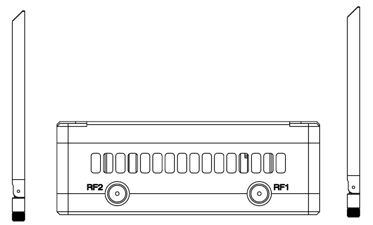
הברג את אנטנות יחידת האוויר על יציאות ה-RF.
הערה:
- כדי למנוע נזק לציוד, התקן אנטנות לפני הפעלת היחידות.
- כאשר הרכבת יחידת אוויר לרחפן, ודא שהאנטנות אינן חסומות על ידי אף חלק של המל"ט.
- יש להתקין את שתי האנטנות.
3.1.2. Pאספקת גז
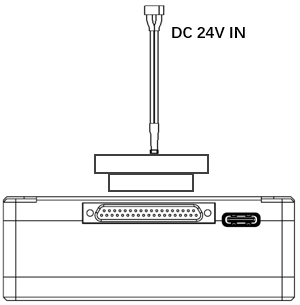
הכנס את מחבר J30J ליציאת J30J של יחידת האוויר וחבר את הסוללה/מקור החשמל ליציאת החשמל בקצה השני.
הערה:
- כדי למנוע נזק לציוד, התקן אנטנות לפני הפעלת היחידות.
- מתח/זרם מדורג מומלץ הוא DC24V/1.2A (או סוללת ליתיום 6S).
3.1.3. גלחבר מצלמה
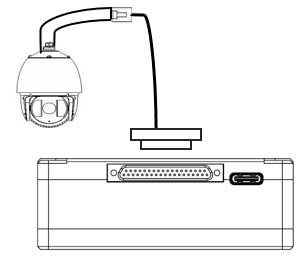
חבר את יציאת יציאת הווידאו של מצלמת ה-IP ליציאת כניסת הווידאו Ethernet של יחידת האוויר.
3.1.4. גבקר טיסה מחובר (Rג & טלמטריה)
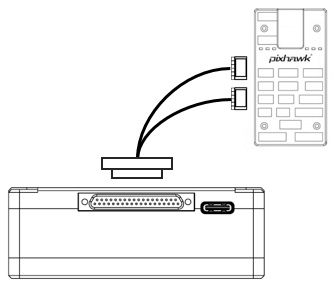
הכנס את מחבר J30J ליציאת J30J של יחידת האוויר וחבר את הקצה השני של הכבל הטורי ליציאת הטלמטריה של בקר טיסה.
הכנס את מחבר J30J ליציאת J30J של יחידת האוויר וחבר את הקצה השני של כבל ה-RC ליציאת PPM/S.BUS של בקר טיסה.
3.2. Gהתקנת יחידה עגולה
3.2.1. התקנת אנטנה
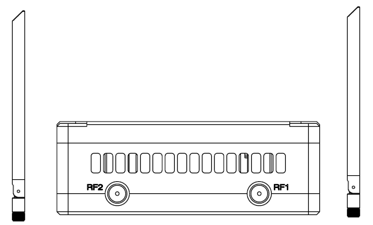
הברג את אנטנות יחידת הקרקע על יציאות ה-RF.
הערה:
- כדי למנוע נזק לציוד, התקן אנטנות לפני הפעלת היחידות.
- יש להתקין את שתי האנטנות.
- כוונן את האנטנה כך שתהיה אנכית לקרקע במהלך הפעולה.
3.2.2. Pאספקת גז
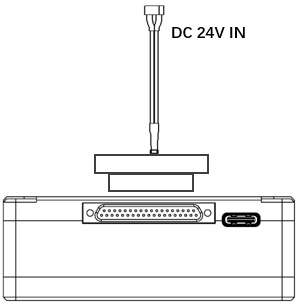
הכנס את מחבר החשמל של מקור מתח ליציאת החשמל של יחידת האדמה
נהערה:
- מתח/זרם מדורג מומלץ הוא DC12V/1.2A (או סוללת ליתיום 3S).
- כדי למנוע נזק לציוד, התקן אנטנות לפני הפעלת היחידות.
3.2.3. חיבור טלמטריה
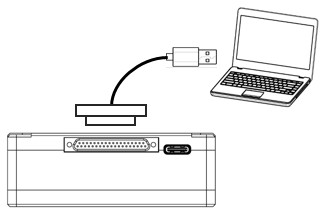
הכנס את מחבר J30J ליציאת J30J של יחידת הקרקע וחבר את הקצה השני של הכבל הטורי המצורף ליציאת הטלמטריה של תחנת הבקרה הקרקעית..
הערה:
- ודא שקצב ההעברה של תחנת הקרקע וקצב ההעברה של מודול קישור וידאו אלחוטי מוגדרים להיות זהים.
- ודא שרצף הכבלים הטורי תואם להגדרת הממשק של מודול קישור וידאו אלחוטי.
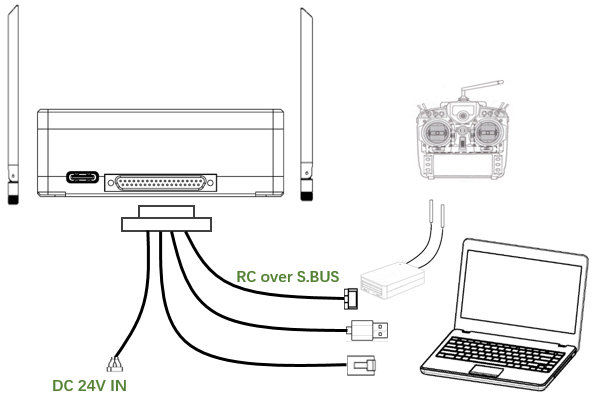
3.2.4. גחיבור שלט רחוק
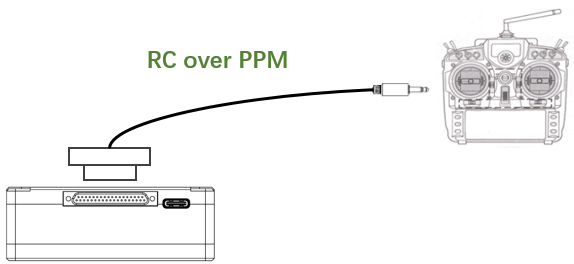
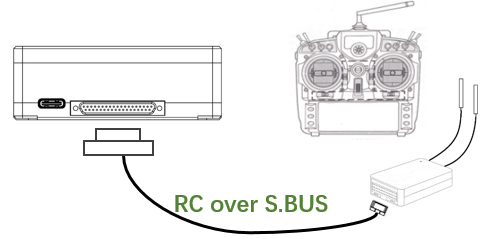
שימוש במצב PPM: הכנס את מחבר יציאת המאמן של כבל ה-RC המצורף ליציאת המאמן של שלט רחוק והכנס את מחבר J30J ליציאת J30J של יחידת הקרקע.. שימוש במצב S.BUS: הכנס את מחבר J30J ליציאת J30J של יחידת הארקה, חבר את הקצה השני למקלט S.BUS, ומקלט S.BUS מתקשר עם השלט הרחוק באופן אלחוטי.
נהערה:
- ודא שהפין של כבל ה-RC תואם ליציאת הממשק של מודול קישור וידאו אלחוטי.
- אם נעשה שימוש במקלט S.BUS, צריך להיות מספיק פס הגנה בין פס תדר העבודה של המקלט לפס תדר העבודה של מודול קישור וידאו אלחוטי.
3.2.5. Sפלט וידאו של etup
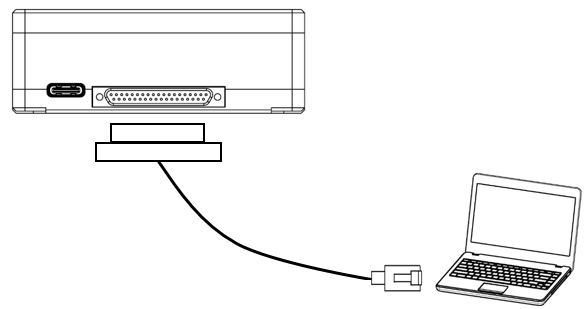
הכנס את מחבר J30J ליציאת J30J של יחידת הקרקע וחבר את הקצה השני של כבל ה-Ethernet המצורף למחשב או לתחנת הבקרה הקרקעית. ודא שכתובות ה-IP של המצלמה והמחשב נמצאות באותה רשת משנה.
3.2.6. להשתמש קישור וידאו אלחוטי מערכת
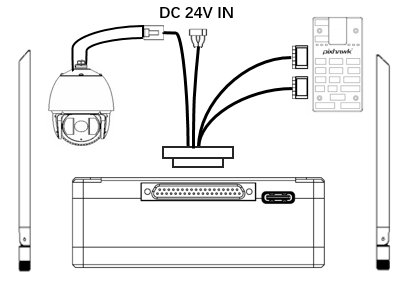
- התקן אנטנות ליחידת האוויר.
- חבר פלט מצלמת IP ליציאת Ethernet של יחידת האוויר.
- חבר את יציאת PPM/S.bus של בקר הטיסה ליציאת RC של יחידת האוויר.
- חבר את יציאת הטלמטריה של בקר הטיסה ליציאה הטורית של יחידת האוויר.
- חבר מקור מתח 24V DC ליציאת המתח של יחידת האוויר והפעל אותו.
- אם יש צורך בקושחה העדכנית ביותר, חבר את יחידת האוויר למחשב באמצעות כבל USB והפעל את תוכנית ה-Video Link אלחוטית למחשב כדי לשדרג את הקושחה של היחידה לקושחה האחרונה.
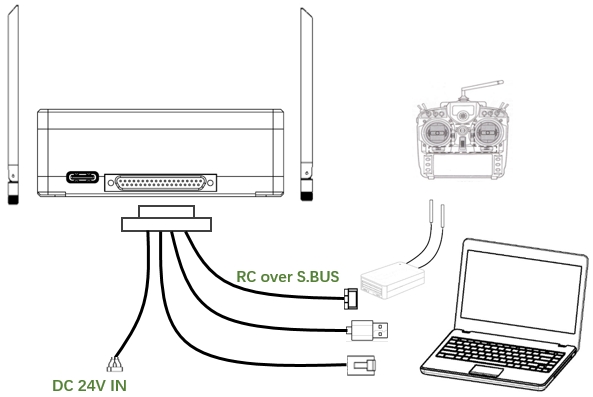
- התקן אנטנות ליחידת הקרקע.
- הגדר את השלט רחוק כך שיהיה במצב מאמן. אם נעשה שימוש במצב PPM, חבר את ממשק השלט הרחוק של יחידת הקרקע ליציאת המאמן של השלט הרחוק. אם נעשה שימוש במצב S.BUS, יש לחבר מקלט S.BUS ליחידת ההארקה באמצעות הכבל המצורף, ויש ליצור את החיבור בין מקלט S.BUS לשלט רחוק.
- חבר את יציאת ה-USB של תחנת בקרת קרקע ליציאה הטורית של יחידת הקרקע באמצעות מתאם Serial-2-USB כדי להשתמש בקישור טלמטריה.
- חבר את יציאת ה-Ethernet של GCS או PC למחבר RJ45 של יחידת הקרקע כדי לקבל וידאו/טלמטריה IP (טלמטריה דרך אתרנט).
- הפעל את יחידת הקרקע.
- אם יש צורך בקושחה העדכנית ביותר, חבר את יחידת הקרקע למחשב באמצעות כבל USB והפעל את תוכנית ה-Video Link אלחוטית למחשב כדי לשדרג את הקושחה של היחידה לקושחה האחרונה.
- לאחר הקמת downlink ו-uplink, שתי נוריות ה-LED של יחידת הקרקע ידלקו.
4. תוֹכנָה
4.1. הַתקָנָה
קישור וידאו אלחוטי לספק קובצי התקנת תוכנית, שם קובץ התוכנית: קישור וידאו אלחוטי Wireless App Setup.exe. סמל המתקין הוא כדלקמן:
לחץ פעמיים על המתקין כדי להתקין ולהתאים אישית את ספריית התקנת התוכנית. לאחר הגדרה, לחץ על "הבא" כדי לעבור לשלב הבא. לביטול ההתקנה, לחץ על "ביטול".
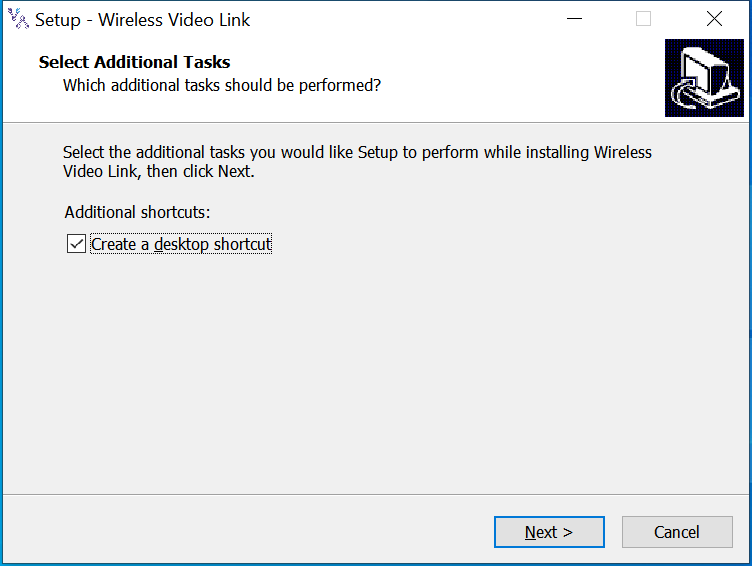
סמן את "צור קיצור דרך בשולחן העבודה" אם יש צורך בקיצור בשולחן העבודה. אם זה לא מסומן, קיצור הדרך בשולחן העבודה לא ייווצר. לאחר הגדרה, לחץ על "הבא" כדי לעבור לשלב הבא. כדי לחזור לשלב הקודם, לחץ על "חזרה". לביטול ההתקנה, לחץ על "ביטול".
לחץ על "התקן" כדי להמשיך בהתקנה. כדי לחזור לשלב הקודם, לחץ על "חזרה". לביטול ההתקנה, לחץ על "ביטול".
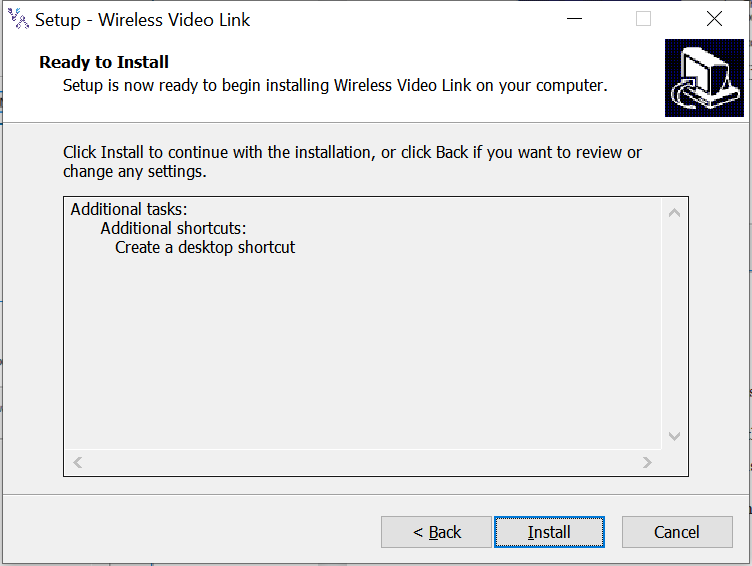
הערה: אנא השבת את תוכנת האנטי וירוס, אחרת האנטי וירוס עלול למנוע את התקנת מנהל ההתקן במהלך התקנת מנהל ההתקן.
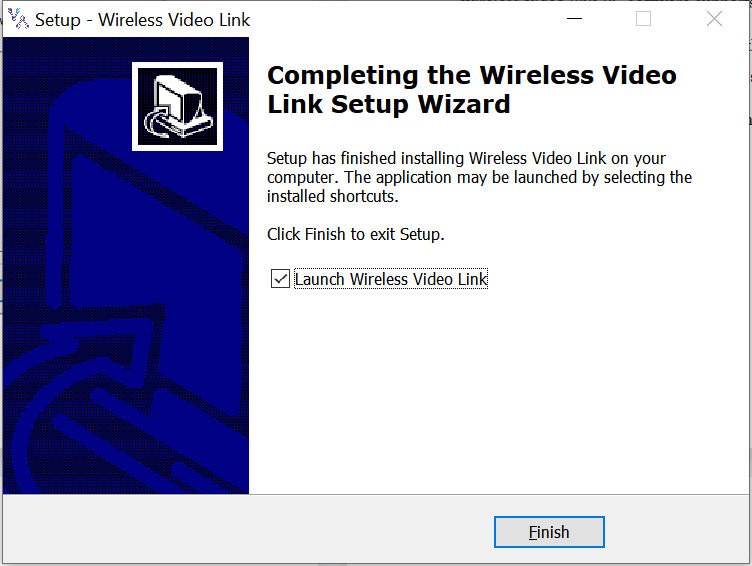
בשלב זה, התקנת התוכנה הסתיימה והתקנת מנהל ההתקן הושלמה.
4.2. תוֹכנָה שפה
תוכנת קישור וידאו אלחוטי למחשב תומכת הן בסינית והן באנגלית.
התוכנה תוצג בסינית אם מערכת ההפעלה של המחשב היא בסינית, אחרת התוכנה מוצגת באנגלית.
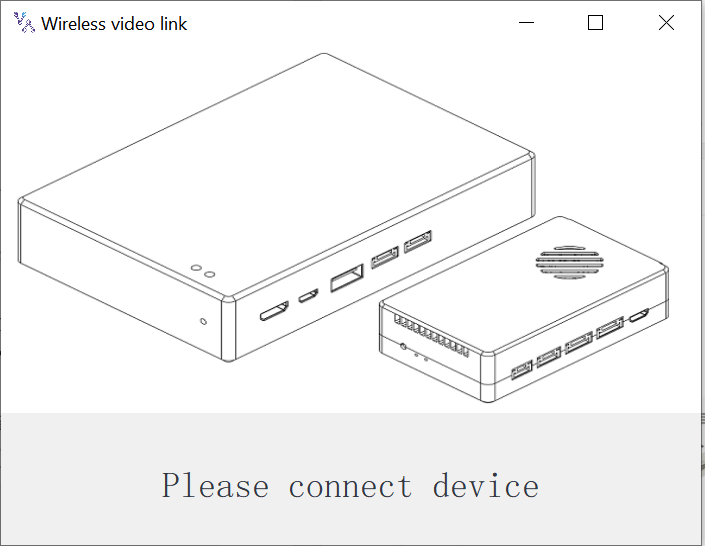
אם המכשיר אינו מחובר למחשב כראוי, תוכנת קישור וידאו אלחוטי למחשב מציגה את התמונה הבאה:
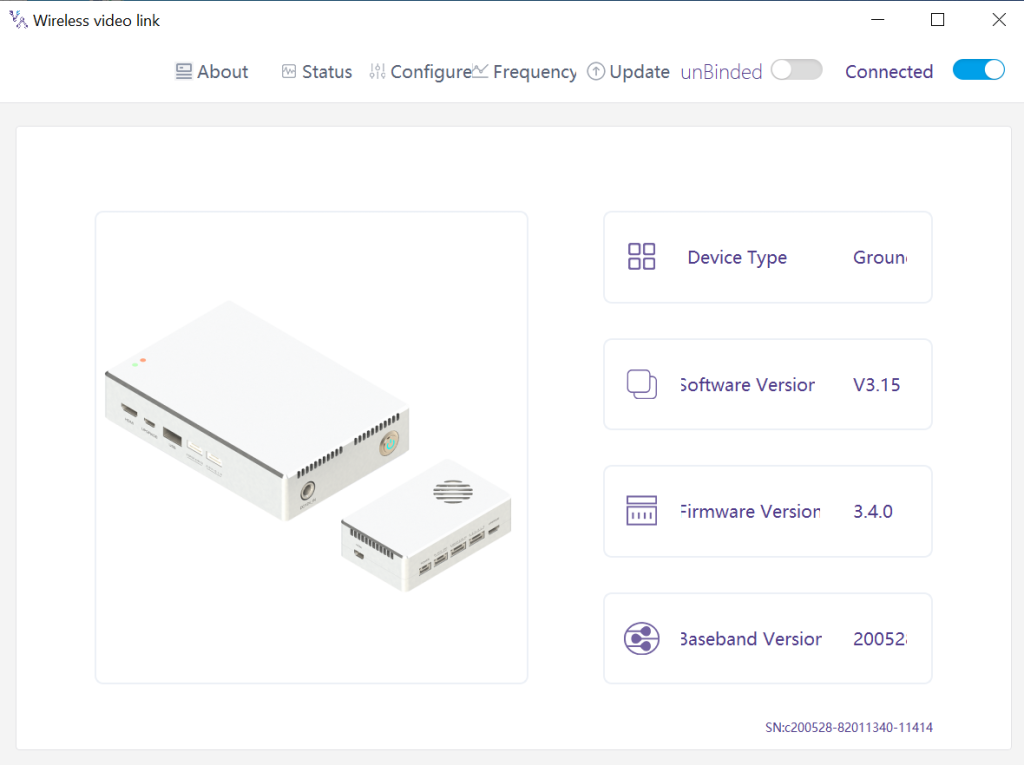
אם המכשיר מחובר למחשב כהלכה, תוכנת קישור וידאו אלחוטי למחשב מציגה את התמונה הבאה:
4.3. מידע על המכשיר
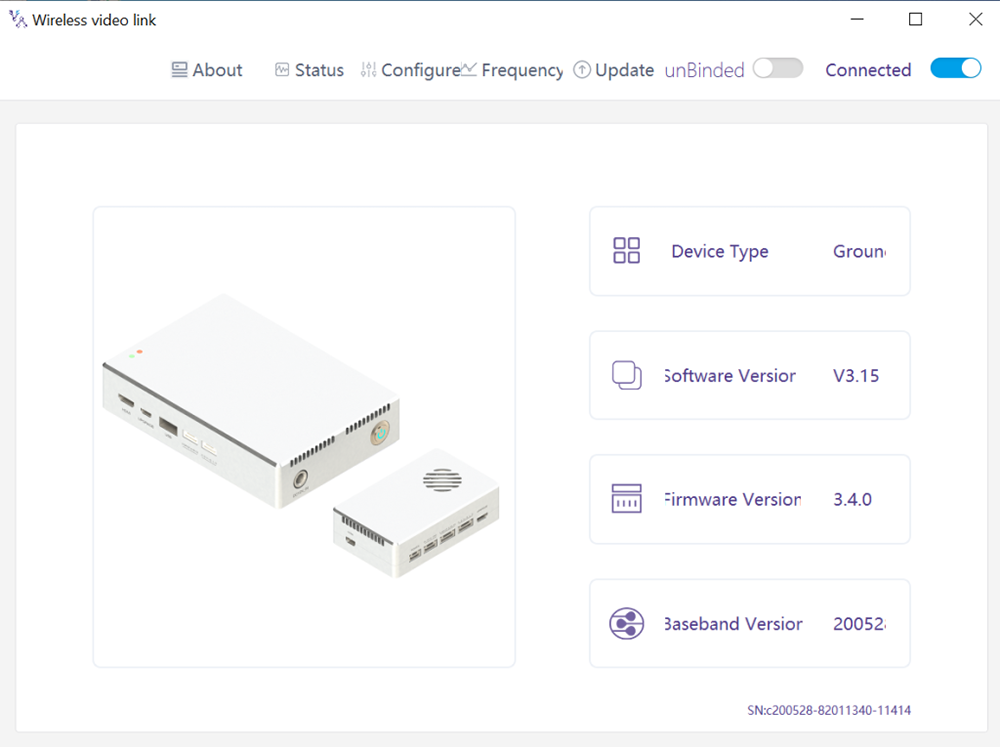
מידע בעמוד הבית: סוג המכשיר, גרסת תוכנה, גרסת קושחה, וגרסת פס הבסיס.
4.4. סטָטוּס
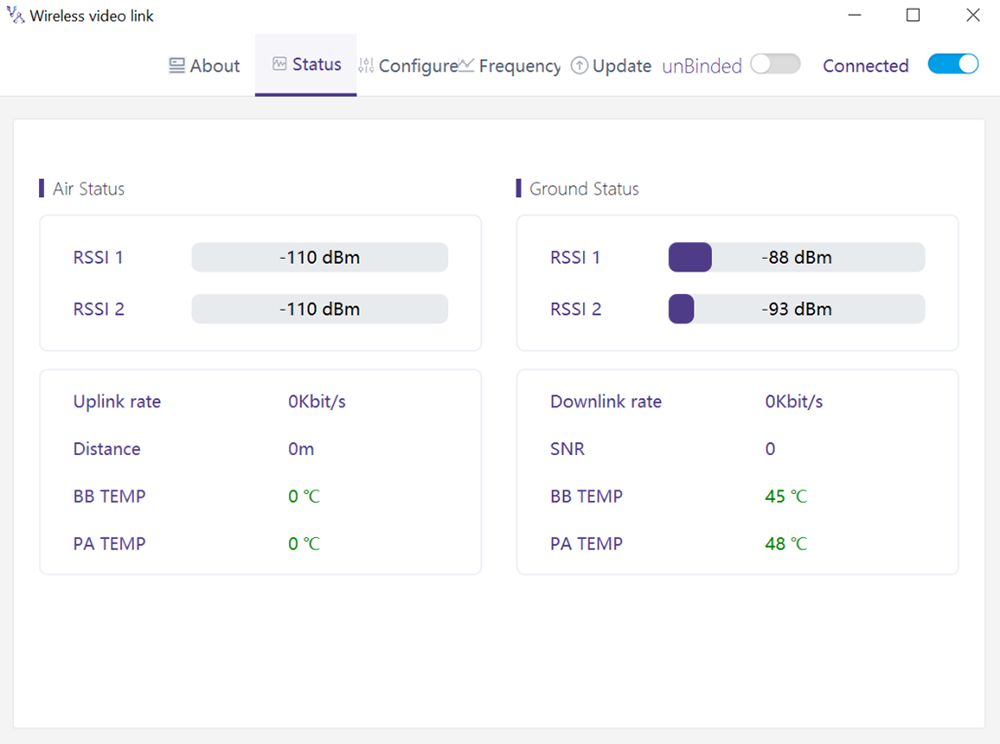
קרא את פרטי המצב של יחידת האוויר ויחידת הקרקע בסעיף העמוד "סטטוס".:
אוויר: RSSI 1 & RSSI 2, שיעור Uplink, מרחק, BB TEMP, PA TEMP.
קרקע, אדמה: RSSI 1 & RSSI 2, שיעור Downlink, SNR, BB TEMP, PA TEMP.
4.5. תְצוּרָה
כדי לשנות תצורה, המכשיר צריך להיות קשור ויש ליצור חיבור אלחוטי בין יחידת האוויר ליחידת הקרקע.
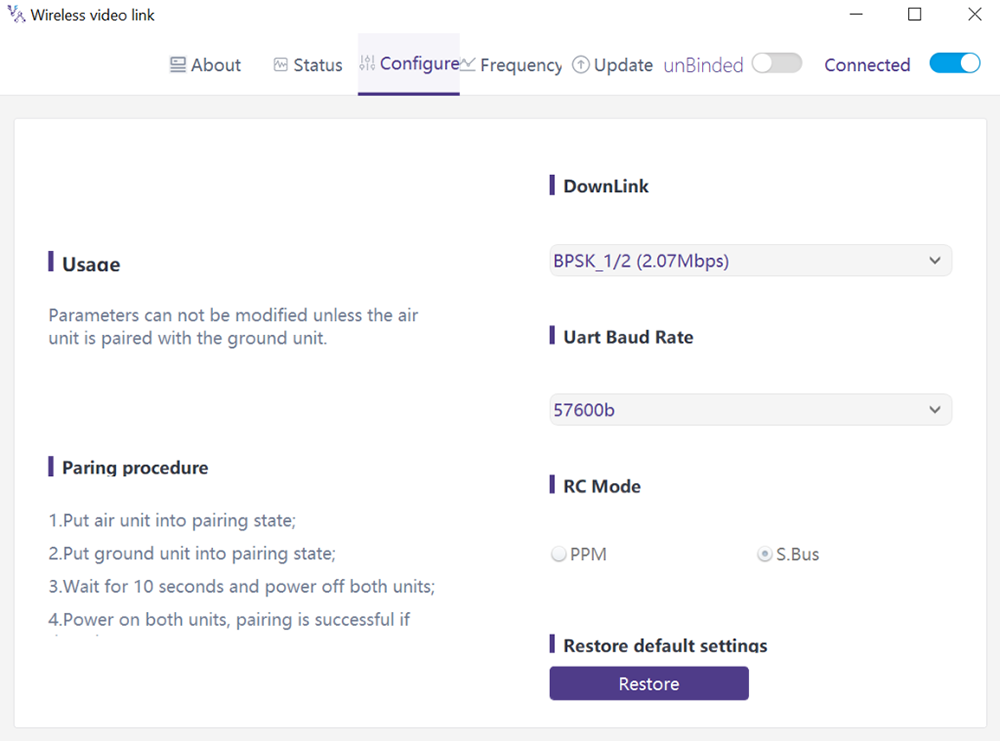
4.5.1. תצורת מצב Downlink
כדי לשנות את מצב ההורדה, המכשיר צריך להיות קשור ויש ליצור חיבור אלחוטי בין יחידת האוויר ליחידת הקרקע
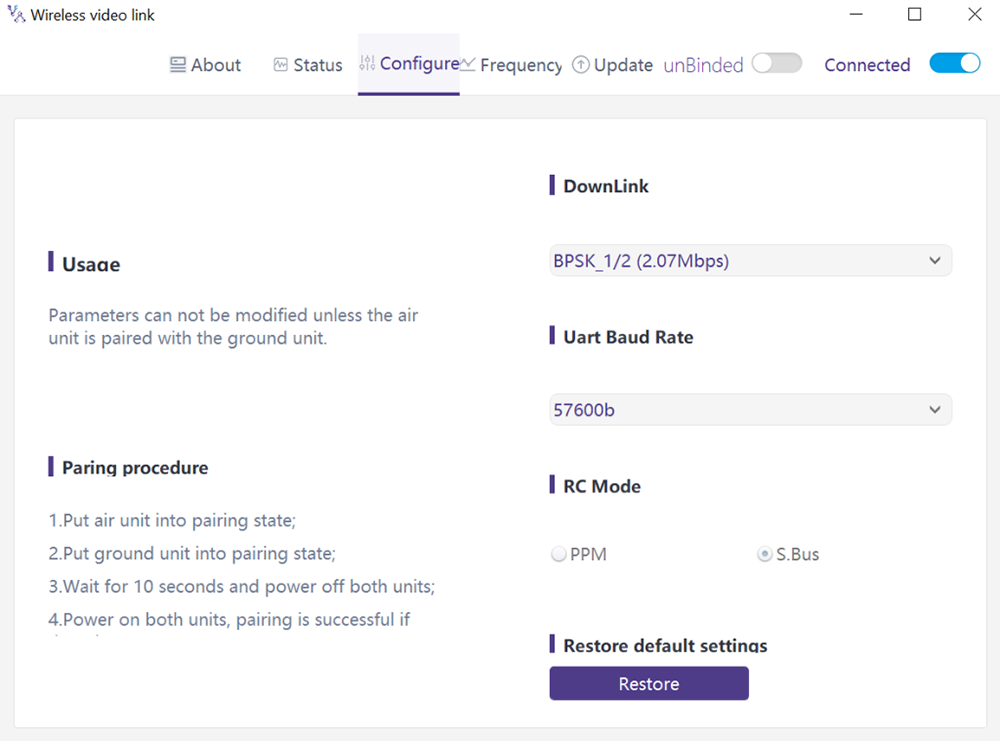
יש 8 אפשרויות עבור מצב downlink מהתפריט הנפתח (ראה את צילום המסך הבא):
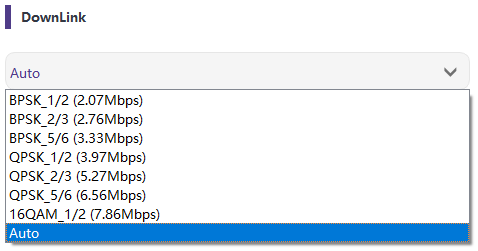
כאשר הוא נבחר כאוטומטי, סכימת אפנון תהיה מותאמת דינמית על בסיס איכות האות בזמן אמת.
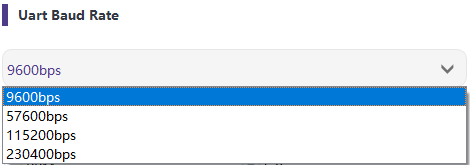
4.5.2. תצורת קצב ה-baud
יש 4 אפשרויות עבור קצב העברת יציאה טורית (ראה את צילום המסך הבא).
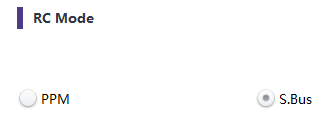
4.5.3. מְרוּחָק קוןטרול מצב תְצוּרָה
קיימות שתי אפשרויות למצב שלט רחוק, PPM ו-S.BUS (ראה את צילום המסך הבא).
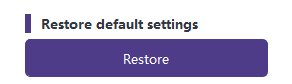
4.5.4. לְשַׁחְזֵר בְּרִירַת מֶחדָל הגדרות
לחץ על "שחזר" כדי לשחזר את הגדרות ברירת המחדל.
4.6. תדירות
ניתן לבדוק/להגדיר מידע/פרמטרים הקשורים לתדר בדף התדר.
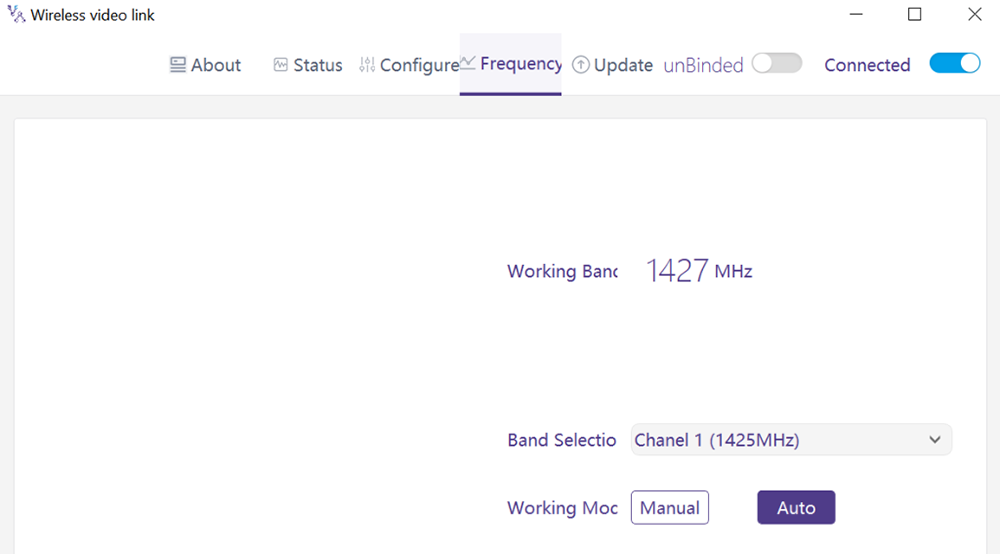
4.6.1. מצב עבודה בתדר
מצב עבודה:מדריך ל, אוטו.
מצב ידני: המשתמש בוחר באופן ידני את תדר העבודה.
אופנת רכב: המערכת בוחרת את תדר העבודה על סמך סריקת התדר.
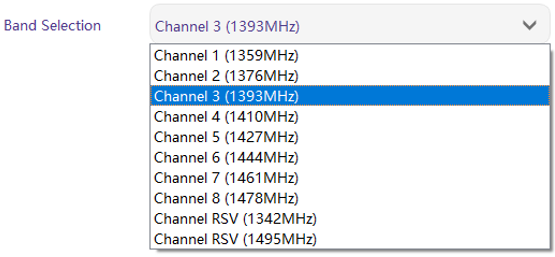
4.6.2. בחירת תדרים
תחת המצב הידני, ניתן לבחור תדר עבודה מהתפריט הנפתח. אנא בחר והשתמש בערוצים בהתאם למפרט המוצר (1330~1450MHz).
4.7. שדרוג
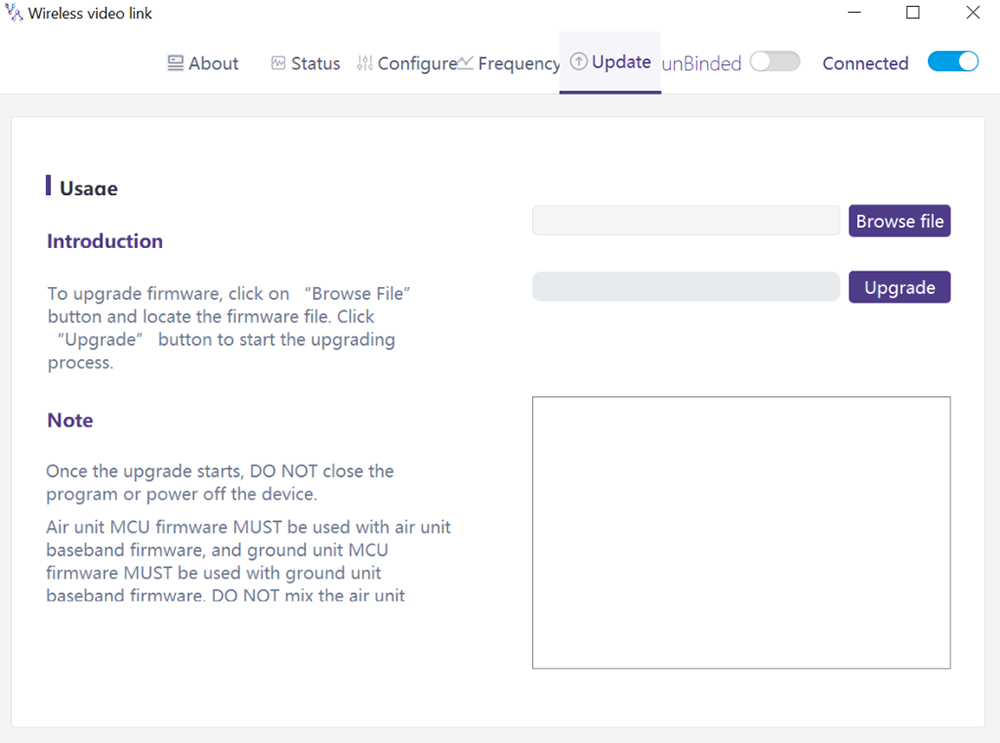
הערה: יש לשדרג בנפרד את יחידת האוויר ויחידת הקרקע באמצעות כבל ה-USB כדי לחבר תוכנת מחשב עם קישור וידאו אלחוטי.
עובר לדף השדרוג. בחר את קובץ השדרוג, לחץ על הכפתור הסגול "שדרג" כדי לשדרג.
4.8. ניהול דפי אינטרנט
מלבד ניהול אפליקציות למחשב באמצעות USB, ניהול דפי אינטרנט באמצעות Ethernet נתמך גם כן. חבר ישירות את המחשב ליחידת האוויר/יחידת הקרקע באמצעות כבל Ethernet, הגדר את כתובת ה-IP של המחשב כ 192.168.199.33/24, ולבקר 192.168.199.18 (יחידת האוויר)/192.168.199.16 (יחידת קרקע) דרך דף אינטרנט.
תחת StatusàBaseband status, יש מידע מפורט כמו RSSI, SNR, TxPower, נתונים סטטיסטיים של LDPC, סטטיסטיקות טלמטריה, וכו.
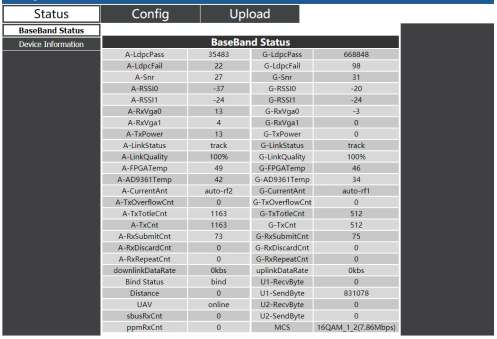
תחת פרטי התקן סטטוס, יש מידע על SN וגרסת קושחה.

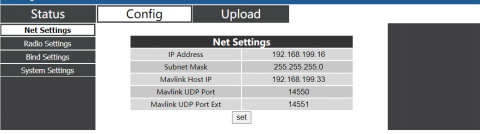
תחת הגדרות ConfigàNet, יש כתובת IP של היחידה עצמה, כתובת IP של יעד טלמטריה ויציאות UDP, ניתן לשנות את כל הפרמטרים הללו לפי בקשת המשתמש.
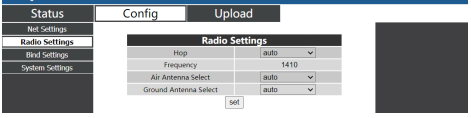
תחת הגדרות Configà Radio, יש הופ, תדירות, ניתן להגדיר בחירת אנטנה. כאשר הופ הוא אוטומטי, המשתמש לא צריך/לא יכול להגדיר תדר, המערכת בוחרת באופן דינמי את התדר הטוב ביותר לשימוש בעצמה, במילים אחרות, כאשר הופ הוא ידני, המשתמש יכול להגדיר תדר באופן ידני.
תחת הגדרת Config Bin, ניתן להפעיל את תהליך ה-binding על ידי לחיצה על כפתור כריכה במקום על כפתור חיבור פיזי.

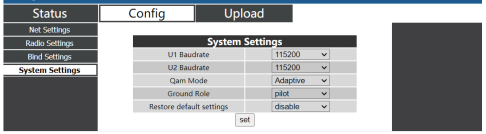
תחת Config System Settings, ניתן להגדיר קצב שידור עבור U1/U2 שתי יציאות טוריות. כאשר מצב QAM מוגדר כסתגלן, היחידה תשנה באופן דינמי את סכמת אפנון בהתבסס על איכות האות בזמן אמת. לתפקיד הטייס יש שידור דו-כיווני בעוד שלצופה יש רק נתוני קישור למטה.
תחת העלאה העלאה, דפדפן ובחר תחילה את הקובץ שישודרג, לאחר מכן לחץ על שלח כדי להפעיל את התהליך.

5. אפליקציות
5.1. אפליקציות שֶׁל שלט רחוק
מודולי קישור וידאו אלחוטיים תומכים ב-PPM ו-S. פרוטוקול BUS.
אם נעשה שימוש במצב PPM, אנא השתמש בכבל PPM סטנדרטי של קישור וידאו אלחוטי כדי לחבר את יחידת הקרקע ויציאת המאמן של השלט רחוק.
אם ש. נעשה שימוש במצב BUS, יש צורך במקלט S.BUS נוסף. יחידת הארקה מחוברת למקלט. ואז ש. מקלט BUS יוצר תקשורת אלחוטית עם השלט הרחוק.
שני המצבים מחייבים את תצורת השלט הרחוק למצב העבודה המתאים.
אם ש. נעשה שימוש במקלט BUS, אנא השתמש במקלט שתדר העבודה שלו שונה מזה של מודול קישור וידאו אלחוטי.
כאשר נעשה שימוש במצב PPM, יחידת האוויר צריכה להתחבר ליציאת PPM RC של בקר טיסה.
כאשר ש. נעשה שימוש במצב BUS, יחידת האוויר צריכה להתחבר ל-DSM/S. יציאת BUS RC של בקר טיסה.
5.1.1. FRSKY מְרוּחָק בַּקָר
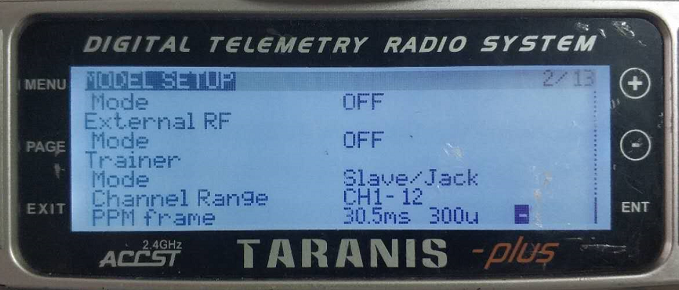
- מצב PPM
הגדרת דגם – מאמן – מצב: אם המצב מוגדר ל-Slave/Jack, אז השלט רחוק במצב PPM.
הגדרת דגם – RF פנימי: צריך להגדיר אותו להיות כבוי, ו-S. מצב אוטובוס יושבת.
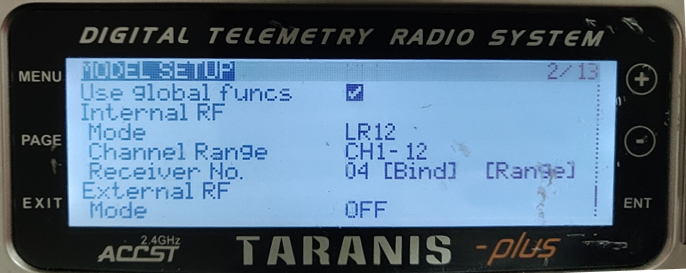
- מצב S.BUS
הגדרת דגם – RF פנימי: LR12, D8, D16, כבוי. תצורה של פרמטרים שונים עוקבים אחר אלה של המקלט. אם מוגדר כ-OFF, S. מצב אוטובוס יושבת.
5.1.2. פוטאבה מְרוּחָק בַּקָר
- מצב S.BUS
תפריט קישור – מערכת: FASSTest-14CH, FASSTest 12CH, מחזיק MULTI, מחזיק 7CH, S-FHSS. תצורה של פרמטרים שונים עוקבים אחר אלה של המקלט.
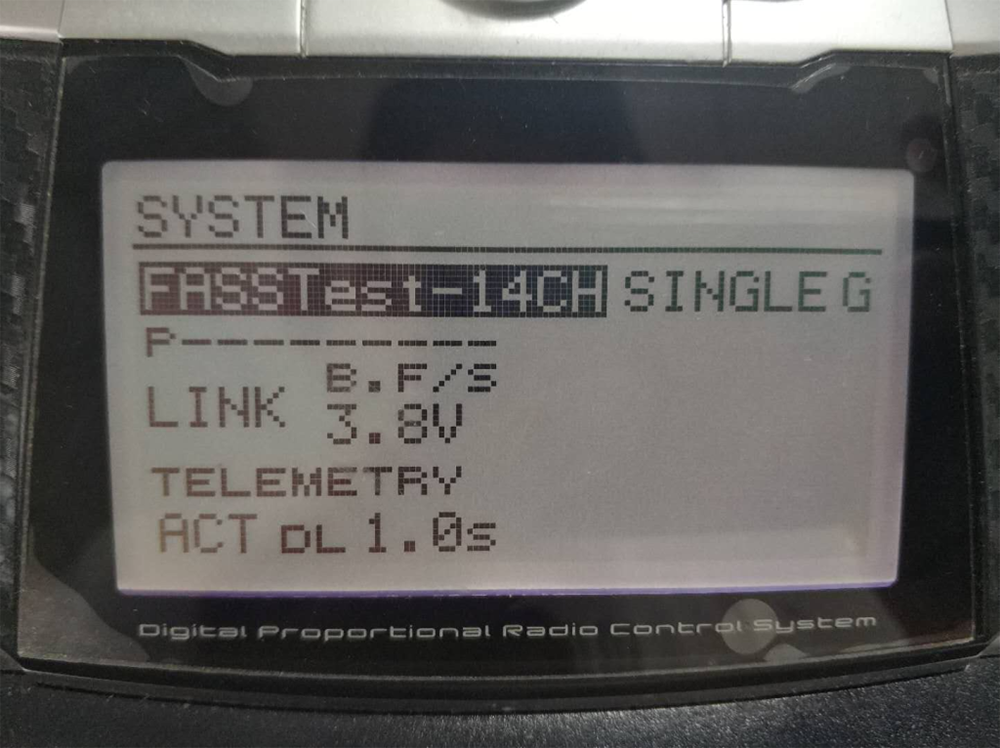
- מצב PPM
קישור וידאו אלחוטי סטנדרטי כבל PPM משמש לחיבור לכבל Futaba Trainer (קצה אחד מחובר ליציאת המאמן של בקר Futaba, הקצה השני הוא מחבר 3.5 מ"מ). ניתן להשתמש במצב PPM ישירות ללא תצורה נוספת.
5.2. טלמטריה חיבור
יחידת הטלמטריה של יציאת האוויר מחברת את יציאת "TELEM1" של בקרת טיסה(Pixhawk4).
5.3. לקבל לִחיוֹת וִידֵאוֹ
קבל וידאו בזמן אמת באמצעות RTSP בנגני מדיה כמו QGC/VLC. ודא שכתובות ה-IP של המחשב האישי והמצלמה נמצאות באותה רשת משנה.
6. הערות
6.1. קישור ביצועים
- בדיקת מחבר כבל RF / מחבר אנטנה
לפני הטיסה, בדוק אם האנטנות מחוברות למודולים. הפעלת מודול ללא אנטנות מחוברות מביאה לטווח קצר מאוד ועלולה לגרום נזק למודול. מומלץ לבדוק את החיבור של כל מחברי ה-RF. חיבור רופף עלול לפגום בטווח באופן משמעותי.
- מיקום אנטנה
מקם את שתי אנטנות האוויר כך שלא משנה באיזה מיקום הרחפן נמצא, לפחות אנטנה אחת אינה חסומה על ידי המטען מתחנת הקרקע.
אם המל"ט יעוף במלוא הגז, זה יישען קדימה. התקן את אנטנת האוויר כך שתהיה קרובה להיות אנכית לקרקע כאשר המל"ט נע קדימה במלוא המצערת.
- רמת סוללה
ביצועי הקליטה ייפגעו אם הסוללה תתרוקן, למרות שזה עדיין עשוי להפעיל את היחידות.
6.2. RC קישור & מְרוּחָק בַּקָר
קישור RC של מודול קישור וידאו אלחוטי תומך בפרוטוקולי PPM ו-S.BUS. אם נעשה שימוש בפרוטוקול PPM, עליך להגדיר את השלט הרחוק למצב PPM ולכבות את השידור האלחוטי של השלט. אם נעשה שימוש בפרוטוקול S.BUS, תדר העבודה האלחוטי של המקלט המחובר לשלט הרחוק חייב לעבוד בפסי תדרים שונים עם תדר העבודה של מודול קישור וידאו אלחוטי ויש לו ערבות בידוד מסוימת.
אם אינך משתמש בקישור RC של מודול קישור וידאו אלחוטי, עליך לשים לב לתדר העבודה של הקישור הרחוק של השלט הרחוק בעת שימוש בקישור ה-RC של השלט הרחוק. אם הוא נמצא באותו פס תדרים כמו תדר העבודה של מודול קישור וידאו אלחוטי, זה יגרום הפרעה אחד לשני.
הימנע מהפרעות למודול קישור וידאו אלחוטי על ידי הקישור האלחוטי של השלט הרחוק או המקלט בעת שימוש במערכת קישור וידאו אלחוטית.
6.3. עדכון קושחה
שדרוג קבצים: קובץ שדרוג FPGA ליחידת אוויר, קובץ שדרוג FPGA עבור יחידת הקרקע, קובץ שדרוג MCU1 ליחידת אוויר, קובץ שדרוג MCU1 עבור יחידת הקרקע, קובץ שדרוג MCU2 ליחידת אוויר, קובץ שדרוג MCU2 עבור יחידת הקרקע.
קבצי השדרוג משודרגים באמצעות תוכנת וידאו קישור אלחוטית למחשב. במהלך השדרוג, לא ניתן לכבות את החשמל ויש לוודא את החיבור הרגיל של כבל ה-USB בו-זמנית. אם השדרוג נכשל, לא ניתן לכבות את החשמל, אנא נסה לשדרג שוב ישירות. אחרת, יהיה צורך לחזור אלינו כדי להשתמש בכלי צריבה מיוחדים לצריבת קושחה.
6.4. לִקְשׁוֹר הפרציה
"Bind" משמש לחיבור יחידת אוויר עם יחידת קרקע.
לחיבור יחידת אוויר ויחידת קרקע:
- גם יחידת האוויר וגם יחידת הקרקע מופעלות.
- חבר את יחידת האוויר והקרקע.
- לחץ על לחצן החיבור הפיזי של יחידת האוויר, 5 שניות+ האחרונות. נורית ה-LED שליד לחצן הכריכה מהבהבת בירוק, המעיד על כך שהוא במצב מחייב.
- לחץ על לחצן החיבור הפיזי של יחידת הקרקע, 5 שניות+ האחרונות. נורית ה-LED שליד לחצן הכריכה מהבהבת בירוק, המעיד על כך שהוא במצב מחייב.
- כאשר נוריות חיווי הקישור של יחידת הקרקע דולקות תמיד, זה מציין שיחידת האוויר והקרקע קשורה.
הערה:
(1) אם מודולים מתחייבים עם גרסת קושחה שונה, פעולת הקישור עלולה להיכשל.
(2) אם התוכנית של יחידת האוויר או יחידת הקרקע נשרפה בצורה שגויה, כגון שריפת יחידת האוויר ליחידת הקרקע, וביצוע פעולת הקישור בין יחידת האוויר הלא נכונה ליחידת הקרקע, פעולת הקישור תיכשל.
(3) יחידות כרוכות כבר לפני אספקת המפעל, הלקוח לא צריך לאגד שוב לאחר ביטול הארגז.
(4) אם היחידה משוחזרת להגדרות היצרן, יש צורך לאגד שוב.
6.5. חומת האש של Windows PC
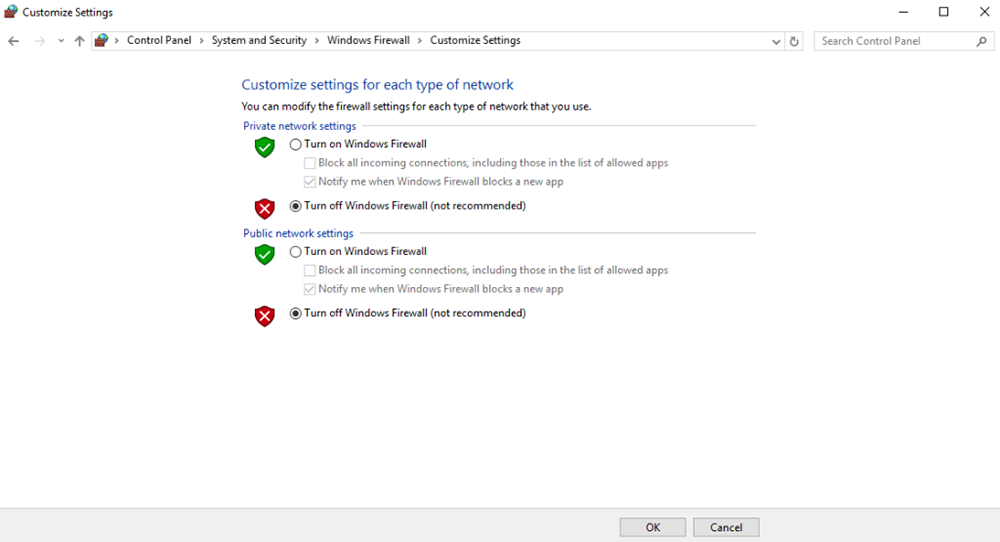
ודא שחומת האש של המחשב מושבתת במקרה של חסימת וידאו ו/או טלמטריה. כאן קח את מערכת ההפעלה Windows10 לעיון. נָתִיב: Control Panel\System and Security\Windows Firewall\Customize Settings.
הגדר את הגדרות הרשת הפרטית/ציבורית כ'כבה את חומת האש של Windows’ כמו להלן, לחץ על 'אישור'.
6.6. הגדר כתובת IP של המחשב
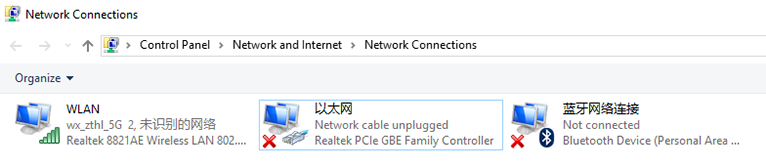
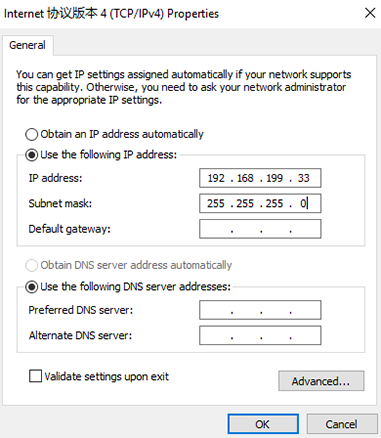
כתובת ה-IP של המחשב צריכה להיות מוגדרת כהלכה בעת צפייה בווידאו במחשב, ניתן להגדיר כתובת IP בעקבות השלבים הבאים:
Double click ‘Ethernet’ at Control Panel\Network and Internet\Network Connections,
לחץ פעמיים על 'גרסת פרוטוקול אינטרנט 4(TCP/IPv4)', הגדר את כתובת ה-IP של המחשב כמו להלן, לחץ על 'אישור'’ סִיוּם.
6.7. הגדרת פינים של מחבר J30J-37
| שֵׁם | פִּין |
| כּוֹחַ | 1,2,20 |
| GND | 3,10,15,21,22,29,31 |
| Ethernet1 TX+ | 7 |
| Ethernet1 TX- | 26 |
| Ethernet1 RX+ | 6 |
| Ethernet1 RX- | 25 |
| Ethernet2 TX+ | 5 |
| Ethernet2 TX- | 24 |
| Ethernet2 RX+ | 4 |
| Ethernet2 RX- | 23 |
| Ethernet3 TX+ | 8 |
| Ethernet3 TX- | 27 |
| Ethernet3 RX+ | 9 |
| Ethernet3 RX- | 28 |
| SBUS_V | 11 |
| PPM | 12 |
| GPS_SYNC | 13 |
| שָׁמוּר | 14 |
| 232TX1 או 422Y2 | 16 |
| 232RX1 או 422A2 | 17 |
| 232TX2 או 422Y1 | 18 |
| 232RX2 או 422A1 | 19 |
| SBUS1 | 30 |
| SBUS2 | 32 |
| שָׁמוּר | 33 |
| 422Z2 או TTLTX1 | 34 |
| 422B2 או TTLRX1 | 35 |
| 422Z1 או TTLTX2 | 36 |
| 422B1 או TTLRX2 | 37 |
7. FAQ
| Q1: איך עושה את קישור וידאו אלחוטי אספקת חשמל של מודול? |
| יחידת אוויר: זֶרֶם יָשָׁר, טווח אספקת חשמל: 9-26V, מומלץ להשתמש ב-24V. |
| יחידת קרקע: זֶרֶם יָשָׁר, טווח אספקת חשמל: 9-26V, מומלץ להשתמש ב-24V. |
| Q2: האם ה קישור וידאו אלחוטי מודול להיות מופעל לפני התקנת האנטנות? |
| יש להתקין את האנטנות לפני ההפעלה. |
| Q3: כמה אנטנות עושות קישור וידאו אלחוטייש להתקין את יחידת האוויר? |
| יש להתקין שתי אנטנות. |
| Q4: כמה אנטנות עושות קישור וידאו אלחוטייש להתקין את יחידת הקרקע? |
| יש להתקין שתי אנטנות. |
| ש 5: האם ניתן להשתמש בסוגים שונים של שלט רחוק לשליטה ברחפן? |
| כן, פשוט פלט אותות PPM סטנדרטיים דרך יציאת המאמן, או השתמש ב-S. מקלט BUS. |
| שאלה 6: האם ניתן להתקין שתי יחידות אוויר על מזל"ט? |
| לא, לרחפן יכולה להיות יחידת אוויר אחת בלבד. |
| ש 7: האם ניתן להתקין שתי יחידות קרקע בקצה המקבל? |
| מערכת ptp יכולה להתקין רק יחידת קרקע אחת; מערכת ptmp תומכת ביותר מיחידת קרקע אחת. |
| שאלה 8: מה אם ה-uplink/קישור למטה מחוון LED אינו דולק? |
| אנא בצע את השלבים הבאים: |
| 1) אנא בדוק את אספקת החשמל של יחידת האוויר והקרקע תקינה. |
| 2) אנא בדוק שהתקנת האנטנות של יחידות האוויר והקרקע תקינה: האם האנטנות חסומות; האם חיבור האנטנות רופף; האם כבל ה-RF והיציאה אינם מהודקים; |
| 3) בדוק אם תדר ה-TX של יחידת הקרקע תואמת את תדר ה-RX של יחידת האוויר עם Taiysnc PC App. |
| 4) בדוק את עוצמת ה-TX של יחידת הקרקע באמצעות Taiysnc PC App. |
| 5) אם השלבים לעיל לא יכולים לפתור את הבעיה, אנא צור קשר עם צוות התמיכה הטכנית של קישור וידאו אלחוטי. |
| שאלה 9: לא ניתן להגדיר חיבור טלמטריה כַּהֲלָכָה? |
| אנא בצע את השלבים הבאים: |
| 1) אנא בדוק אם סטטוס הקישור תקין. |
| 2) אנא בדוק אם חיבור כבל הטלמטריה הטורי בין בקר הטיסה ליחידת האוויר תקין וזה בין יחידת הקרקע לתחנת הקרקע תקין. |
| 3) בדוק אם שיעורי ההבאה זהים. |
| 4) אם השלבים לעיל לא יכולים לפתור את הבעיה, אנא צור קשר עם צוות התמיכה הטכנית של קישור וידאו אלחוטי. |
| שאלה 10: לא ניתן להגדיר חיבור RC כַּהֲלָכָה? |
| אנא בצע את השלבים הבאים: |
| 1) אנא בדוק אם סטטוס הקישור תקין; |
| 2) אנא בדוק אם חיבור ה-RC בין בקר הטיסה ליחידת האוויר תקין וזה בין יחידת הקרקע לשלט רחוק תקין; |
| 3) אם אתה משתמש במצב PPM, בדוק את תצורת המצב של השלט הרחוק; אם משתמשים ב-S. מצב אוטובוס, בדוק את התצורה של המקלט ושל השלט הרחוק; |
| 4) אנא בדוק אם חיבור ה-RC של יחידת האוויר והקרקע תקין. אנו מספקים כבלים סטנדרטיים. אם אתה מכין את זה לבד, אנא בדוק את הסיכה; |
| 5) אנא בדוק אם מצב ה-RC מוגדר כהלכה באפליקציית קישור וידאו אלחוטי; |
| 6) אם השלבים לעיל לא יכולים לפתור את הבעיה, אנא צור קשר עם צוות התמיכה הטכנית של קישור וידאו אלחוטי. |
| שאלה 11: מה אם אין פלט וידאו? |
| אנא בצע את השלבים הבאים: |
| 1) אנא בדוק אם סטטוס הקישור תקין; |
| 2) אנא בדוק אם כבל ה-Ethernet והמצלמה תקינים; |
| 3) אנא בדוק אם כתובת ה-RTSP נכונה; |
| 4) אנא בדוק אם כתובת ה-IP של המחשב וכתובת ה-IP של המצלמה נמצאים באותה רשת משנה; |
| 4) אם השלבים לעיל לא יכולים לפתור את הבעיה, אנא צור קשר עם צוות התמיכה הטכנית של קישור וידאו אלחוטי. |
| שאלה 12: מה אם הסרטון סובל מעיוותים? |
| אנא בצע את השלבים הבאים: |
| 1) אנא אשר אם תצורת מצב ההורדה גדולה יותר מקצב הסיביות של הווידאו; |
| 2) אנא בדוק אם חיבור ה-Ethernet של כבל יחידת האוויר אמין; |
| 3) האם החיבור של כבל Ethernet של יחידת הקרקע הוא אמין; |
| 4) אנא בדוק אם קיימת הפרעה, שנה את תדר העבודה במידת הצורך; |
| 5) אם אין הפרעה, האם המרחק המוגבל של קישור תקשורת הושג; |
| 6) אם השלבים לעיל לא יכולים לפתור את הבעיה, אנא צור קשר עם צוות התמיכה הטכנית של קישור וידאו אלחוטי. |
| שאלה 13: מה אם מרחק השידור של המודול קצר מהצפוי? |
| אנא בצע את השלבים הבאים: |
| 1) אנא ודא אם האנטנה וכבל ה-RF מותקנים כהלכה ובדוק אם הם מסופקים אביזרי Falcon. |
| 2) אנא ודא שאנטנות האוויר אינן חסומות על ידי המטען, אין חסימה ברורה ביחידת הקרקע ליד האנטנות, והאנטנות של יחידות האוויר והקרקע מאונכות לקרקע. |
| 3) אנא בדוק אם המודול עובד עם פלט כוח RF מלא. |
| 4) אנא בדוק אם תצורת מצב ההורדה תקינה או לא, מצבי ההורדה בתפוקה גבוהה יכולים להפחית משמעותית את מרחק השידור. |
| 5) אנא בדוק אם תדר העבודה מופרע באופן ברור או לא. |
| 6) אנא בדוק אם קיימת חסימה רצינית בין האוויר ליחידת הקרקע במהלך הטיסה, והסביבה הגיאוגרפית המורכבת תשפיע גם על מרחק השידור. |
| 7) אם השלבים לעיל לא יכולים לפתור את הבעיה, אנא צור קשר עם צוות התמיכה הטכנית של קישור וידאו אלחוטי. |
שאל שאלה
תודה רבה ששלחת את התשובה! ✨