






1. Зміст пакету
Повітря блок & Земля блок
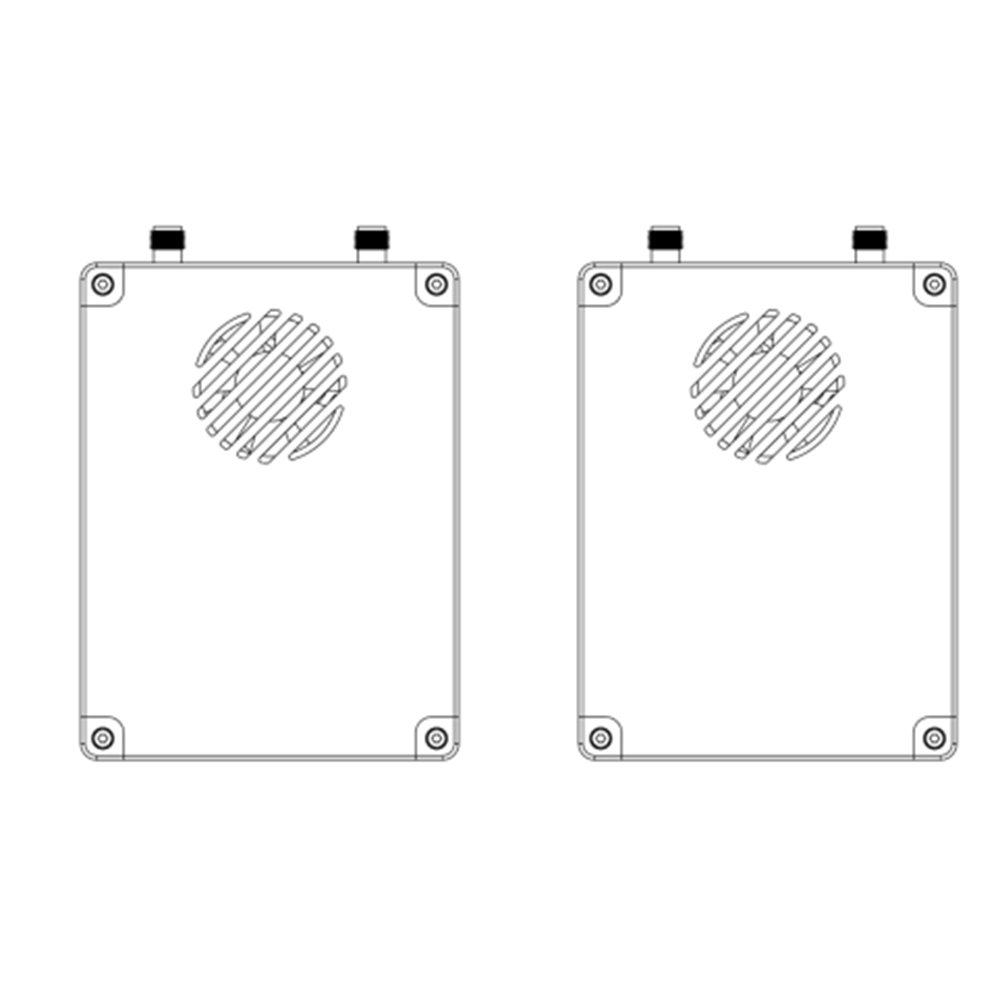
Air unit antenna × 2
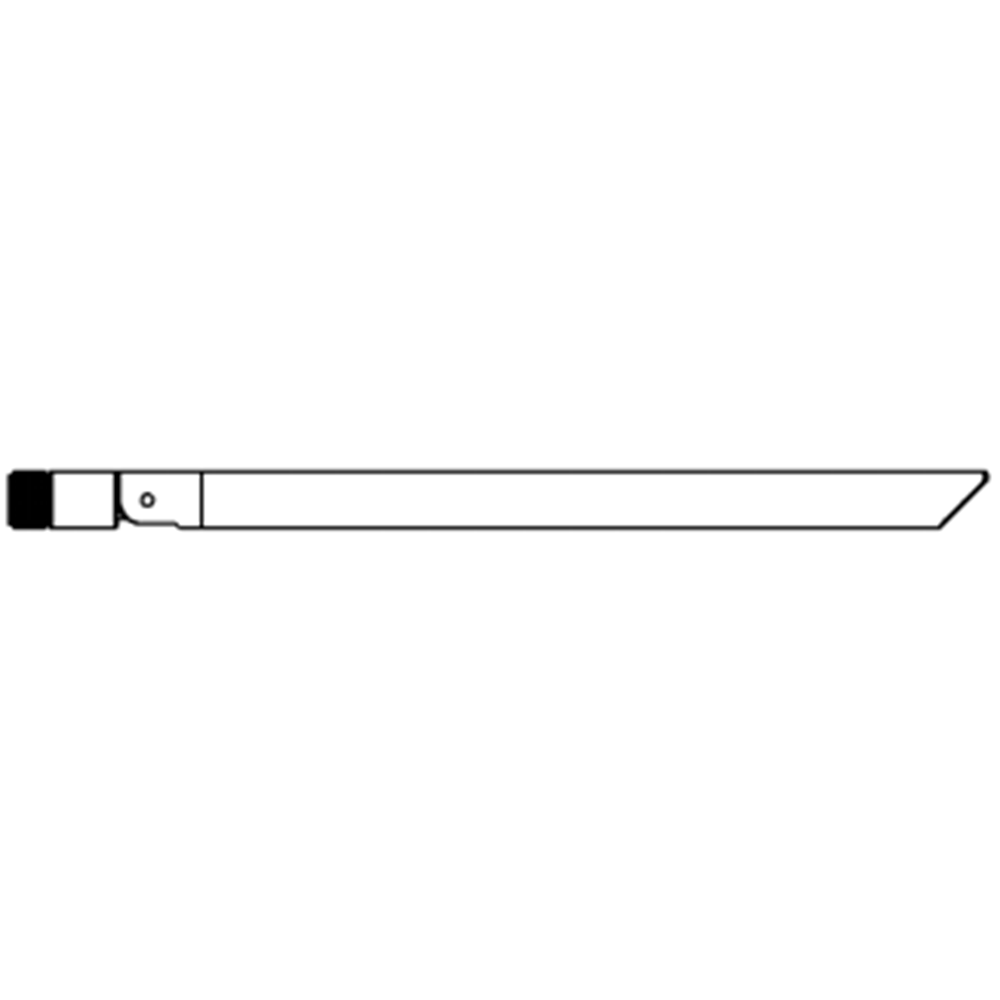
Ground unit antenna × 2

Повітря од кабелі
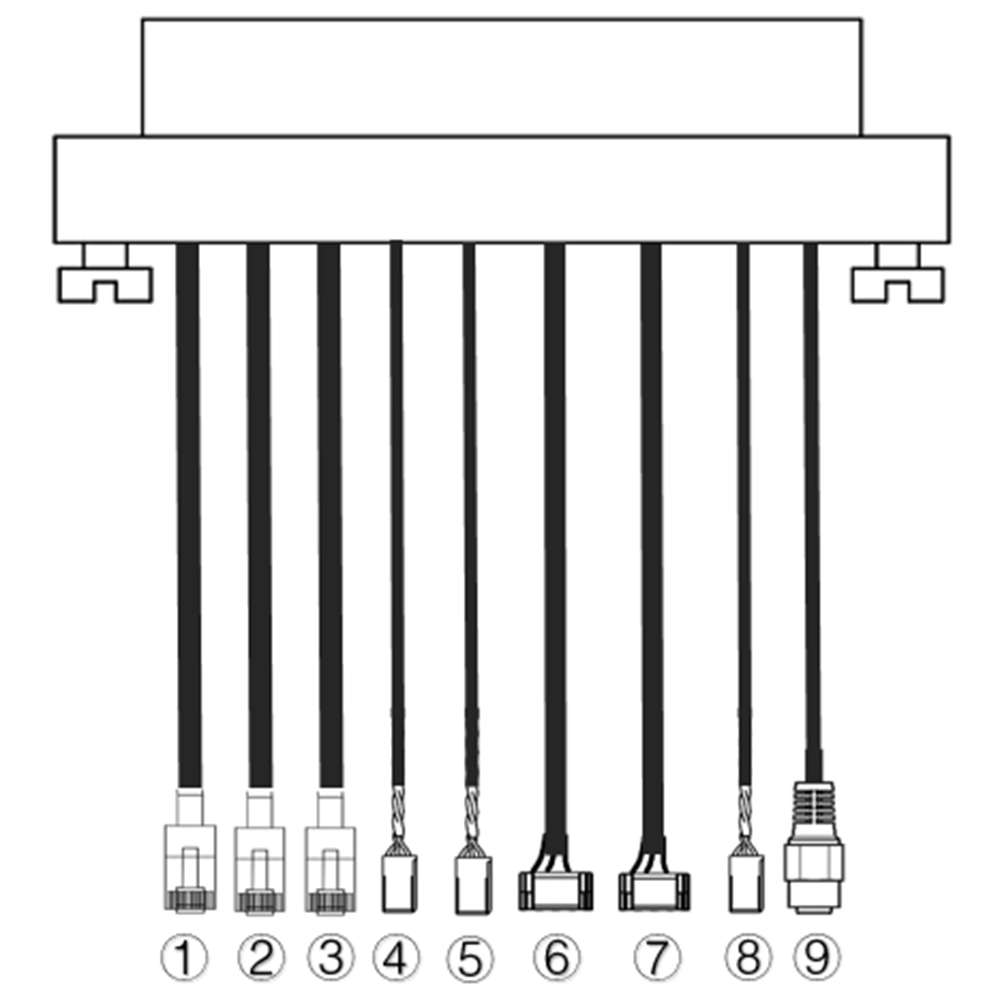
| Немає. | інтерфейс |
| 1,2,3 | Ethernet |
| 4,5 | S.BUS, як показано на малюнку, the 1вул pin from the left of dupont connector is S.BUS signal, the 3rd це Г. |
| 6,7 | Телеметричний серіал, як показано на малюнку, the 2nd контактом зліва від роз’єму GH1.25 є Rx, the 3rd є Tx, the 6тис це Г. (TTL за замовчуванням, Альтернатива RS232/422) |
| 8 | PPM, як показано на малюнку, the 1вул pin from the left is PPM signal, the 3rd це Г. |
| 9 | потужність |
Ground unit cables
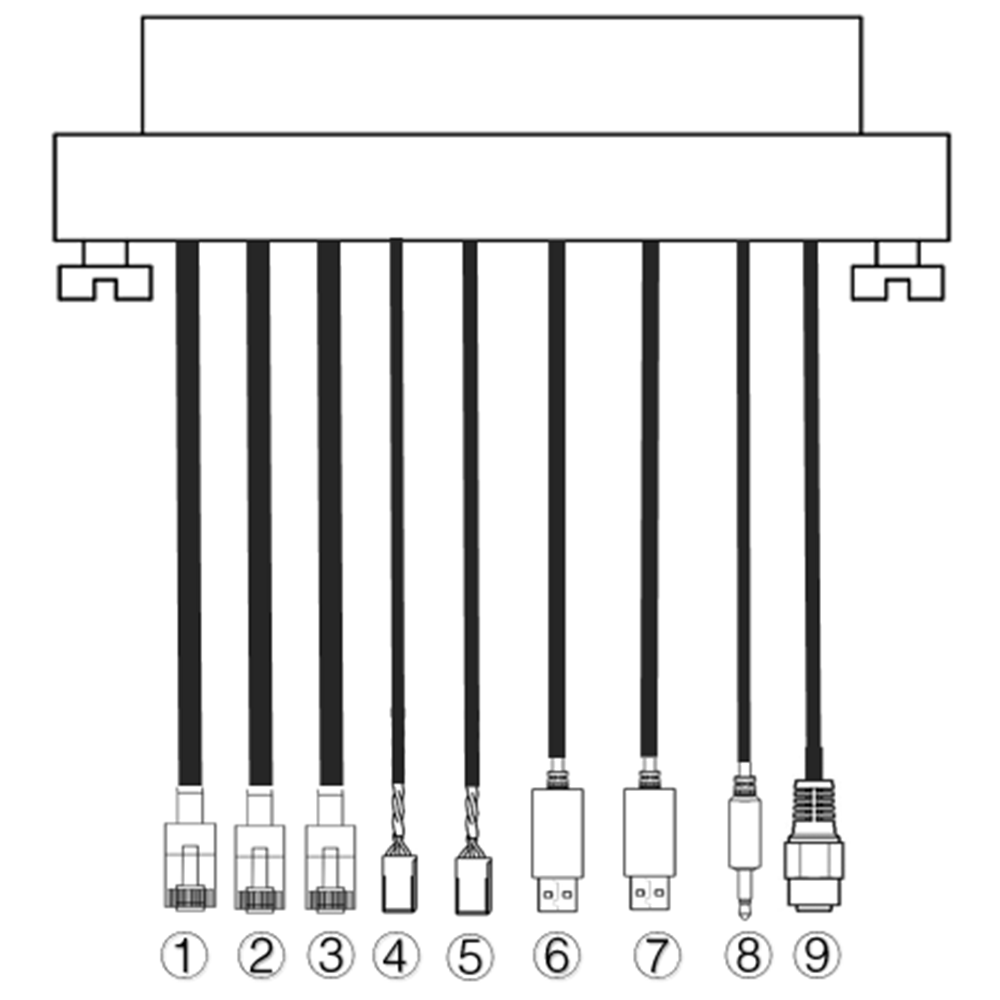
| Немає. | інтерфейс |
| 1,2,3 | Ethernet |
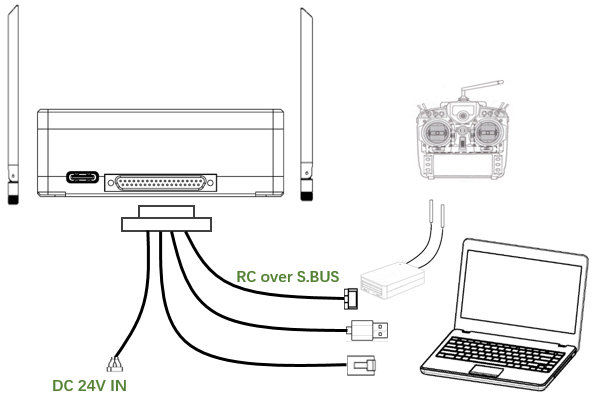
| 4,5 | S.BUS, як показано на малюнку, the 1вул контакт зліва є сигналом S.BUS, the 2nd становить 5 В+, the 3rd це Г. |
| 6,7 | Послідовний USB(TTL-USB за замовчуванням, Альтернатива RS232/422) |
| 8 | PPM |
| 9 | потужність |
2. продукт опис
2.1. Parameters
| Параметри | Цінність |
| частота | 1330~1450 МГц |
| Ширина стрічки | 10МГц (висхідна лінія), 10МГц (вниз) |
| потужність | 33дБм |
| модуляція | OFDM |
| сузір'я | BPSK, QPSK, 16QAM |
| ПІО | LDPC(1/2, 2/3, 3/4, 5/6) |
| Дуплекс | TDD |
| Пропускна здатність низхідного зв'язку | 2.3Mbps ~ 8bps |
| Пропускна здатність висхідної лінії зв'язку | 600кбіт / с |
| шифрування | AES 256 |
| інтерфейс | Ethernet, USB, TTL, RS232, RS422, PPM/S.BUS |
| Споживання енергії | 18W(авіаційна частина); 10W(наземний блок) |
| латентність | <300Міссісіпі (Залежить від камери) |
| вимір | 92.5*70.3*25мм |
| вага | 198г |
| Номінальна напруга/струм | DC24V/1.2A (або літієва батарея 6S) |
| робоча температура | -40°C ~60°C |
2.2. Повітря блок Інтерфейси
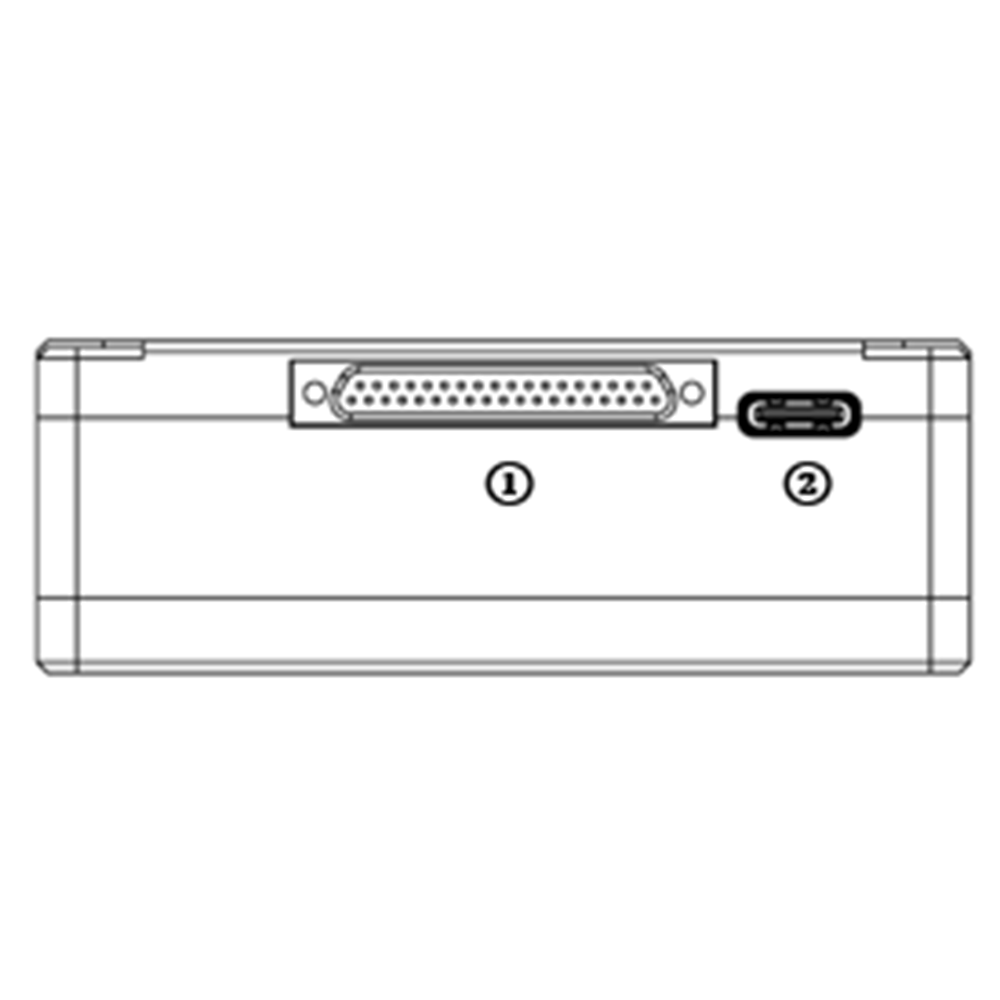
- J30J connector
It’s a J30J-37 pin connector providing power/Ethernet/serial/PPM/S.BUS.
- порт USB
Connect this port to the USB port of a PC, and use the wireless video link PC program to upgrade firmware and set parameters of the air unit.
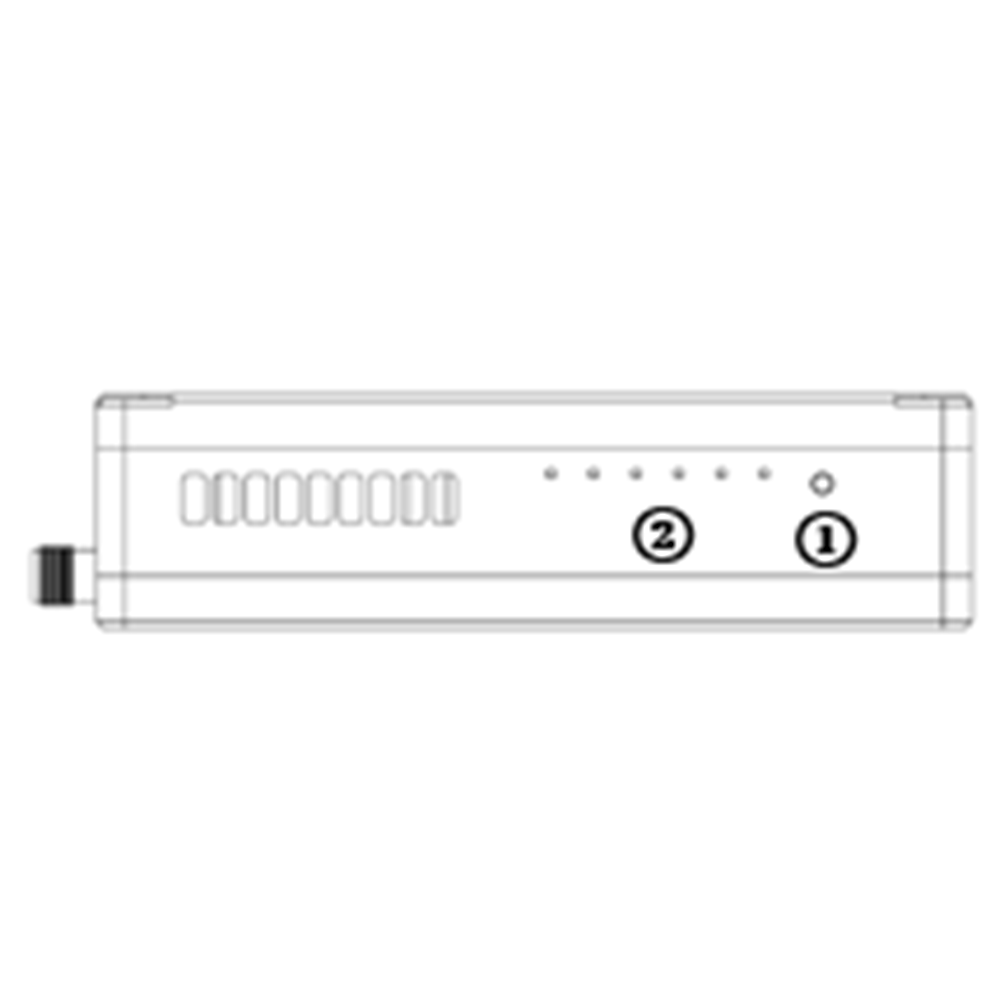
- Binding button
Press-and-hold this button to perform the binding operation. Bound already before factory delivery, no need to bind again by user.
- світлодіоди
Зліва направо: індикатор живлення (1), Ethernet link indicator (2~4), UL/DL radio link indicator (5~6) not used for air unit. LED6 will be flashing during bind process.
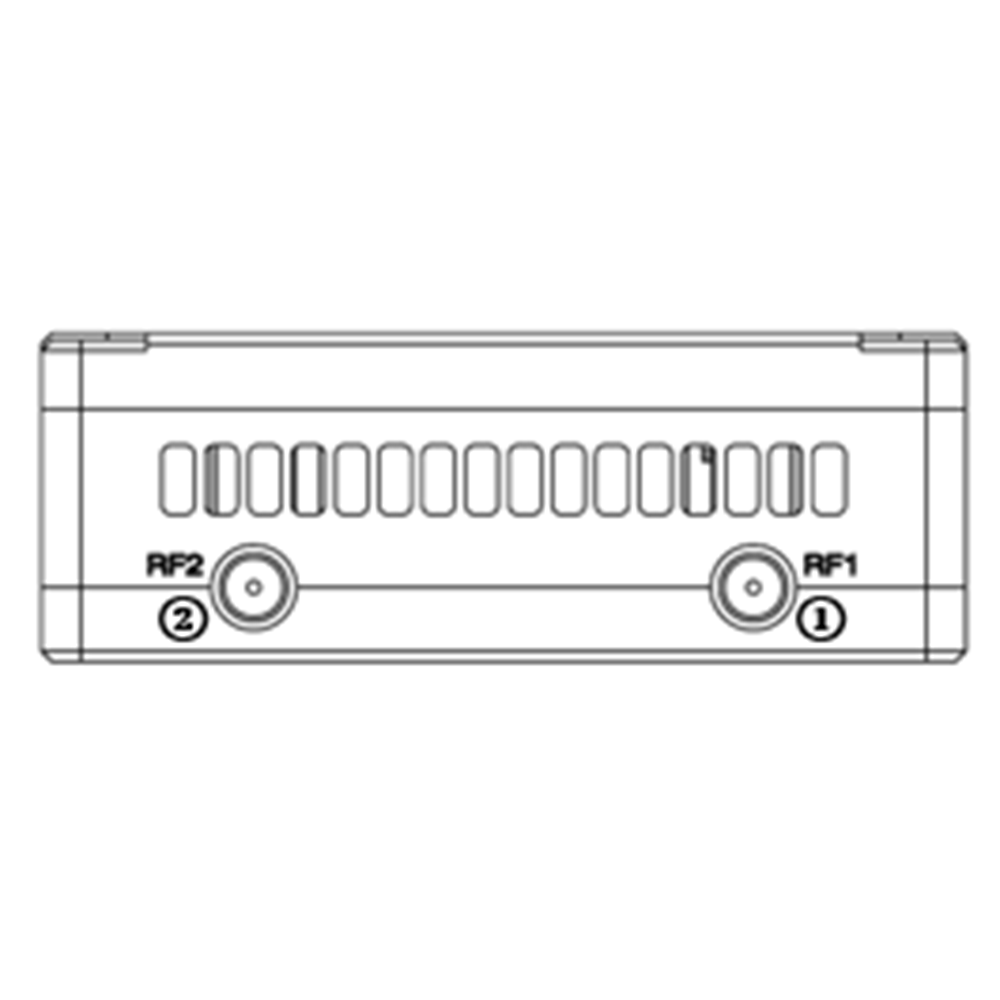
- RF1 Port
Підключити 1вул air unit antenna to this port.
- RF2 Port
Connect the 2nd air unit antenna to this port.
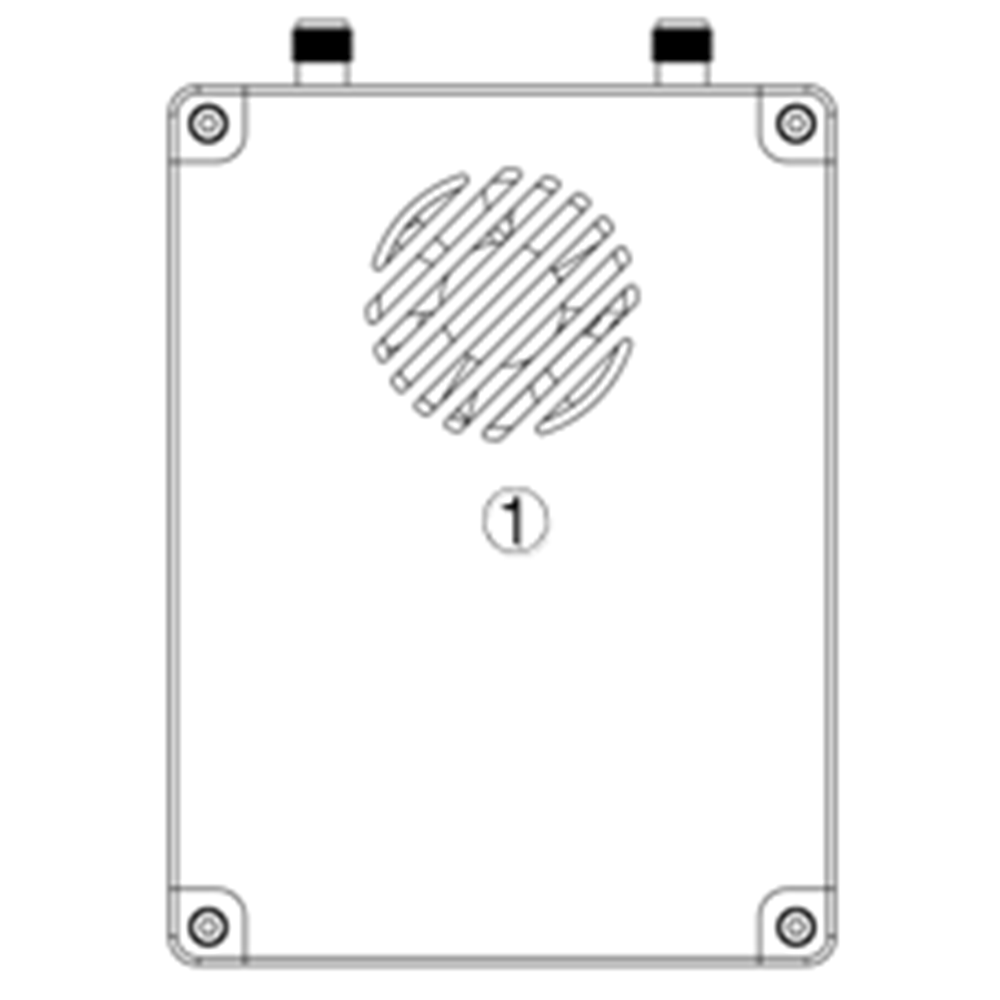
- Fan Ventilation Outlet
Don’t block this fan ventilation outlet to ensure effective cooling.
2.3. Земля блок Інтерфейси
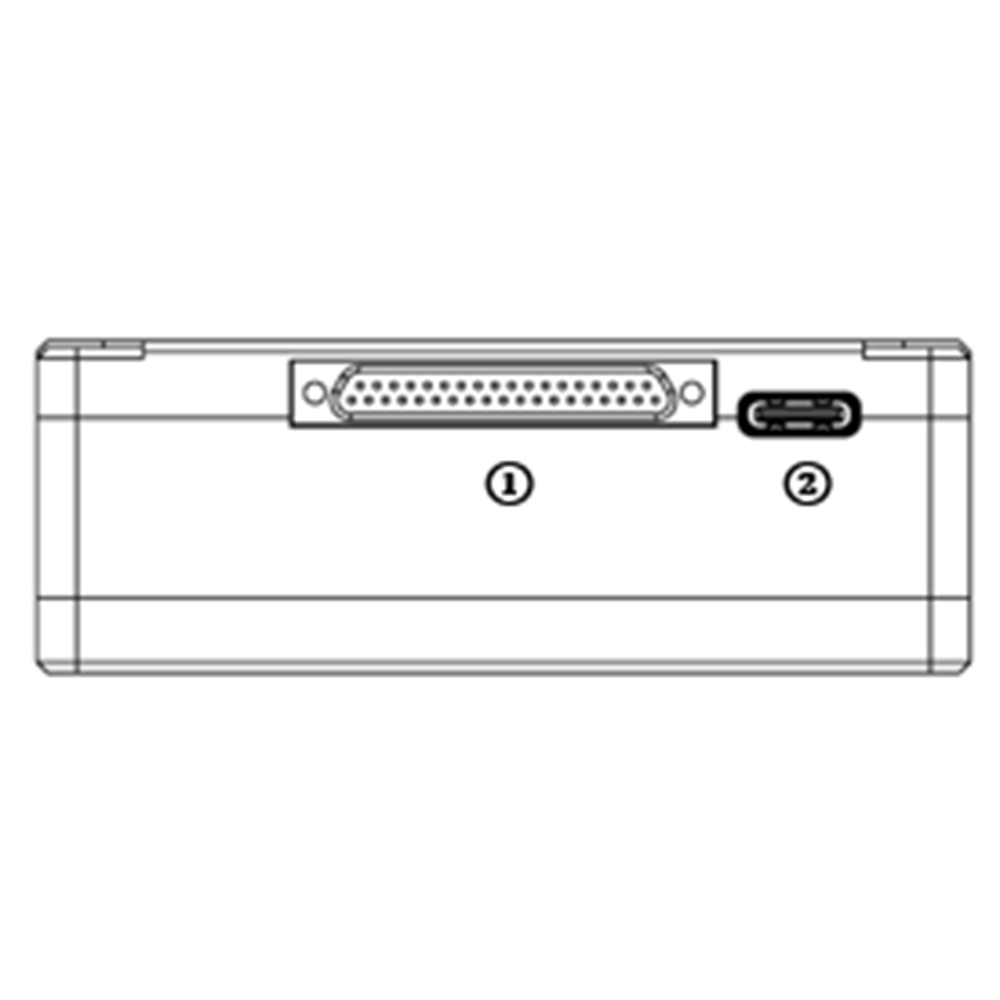
- J30J connector
It’s a J30J-37 pin connector providing power/Ethernet/serial/PPM/S.BUS.
- порт USB
Connect this port to the USB port of a PC, and use the wireless video link PC program to upgrade firmware and set parameters of the air unit.
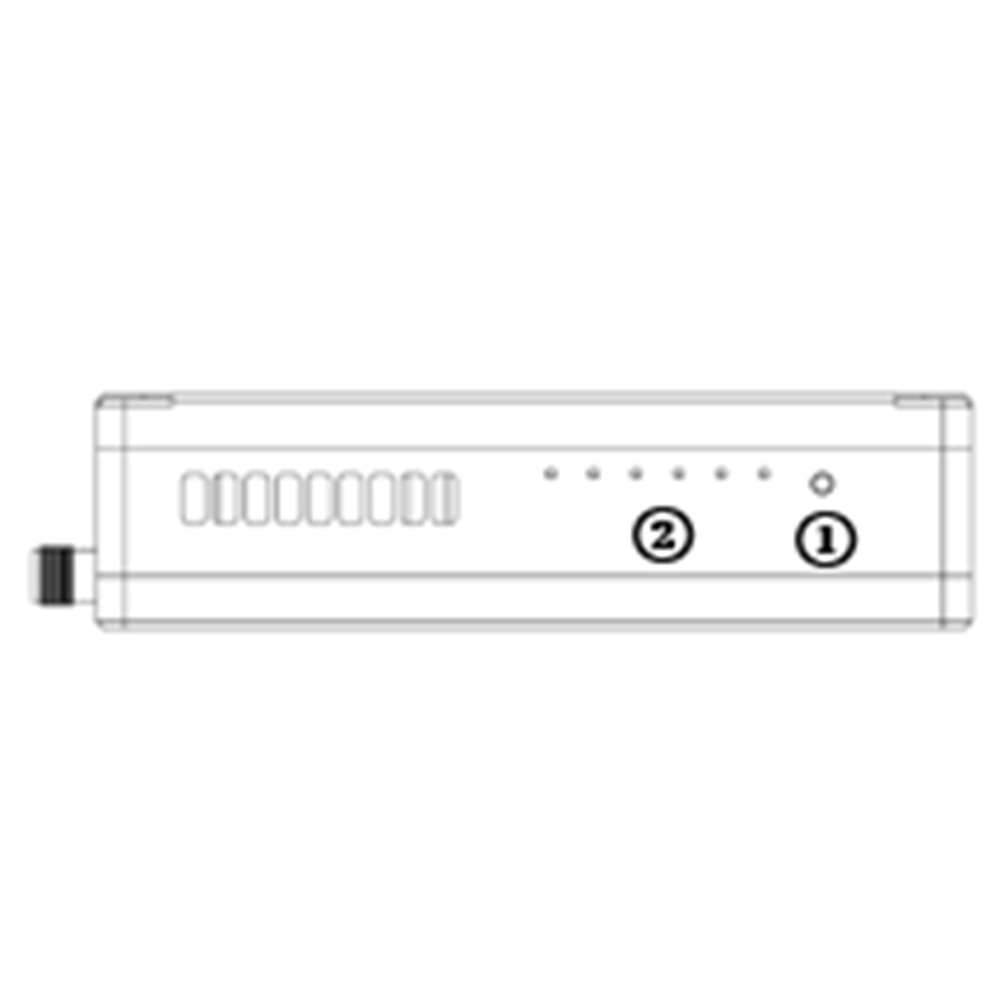
- Binding button
Press-and-hold this button to perform the binding operation. Bound already before factory delivery, no need to bind again by user.
- світлодіоди
Зліва направо: індикатор живлення (1), Ethernet link indicator (2~4), UL/DL radio link indicator (5~6). LED6 will be flashing during bind process.
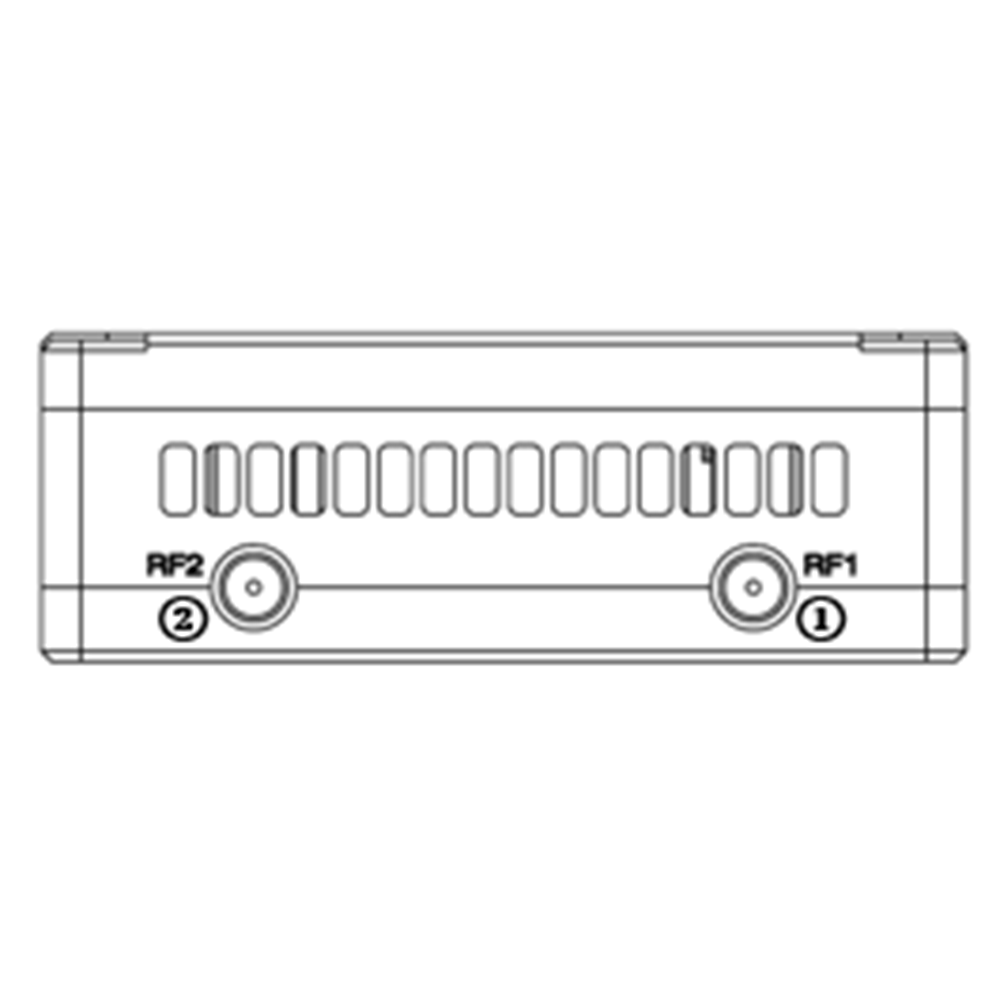
- RF1 Port
Підключити 1вул air unit antenna to this port.
- RF2 Port
Connect the 2nd air unit antenna to this port.
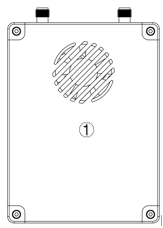
- Fan Ventilation Outlet
Don’t block this fan ventilation outlet to ensure effective cooling.
3. System налаштування
3.1. Повітря блок установка
Зміст
3.1.1. Antenna встановлення
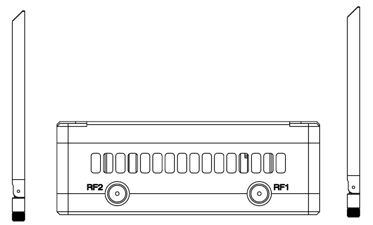
Screw the air unit antennas on the RF ports.
Примітка:
- To avoid equipment damage, install antennas before powering on the units.
- When mount air unit to drone, make sure the antennas are not both blocked by any part of the drone.
- Both antennas need to be installed.
3.1.2. Power supply
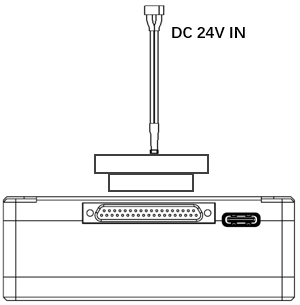
Insert the J30J connector to the J30J port of air unit and connect battery/power source to the power port at the other end.
Примітка:
- To avoid equipment damage, install antennas before powering on the units.
- Recommended rated voltage/current is DC24V/1.2A (або літієва батарея 6S).
3.1.3. Зonnect camera
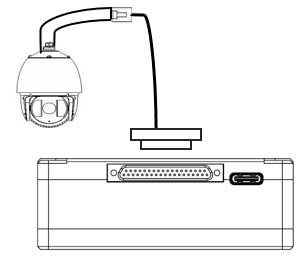
Connect the video output port of the IP camera to the Ethernet video input port of the air unit.
3.1.4. Зonnect flight controller (RЗ & телеметрія)
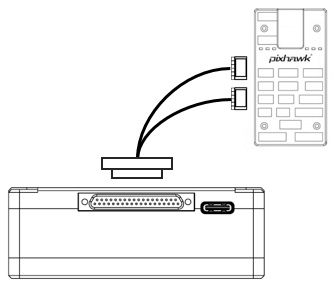
Insert the J30J connector to the J30J port of air unit and connect the other end of the serial cable to the telemetry port of a flight controller.
Insert the J30J connector to the J30J port of air unit and connect the other end of the RC cable to the PPM/S.BUS port of a flight controller.
3.2. Ground Unit Installation
3.2.1. Antenna installation
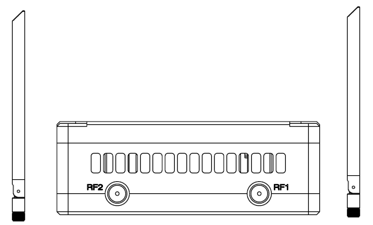
Screw the ground unit antennas on the RF ports.
Примітка:
- To avoid equipment damage, install antennas before powering on the units.
- Both antennas need to be installed.
- Adjust the antenna to be vertical to the ground during operation.
3.2.2. Power supply
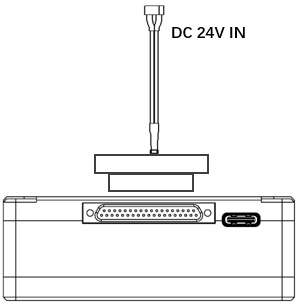
Insert the power connector of a power source into the power port of the ground unit
Нote:
- Recommended rated voltage/current is DC12V/1.2A (or 3S lithium battery).
- To avoid equipment damage, install antennas before powering on the units.
3.2.3. Telemetry connection
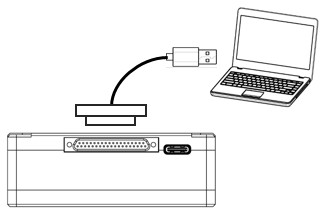
Insert the J30J connector to the J30J port of ground unit and connect the other end of supplied serial cable to the telemetry port of the ground control station.
Примітка:
- Ensure the baud rate of ground station and the baud rate of wireless video link module are configured to be the same.
- Ensure the serial cable sequence matches the interface definition of wireless video link module.
3.2.4. Зonnect remote controller
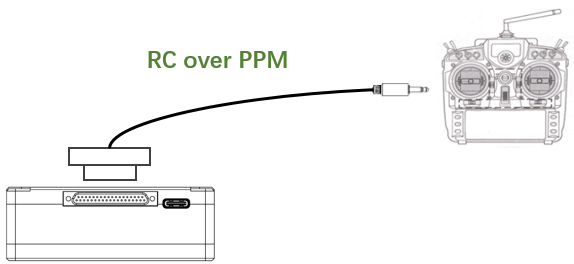
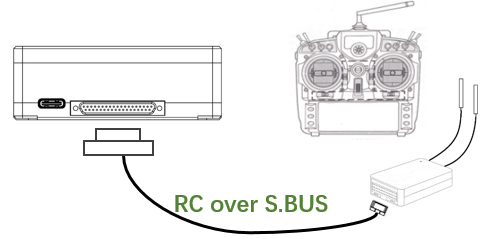
Using PPM mode: Insert the trainer port connector of the supplied RC cable to the trainer port of a remote controller and Insert the J30J connector to the J30J port of ground unit. Using S.BUS mode: Insert the J30J connector to the J30J port of ground unit, connect the other end to a S.BUS receiver, and the S.BUS receiver communicates with the remote controller wirelessly.
Нote:
- Ensure the RC cable’s pin-out matches the interface pin-out of wireless video link module.
- If a S.BUS receiver is used, there should be enough guard band between the working frequency band of the receiver and the working frequency band of wireless video link module.
3.2.5. Setup video output
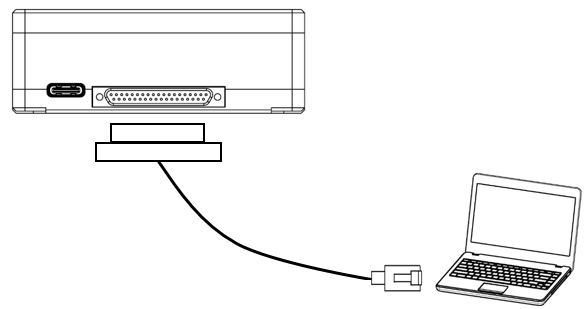
Insert the J30J connector to the J30J port of ground unit and connect the other end of supplied Ethernet cable to PC or the ground control station. Make sure IP addresses of camera and PC are in the same subnet.
3.2.6. використання wireless video link система
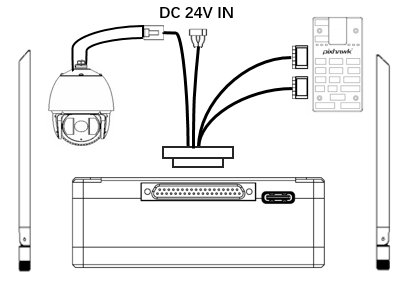
- Install antennas to the air unit.
- Connect IP camera output to Ethernet port of the air unit.
- Connect the PPM/S.bus port of the flight controller to the RC port of the air unit.
- Connect the telemetry port of the flight controller to the serial port of the air unit.
- Connect a 24V DC power source to the power port of the air unit and turn it on.
- If the latest firmware is needed, connect the air unit to a PC using USB cable and run wireless video link PC program to upgrade the firmware of the unit to the latest one.
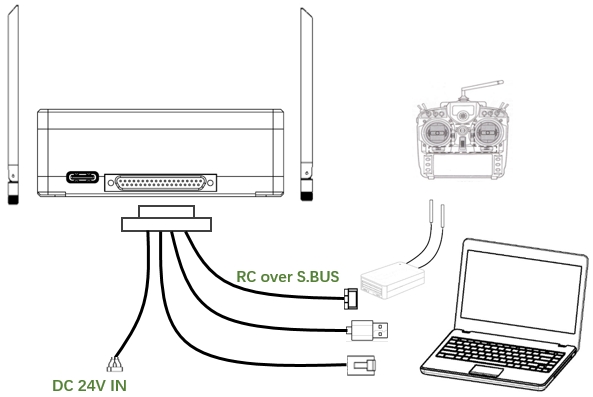
- Install antennas to the ground unit.
- Configure the remote controller to be in trainer mode. If PPM mode is used, connect the remote controller interface of the ground unit to the trainer port of the remote control. If S.BUS mode is used, a S.BUS receiver needs to be connected to the ground unit using supplied cable, and the connection between the S.BUS receiver and the remote controller need to be established.
- Connect the USB port of a ground control station to the serial port of the ground unit through a Serial-2-USB adaptor to use telemetry link.
- Connect the Ethernet port of a GCS or PC to the RJ45 connector of ground unit to get IP video/telemetry (telemetry over Ethernet).
- Turn on the ground unit.
- If the latest firmware is needed, connect the ground unit to a PC using USB cable and run wireless video link PC program to upgrade the firmware of the unit to the latest one.
- After downlink and uplink are established, both LEDs of the ground unit will be on.
4. програмне забезпечення
4.1. установка
wireless video link provide program installation files, program file name: wireless video link Wireless App Setup.exe. The installer icon is as following:
Double-click the installer to install and customize the program installation directory. Після налаштування, click “Next” to move to the next step. To cancel the installation, click “Cancel”.
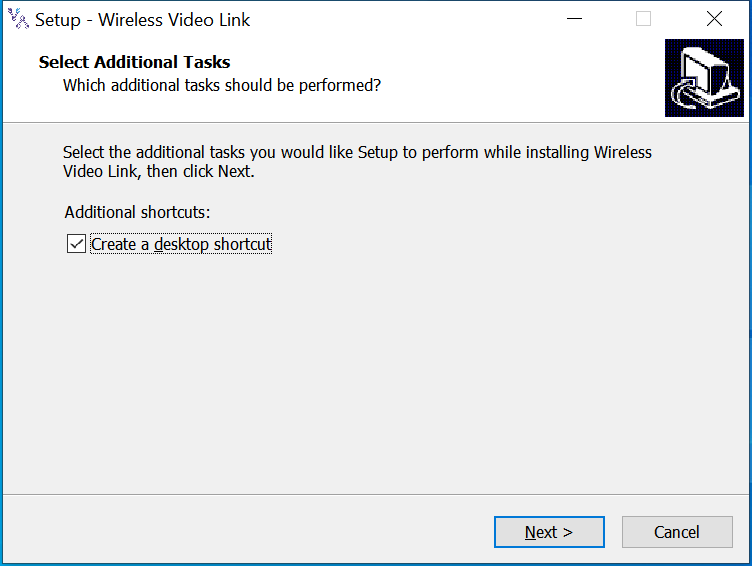
Check the “Create desktop shortcut” if desktop shortcut is needed. If it is not checked, the desktop shortcut will not be created. Після налаштування, click “Next” to move to the next step. To go back to the previous step, click “Back”. To cancel the installation, click “Cancel”.
Click “Install” to proceed with the installation. To go back to the previous step, click “Back”. To cancel the installation, click “Cancel”.
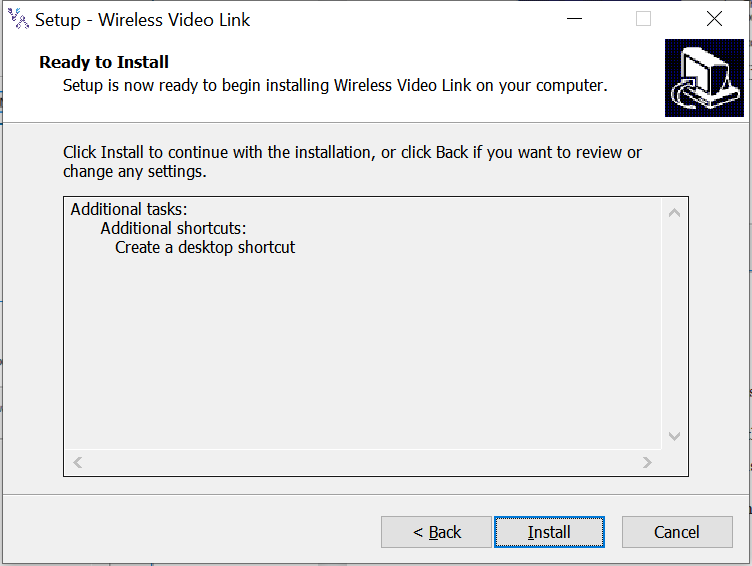
Примітка: Please disable the anti-virus software, otherwise the anti-virus may prevent the driver from being installed during the driver installation.
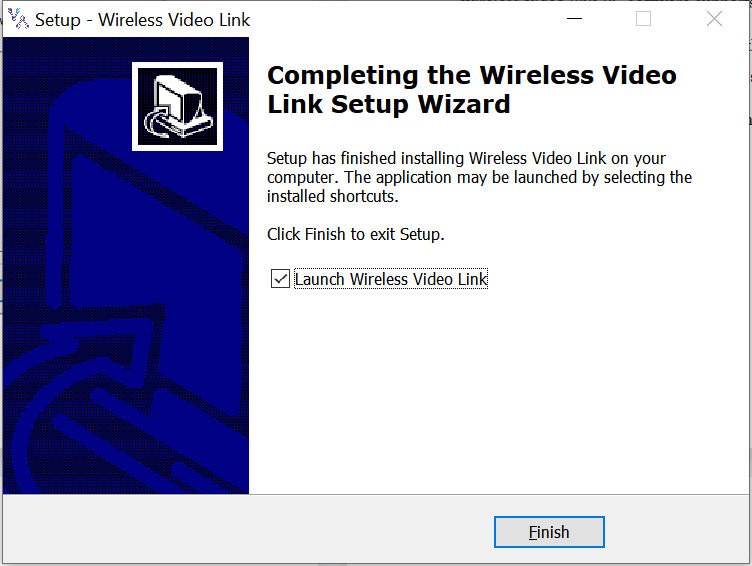
У цей момент, the software installation is done and the driver installation is completed.
4.2. програмне забезпечення Мова
wireless video link PC software supports both Chinese and English.
The software will display in Chinese if the operating system of the PC is in Chinese, otherwise the software displays in English.
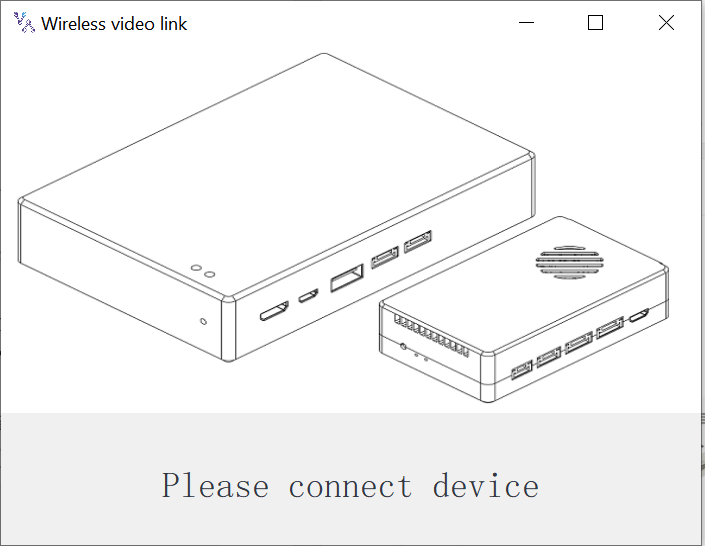
If the device is not connected to the computer properly, wireless video link PC software shows the following picture:
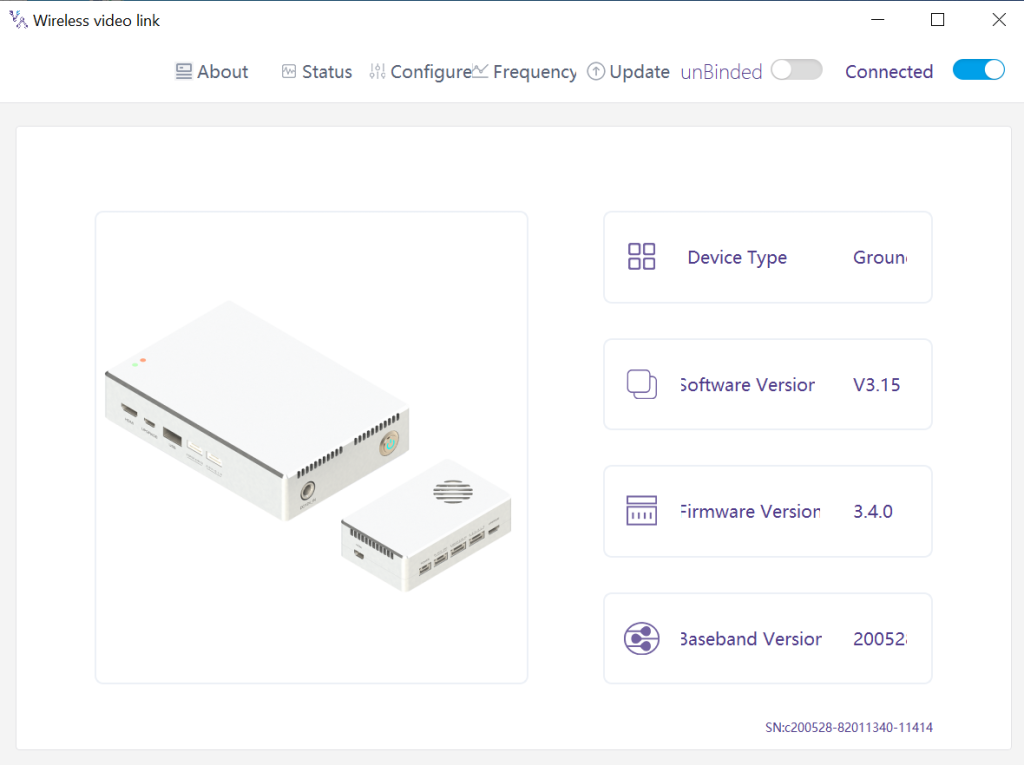
If the device is connected to the computer properly, wireless video link PC software shows the following picture:
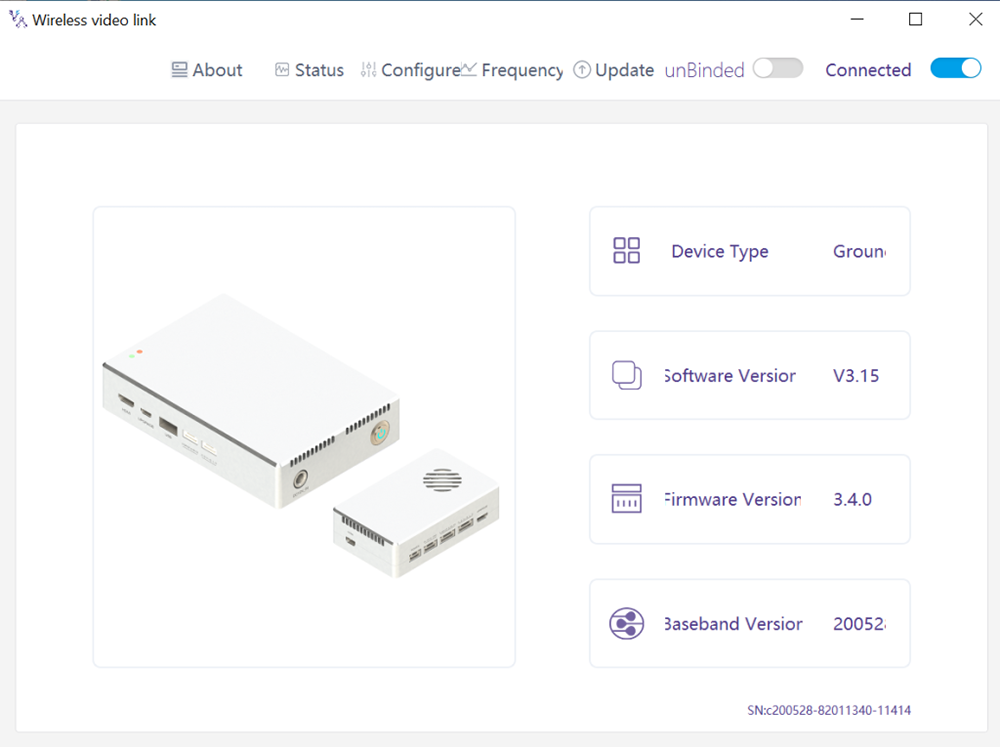
4.3. Device Info
Information on the homepage: device type, software version, Версія прошивки, and baseband version.
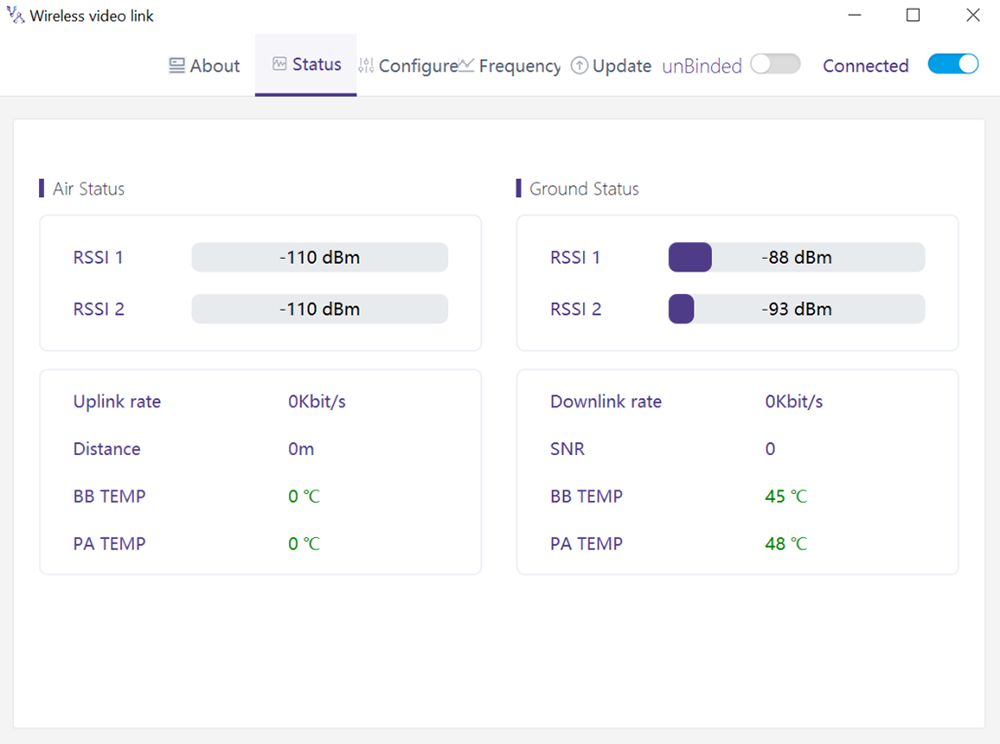
4.4. Статус
Read the status information of air unit and ground unit under “Status” page section:
Повітря: RSSI 1 & RSSI 2, Uplink rate, відстань, BB TEMP, PA TEMP.
Земля: RSSI 1 & RSSI 2, Downlink rate, SNR, BB TEMP, PA TEMP.
4.5. конфігурація
To change configuration, device need to be bound and wireless connection between air unit and ground unit needs to be established.
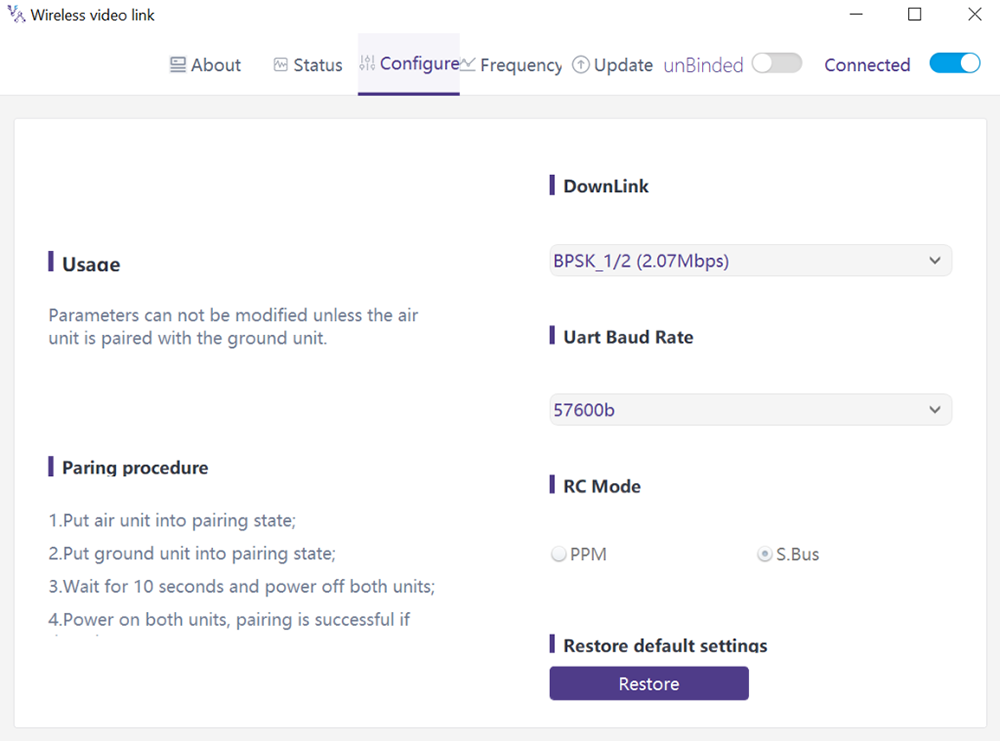
4.5.1. Downlink Mode configuration
To change downlink mode, device need to be bound and wireless connection between air unit and ground unit needs to be established
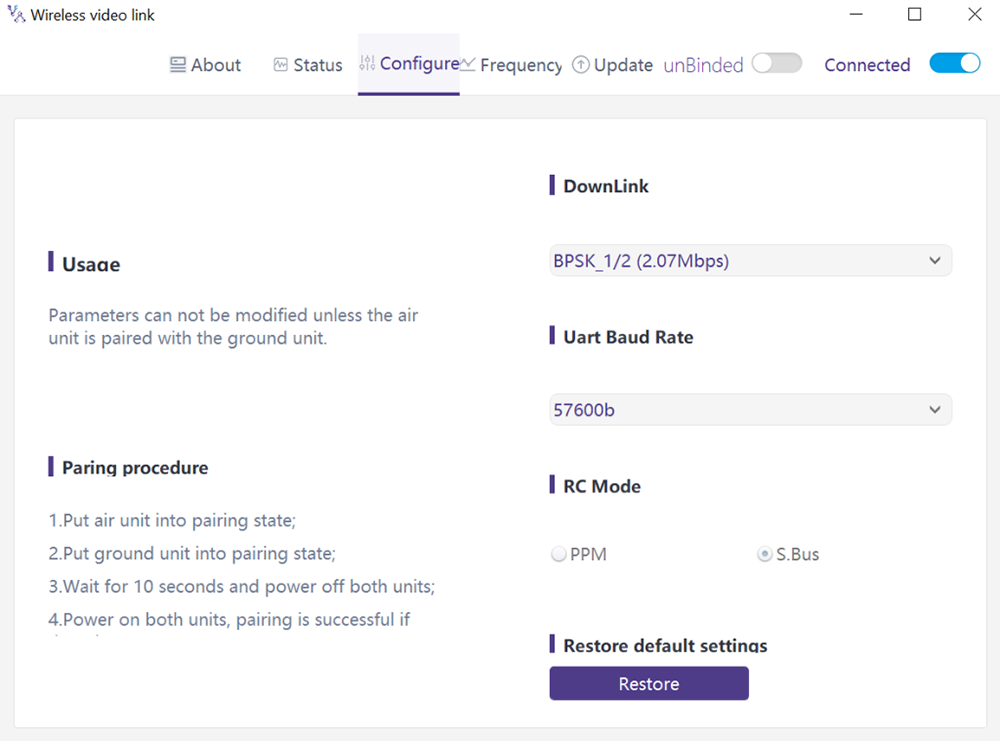
Існує 8 options for downlink mode from the drop-down menu (see the following screenshot):
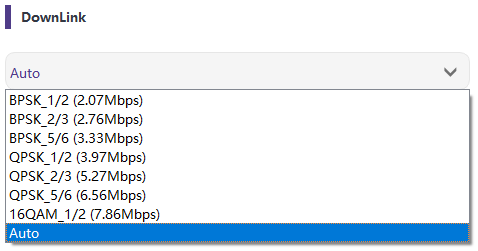
When it’s selected as Auto, modulation scheme will be dynamically adaptive based on real-time signal quality.
4.5.2. Baud rate configuration
Існує 4 options for serial port baud rate (see the following screenshot).
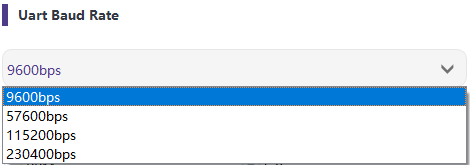
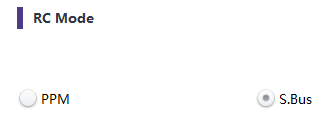
4.5.3. Дистанційний control режим конфігурація
There are two options for remote control mode, PPM and S.BUS (see the following screenshot).
4.5.4. Restore дефолт налаштування
Click “Restore” to restore default settings.

4.6. частота
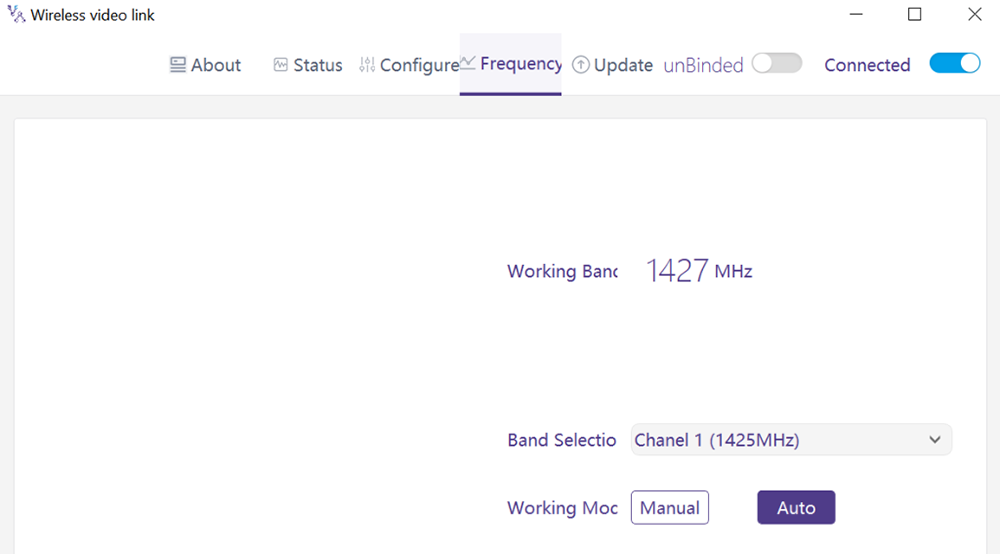
Frequency related information/parameters can be checked/set at page of frequency.
4.6.1. Frequency working mode
Режим роботи:керівництво, автоматичний.
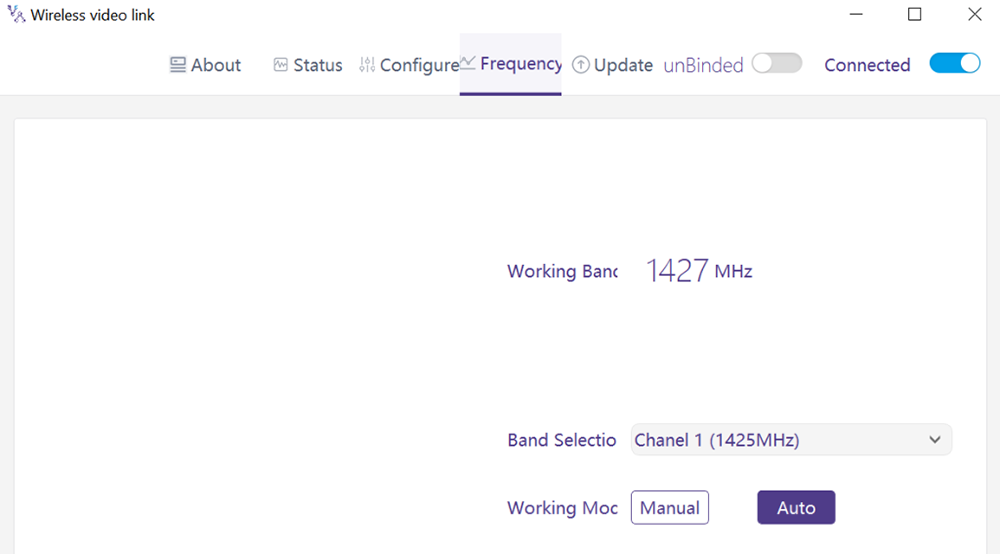
Ручний режим: The user manually selects the working frequency.
Auto mode: The system selects the working frequency based on the frequency scanning.
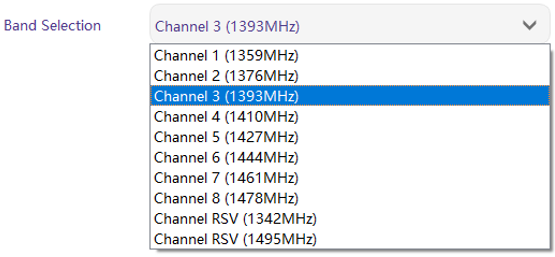
4.6.2. Вибір частоти
Under the manual mode, working frequency can be selected from the drop-down menu. Please select and use the channels in accordance with the product specification (1330~1450 МГц).
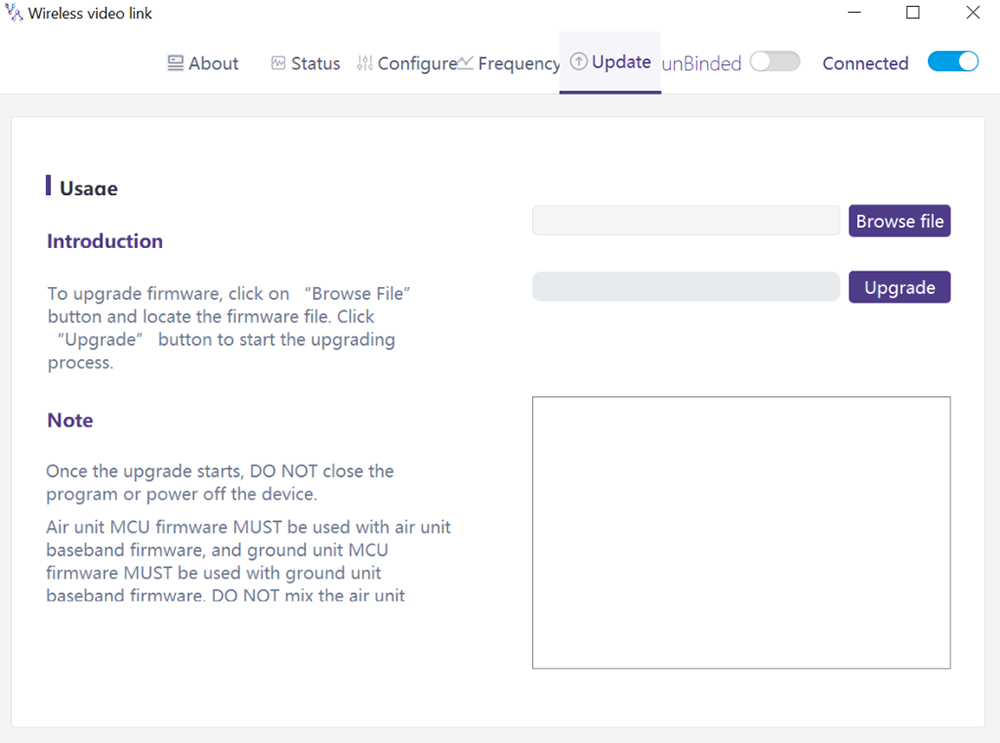
4.7. апгрейд
Примітка: air unit and ground unit need to be upgraded separately using the USB cable to connect wireless video link PC software.
Goes to the Upgrade page. Select the upgrade file, click the “Upgrade” purple button to upgrade.
4.8. Webpage Management
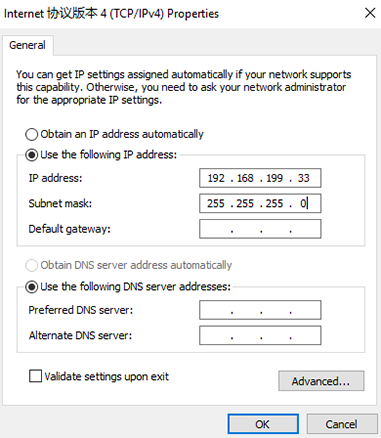
Besides PC app management via USB, webpage management via Ethernet is also supported. Directly connect PC to air unit/ground unit by Ethernet cable, set PC IP address as 192.168.199.33/24, and visit 192.168.199.18 (авіаційна частина)/192.168.199.16 (наземний блок) through webpage.
Under StatusàBaseband status, there’s detailed information like RSSI, SNR, TxPower, LDPC stats, telemetry stats, і т.д..
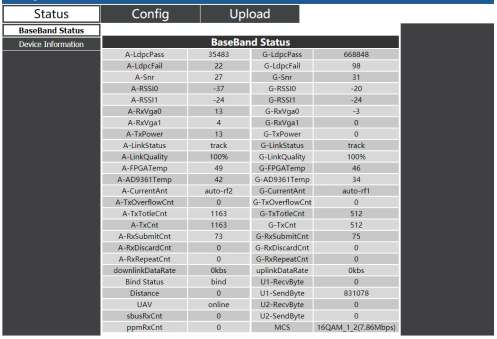
Under Status Device information, there’s information of SN and firmware version.

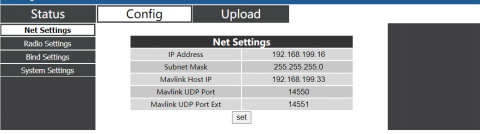
Under ConfigàNet settings, there’re IP address of unit itself, telemetry destination IP address and UDP ports, all of these parameters can be changed as per user’s request.
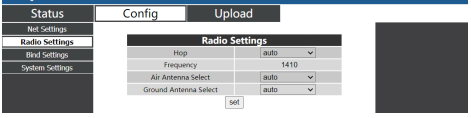
Under ConfigàRadio settings, there’re hop, частота, antenna selection can be set. When hop is auto, user do not need to/cannot set frequency, system dynamically selects the best frequency to use by itself, in other words, when hop is manual, user can set frequency manually.
Under Config Bind setting, bind process can be triggered by clicking bind instead of physical bind button.

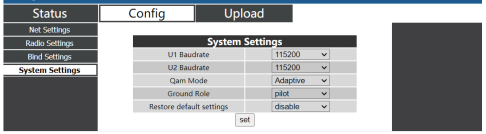
Under Config System settings, baud rate for U1/U2 two serial ports can be set. When QAM mode is set as adaptive, unit will dynamically change modulation scheme based on real-time signal quality. Role of pilot has bi-directional transmission while observer only has downlink data.
Under Upload Upload, browser and select file to be upgraded first, then click send to trigger the process.

5. додатків
5.1. додатків з Пульт дистанційного керування
wireless video link modules support PPM and S. BUS protocol.
If PPM mode is used, please use wireless video link standard PPM cable to connect the ground unit and the remote controller’s trainer port.
If S. BUS mode is used, additional S.BUS receiver is needed. The ground unit is connected to the receiver. Then S. BUS receiver establishes wireless communication with the remote controller.
Both modes require the remote controller to be configured to the corresponding working mode.
If S. BUS receiver is used, please use a receiver whose working frequency is different from that of wireless video link module.
When PPM mode is used, the air unit needs to connect to the PPM RC port of a flight controller.
When S. BUS mode is used, the air unit needs to connect to the DSM/S. BUS RC port of a flight controller.
5.1.1. FRSKY віддалений controller
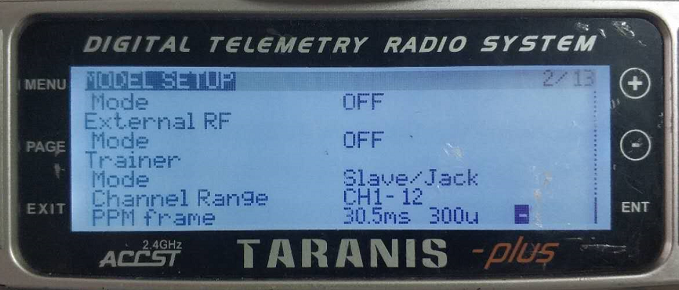
- Режим PPM
Model setup – Trainer – mode: If mode is configured to Slave/Jack, then the remote controller is in PPM mode.
Model setup – Internal RF: It needs to be configured to be off, and S. bus mode will be disabled.
- Режим S.BUS
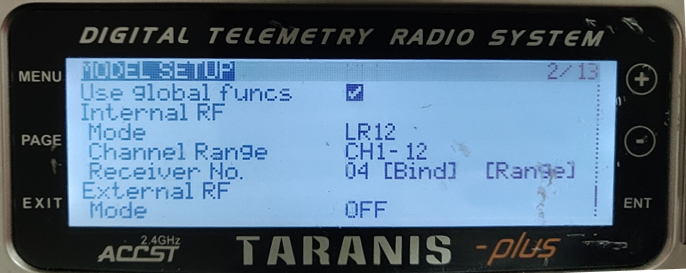
Model setup – Internal RF: LR12, D8, D16, OFF. Configuration of different parameters follow those of the receiver. If configured as OFF, S. bus mode will be disabled.
5.1.2. Futaba віддалений controller
- Режим S.BUS
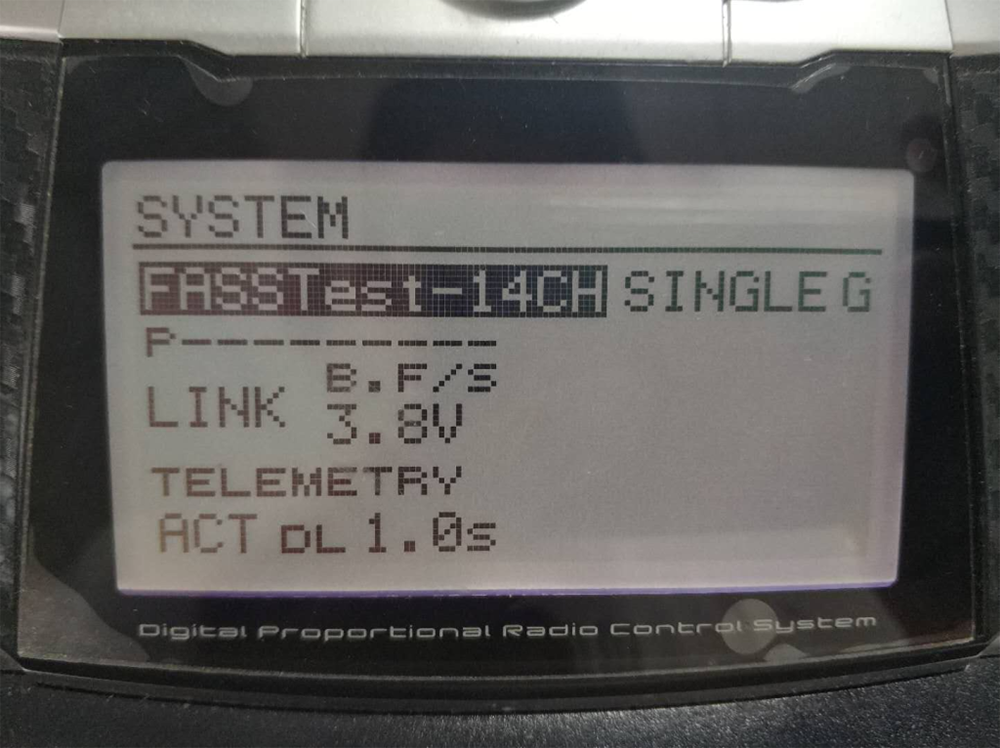
Linkage menu – система: FASSTest-14CH, FASSTest 12CH, МІСТИТЬ МУЛЬТИ, МІСТИТЬ 7 КАН, S-FHSS. Configuration of different parameters follow those of the receiver.
- Режим PPM
wireless video link standard PPM cable is used to connect to Futaba trainer cable (one end is connected to the trainer port of Futaba controller, the other end is 3.5mm connector). PPM mode can be used directly without additional configuration.
5.2. Телеметрія з'єднання
The telemetry Port of air unit connects “TELEM1” Port of a flight control(Pixhawk4).
5.3. отримати жити відео
Get real-time video through RTSP on media players like QGC/VLC. Make sure IP addresses of PC and camera are in the same subnet.
6. Примітки
6.1. Посилання виконання
- RF cable connector/Antenna connector check
Before flight, check if the antennas are connected to the modules. Running module without antennas connected results in very short range and can potentially damage the module. It is recommended to check the connection of all RF connectors. Loose connection can degrade the range significantly.
- Antenna placement
Place the two air antennas so that no matter what position the drone is, at least one antenna is not blocked by the payload from the ground station.
If the drone will fly in full throttle, it will lean forward. Install the air antenna so that it is close to be vertical to the ground when the drone moves forward in full throttle.
- Battery level
The reception performance will degrade if the battery runs low, even though it might still power the units up.
6.2. RC посилання & віддалений controller
The RC link of wireless video link module supports the PPM and S.BUS protocols. If the PPM protocol is used, потрібно налаштувати пульт дистанційного керування на режим PPM і вимкнути бездротову передачу на пульті дистанційного керування. Якщо використовується протокол S.BUS, робоча частота бездротового зв'язку приймача, підключеного до пульта дистанційного керування, повинна працювати в різних діапазонах частот із робочою частотою модуля бездротового відеозв'язку та мати певну гарантію ізоляції.
Якщо ви не використовуєте RC link модуля бездротового відеозв’язку, Ви повинні звернути увагу на робочу частоту дистанційного зв’язку пульта дистанційного керування під час використання RC-зв’язку пульта дистанційного керування. Якщо він знаходиться в тому ж діапазоні частот, що й робоча частота модуля бездротового відеозв’язку, це спричинить перешкоди один одному.
Avoid interference with wireless video link module by the wireless link of the remote controller or receiver when using wireless video link system.
6.3. Firmware update
Файли оновлення: FPGA upgrade file for air unit, FPGA upgrade file for ground unit, MCU1 upgrade file for air unit, MCU1 upgrade file for ground unit, MCU2 upgrade file for air unit, MCU2 upgrade file for ground unit.
Upgrade files are upgraded using wireless video link PC software. Під час оновлення, the power cannot be powered off and the normal connection of USB cable should be ensured at the same time. Якщо оновлення не вдається, the power cannot be powered off, будь ласка, спробуйте оновити знову безпосередньо. в іншому випадку, it will be necessary to return to us to use special burning tools for firmware burning.
6.4. Bind Theperation
“Bind” is used to pair an air unit with ground unit.
Щоб поєднати повітряний і наземний блоки:
- Увімкнено повітряний і наземний блоки.
- Підключіть повітряний і наземний блок.
- Натисніть кнопку фізичного прив’язування повітряного блоку, останні 5 с+. Світлодіодний індикатор поруч із кнопкою прив’язки блимає зеленим, вказуючи на те, що він перебуває в стані зв’язування.
- Натисніть кнопку фізичного прив’язування наземного блоку, останні 5 с+. Світлодіодний індикатор поруч із кнопкою прив’язки блимає зеленим, вказуючи на те, що він перебуває в стані зв’язування.
- Коли індикатор зв’язку світлодіоди наземного блоку завжди горять, це означає, що повітряний і наземний блок зв'язані.
Примітка:
(1) Якщо модулі прив'язані до іншої версії прошивки, операція зв'язування може завершитися помилкою.
(2) Якщо програму повітряного або наземного агрегату спалено неправильно, наприклад спалювання повітряного блоку до наземного блоку, і виконання операції зв’язування між неправильним повітряним блоком і наземним блоком, операція зв'язування не вдасться.
(3) Агрегати зв'язуються ще до заводської поставки, клієнту не потрібно знову прив’язувати після розпакування.
(4) Якщо пристрій відновлено до заводських налаштувань, потрібне прив’язування знову.
6.5. Брандмауер Windows для ПК
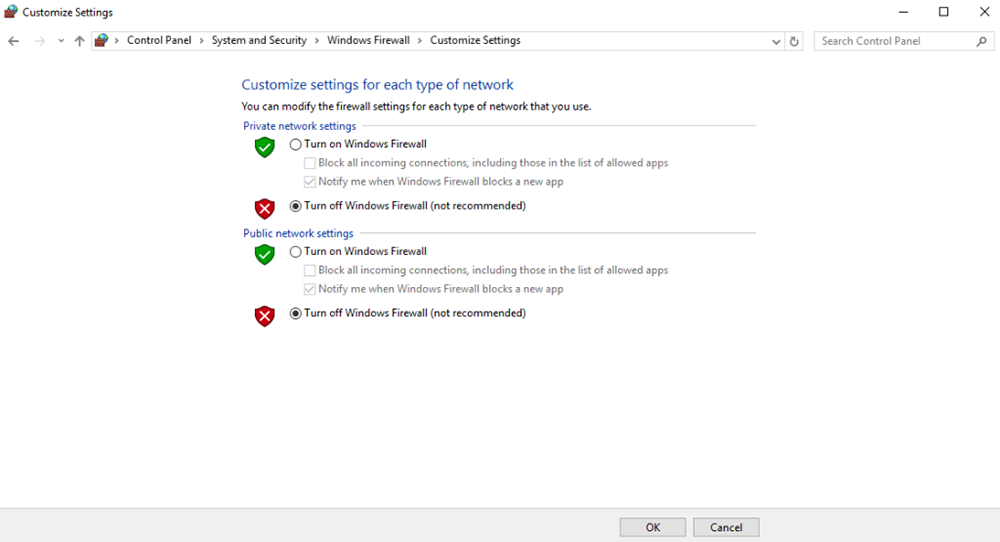
Переконайтеся, що брандмауер ПК вимкнено на випадок блокування відео та/або телеметрії. Ось операційна система Windows10 для довідки. шлях: Control Panel\System and Security\Windows Firewall\Customize Settings.
Встановіть параметри приватної/загальнодоступної мережі як «Вимкнути брандмауер Windows».’ як показано нижче, натисніть «OK».
6.6. Встановіть IP-адресу ПК
Під час перегляду відео на ПК слід правильно встановити IP-адресу ПК, IP-адресу можна встановити, дотримуючись наведених нижче кроків:
Double click ‘Ethernet’ at Control Panel\Network and Internet\Network Connections,
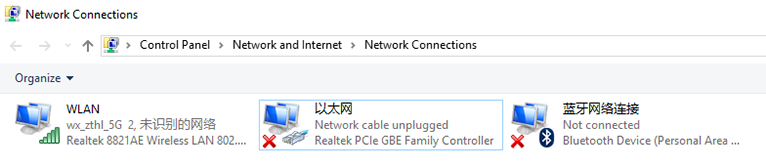
Двічі клацніть «Версія протоколу Інтернету». 4(TCP/IPv4)', встановіть IP-адресу ПК, як показано нижче, натисніть "ОК".’ закінчити.
6.7. Визначення контакту роз'єму J30J-37
| ім'я | шпилька |
| потужність | 1,2,20 |
| GND | 3,10,15,21,22,29,31 |
| Ethernet1 TX+ | 7 |
| Ethernet1 TX- | 26 |
| Ethernet1 RX+ | 6 |
| Ethernet1 RX- | 25 |
| Ethernet2 TX+ | 5 |
| Ethernet2 TX- | 24 |
| Ethernet2 RX+ | 4 |
| Ethernet2 RX- | 23 |
| Ethernet3 TX+ | 8 |
| Ethernet3 TX- | 27 |
| Ethernet3 RX+ | 9 |
| Ethernet3 RX- | 28 |
| SBUS_V | 11 |
| PPM | 12 |
| GPS_SYNC | 13 |
| Зарезервовано | 14 |
| 232TX1 або 422Y2 | 16 |
| 232RX1 або 422A2 | 17 |
| 232TX2 або 422Y1 | 18 |
| 232RX2 або 422A1 | 19 |
| SBUS1 | 30 |
| SBUS2 | 32 |
| Зарезервовано | 33 |
| 422Z2 або TTLTX1 | 34 |
| 422B2 або TTLRX1 | 35 |
| 422Z1 або TTLTX2 | 36 |
| 422B1 або TTLRX2 | 37 |
7. FAQ
| Q1: Як працює wireless video link живлення модуля? |
| Повітряний агрегат: округ Колумбія, діапазон живлення: 9-26V, рекомендується використовувати 24В. |
| Наземний блок: округ Колумбія, діапазон живлення: 9-26V, рекомендується використовувати 24В. |
| Q2: Чи можна wireless video link перед установкою антен увімкніть модуль? |
| Перед увімкненням живлення необхідно встановити антени. |
| Q3: Скільки антен зробити wireless video linkнеобхідно встановити повітряний блок? |
| Необхідно встановити дві антени. |
| Q4: Скільки антен зробити wireless video linkнеобхідно встановити наземний блок? |
| Необхідно встановити дві антени. |
| Q5: Чи можна використовувати різні типи дистанційного керування для керування дроном? |
| Так, просто виводити стандартні сигнали PPM через автобусний порт, або використовуйте S. Приймач BUS. |
| Q6: Чи можна встановити на дрон два аероблоки? |
| Немає, дрон може мати лише один повітряний блок. |
| Q7: Чи можна встановити два наземних блоки на приймальному кінці? |
| Система ptp може встановити лише один наземний блок; система ptmp підтримує більше одного наземного блоку. |
| Q8: Що робити, якщо висхідна лінія/вниз Світлодіодний індикатор не горить? |
| Будь ласка, виконайте наступні дії: |
| 1) Будь ласка, перевірте, чи живлення повітряного та наземного блоку є нормальним. |
| 2) Будь ласка, перевірте правильність встановлення антен повітряного та наземного блоків: чи заблоковані антени; чи слабке з’єднання антени; чи не затягнуті радіочастотний кабель і порт; |
| 3) Перевірте, чи частота передачі наземного блоку відповідає частоті прийому повітряного блоку за допомогою програми Taiysnc PC App. |
| 4) Перевірте потужність передачі наземного блоку за допомогою програми Taiysnc PC. |
| 5) Якщо описані вище кроки не можуть вирішити проблему, будь ласка, зверніться до персоналу технічної підтримки бездротового відеозв’язку. |
| Q9: Неможливо налаштувати телеметричне підключення належним чином? |
| Будь ласка, виконайте наступні дії: |
| 1) Будь ласка, перевірте, чи нормальний статус посилання. |
| 2) Будь ласка, перевірте, чи правильне підключення послідовного телеметричного кабелю між диспетчером польоту та повітряним блоком, а також правильність підключення між наземним блоком і наземною станцією. |
| 3) Перевірте, чи однакові швидкості передачі. |
| 4) Якщо описані вище кроки не можуть вирішити проблему, будь ласка, зверніться до персоналу технічної підтримки бездротового відеозв’язку. |
| Q10: Неможливо встановити підключення до пульта дистанційного керування належним чином? |
| Будь ласка, виконайте наступні дії: |
| 1) Будь ласка, перевірте, чи нормальний статус посилання; |
| 2) Будь ласка, перевірте, чи правильне з’єднання пульта дистанційного керування між контролером польоту та повітряним блоком, а також правильне з’єднання між наземним блоком і пультом дистанційного керування; |
| 3) Якщо використовується режим PPM, перевірте конфігурацію режиму пульта дистанційного керування; якщо використовувати S. Режим BUS, перевірте конфігурацію приймача та пульта дистанційного керування; |
| 4) Будь ласка, перевірте, чи правильне підключення RC повітряного та наземного блоку. Ми пропонуємо стандартні кабелі. Якщо ви зробите це самостійно, будь ласка, перевірте PIN-код; |
| 5) Перевірте, чи правильно налаштовано режим RC у програмі бездротового відеоз’єднання; |
| 6) Якщо описані вище кроки не можуть вирішити проблему, будь ласка, зверніться до персоналу технічної підтримки бездротового відеозв’язку. |
| Q11: Що робити, якщо немає відеовиходу? |
| Будь ласка, виконайте наступні дії: |
| 1) Будь ласка, перевірте, чи нормальний статус посилання; |
| 2) Перевірте, чи кабель Ethernet і камера справні; |
| 3) Перевірте, чи правильна адреса RTSP; |
| 4) Перевірте, чи IP-адреса ПК та IP-адреса камери знаходяться в одній підмережі; |
| 4) Якщо описані вище кроки не можуть вирішити проблему, будь ласка, зверніться до персоналу технічної підтримки бездротового відеозв’язку. |
| Q12: Що робити, якщо відео має спотворення? |
| Будь ласка, виконайте наступні дії: |
| 1) Будь ласка, підтвердьте, чи конфігурація режиму низхідного зв’язку перевищує бітрейт відео; |
| 2) Будь ласка, перевірте, чи надійне з’єднання Ethernet кабелю повітряного блоку; |
| 3) Чи надійне з’єднання кабелю Ethernet наземного блоку; |
| 4) Будь ласка, перевірте, чи існують перешкоди, при необхідності змініть робочу частоту; |
| 5) Якщо немає перешкод, чи досягнуто граничної відстані зв'язку; |
| 6) Якщо описані вище кроки не можуть вирішити проблему, будь ласка, зверніться до персоналу технічної підтримки бездротового відеозв’язку. |
| Q13: Що робити, якщо відстань передачі модуля менша за очікувану? |
| Будь ласка, виконайте наступні дії: |
| 1) Перевірте, чи правильно встановлено антену та радіочастотний кабель, і перевірте, чи входять вони в комплект поставки аксесуарів Falcon. |
| 2) Будь ласка, переконайтеся, що повітряні антени не заблоковані корисним навантаженням, немає явного блокування на наземному пристрої біля антен, а антени повітряних і наземних блоків перпендикулярні до землі. |
| 3) Будь ласка, перевірте, чи модуль працює з повною потужністю РЧ. |
| 4) Перевірте, чи правильна конфігурація режиму низхідного каналу, режими низхідної лінії зв'язку з високою пропускною здатністю можуть значно зменшити відстань передачі. |
| 5) Будь ласка, перевірте, чи робоча частота явно перешкоджає чи ні. |
| 6) Перевірте, чи немає серйозних перешкод між повітряним і наземним блоком під час польоту, складне географічне середовище також впливатиме на відстань передачі. |
| 7) Якщо описані вище кроки не можуть вирішити проблему, будь ласка, зверніться до персоналу технічної підтримки бездротового відеозв’язку. |
задавати питання
Дякуємо за вашу відповідь. ✨