




1. Zawartość opakowania
Powietrze Jednostka & Grunt Jednostka
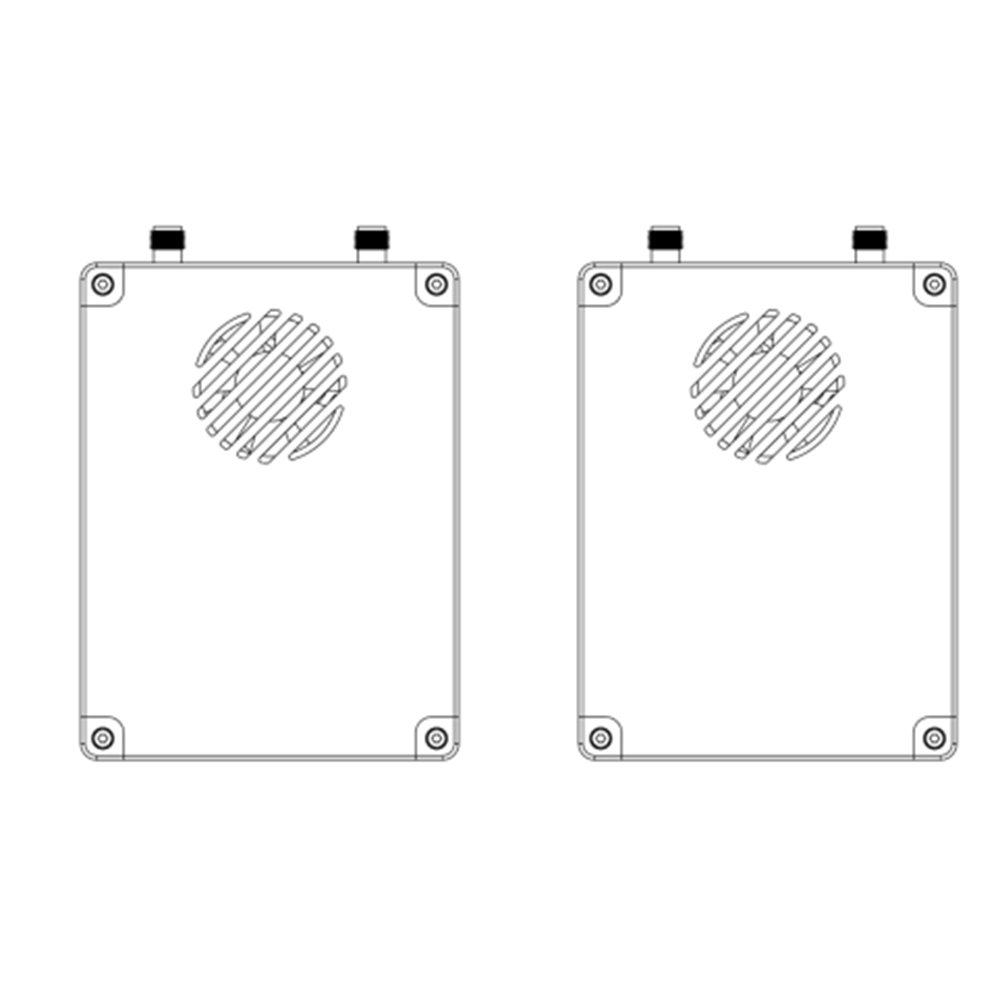
ZAAntena jednostki IR × 2
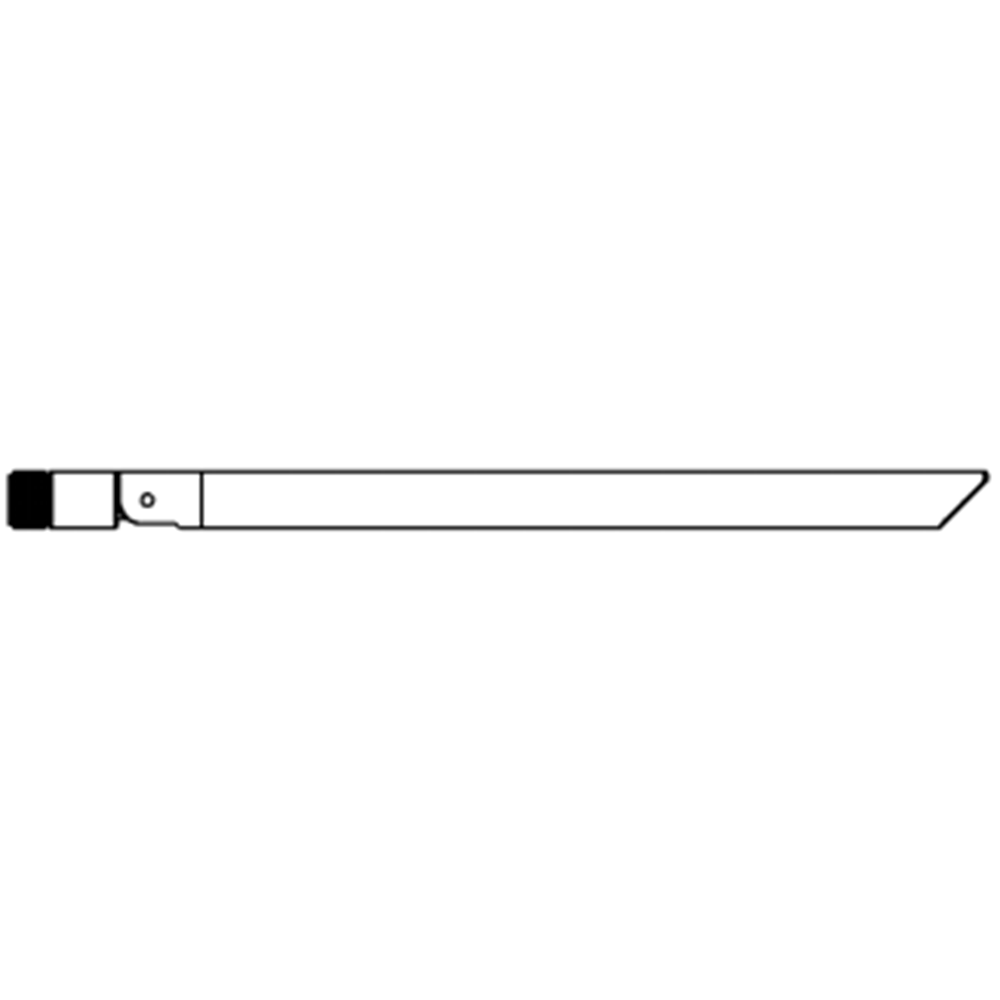
Gokrągła antena jednostkowa × 2

Powietrze jednostka kable
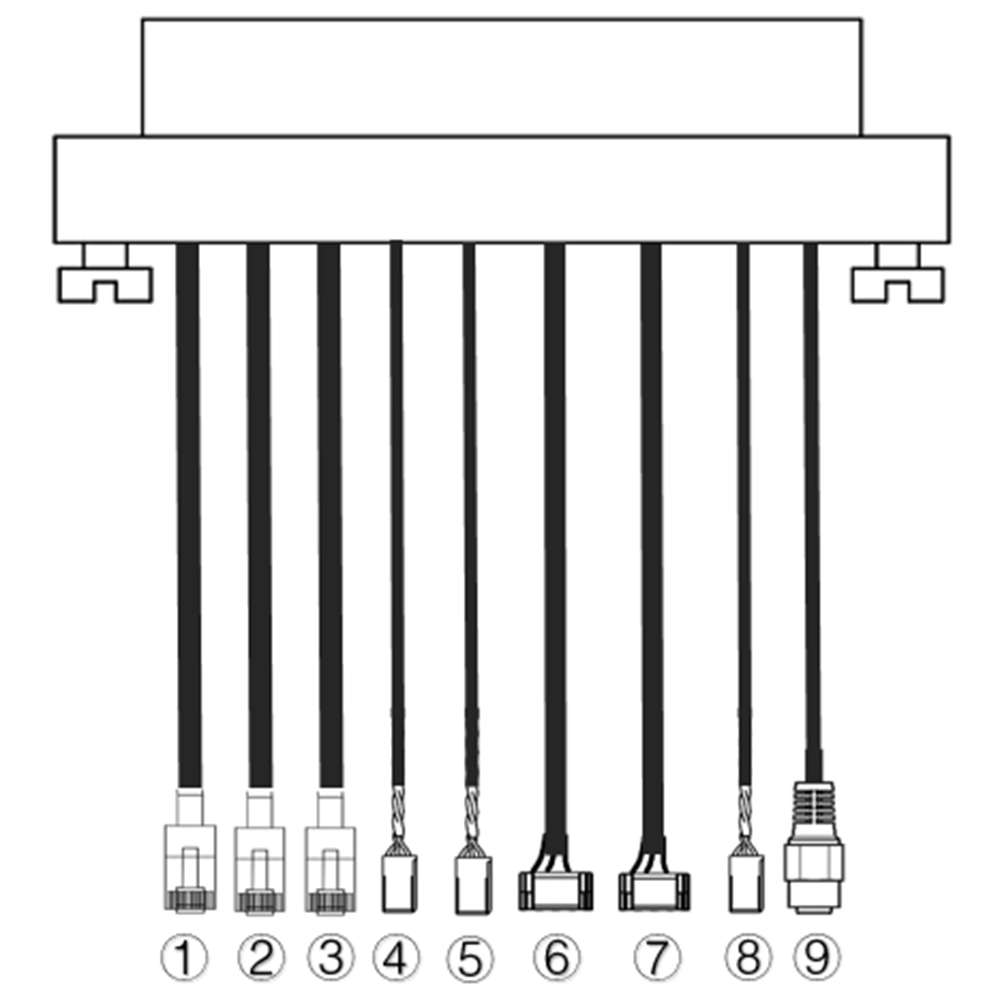
| Nie. | Berło |
| 1,2,3 | Ethernet |
| 4,5 | S.BUS, jak pokazano na rysunku, the 1ul pin z lewej strony złącza dupont to sygnał S.BUS, the 3rd jest G. |
| 6,7 | Serial telemetryczny, jak pokazano na rysunku, the 2II pin z lewej strony złącza GH1.25 to Rx, the 3rd jest Tx, the 6t jest G. (Domyślnie TTL, Alternatywa RS232/422) |
| 8 | PPM, jak pokazano na rysunku, the 1ul pin od lewej to sygnał PPM, the 3rd jest G. |
| 9 | Moc |
Kable jednostki uziemiającej
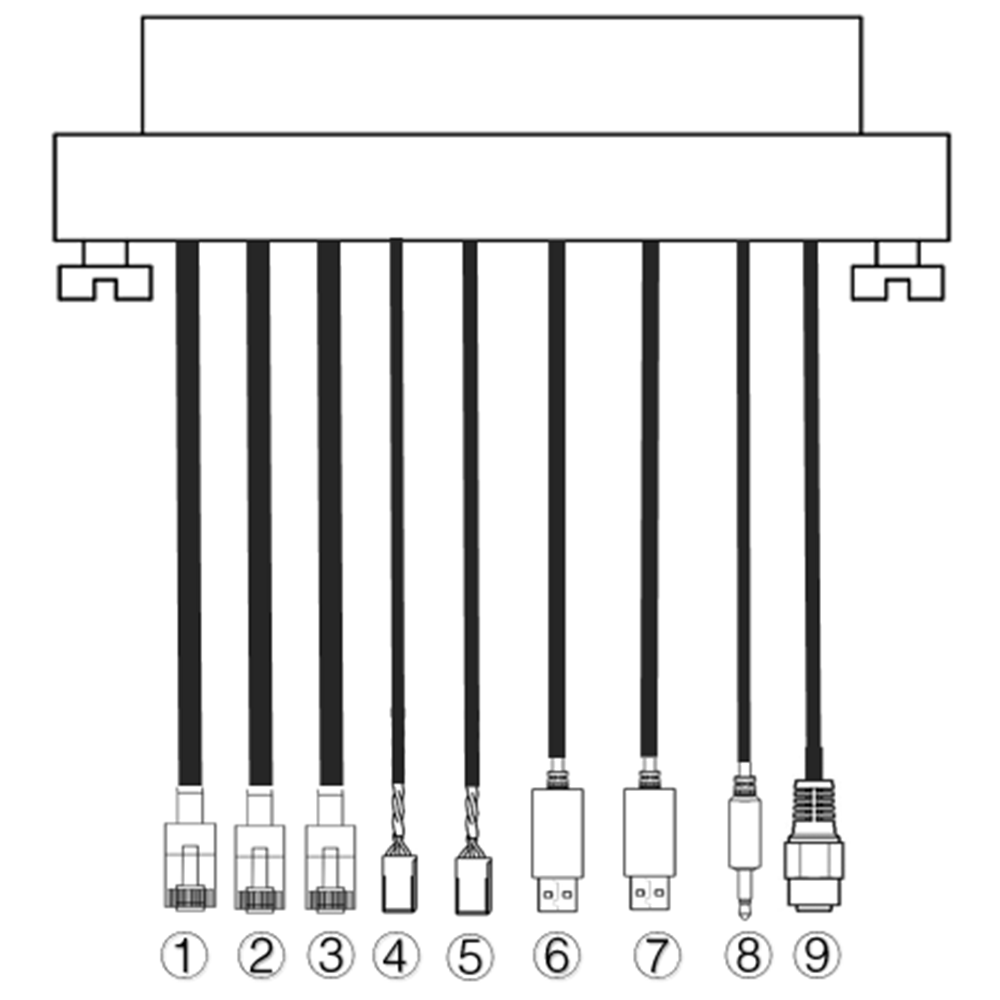
| Nie. | Berło |
| 1,2,3 | Ethernet |
| 4,5 | S.BUS, jak pokazano na rysunku, the 1ul pin od lewej to sygnał S.BUS, the 2II wynosi 5V+, the 3rd jest G. |
| 6,7 | Szeregowy-USB(Domyślnie TTL-USB, Alternatywa RS232/422) |
| 8 | PPM |
| 9 | Moc |
2. Produkt Opis
2.1. Pparametry
| Parametry | Wartość |
| Częstotliwość | 1330~1450 MHz |
| Przepustowość łącza | 10MHz (łącze nadrzędne), 10MHz (łącze w dół) |
| Moc | 33dBm |
| Modulacja | OFDM |
| Konstelacja | BPSK, QPSK, 16QAM |
| FEC | LDPC(1/2, 2/3, 3/4, 5/6) |
| Dupleks | TDD |
| Przepustowość łącza w dół | 2.3Mb/s ~ 8 b/s |
| Przepustowość łącza zwrotnego | 600kbps |
| Szyfrowanie | AES 256 |
| Berło | Ethernet, USB, TTL, RS232, RS422, PPM/S.BUS |
| Zużycie energii | 18W(jednostka powietrzna); 10W(jednostka naziemna) |
| Utajenie | <300ms (Zależy od aparatu) |
| Wymiar | 92.5*70.3*25mm |
| Waga | 198sol |
| Znamionowe napięcie/prąd | DC24V/1,2A (lub bateria litowa 6S) |
| Temperatura pracy | -40°C ~60°C |
2.2. Powietrze Jednostka Interfejsy
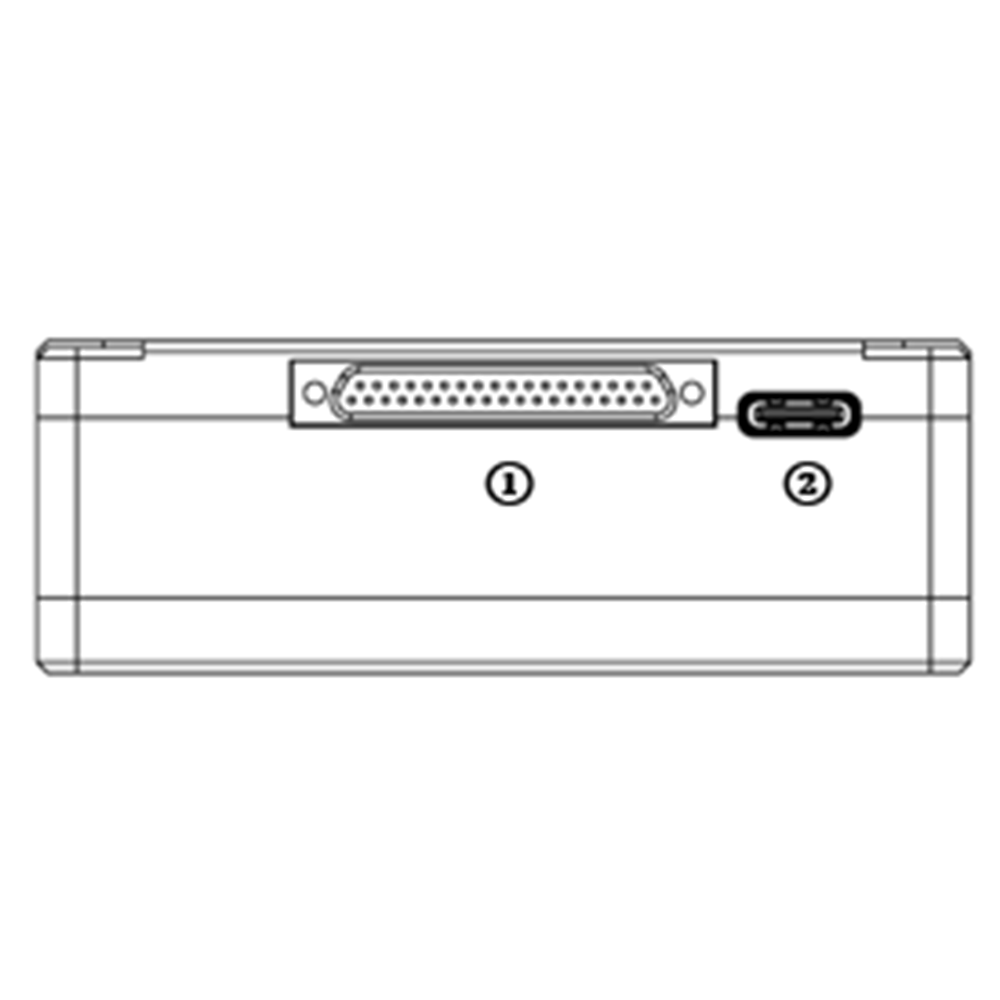
- Złącze J30J
Jest to złącze pinowe J30J-37 zapewniające zasilanie/Ethernet/szeregowy/PPM/S.BUS.
- Port USB
Podłącz ten port do portu USB komputera, i użyj programu komputerowego bezprzewodowego łącza wideo, aby zaktualizować oprogramowanie sprzętowe i ustawić parametry jednostki powietrznej.
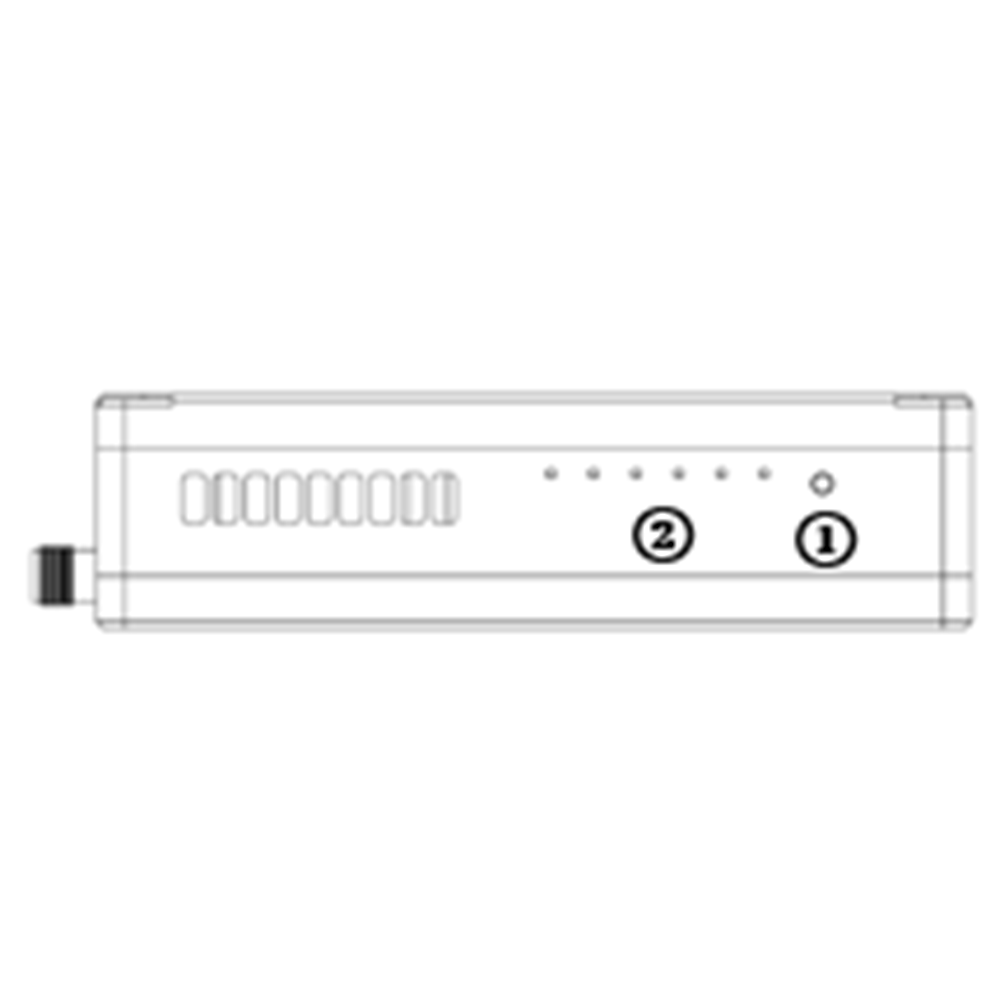
- Przycisk wiązania
Naciśnij i przytrzymaj ten przycisk, aby wykonać operację wiązania. Związany już przed dostawą do fabryki, nie ma potrzeby ponownego wiązania przez użytkownika.
- diody LED
Od lewej do prawej: wskaźnik zasilania (1), Wskaźnik łącza Ethernet (2~4), Wskaźnik łącza radiowego UL/DL (5~6) nie używany do jednostki powietrznej. Podczas procesu wiązania dioda LED6 będzie migać.
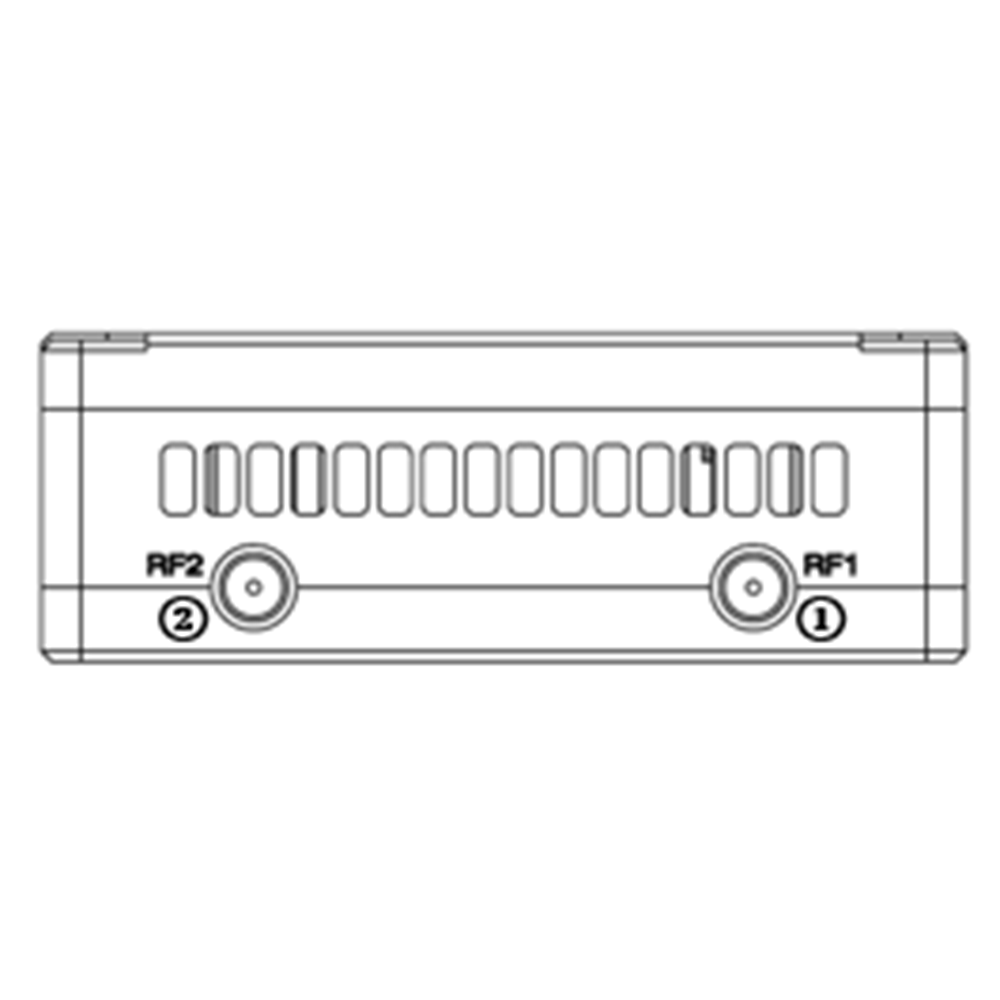
- Port RF1
Połącz 1ul antenę jednostki powietrznej do tego portu.
- Port RF2
Podłącz antenę drugiej jednostki powietrznej do tego portu.
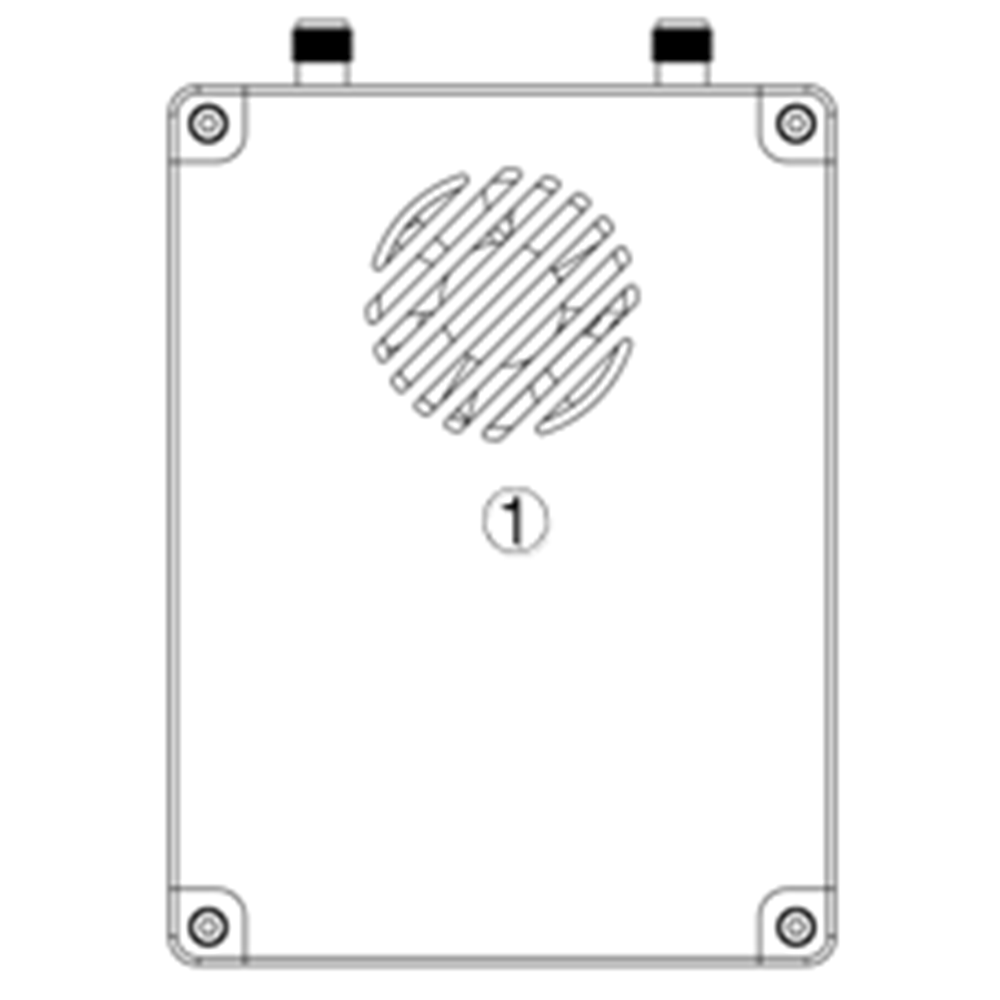
- Wylot wentylacyjny wentylatora
Nie blokuj wylotu wentylacji wentylatora, aby zapewnić skuteczne chłodzenie.
2.3. Grunt Jednostka Interfejsy
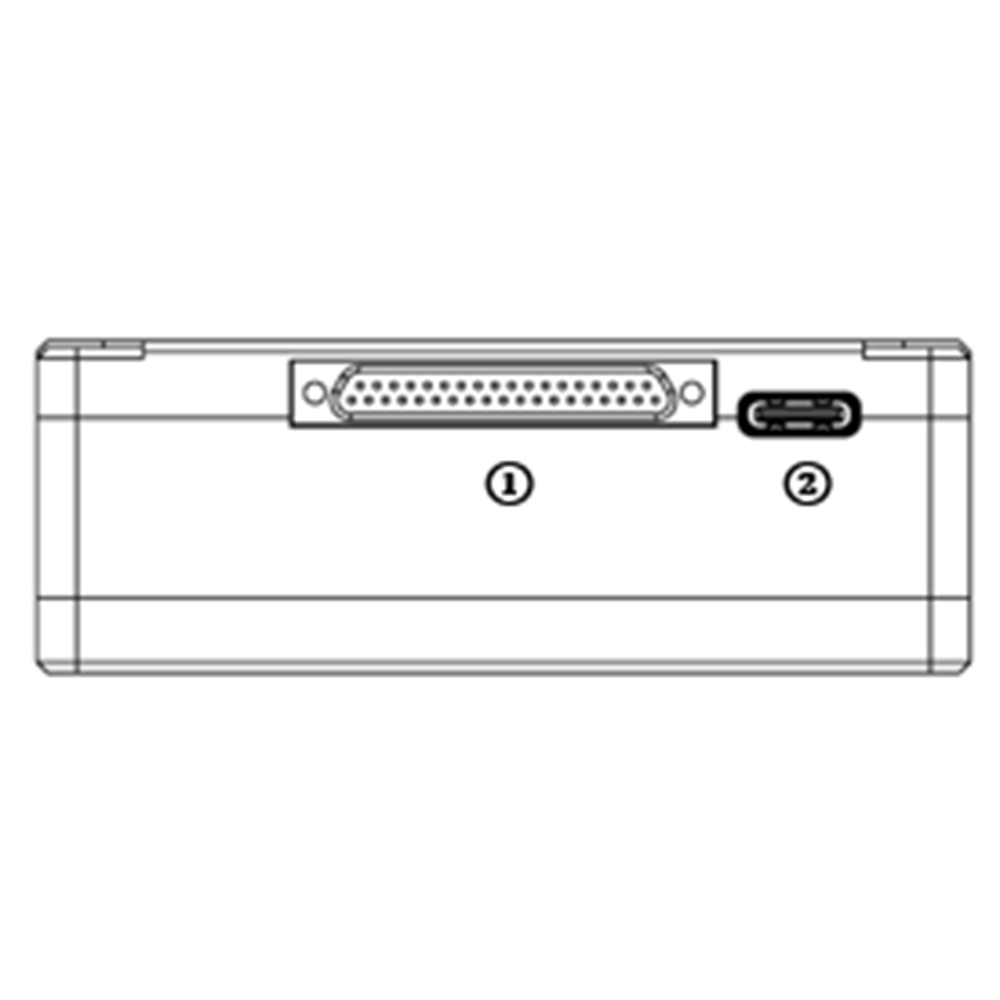
- Złącze J30J
Jest to złącze pinowe J30J-37 zapewniające zasilanie/Ethernet/szeregowy/PPM/S.BUS.
- Port USB
Podłącz ten port do portu USB komputera, i użyj programu komputerowego bezprzewodowego łącza wideo, aby zaktualizować oprogramowanie sprzętowe i ustawić parametry jednostki powietrznej.
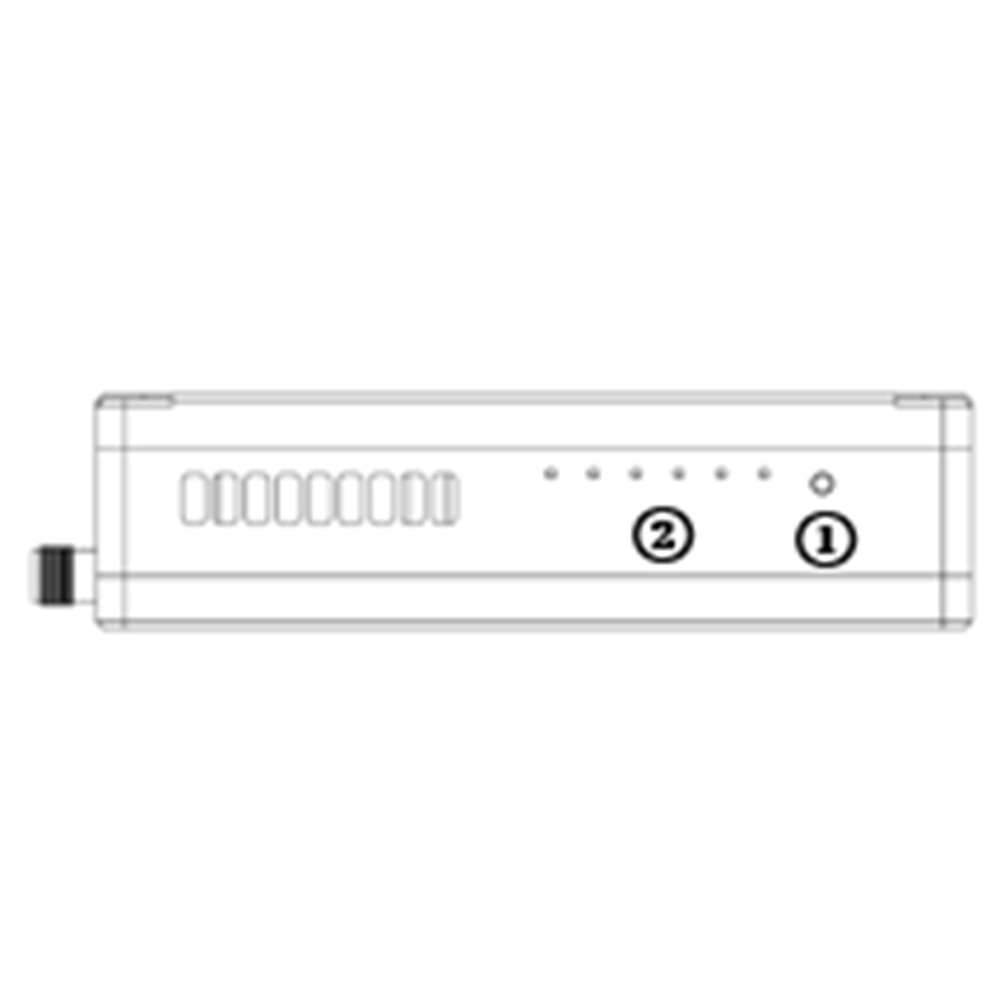
- Przycisk wiązania
Naciśnij i przytrzymaj ten przycisk, aby wykonać operację wiązania. Związany już przed dostawą do fabryki, nie ma potrzeby ponownego wiązania przez użytkownika.
- diody LED
Od lewej do prawej: wskaźnik zasilania (1), Wskaźnik łącza Ethernet (2~4), Wskaźnik łącza radiowego UL/DL (5~6). Podczas procesu wiązania dioda LED6 będzie migać.
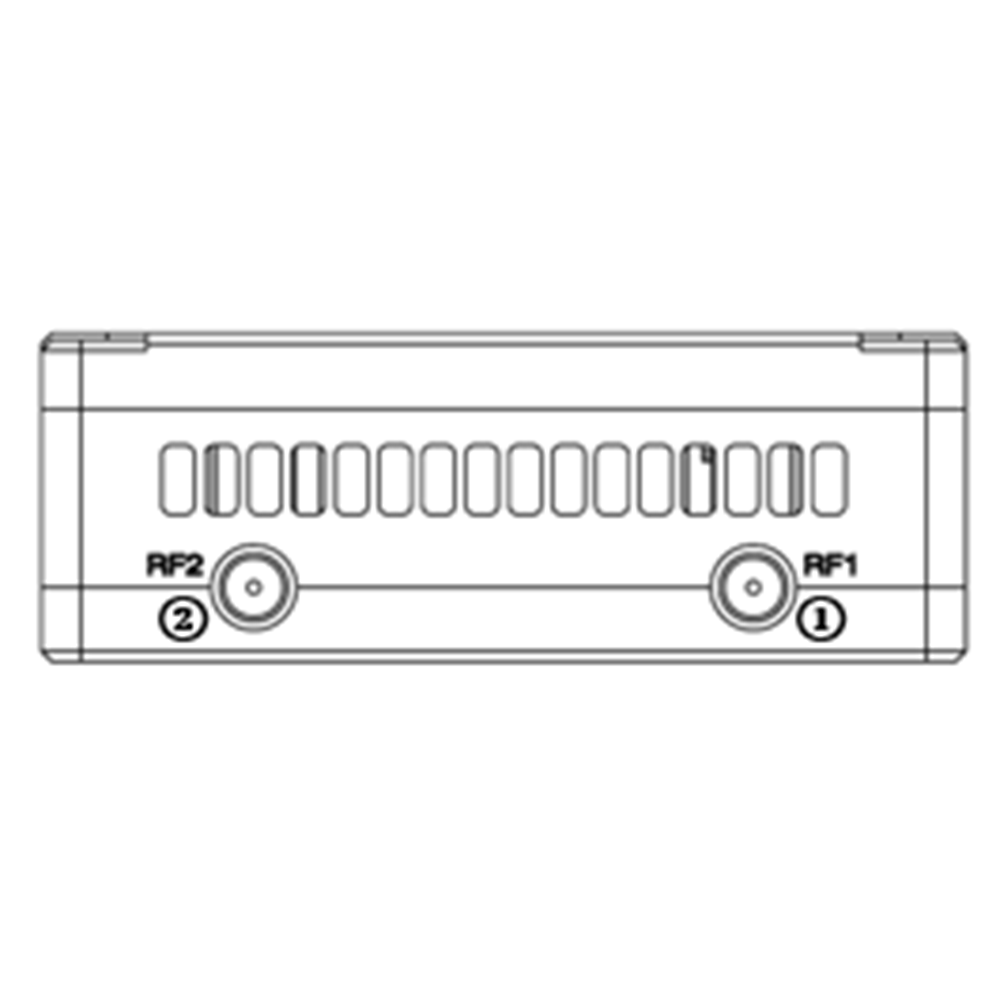
- Port RF1
Połącz 1ul antenę jednostki powietrznej do tego portu.
- Port RF2
Podłącz antenę drugiej jednostki powietrznej do tego portu.
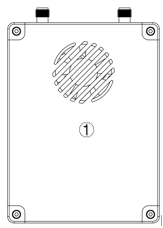
- Wylot wentylacyjny wentylatora
Nie blokuj wylotu wentylacji wentylatora, aby zapewnić skuteczne chłodzenie.
3. Ssystem organizować coś
3.1. Powietrze Jednostka Instalacja
Spis treści
3.1.1. ZApowiedział instalacja
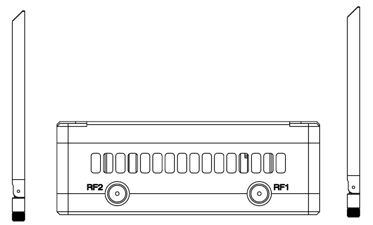
Przykręć anteny jednostki powietrznej do portów RF.
Notatka:
- Aby uniknąć uszkodzenia sprzętu, zainstaluj anteny przed włączeniem urządzeń.
- Kiedy montujesz jednostkę powietrzną na dronie, upewnij się, że obie anteny nie są zablokowane przez żadną część drona.
- Należy zainstalować obie anteny.
3.1.2. Pzasilanie
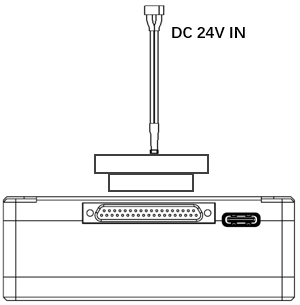
Włóż złącze J30J do portu J30J jednostki powietrznej i podłącz akumulator/źródło zasilania do portu zasilania na drugim końcu.
Notatka:
- Aby uniknąć uszkodzenia sprzętu, zainstaluj anteny przed włączeniem urządzeń.
- Zalecane napięcie/prąd znamionowy to DC24V/1,2A (lub bateria litowa 6S).
3.1.3. Cpodłącz kamerę
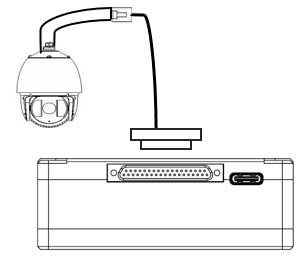
Podłącz port wyjściowy wideo kamery IP do wejściowego portu wideo Ethernet jednostki powietrznej.
3.1.4. CKontroler lotu onnect (RC & telemetria)
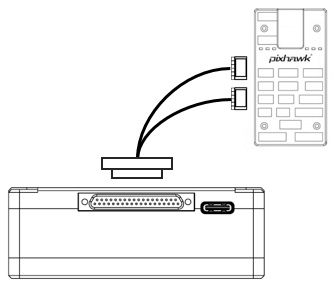
Włóż złącze J30J do portu J30J jednostki powietrznej i podłącz drugi koniec kabla szeregowego do portu telemetrycznego kontrolera lotu.
Włóż złącze J30J do portu J30J jednostki powietrznej i podłącz drugi koniec kabla RC do portu PPM/S.BUS kontrolera lotu.
3.2. GInstalacja jednostki okrągłej
3.2.1. Instalacja antenowa
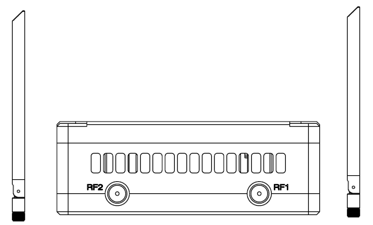
Przykręć anteny jednostki uziemiającej do portów RF.
Notatka:
- Aby uniknąć uszkodzenia sprzętu, zainstaluj anteny przed włączeniem urządzeń.
- Należy zainstalować obie anteny.
- Podczas pracy antenę należy ustawić pionowo w stosunku do podłoża.
3.2.2. Pzasilanie
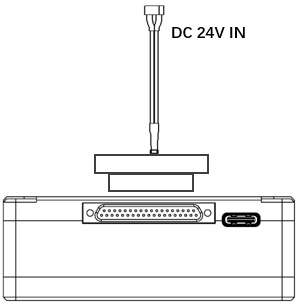
Włóż złącze zasilania źródła zasilania do portu zasilania jednostki uziemiającej
Nuwaga:
- Zalecane napięcie/prąd znamionowy to DC12V/1,2A (lub bateria litowa 3S).
- Aby uniknąć uszkodzenia sprzętu, zainstaluj anteny przed włączeniem urządzeń.
3.2.3. Połączenie telemetryczne
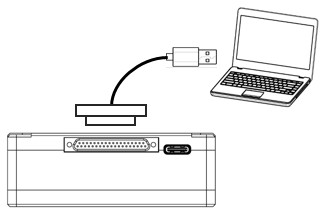
Włóż złącze J30J do portu J30J jednostki naziemnej i podłącz drugi koniec dostarczonego kabla szeregowego do portu telemetrycznego naziemnej stacji kontroli.
Notatka:
- Upewnij się, że szybkość transmisji stacji naziemnej i szybkość transmisji modułu bezprzewodowego łącza wideo są skonfigurowane tak, aby były takie same.
- Upewnij się, że sekwencja kabla szeregowego odpowiada definicji interfejsu modułu bezprzewodowego łącza wideo.
3.2.4. Cpilot zdalnego sterowania onnect
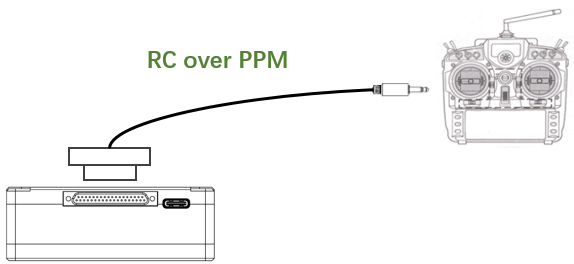
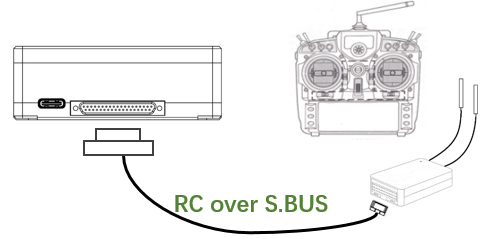
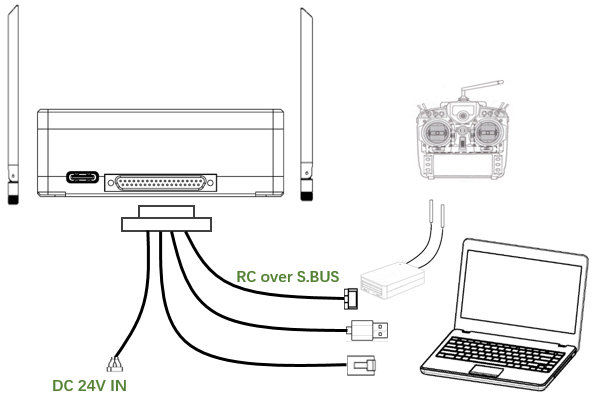
Korzystanie z trybu PPM: Włóż złącze portu trenera dostarczonego kabla RC do portu trenera pilota zdalnego sterowania i włóż złącze J30J do portu J30J jednostki uziemiającej. Korzystanie z trybu S.BUS: Włóż złącze J30J do portu J30J jednostki uziemiającej, podłącz drugi koniec do odbiornika S.BUS, a odbiornik S.BUS komunikuje się z pilotem bezprzewodowo.
Nuwaga:
- Upewnij się, że piny kabla RC odpowiadają pinom interfejsu modułu bezprzewodowego łącza wideo.
- Jeśli używany jest odbiornik S.BUS, powinno być wystarczające pasmo ochronne pomiędzy pasmem częstotliwości roboczej odbiornika a pasmem częstotliwości roboczej modułu bezprzewodowego łącza wideo.
3.2.5. Sustaw wyjście wideo
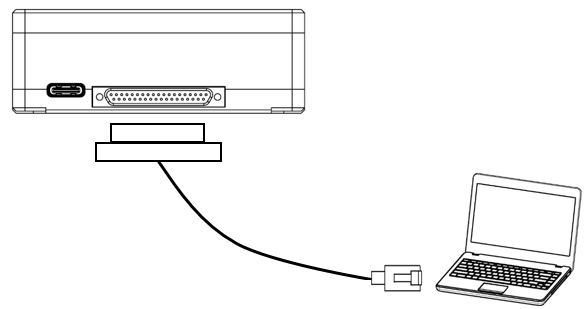
Włóż złącze J30J do portu J30J jednostki naziemnej i podłącz drugi koniec dostarczonego kabla Ethernet do komputera PC lub naziemnej stacji sterującej. Upewnij się, że adresy IP kamery i komputera znajdują się w tej samej podsieci.
3.2.6. Używać bezprzewodowe łącze wideo System
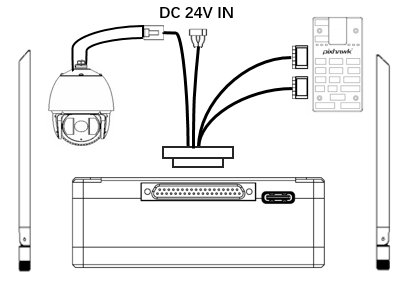
- Zamontuj anteny w jednostce powietrznej.
- Podłącz wyjście kamery IP do portu Ethernet jednostki powietrznej.
- Podłącz port PPM/S.bus kontrolera lotu do portu RC jednostki powietrznej.
- Podłącz port telemetryczny kontrolera lotu do portu szeregowego jednostki powietrznej.
- Podłącz źródło zasilania 24 V DC do portu zasilania jednostki powietrznej i włącz je.
- Jeśli potrzebne jest najnowsze oprogramowanie sprzętowe, podłącz jednostkę powietrzną do komputera za pomocą kabla USB i uruchom program komputerowy bezprzewodowego połączenia wideo, aby zaktualizować oprogramowanie urządzenia do najnowszej wersji.
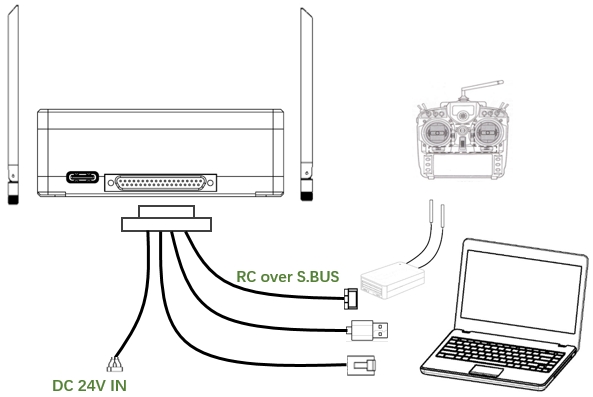
- Zainstaluj anteny w jednostce naziemnej.
- Skonfiguruj pilota tak, aby działał w trybie trenera. Jeśli używany jest tryb PPM, podłącz interfejs pilota jednostki naziemnej do portu trenera pilota. Jeśli używany jest tryb S.BUS, Odbiornik S.BUS należy podłączyć do jednostki uziemiającej za pomocą dostarczonego kabla, oraz należy nawiązać połączenie pomiędzy odbiornikiem S.BUS i pilotem zdalnego sterowania.
- Podłącz port USB naziemnej stacji kontroli do portu szeregowego jednostki naziemnej za pomocą adaptera Serial-2-USB, aby korzystać z łącza telemetrycznego.
- Podłącz port Ethernet GCS lub komputera PC do złącza RJ45 jednostki naziemnej, aby uzyskać wideo/telemetrię IP (telemetria przez Ethernet).
- Włącz jednostkę naziemną.
- Jeśli potrzebne jest najnowsze oprogramowanie sprzętowe, podłącz jednostkę naziemną do komputera za pomocą kabla USB i uruchom program PC do bezprzewodowego łącza wideo, aby zaktualizować oprogramowanie urządzenia do najnowszej wersji.
- Po ustanowieniu łącza w dół i w górę, obie diody LED jednostki naziemnej będą włączone.
4. Oprogramowanie
4.1. Instalacja
bezprzewodowe łącze wideo udostępnia pliki instalacyjne programu, nazwa pliku programu: bezprzewodowe łącze wideo Wireless App Setup.exe. Ikona instalatora wygląda następująco:
Kliknij dwukrotnie instalator, aby zainstalować i dostosować katalog instalacyjny programu. Po konfiguracji, kliknij „Dalej”, aby przejść do następnego kroku. Aby anulować instalację, kliknij „Anuluj”.
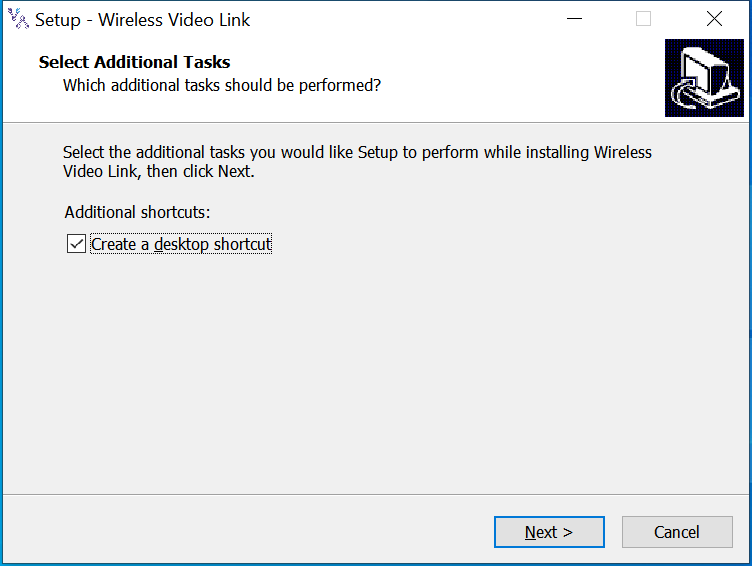
Zaznacz opcję „Utwórz skrót na pulpicie”, jeśli potrzebny jest skrót na pulpicie. Jeśli nie jest to zaznaczone, skrót na pulpicie nie zostanie utworzony. Po konfiguracji, kliknij „Dalej”, aby przejść do następnego kroku. Aby wrócić do poprzedniego kroku, kliknij „Wstecz”. Aby anulować instalację, kliknij „Anuluj”.
Kliknij „Zainstaluj”, aby kontynuować instalację. Aby wrócić do poprzedniego kroku, kliknij „Wstecz”. Aby anulować instalację, kliknij „Anuluj”.
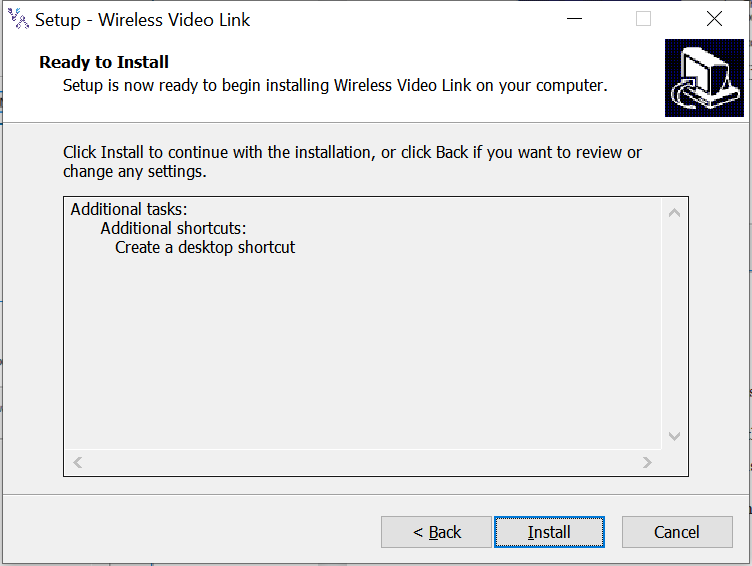
Notatka: Proszę wyłączyć oprogramowanie antywirusowe, w przeciwnym razie program antywirusowy może uniemożliwić instalację sterownika podczas instalacji sterownika.
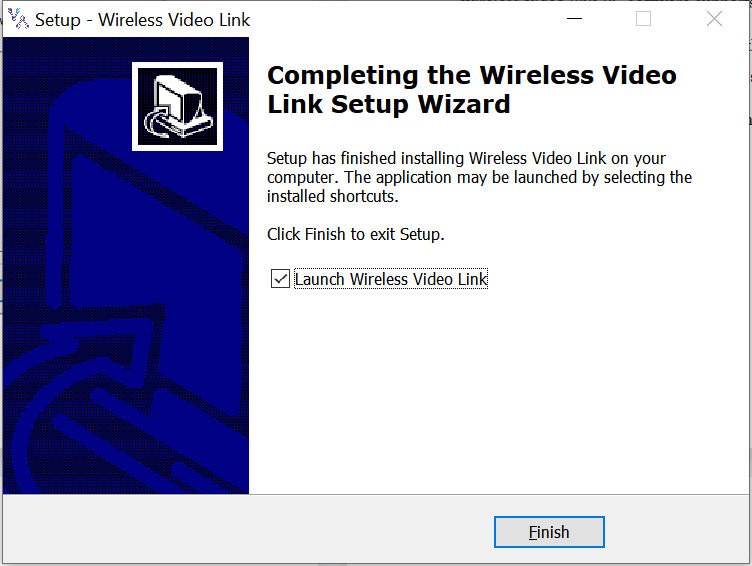
W tym momencie, instalacja oprogramowania została zakończona i instalacja sterownika została zakończona.
4.2. Oprogramowanie Język
Oprogramowanie komputerowe do bezprzewodowego łącza wideo obsługuje język chiński i angielski.
Oprogramowanie będzie wyświetlane w języku chińskim, jeśli system operacyjny komputera jest w języku chińskim, w przeciwnym razie oprogramowanie wyświetli się w języku angielskim.
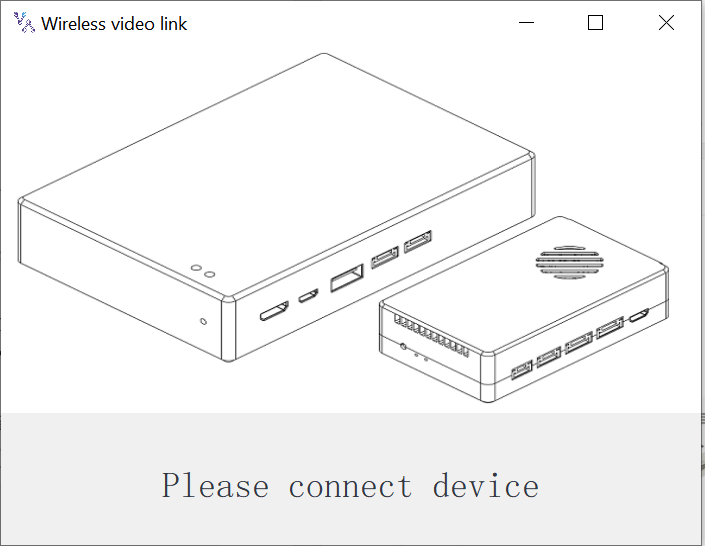
Jeśli urządzenie nie jest prawidłowo podłączone do komputera, Oprogramowanie komputerowe bezprzewodowego łącza wideo pokazuje poniższy obrazek:
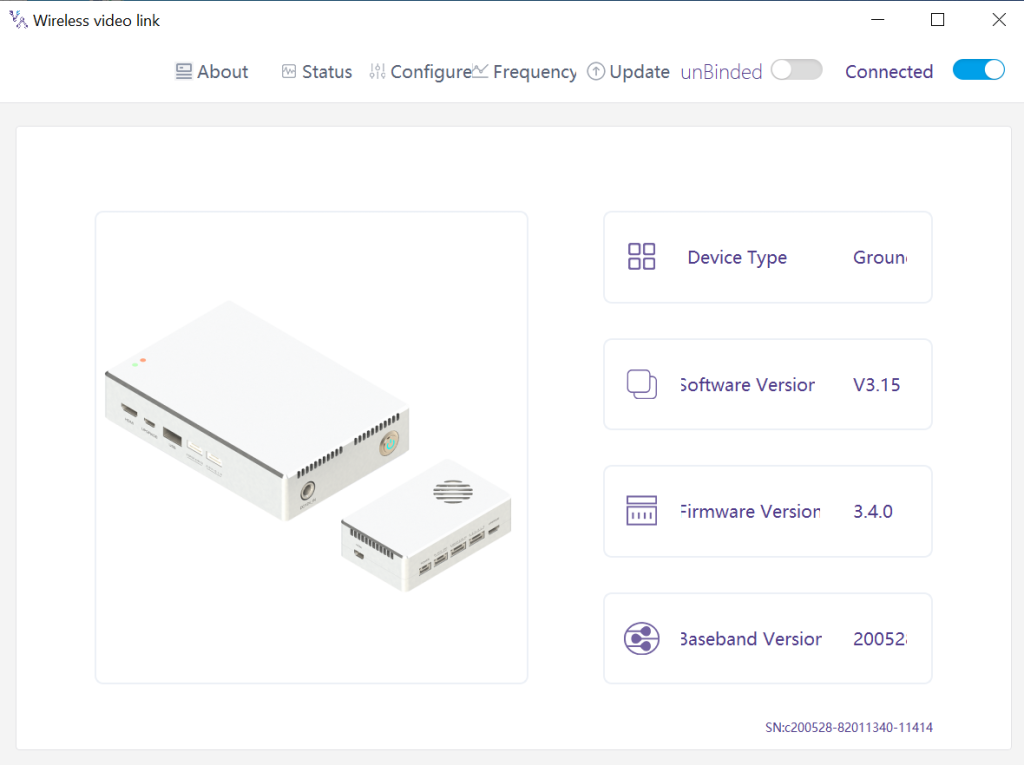
Jeśli urządzenie jest prawidłowo podłączone do komputera, Oprogramowanie komputerowe bezprzewodowego łącza wideo pokazuje poniższy obrazek:
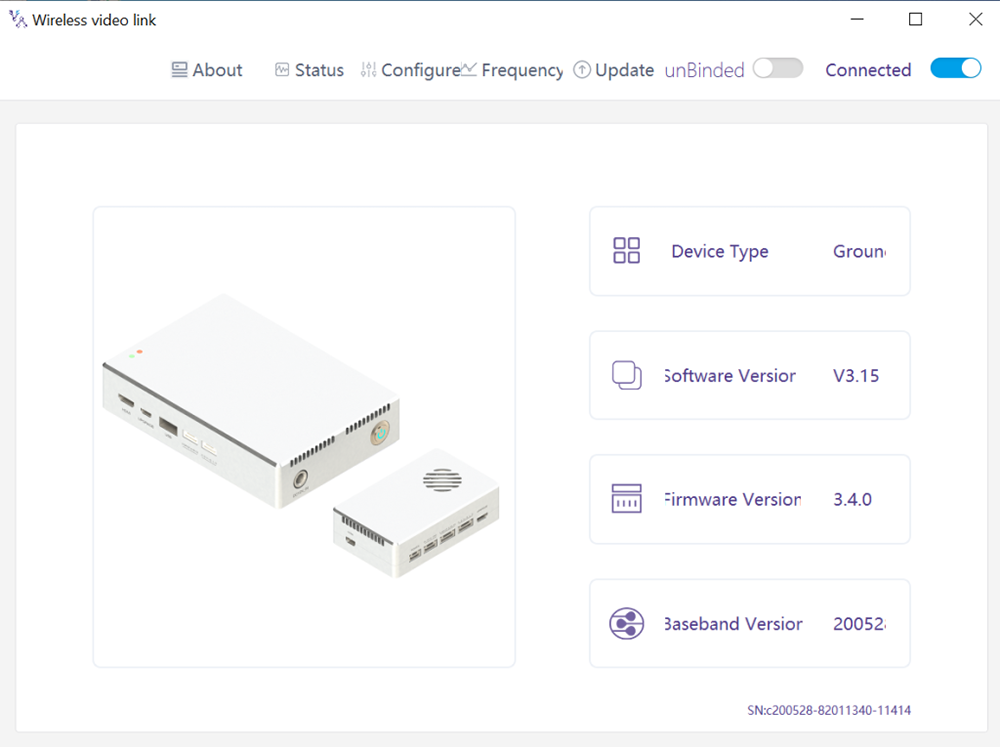
4.3. Informacje o urządzeniu
Informacje na stronie głównej: typ urządzenia, wersja oprogramowania, wersja oprogramowania, i wersja pasma podstawowego.
4.4. Status
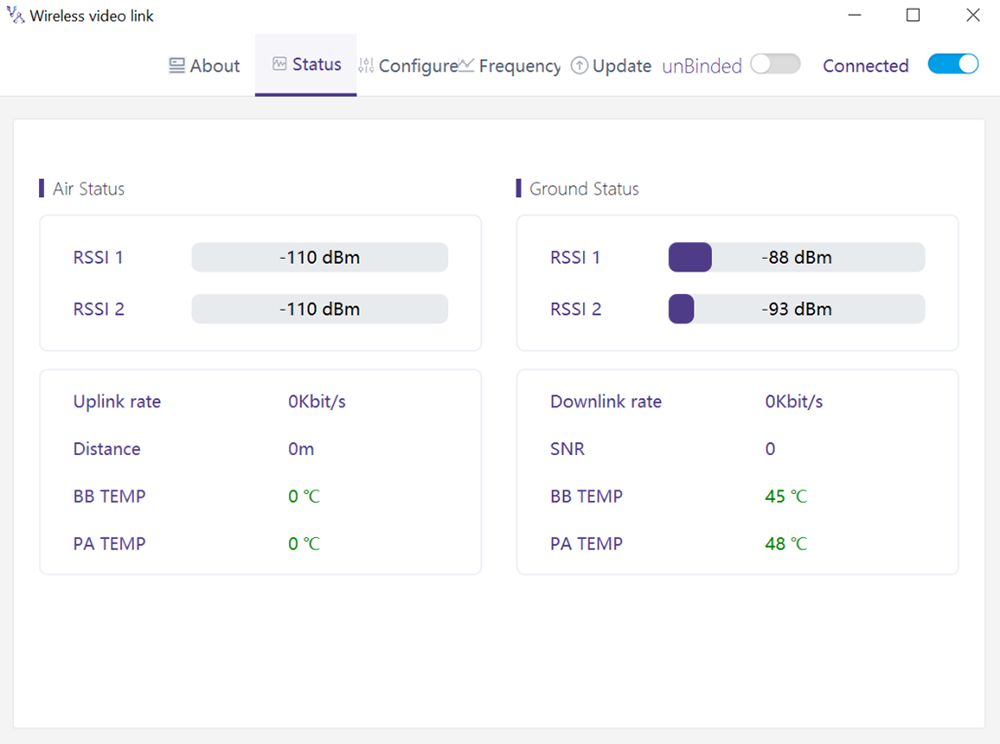
Przeczytaj informacje o stanie jednostki powietrznej i jednostki naziemnej w sekcji strony „Stan”.:
Powietrze: RSSI 1 & RSSI 2, Szybkość łącza zwrotnego, Dystans, TEMP.BB, TEMP.PA.
Grunt: RSSI 1 & RSSI 2, Szybkość łącza w dół, SNR, TEMP.BB, TEMP.PA.
4.5. Konfiguracja
Aby zmienić konfigurację, urządzenie musi być powiązane i należy ustanowić połączenie bezprzewodowe pomiędzy jednostką powietrzną a jednostką naziemną.
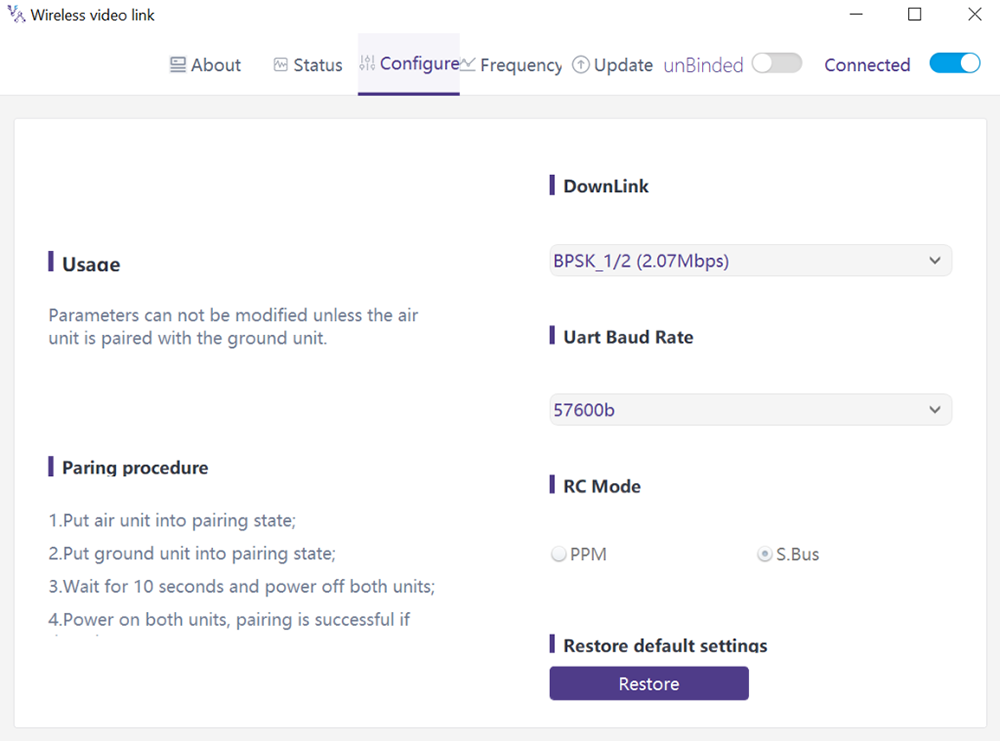
4.5.1. Konfiguracja trybu łącza w dół
Aby zmienić tryb łącza w dół, urządzenie musi być powiązane i należy ustanowić połączenie bezprzewodowe pomiędzy jednostką powietrzną a jednostką naziemną
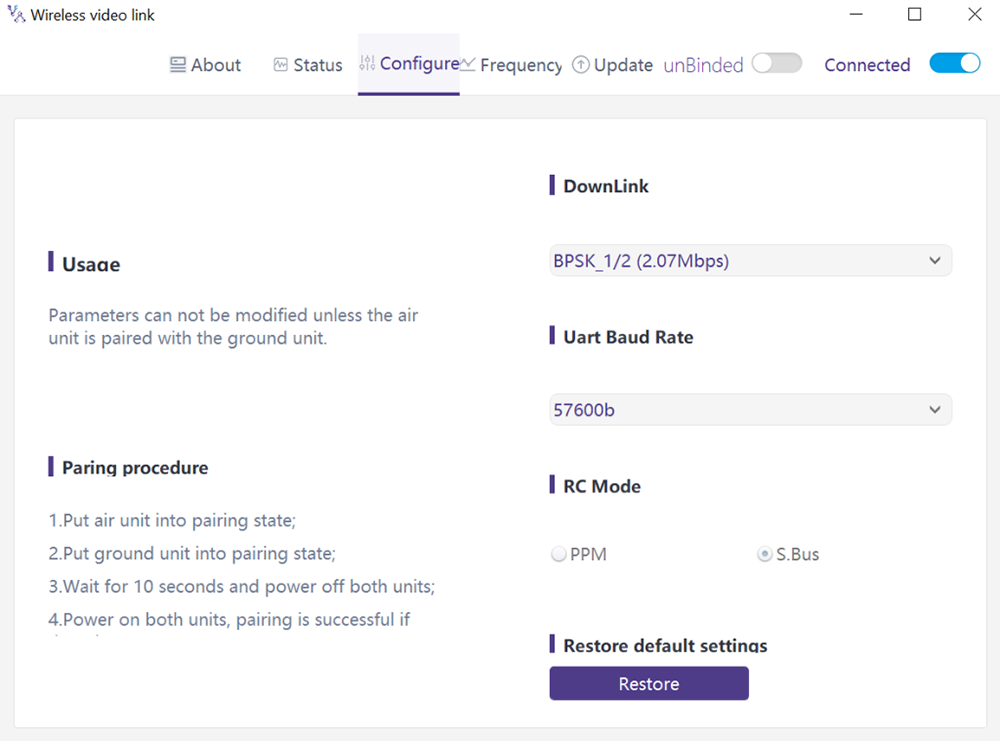
Tam są 8 opcje trybu łącza w dół z menu rozwijanego (zobacz poniższy zrzut ekranu):
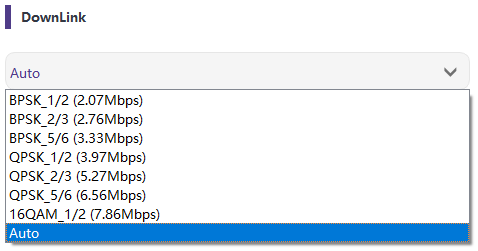
Gdy jest wybrane jako Auto, schemat modulacji będzie dynamicznie adaptacyjny w oparciu o jakość sygnału w czasie rzeczywistym.
4.5.2. Konfiguracja szybkości transmisji
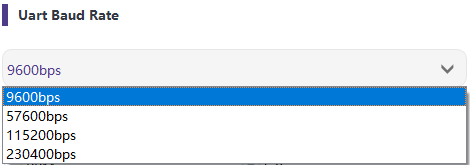
Tam są 4 opcje szybkości transmisji portu szeregowego (zobacz poniższy zrzut ekranu).
4.5.3. Zdalny kontrollu tryb konfiguracja
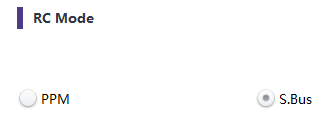
Istnieją dwie opcje trybu zdalnego sterowania, PPM i S.BUS (zobacz poniższy zrzut ekranu).
4.5.4. Przywrócić domyślny ustawienia
Kliknij „Przywróć”, aby przywrócić ustawienia domyślne.

4.6. Częstotliwość
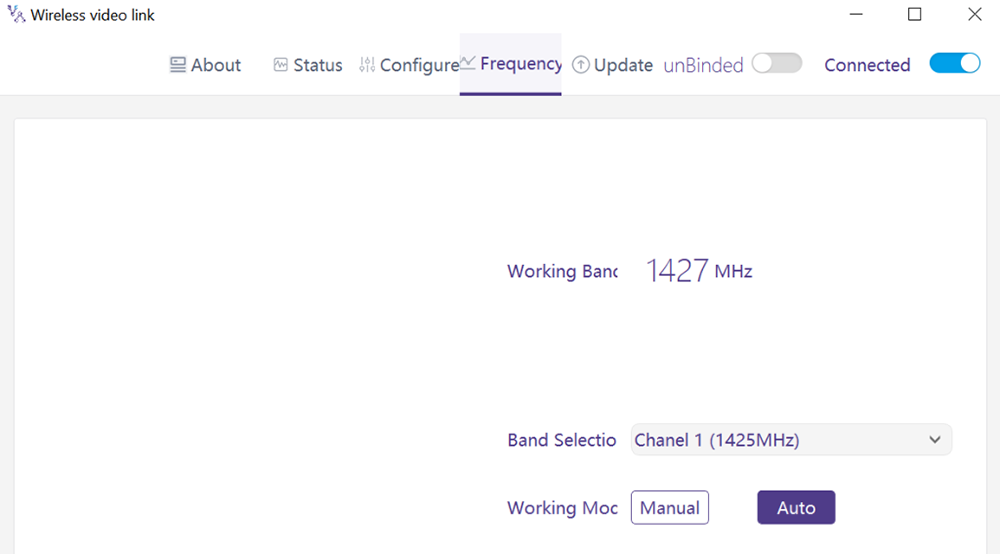
Informacje/parametry związane z częstotliwością można sprawdzić/ustawić na stronie częstotliwości.
4.6.1. Tryb pracy częstotliwości
Tryb pracy:Podręcznik, Automatyczny.
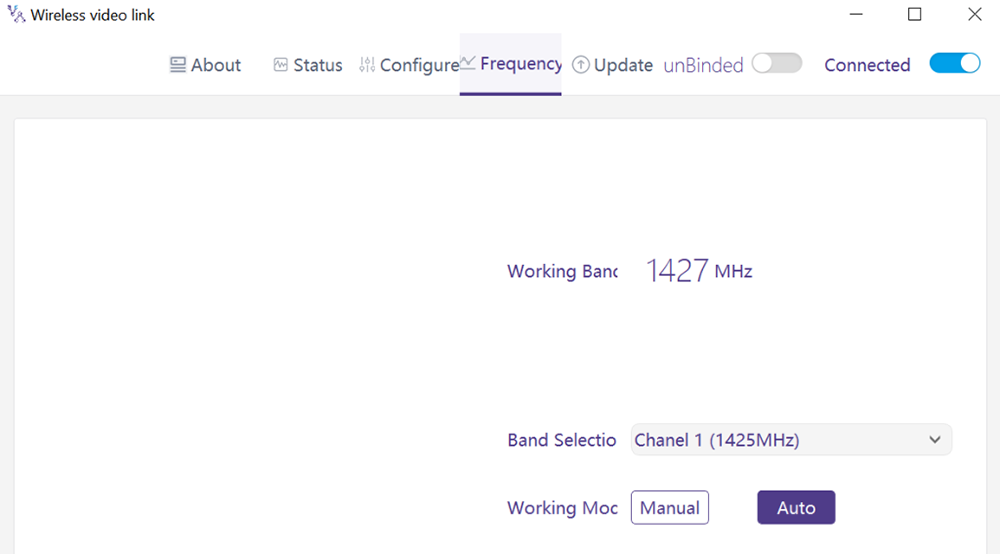
Tryb ręczny: Użytkownik ręcznie wybiera częstotliwość roboczą.
Moda na samochód: System wybiera częstotliwość roboczą na podstawie skanowania częstotliwości.
4.6.2. Wybór częstotliwości
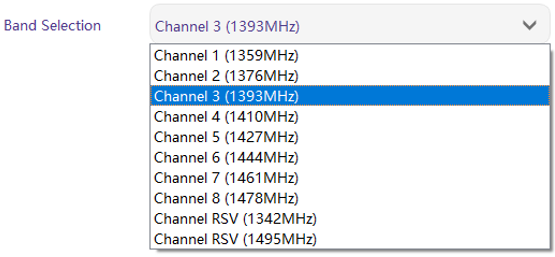
W trybie ręcznym, częstotliwość roboczą można wybrać z rozwijanego menu. Prosimy o wybór i korzystanie z kanałów zgodnie ze specyfikacją produktu (1330~1450 MHz).
4.7. Aktualizacja
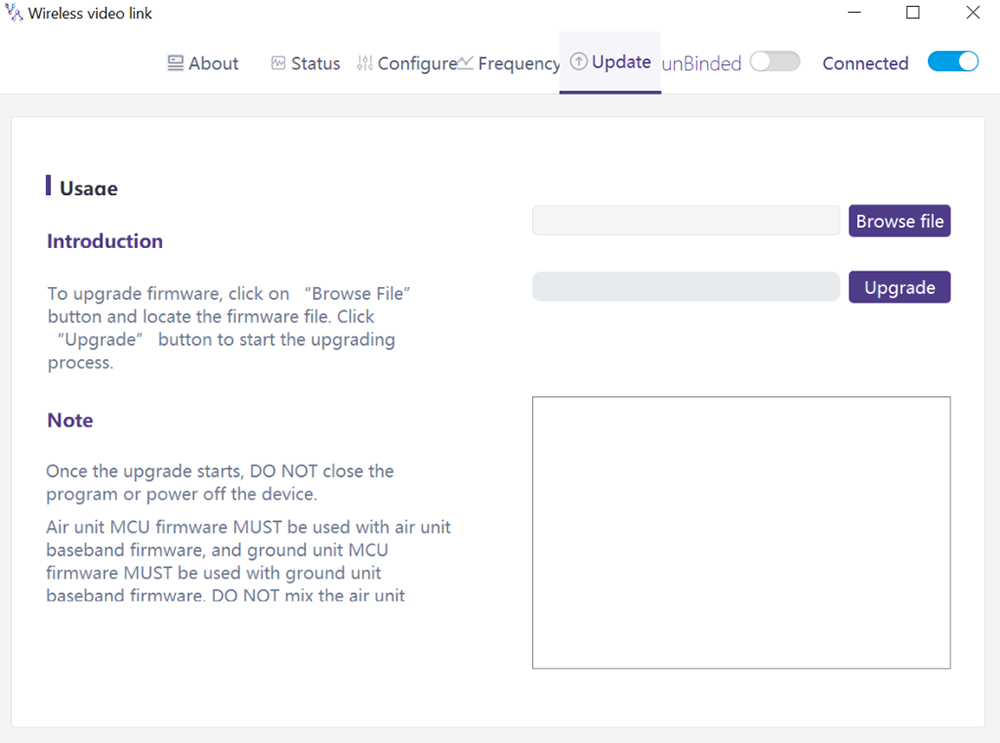
Notatka: Jednostka powietrzna i jednostka naziemna muszą zostać zaktualizowane oddzielnie za pomocą kabla USB w celu podłączenia oprogramowania PC do bezprzewodowego łącza wideo.
Przechodzi do strony Aktualizacja. Wybierz plik aktualizacji, kliknij fioletowy przycisk „Uaktualnij”, aby dokonać aktualizacji.
4.8. Zarządzanie stroną internetową
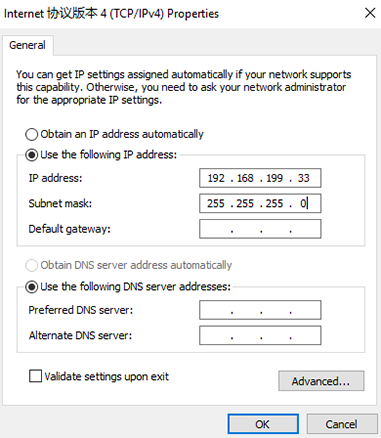
Oprócz zarządzania aplikacjami PC przez USB, obsługiwane jest także zarządzanie stroną internetową poprzez Ethernet. Podłącz bezpośrednio komputer PC do jednostki powietrznej/jednostki naziemnej za pomocą kabla Ethernet, ustaw adres IP komputera jako 192.168.199.33/24, i odwiedź 192.168.199.18 (jednostka powietrzna)/192.168.199.16 (jednostka naziemna) poprzez stronę internetową.
W obszarze Status – Stan pasma podstawowego, istnieją szczegółowe informacje, takie jak RSSI, SNR, TxPower, Statystyki LDPC, statystyki telemetryczne, itp.
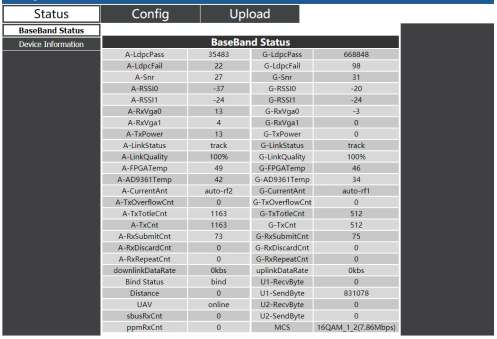
W obszarze Informacje o urządzeniu o stanie, znajdują się tam informacje o numerze seryjnym i wersji oprogramowania.

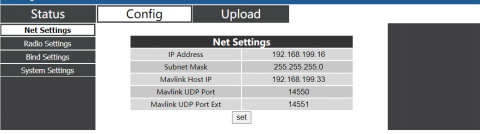
W ustawieniach ConfigàNet, istnieje adres IP samego urządzenia, docelowy adres IP telemetrii i porty UDP, wszystkie te parametry można zmienić na życzenie użytkownika.
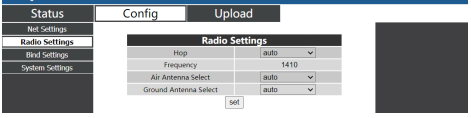
W ustawieniach ConfigàRadio, jest chmiel, częstotliwość, można ustawić wybór anteny. Gdy przeskok jest automatyczny, użytkownik nie musi/nie może ustawiać częstotliwości, system samodzielnie wybiera najlepszą częstotliwość do wykorzystania, innymi słowy, gdy przeskok jest ręczny, użytkownik może ustawić częstotliwość ręcznie.
W obszarze Ustawienia powiązania konfiguracji, proces wiązania można uruchomić, klikając przycisk wiązania zamiast fizycznego przycisku wiązania.

W obszarze Konfiguracja ustawień systemowych, prędkość transmisji dla U1/U2 można ustawić dwa porty szeregowe. Gdy tryb QAM jest ustawiony jako adaptacyjny, urządzenie będzie dynamicznie zmieniać schemat modulacji w oparciu o jakość sygnału w czasie rzeczywistym. Rolą pilota jest transmisja dwukierunkowa, podczas gdy obserwator ma tylko dane w łączu w dół.
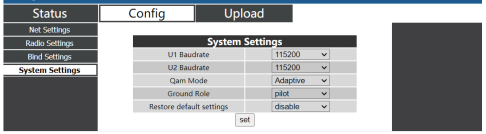
W obszarze Prześlij Prześlij, przeglądarkę i wybierz najpierw plik do aktualizacji, następnie kliknij Wyślij, aby uruchomić proces.

5. Aplikacje
5.1. Aplikacje z Pilot zdalnego sterowania
bezprzewodowe moduły łącza wideo obsługują formaty PPM i S. Protokół BUS.
Jeśli używany jest tryb PPM, użyj standardowego kabla PPM do bezprzewodowego łącza wideo, aby połączyć jednostkę naziemną z portem trenera pilota.
Jeśli S. Używany jest tryb BUS, potrzebny jest dodatkowy odbiornik S.BUS. Jednostka naziemna jest podłączona do odbiornika. Następnie S. Odbiornik BUS nawiązuje bezprzewodową komunikację z pilotem.
Obydwa tryby wymagają skonfigurowania pilota do odpowiedniego trybu pracy.
Jeśli S. Używany jest odbiornik BUS, należy używać odbiornika, którego częstotliwość robocza różni się od częstotliwości modułu bezprzewodowego łącza wideo.
Gdy używany jest tryb PPM, jednostka powietrzna musi być podłączona do portu PPM RC kontrolera lotu.
Kiedy S. Używany jest tryb BUS, jednostka powietrzna musi połączyć się z DSM/S. Port BUS RC kontrolera lotu.
5.1.1. FRSKY zdalny kontroler
- Tryb PPM
Konfiguracja modelu – Trener – tryb: Jeśli tryb jest skonfigurowany na Slave/Jack, wówczas pilot zdalnego sterowania znajduje się w trybie PPM.
Konfiguracja modelu – Wewnętrzne RF: Należy go skonfigurować tak, aby był wyłączony, i S. tryb autobusowy zostanie wyłączony.
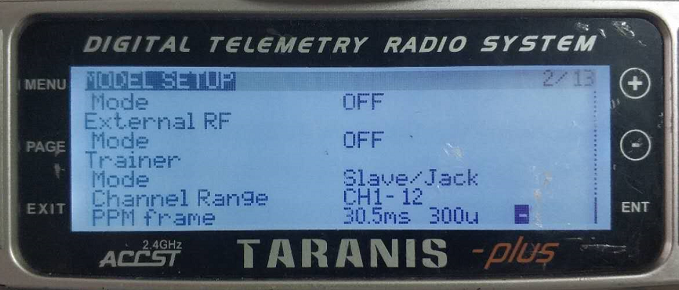
- Tryb S.BUS
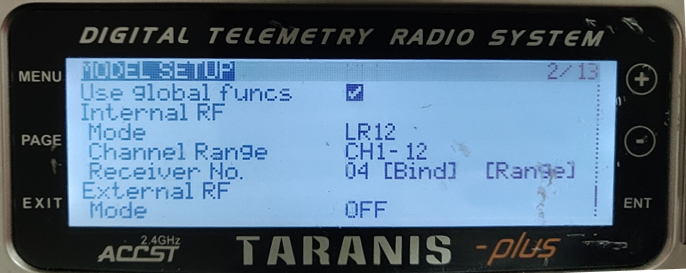
Konfiguracja modelu – Wewnętrzne RF: LR12, D8, D16, WYŁĄCZONY. Konfiguracja różnych parametrów jest zgodna z konfiguracją odbiornika. Jeśli skonfigurowano jako WYŁ, S. tryb autobusowy zostanie wyłączony.
5.1.2. Futaba zdalny kontroler
- Tryb S.BUS
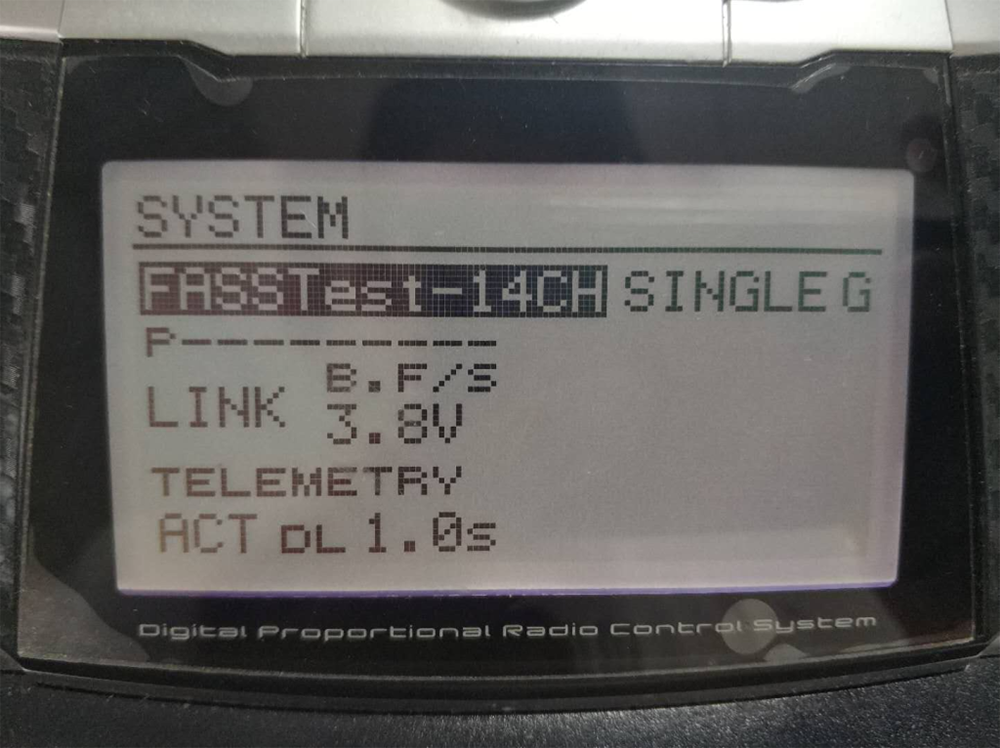
Menu połączeń – system: FASSTest-14CH, FASSTest 12CH, UTRZYMUJE WIELE, POSIADA 7CH, S-FHSS. Konfiguracja różnych parametrów jest zgodna z konfiguracją odbiornika.
- Tryb PPM
Do połączenia z kablem trenera Futaba używany jest standardowy kabel PPM bezprzewodowego łącza wideo (jeden koniec jest podłączony do portu trenera kontrolera Futaba, drugi koniec to złącze 3,5 mm). Trybu PPM można używać bezpośrednio, bez dodatkowej konfiguracji.
5.2. Telemetria połączenie
Port telemetryczny jednostki powietrznej łączy port „TELEM1” sterownika lotu(Pixhawk4).
5.3. Dostawać na żywo wideo
Uzyskaj wideo w czasie rzeczywistym poprzez RTSP w odtwarzaczach multimedialnych takich jak QGC/VLC. Upewnij się, że adresy IP komputera i kamery znajdują się w tej samej podsieci.
6. Notatki
6.1. Połączyć wydajność
- Kontrola złącza kabla RF/złącza anteny
Przed lotem, sprawdź czy anteny są podłączone do modułów. Uruchomienie modułu bez podłączonych anten skutkuje bardzo krótkim zasięgiem i może potencjalnie spowodować uszkodzenie modułu. Zaleca się sprawdzenie połączenia wszystkich złączy RF. Luźne połączenie może znacznie pogorszyć zasięg.
- Umiejscowienie anteny
Umieść dwie anteny powietrzne tak, aby niezależnie od tego, w jakiej pozycji znajduje się dron, co najmniej jedna antena nie jest blokowana przez ładunek ze stacji naziemnej.
Jeśli dron będzie latał na pełnych obrotach, będzie pochylać się do przodu. Zainstaluj antenę powietrzną tak, aby była blisko ziemi, gdy dron porusza się do przodu na pełnym gazie.
- Poziom baterii
Jakość odbioru ulegnie pogorszeniu, jeśli poziom naładowania baterii będzie niski, nawet jeśli nadal może zasilać jednostki.
6.2. RC połączyć & zdalny kontroler
Łącze RC modułu bezprzewodowego łącza wideo obsługuje protokoły PPM i S.BUS. Jeśli używany jest protokół PPM, należy skonfigurować pilota do trybu PPM i wyłączyć transmisję bezprzewodową pilota. Jeśli używany jest protokół S.BUS, bezprzewodowa częstotliwość robocza odbiornika podłączonego do pilota musi pracować w różnych pasmach częstotliwości z częstotliwością roboczą modułu bezprzewodowego łącza wideo i mieć pewną gwarancję izolacji.
Jeśli nie używasz łącza RC modułu bezprzewodowego łącza wideo, podczas korzystania z łącza RC pilota należy zwrócić uwagę na częstotliwość roboczą łącza zdalnego pilota. Jeśli znajduje się w tym samym paśmie częstotliwości, co częstotliwość robocza modułu bezprzewodowego łącza wideo, spowoduje to wzajemne zakłócenia.
Podczas korzystania z systemu bezprzewodowego łącza wideo należy unikać zakłóceń modułu bezprzewodowego łącza wideo przez łącze bezprzewodowe pilota lub odbiornika.
6.3. Aktualizacja oprogramowania
Uaktualnij pliki: Plik aktualizacji FPGA dla jednostki powietrznej, Plik aktualizacji FPGA dla jednostki naziemnej, Plik aktualizacji MCU1 dla jednostki powietrznej, Plik aktualizacji MCU1 dla jednostki naziemnej, Plik aktualizacji MCU2 dla jednostki powietrznej, Plik aktualizacji MCU2 dla jednostki naziemnej.
Pliki aktualizacji są aktualizowane za pomocą oprogramowania komputerowego do bezprzewodowego łącza wideo. Podczas aktualizacji, nie można wyłączyć zasilania i jednocześnie zapewnić normalne podłączenie kabla USB. Jeśli aktualizacja się nie powiedzie, nie można wyłączyć zasilania, spróbuj ponownie dokonać aktualizacji bezpośrednio. W przeciwnym razie, konieczne będzie zwrócenie się do nas w celu użycia specjalnych narzędzi do nagrywania oprogramowania sprzętowego.
6.4. Wiązać ooperacja
„Wiązanie” służy do parowania jednostki powietrznej z jednostką naziemną.
Aby sparować jednostkę powietrzną i jednostkę naziemną:
- Zarówno jednostka powietrzna, jak i jednostka naziemna są włączone.
- Podłącz jednostkę powietrzną i naziemną.
- Naciśnij przycisk fizycznego wiązania na jednostce powietrznej, ostatnie 5s+. Dioda LED obok przycisku wiązania miga na zielono, wskazując, że jest on w stanie wiążącym.
- Naciśnij przycisk fizycznego powiązania na jednostce naziemnej, ostatnie 5s+. Dioda LED obok przycisku wiązania miga na zielono, wskazując, że jest on w stanie wiążącym.
- Gdy diody LED wskaźnika połączenia jednostki naziemnej są zawsze włączone, wskazuje, że jednostka powietrzno-naziemna jest związana.
Notatka:
(1) Jeśli moduły wiążą się z inną wersją oprogramowania, operacja wiązania może się nie powieść.
(2) Jeśli program jednostki powietrznej lub jednostki naziemnej jest spalony nieprawidłowo, takie jak spalenie jednostki powietrznej i jednostki naziemnej, i wykonanie operacji wiązania pomiędzy niewłaściwą jednostką powietrzną a jednostką naziemną, operacja wiązania zakończy się niepowodzeniem.
(3) Jednostki są związane już przed dostawą do fabryki, klient nie musi ponownie wiązać po rozpakowaniu.
(4) Jeśli urządzenie zostanie przywrócone do ustawień fabrycznych, konieczne jest ponowne związanie.
6.5. Zapora sieciowa Windows na komputerze
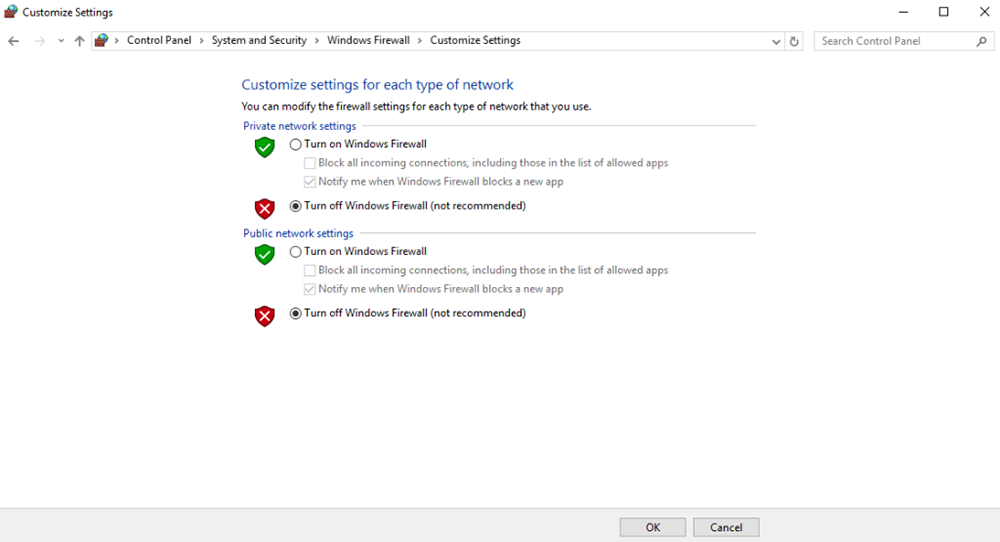
Upewnij się, że zapora komputera jest wyłączona na wypadek zablokowania wideo i/lub telemetrii. Tutaj weźmy system operacyjny Windows 10 jako odniesienie. Ścieżka: Control Panel\System and Security\Windows Firewall\Customize Settings.
Ustaw ustawienia sieci prywatnej/publicznej na „Wyłącz zaporę systemu Windows”.’ jak poniżej, kliknij „OK”.
6.6. Ustaw adres IP komputera
Adres IP komputera powinien być ustawiony poprawnie podczas oglądania wideo na komputerze, Adres IP można ustawić, wykonując poniższe czynności:
Double click ‘Ethernet’ at Control Panel\Network and Internet\Network Connections,
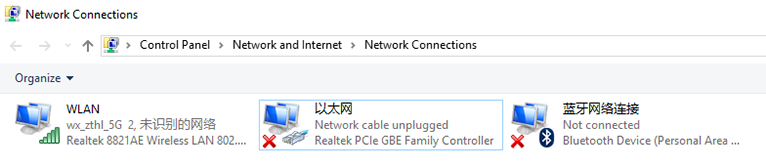
Kliknij dwukrotnie opcję „Wersja protokołu internetowego”. 4(TCP/IPv4)„, ustaw adres IP komputera jak poniżej, kliknij „OK”.’ skończyć.
6.7. Definicja styków złącza J30J-37
| Nazwa | Szpilka |
| Moc | 1,2,20 |
| GND | 3,10,15,21,22,29,31 |
| Ethernet1TX+ | 7 |
| Ethernet1-TX- | 26 |
| Ethernet1 RX+ | 6 |
| Ethernet1 Odbiornik- | 25 |
| Ethernet2TX+ | 5 |
| Ethernet2-TX- | 24 |
| Ethernet2 RX+ | 4 |
| Odbiornik Ethernet2- | 23 |
| Ethernet3TX+ | 8 |
| Ethernet3-TX- | 27 |
| Ethernet3 RX+ | 9 |
| Ethernet3 Odbiornik- | 28 |
| SBUS_V | 11 |
| PPM | 12 |
| GPS_SYNC | 13 |
| Skryty | 14 |
| 232TX1 lub 422Y2 | 16 |
| 232RX1 lub 422A2 | 17 |
| 232TX2 lub 422Y1 | 18 |
| 232RX2 lub 422A1 | 19 |
| SBUS1 | 30 |
| SBUS2 | 32 |
| Skryty | 33 |
| 422Z2 lub TTLTX1 | 34 |
| 422B2 lub TTLRX1 | 35 |
| 422Z1 lub TTLTX2 | 36 |
| 422B1 lub TTLRX2 | 37 |
7. FAQ
| Pytanie 1: Jak to jest bezprzewodowe łącze wideo zasilanie modułu? |
| Jednostka powietrzna: DC, zakres zasilania: 9-26V, zaleca się stosowanie napięcia 24 V. |
| Jednostka naziemna: DC, zakres zasilania: 9-26V, zaleca się stosowanie napięcia 24 V. |
| Pytanie 2: Czy można bezprzewodowe łącze wideo moduł należy włączyć przed instalacją anten? |
| Anteny należy zainstalować przed włączeniem zasilania. |
| Pytanie 3: Ile anten bezprzewodowe łącze wideonależy zainstalować jednostkę powietrzną? |
| Należy zainstalować dwie anteny. |
| Pytanie 4: Ile anten bezprzewodowe łącze wideonależy zainstalować jednostkę naziemną? |
| Należy zainstalować dwie anteny. |
| Pytanie 5: Czy do sterowania dronem można używać różnych typów pilotów?? |
| tak, po prostu wysyłaj standardowe sygnały PPM przez port autokaru, lub użyj S. Odbiornik BUS. |
| Pytanie 6: Czy na dronie można zainstalować dwie jednostki powietrzne?? |
| Nie, dron może mieć tylko jedną jednostkę powietrzną. |
| Pytanie 7: Czy po stronie odbiorczej można zainstalować dwie jednostki uziemiające?? |
| W systemie ptp można zainstalować tylko jedną jednostkę naziemną; system ptmp obsługuje więcej niż jedną jednostkę naziemną. |
| Pytanie 8: A co jeśli łącze nadrzędne/łącze w dół Wskaźnik LED nie jest włączony? |
| Wykonaj poniższe kroki: |
| 1) Sprawdź, czy zasilanie jednostki powietrznej i uziemiającej jest normalne. |
| 2) Sprawdź, czy instalacja anten jednostek powietrznych i naziemnych działa prawidłowo: czy anteny są zablokowane; czy połączenie anten jest luźne; czy kabel RF i port nie są dokręcone; |
| 3) Sprawdź, czy częstotliwość TX jednostki naziemnej jest zgodna z częstotliwością RX jednostki powietrznej za pomocą aplikacji komputerowej Taiysnc. |
| 4) Sprawdź moc TX jednostki naziemnej za pomocą aplikacji komputerowej Taiysnc. |
| 5) Jeśli powyższe kroki nie rozwiążą problemu, prosimy o kontakt z personelem pomocy technicznej bezprzewodowego łącza wideo. |
| Pytanie 9: Nie można skonfigurować połączenia telemetrycznego odpowiednio? |
| Wykonaj poniższe kroki: |
| 1) Sprawdź, czy stan łącza jest normalny. |
| 2) Sprawdź, czy połączenie szeregowego kabla telemetrycznego pomiędzy kontrolerem lotu a jednostką powietrzną jest prawidłowe oraz pomiędzy jednostką naziemną a stacją naziemną. |
| 3) Sprawdź, czy szybkości transmisji są takie same. |
| 4) Jeśli powyższe kroki nie rozwiążą problemu, prosimy o kontakt z personelem pomocy technicznej bezprzewodowego łącza wideo. |
| Pytanie 10: Nie można skonfigurować połączenia RC odpowiednio? |
| Wykonaj poniższe kroki: |
| 1) Sprawdź, czy stan łącza jest normalny; |
| 2) Sprawdź, czy połączenie RC pomiędzy kontrolerem lotu a jednostką powietrzną jest prawidłowe oraz czy połączenie pomiędzy jednostką naziemną a pilotem jest prawidłowe; |
| 3) Jeśli używasz trybu PPM, sprawdź konfigurację trybu pilota zdalnego sterowania; jeśli używasz S. Tryb BUS, sprawdź konfigurację odbiornika i pilota; |
| 4) Sprawdź, czy połączenie RC jednostki powietrznej i uziemiającej jest prawidłowe. Oferujemy standardowe kable. Jeśli zrobisz to sam, proszę sprawdzić pin; |
| 5) Sprawdź, czy tryb RC jest poprawnie skonfigurowany w aplikacji bezprzewodowego łącza wideo; |
| 6) Jeśli powyższe kroki nie rozwiążą problemu, prosimy o kontakt z personelem pomocy technicznej bezprzewodowego łącza wideo. |
| Pytanie 11: Co się stanie, jeśli nie ma wyjścia wideo? |
| Wykonaj poniższe kroki: |
| 1) Sprawdź, czy stan łącza jest normalny; |
| 2) Sprawdź, czy kabel Ethernet i kamera są w porządku; |
| 3) Sprawdź, czy adres RTSP jest poprawny; |
| 4) Sprawdź, czy adres IP komputera i adres IP kamery znajdują się w tej samej podsieci; |
| 4) Jeśli powyższe kroki nie rozwiążą problemu, prosimy o kontakt z personelem pomocy technicznej bezprzewodowego łącza wideo. |
| Pytanie 12: Co się stanie, jeśli wideo będzie cierpieć na zniekształcenia? |
| Wykonaj poniższe kroki: |
| 1) Proszę potwierdzić, czy konfiguracja trybu łącza w dół jest większa niż szybkość transmisji wideo; |
| 2) Sprawdź, czy połączenie Ethernet kabla jednostki powietrznej jest niezawodne; |
| 3) Czy połączenie kabla Ethernet jednostki uziemiającej jest niezawodne; |
| 4) Sprawdź, czy występują zakłócenia, w razie potrzeby zmień częstotliwość roboczą; |
| 5) Jeśli nie ma zakłóceń, czy osiągnięto limit odległości łącza komunikacyjnego; |
| 6) Jeśli powyższe kroki nie rozwiążą problemu, prosimy o kontakt z personelem pomocy technicznej bezprzewodowego łącza wideo. |
| Pytanie 13: Co się stanie, jeśli odległość transmisji modułu będzie krótsza niż oczekiwana? |
| Wykonaj poniższe kroki: |
| 1) Proszę sprawdzić, czy antena i kabel RF są prawidłowo zainstalowane oraz czy są dołączone do zestawu akcesoriów Falcon. |
| 2) Upewnij się, że obie anteny nie są zablokowane przez ładunek, nie ma wyraźnej blokady w jednostce naziemnej w pobliżu anten, a anteny jednostek powietrznych i naziemnych są prostopadłe do ziemi. |
| 3) Proszę sprawdzić, czy moduł działa przy pełnej mocy wyjściowej RF. |
| 4) Sprawdź, czy konfiguracja trybu łącza w dół jest prawidłowa, czy nie, tryby łącza w dół o wysokiej przepustowości mogą znacznie zmniejszyć odległość transmisji. |
| 5) Sprawdź, czy częstotliwość robocza jest wyraźnie zakłócona, czy nie. |
| 6) Sprawdź, czy podczas lotu pomiędzy jednostką powietrzną a naziemną nie występują poważne przeszkody, a złożone środowisko geograficzne będzie miało również wpływ na odległość transmisji. |
| 7) Jeśli powyższe kroki nie rozwiążą problemu, prosimy o kontakt z personelem pomocy technicznej bezprzewodowego łącza wideo. |
Zadać pytanie
Twoja wiadomość została wysłana