






How to add add a wireless video relay into a drone video data air uinit and ground unit
FAQ: add a wireless video relay for drone communication link with long-range or obstructed terrain
A client asked, I wanted to check the possibility of using one unit as a relay. In the location where we want to fly our drone, there is high terrain, which disrupts the communication. Can we use a third unit to act as a relay?


Wireless Video Transmission
1740-1840Mhz 2WPA 30KM long range drone video transmitter and receiver with Sbus TTL

Wireless Video Transmission
Q1: Can one of the units be used as a relay to overcome terrain obstacles and extend communication range?
A: Yes, it is possible to configure one of the units as a relay node to improve communication in areas with high terrain or other obstructions that block the direct line of sight between the drone and the ground control station.
Q2: How does the relay setup work?
A: The relay setup method depends on the software version installed on your device. There are two different versions:
- Point-to-Point Version
- Point-to-Multipoint Version
Each version uses a different configuration method for relay setup.
To determine which version your device is using, please check the Web UI interface style of your firmware. The layout and design of the Web UI will indicate whether your firmware is the Point-to-Point or Point-to-Multipoint version.
Once you identify the firmware version through the Web UI style, follow the corresponding relay setup instructions for that version.
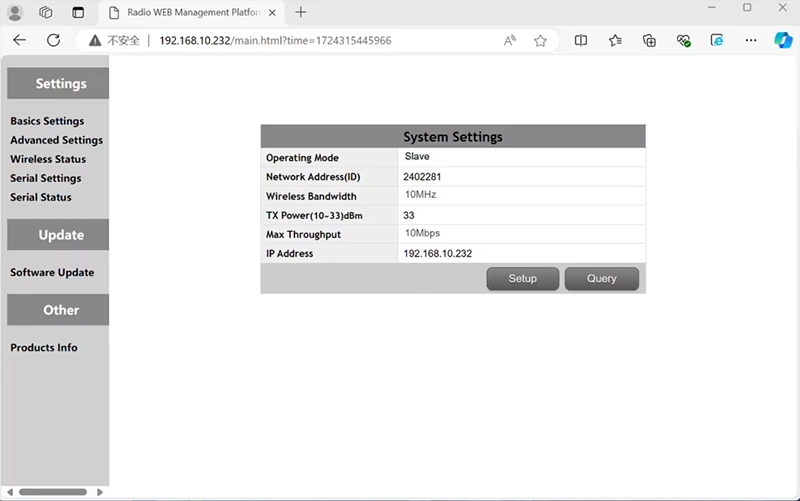

In the standard Point to Point (P2P) configuration:
- The Ground Control Station (GCS) acts as the main node (master).
- The drone (air unit) acts as the sub node (slave).
To enable relay functionality, the network topology needs to be modified:
- Convert the original ground control station (main node) into a relay node.
- Add one more sub node to serve as the new ground control station terminal.
The new setup will therefore have three nodes:
- Node 1 (Drone) – Slave node (airborne)
- Node 2 (Relay) – Repeater node (fixed on ground, typically placed at high terrain or midpoint)
- Node 3 (Ground Control Station) – Master node node (operator’s side)
- Drone Unit 8W – 192.168.10.252 (Slave)
- Relay Unit 8W- 192.168.10.250 (Repeater)
- Ground Unit 2W – 192.168.10.124 (Master)
In the standard Point to Multi-Points configuration:
- The Ground Control Station (GCS) acts as the main node (master).
- The drone (air unit) acts as the sub node (slave).
To enable relay functionality, the network topology needs to be modified:
- Convert the original ground control station (main node) into a relay node.
- Add one more sub node to serve as the new ground control station terminal.
The new setup will therefore have three nodes:
- Node 1 (Drone) – Slave node (airborne)
- Node 2 (Relay) – Master node (fixed on ground, typically placed at high terrain or midpoint)
- Node 3 (Ground Control Station) – Slave node (operator’s side)
This configuration allows signals to travel from the drone to the relay, and then from the relay to the operator, ensuring a stable and continuous link even when the direct path is blocked by hills or buildings.
Q3: What are the advantages of this relay setup?
- Extends effective transmission distance.
- Maintains stable drone communication link even in complex terrain.
- Reduces signal loss and video interruptions.
- Allows flexible placement of relay to optimize coverage.
Q4: What modifications or configurations are required?
Change the operating mode to relay. The IDs of all three devices must be the same. Our engineering team can adjust the firmware and parameters to enable the relay function. You only need to inform us of your intended setup (e.g., distances, terrain type, mounting height), and we will provide the proper configuration files and connection diagram.
Q5: Can the relay unit be portable or vehicle-mounted?
Yes. The relay node can be:
- Fixed-mounted (e.g., on a hilltop or tower), or
- Portable (carried by vehicle, or mounted on a tripod with power supply).
We can customize the relay casing and power interface according to your application scenario.
Q6: Does the relay introduce extra delay?
The additional latency is minimal (typically less than 10–20 ms) and has little impact on real-time video and control performance.
Q7: Can I set up or switch relay mode by myself?
We recommend you contact our technical support team for initial configuration to ensure correct node addressing and frequency planning. After setup, switching between normal mode and relay mode can be done through configuration software or predefined profiles.
Q8: Why can’t I connect to the relay node?
A: If the relay and slave nodes are roughly the same distance from the master node, and the master node receives roughly the same amount of power, the relay node might not be able to join the network. When the master node determines that the received power of the two nodes is similar, it will prioritize connecting directly to the slave node.
Q9: The three nodes cannot connect to each other. It is necessary to check the wireless transmit/receive status of each node to identify potential issues.
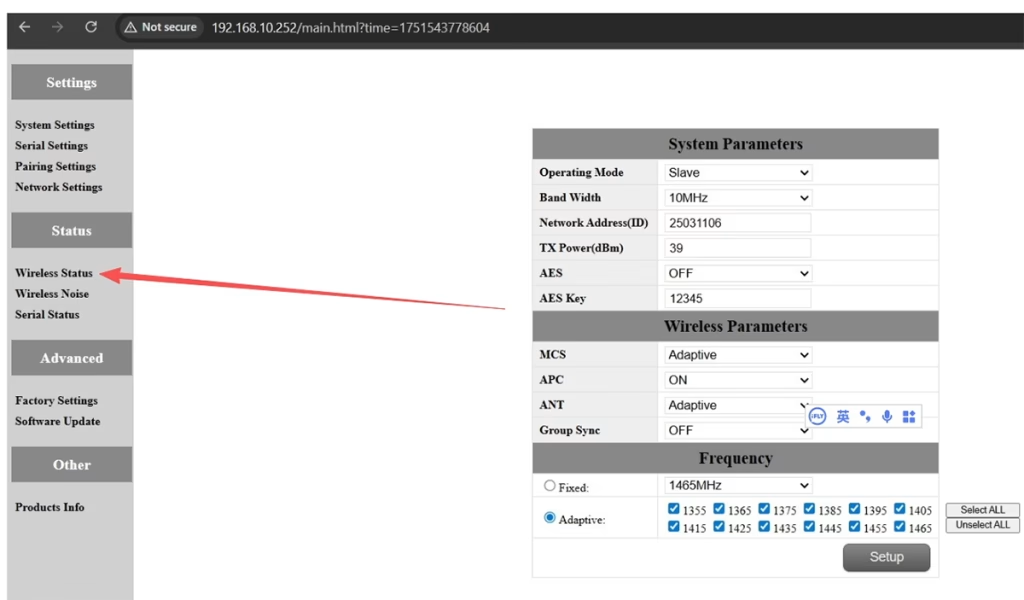
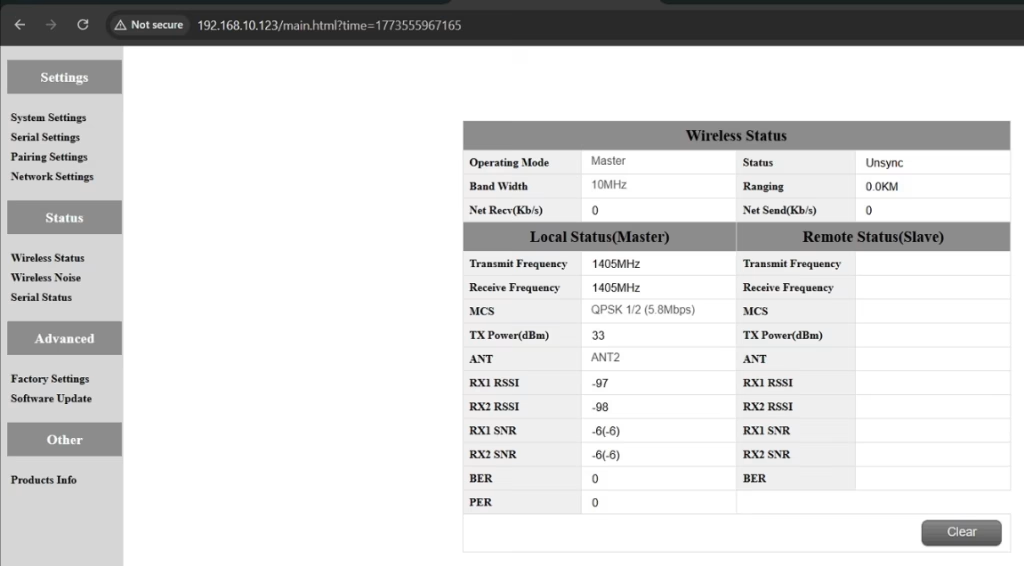
A: Please do the below test firstly.
Attempt Remote Access
Try to access each node through the management interface or remote tool to check the wireless status.
If remote access fails, proceed to step 2.
Connect Directly via Ethernet
Use an Ethernet cable to connect your computer directly to each node.
Access the node’s management interface or wireless status page.
Check Wireless Transmit/Receive Status
Review the current wireless transmit/receive status, including signal strength, link status, and any error indicators.
Take a screenshot of the current status for each node, ensuring all relevant information is visible.
Send Screenshots to Engineers
Organize the screenshots and send them to the engineering team.
Engineers will analyze the wireless transmit/receive data to determine which node may have an issue.
Notes:
Label each screenshot with the corresponding node for easy comparison.
Ensure screenshots include key data such as signal strength, connection status, and channel information.
Q10: Does the relay unit only require antennas and power to operate? Is an Ethernet connection necessary?
A: No. The relay unit only requires the antennas and a power supply to operate. It does not require an Ethernet connection. The relay automatically forwards data between the aircraft side and the ground side, enabling seamless communication without the need for a network port connection.
Q11: what is this sync unsync on the wireless status?
A: These are the parameters seen on the relay node. The “sync” at the beginning indicates the connection status between the master node and the relay node, which is currently connected. The “unsync” at the end indicates the connection status between the relay node and the slave node, which is currently not connected.
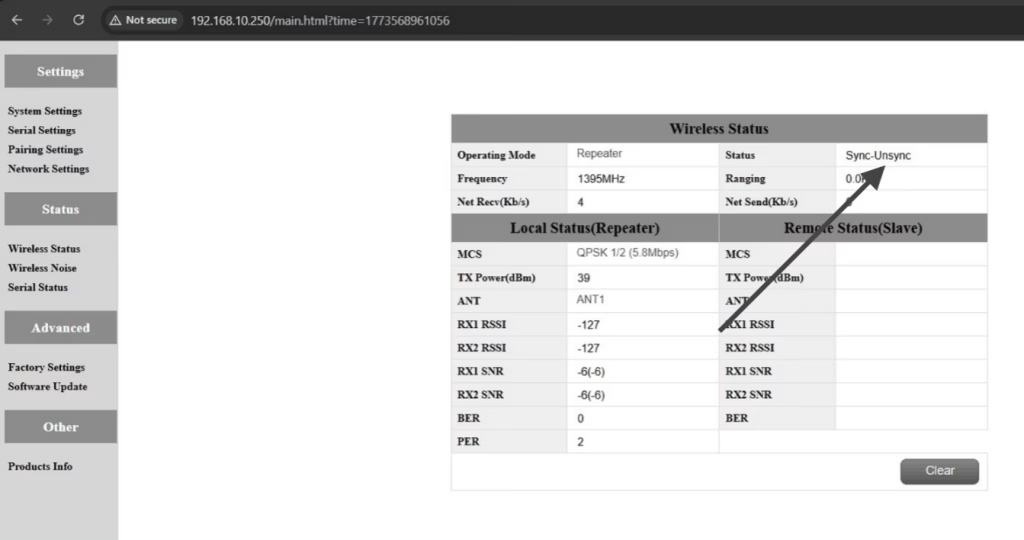
Q12: Why can’t my Slave, Repeater, or Master nodes connect? How to fix it?
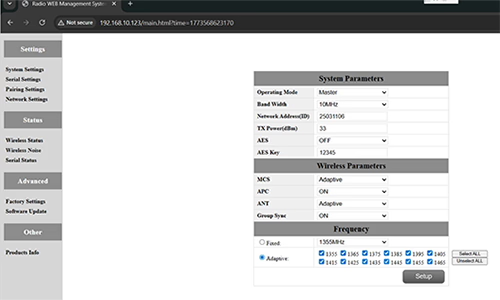
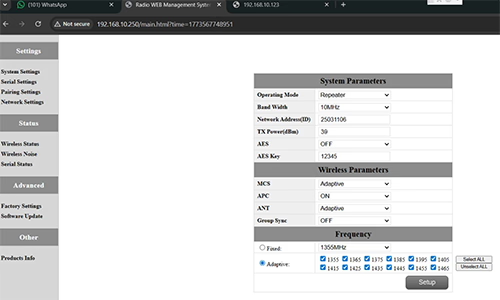
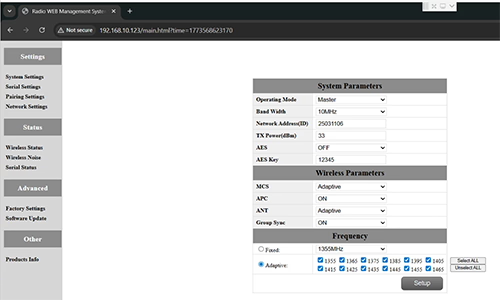
A: This usually happens when nodes are not properly configured or the Group Sync settings are inconsistent.
- Connect each node directly to a computer using an Ethernet cable.
- Open the system parameter settings page and take a screenshot to share with technical support if needed.
- Check the Group Sync settings:
- If Group Sync Master is On, and Slave Node and Repeater are Off, set Group Sync to Off for all nodes.
- After all nodes are connected successfully, you can enable Master / Slave / Repeater Group Sync as needed.
Result:
Following these steps has successfully resolved connection issues for other customers.
Q13: In what order should these three devices be powered on?
A: The correct power-on sequence is critical to ensure proper system connectivity and prevent equipment damage. Follow these steps:
- Power on the Ground Unit first
- This includes the master control station or ground control equipment.
- Ensure all communication interfaces and power supplies are stable.
- Next, power on the Repeater Node (Relay Unit)
- Wait for the repeater to complete self-checks and establish a connection with the ground unit.
- Verify connection success via status indicators or LEDs.
- Finally, power on the Drone or Slave Node
- Make sure the ground unit and repeater node are fully ready before powering the drone.
- After powering on, check the communication status between the drone and the repeater/ground units.
⚠️ Notes:
- Always follow the sequence Ground → Repeater → Drone to avoid initialization failures.
- If there are multiple slave nodes or repeaters, power on one at a time and confirm each connection before proceeding.
- Avoid powering all nodes simultaneously to prevent bus conflicts or voltage spikes.
Summary:
✅ Relay function – Supported
✅ Requires modification – Yes, one node reconfigured as relay
✅ Recommended number of nodes – 3 (Drone / Relay / GCS)
✅ Added latency – <20 ms
✅ Suitable for – Mountainous areas, long-distance operations, or NLOS conditions
Ask A Question
Thank you for your response. ✨