






1. Съдържание на пакета
Въздух Мерна единица & Земя Мерна единица
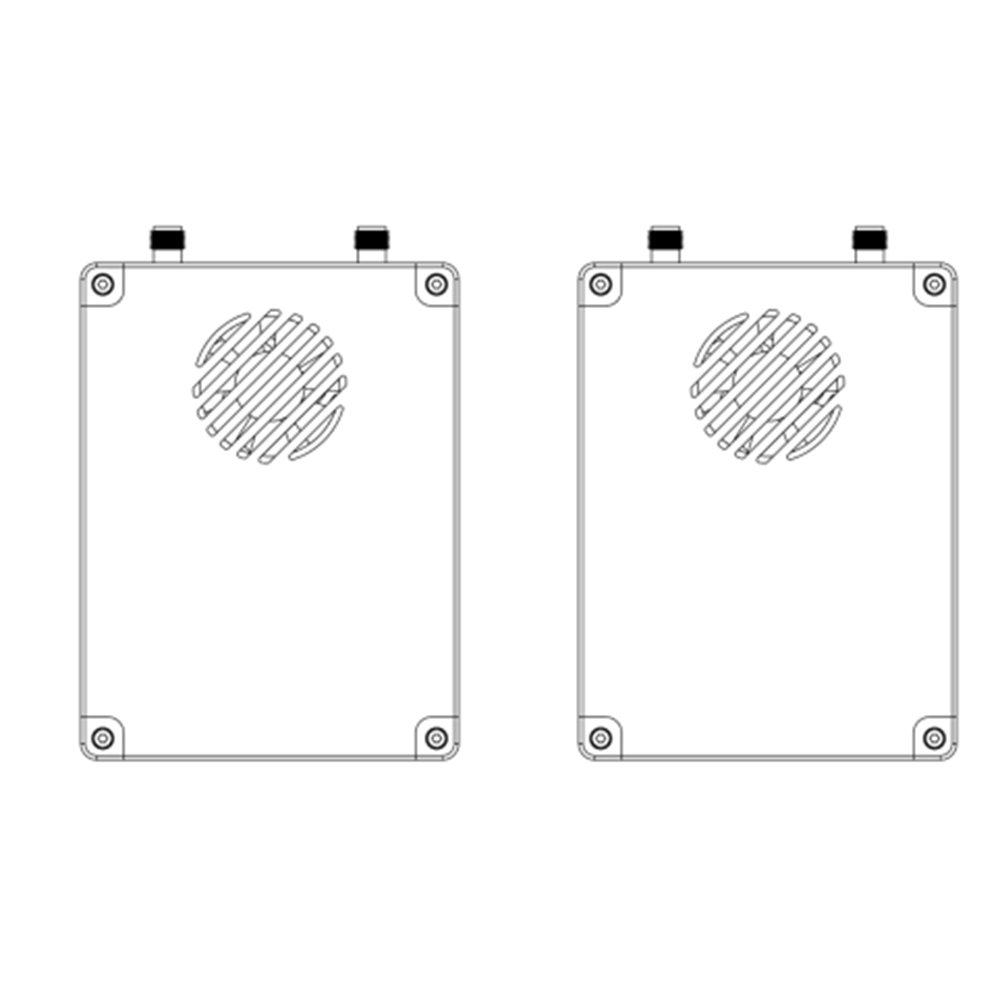
Air unit antenna × 2
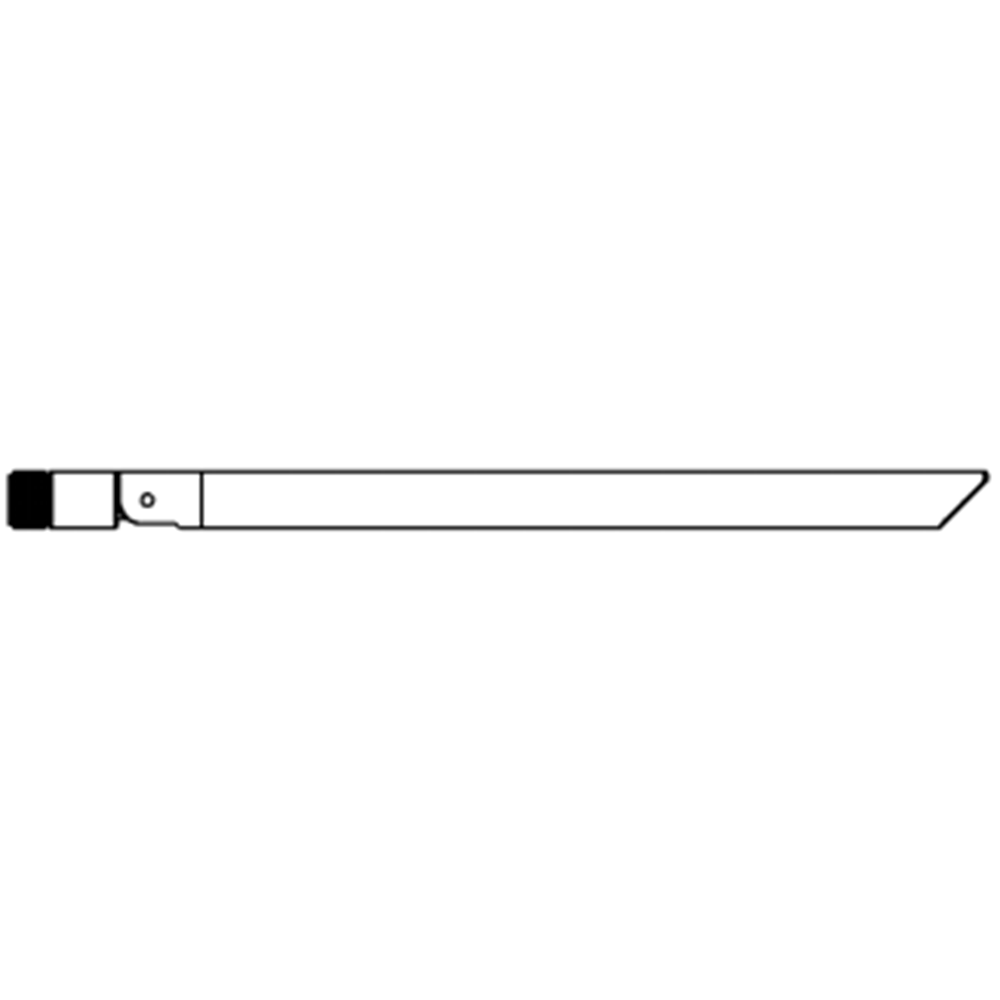
Ground unit antenna × 2

Въздух мерна единица кабели
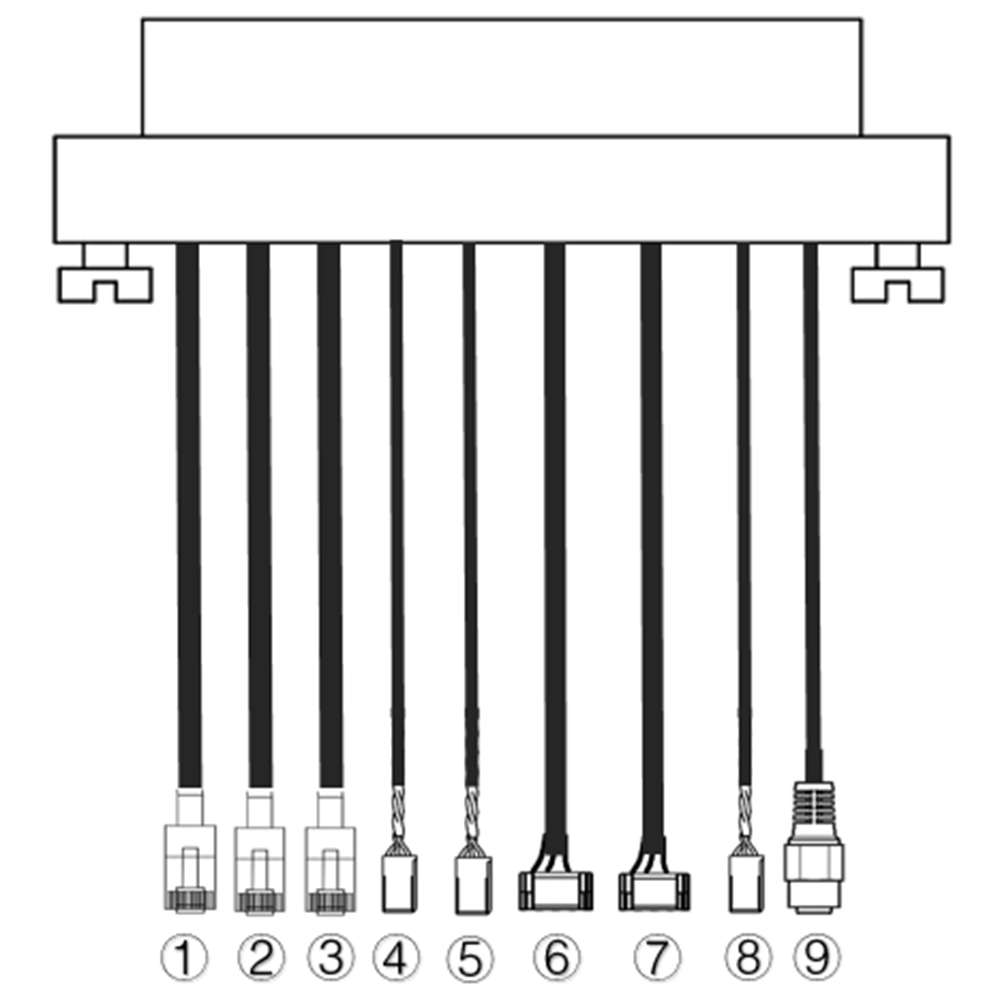
| Не. | интерфейс |
| 1,2,3 | Ethernet |
| 4,5 | S.BUS, както е показано на снимката, на 1ул pin from the left of dupont connector is S.BUS signal, на 3rd е Г. |
| 6,7 | Телеметричен сериал, както е показано на снимката, на 2nd щифтът отляво на конектора GH1.25 е Rx, на 3rd е Tx, на 6th е Г. (TTL по подразбиране, RS232/422 алтернатива) |
| 8 | PPM, както е показано на снимката, на 1ул pin from the left is PPM signal, на 3rd е Г. |
| 9 | мощност |
Ground unit cables
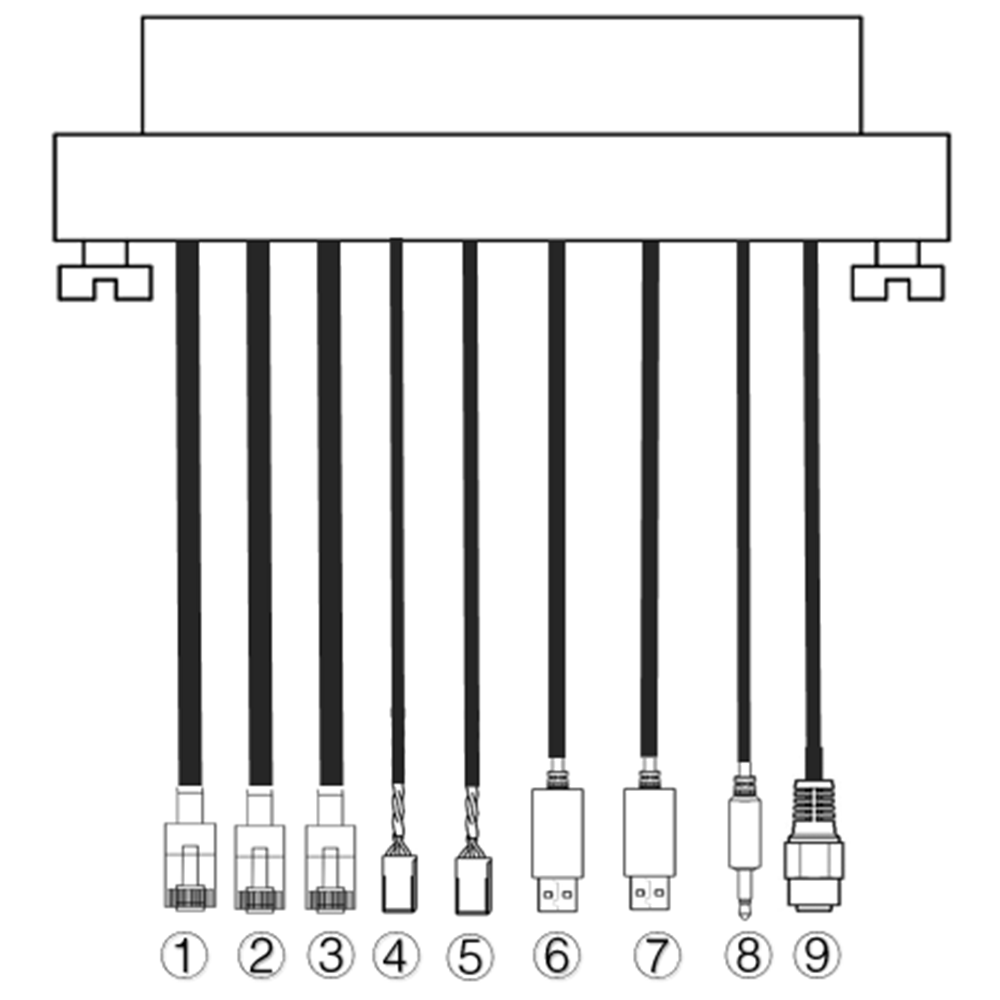
| Не. | интерфейс |
| 1,2,3 | Ethernet |
| 4,5 | S.BUS, както е показано на снимката, на 1ул щифтът отляво е S.BUS сигнал, на 2nd е 5V+, на 3rd е Г. |
| 6,7 | Сериен-USB(TTL-USB по подразбиране, RS232/422 алтернатива) |
| 8 | PPM |
| 9 | мощност |
2. продукт описание
2.1. Parameters
| Параметри | Стойност |
| Честота | 1330~1450MHz |
| Ширина на лентата | 10MHz (връзка нагоре), 10MHz (връзка надолу) |
| мощност | 33стока |
| модулация | OFDM |
| съзвездие | BPSK, QPSK, 16QAM |
| FEC | LDPC(1/2, 2/3, 3/4, 5/6) |
| Дуплекс | TDD |
| Пропускателна способност на връзката надолу | 2.3Mbps ~ 8bps |
| Пропускателна способност на връзката нагоре | 600kbps |
| Encryption | AES 256 |
| интерфейс | Ethernet, USB, TTL, RS232, RS422, PPM/S.BUS |
| Консумация на енергия | 18W(въздушна част); 10W(партерен единица) |
| латентност | <300Госпожица (Зависи от камерата) |
| Измерение | 92.5*70.3*25мм |
| тегло | 198ж |
| Номинално напрежение/ток | DC24V/1.2A (или 6S литиева батерия) |
| Работна температура | -40°C ~60°C |
2.2. Въздух Мерна единица Интерфейси
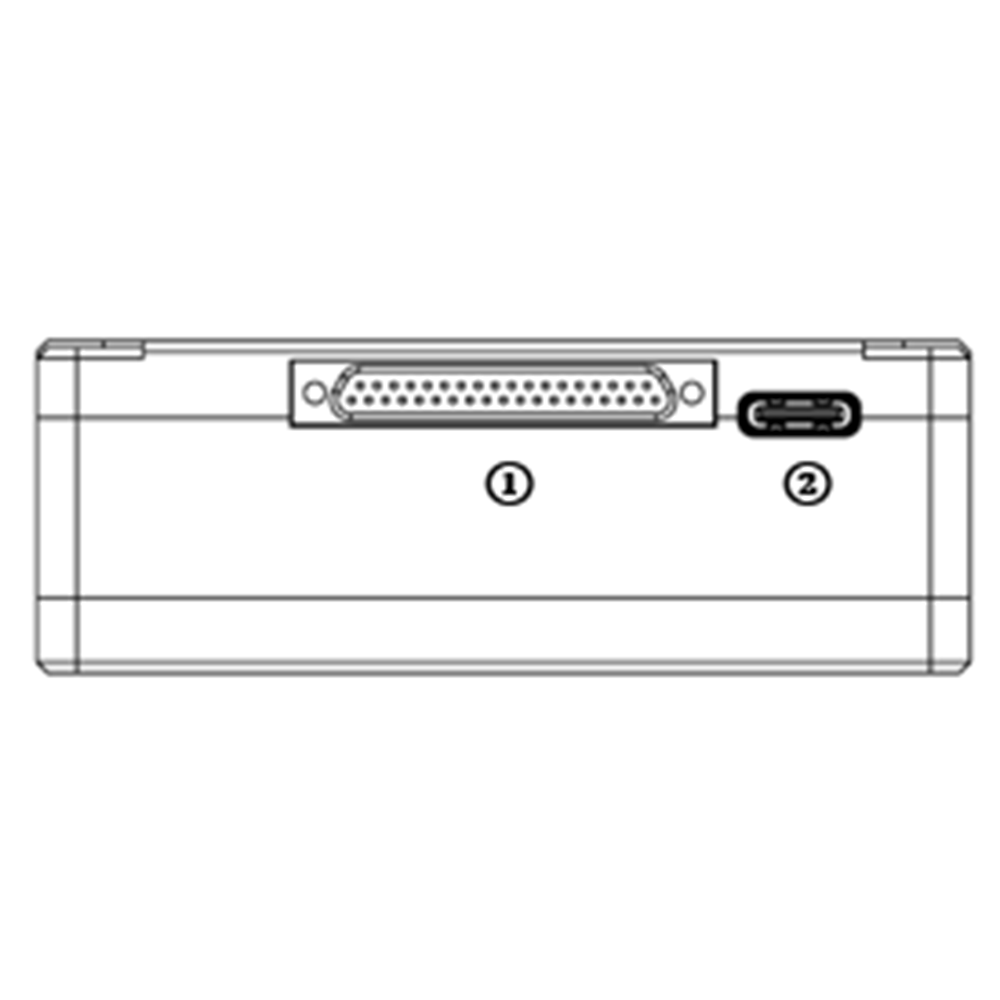
- J30J connector
It’s a J30J-37 pin connector providing power/Ethernet/serial/PPM/S.BUS.
- USB порт
Connect this port to the USB port of a PC, and use the wireless video link PC program to upgrade firmware and set parameters of the air unit.
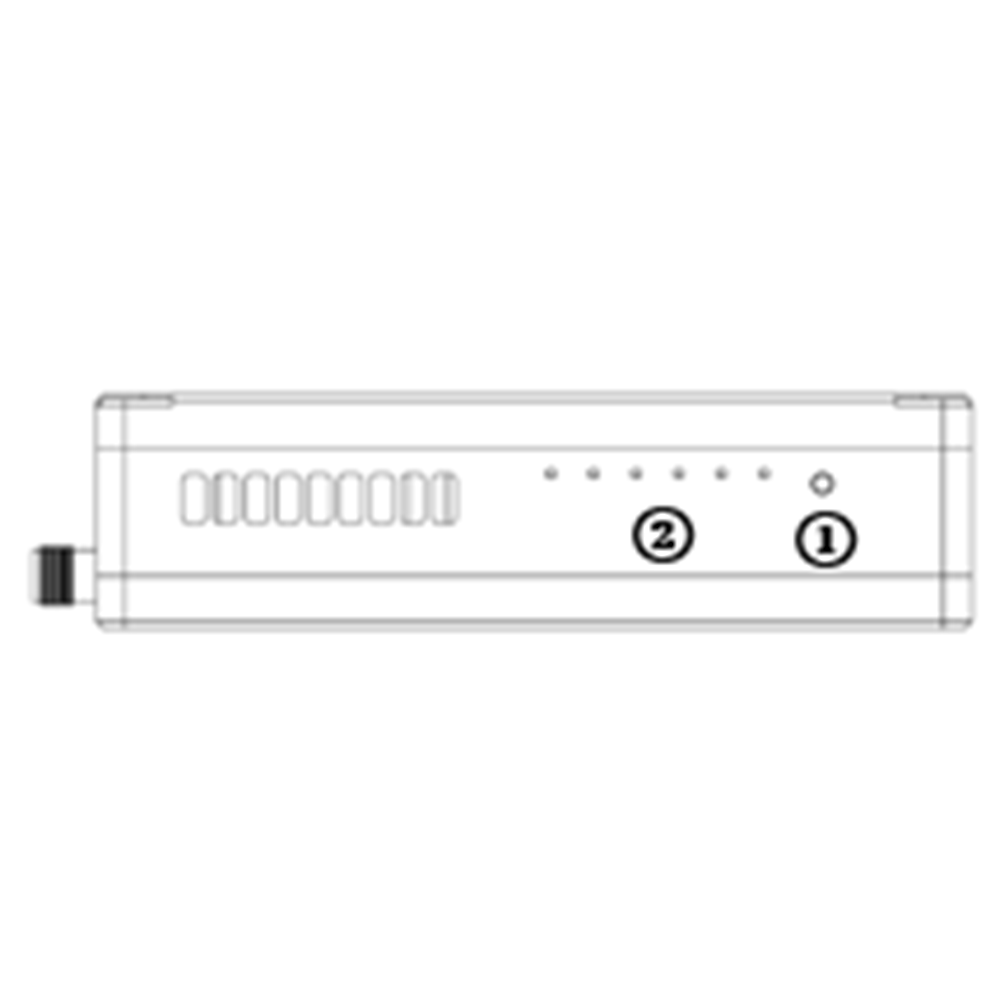
- Binding button
Press-and-hold this button to perform the binding operation. Bound already before factory delivery, no need to bind again by user.
- светодиоди
Отляво надясно: индикатор за мощност (1), Ethernet link indicator (2~4), UL/DL radio link indicator (5~6) not used for air unit. LED6 will be flashing during bind process.
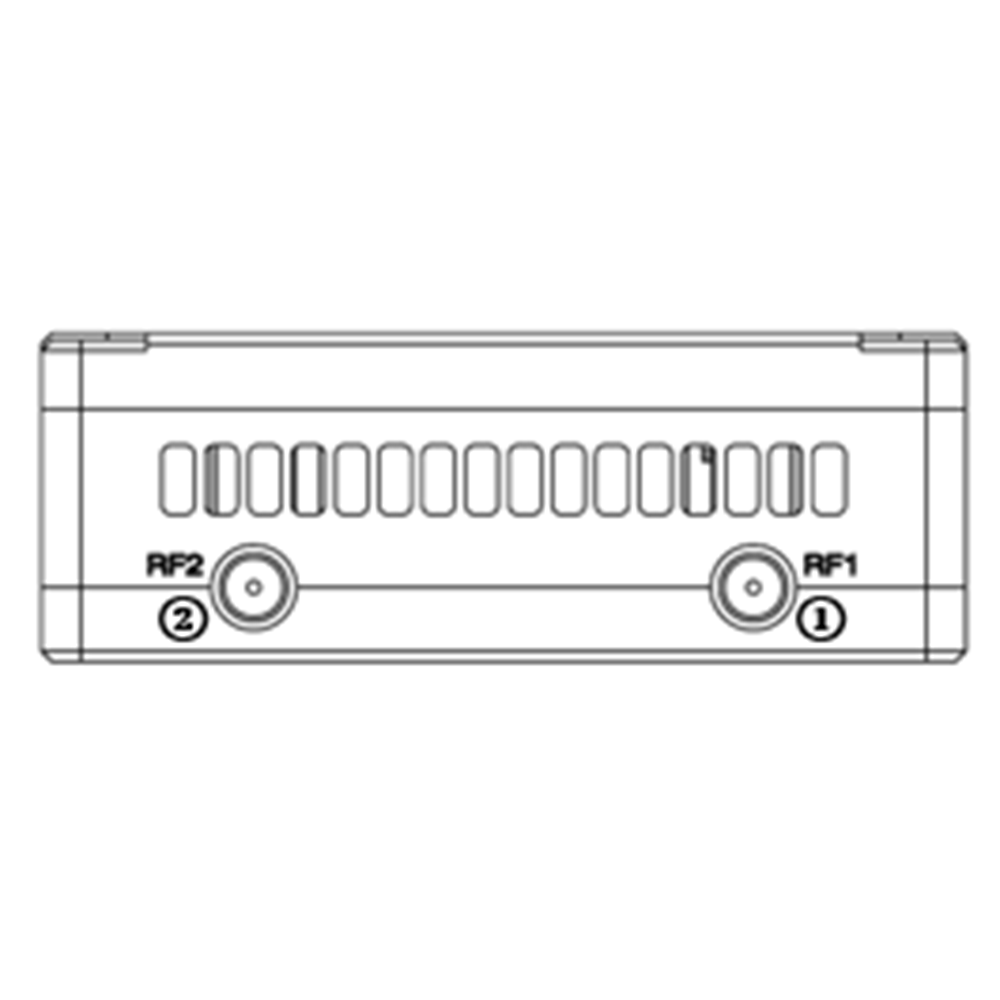
- RF1 Port
Свържете 1ул air unit antenna to this port.
- RF2 Port
Connect the 2nd air unit antenna to this port.
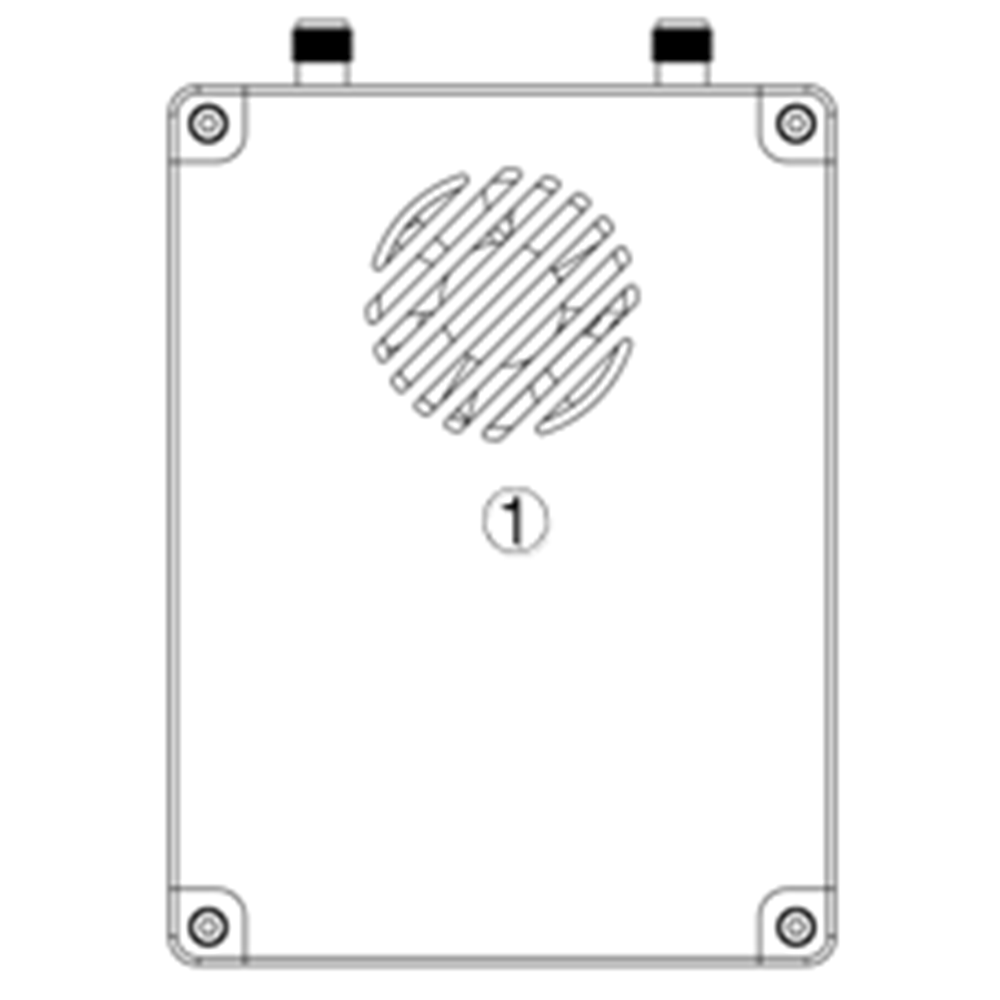
- Fan Ventilation Outlet
Don’t block this fan ventilation outlet to ensure effective cooling.
2.3. Земя Мерна единица Интерфейси
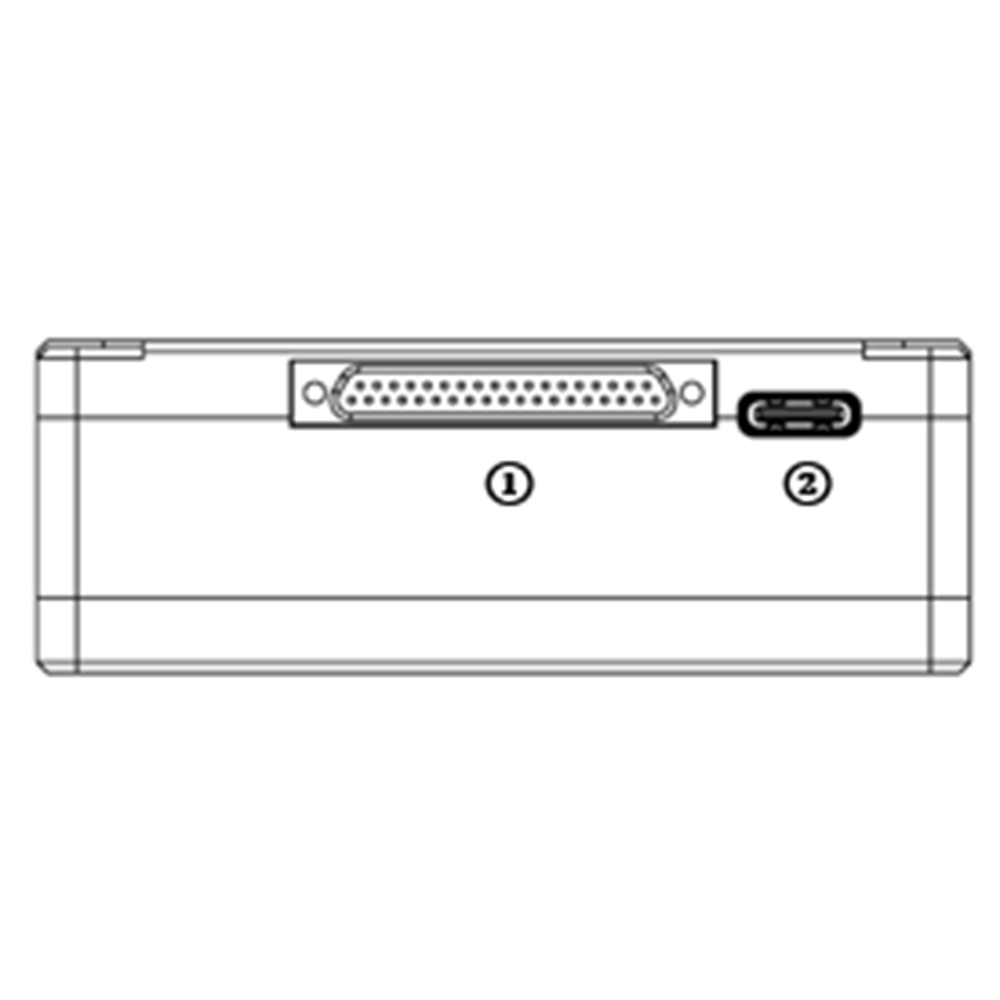
- J30J connector
It’s a J30J-37 pin connector providing power/Ethernet/serial/PPM/S.BUS.
- USB порт
Connect this port to the USB port of a PC, and use the wireless video link PC program to upgrade firmware and set parameters of the air unit.
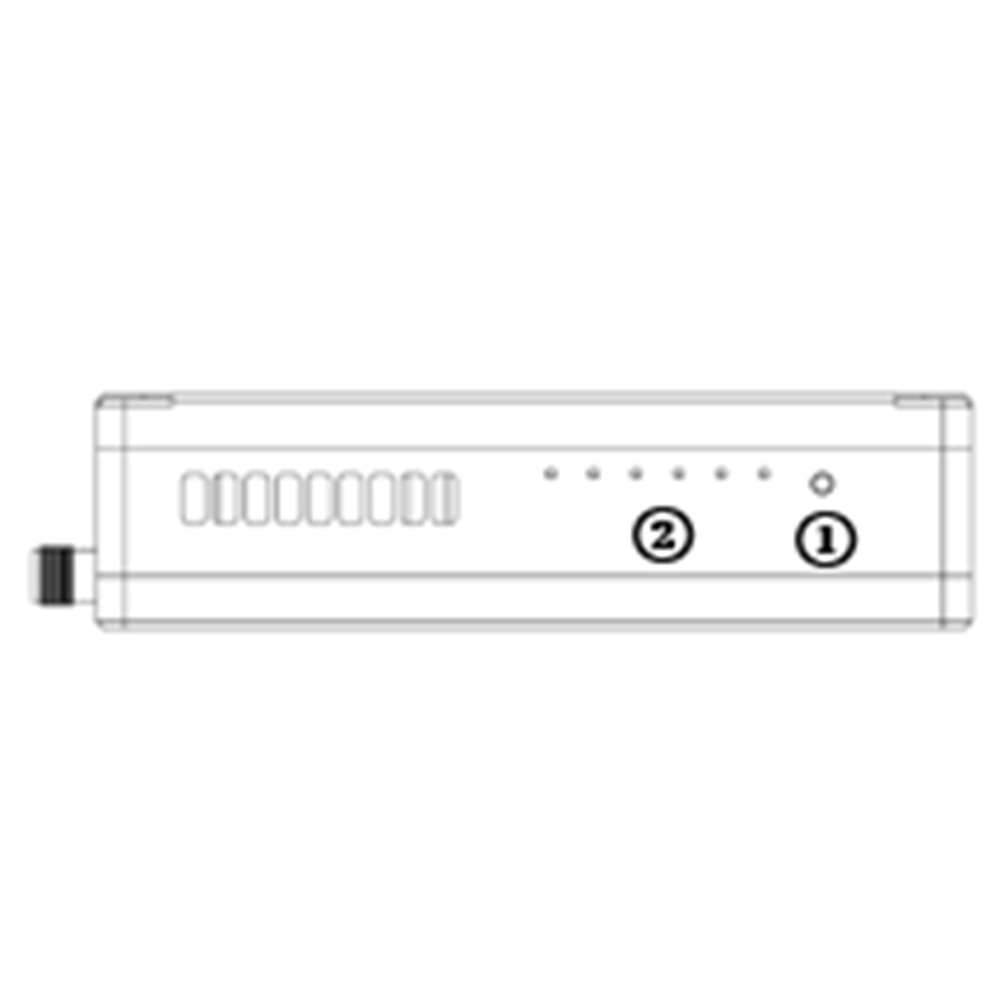
- Binding button
Press-and-hold this button to perform the binding operation. Bound already before factory delivery, no need to bind again by user.
- светодиоди
Отляво надясно: индикатор за мощност (1), Ethernet link indicator (2~4), UL/DL radio link indicator (5~6). LED6 will be flashing during bind process.
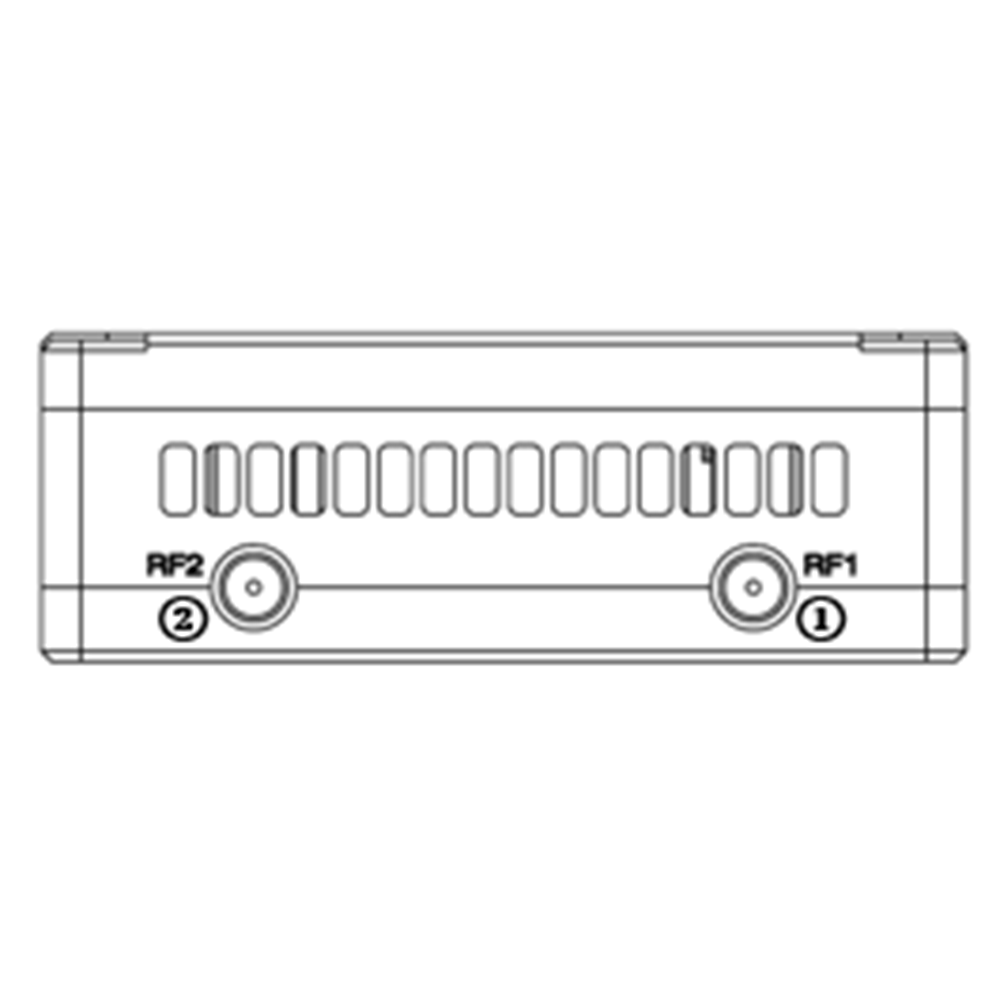
- RF1 Port
Свържете 1ул air unit antenna to this port.
- RF2 Port
Connect the 2nd air unit antenna to this port.
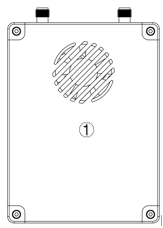
- Fan Ventilation Outlet
Don’t block this fan ventilation outlet to ensure effective cooling.
3. Сystem настройка
3.1. Въздух Мерна единица Инсталация
Съдържание
3.1.1. Antenna инсталация
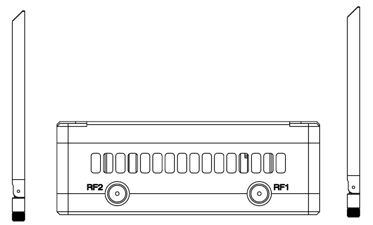
Screw the air unit antennas on the RF ports.
Забележка:
- To avoid equipment damage, install antennas before powering on the units.
- When mount air unit to drone, make sure the antennas are not both blocked by any part of the drone.
- Both antennas need to be installed.
3.1.2. Power supply
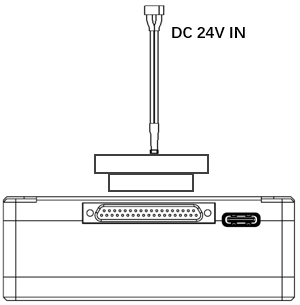
Insert the J30J connector to the J30J port of air unit and connect battery/power source to the power port at the other end.
Забележка:
- To avoid equipment damage, install antennas before powering on the units.
- Recommended rated voltage/current is DC24V/1.2A (или 6S литиева батерия).
3.1.3. ° Сonnect camera
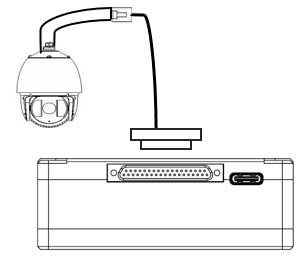
Connect the video output port of the IP camera to the Ethernet video input port of the air unit.
3.1.4. ° Сonnect flight controller (R° С & телеметрия)
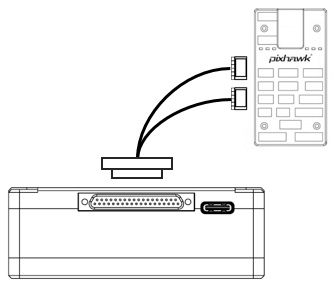
Insert the J30J connector to the J30J port of air unit and connect the other end of the serial cable to the telemetry port of a flight controller.
Insert the J30J connector to the J30J port of air unit and connect the other end of the RC cable to the PPM/S.BUS port of a flight controller.
3.2. Ground Unit Installation
3.2.1. Antenna installation
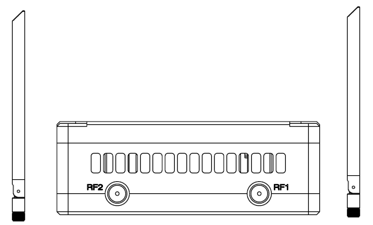
Screw the ground unit antennas on the RF ports.
Забележка:
- To avoid equipment damage, install antennas before powering on the units.
- Both antennas need to be installed.
- Adjust the antenna to be vertical to the ground during operation.
3.2.2. Power supply
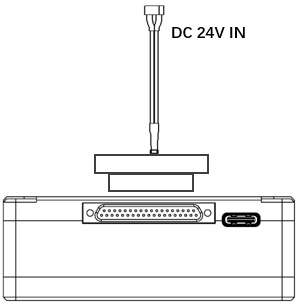
Insert the power connector of a power source into the power port of the ground unit
нote:
- Recommended rated voltage/current is DC12V/1.2A (or 3S lithium battery).
- To avoid equipment damage, install antennas before powering on the units.
3.2.3. Telemetry connection
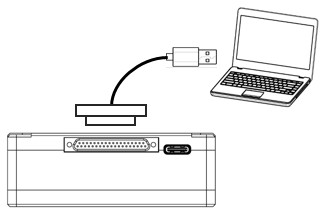
Insert the J30J connector to the J30J port of ground unit and connect the other end of supplied serial cable to the telemetry port of the ground control station.
Забележка:
- Ensure the baud rate of ground station and the baud rate of wireless video link module are configured to be the same.
- Ensure the serial cable sequence matches the interface definition of wireless video link module.
3.2.4. ° Сonnect remote controller
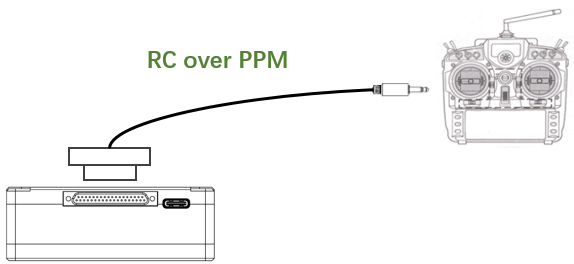
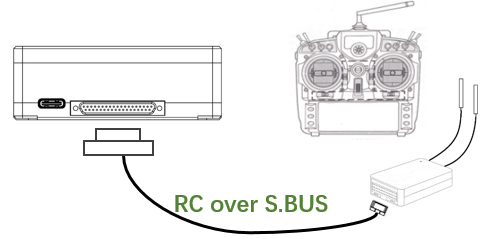
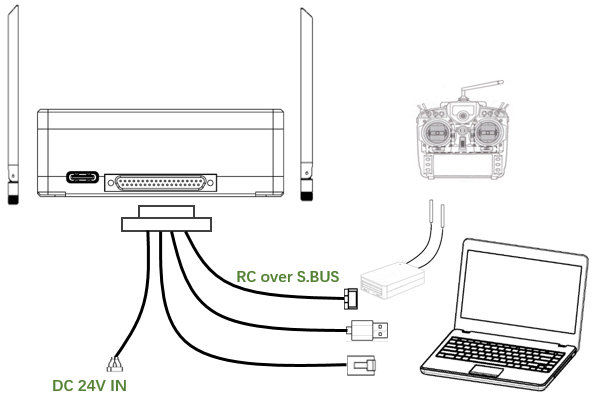
Using PPM mode: Insert the trainer port connector of the supplied RC cable to the trainer port of a remote controller and Insert the J30J connector to the J30J port of ground unit. Using S.BUS mode: Insert the J30J connector to the J30J port of ground unit, connect the other end to a S.BUS receiver, and the S.BUS receiver communicates with the remote controller wirelessly.
нote:
- Ensure the RC cable’s pin-out matches the interface pin-out of wireless video link module.
- If a S.BUS receiver is used, there should be enough guard band between the working frequency band of the receiver and the working frequency band of wireless video link module.
3.2.5. Сetup video output
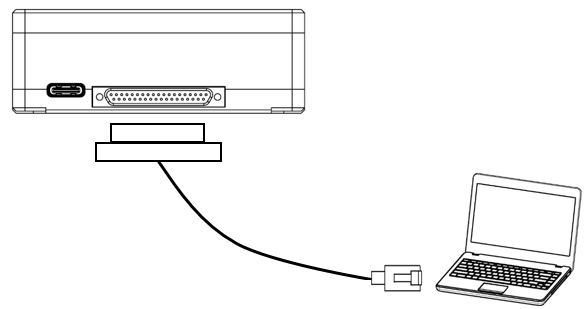
Insert the J30J connector to the J30J port of ground unit and connect the other end of supplied Ethernet cable to PC or the ground control station. Make sure IP addresses of camera and PC are in the same subnet.
3.2.6. употреба безжична видео връзка Система
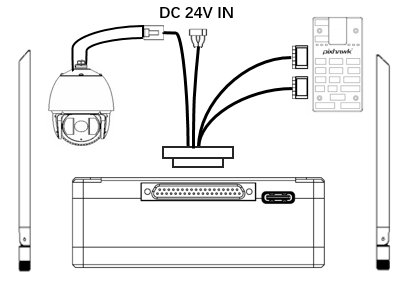
- Install antennas to the air unit.
- Connect IP camera output to Ethernet port of the air unit.
- Connect the PPM/S.bus port of the flight controller to the RC port of the air unit.
- Connect the telemetry port of the flight controller to the serial port of the air unit.
- Connect a 24V DC power source to the power port of the air unit and turn it on.
- If the latest firmware is needed, connect the air unit to a PC using USB cable and run wireless video link PC program to upgrade the firmware of the unit to the latest one.
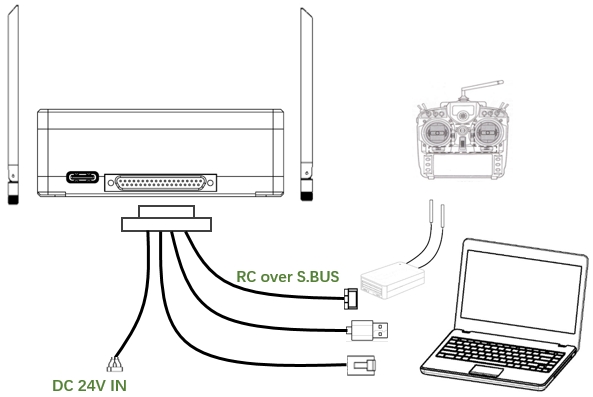
- Install antennas to the ground unit.
- Configure the remote controller to be in trainer mode. If PPM mode is used, connect the remote controller interface of the ground unit to the trainer port of the remote control. If S.BUS mode is used, a S.BUS receiver needs to be connected to the ground unit using supplied cable, and the connection between the S.BUS receiver and the remote controller need to be established.
- Connect the USB port of a ground control station to the serial port of the ground unit through a Serial-2-USB adaptor to use telemetry link.
- Connect the Ethernet port of a GCS or PC to the RJ45 connector of ground unit to get IP video/telemetry (telemetry over Ethernet).
- Turn on the ground unit.
- If the latest firmware is needed, connect the ground unit to a PC using USB cable and run wireless video link PC program to upgrade the firmware of the unit to the latest one.
- After downlink and uplink are established, both LEDs of the ground unit will be on.
4. Софтуер
4.1. Инсталация
wireless video link provide program installation files, program file name: wireless video link Wireless App Setup.exe. The installer icon is as following:
Double-click the installer to install and customize the program installation directory. След конфигуриране, click “Next” to move to the next step. To cancel the installation, click “Cancel”.
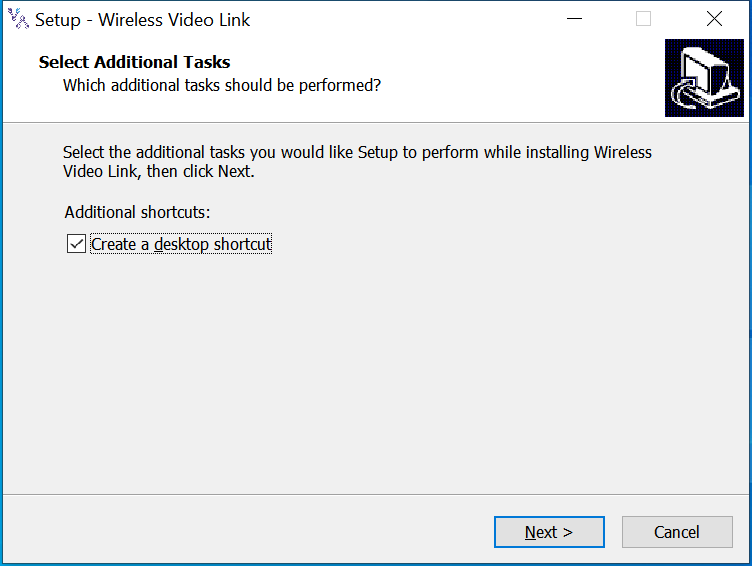
Check the “Create desktop shortcut” if desktop shortcut is needed. If it is not checked, the desktop shortcut will not be created. След конфигуриране, click “Next” to move to the next step. To go back to the previous step, click “Back”. To cancel the installation, click “Cancel”.
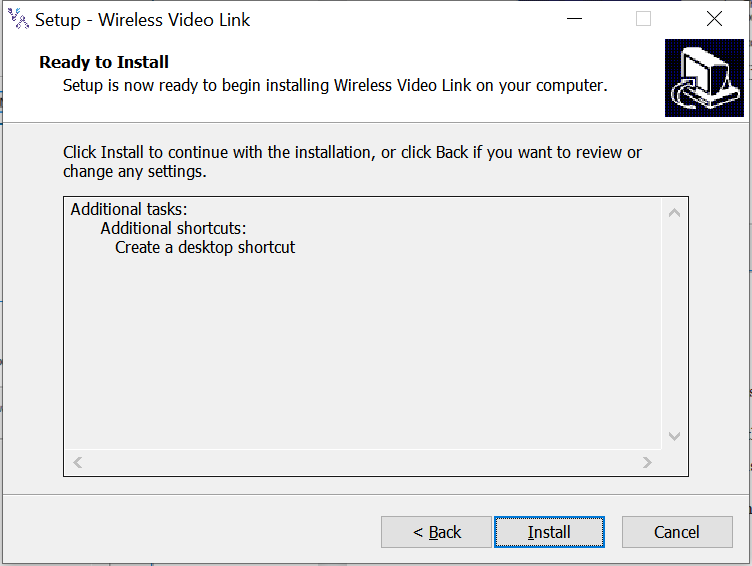
Click “Install” to proceed with the installation. To go back to the previous step, click “Back”. To cancel the installation, click “Cancel”.
Забележка: Please disable the anti-virus software, otherwise the anti-virus may prevent the driver from being installed during the driver installation.
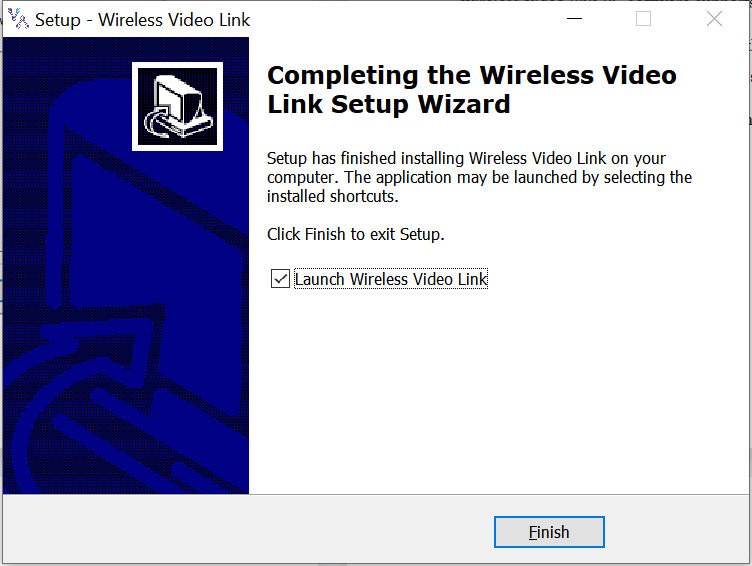
В този момент, the software installation is done and the driver installation is completed.
4.2. Софтуер език
wireless video link PC software supports both Chinese and English.
The software will display in Chinese if the operating system of the PC is in Chinese, otherwise the software displays in English.
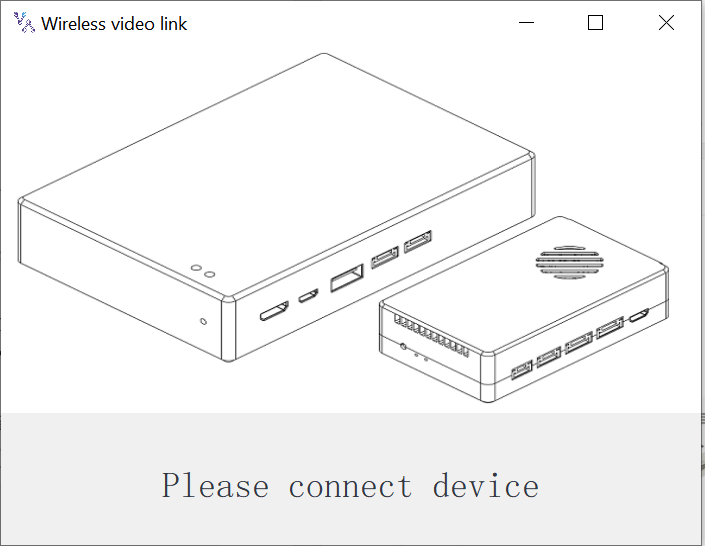
If the device is not connected to the computer properly, wireless video link PC software shows the following picture:
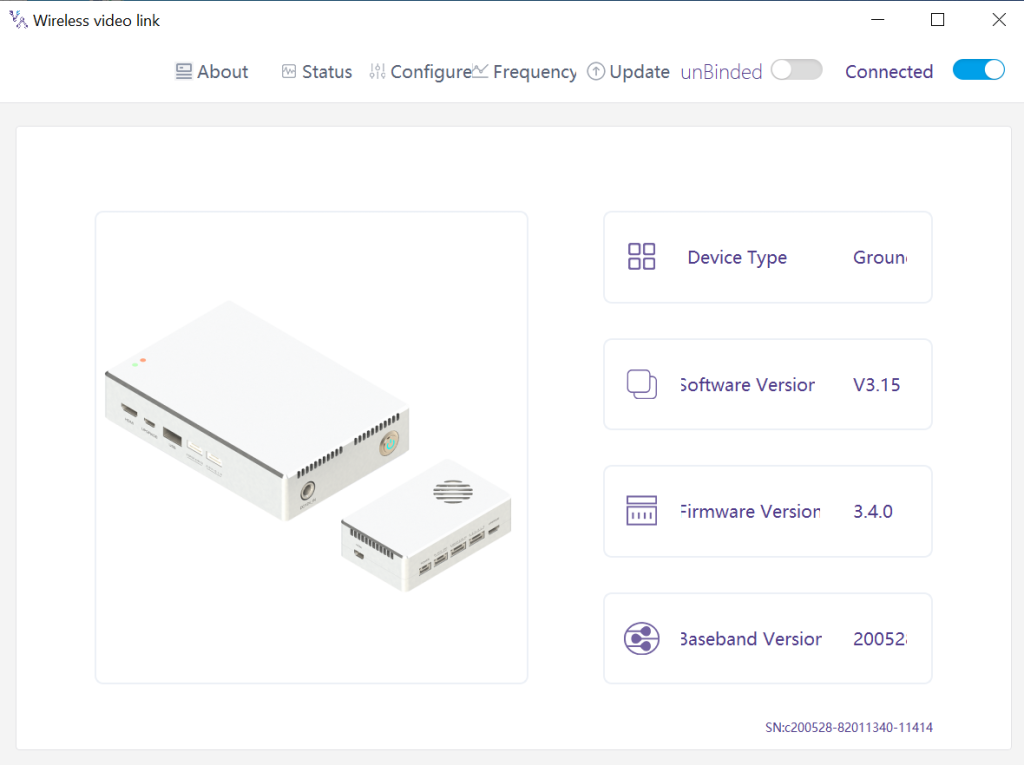
If the device is connected to the computer properly, wireless video link PC software shows the following picture:
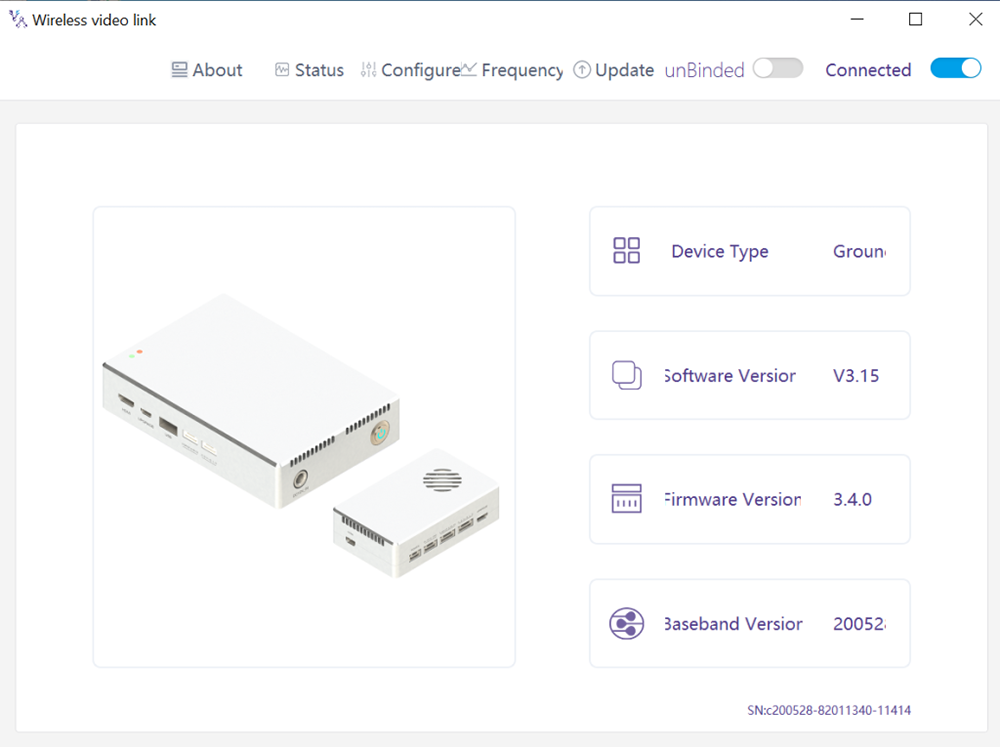
4.3. Device Info
Information on the homepage: device type, software version, версия на фърмуера, and baseband version.
4.4. Статус
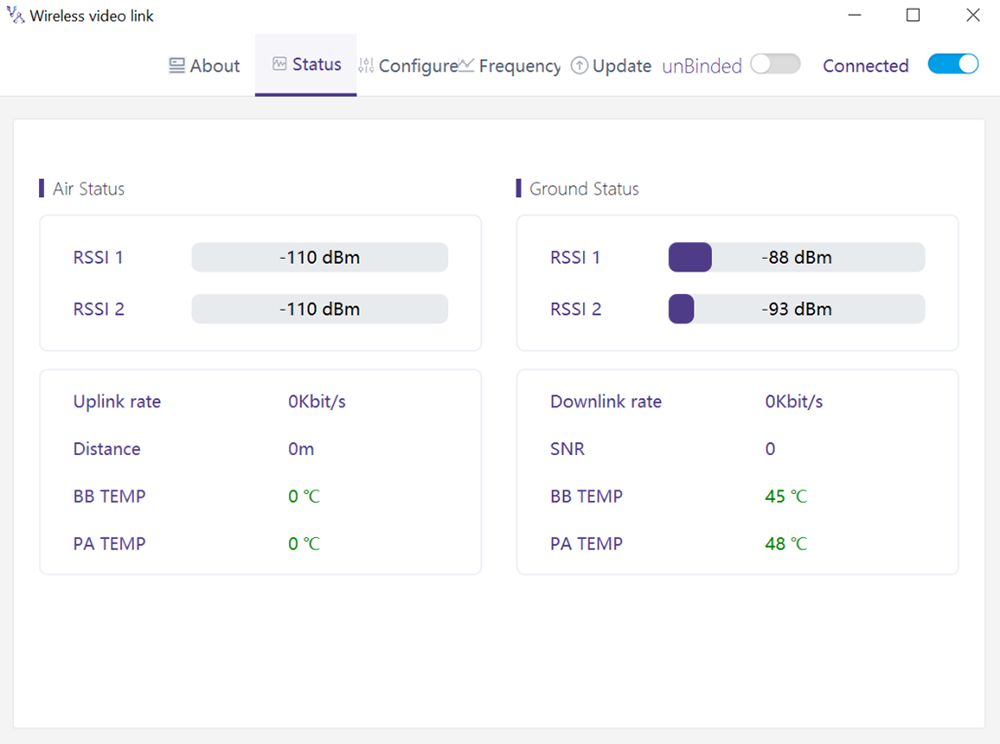
Read the status information of air unit and ground unit under “Status” page section:
Въздух: RSSI 1 & RSSI 2, Uplink rate, разстояние, BB TEMP, PA TEMP.
Земя: RSSI 1 & RSSI 2, Downlink rate, SNR, BB TEMP, PA TEMP.
4.5. Конфигурация
To change configuration, device need to be bound and wireless connection between air unit and ground unit needs to be established.
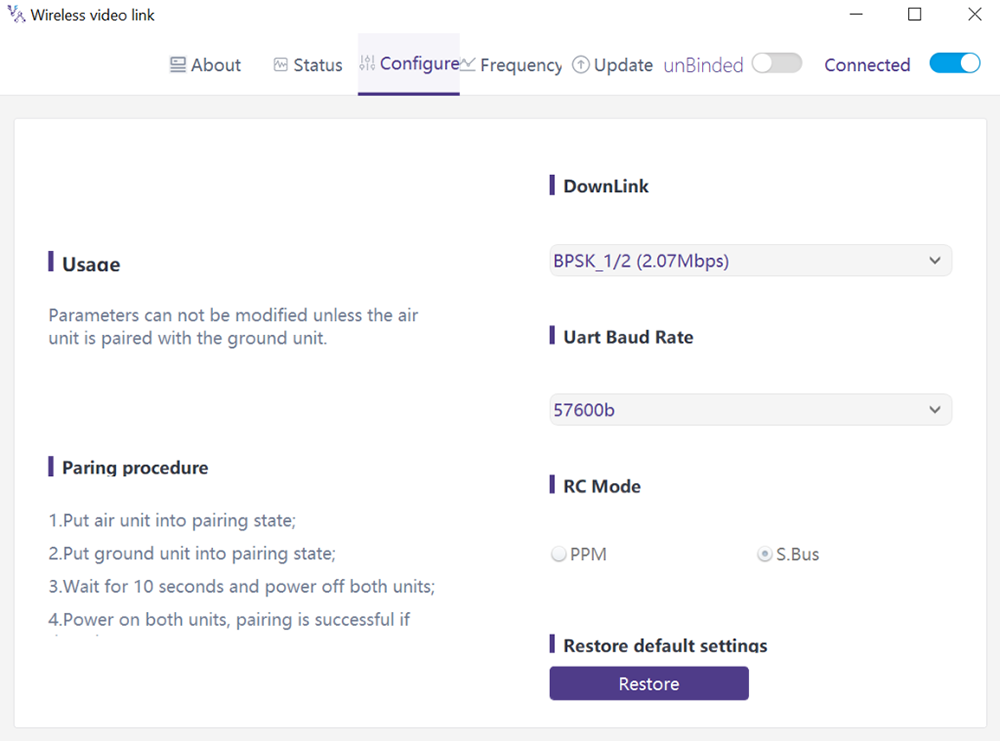
4.5.1. Downlink Mode configuration
To change downlink mode, device need to be bound and wireless connection between air unit and ground unit needs to be established
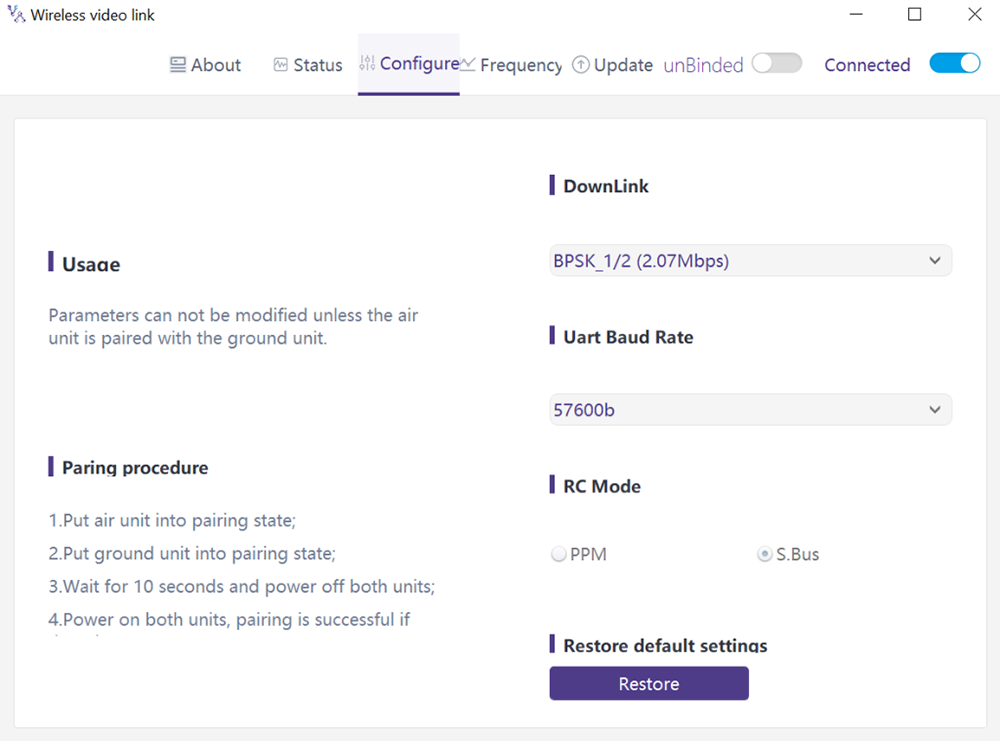
Има 8 options for downlink mode from the drop-down menu (see the following screenshot):
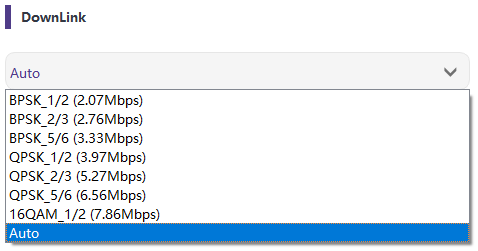
When it’s selected as Auto, modulation scheme will be dynamically adaptive based on real-time signal quality.
4.5.2. Baud rate configuration
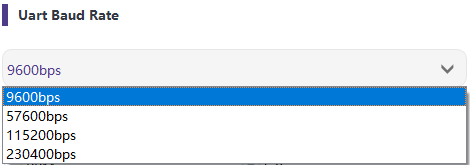
Има 4 options for serial port baud rate (see the following screenshot).
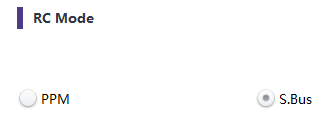
4.5.3. отдалечен control режим конфигурация
There are two options for remote control mode, PPM and S.BUS (see the following screenshot).
4.5.4. Restore по подразбиране Настройки
Click “Restore” to restore default settings.

4.6. Честота
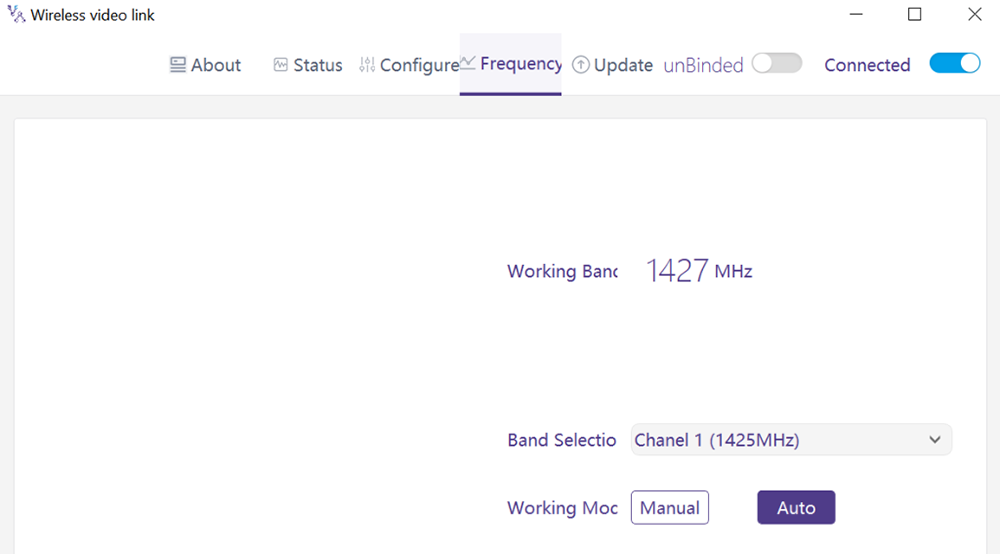
Frequency related information/parameters can be checked/set at page of frequency.
4.6.1. Frequency working mode
Работен режим:наръчник, Автоматичен.
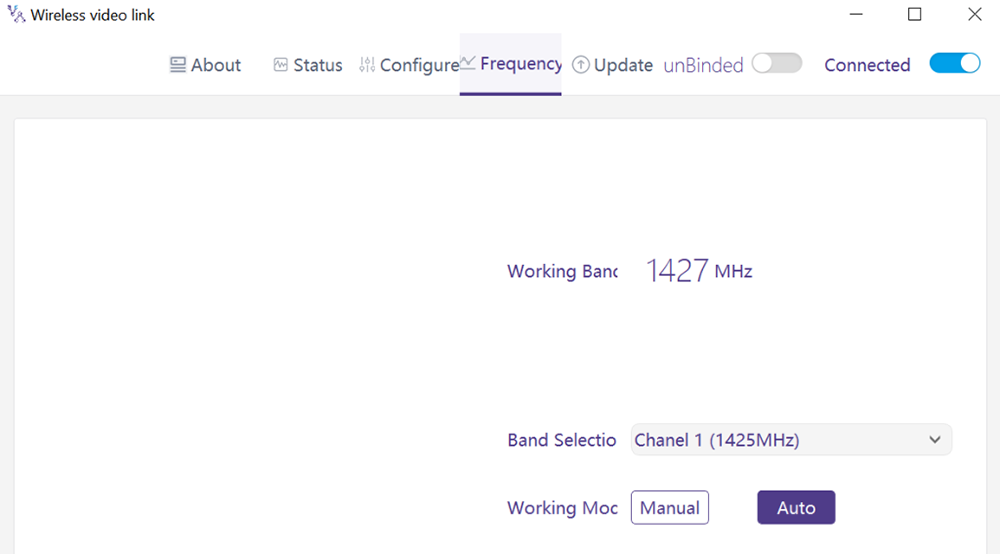
Ръчен режим: The user manually selects the working frequency.
Auto mode: The system selects the working frequency based on the frequency scanning.
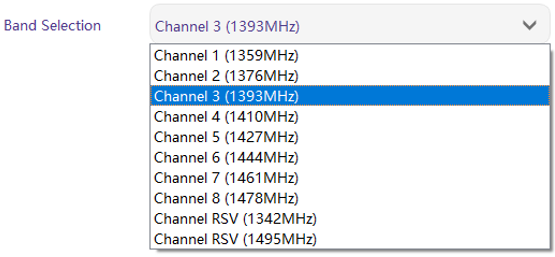
4.6.2. Избор на честота
Under the manual mode, working frequency can be selected from the drop-down menu. Please select and use the channels in accordance with the product specification (1330~1450MHz).
4.7. Подобряване на
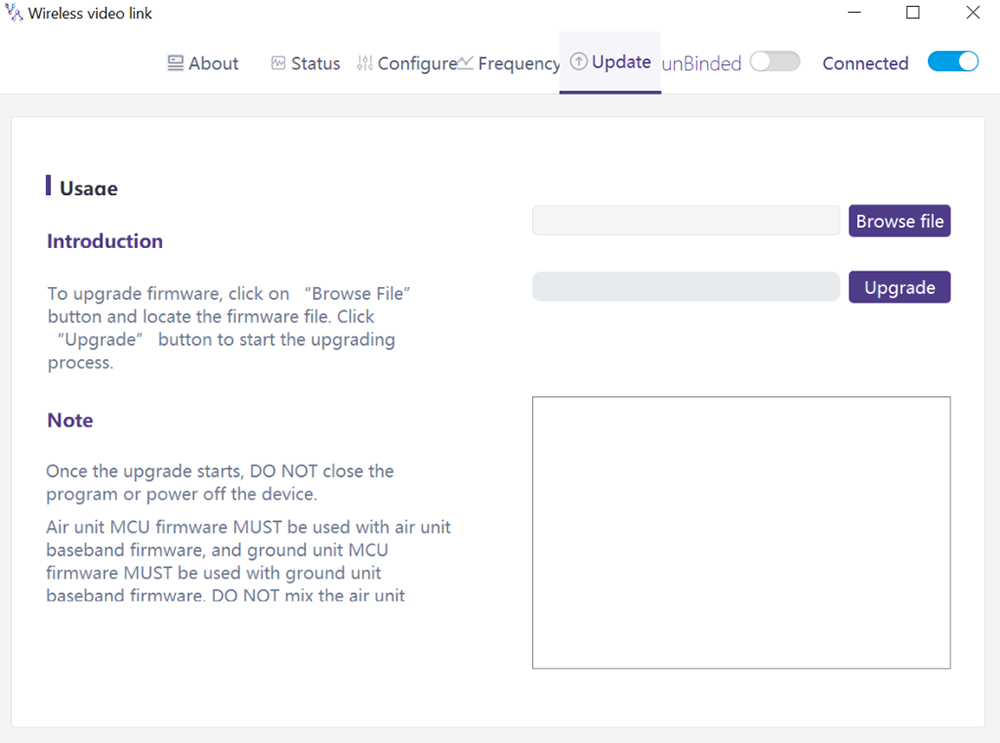
Забележка: air unit and ground unit need to be upgraded separately using the USB cable to connect wireless video link PC software.
Goes to the Upgrade page. Select the upgrade file, Щракнете върху бутона „Надстройка“ Purple, за да надстроите.
4.8. Управление на уеб страници
Освен управление на приложения за компютър чрез USB, Поддържа се и управлението на уеб страници чрез Ethernet. Директно свържете PC към Air/Ground Unit от Ethernet Cable, Задайте PC IP адрес като 192.168.199.33/24, и посетете 192.168.199.18 (въздушна част)/192.168.199.16 (партерен единица) чрез уеб страница.
Под статус на състоянието, Има подробна информация като RSSI, SNR, Txpower, LDPC статистика, Статистика на телеметрията, и т.н..
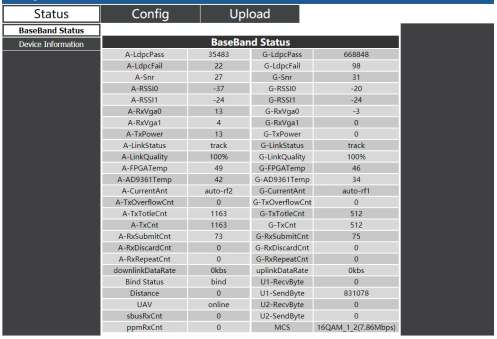
Под информация за състоянието на устройството, Има информация за SN и версия на фърмуера.

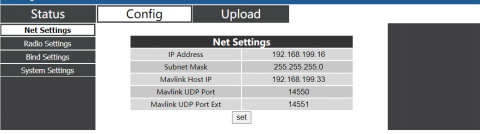
Под конфигуриране на настройки, Има IP адрес на самия единица, IP адрес на дестинация за телеметрия и UDP портове, Всички тези параметри могат да бъдат променени според заявката на потребителя.
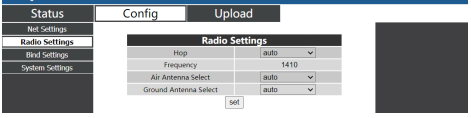
В рамките на настройките Configàradio, Има хоп, честота, Изборът на антена може да бъде зададен. Когато хопът е автоматичен, Потребителят не е необходимо/не може да зададе честота, system dynamically selects the best frequency to use by itself, in other words, when hop is manual, user can set frequency manually.
Under Config Bind setting, bind process can be triggered by clicking bind instead of physical bind button.

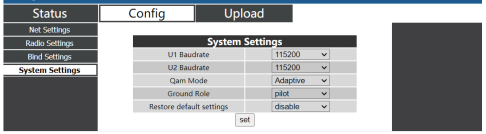
Under Config System settings, baud rate for U1/U2 two serial ports can be set. When QAM mode is set as adaptive, unit will dynamically change modulation scheme based on real-time signal quality. Role of pilot has bi-directional transmission while observer only has downlink data.
Under Upload Upload, browser and select file to be upgraded first, then click send to trigger the process.

5. Приложения
5.1. Приложения на Дистанционно управление
wireless video link modules support PPM and S. BUS protocol.
If PPM mode is used, please use wireless video link standard PPM cable to connect the ground unit and the remote controller’s trainer port.
If S. BUS mode is used, additional S.BUS receiver is needed. The ground unit is connected to the receiver. Then S. BUS receiver establishes wireless communication with the remote controller.
Both modes require the remote controller to be configured to the corresponding working mode.
If S. BUS receiver is used, please use a receiver whose working frequency is different from that of wireless video link module.
When PPM mode is used, the air unit needs to connect to the PPM RC port of a flight controller.
When S. BUS mode is used, the air unit needs to connect to the DSM/S. BUS RC port of a flight controller.
5.1.1. FRSKY remote controller
- PPM режим
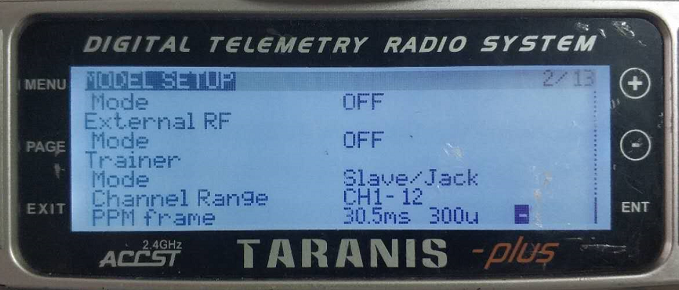
Model setup – Trainer – mode: If mode is configured to Slave/Jack, then the remote controller is in PPM mode.
Model setup – Internal RF: It needs to be configured to be off, and S. bus mode will be disabled.
- Режим S.BUS
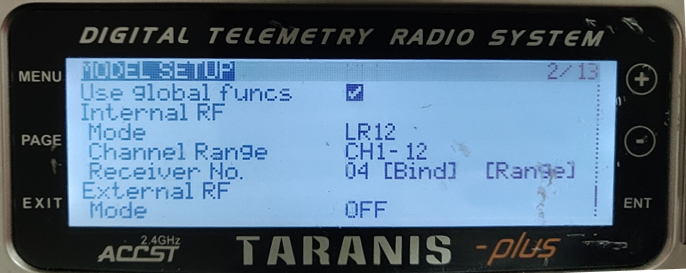
Model setup – Internal RF: LR12, D8, D16, OFF. Configuration of different parameters follow those of the receiver. If configured as OFF, С. bus mode will be disabled.
5.1.2. Futaba remote controller
- Режим S.BUS
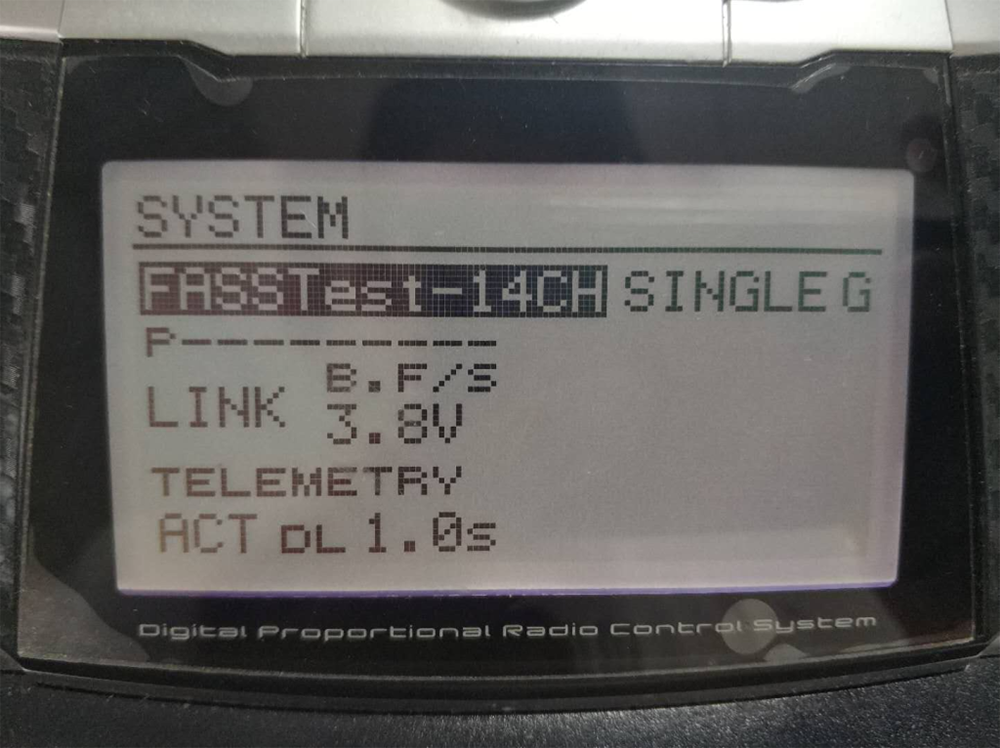
Linkage menu – система: FASSTest-14CH, FASSTest 12CH, ДЪРЖА МНОГО, ДЪРЖА 7CH, S-FHSS. Configuration of different parameters follow those of the receiver.
- PPM режим
wireless video link standard PPM cable is used to connect to Futaba trainer cable (one end is connected to the trainer port of Futaba controller, the other end is 3.5mm connector). PPM mode can be used directly without additional configuration.
5.2. Телеметрия Връзка
The telemetry Port of air unit connects “TELEM1” Port of a flight control(Pixhawk4).
5.3. Вземете на живо видео
Get real-time video through RTSP on media players like QGC/VLC. Make sure IP addresses of PC and camera are in the same subnet.
6. Бележки
6.1. Връзка изпълнение
- RF cable connector/Antenna connector check
Before flight, check if the antennas are connected to the modules. Running module without antennas connected results in very short range and can potentially damage the module. It is recommended to check the connection of all RF connectors. Loose connection can degrade the range significantly.
- Antenna placement
Place the two air antennas so that no matter what position the drone is, at least one antenna is not blocked by the payload from the ground station.
If the drone will fly in full throttle, it will lean forward. Install the air antenna so that it is close to be vertical to the ground when the drone moves forward in full throttle.
- Battery level
The reception performance will degrade if the battery runs low, Въпреки че все още може да захранва единиците.
6.2. RC връзка & remote controller
RC връзката на модула за безжична видео връзка поддържа протоколите PPM и S.Bus. Ако се използва протоколът PPM, Трябва да конфигурирате дистанционния контролер в режим PPM и да изключите безжичната трансмисия на дистанционния контролер. Ако се използва протокол S.BUS, Безжичната работна честота на приемника, свързана с дистанционния контролер, трябва да работи в различни честотни ленти с работещата честота на модула за безжична видео връзка и да има определена гаранция за изолация.
Ако не използвате RC връзката на модула за безжична видео връзка, Трябва да обърнете внимание на дистанционната работна честота на дистанционния контролер, когато използвате RC връзката на дистанционния контролер. Ако тя е в същата честотна лента като работната честота на модула за безжична видео връзка, it will cause interference with each other.
Avoid interference with wireless video link module by the wireless link of the remote controller or receiver when using wireless video link system.
6.3. Firmware update
Надграждане на файлове: FPGA upgrade file for air unit, FPGA upgrade file for ground unit, MCU1 upgrade file for air unit, MCU1 upgrade file for ground unit, MCU2 upgrade file for air unit, MCU2 upgrade file for ground unit.
Upgrade files are upgraded using wireless video link PC software. По време на ъпгрейд, the power cannot be powered off and the normal connection of USB cable should be ensured at the same time. Ако надстройката е неуспешна, the power cannot be powered off, моля, опитайте да надстроите отново директно. В противен случай, it will be necessary to return to us to use special burning tools for firmware burning.
6.4. Bind наperation
“Bind” is used to pair an air unit with ground unit.
To pair an air unit and a ground unit:
- Both air unit and ground unit are powered on.
- Connect the air and ground unit.
- Press the physical bind button of the air unit, last 5s+. The LED light next to the bind button flashes green, което показва, че е в обвързващо състояние.
- Press the physical bind button of the ground unit, last 5s+. The LED light next to the bind button flashes green, което показва, че е в обвързващо състояние.
- When the link indicator LEDs of ground unit are always on, it indicates that the air and ground unit is bound.
Забележка:
(1) If modules binding with different firmware version, the binding operation may fail.
(2) If the program of the air unit or the ground unit is burned incorrectly, such as burning the air unit to the ground unit, and performing the binding operation between the wrong air unit and the ground unit, the binding operation will fail.
(3) Units are bound already before factory delivery, customer do not need to bind again after unboxing.
(4) If unit is restored to factory setting, bind again is needed.
6.5. PC Windows firewall
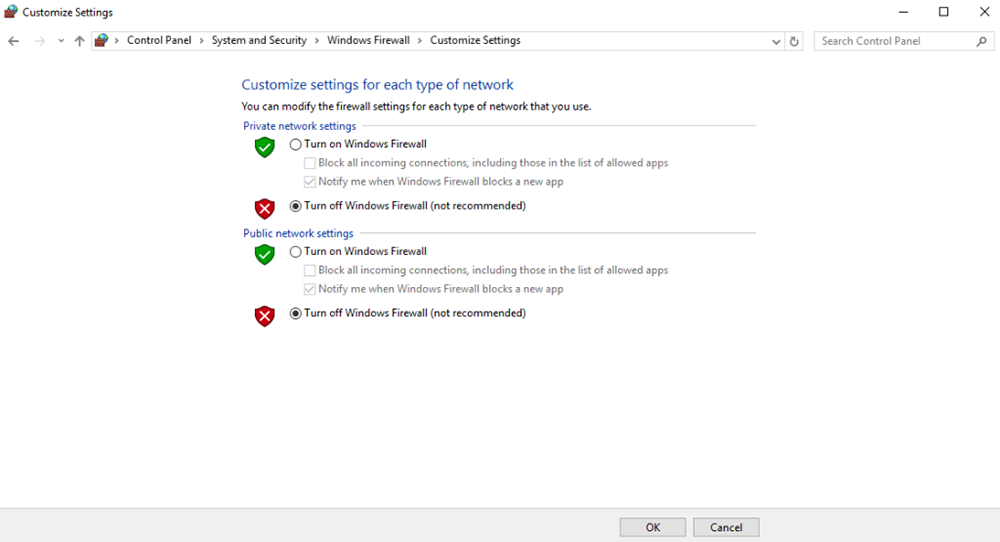
Make sure PC firewall is disabled in case video and/or telemetry is blocked. Here take Windows10 operation system for reference. Пътека: Control Panel\System and Security\Windows Firewall\Customize Settings.
Set Private/Public network settings as ‘Turn off Windows Firewall’ as below, click ‘OK’.
6.6. Set PC IP address
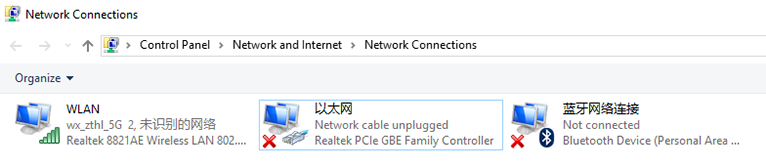
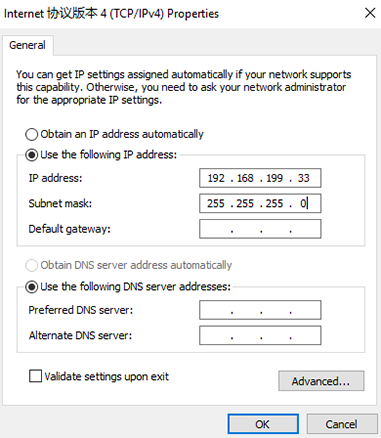
PC IP address should be set correctly when watch video in PC, IP address can be set following below steps:
Double click ‘Ethernet’ at Control Panel\Network and Internet\Network Connections,
Double click ‘Internet protocol version 4(TCP/IPv4)’, set PC IP address like below, click ‘OK’ finish.
6.7. J30J-37 connector pin definition
| име | щифт |
| мощност | 1,2,20 |
| GND | 3,10,15,21,22,29,31 |
| Ethernet1 TX+ | 7 |
| Ethernet1 TX- | 26 |
| Ethernet1 RX+ | 6 |
| Ethernet1 RX- | 25 |
| Ethernet2 TX+ | 5 |
| Ethernet2 TX- | 24 |
| Ethernet2 RX+ | 4 |
| Ethernet2 RX- | 23 |
| Ethernet3 TX+ | 8 |
| Ethernet3 TX- | 27 |
| Ethernet3 RX+ | 9 |
| Ethernet3 RX- | 28 |
| SBUS_V | 11 |
| PPM | 12 |
| GPS_SYNC | 13 |
| Запазено | 14 |
| 232TX1 или 422Y2 | 16 |
| 232RX1 или 422A2 | 17 |
| 232TX2 или 422Y1 | 18 |
| 232RX2 или 422A1 | 19 |
| SBUS1 | 30 |
| SBUS2 | 32 |
| Запазено | 33 |
| 422Z2 или TTLTX1 | 34 |
| 422B2 или TTLRX1 | 35 |
| 422Z1 или TTLTX2 | 36 |
| 422B1 или TTLRX2 | 37 |
7. FAQ
| Q1: How does the безжична видео връзка module supply power? |
| Въздушна единица: DC, power supply range: 9-26V, recommended to use 24V. |
| Наземна единица: DC, power supply range: 9-26V, recommended to use 24V. |
| Q2: Може ли безжична видео връзка module be powered on before antennas installation? |
| The antennas must be installed before power on. |
| Q3: How many antennas do безжична видео връзка‘s air unit need to be installed? |
| Two antennas need to be installed. |
| Q4: How many antennas do безжична видео връзка‘s ground unit need to be installed? |
| Two antennas need to be installed. |
| Q5: Can different types of remote controllers be used to control drone? |
| да, just output standard PPM signals through the coach port, or use S. BUS receiver. |
| Q6: Can two air units be installed on a drone? |
| Не, a drone can only have one air unit. |
| Q7: Can two ground units be installed at the receiving end? |
| The ptp system can only install one ground unit; the ptmp system supports more than one ground units. |
| Q8: What if the uplink/връзка надолу LED indicator is not on? |
| Please follow the following steps: |
| 1) Please check the power supply of the air and ground unit is normal. |
| 2) Please check the antennas installation of the air and ground units is normal: whether the antennas is blocked; whether the antennas connection is loose; whether the RF cable and port is not tightened; |
| 3) Check whether the TX frequency of the ground unit is consistent with the RX frequency of the air unit with Taiysnc PC App. |
| 4) Check the TX power of the ground unit with Taiysnc PC App. |
| 5) If above steps cannot solve the problem, please contact wireless video link technical support staff. |
| Q9: Telemetry connection cannot be setup properly? |
| Please follow the following steps: |
| 1) Please check whether the link status is normal. |
| 2) Моля, проверете дали серийната телеметрична кабелна връзка между контролера на полета и въздушния блок е правилна и тази между наземната единица и наземната станция е правилна. |
| 3) Проверете дали процентите на предаване са еднакви. |
| 4) If above steps cannot solve the problem, please contact wireless video link technical support staff. |
| Q10: RC връзката не може да бъде настройка properly? |
| Please follow the following steps: |
| 1) Please check whether the link status is normal; |
| 2) Моля, проверете дали RC, свързващ между полетния контролер и въздушния блок, е правилен и този между заземяването и дистанционния контролер е правилен; |
| 3) Ако използвате режим PPM, Проверете конфигурацията на режима на дистанционния контролер; Ако използвате s. Режим на автобус, Проверете конфигурацията на приемника и дистанционния контролер; |
| 4) Моля, проверете дали RC връзката на въздушния и наземния блок е правилна. Ние осигуряваме стандартни кабели. Ако го направите сами, Моля, проверете ПИН; |
| 5) Моля, проверете дали режимът RC е конфигуриран правилно в приложението за безжична видео връзка; |
| 6) If above steps cannot solve the problem, please contact wireless video link technical support staff. |
| Q11: Ами ако няма видео изход? |
| Please follow the following steps: |
| 1) Please check whether the link status is normal; |
| 2) Моля, проверете дали Ethernet кабелът и камерата са нормални; |
| 3) Моля, проверете дали RTSP адресът е правилен; |
| 4) Моля, проверете дали PC IP адресът и IP адресът на камерата са в една и съща подмрежа; |
| 4) If above steps cannot solve the problem, please contact wireless video link technical support staff. |
| Q12: Ами ако видеото страда от изкривяване? |
| Please follow the following steps: |
| 1) Моля, потвърдете дали конфигурацията на режима на низходящата връзка е по -голяма от скоростта на видео бита; |
| 2) Моля, проверете дали Ethernet връзката на кабела на въздушния блок е надеждна; |
| 3) Дали връзката на Ethernet кабела на наземния блок е надеждна; |
| 4) Моля, проверете дали съществува смущения, Променете работната честота, ако е необходимо; |
| 5) Ако няма намеса, дали е достигнато граничното разстояние на комуникационната връзка; |
| 6) If above steps cannot solve the problem, please contact wireless video link technical support staff. |
| Q13: Ами ако разстоянието на предаване на модула е по -кратко от очакванията? |
| Please follow the following steps: |
| 1) Моля, проверете дали антената и кабелът RF са инсталирани правилно и проверете дали са доставени аксесоари за Falcon. |
| 2) Моля, уверете се, че въздушните антени не са блокирани от полезния товар, Няма очевидно блокиране в основната единица близо до антените, а антените на въздушните и заземяващите единици са перпендикулярни на земята. |
| 3) Моля, проверете дали модулът работи с пълен RF мощност изход. |
| 4) Моля, проверете дали конфигурацията на режима на низходящата връзка е правилна или не, Режимите на низходяща способност с висока пропускателна способност могат значително да намалят разстоянието на предаването. |
| 5) Моля, проверете дали работната честота очевидно е намерена или не. |
| 6) Моля, проверете дали има сериозно препятствие между въздуха и наземния блок по време на полет, and the complex geographical environment will also affect the transmission distance. |
| 7) If above steps cannot solve the problem, please contact wireless video link technical support staff. |
Задай въпрос
Вашето съобщение е изпратено