






Why Your AV-to-IP Encoder Works on Wi-Fi but Not Over 4G — And How to Fix It (P2P Setup Guide)
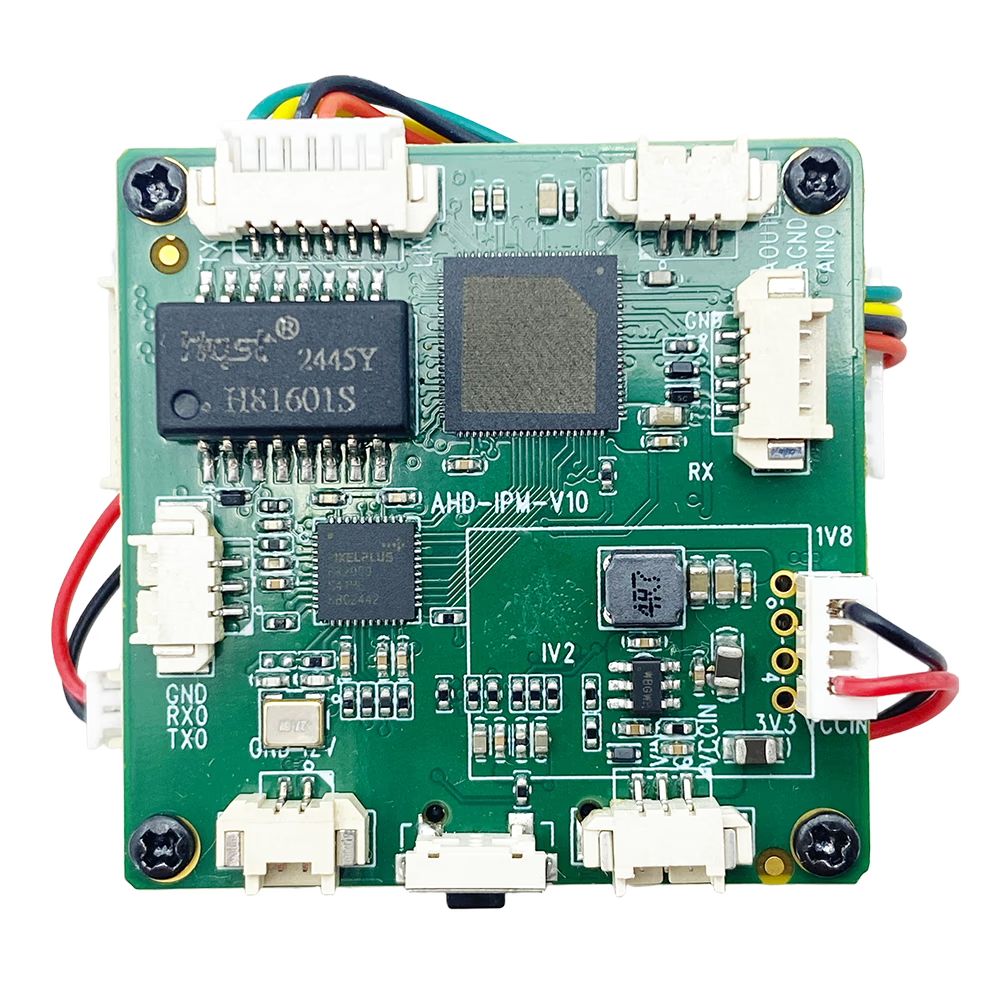
Many users who previously purchased our standard AV-to-IP video encoder board later added the 4G/Wi-Fi module for mobile remote access. A common situation is:
- The encoder works perfectly on local Wi-Fi
- The R380 mobile APP also works via Wi-Fi
- But via 4G mobile internet, the R380 APP cannot find the camera
- Local streaming works, but remote 4G access fails
If this is happening to you, the reason is simple:
Your original AV-to-IP encoder board was designed for LAN access via wired Ethernet.
After adding a 4G/Wi-Fi module, the encoder must be configured with a P2P server, a unique User ID, and a password so that the mobile APP knows which device to connect to over the internet.
Below is the complete solution.
Table of Contents
Root Cause: Missing P2P Server Configuration
When you use Wi-Fi, everything is on the same local network, so the APP can detect the encoder automatically.
But when using 4G mobile networks:
- Your smartphone and the encoder are not on the same LAN
- The encoder must register itself to a P2P cloud server
- The mobile APP must log in using a unique User ID & password
- Only after this registration can the APP discover the encoder over 4G
If the encoder’s P2P settings are empty, the R380 app cannot find it through mobile internet.
Step-by-Step Solution: How to Configure the P2P Server
First, introduce a user’s simple operation way.
Hello. This information may be useful. I was unable to program the first and second boards using the as you suggested. I used a different method. I connected the board to the computer via a router and 192.168.1.188. Then . In the window that opened, I set the settings. Then and . Everything worked!
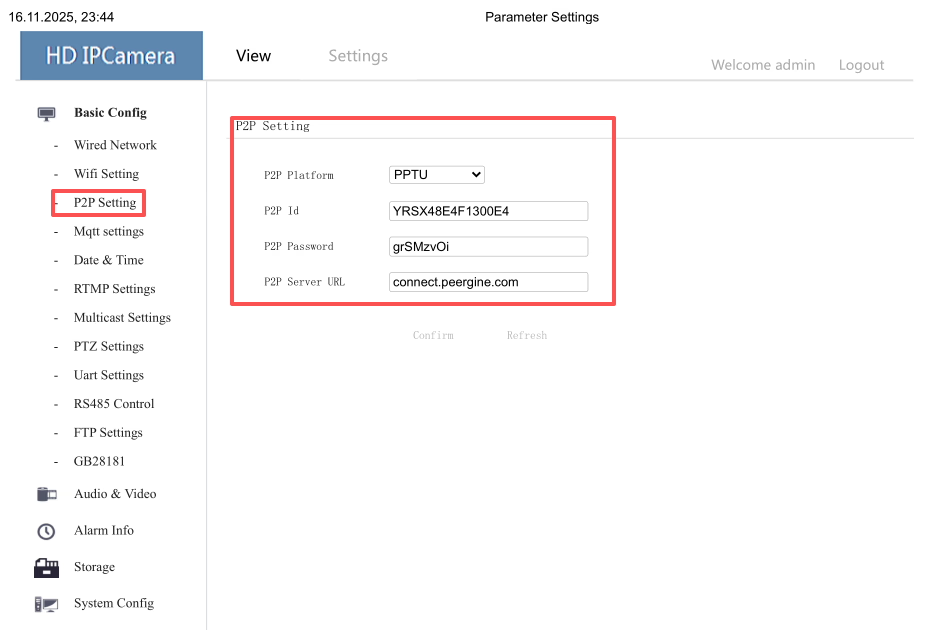
Follow these steps to correctly set up P2P on your AV-to-IP encoder board.
1. Install the “IP Search” Tool on Windows
If you don’t have the IP search tool, download it here:
Download IP Search Tool:
https://drive.google.com/file/d/13juxfwvqjsFaRCv7XUkWE2XFSz6sE5kf/view?usp=sharing
Install and run it on a Windows PC.
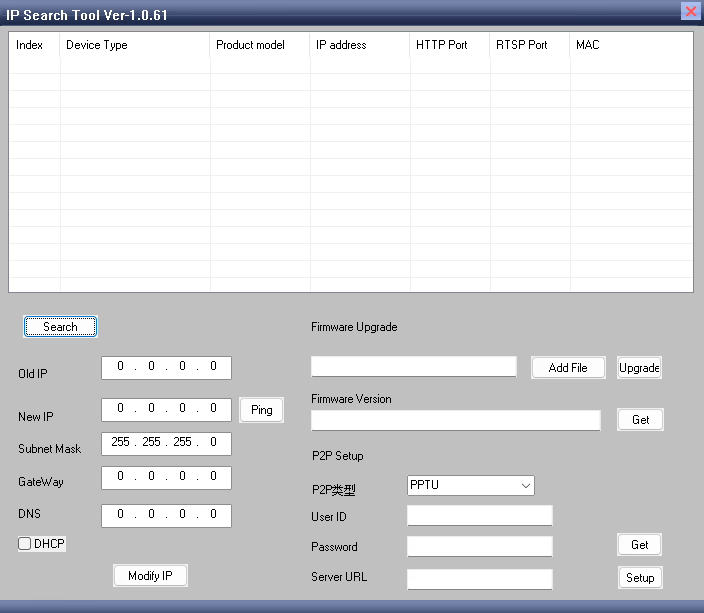
2. Click “Search” to Find Your Encoder Device
Connect the encoder using a LAN cable to your PC or to the same router.
Press Search → Your encoder hardware will appear in the list.
3. Configure the P2P Server
In the encoder’s configuration window, locate the P2P settings section.
You need to enter the following:
- User ID (provided by us — globally unique)
- Password (provided by us)
- P2P URL:
https://connect.peergine.com/
If you don’t have a User ID & password yet, please contact us — each encoder requires a unique ID.
4. Click “Setup” to Write the Configuration
Press Setup.
The encoder will automatically reboot.
This is normal.
5. Wait a Few Minutes, Then Verify
After rebooting:
- Open the IP Search tool again
- Click Search to rediscover the encoder
- Click Get to read back the settings
If you see the same User ID, password, and P2P URL you entered:
✔ P2P configuration is successful
If the fields are blank or failed to update:
✘ The ID might be used by another device
→ Contact us for a new unique User ID
Or simply repeat the steps again.
After Setup — R380 APP Should Work Over 4G
Once P2P is correctly configured:
- Your encoder will automatically register to the P2P server
- Your R380 app will log in and locate the encoder from anywhere
- Wi-Fi and 4G will both work
This solves 99% of cases where local Wi-Fi works but 4G mobile connection fails.
FAQ
Q1: Why do I need a P2P server?
Because on 4G networks your smartphone and the encoder are on different public networks. P2P lets them connect securely through the cloud.
Q2: I entered the User ID but the APP still cannot connect?
Possible reasons:
User ID already used by another customer
Incorrect password
P2P server URL not set
Settings not saved (did not click Setup)
Encoder not rebooted
4G data card has firewall restrictions (rare)
Q3: Can I use my own P2P server?
No. Our encoders support only the official server:
https://connect.peergine.com/
Q4: Does the 4G module need any special configuration?
No. As long as the SIM card has internet access, only the encoder needs P2P setup.
Conclusion
If your AV-to-IP encoder works on Wi-Fi but not via 4G using the R380 APP, the most likely reason is missing P2P configuration on the encoder board.
By following the steps above to set the P2P server, User ID, and password, your device will be discoverable anywhere over the mobile network.
If you need a new User ID, password, or remote assistance, feel free to contact us anytime.
Ask A Question
Thank you for your response. ✨