






FHD Video Data RC Transmission System
免責聲明
- 使用前請仔細閱讀使用手冊. 請務必注意警告並完全理解所有要點.
- 請嚴格遵守當地無線電頻率管理規定.
- 請依照說明書中的安裝步驟使用本產品. 對於用戶安裝、改造造成的設備或人員損害,本公司及代理商不承擔法律責任.
- This copyright of this manual belongs to VCAN Group Limited No one may make copies without written consent.
警告
安裝注意事項
1. 上電前, 確保天線連接可靠 . 除此以外, 這會導致設備損壞.
2. 確保電壓在使用範圍內.
3. 請注意您的無人機上所有電子設備的 EMC.
4. 建議天線朝下安裝,並將天線遠離無人機上的金屬.
5. 確保使用匹配的天線.
使用前
1. 確保所有電纜連接正確且牢固.
2. 無異物 (e.g. 液體, 沙, 等等) 可以在設備內部輸入.
3. 它需要 15 設備啟動秒數. 在設備完成啟動之前,無法傳輸視訊和數據.
4. 請確保設備使用環境無其他電磁幹擾.
5. 當訊號減弱時, 可以透過改變天線的指向來改善效果.
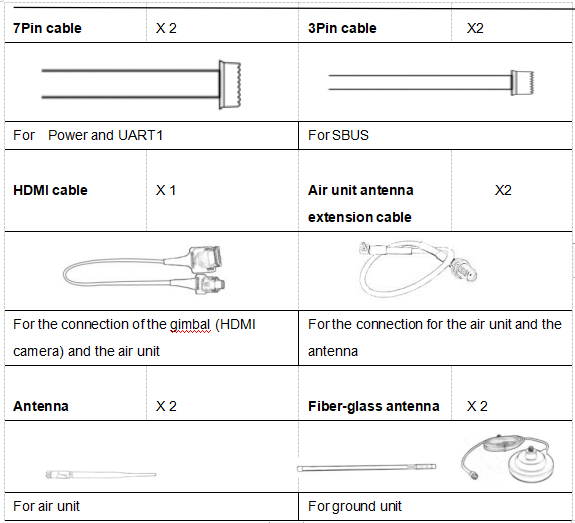
打包清單
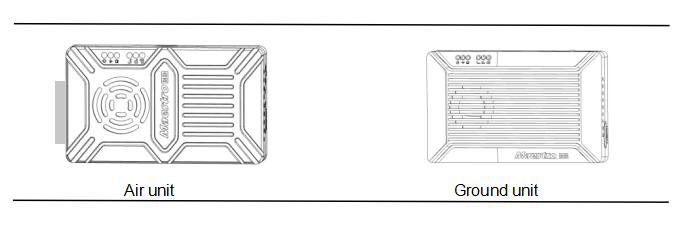
Modules
飾品
概觀
M50&M51, 專為無人機設計 , is a kind of wireless FHD video and data transmission system. 具有體積小的優點,low power consumption and long distance. 系統可以傳輸FHD視頻, 飛行控制數據, 雲台控制數據, 和RC控制數據同時. 借助H.265視頻編解碼器和OFDM調製技術, M50&M51 can achieve low latency, high resolution video transmission.
擁有先進的射頻技術, M50&M51 can support three frequency bands. 用戶可以輕鬆更改頻段. Users can choose the suitable frequency band according to local regulations. The Chinese radio type approval ID is 2019DP8189(CMIIT ID:2019DP8189). Also you can choose frequency hopping or fixed mode under special conditions.
The air unit of M50&M51 system can be configured to Point-to-Point mode or Repeater mode. Users only need one more air unit and simple configuration to achieve long distance transmission. 請觀看說明視頻以獲取更多信息.
M50&M51 has an encryption function. 用戶可以在需要時啟用/禁用此功能. 使用 Maestro Assistant 或 Web UI 可以輕鬆設定加密程式碼.
該設備有 2 個 UART——UART1 和 UART2. 兩種協議, Mavlink和透明, 被支持. 用戶可以將其用於飛行控制數據和雲台控制數據傳輸. 系統還可以透過SBUS連接埠提高RC控制距離. 在M50的地面單元上&M51, 有一個USB 3.0 港口. 用戶可以新增USB儲存裝置來保存FHD視頻.
M50&M51支援多種視訊輸入輸出接口, 如HDMI, 以太網絡, SDI, CVBS . 它也可以匹配市場上大多數的萬向節.
型號說明
中號 5X 高/短*:
M代表大師系列.
5X距離等級代碼*.
機上端視訊介面H/S指示.
*50 代表7公里,51 代表17公里,H代表HDMI,S代表SDI. 訂購時請告訴我們正確的型號.
例如:M50H代表7公里,機上端視訊介面為HDMI(支援HDMI和乙太網路)。
特徵
長途 調製
-最多17公里 @ los– OFDM
視頻接口 數據接口
-HDMI/以太網/SDI/CVB – 串口(TTL/RS232)/SBUS,
跳頻/固定頻率 頻帶
-固定: 使用者定義的 – 800MHz/1.4GHz/2.4GHz,
-跳躍: 自動 工作模式
BW – 空氣單元可以是 :點對點模式
-3/5/10/20 MHz中繼器模式
編解碼器 視頻比特率
– H.265 / H.264 – 500Kbps〜5Mbps
工作溫度 功率範圍
– 40℃〜+ 70℃ – 直流9~28V電池3S~6S
M51接口描述
空中單位
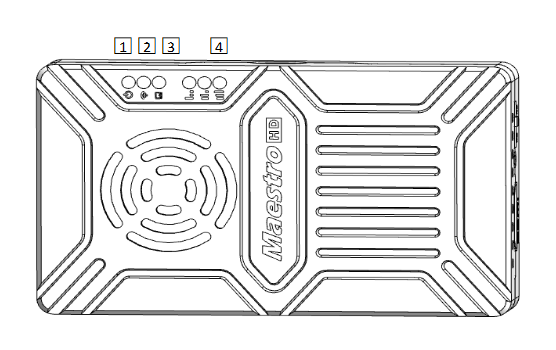
1. 電源指示燈
天空端啟動時此燈綠色常亮.
空氣單元開始, 指示燈燈每秒閃爍一次,如果沒有HDMI的視頻源輸入. 如果有視頻源,指示燈將是固體綠色的.
2. 鏈接指示燈
| LED 模式說明 |
| 綠色常亮 無線連結已建立 |
| 無線鏈接丟失 |
3. 狀態指示燈
| LED 模式(僅在啟動時閃爍) 說明 |
| 眨 3 次初始化確定, 頻率為2.4GBLINK 2 次初始化確定, 頻率為1.4GB鏈接 1 時間初始化確定, 頻率為800M |
| 實心綠色空氣單元異常 |
4. RSSI指標
| LED模式描述 |
| 3 實心綠色無線信號最強 |
| 2 實心綠色無線信號是中等的 |
| 1 實心綠色無線信號很弱 |
| 所有LED都沒有無線信號 |
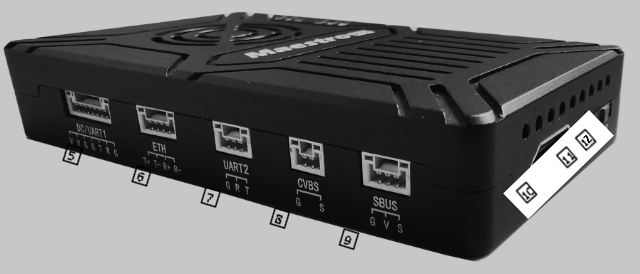
5. DC/UART1
| 數 | 特點 | 描述 | 輸入/輸出 |
| 1,2 | V | +VCC功率輸入(9約28V) | 一世 |
| 3,4,7 | G | GND | 輸入/輸出 |
| 5 | Ť | TXD((從空氣單元到外部) | 該 |
| 6 | - [R | RXD((從外部到空氣單元) | 一世 |
6. 以太網絡
| 數 | 特點 | 描述 | 輸入/輸出 |
| 1 | T+ | TX+ | 該 |
| 2 | Ť- | TX- | 該 |
| 3 | 右+ | 接收+ | 一世 |
| 4 | - [R- | RX- | 一世 |
7. 串口2
| 數 | 特點 | 描述 | 輸入/輸出 |
| 1 | G | GND | 輸入/輸出 |
| 2 | - [R | RXD((從外部到空氣單元) | 一世 |
| 3 | Ť | TXD((從空氣單元到外部) | 該 |
8. CVBS視頻輸入接口
| 數 | 特點 | 描述 | 輸入/輸出 |
| 1 | G | GND | 輸入/輸出 |
| 2 | 小號 | CVBS視頻中 | 一世 |
9. SBU OUT接口
| 數 | 特點 | 描述 | 輸入/輸出 |
| 1 | G | GND | 該 |
| 2 | V | +5v輸出(imax 1a) | 該 |
| 3 | 小號 | SBUS_OUT | 該 |
10. 鍵入A HDMI視頻輸入界面
11. 按鍵
按 10 秒, 空氣單元將將所有參數還原為工廠設置。
12. 模式開關
WB是寬帶,使用寬的無線頻帶.
NB是狹窄的樂隊,使用狹窄的帶與多模型傳輸.
尖端: 建議使用WB模式,因為該模式在點對點傳輸中具有更好的性能.
地面單位
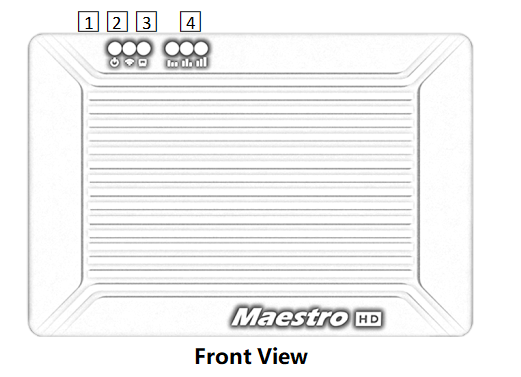
1. 電源指示燈
當接地單元電源打開時,該指標為固體綠色.
2. 鏈接指示燈
| LED 模式說明 |
| 綠色常亮 無線連結已建立 |
| 無線鏈接丟失 |
3. 狀態指示燈
| LED 模式說明 |
| 眨 3 次初始化確定, 頻率為2.4GBLINK 2 次初始化確定, 頻率為1.4GB鏈接 1 時間初始化確定, 頻率為800M |
| 綠色常亮 地面單元異常 |
4. RSSI指標
| LED 模式說明 |
| 3 實心綠色無線信號最強 |
| 2 實心綠色無線信號是中等的 |
| 1 實心綠色無線信號很弱 |
| 所有LED都沒有無線信號 |
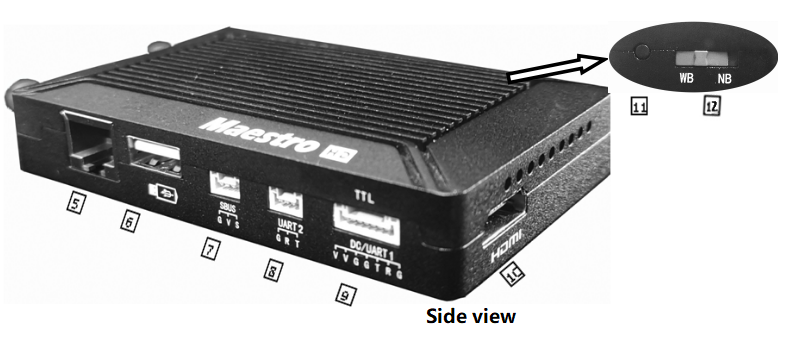
5. 網口(RJ45)
連接到主機. Support RTSP/TCP/UDP protocol.
6. USB port(Type A)
Connect to USB disk for video recording
7. SBUS input port
| 數 | 特點 | 描述 | 輸入/輸出 |
| 1 | G | GND | 該 |
| 2 | V | +5V輸出 | 該 |
| 3 | 小號 | SBUS_IN | 一世 |
8. 串口2
| 數 | 特點 | 描述 | 輸入/輸出 |
| 1 | G | GND | 輸入/輸出 |
| 2 | - [R | RXD(from external to ground unit) | 一世 |
| 3 | Ť | TXD(from ground unit to external) | 該 |
9. DC/UART1
| 數 | 特點 | 描述 | 輸入/輸出 |
| 1,2 | V | +Vcc DC Input (9~28V) | 一世 |
| 3,4,7 | G | GND | 輸入/輸出 |
| 5 | Ť | TXD(from ground unit to external) | 該 |
| 6 | - [R | RXD(from external to ground unit) | 一世 |
10. HDMI(Type A)
FHD video output port .
11. 按鍵
Hold on for 3 seconds to start video recording and then hold 3 seconds to stop recording. You need to insert USB storage device first.
Hold on for 10 seconds, ground unit will restore all parameters to factory setting。
12. 模式開關
WB是寬帶,使用寬的無線頻帶.
NB是狹窄的樂隊,使用狹窄的帶與多模型傳輸.
The air and ground unit should be the same direction.
安裝
空氣
1. Installing the air unit on your drone
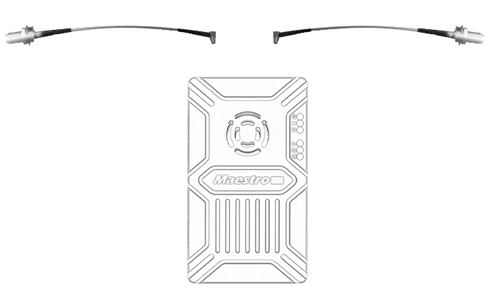
1.1 Insert the MMCX-to-SMA cable into the ports on the side of the air unit. When you hear a click, it means good connection.
1.2 Fixed the device and RF cable on your drone. 安裝天線. 注意天線的連接要擰緊. 將天線朝下. 天線20cm範圍內無金屬或屏蔽物.
2. 連接相機 (萬向節).
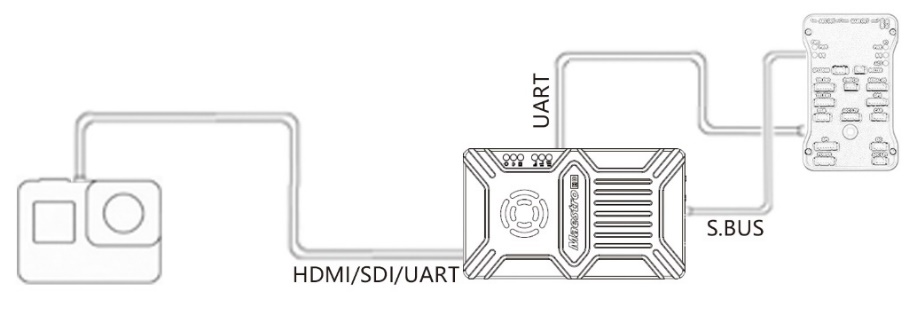
使用 HDMI/SDI/乙太網路線將相機/雲台連接至天空端. 並將UART1和SBUS連接到飛控. 請勿將天線放置在馬達或電調附近, 否則設備會受到干擾.

無人機完整安裝圖
地面
1. 連接天線
1.1 將隨設備提供的玻璃纖維天線連接至地面單元. 它們有共同的連接埠——SMA. 確保擰緊接頭. 該 2 玻璃纖維天線間隔1.5m.

1.2 連接 HDMI 電纜 .
使用 HDMI 連接線將 HDMI 連接埠連接至顯示器. FHD視訊訊號將直接顯示在顯示器上.
2. 連接到地面站
地面站與M51地面單元有兩種連接方式, 傳輸視訊和數據.
獲取視頻
1. 直接透過 HDMI
如果地面站有 HDMI 監視器, 只需透過 HDMI 線將地面裝置直接連接至顯示器.
2. 透過乙太網路
使用CAT電纜將乙太網路連接埠連接到電腦或地面站. 使用者可以使用第三方軟體進行解碼, 例如VLC, 任務規劃師.
如果M51天空端連接網路攝影機, 地面單元還可以透過 HDMI 直接輸出 FHD 視訊進行監控. 請觀看影片教學和本文檔的其他部分.
取得數據
1.您可以透過UART1和UART2從地面設備取得數據. 也許您需要一個 UART 轉 USB 轉換器.
2. 您可以使用UDP/TCP協定從乙太網路連接埠取得數據.
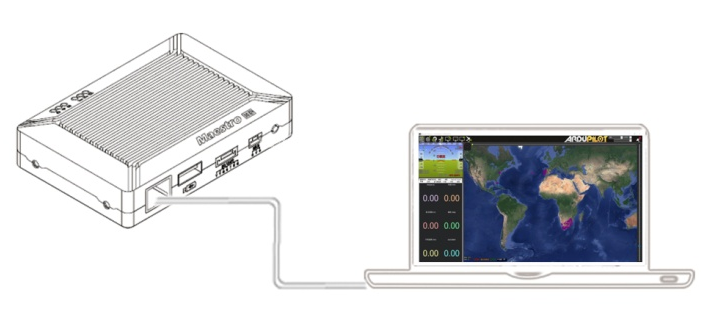
地面連接圖
M51 操作說明
快速啟動
1. 準備中
確保所有連線均已準備就緒, 包括天線, HDMI線等.
2. 電源打開
直流電壓9~28V. 上電後, 電源 LED 將呈現綠色常亮.
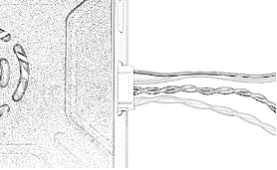
任何問題, 請參閱常見問題解答. 它需要 15 啟動秒數. 系統啟動後, 可以建立無線傳輸. 視訊傳輸將需要 15 更多秒.
M51 與任務規劃器
依照步驟將 M51 與 Mission Planner 結合使用:
1. 將M51天空端的UART1連接到飛控, 例如皮克斯霍克. 連接雲台至M51 ETH或HDMI.
2. 確保所有空氣和接地線連接完成. 打開系統電源.
3. 將任務規劃器安裝到您的電腦上.
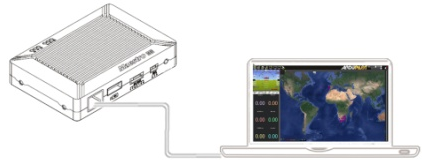
4. 設定電腦的IP位址.
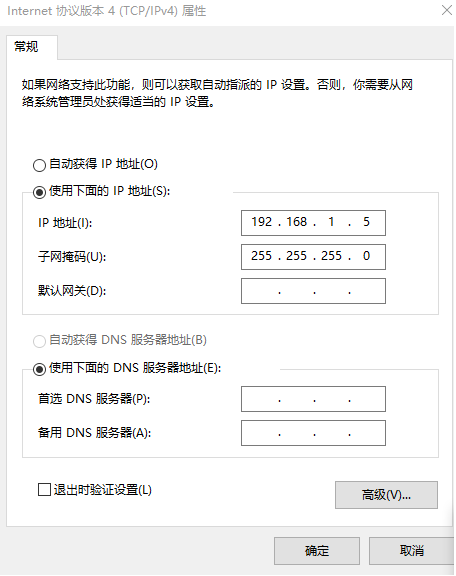
開啟「網路和Internet」設定. 選擇“Internet協定版本” 4 (TCP / IPV4) 特性”. 將IP位址修改為「192.168.1.xxx」(xxx為0~255),除了 192.168.1.36 和192.168.1.100)。
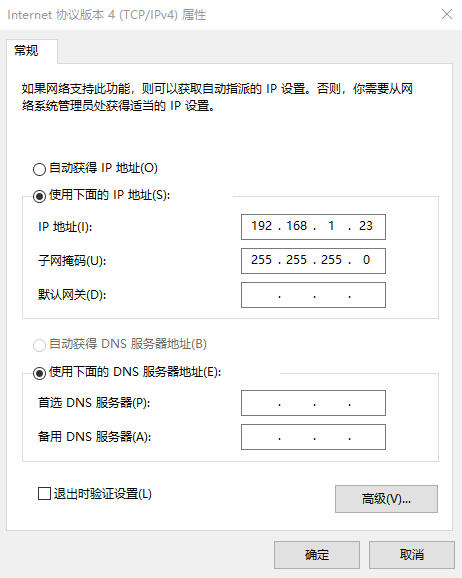
5. 取得數據
從M51地面單元取得資料有3種方法, 使用工作規劃器:
- 透過乙太網路的 UDP 端口;
- 透過乙太網路的 TCP 連接埠;
- UART (com)
5.1 從UDP連接埠取得數據.
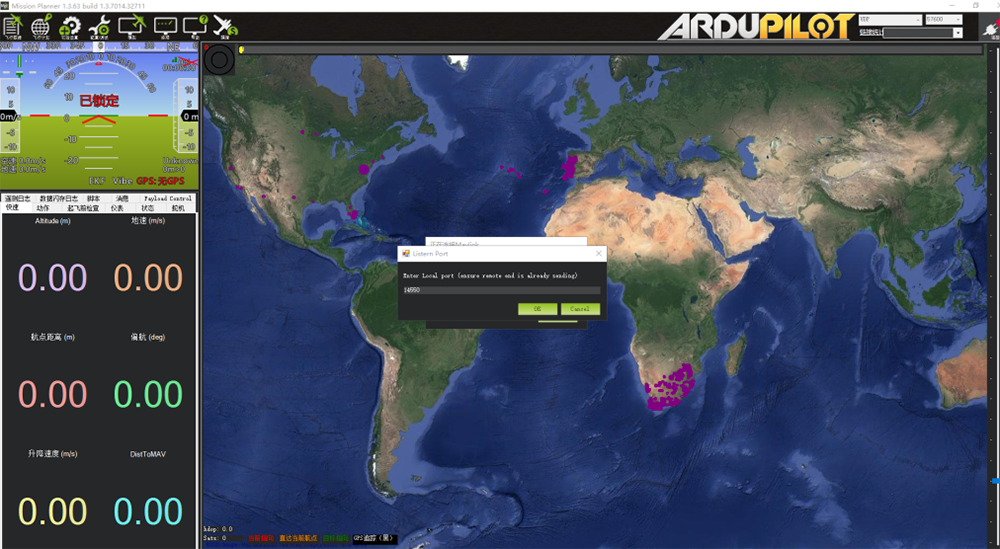
開放式任務規劃器,選擇UDP,點選“連線”按鈕, 它將打開一個新視窗“監聽端口”,修改連接埠為14550(如果網頁上已經修改了UDP連接埠號碼), 請填寫新號碼. 欲了解更多信息, 請進入網頁配置),然後點擊“確定”, 任務規劃器將取得飛行數據。
5.2 從TCP連接埠取得數據.
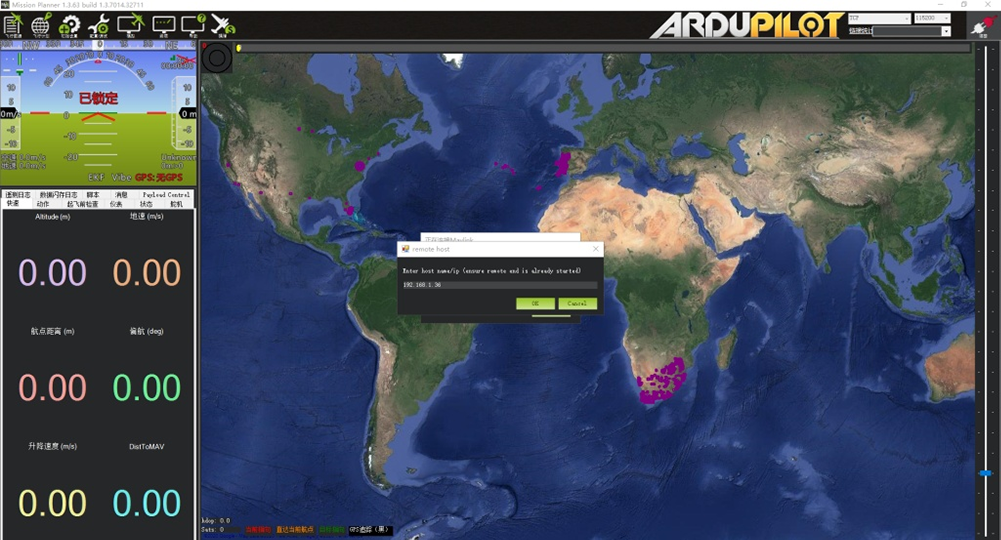
開放式任務規劃器,選擇TCP,點選“連線”按鈕, 它將打開一個新視窗“監聽端口”,填寫IP的空白: 192.168.1.36, 遠端連接埠是 5760
(如果網頁上的IP位址和TCP連接埠號碼已更改, please fill in the new IP and port number. 欲了解更多信息, 請進入網頁配置),然後點擊“確定”, 任務規劃器將取得飛行數據.
5.3 Get data from UART(com);
Connect the ground unit UART1 with a UART(TTL)
to USB converter to the computer. Before this, 請
install the driver in the computer.
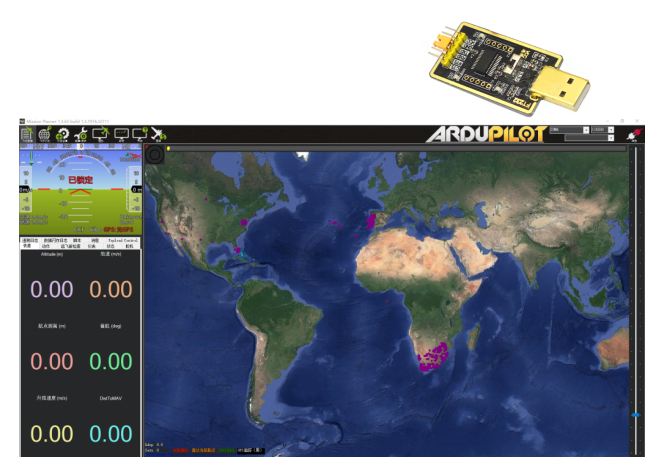
開放式任務規劃器, select COM (Please check the COM number) and the right baud rate,點選“連線”按鈕, 任務規劃器將取得飛行數據.
6. 獲取視頻
When you open the Mission Planner, click Video and then Set GStream Source,as show below:
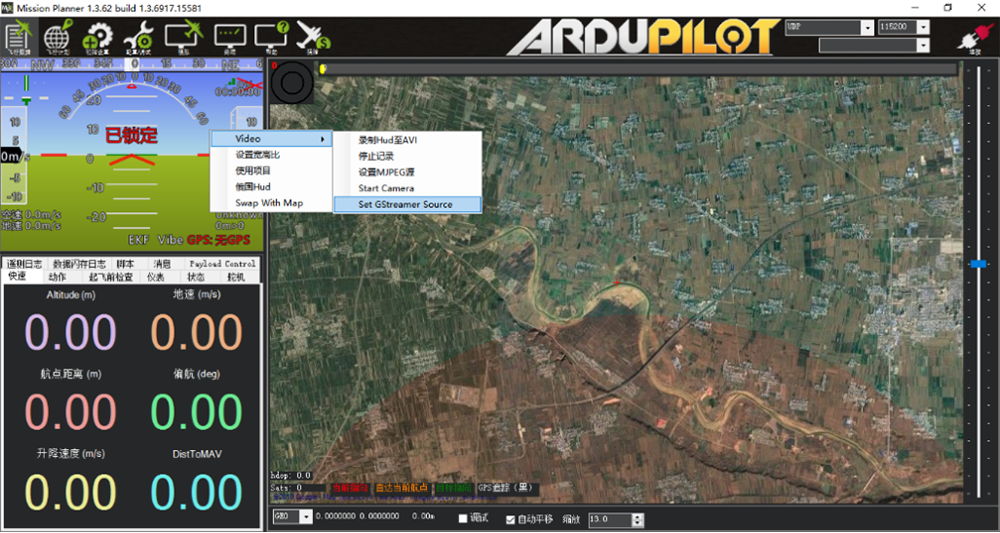
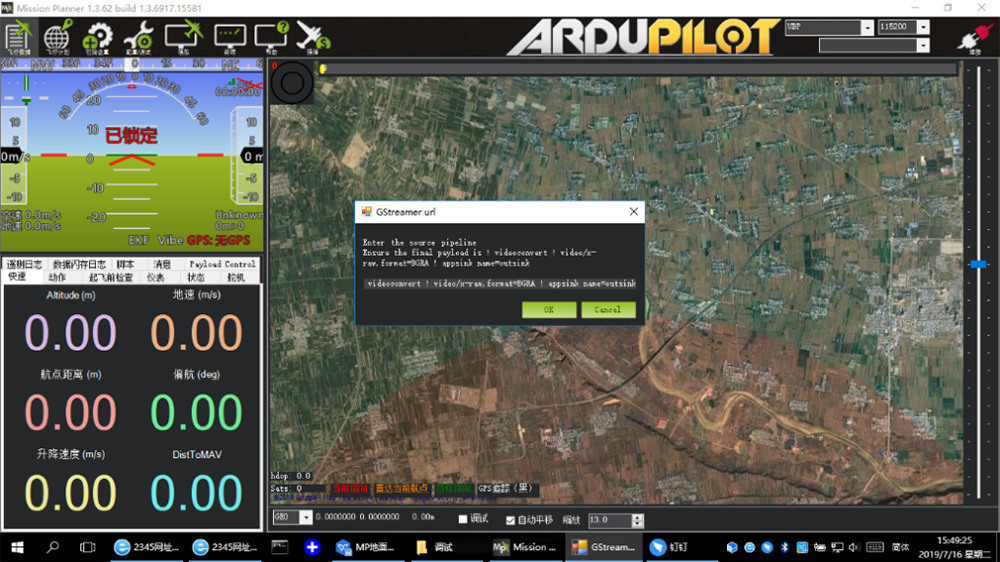
Input the address: rtspsrc location=rtsp://192.168.1.36/stream0 latency=0 ! decodebin ! videoconvert ! video/x-raw,format=BGRA ! appsink name=outsink
M51 with VLC
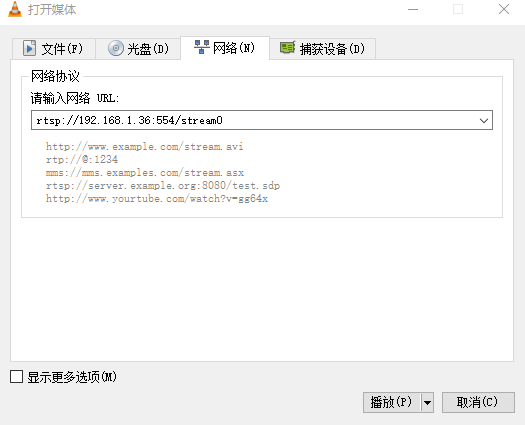
- Set the IP address of the computer as mention above. Make sure M51 is working properly.
- In the “open media” page, please input the following address:
即時傳輸協定://192.168.1.36:554/stream0
Improve RC controller distance through SBUS
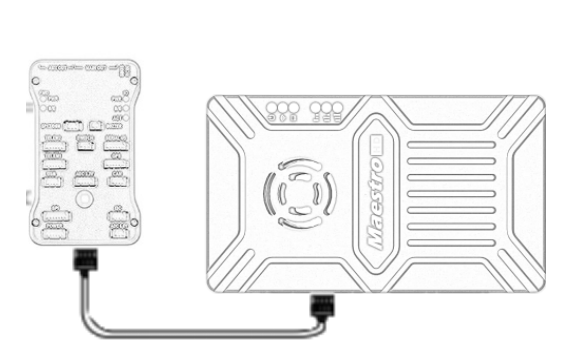
- Connect air unit SBUS to flight controller RC IN.
使用配件盒中的SBUS線連接天空端與飛控. 電纜是 3 銷.
注意:天空端SBUS口輸出. +5V輸出電流最大1A. 如果你不需要+5V, 讓它打開. 不要將其作為輸入. 除此以外, 系統的穩定性會受到影響.
- 將 RC 接收器連接到地面單元
使用附件盒中的SBUS電纜將地面單元連接到RC接收器.
注意:地面單元SBUS口輸入. +5V輸出電流最大1A. 您可以用它為 RC 接收器供電. 請多注意電纜線路順序.

在地面設備上錄製視頻
1. 將USB儲存設備插入地面端USB接口. HDMI輸出顯示“USB設備已插入”.
2. 按下地面裝置上的按鈕 3 seconds to start recording. The HDMI output display “Recording…” and start timing recording.
3. To stop recording, hold down the button for 3 秒. The video is automatically saved to the storage device.
4. You can play video with third-party video players.
Maestro Assistant
Interface of Maestro Assistant
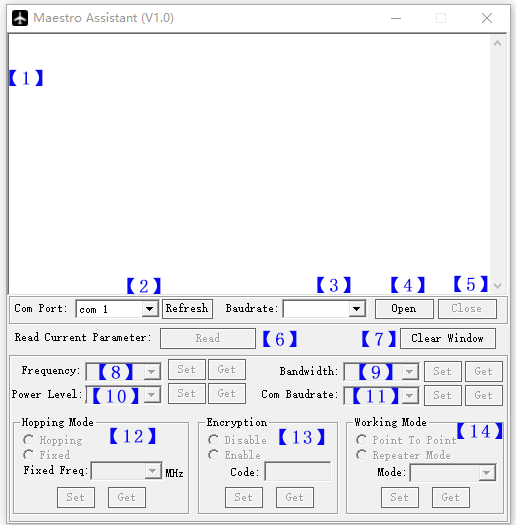
功能說明:
【1】Information display:display status information for the M51。
【2】UART(com) 選擇:Select the right COM number of the computer to connect M51. If you want to change to another COM , please click the ‘Refresh’ button.
【3】Baud rate select:Select the right baud rate for the COM. Make it the same as M51 UART1.
【4】Open COM button.
【5】Close COM button.
【6】Read current parameter button:click this button to get the current parameter of device。
【7】Clear window button: to clear the information display.
【8】Select frequency:There are three frequency bands to be selected——800MHz/1.4GHz/2.4GHz. Choose the band you needed,and click ‘Set’ button to complete setup. Click the ‘Get’ button to get current frequency band.
【9】Select BW:There are four BW to be selected——3MHz/5MHz/10MHz/20MHz. Choose the BW you needed,and click ‘Set’ button to complete setup. Click the ‘Get’ button to get current BW.
【10】Select Power Level:There are three power level to be selected——High/Mid/Low Choose the power level you needed,and click ‘Set’ button to complete setup. Click the ‘Get’ button to get current power level.
【11】Select baud rate:You can select the right baud rate for M51 Uart1 in this box.
Choose the baud rate you needed,and click ‘Set’ button to complete setup. Click the ‘Get’ button to get current baud rate.
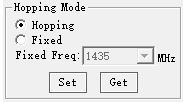
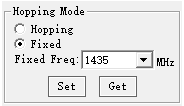
【12】Select hopping mode: There are two mode to be selected——Hopping/Fixed. Choose the mode you needed,and click ‘Set’ button to complete setup. Click the ‘Get’ button to get mode. When you select Fixed mode, you need to choose a fixed frequency below. The fixed frequency is related to frequency band and BW.
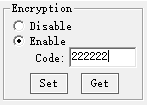
【13】Select Encryption: You can disable/enable the encryption. When enable this function, you can set your private password. The password should in the range of 100000~999999. Devices with different password do not link.
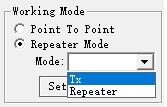
【14】Select Working mode: There are two working mode of M51——Point to Point mode and Repeater mode. Choose the working mode you needed,and click ‘Set’ button to complete setup. 按一下「取得」按鈕以取得目前工作模式. 此功能只需在M51天空端設定即可. 地面機可自動同步. 如果您選擇中繼模式, 需要選擇天空端是TX還是中繼器.
如何使用大師助手
1. 連接 M51 與 Maestro Assistant。
Maestro Assistant 是一款配置 M50/M51 的 Windows 軟體. 配置前, 請透過UART將UART1連接到電腦(TTL) 至 USB 轉換器.
選出正確的 COM 和波特率. 點選“開啟”按鈕.
2. 讀取目前參數。

步驟1之後, 點擊“閱讀”按鈕. 所有目前參數將列印在資訊顯示幕上. 因為此工作模式僅適用於航空機組. 地面設備配置時工作模式框將變成灰色.
3. 配置.
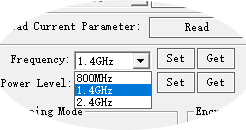
3.1 頻帶
共有三個頻段可供選擇
——800MHz/1.4GHz/2.4GHz. You can choose the
suitable frequency band according to local regulations.
The specific frequencies for each band are as follow:
800兆赫:806~825MHz;
1.4千兆赫:1427~1447MHz;
2.4千兆赫:2408~2480MHz;
3.2 帶寬
There are four BW to be selected——3MHz/
5MHz/10MHz/20MHz. The greater the BW, the more
data can be transmitted, but the weaker the
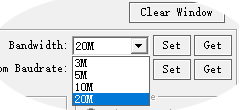
抗干擾. In Fixed frequency mode, M50/M51 will have
more frequency to fix with small BW.
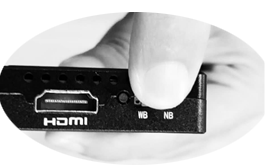
Additional, there is a shortcut key on M50/M51.
You can change BW easily. While NB is narrow band,
and WB is wide band. For both the air and ground unit,
the shortcut key should in the same place. 除此以外, they can not link.
3.3 射頻功率
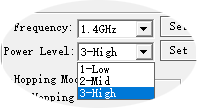
M50/M51 has three levels of power to choose.
In order to cause interference between devices, 請
select the appropriate transmission power. The specific
RF功率值如下:
1-低:15dBm的;
2-中:20dBm的;
3-高的:25dBm的。
3.4 跳/固定模式
有兩種模式可以選擇 -
/固定. 在跳躍模式, M51可以自動調整
有乾擾的頻率. 在固定模式下,
該設備已固定為特殊頻率 . 所以一個
頻帶, 最多可以使用四組設備.
3.5 加密
無線信號可以在傳輸過程中加密.
When enable this function, you can set your private password.
The password should in the range of 100000~999999. Devices with different password do not link. 禁用此功能時, 不同的M51空氣和地面可以互相連接.
3.6 工作模式
M51可以在點到點模式和中繼器工作
模式. 僅需要設置M51的空氣單元. 地面
單元可以自動同步. 以中繼模式, 該
空軍單元可以設置為TX (發射機) 或中繼器.
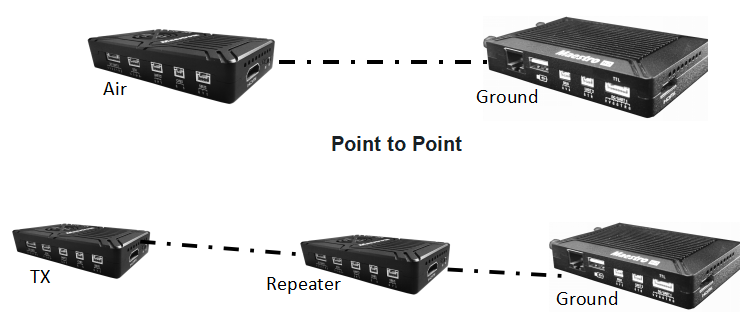
具有中繼模式, 在NLOS情況下可以輕鬆使用M51. 您只需要再購買一個空氣單元,然後可以輕鬆建立中繼器系統.
M51 Web UI配置描述
Parameter of M51 can also be set through web UI. User can enter IP address through the browser to access the web UI. The air unit default IP is 192.168.1.100. The ground is 192.168.1.36. 以中繼模式. TX is 192.168.1.100. Repeater is 192.168.1.101.
If you change the device to another IP address, please access the web UI through the new IP. If you forget the IP you changed, press the button on the device for 10 seconds when the device is power on to restore to factory settings.
You need to change your computer IP to 192.168.1.X so as to access the device web UI. 如下圖所示:
M51 Air Web UI
1. 登錄
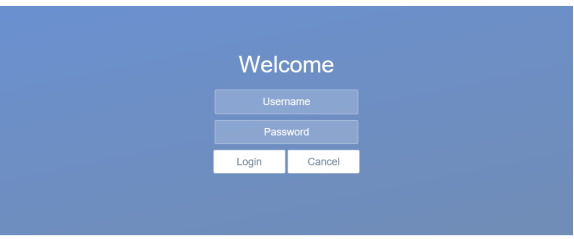
After you enter IP address 192.168.1.100 in the browser, you will see the ‘Welcome’ page. Default username is: 行政, 密碼是: 123456. Then you can login.
2.Air setting
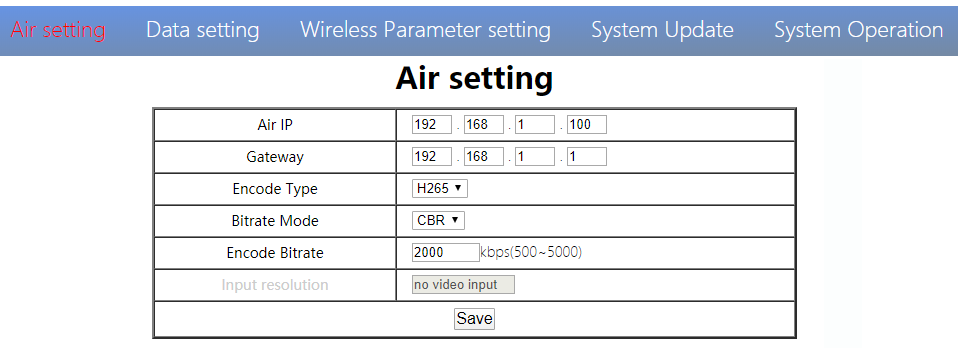
In Air setting page, user can change air IP 、 Gateway and other parameter. You can refer to the table below.
| 參數 | 價值 | 描述 |
| Air IP | 默認 192.168.1.100 | User can change |
| 網關 | 默認 192.168.1.1 | User can change |
| Encode Type | H265/H264 | Default H265 |
| Bit rate Mode | CBR/ VBR | Default CBR |
| Encode Bit rate | 500Kbps〜5Mbps | User can change, default 1M |
| Input resolution | Input automatic detection | display current HDMI input resolution |
If you change the device parameter, it will be in effect after rebooting. If you change IP address, please enter the new address in your browser after rebooting.
3.Data setting
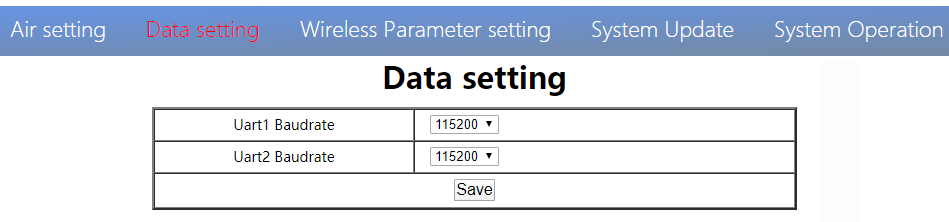
User can change Baud rate of UART1 and UART2 in Data setting page. It will be in effect after rebooting.
4. Wireless Parameter setting
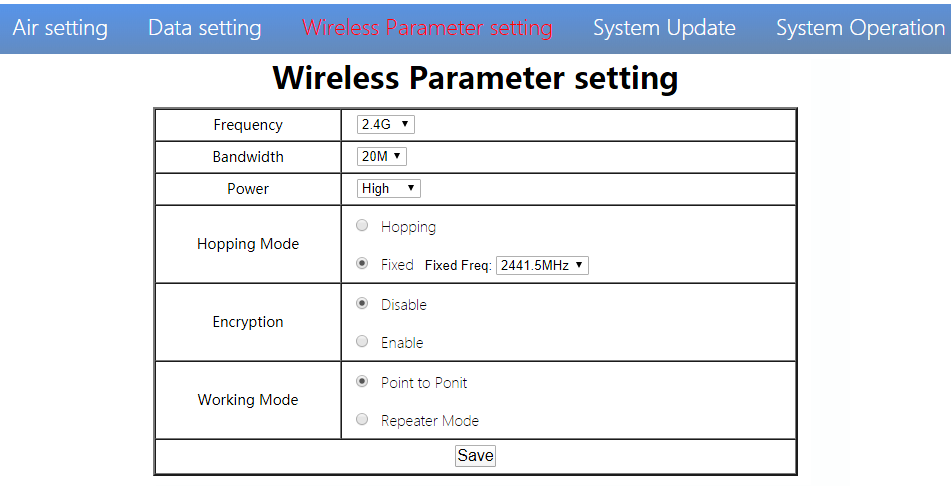
User can change wireless parameter on Wireless Parameter setting page . You can refer to the table below.
| 參數 | 價值 | 描述 |
| 頻率 | 800米/1.4G/2.4G | 可選的 |
| 帶寬 | 3/5/10/20中號 | 可選的 |
| 功率 | High/Middle/low | 可選的 |
| Hopping Mode | Hopping/ Fixed | 可選的 |
| 加密 | Disable/ Enable | 可選的 |
| 工作模式 | Point to Point Repeater Mode | 僅需要設置M51的空氣單元. The ground unit can synchronize automatically |
Web UI configuration is the same as Maestro Assistant. User can check it in ‘How to use Maestro Assistant’ part 3 for more details.
When you configure parameter through Web UI, It will be in effect after rebooting
5.系統更新
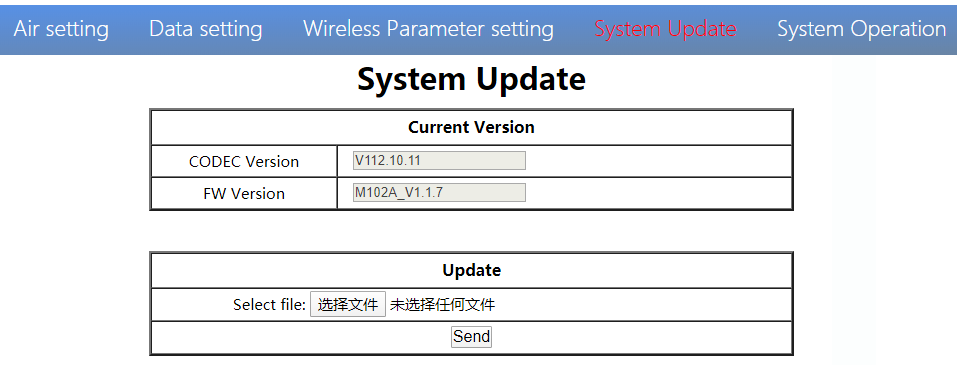
User can update CODEC version and FW version in System Update page. Before update, please download the latest software version from our website.
Click ’browse…’. 選擇升級文件. Click ‘Send’. You will see the upgrade progress bar. The system will restart when the upgrade is complete. You can check the CODEC and FW version in this web page
此外, CODEC Version is for video encoding. The upgrade file is large and no need to upgrade frequently. So we update the CODEC and FW files separately. Please pay attention to the version separately..
6.System Operation
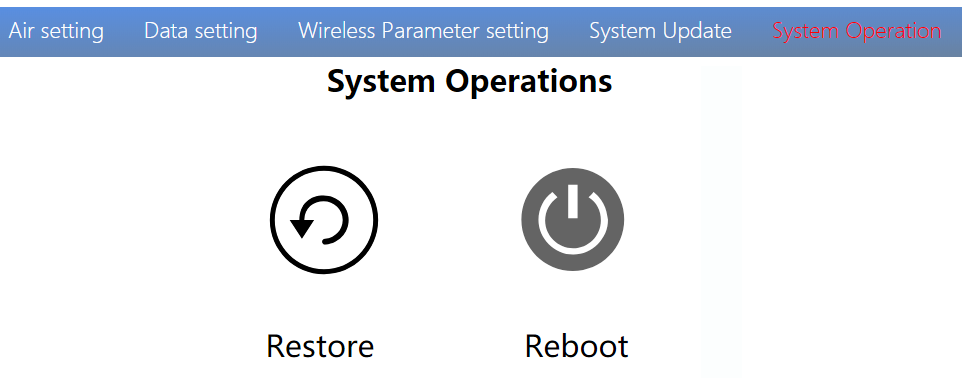
User can Restore and Reboot on System Operation page. While ‘Restore’ is to restore all parameter to factory settings。
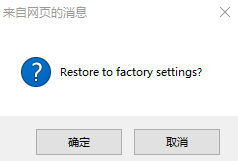
“Reboot” is used for system rebooting。
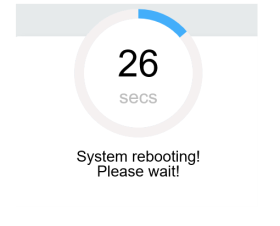
If user do not change the device IP address, 重新啟動後會進入登入頁面. 如果您變更 IP 位址, 重新啟動後需要在瀏覽器中輸入新的IP位址.
M51 地面網頁使用者介面
1.登錄
After you enter IP address 192.168.1.36 in the browser, you will see the ‘Welcome’ page. Default username is: 行政, 密碼是: 123456. Then you can login.
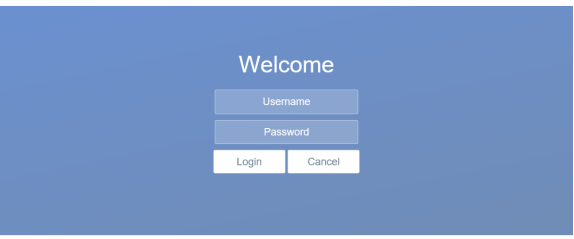
2.地面設定
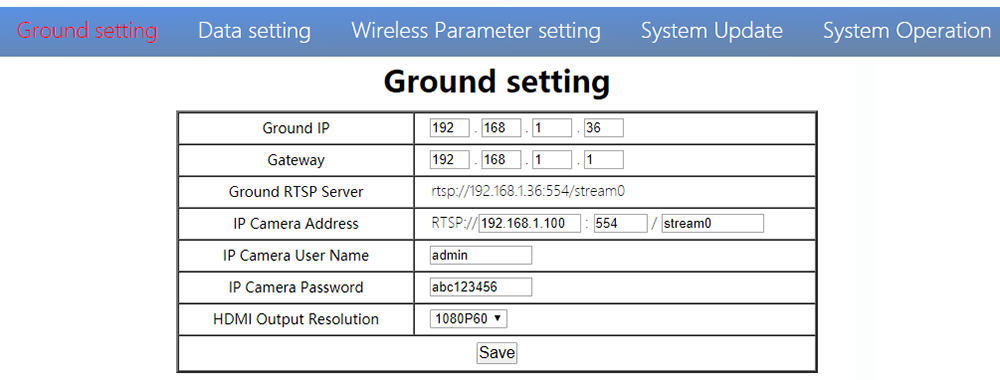
在地面設定頁面, user can change air IP 、 Gateway and other parameter. You can refer to the table below.
| 參數 | 價值 | 描述 |
| 接地IP | 默認 192.168.1.36 | User can change |
| 網關 | 默認 192.168.1.1 | User can change |
| 地面RTSP伺服器 | 使用者無法編輯. | 用於告訴用戶RTSP伺服器位址 |
| 網路攝影機位址 | 預設192.168.1.100,天空端編碼器IP | 使用者可以更改為自己的IP攝影機位址 |
| 網路攝影機使用者名稱/密碼 | 根據IP攝影機 | 如果相機需要認證, 請輸入正確的使用者名稱和密碼 |
| HDMI輸出解析度 | 1080P60/1080P50/1080P30/1080P25/1080P24/1080I60/1080I50/720P60/720P50 | 使用者可以設定HDMI分辨率 |
If you change the device parameter, it will be in effect after rebooting. If you change IP address, please enter the new address in your browser after rebooting.
3.Data setting
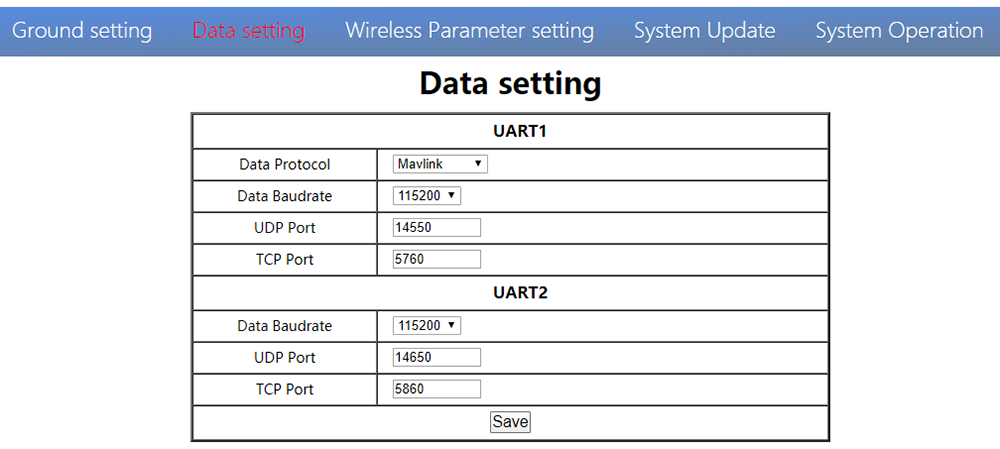
使用者可以在資料設定頁面更改UART1和UART2的參數. UART1支援兩種協議-Mavlink (默認) 和透明. 用戶可以更改協議、波特率、UDP/TCP port easily. The UART data can be transmitted to the computer through the Ethernet of the ground unit.
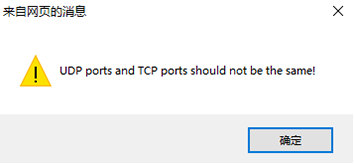
注意,UDP and TCP ports of UART1 and UART2 should not be the same.
4. Wireless Parameter setting
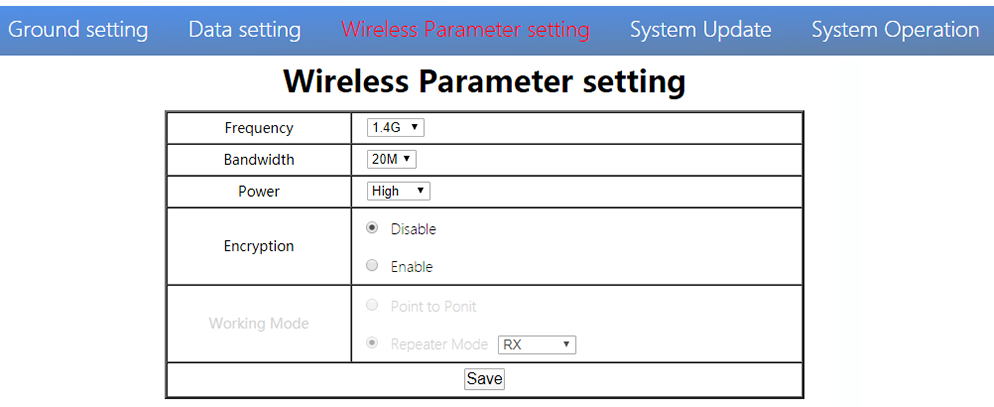
User can change wireless parameter on Wireless Parameter setting page . You can refer to the table below.
| 參數 | 價值 | 描述 |
| 頻率 | 800米/1.4G/2.4G | 可選的 |
| 帶寬 | 3/5/10/20中號 | 可選的 |
| 功率 | High/Middle/low | 可選的 |
| 加密 | Disable/Enable | 可選的 |
| 工作模式 | Synchronize automatically | Turn grey |
When you configure parameter through Web UI, It will be in effect after rebooting
5. 系統更新
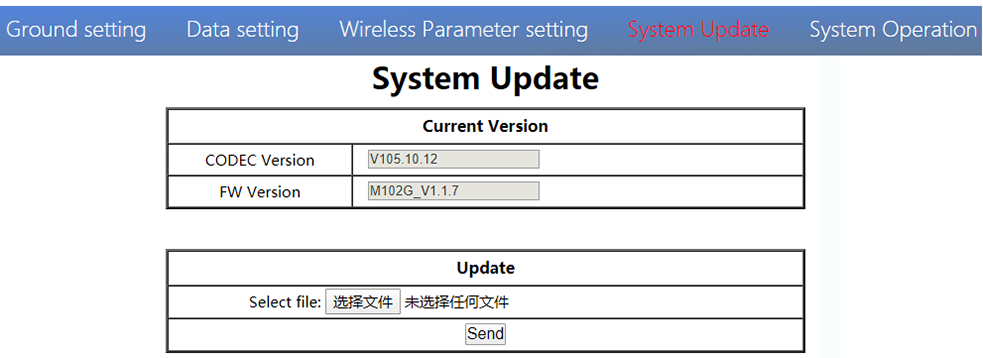
Both ground and air unit are upgraded in the same way. Please refer to other parts of this document.
6. System Operation
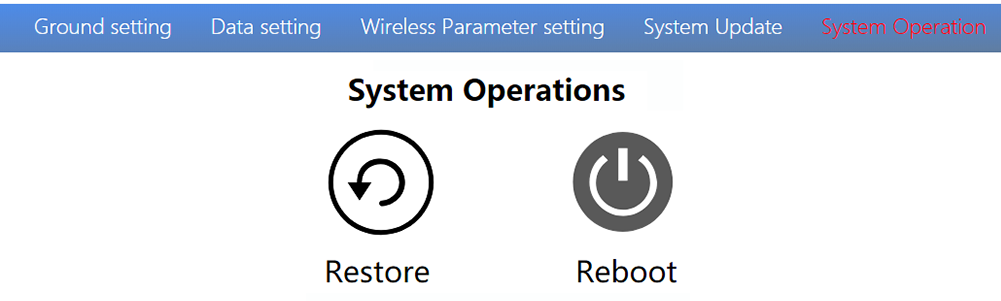
Both ground and air unit system operation are in the same way. Please refer to other parts of this document.
規範
| 頻帶 | 800MHz/1.4GHz/2.4GHz |
| 頻率範圍 | 800兆赫:806MHz~825MHz1.4GHz:1427MHz~1447MHz2.4GHz:2408MHz~2480MHz |
| 頻寬 | 3MHz/5MHz/10MHz/20MHz |
| 調製方式 | OFDM |
| EIRP | 25dBm的±1dB的 |
| 靈敏度 | ≤-92dBm |
| 範圍 | 17千米*1 |
| 視頻比特率 | 500k~5Mbps |
| DC 9〜28V (Battery 3S~6S) | |
| 空氣 | 6.5W¯¯ |
| 地面 | 5W¯¯ |
| 天線 | Air 2*MMCX ,Ground 2*SMA |
| UART | TTL 3.3V,1 起始位, 8 數據位, 1 停止位, 沒有奇偶校驗. |
| UART1and UART2 | |
| 波特率 115200(默認),57600, 38400, 19200, 9600 | |
| HDMI (A型) | 1 |
| 系統總線 | 1 |
| 網口 | 1 (Air GH1.25 4Pin) |
| 1(Ground RJ45) | |
| USB (A型) | 1 (地面) |
| CVBS | 1(Air GH1.25 2Pin) |
| 解析度 | 1080P60 backward compatible |
| 編解碼器 | H.265 / H.264 |
| 視頻比特率 | 500Kbps〜5Mbps |
| Video delay | below 250ms |
| 接口 | MMCX |
| 類型 | Glue stick antenna |
| 極化型 | 垂直 |
| 獲得 | 2.5dBi的 |
| SWR | ≤2.0 |
| 接口 | 高中 |
| 類型 | 玻璃纖維天線 |
| 極化型 | 垂直 |
| 獲得 | 7dBi的 |
| SWR | ≤2.0 |
| 工作溫度 | -40℃〜+ 70℃ |
| 儲存溫度 | -40℃〜+ 85℃ |
| 濕度 | 5〜95%,非冷凝 |
| 尺寸 | 空氣 93.5 X 54.5 X 17 mmGround 112 X 63.5 X 19 毫米 |
| 重量 | Air 105gGround 143g |
*1 距離在無干擾和LOS條件下測試.
注意:The explanation right of the above product specification belongs to Shenzhen Mainlink Aero communication Technology Co., 有限公司.
常問問題
| 1 描述 | The power indicator light is not on after powering up |
| 解決方案: 1. Check the wiring order of the power cable. 2. Check the DC power range. | |
| 2 描述 | Link indicator light is not on after powering up. |
| 解決方案: 1. Check that the RF cable is connected properly. 2. Check that the BW shortcut keys of the air and ground are in the same position. 3. Check the antenna is OK. | |
| 3 描述 | The air and ground link is OK, but no HDMI output. |
| 解決方案: 1. Check that camera is work well and the cable is in good connection; 2. Check the HDMI monitor; 3. Please contact our company’s after-sales service. | |
| 4 描述 | DescriptionHDMI monitor output OSD“Transmitter Loss”. |
| 解決方案: 1. This OSD means the ground unit does not establish a connection with the air unit. 2. 檢查天線和RF電纜. 3. Please contact our company’s after-sales service. | |
| 5 描述 | HDMI監視器輸出OSD“無視頻源輸入”。 |
| 解決方案: 1. 此OSD意味著接地單元已與空氣單元建立了聯繫. 但是空氣不會添加相機,或者相機無法被空氣單元識別. 2. 檢查連接相機和空氣單元的HDMI電纜或以太網電纜. 3. Please contact our company’s after-sales service. | |
| 6 描述 | 鏈接指示燈還可以. 但是沒有數據輸出. |
| 解決方案: 1. 檢查UART電纜接線訂單. 2. 檢查UART波特率. 3. Please contact our company’s after-sales service. | |
| 7 描述 | 接地單元無法輸出RTSP視頻流. |
| 解決方案: 1. 檢查電纜連接,無線鏈接還可以. 2. 檢查計算機的IP地址正確. 3、檢查RTSP服務器地址正確. 4、Please contact our company’s after-sales service. | |
| 8 描述 | SBUS通信錯誤. |
| 解決方案: 1.檢查SBU的電線順序, +5V正確. 2. Please contact our company’s after-sales service. |
注意:欲了解更多信息, 請查看我們的官方視頻教程. Foreign users please check You Tube .
問一個問題
感謝你的回應。 ✨