






Table of Contents
UDP Stream player setting on the COFDM HDMI Wireless video transmitter and receiver
UDP stream player is the best solution for the lowest latency CVBS analog video encoder. COFDM Wireless Video Receiver Vcan1776-RX default firmware supports RTSP player. Some clients need to use the UDP protocol.
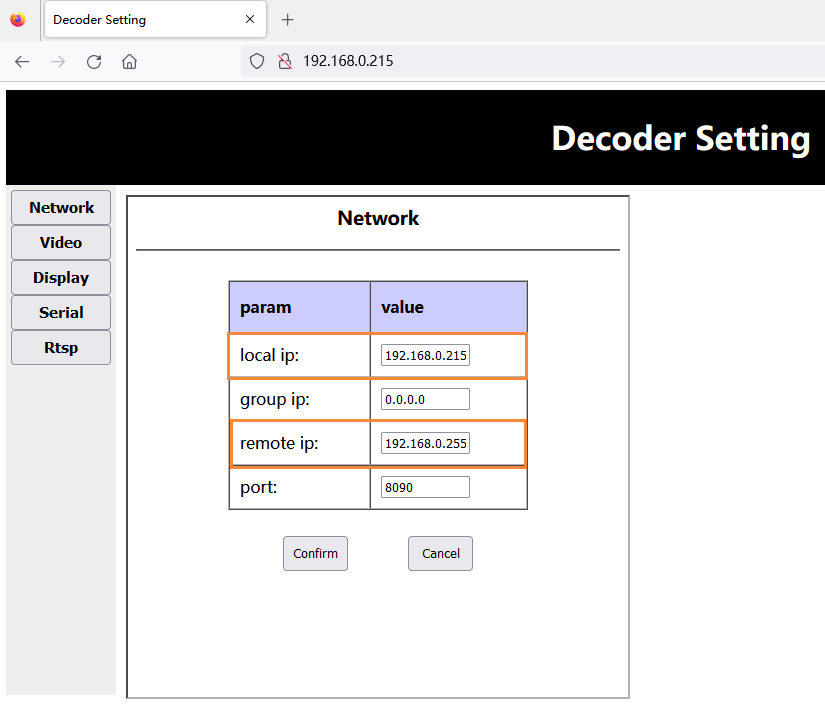
The IP address and port number can be configured on the webpage, http://192.168.0.215 (default)
- After upgrading the firmware, the receiving end will restore the factory default parameters (center frequency: 320MHz, wireless bandwidth: 6MHz, network port IP address: 192.168.0.215), customers need to modify the center frequency and bandwidth through the Parameter Configuration Board Tool, and Transmitter saves consistently.
- The customer accesses the receiver web server through the web page (HTTP://192.168.0.215), and modifies its own IP address and the setting of the IP address of the Windows PC end connected to the receiver:
Note: Among them, the local IP is the receiver’s own ip, and the remote IP is the docking Windows PC end ip. The customer can configure it according to his actual situation. Note that the modification will only take effect after restarting the receiver.
Download the UDP player Splayer
- Download the UDP player Splayer.
- Splayer_v4.2_2020.6.6
- https://drive.google.com/file/d/1ihzUhfnx2Wo3zLO8UAs1aUQeLswonJD-/view?usp=sharing
- Splayer_v4.3_2022.10.22
- https://drive.google.com/file/d/1PQc-LZ55qGnjeMsjkHYSloHfY3NEUsGH/view?usp=drive_link
- Splayer_v4.3.1_2024.4.16
- https://drive.google.com/file/d/1uv7GqP8P4r6qGOWJ5gYn0b8bZ4ptL8H6/view?usp=drive_link
- Splayer_QT_V1.0 for Win10 or Win11
- https://drive.google.com/file/d/1VAegQjd-PmIL2XbJf7K8dnujMxhoIuhd/view?usp=drive_link
- Splayer_QT_V1.1.1 for Win10 or Win11
- https://drive.google.com/file/d/1YMr2xxurGnbIBjFihc7f77afrdbOcc6l/view?usp=drive_link
- Splayer_QT_V2.0
- https://drive.google.com/file/d/1sASbARCL1lXAIsVKqkmEObRGPREbaSES/view?usp=drive_link
- Open the Splayer player on the Windows PC, click the setting button in the lower right corner, and the setting page will pop up:
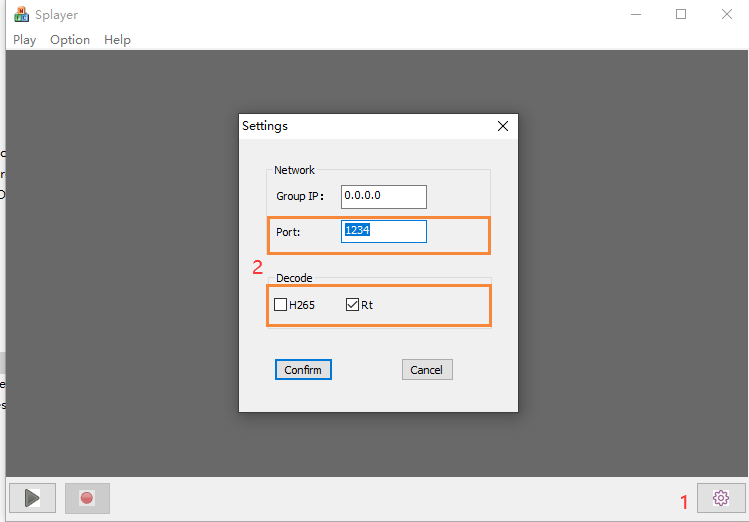
Note:
- It can be seen that the Port port number is set to 1234, which is hard-coded by the UDP streaming program of the receiver and cannot be modified;
- In the Decode column, configure according to the current video stream properties, such as the H264 low-latency video stream configuration as above;
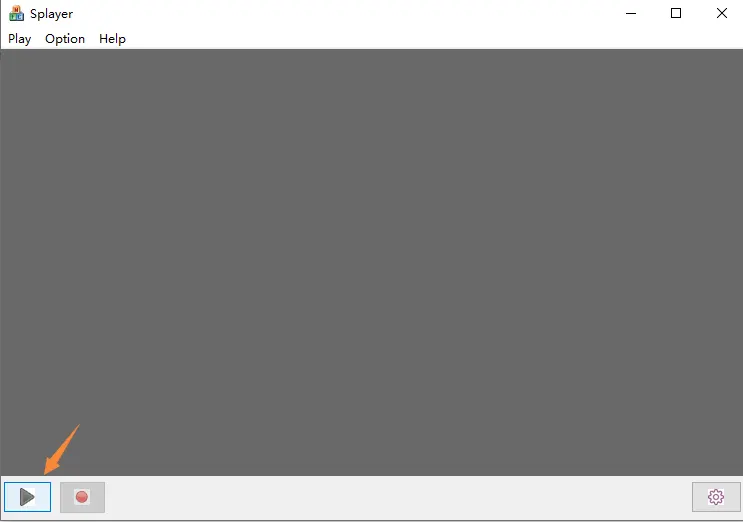
- After setting and clicking the “Confirm” button to save the parameters, click the play button in the lower left corner. After the Windows PC receives the UDP push stream, it will decode and play immediately.
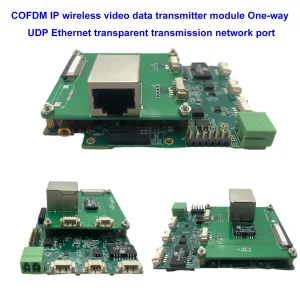
The above UDP stream player setting is suitable for the below model.

How does it support Linux VLC player? Playing low delay stream under Linux?
Question: Now the UDP stream doesn’t play with the VLC player. I need to play this UDP stream under Linux and I try to understand the details of this stream. Any scripting or keys or other things?
I want to make my own player under Linux and I want to understand the details of this UDP video stream from the demodulator.
If it is a regular UDP video stream, then question why it doesn’t play with VLC or OBS studio.
Answer: For model Vcan1726-RX, We have two firmware for optional, The first firmware for the RTSP player supports VLC player, but some clients mentioned it has a long latency, so we made the second firmware, UDP broadcast at the Splayer, which supports lower latency.
This UDP audio and video stream is our custom format, so VLC can’t explain it. If your customer wants to open their own player (under Linux), there are currently two options:
- Update to the default RTSP stream access (first firmware for RTSP player)
- We provide the corresponding DEMUX library and routines (we need to understand the customer’s Linux environment in order to compile a suitable library file)
- This is the “DEMUX library and routines” written by our engineers under the Ubuntu 14.04 64bit system
The second type is too difficult for ordinary customers, and we don’t know the development capabilities of your customer’s own player.
Because some clients meet the low latency problem at Windows OS VLC player, no matter how we tested here, we didn’t find this problem. At that time, you used Windows to test. Maybe if it was changed to Linux, there would be no RTSP streaming problem. Please try to test the Vcan1726 sample with the first version of firmware on Linux. Maybe this is not a problem on Linux OS.
Question: Can you build a docker image for this application? Which one port is used for the incoming stream, and another port for the outgoing stream with some widely used codec (h264)?
What are Splayer and the UDP Stream Player?
SPlayer is a media player that supports various video formats, including UDP streaming.
UDP streaming is a method of sending video data over the internet using the User Datagram Protocol (UDP), which is a fast and simple protocol that does not guarantee delivery or order of the packets.
UDP streaming can be used for live video broadcasting or low-latency video transmission, but it may also suffer from packet loss or corruption.
According to the web search results, SPlayer can play UDP streams by using the following steps:
- Open SPlayer and click on the “Open URL” button in the top right corner.
- Enter the URL of the UDP stream in the format udp://@ip: port, where ip is the IP address of the server and port is the port number of the stream. For example, udp://@224.0.0.1:1234.
- Click on the “OK” button and wait for the stream to load.
How does the Splayer work well for Win10?
Question: We can not start Splayer 4.2 and 4.3 under Windows 10. Could you supply us with the correct version of Splayer for Windows 10 and 11?
4.2 starts and closes at the moment. 4.3 starts with the error message.
Faulting application name: Splayer.exe, version: 1.0.0.1, time stamp: 0x646d83e2
Faulting module name: dvb_demux.dll, version: 1.0.0.1, time stamp: 0x5fe5bdbf
Exception code: 0xc0000005
Fault offset: 0x0001484a
Faulting process id: 0x3888
Faulting application start time: 0x01da1164b89c78eb
Faulting application path: C:\Users\admin\Downloads\Splayer_v4.3_2022.10.22\Splayer.exe
Faulting module path: C:\Users\admin\Downloads\Splayer_v4.3_2022.10.22\dvb_demux.dll
Report Id: 4af19407-045e-48e5-a0f7-86fc90c6b3d3
Faulting package full name:
Faulting package-relative application ID:
Answer: Please try to use our Splayer_qt_v1.0.zip (103.5Mb).
Feedback: The new version of SPlayer works well at the problem site with Win 10! Thank you!
Question: We found the time delay increasing while playing the video from the Reciver by Splayer program (UDP stream).
If talk in detail – The receiver connects with an ethernet cable directly to the PC. The PC and receiver are in the same local network. When we start the Splayer the time delay is normal and the precise count shows us 330 msec, which is a little bit more than one from the HDMI output where we observed about 270 msec. It is good. But if we wait some minutes without any changes in the workplace we observe a continuous increase in the time delay which reaches 1-1,5 sec which is not acceptable in the customer application.
Yesterday I tested it myself on Win 10, and Win11 on different PCs with complex turn-OFF Win Brandmauer with Splayer qt (last version from you), and Splayer 4.3 (old version). I repeat this problem each time in any configuration.
Please help me to fix this problem. We need constant time delay in time from Splayer playing which could be not more than 350 msec.
Answer: Such a problem should not occur, because the player has no cache in low-latency mode, and the delay completely depends on the decoding ability of the PC. Engineers will set up the environment and test it next Monday.
Another point is to ask customers to check the refresh rate setting of their laptop monitor. For example, if the camera inputs 1080p60, then the refresh rate of the customer’s laptop monitor must also be 60Hz. Otherwise, the display will be too slow, which will also cause data congestion and introduce delays.
The Slayer player has a large delay, either the decoding is slow or the display is slow, it is all caused by the PC.
HDMI camera encoding HDMI receiver decoding, output to the display, and computer playback delay test of the Splayer player
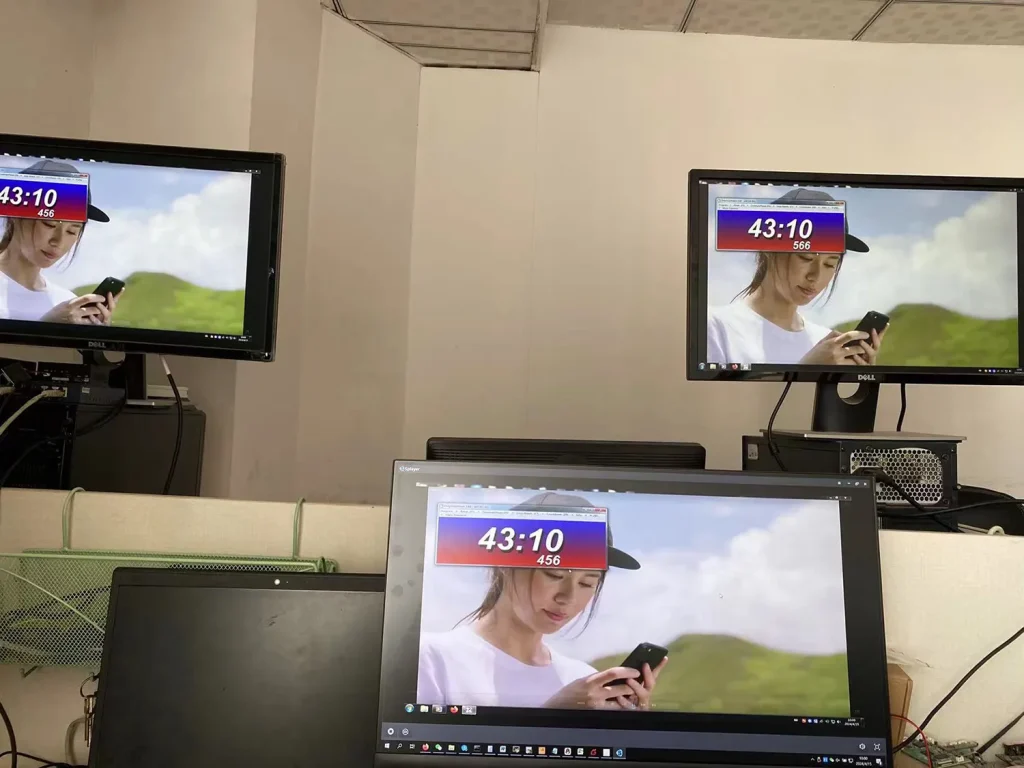
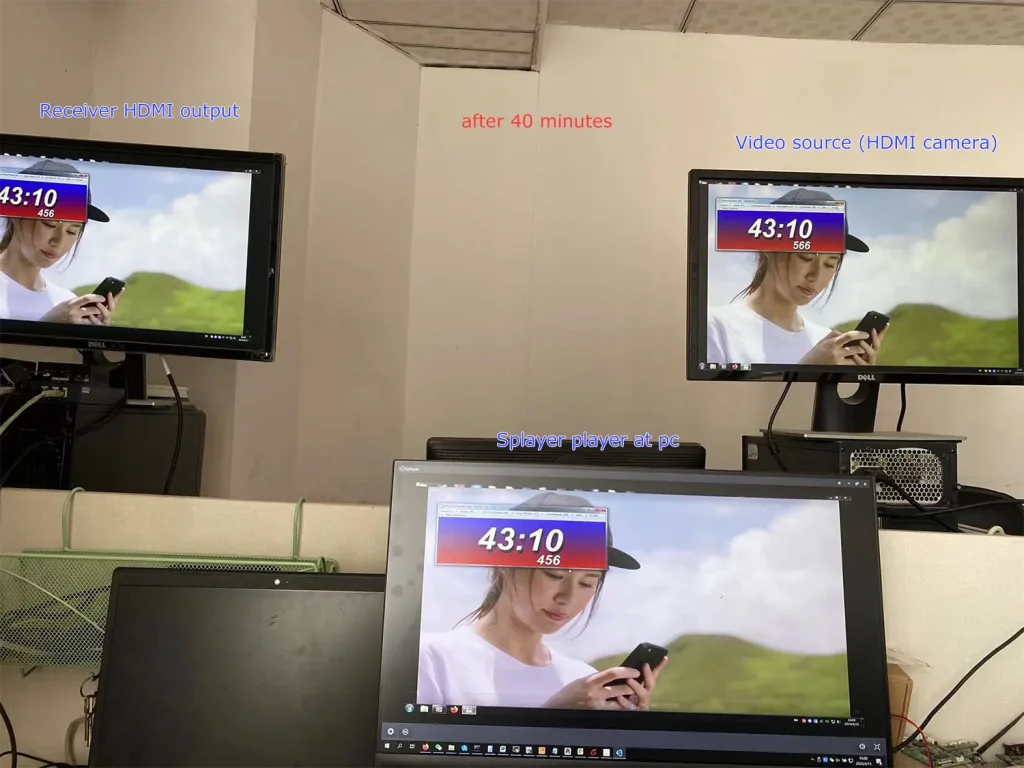
We don’t find the problem you mentioned.
It can be seen that the current Splayer player screen and the receiver HDMI output are consistent, and the delay between them is very low.
Could you please ask the customer, what is the resolution and frame rate of the camera input? Assuming that the customer’s camera is 1080p60, you can also do the following two steps to further troubleshoot the problem:
- Let the customer change the camera to a lower frame rate for testing, such as 1080p50/30;
- You can set the encoding segment parameters to let it down-frame encoding. For example, send the ATSO0,30_ command through the parameter port, and the encoding outputs 1080p30 for testing.
Note:
- Splayer is specifically developed for our proprietary/custom streaming protocol and currently does not support parsing or playback of standard MPEG-TS protocols.
- Splayer is currently available only on Windows. Linux and Android versions have not been developed yet and are not supported at this stage.
- In addition, it is not the mpeg-ts protocol that causes the delay to increase. Even if it is switched to our custom protocol, the delay will not be reduced (our custom protocol mainly performs CRC checks on all data packets, while the mpeg-ts protocol does not, which is the biggest difference between the protocols). The biggest impact on latency is the processing of video decoding and display in the player. Our own player Splayer will be optimized for image transmission application scenarios.
- Even if the customer gets our demux library and extracts the audio and video streams, it still has to do the video decoding and display by itself. This ordinary customer does not have this ability. Most customers will only use open source players (such as based on gstreamer), and the video delay of these open source players will not be good. If you want good video delay, you basically have to develop your own player.
- If the customer insists on the demux library and says that he has the ability to deal with the subsequent video decoding and playback, I can also cooperate with you (but we only provide the demux library and routines under Linux/android, and do not provide subsequent decoding and display-related support)
- Our custom protocol mainly enhances CRC verification to better handle transmission errors, which helps prevent unexpected video decoding issues or even player crashes caused by corrupted data packets. The demuxing protocol itself does not introduce significant latency, whether it is our custom protocol or the standard MPEG-TS protocol. The main factors affecting latency are actually the decoding and rendering stages afterward. In general:
- Since UDP streaming and player decoding/rendering are asynchronous processes, most players introduce a certain amount of buffering before starting playback. The larger the buffer, the higher the latency.
For example, VLC media player typically uses relatively large buffering, and its buffer size may even increase dynamically during playback. In contrast, Splayer keeps the playback buffer intentionally very small to minimize latency. - Video decoding and frame rendering are also asynchronous processes. If rendering cannot keep up in time, decoded video frames may accumulate in the rendering queue, which introduces additional latency similar to pre-decoding buffering. Splayer is also optimized in this area to reduce frame accumulation and maintain low-latency playback.
- Since UDP streaming and player decoding/rendering are asynchronous processes, most players introduce a certain amount of buffering before starting playback. The larger the buffer, the higher the latency.
- Our custom protocol also includes several additional optimizations, which is why we ultimately decided to adopt it instead of continuing with the standard MPEG-TS protocol (which we originally used at the beginning):
- Compared with the standard MPEG-TS protocol, our custom protocol reduces redundant protocol overhead and improves wireless bandwidth utilization. This is particularly important for bandwidth-constrained wireless links such as COFDM video transmission systems.
- Our custom protocol provides greater flexibility for multiplexing different types of data. In addition to video and audio, it can conveniently encapsulate serial port data and other user-defined data streams, making it more flexible and easier to extend than standard MPEG-TS.
- Our custom protocol supports integrated AES encryption and decryption directly within the protocol layer. This is especially useful for wireless links that do not natively support AES encryption, such as standard Wi-Fi connections.
- In addition, our custom protocol is designed specifically for low-latency and high-reliability transmission scenarios, allowing tighter optimization across the entire transmission and playback pipeline compared with a general-purpose standard protocol.
Relative
- Do you want to get the UART Data from the HDMI CVBS Video UART DATA encoder board?
- Low Latency UDP Player SDK for Windows x64
Q: Does the system support multicast? Can I output one stream to multiple IPs?
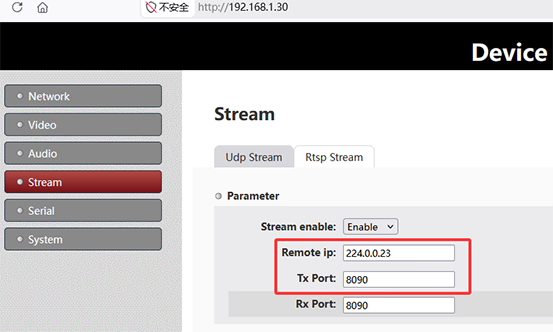
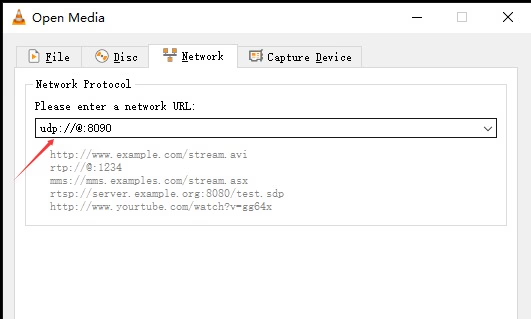
A: Yes. The system supports UDP multicast, allowing one stream to be delivered to multiple receivers simultaneously without duplicating the stream per IP. To use multicast, set the Remote IP on the sender side to a multicast address, for example 224.0.0.23. All receivers join the same multicast group using the same address. On the receiver side, configure the same multicast IP:
- Splayer: set Group IP to
224.0.0.23 - VLC: open
udp://@224.0.0.23:8090
Multicast enables one-to-many streaming within the same network. The actual device IP is not critical; instead, delivery depends on network multicast support and devices joining the same group. Note: Network conditions may affect performance. Environments with VPNs, virtual machines, multiple network adapters, or switches without IGMP support may impact multicast reception.
Multicast

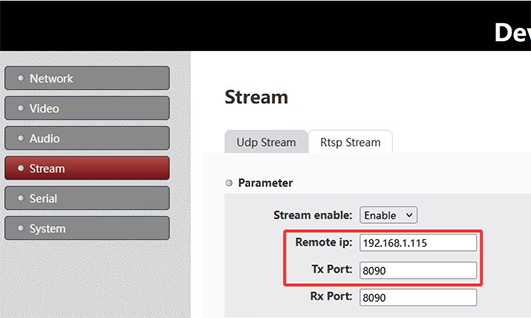
Unicast
Q: If there are multiple encoder multicast boards in the same network, should we change the port on each board to avoid conflict?
A: Not necessarily. There are two valid ways to ensure that multiple encoder streams do not conflict on the same network:
- Use different UDP multicast IP addresses for each encoder stream.
- Use different UDP port numbers for each encoder stream.
UDP streaming is distinguished by the combination of IP address (unicast or multicast) and port number. Together, they define a unique UDP stream identity on the network.
On the encoder board, the UDP Stream settings include:
- Remote IP: Defines the destination IP address (if a multicast address is used, the stream becomes a UDP multicast stream).
- Tx Port: Defines the transmission port number.
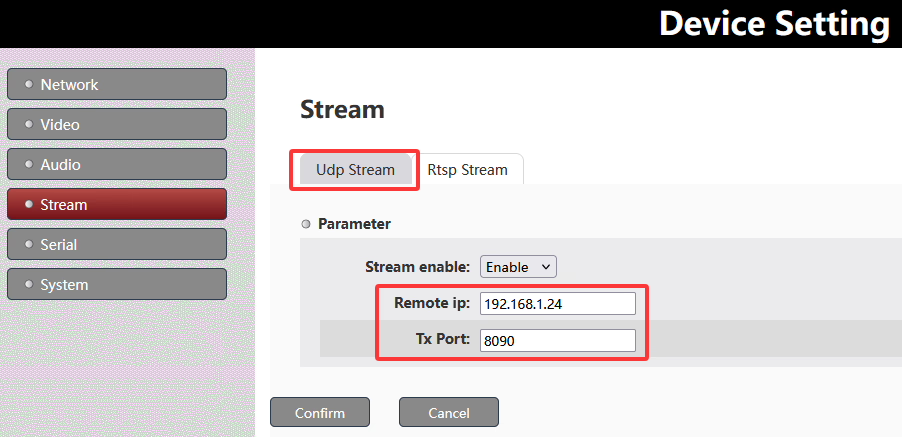
The combination of Remote IP + Tx Port determines a unique UDP stream.
To avoid conflicts when multiple encoder multicast boards are deployed in the same network, you can either assign different multicast IP addresses, different UDP ports, or use both depending on the network design requirements.
Q: How do I obtain multicast IP addresses for my system?
A: Multicast IP addresses are not automatically assigned; they are selected from the standard multicast range 224.0.0.0 to 239.255.255.255. In practice, these addresses should be planned and allocated by the network administrator to ensure there are no conflicts with existing multicast services or devices on the network.
Q: The encoder board needs to output video over both HDMI and AV interfaces, but both streams use the same UDP address. How can we play or switch between them?
A: When HDMI and AV streams are transmitted over the same UDP address, they are typically not separated by network ports, but by internal stream identifiers, similar to an MPEG-TS (Transport Stream) structure.
How it works
- Both HDMI and AV inputs are multiplexed into a single UDP stream
- Each video source is assigned a unique stream ID (e.g., PID / service ID)
- The receiver performs demultiplexing based on these IDs, rather than separating by IP or port
- This allows multiple video channels to coexist in one UDP stream
How Splayer handles this
With our Splayer 2.0 UDP Player, the system supports this architecture natively:
- Simultaneous decoding of multiple video streams from a single UDP address
- Stream separation based on internal IDs (MPEG-TS PID/service mapping)
- Real-time switching between HDMI and AV sources without changing network settings
- Flexible multi-channel playback using a single UDP input source
This design simplifies deployment by keeping one UDP configuration, while still enabling multi-input video handling and seamless switching.
You can download Splayer 2.0 UDP Player here: Splayer 2.0 UDP Player Download
Ask A Question
Thank you for your response. ✨