






Firmware Upgrade Guide (Using HiTool)
This article demonstrates the method for replacing the blank flash IC on the Vcan1726 and Vcan1746 and reloading the software. The firmware upgrade guide is suitable for the below models.


Table of Contents
1. Hardware Setup
- Please find a blank program flash IC MX25L12835FM2I-10G and solder it onto the board.
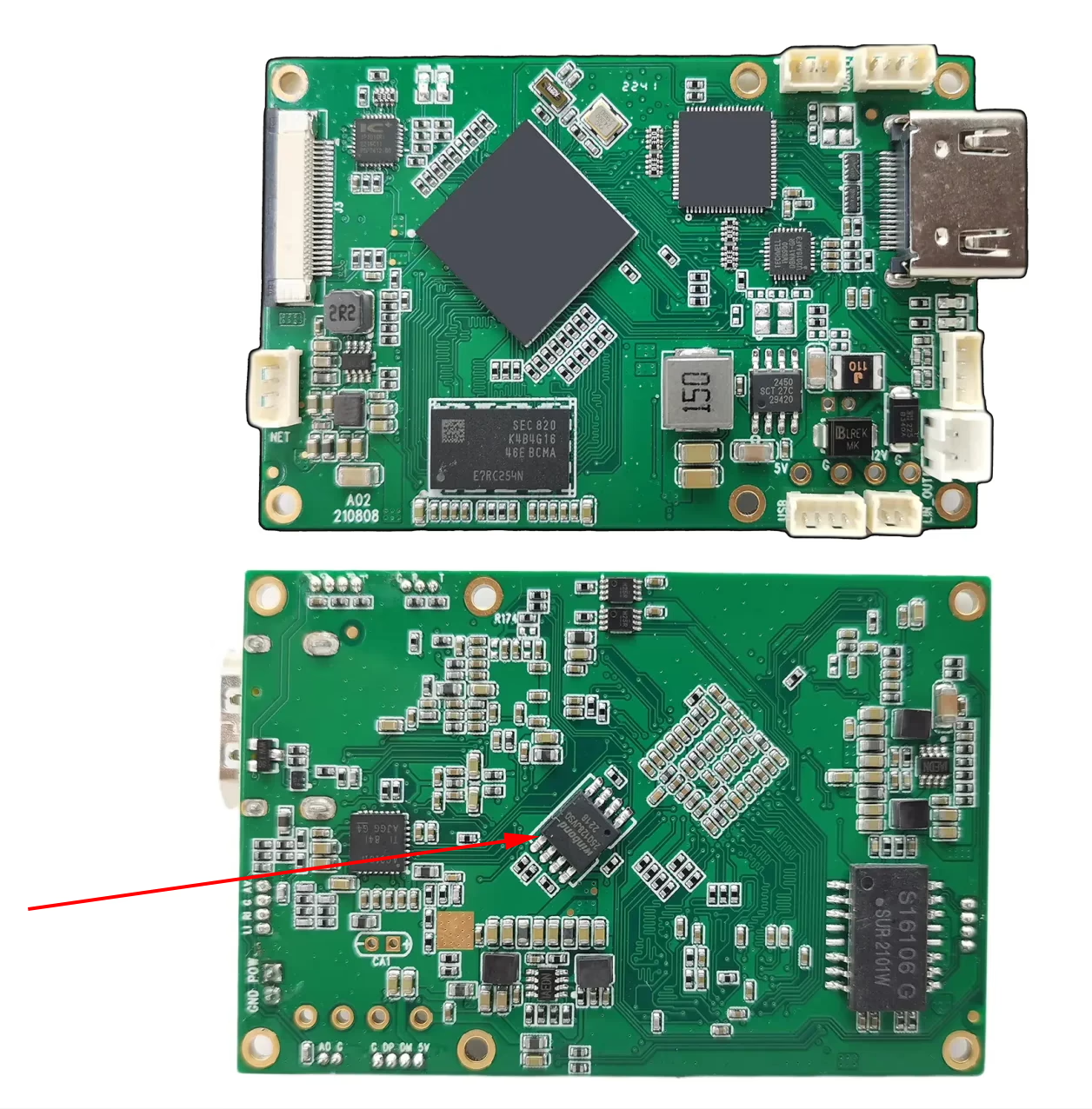
- Connect the configuration serial port to your PC using a USB-to-serial cable (TTL 3.3V level).

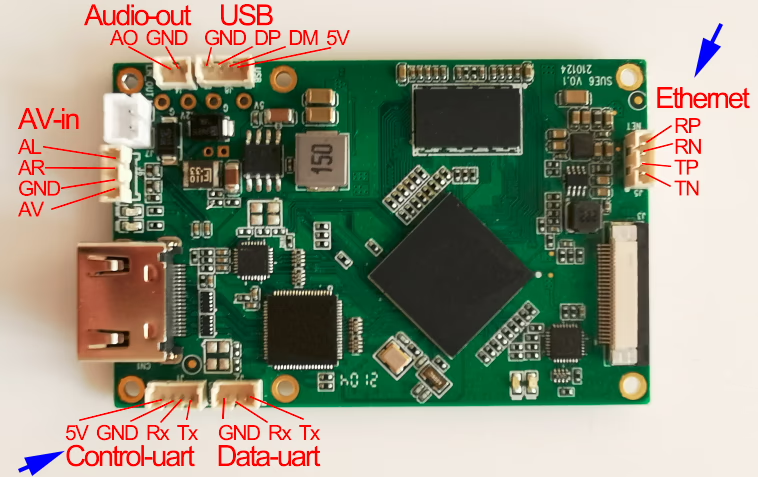
- Connect the USB to TTL converter board and Ethernet cable to the PC. See above picture.
- It is recommended to set a static IP address on the PC, for example:
192.168.1.x
- It is recommended to set a static IP address on the PC, for example:
2. Software Preparation
- Download HiTool upgrade software. HiTool Download link
- Dowlonad Vcan1726 Upgrade firmware. Vcan1726-H264-20251022 Download link Note: The upgrade software provided here is for reference only. If you experience any issues with your COFDM transmitter, please contact us to receive the correct upgrade software.
- Prepare the following:
- The HiTool software
- The image directory (contains the firmware files)

- Make sure to close any software that may occupy the serial or TFTP ports, such as:
- Serial debugging tools
- tftpd32 or similar programs
3. Upgrade Procedure
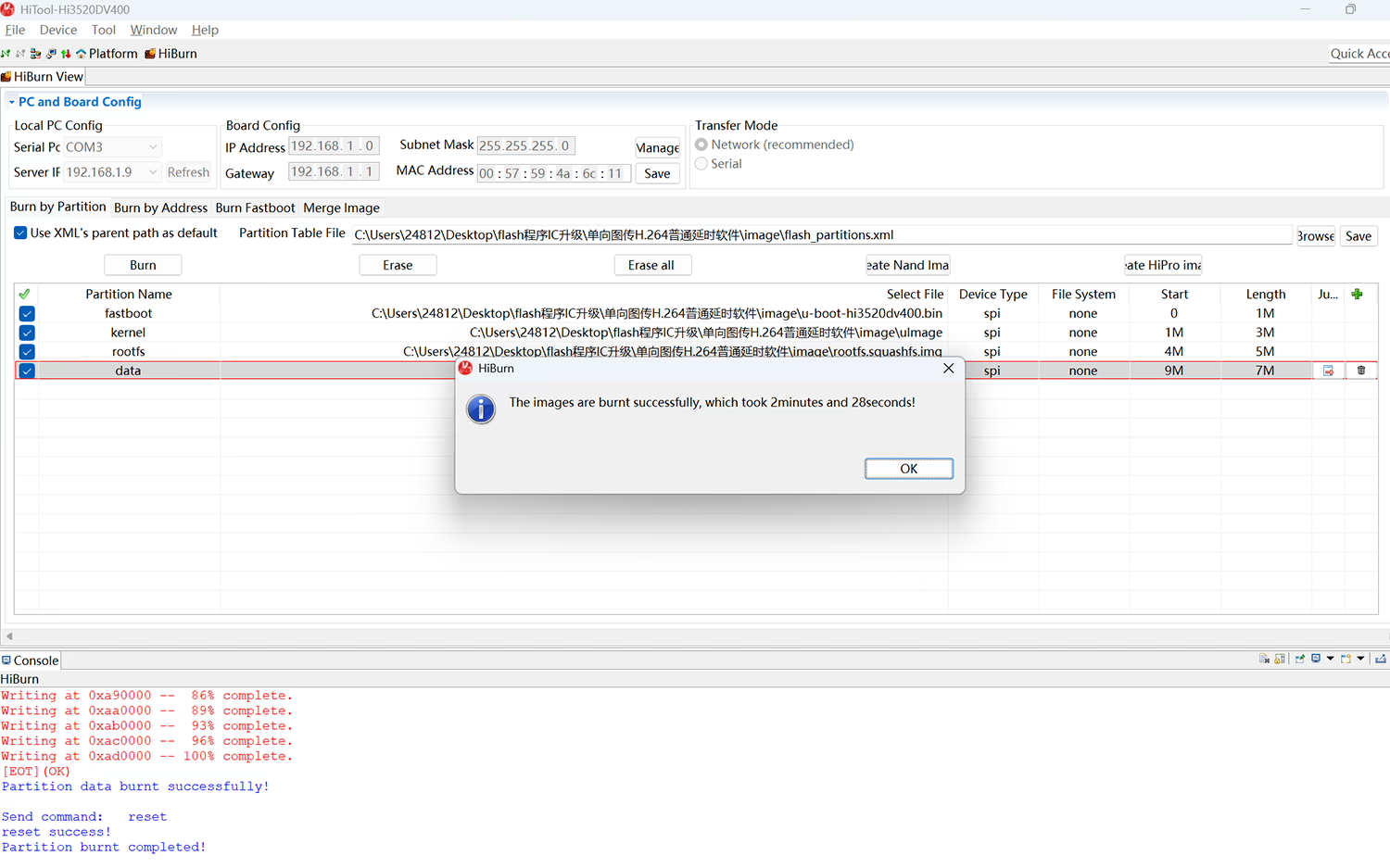
- Run HiTool.exe from the HiTool folder. In the interface:
- Select Transmission Method: “Ethernet”
- Select the correct Serial Port (e.g., COM5, depending on your PC’s actual setup)

- Click “Browse”, and in the dialog box, select the file flash_partitions.xml from the image directory.
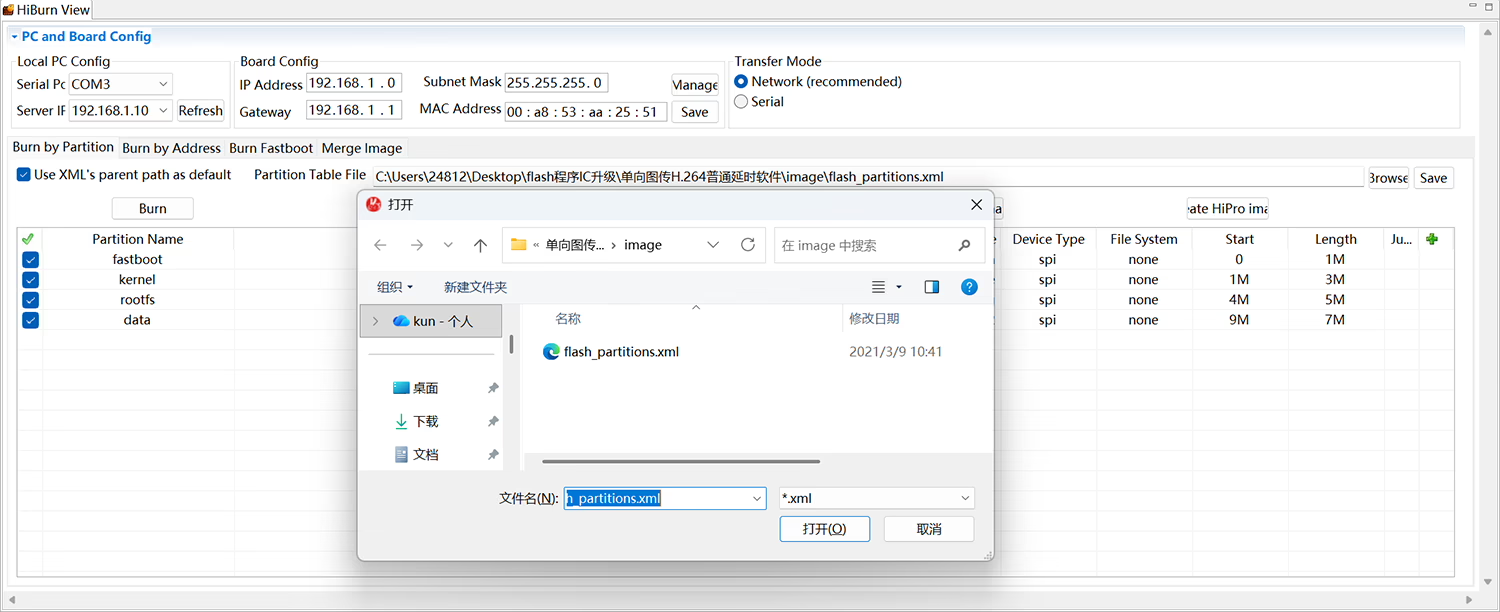

- Click “Burn”, then power on the device.
- If everything is configured correctly, you will see a progress bar in the status area.
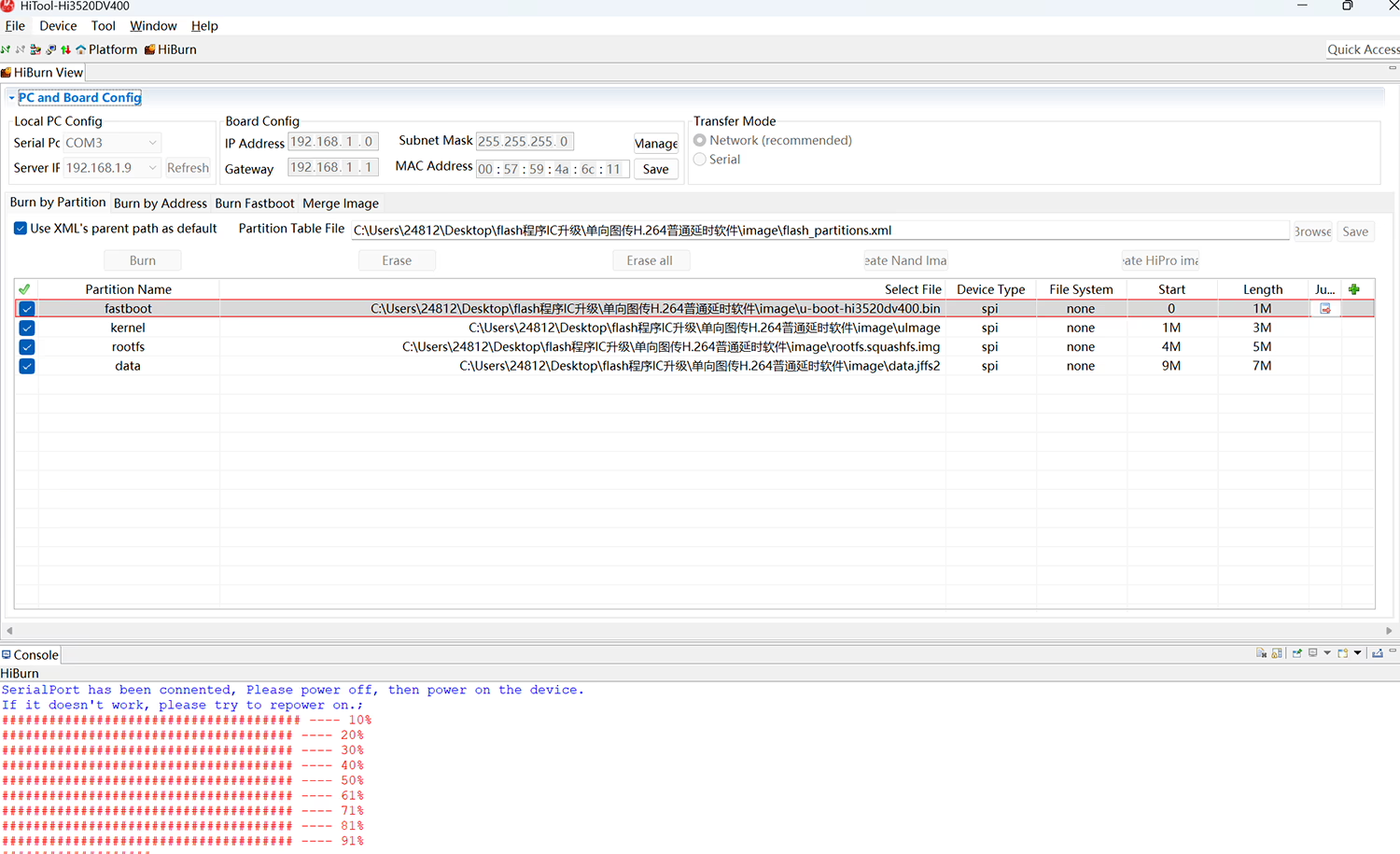
- Wait until the process completes successfully.
4. Notes
- Do not disconnect power or network during the burning process.
- Make sure the image files and HiTool version are compatible with your device.
- If any error occurs, restart HiTool and try again.
FAQ
Q1: Why should I upgrade my COFDM transmitter?
1. By upgrading special firmware, software or program IC failure problems can be solved, avoiding the shipping costs, customs duties and time costs of returning the product to the factory for repair.
2. Regular firmware upgrades help your COFDM transmitter maintain optimal performance and compatibility with the latest video formats, modulation standards, and wireless modules.
3. Upgrading can improve system stability, reduce latency, and fix bugs related to video encoding, data rate, or frequency configuration.
Q2: What if the parameters I adjust cannot be saved in the COFDM transmitter?
If you notice that your COFDM transmitter does not save the new parameters after you change them on the parameter configuration board or AT commands via Serial Port software tool, this often indicates a hardware problem — specifically, that the Flash IC (memory chip) inside the transmitter may be damaged or worn out.
When the flash memory fails, the COFDM transmitter cannot store new settings or firmware updates.
Q3: Do I need to send the COFDM transmitter back to China for repair?
You can return it to our factory in China for professional repair, but please note that shipping costs, customs duties, and turnaround time can be quite high.
That’s why, in many cases, we recommend a more efficient remote upgrade solution instead of returning the unit.
Q4: How can I repair it locally through remote upgrade?
If you can find the same Flash IC model locally, we can send you the correct firmware file for your COFDM transmitter.
Here’s what you can do:
1. Replace the damaged Flash IC with a blank new one.
2. Install the new Flash IC back onto the transmitter board.
3. Burn (program) our supplied firmware file into the new Flash IC using a suitable programmer.
(If there is a dedicated IC programmer, the second and third steps are performed in the opposite order.)
After this replacement, your COFDM transmitter will start up normally with the latest firmware — without returning it to China.
This method saves time, shipping cost, and import taxes, while achieving the same repair result through a remote firmware upgrade.
Q5: What precautions should I take before replacing the Flash IC?
1. Confirm the exact model number of your COFDM transmitter.
2. Contact our technical support team to receive the correct firmware package and programming instructions.
3. Make sure your programming tool is properly configured before burning the firmware.
Using an incorrect firmware file may cause the device to fail to start, so always verify with us first.
Ask A Question
Thank you for your response. ✨