






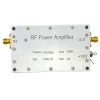
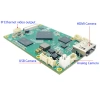
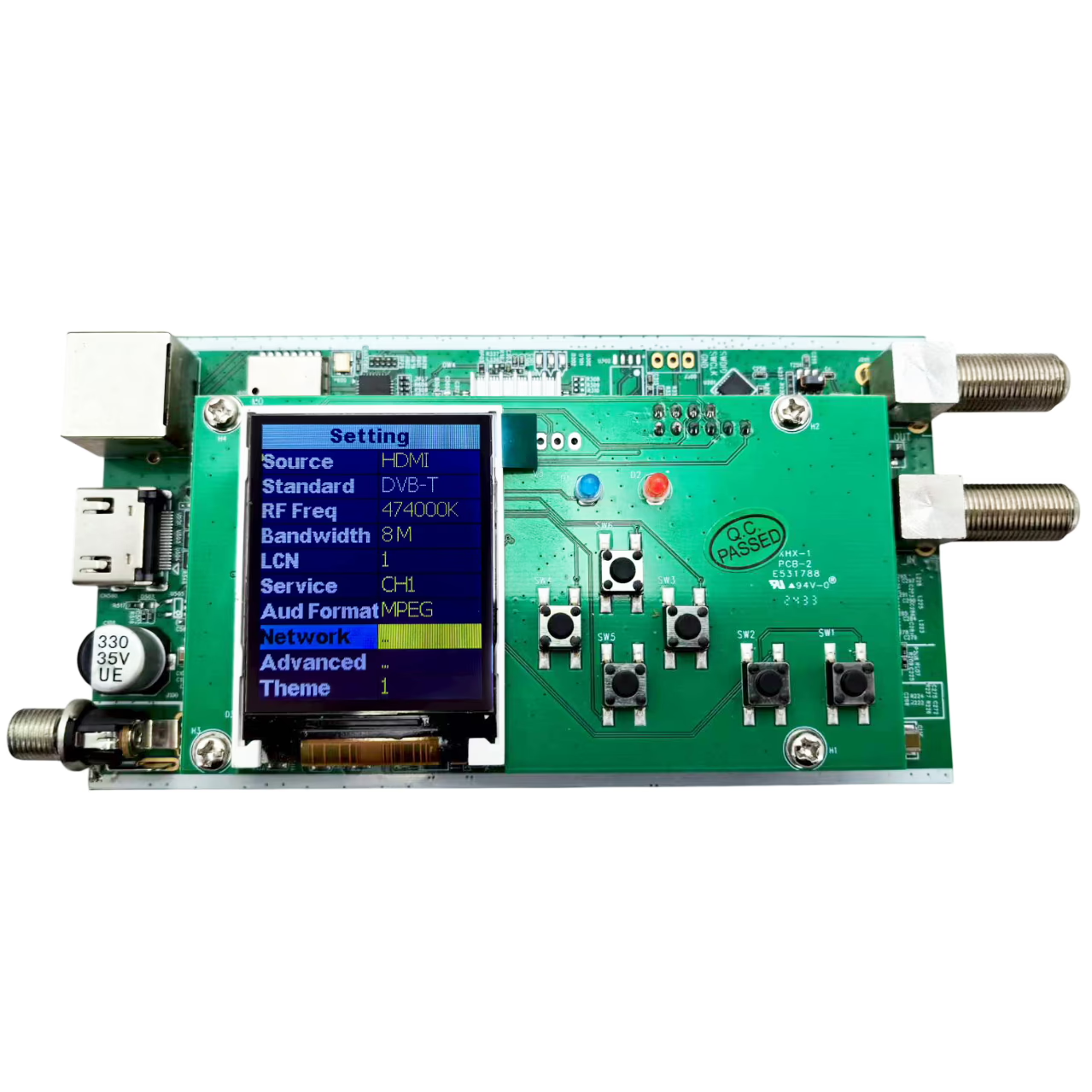
broadcast HDMI encoder to DVB-T RF modulator card module
Feature
FAQ
Could you show how the LCD board works?
Please check the below YouTube video.
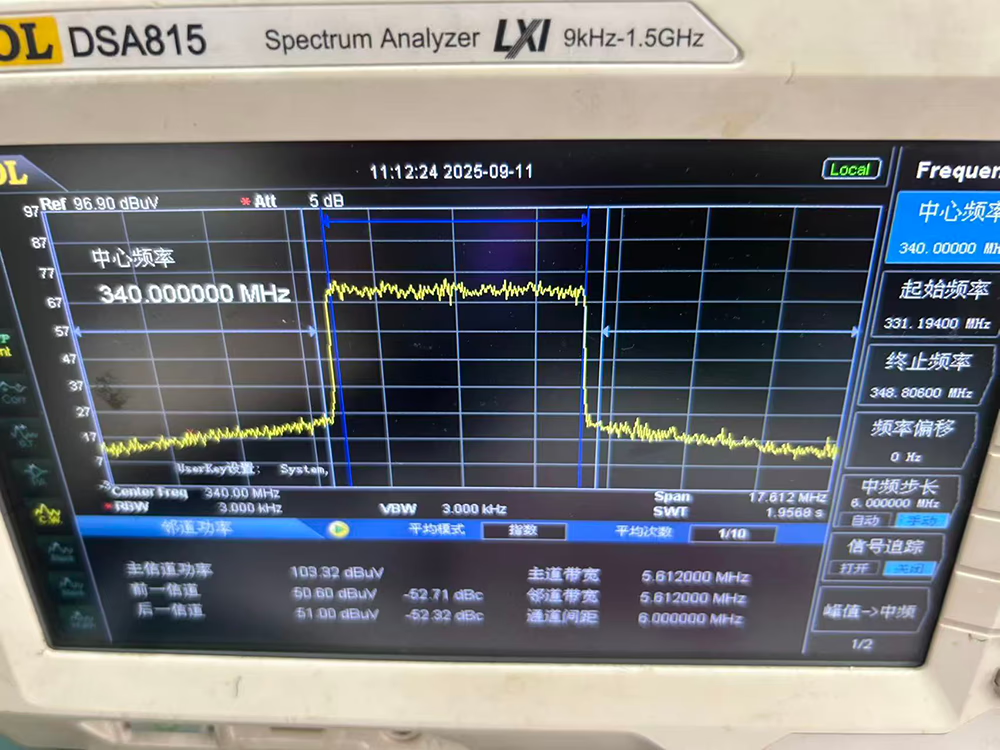
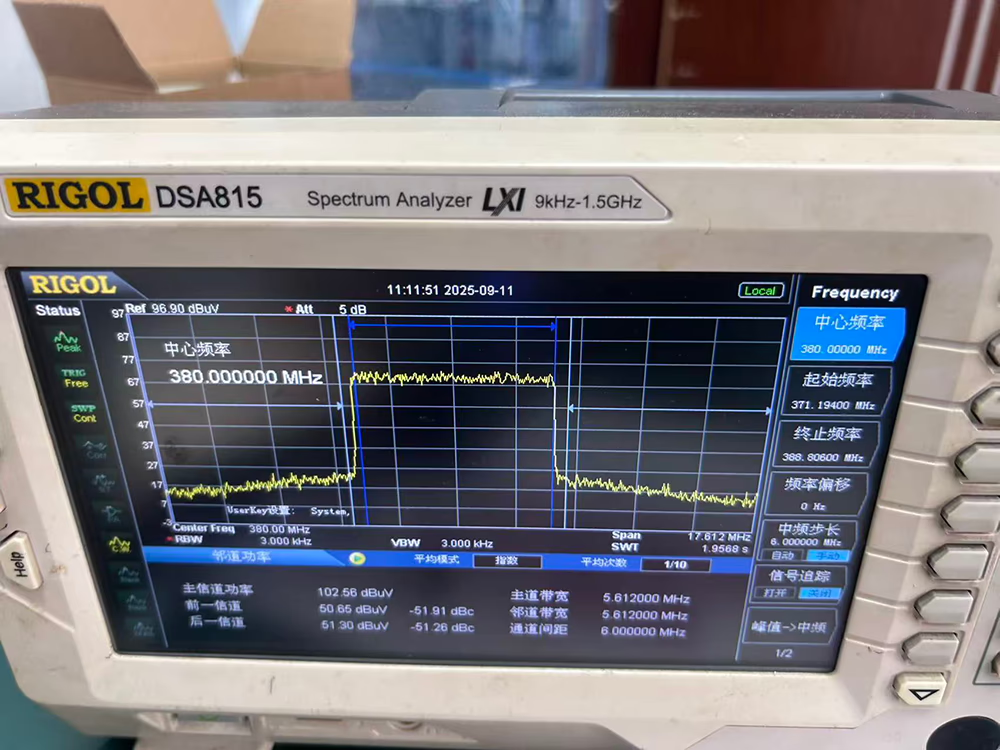
Can this HDMI to DVB-T RF modulator operate at 340 and 380 MHz with a 6 MHz bandwidth?
No problem. Please see the test results on the spectrum graph.
Is it possible to set the bit rate to a minimum of 5-6 Mbps?
Most professional-grade modulators support both configurable fixed bitrate (CBR) and adaptive/variable bitrate (VBR) modes. Our model bit-rate supports 5-25Mbps. The bitrate is set to VBR mode. Even if you lower the setting, the bitrate will still spike when the video content is complex. CBR mode. The bitrate will fluctuate by approximately 3% below the target value. For example, with a target bitrate of 8Mbps, it will fluctuate between 7.8Mbps and 8Mbps. However, lowering the bitrate will also affect the image quality, especially for high-definition programs.
| Feature | Fixed Bitrate (CBR – Constant Bitrate) | Adaptive Bitrate (VBR – Variable Bitrate) |
|---|---|---|
| How it Works | The bitrate remains constant, regardless of the complexity of the video content. | The bitrate dynamically changes based on scene complexity (e.g., high for fast action, low for static scenes). |
| Video Quality | Consistent but can suffer from blocky artifacts in complex scenes; may waste bandwidth on simple scenes. | Generally higher overall perceptual quality. Allocates more bits to complex scenes and fewer to simple ones. |
| Bandwidth Usage | Constant and predictable. Essential for stable bandwidth planning and managing multiple channels. | Fluctuates and is less predictable. Requires more robust network handling to accommodate bursts. |
| Ideal Use Case | Video conferencing, stable content, or bandwidth-constrained systems where predictable data rates are a priority. | Content with varying motion (sports, movies) where achieving the best possible video quality is the main goal. |
| Configuration | Usually a direct setting where you input a specific value (e.g., 4, 6, 8 Mbps). | Often a mode you select (e.g., “VBR”), sometimes with target quality or max/min bitrate parameters. |
-
Choose CBR (Fixed) for applications where bandwidth stability and predictability are critical, such as in large headends where multiple channels share a fixed bandwidth pipeline.
-
Choose VBR (Adaptive) when you want to maximize video quality for content with high motion and have the network capacity to handle bitrate variations.
Product Safety and Operational Guide
1. Power Supply & Electrical Safety
-
Mains Connection: This product must be connected to a mains power supply.
-
Disconnection: Always disconnect the device from the mains supply before performing any maintenance, cleaning, or modifications to the installation.
-
Overvoltage Protection: To prevent short circuits or fire, never overload power lines.
-
Correct Power Adapter: For single-channel models, only use the provided 12VDC power supply. Using an unauthorized power adapter may cause damage.
2. Environmental Conditions
-
Temperature: The device must be installed and operated within its specified minimum and maximum temperature range.
-
Humidity & Liquids:
-
Protect the device from splashes and moisture.
-
Do not place any objects filled with liquids on or near the unit.
-
Do not install in humid places or in direct sunlight.
-
If liquid spills into the cabinet, immediately disconnect the power.
-
-
Weather Exposure: Do not expose the unit to rain or moisture.
3. Ventilation & Cooling
-
Airflow: Ensure ventilation holes are never obstructed.
-
Enclosure: The device must not be installed in a hermetically sealed environment.
-
Clearance: Maintain a minimum distance of 15 cm (6 inches) around the apparatus from other electronic products or heat sources to ensure sufficient ventilation and prevent overheating.
4. Maintenance & Accessories
-
Cleaning:
-
Disconnect the module from power before cleaning.
-
Clean only with a soft, dry or slightly damp cloth. Do not use solvents or abrasive cleaners.
-
-
Compatible Accessories: The use of accessories, cables, or power supplies not specified or provided by the manufacturer may cause damage and void the warranty.
5. General Installation
-
Follow all minimum and maximum operational specifications provided in the full user manual.
-
Ensure the installation location is stable, dry, and well-ventilated.
WEB OPERATION INSTRUCTION
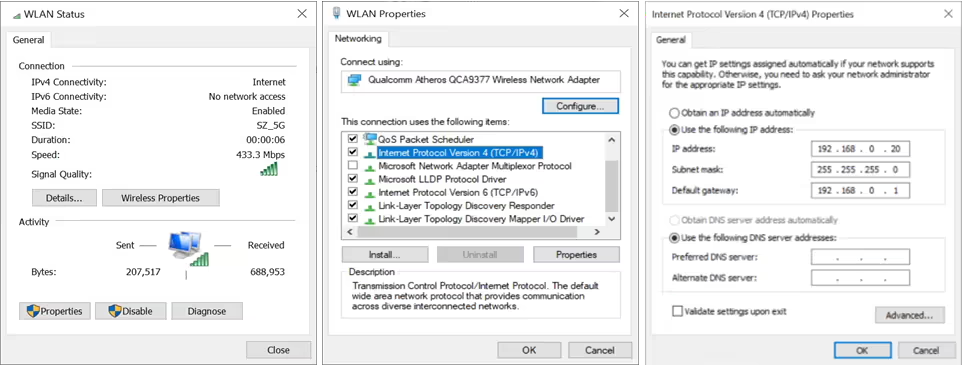
For setting configurations, you can use the Web NMS to control and set by connecting the device to a computer’s RJ45 Port. The default IP of device is 192.168.0.168. Your computer will require a static IP address in the range 192 . 168 . 0 . xxx except device’s ; otherwise, it would cause an IP conflict
1. Computer static IP address Setting
The IP Address of the computer must be in the same participation as device’s. System Control > Network Connections > LAN Connection > Properties >Internet Protocol Version 4 TCP/IPv4 > Properties,as the picture:
2. Device set up and Log in
- Connect the PC to the Ethernet port of the Device.
- Launch the web browser and delete browsing history.
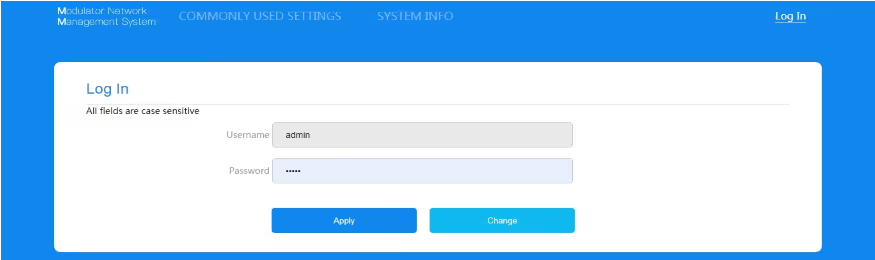
- When log in to the IP (192.168.0.168), you will see the log in page.
The factory password is “admin”. Enter the password and click button “Apply”.
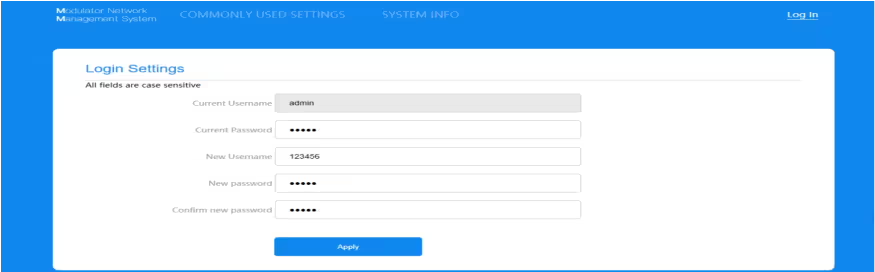
Also, user can changed the Username and Password by click “Change” , details display as following page.
3. General Section
In “ General ” section, you can change basic settings as following format description.
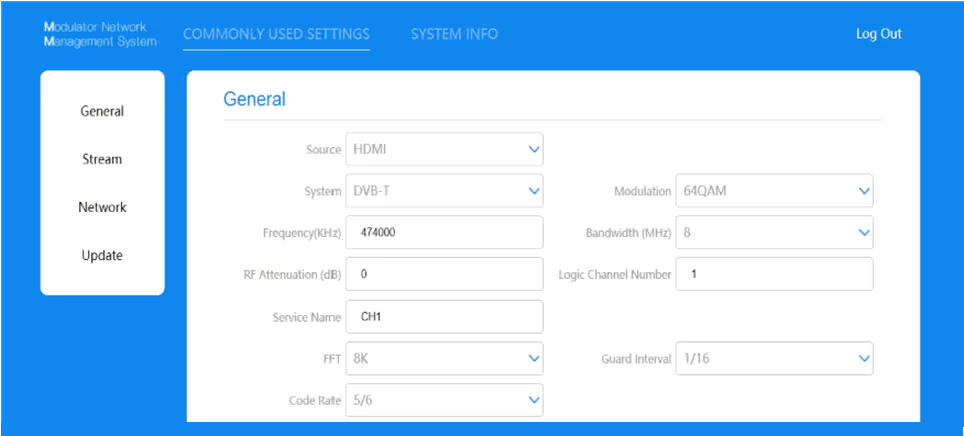
| Source | HDMI |
| System | DVB-T |
| Frequency(KHz) | 50000-900000 |
| RF Attenuation(dB) | 0-30 |
| Service Name | up to 15 alphanumeric characters |
| FFT | 2K, 8K |
| Code rate | 1/2, 2/3, 3/4, 5/6, 7/8 |
| Constellation | QPSK, 16QAM, 64QAM |
| Bandwidth (MHz) | 6, 7, 8 |
| LCN | 1-1023 |
| Guard interval | 1/4, 1/8, 1/16, 1/32 |
4. Stream Section
In “ Stream ” section, you can change detail TS setting as following format description.
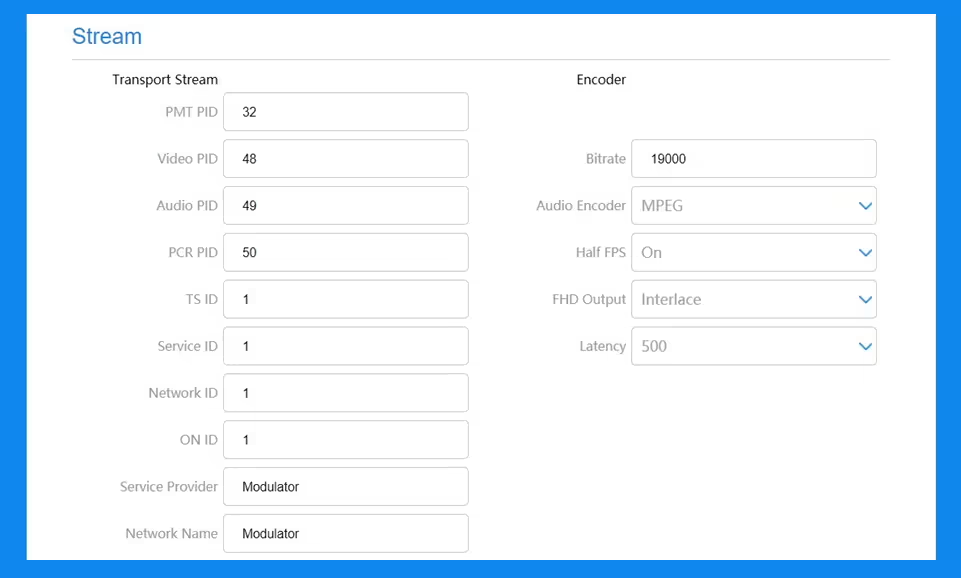
| PMT PID | 32-8190 |
| Video PID | 32-8190 |
| Audio PID | 32-8190 |
| PCR PID | 32-8190 |
| TS ID | 1-65535 |
| Service ID | 1-65535 |
| Network ID | 1-65535 |
| ON ID | 1-65535 |
| Service Provider | up to 15 alphanumeric characters |
| Network Name | up to 15 alphanumeric characters Range |
| Encoder
Bit rate |
5-25Mbps |
| Audio encoder | MPEG, AAC |
| Half FPS | On/Off |
| FHD Output | Auto/Interlace |
| Latency | 500, 800, 1000ms |
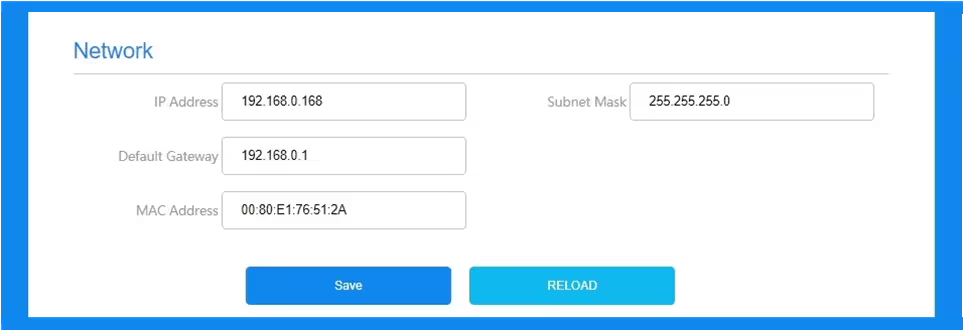
5. Network Section
The default IP is 192.168.0.168. Allow user manual change in this page.
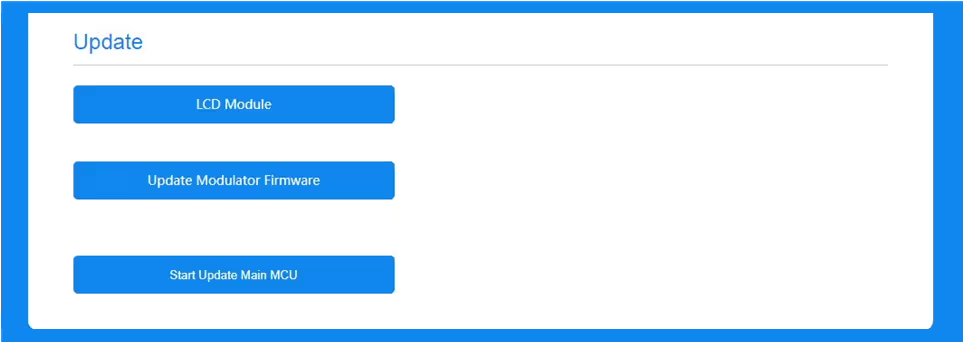
6. Update Section
Click “Update” on the left side of the homepage to display the following page
Remark:
- Make sure the network is stable before operation.
- Avoid opening two pages with the same URL.
- Avoid updating the FW & Main MCU through the router, which may cause the update to fail.
- Ensures the route and power supply are not separated in the update process.
- After the update, it takes a while for the device to automatically restart. And never turn off the power supply during this period.
6.After the update, if the page does not automatically response, please do not power off, and try to reload page, or use another browser to open again.
7.If the update doesn’t work properly, hold the reset button for 5 seconds before reloading the web page.
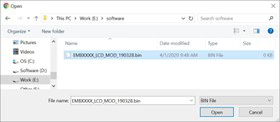
6.1. Update LCD Module
- Click “ LCD Module ” button and pop up a dialog box.
- Choose the file[xxx.bin] to be uploaded.
- After the update is completed, it will automatically return to the settings page.
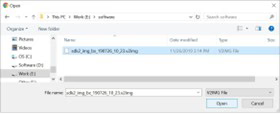
6.2. Update Modulator Firmware
- Click “ Update Modulator Firmware ” button and pop up a dialog box.
- Choose the file[xxx.v2img] to be uploaded.
- After the update is completed, it will automatically return to the settings page.
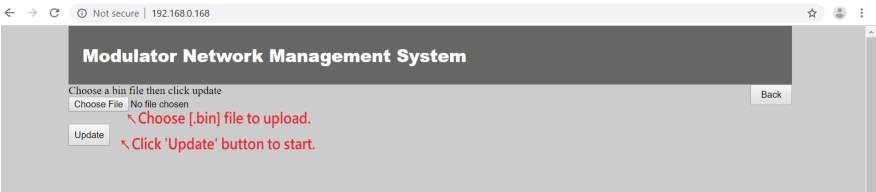
6.3. Update Main MCU
- Click “ Start Update Main MCU ” button, it will jump to another page as below picture.
- Choose the file [xxx.bin] to upload then click “ Update ”
- When update finished, will automatically return to homepage.
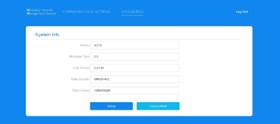
7. System Info Section
User can check the software version and Video sources information here.
The button “ Reload ” is to upload the file that saved settings before.
The button “ Factory Default ” is for the settings restore factory defaults.
iVcan.com –
I installed this HDMI to DVB-T RF modulator in our hotel’s TV distribution system, and it works flawlessly. The H.264 encoding provides clear, high-definition video up to 1080p, and the DVB-T RF output allows us to broadcast to multiple TVs over existing coaxial infrastructure. The web-based interface is intuitive for configuration, and the compact, wall-mountable design saved space. Adjustable bitrate, frequency, and multi-channel support make it extremely flexible for professional deployment. Overall, this modulator delivers reliable, scalable, and high-quality video distribution for commercial and institutional applications.