






Sistema di trasmissione RC dati video FHD
Disclaimer
- Si prega di leggere attentamente il manuale dell'utente prima dell'uso. Assicurati di prestare attenzione agli avvertimenti e di comprendere completamente tutti i punti.
- Si prega di attenersi scrupolosamente alle normative locali sulla gestione delle frequenze radio.
- Seguire i passaggi di installazione nel manuale per utilizzare questo prodotto. La nostra azienda e il nostro agente non si assumeranno la responsabilità legale per i danni alle apparecchiature o al personale causati dall'installazione e dalla modifica degli utenti.
- Il copyright di questo manuale appartiene a VCAN Group Limited Nessuno può farne copie senza consenso scritto.
Attenzione
Attenzione all'installazione
1. Prima dell'accensione, assicurarsi che la connessione dell'antenna sia affidabile . Altrimenti, causerà danni al dispositivo.
2. Assicurarsi che la tensione rientri nel range di utilizzo.
3. Si prega di prestare attenzione alla compatibilità elettromagnetica di tutte le apparecchiature elettroniche del vostro drone.
4. Si consiglia di installare l'antenna verso il basso e di tenerla lontana dal metallo del drone.
5. Assicurati di utilizzare l'antenna corrispondente.
Prima dell'uso
1. Assicurarsi che tutti i cavi siano collegati correttamente e saldamente.
2. Nessun oggetto estraneo (es. liquidi, sabbia, eccetera.) possono essere inseriti all'interno del dispositivo.
3. Prende 15 secondi per l'avvio del dispositivo. Video e dati non possono essere trasferiti finché il dispositivo non ha terminato l'avvio.
4. Assicurarsi che l'ambiente in cui viene utilizzata l'apparecchiatura sia privo di altre interferenze elettromagnetiche.
5. Quando il segnale si indebolisce, è possibile migliorare l'effetto modificando la direzione della rotta dell'antenna.
Lista imballaggio
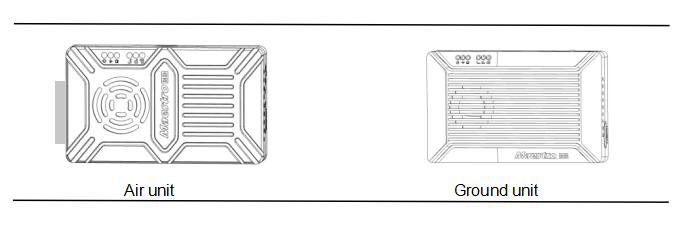
Moduli
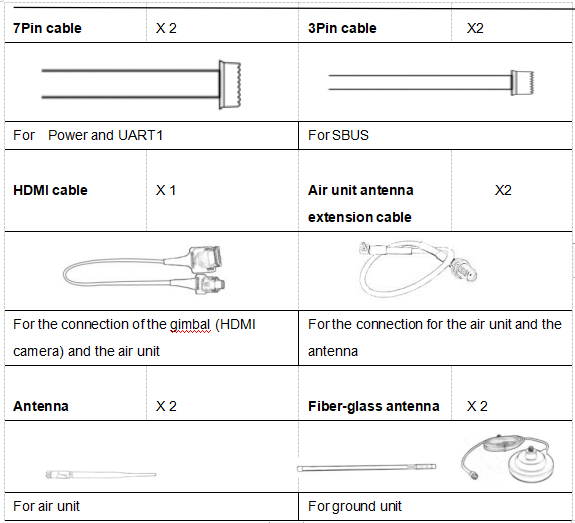
Accessori
Panoramica
M50&M51, progettato per drone , è un tipo di sistema di trasmissione dati e video FHD wireless. Presenta i vantaggi delle piccole dimensioni,basso consumo energetico e lunga distanza. Il sistema può trasmettere video FHD, dati di controllo del volo, dati di controllo del gimbal, e dati di controllo RC contemporaneamente. Con il CODEC video H.265 e la tecnologia di modulazione OFDM, M50&M51 può raggiungere una bassa latenza, trasmissione video ad alta risoluzione.
Con tecnologia avanzata a radiofrequenza, M50&M51 può supportare tre bande di frequenza. Gli utenti possono cambiare facilmente le bande di frequenza. Gli utenti possono scegliere la banda di frequenza adatta in base alle normative locali. L'ID di omologazione radio cinese è 2019DP8189(ID CMIIT:2019DP8189). Inoltre è possibile scegliere il salto di frequenza o la modalità fissa in condizioni speciali.
L'unità aerea dell'M50&Il sistema M51 può essere configurato in modalità punto a punto o in modalità ripetitore. Gli utenti necessitano solo di un'unità aerea in più e di una configurazione semplice per ottenere la trasmissione a lunga distanza. Si prega di guardare il video di istruzioni per ulteriori informazioni.
M50&M51 ha una funzione di crittografia. Gli utenti possono abilitare / disabilitare questa funzione quando necessario. È facile impostare il codice di crittografia utilizzando Maestro Assistant o l'interfaccia utente Web.
Il dispositivo dispone di 2 UART: UART1 e UART2. Due protocolli, Mavlink e trasparente, sono supportati. Gli utenti possono utilizzarlo per i dati di controllo del volo e la trasmissione dei dati di controllo del gimbal. Inoltre il sistema può migliorare la distanza di controllo RC tramite la porta SBUS. Sull'unità di terra di M50&M51, c'è una USB 3.0 porta. L'utente può aggiungere un dispositivo di archiviazione USB per salvare il video FHD.
M50&M51 supporta una varietà di interfacce di ingresso e uscita video, come HDMI, Ethernet, SDI, CVBS . Può anche abbinare la maggior parte dei gimbal sul mercato.
Descrizione del modello
M5X H/S*:
M sta per serie Maestro.
5Codice livello distanza X*.
Indicazione H/S dell'interfaccia video dell'unità aerea.
*50 sta per 7 km,51 corrisponde a 17 km,H sta per HDMI,S sta per SDI. Per favore comunicaci il modello giusto al momento dell'ordine.
per esempio.:M50H in piedi per 7 km,L'interfaccia video dell'unità aerea è HDMI (sia con HDMI che Ethernet)。
Caratteristiche
Lunga distanza Modulazione
-Fino a 17 km a LOS– OFDM
interfaccia video interfaccia dati
-HDMI/Ethernet/SDI/CVBS – UART(TTL/RS232)/SBUS,
Salto/Frequenza fissa Banda di frequenza
-Fisso: definito dall'utente – 800MHz/1,4 GHz/2,4 GHz,
-Saltellando: automatico Modalità di lavoro
BW – L'unità aerea può essere :Modalità punto per punto
-3/5/10/20 Modalità ripetitore MHz
CODEC Bitrate video
– H.265 / H.264 – 500kbps~5Mbps
Temperatura di lavoro Gamma di potenza
– 40℃ ~ + 70 ℃ – Batteria CC 9~28V 3S~6S
Descrizione dell'interfaccia M51
Unità aerea
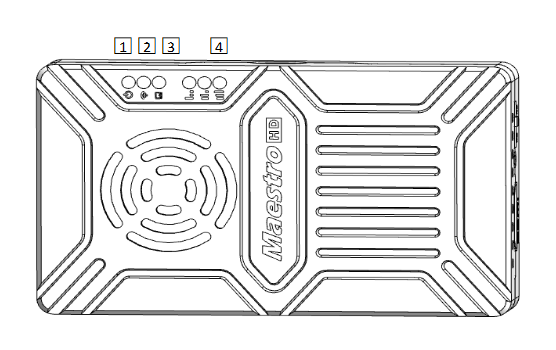
1. Indicatore di energia
Questo indicatore è verde fisso quando l'unità aerea si sta avviando.
Quando l'unità aerea è stata avviata, la spia lampeggia una volta al secondo se non è presente alcuna sorgente video in ingresso su HDMI. E la spia sarà verde fissa se è presente una sorgente video.
2. indicatore di collegamento
| Descrizione del modello LED |
| verde fisso Il collegamento wireless è stabilito |
| luce spenta Il collegamento wireless è stato interrotto |
3. Indicatore di stato
| Schema LED(Lampeggia solo all'avvio) Descrizione |
| Battito di ciglia 3 volte Inizializzazione OK, La frequenza è di 2,4 GB di collegamento 2 volte Inizializzazione OK, La frequenza è di 1,4 GB 1 ora Inizializzazione OK, La frequenza è 800M |
| verde fisso Unità aerea anomala |
4. Indicatore RSSI
| Descrizione del modello LED |
| 3 verde fisso Il segnale wireless è più forte |
| 2 verde fisso Il segnale wireless è medio |
| 1 verde fisso Il segnale wireless è debole |
| all LED turn off No wireless signal |
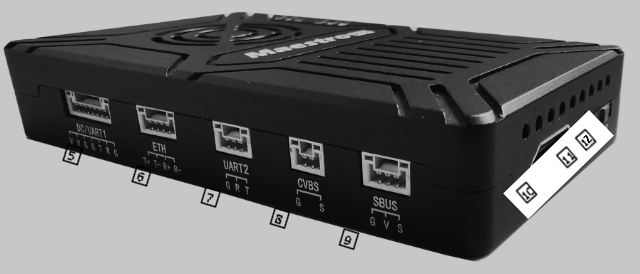
5. DC/UART1
| Numero | Carattere | Descrizione | Ingresso/Uscita |
| 1,2 | V | +Vcc Power Input(9~28V) | io |
| 3,4,7 | sol | GND | I / O |
| 5 | T | TXD(from air unit to external) | il |
| 6 | R | RXD(from external to air unit) | io |
6. Ethernet
| Numero | Carattere | Descrizione | Ingresso/Uscita |
| 1 | T+ | TX+ | il |
| 2 | T- | TX- | il |
| 3 | R+ | RX+ | io |
| 4 | R- | RX- | io |
7. UART2
| Numero | Carattere | Descrizione | Ingresso/Uscita |
| 1 | sol | GND | I / O |
| 2 | R | RXD(from external to air unit) | io |
| 3 | T | TXD(from air unit to external) | il |
8. CVBS video input interface
| Numero | Carattere | Descrizione | Ingresso/Uscita |
| 1 | sol | GND | I / O |
| 2 | S | CVBS Video IN | io |
9. SBUS out interface
| Numero | Carattere | Descrizione | Ingresso/Uscita |
| 1 | sol | GND | il |
| 2 | V | +5V Output(Imax 1A) | il |
| 3 | S | SBUS_OUT | il |
10. Type A HDMI video input interface
11. Pulsante
Premere 10 secondi, air unit will restore all parameters to factory setting。
12. Mode switch
WB is wide band,using wide wireless frequency band.
NB is narrow band,using narrow band to multi-modules transmission.
Suggerimenti: WB mode is recommended,because this mode has better performance in point-to-point transmission.
Unità di terra
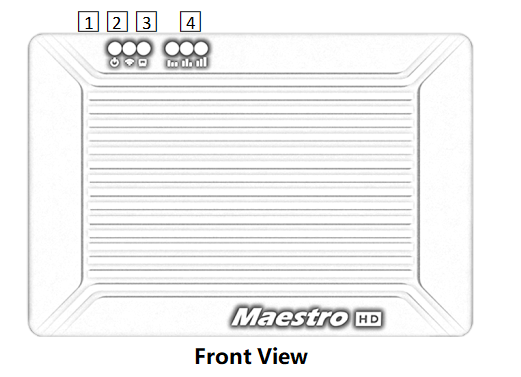
1. Indicatore di energia
This indicator is solid green when ground unit is power on.
2. indicatore di collegamento
| Descrizione del modello LED |
| verde fisso Il collegamento wireless è stabilito |
| luce spenta Il collegamento wireless è stato interrotto |
3. Indicatore di stato
| Descrizione del modello LED |
| Battito di ciglia 3 volte Inizializzazione OK, La frequenza è di 2,4 GB di collegamento 2 volte Inizializzazione OK, La frequenza è di 1,4 GB 1 ora Inizializzazione OK, La frequenza è 800M |
| solid green Ground unit abnormal |
4. Indicatore RSSI
| Descrizione del modello LED |
| 3 verde fisso Il segnale wireless è più forte |
| 2 verde fisso Il segnale wireless è medio |
| 1 verde fisso Il segnale wireless è debole |
| all LED turn off No wireless signal |
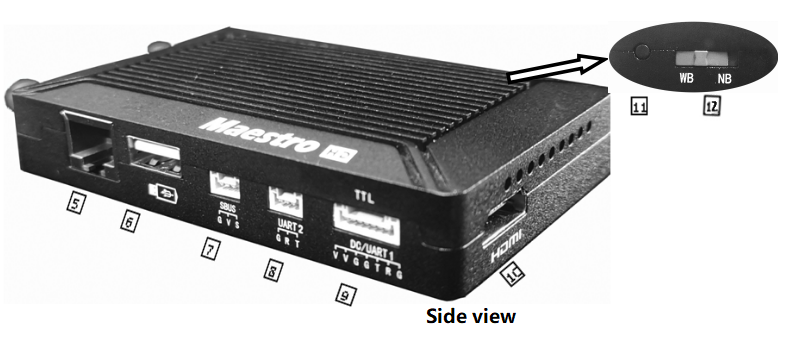
5. Ethernet port(RJ45)
Connecting to host computer. Supporta il protocollo RTSP/TCP/UDP.
6. Porta USB(Tipo A)
Collegare al disco USB per la registrazione video
7. Porta di ingresso SBUS
| Numero | Carattere | Descrizione | Ingresso/Uscita |
| 1 | sol | GND | il |
| 2 | V | +5V Output | il |
| 3 | S | SBUS_IN | io |
8. UART2
| Numero | Carattere | Descrizione | Ingresso/Uscita |
| 1 | sol | GND | I / O |
| 2 | R | RXD(da unità esterna a terra) | io |
| 3 | T | TXD(dall'unità di terra all'esterno) | il |
9. DC/UART1
| Numero | Carattere | Descrizione | Ingresso/Uscita |
| 1,2 | V | +Ingresso CC Vcc (9~28 V) | io |
| 3,4,7 | sol | GND | I / O |
| 5 | T | TXD(dall'unità di terra all'esterno) | il |
| 6 | R | RXD(da unità esterna a terra) | io |
10. HDMI(Tipo A)
Porta di uscita video FHD .
11. Pulsante
Aspetta 3 secondi per avviare la registrazione video, quindi tenere premuto 3 secondi per interrompere la registrazione. È necessario prima inserire il dispositivo di archiviazione USB.
Aspetta per 10 secondi, l'unità di terra ripristinerà tutti i parametri alle impostazioni di fabbrica。
12. Mode switch
WB is wide band,using wide wireless frequency band.
NB is narrow band,using narrow band to multi-modules transmission.
Le unità aeree e terrestri dovrebbero avere la stessa direzione.
Installazione
Aria
1. Installazione dell'unità aerea sul tuo drone
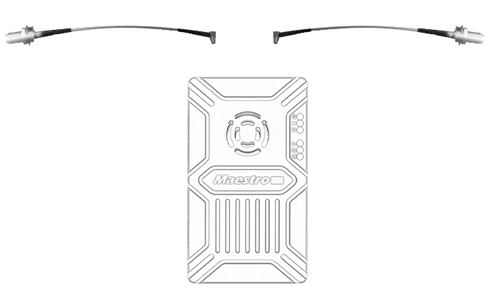
1.1 Inserire il cavo da MMCX a SMA nelle porte sul lato dell'unità aerea. Quando senti un clic, significa una buona connessione.
1.2 Risolto il problema con il dispositivo e il cavo RF sul tuo drone. Installare l'antenna. Fare attenzione al collegamento dell'antenna da stringere. Rendi l'antenna rivolta verso il basso. Non sono presenti metalli o schermature entro 20 cm dall'antenna.
2. Collega la fotocamera (giunto cardanico).
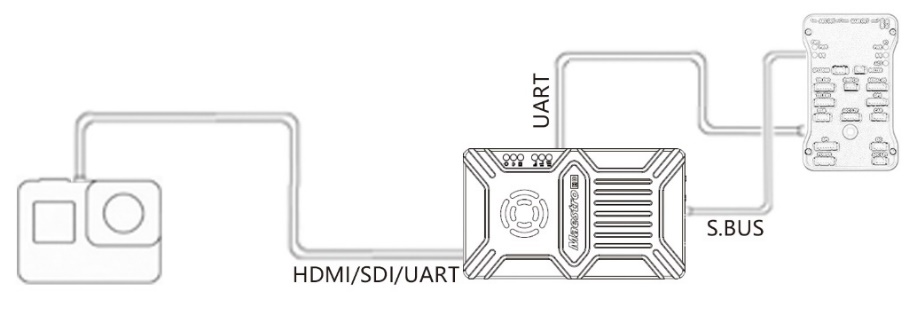
Collegare la fotocamera/gimbal all'unità aerea con un cavo HDMI/SDI/Ethernet. E collega UART1 e SBUS al controllore di volo. Non posizionare l'antenna vicino al motore o all'ESC, in caso contrario il dispositivo subirà interferenze.

Disegno dell'installazione completa del drone
Terreno
1. Collegare l'antenna
1.1 Collegare l'antenna in fibra di vetro fornita insieme al dispositivo all'unità di terra. Hanno una porta comune: SMA. Assicurati di stringere il giunto. Il 2 L'antenna in fibra di vetro dovrebbe essere distante 1,5 m.

1.2 Collegare il cavo HDMI .
Collegare la porta HDMI con il cavo HDMI a un monitor. Il segnale video FHD verrà visualizzato direttamente sul monitor.
2. Connettiti alla stazione di terra
La stazione di terra ha due modi di connessione con l'unità di terra M51, per trasmettere video e dati.
Ottieni video
1. Direttamente tramite HDMI
Se la stazione di terra dispone di un monitor HDMI, basta collegare l'unità di terra al monitor direttamente tramite cavo HDMI.
2. Tramite Ethernet
Collegare la porta Ethernet con cavo CAT al computer o alla stazione di terra. L'utente può utilizzare software di terze parti per decodificare, come VLC, Pianificatore di missione.
Se colleghi una telecamera IP all'unità aerea di M51, l'unità di terra può anche trasmettere video FHD per monitorare direttamente tramite HDMI. Si prega di guardare il video tutorial e altre parti di questo documento.
Ottieni dati
1.È possibile ottenere dati dall'unità di terra tramite UART1 e UART2. Forse hai bisogno di un convertitore da UART a USB.
2. È possibile ottenere dati dalla porta Ethernet utilizzando il protocollo UDP/TCP.
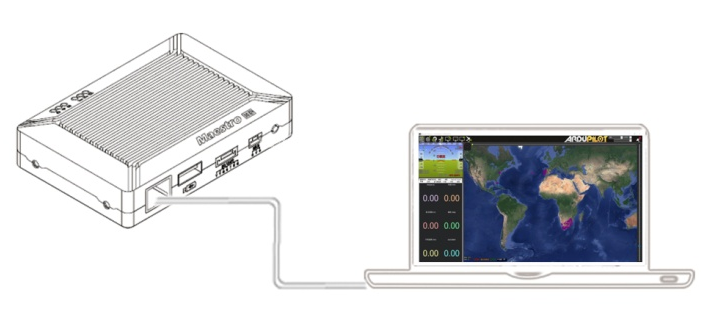
Disegno del collegamento a terra
M51 Istruzione
Avvio rapido
1. Preparazione
Assicurati che tutte le connessioni siano pronte, compresa l'antenna, Cavo HDMI e così via.
2. Accendi
La tensione CC è 9~28 V. Dopo l'accensione, il LED POWER sarà verde fisso.
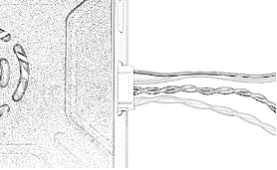
Qualsiasi domanda, fare riferimento alle domande frequenti. Prende 15 secondi per l'avvio. Dopo l'avvio del sistema, è possibile stabilire la trasmissione wireless. La trasmissione video avrà luogo 15 più secondi.
M51 con pianificatore di missione
Segui i passaggi per utilizzare M51 con Mission Planner:
1. Collega l'UART1 dell'unità aerea M51 al controller di volo, come Pixhawk. Collega il gimbal all'M51 ETH o HDMI.
2. Assicurarsi che tutti i collegamenti dei cavi aria e terra siano completati. Accendere il sistema.
3. Installa Mission Planner sul tuo computer.
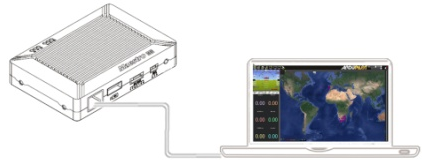
4. Imposta l'indirizzo IP del computer.
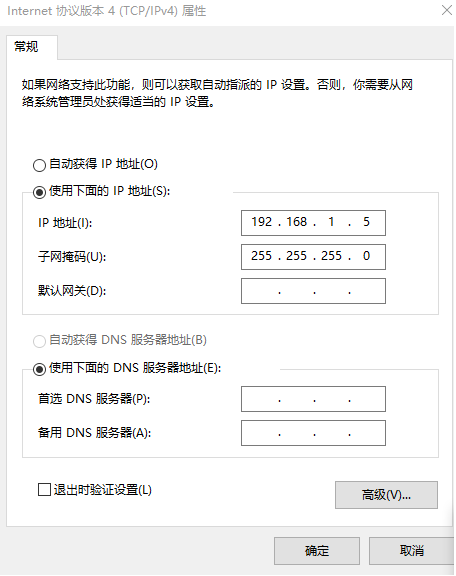
Apri l'impostazione "Rete e Internet".. Selezionare "Versione protocollo Internet". 4 (TCP / IPv4) proprietà”. Cambia l'indirizzo IP in “192.168.1.xxx”(xxx è compreso tra 0~255,tranne 192.168.1.36 e 192.168.1.100)。
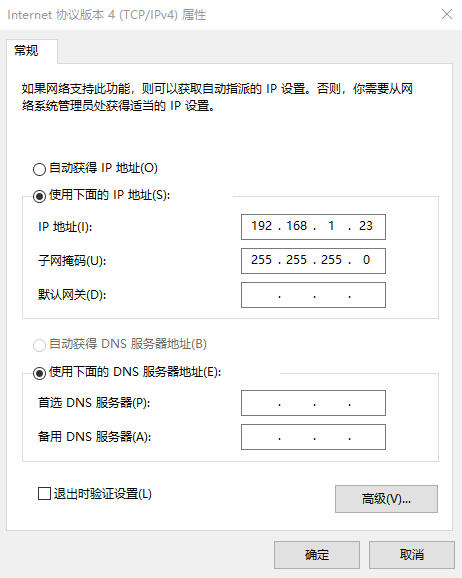
5. Ottieni dati
Esistono tre metodi per ottenere dati dall'unità di terra M51, utilizzando il pianificatore di missione:
- Porta UDP tramite Ethernet;
- Porta TCP tramite Ethernet;
- UART (COM)
5.1 Ottieni dati dalla porta UDP.
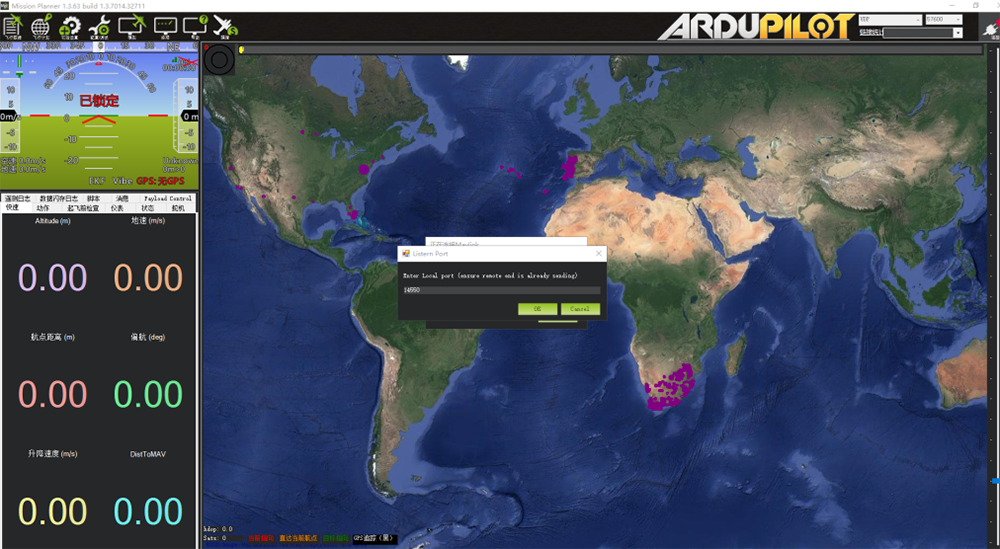
Apri il pianificatore di missione,selezionare UDP,fare clic sul pulsante “Connetti”., verrà visualizzata una nuova finestra "Porta di ascolto",cambiare la porta in 14550(Se il numero di porta UDP è stato modificato nella pagina web, si prega di inserire il nuovo numero. Per ulteriori informazioni, vai alla configurazione della pagina web). Quindi fai clic su "OK", Mission Planner riceverà i dati del volo。
5.2 Ottieni dati dalla porta TCP.
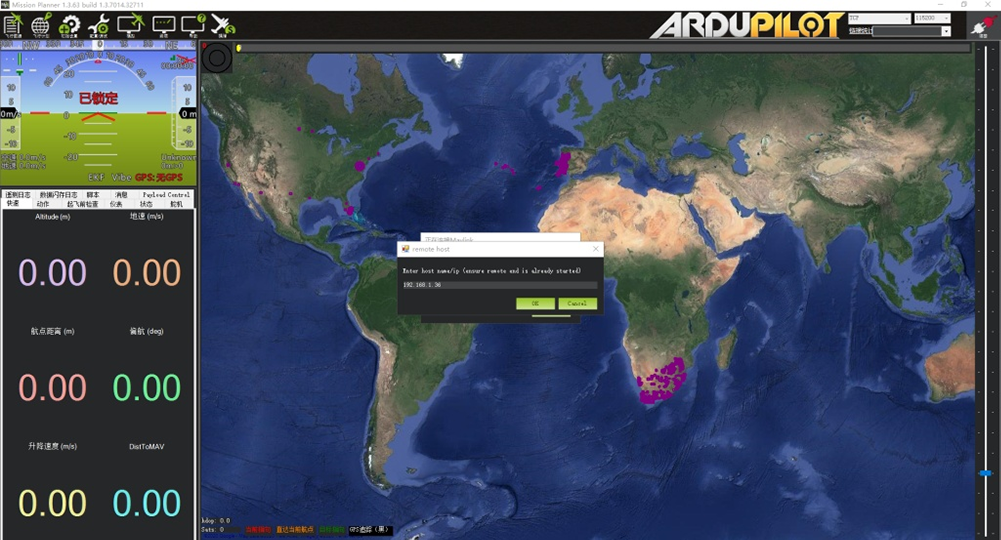
Apri il pianificatore di missione,selezionareTCP,fare clic sul pulsante “Connetti”., verrà visualizzata una nuova finestra "Porta di ascolto",riempire lo spazio vuoto con IP: 192.168.1.36, la porta remota è 5760
(Se l'indirizzo IP e il numero di porta TCP sono stati modificati nella pagina web, please fill in the new IP and port number. Per ulteriori informazioni, vai alla configurazione della pagina web). Quindi fai clic su "OK", Mission Planner riceverà i dati del volo.
5.3 Get data from UART(COM);
Connect the ground unit UART1 with a UART(TTL)
to USB converter to the computer. Before this, per favore
install the driver in the computer.
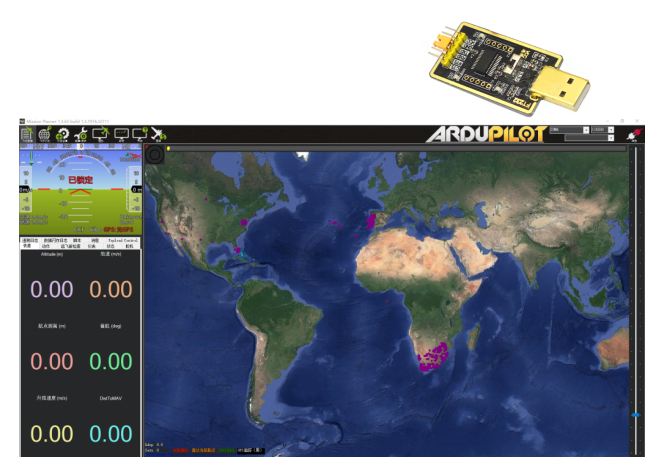
Apri il pianificatore di missione, select COM (Please check the COM number) and the right baud rate,fare clic sul pulsante “Connetti”., Mission Planner riceverà i dati del volo.
6. Ottieni video
When you open the Mission Planner, click Video and then Set GStream Source,as show below:
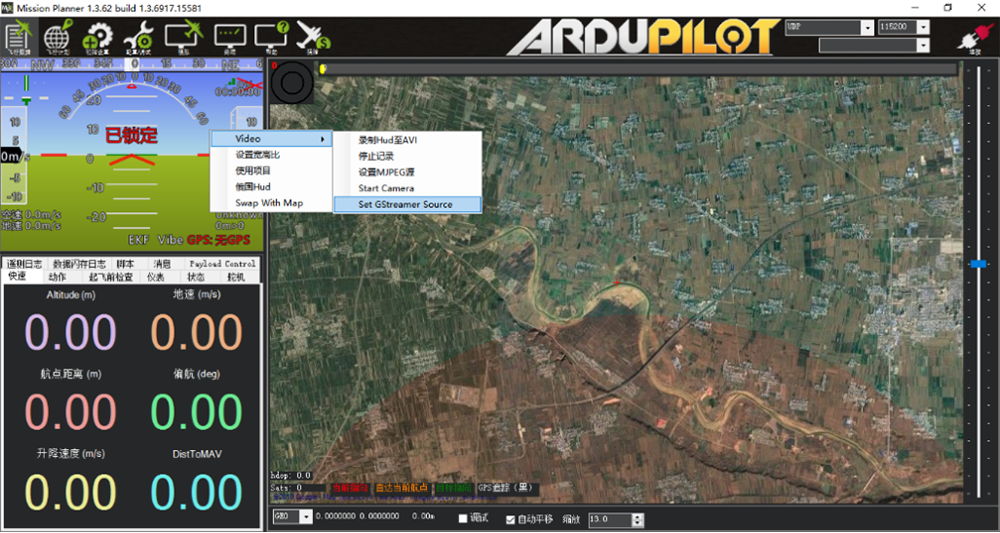
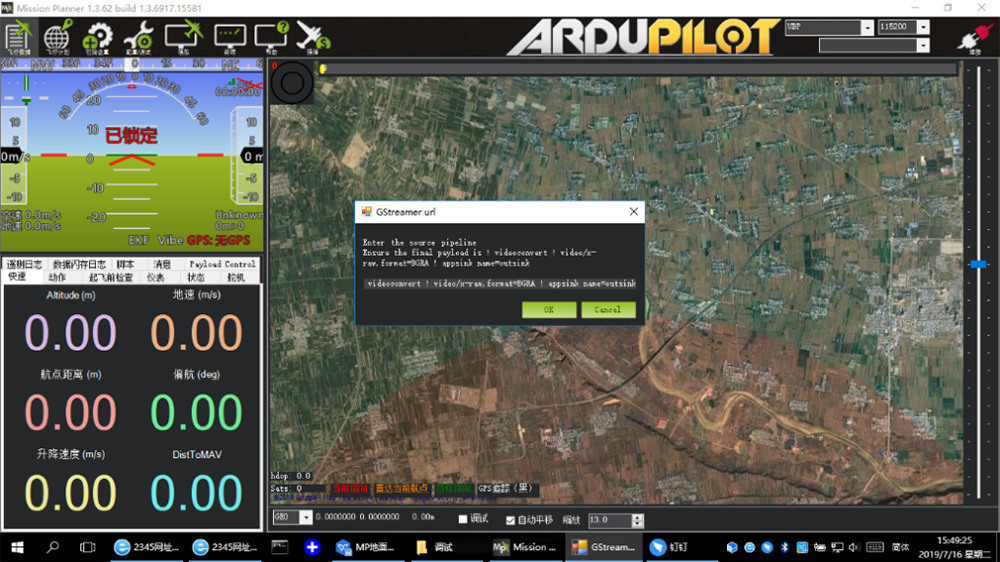
Input the address: rtspsrc location=rtsp://192.168.1.36/stream0 latency=0 ! decodebin ! videoconvert ! video/x-raw,format=BGRA ! appsink name=outsink
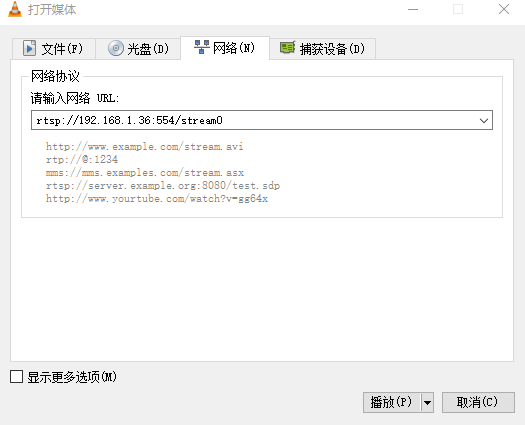
M51 with VLC
- Set the IP address of the computer as mention above. Make sure M51 is working properly.
- In the “open media” page, please input the following address:
rtsp://192.168.1.36:554/stream0
Improve RC controller distance through SBUS
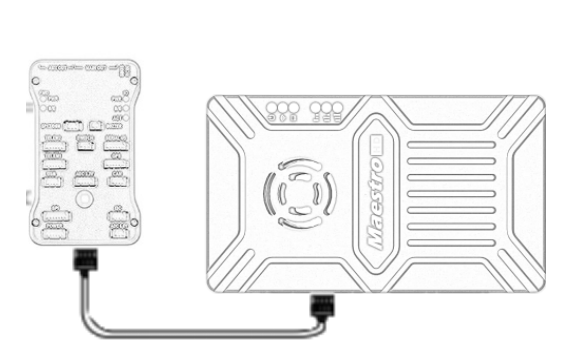
- Connect air unit SBUS to flight controller RC IN.
Using the SBUS cable in the accessory box to connect the air unit to the flight controller. The cable is 3 perno.
Attenzione:The SBUS port of air unit is output. The maximum of +5V output current is 1A. If you don’t need the +5V, let it open. Do not take it as input. Altrimenti, the stability of the system will be affected.
- Connect the RC receiver to the ground unit
Using the SBUS cable in the accessory box to connect the ground unit to the RC receiver.
Attenzione:The SBUS port of ground unit is input. The maximum of +5V output current is 1A. You can use it to power the RC receiver. Please pay more attention to the cable line order.

Recording video on ground unit
1. Inserted the USB storage device into the USB port on the ground unit. The HDMI output display “USB device is inserted”.
2. Press the button on the ground unit for 3 seconds to start recording. The HDMI output display “Recording…” and start timing recording.
3. To stop recording, hold down the button for 3 secondi. The video is automatically saved to the storage device.
4. You can play video with third-party video players.
Maestro Assistant
Interface of Maestro Assistant
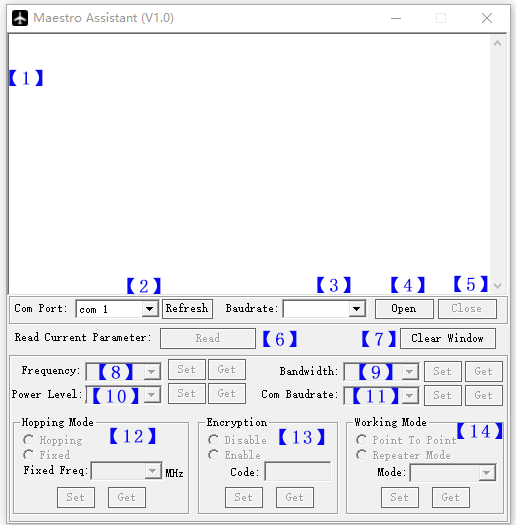
Descrizione della funzione:
【1】Information display:display status information for the M51。
【2】UART(COM) Selezionare:Select the right COM number of the computer to connect M51. If you want to change to another COM , please click the ‘Refresh’ button.
【3】Baud rate select:Select the right baud rate for the COM. Make it the same as M51 UART1.
【4】Open COM button.
【5】Close COM button.
【6】Read current parameter button:click this button to get the current parameter of device。
【7】Clear window button: to clear the information display.
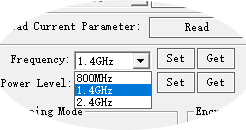
【8】Select frequency:There are three frequency bands to be selected——800MHz/1.4GHz/2.4GHz. Choose the band you needed,and click ‘Set’ button to complete setup. Click the ‘Get’ button to get current frequency band.
【9】Select BW:There are four BW to be selected——3MHz/5MHz/10MHz/20MHz. Choose the BW you needed,and click ‘Set’ button to complete setup. Click the ‘Get’ button to get current BW.
【10】Select Power Level:There are three power level to be selected——High/Mid/Low Choose the power level you needed,and click ‘Set’ button to complete setup. Click the ‘Get’ button to get current power level.
【11】Select baud rate:You can select the right baud rate for M51 Uart1 in this box.
Choose the baud rate you needed,and click ‘Set’ button to complete setup. Click the ‘Get’ button to get current baud rate.
【12】Select hopping mode: There are two mode to be selected——Hopping/Fixed. Choose the mode you needed,and click ‘Set’ button to complete setup. Click the ‘Get’ button to get mode. When you select Fixed mode, you need to choose a fixed frequency below. The fixed frequency is related to frequency band and BW.
【13】Select Encryption: You can disable/enable the encryption. When enable this function, you can set your private password. The password should in the range of 100000~999999. Devices with different password do not link.
【14】Select Working mode: There are two working mode of M51——Point to Point mode and Repeater mode. Choose the working mode you needed,and click ‘Set’ button to complete setup. Click the ‘Get’ button to get current working mode. This function only needs to be set up on the M51 air unit. The ground unit can synchronize automatically. If you select Repeater mode, you need to select the air unit whether it is TX or repeater.
How to use Maestro Assistant
1. Connect M51 with Maestro Assistant。
Maestro Assistant is a Windows software that configures M50/M51. Prima della configurazione, please connect the UART1 to computer via UART(TTL) to USB converter.
Select the right COM and baud rate. Click ‘open’ button.
2. Read current parameter。

After step1, click ‘Read’ button. All current parameter will print on the information display. Because the Working mode is only for air unit. The Working mode box will turn grey on ground unit configuration.
3. Configurazioni.
3.1 Banda di frequenza
There are three frequency bands to be selected
——800MHz/1.4GHz/2.4GHz. You can choose the
suitable frequency band according to local regulations.
The specific frequencies for each band are as follow:
800MHz:806~ 825MHz;
1.4GHz:1427~1447MHz;
2.4GHz:2408~2480 MHz;
3.2 Larghezza di banda
There are four BW to be selected——3MHz/
5MHz/10 MHz/20 MHz. The greater the BW, the more
data can be transmitted, but the weaker the
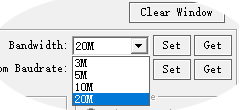
anti-interferenza. In Fixed frequency mode, M50/M51 will have
more frequency to fix with small BW.
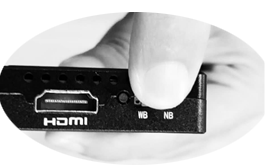
Additional, there is a shortcut key on M50/M51.
You can change BW easily. While NB is narrow band,
and WB is wide band. For both the air and ground unit,
the shortcut key should in the same place. Altrimenti, they can not link.
3.3 di potenza RF
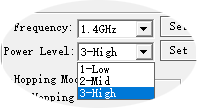
M50/M51 has three levels of power to choose.
In order to cause interference between devices, per favore
select the appropriate transmission power. The specific
RF power values are as follow:
1-Basso:15dBm;
2-Metà:20dBm;
3-Alto:25dBm。
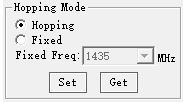
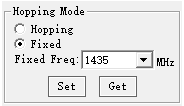
3.4 Hopping/Fixed Mode
There are two mode to be selected——Hopping
/Fisso. In Hopping mode, M51 can automatically adjust
frequency when there is interference. In fixed mode,
the device is fixed to a special frequency . So in one
banda di frequenza, up to four sets of devices can be used.
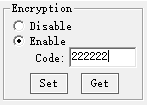
3.5 crittografia
The wireless signal can be encrypted during transmission.
When enable this function, you can set your private password.
The password should in the range of 100000~999999. Devices with different password do not link. When disable this function, different M51 air and ground can link each other.
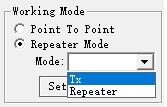
3.6 Modalità di lavoro
M51 can work in Point to Point Mode and Repeater
Modalità. Only the air unit of M51 need to be set. The ground
unit can synchronize automatically. In Repeater mode, il
air unit can be set to TX (trasmettitore) or Repeater.
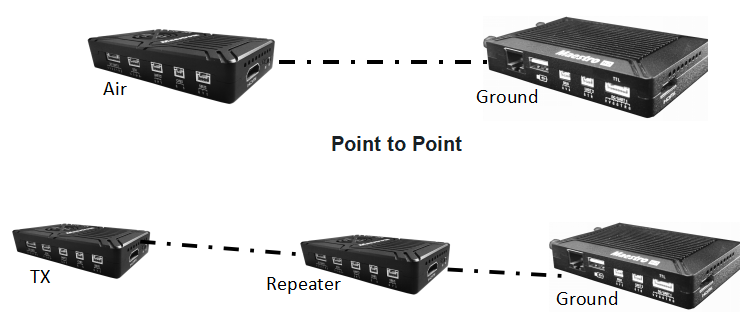
With Repeater mode, M51 can be easily used under NLOS situation. You only need to buy one more air unit and then can establish a repeater system easily.
M51 Web UI Configuration Description
Parameter of M51 can also be set through web UI. User can enter IP address through the browser to access the web UI. The air unit default IP is 192.168.1.100. The ground is 192.168.1.36. In Repeater mode. TX is 192.168.1.100. Repeater is 192.168.1.101.
If you change the device to another IP address, please access the web UI through the new IP. If you forget the IP you changed, press the button on the device for 10 seconds when the device is power on to restore to factory settings.
You need to change your computer IP to 192.168.1.X so as to access the device web UI. Come mostrato nella figura seguente:
M51 Air Web UI
1. Accesso
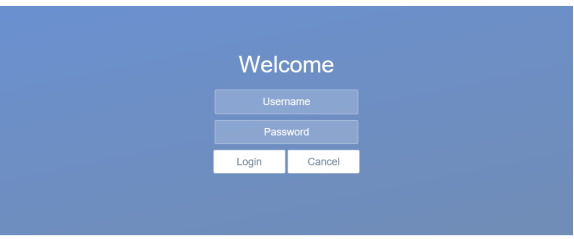
After you enter IP address 192.168.1.100 in the browser, you will see the ‘Welcome’ page. Default username is: amministratore, la password è: 123456. Then you can login.
2.Air setting
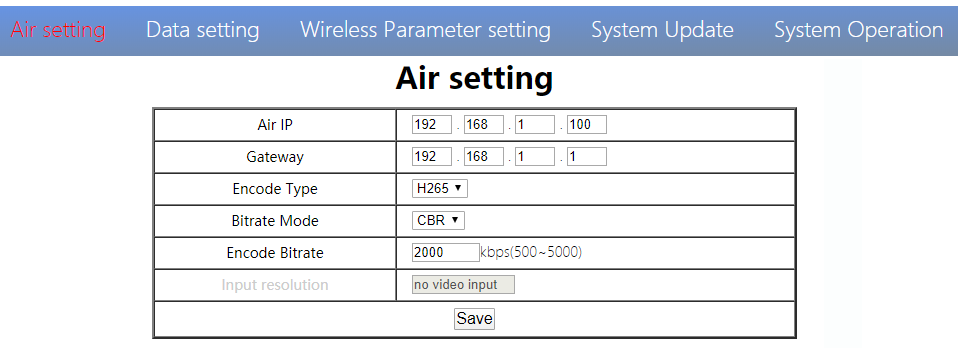
In Air setting page, user can change air IP 、 Gateway and other parameter. You can refer to the table below.
| Parametro | Valore | Descrizione |
| Air IP | Predefinito 192.168.1.100 | User can change |
| Gateway | Predefinito 192.168.1.1 | User can change |
| Encode Type | H265/H264 | Default H265 |
| Bit rate Mode | CBR/ VBR | Default CBR |
| Encode Bit rate | 500kbps~5Mbps | User can change, default 1M |
| Input resolution | Input automatic detection | display current HDMI input resolution |
If you change the device parameter, it will be in effect after rebooting. If you change IP address, please enter the new address in your browser after rebooting.
3.Data setting
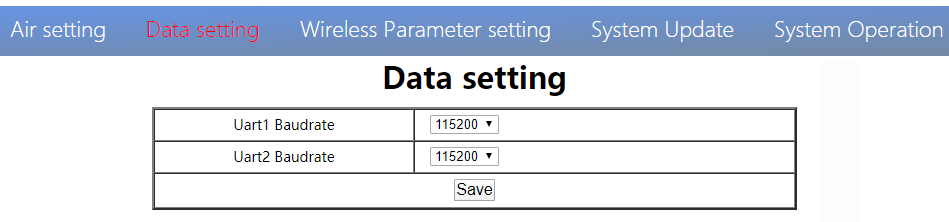
User can change Baud rate of UART1 and UART2 in Data setting page. It will be in effect after rebooting.
4. Wireless Parameter setting
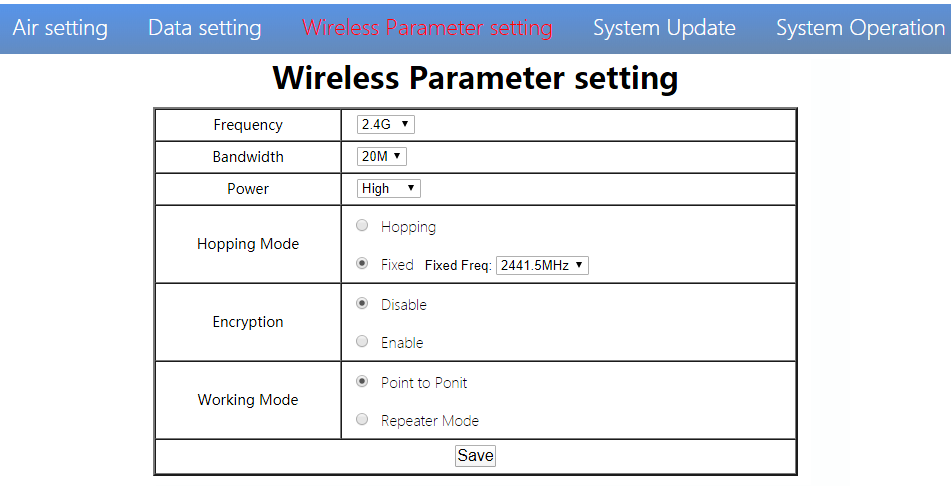
User can change wireless parameter on Wireless Parameter setting page . You can refer to the table below.
| Parametro | Valore | Descrizione |
| Frequenza | 800M/1.4G/2.4G | Opzionale |
| Larghezza di banda | 3/5/10/20M | Opzionale |
| Energia | High/Middle/low | Opzionale |
| Hopping Mode | Hopping/ Fixed | Opzionale |
| crittografia | Disable/ Enable | Opzionale |
| Modalità di lavoro | Point to Point Repeater Mode | Only the air unit of M51 need to be set. The ground unit can synchronize automatically |
Web UI configuration is the same as Maestro Assistant. User can check it in ‘How to use Maestro Assistant’ part 3 for more details.
When you configure parameter through Web UI, It will be in effect after rebooting
5.Aggiornamento del sistema
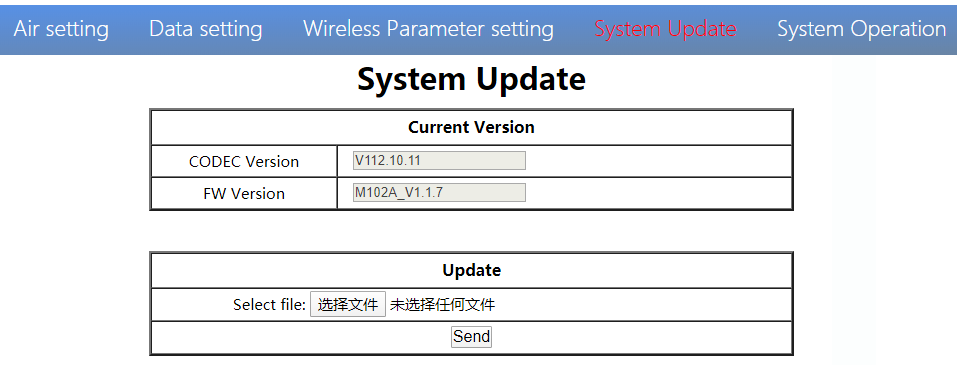
User can update CODEC version and FW version in System Update page. Before update, please download the latest software version from our website.
Click ’browse…’. Seleziona il file di aggiornamento. Click ‘Send’. You will see the upgrade progress bar. The system will restart when the upgrade is complete. You can check the CODEC and FW version in this web page
Inoltre, CODEC Version is for video encoding. The upgrade file is large and no need to upgrade frequently. So we update the CODEC and FW files separately. Please pay attention to the version separately..
6.System Operation
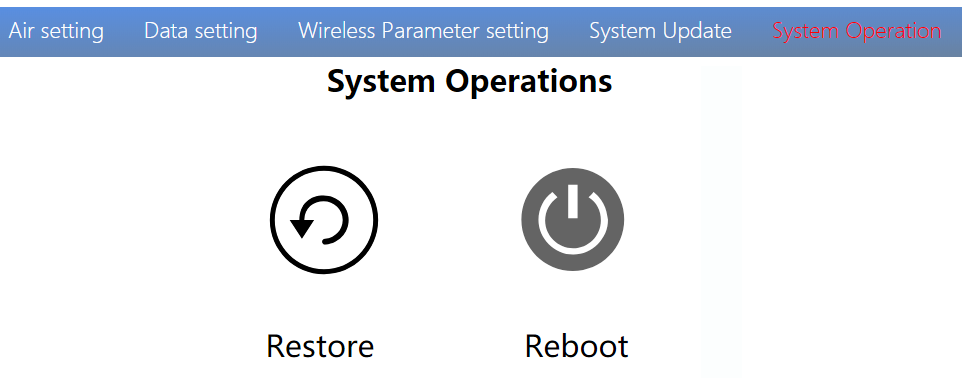
User can Restore and Reboot on System Operation page. While ‘Restore’ is to restore all parameter to factory settings。
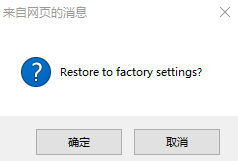
“Reboot” is used for system rebooting。
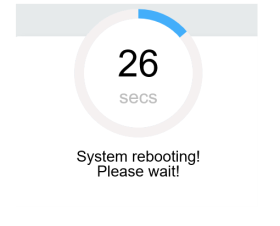
If user do not change the device IP address, it will go to the Login page after rebooting. If you change the IP address, you need to enter the new IP address in your browser after rebooting.
M51 Ground Web UI
1.Accesso
After you enter IP address 192.168.1.36 in the browser, you will see the ‘Welcome’ page. Default username is: amministratore, la password è: 123456. Then you can login.
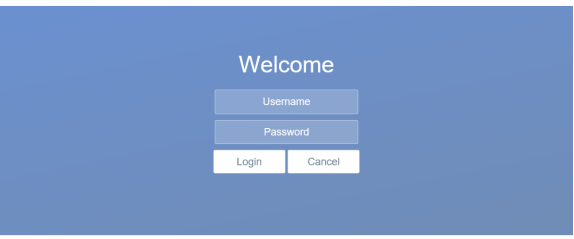
2.Ground setting
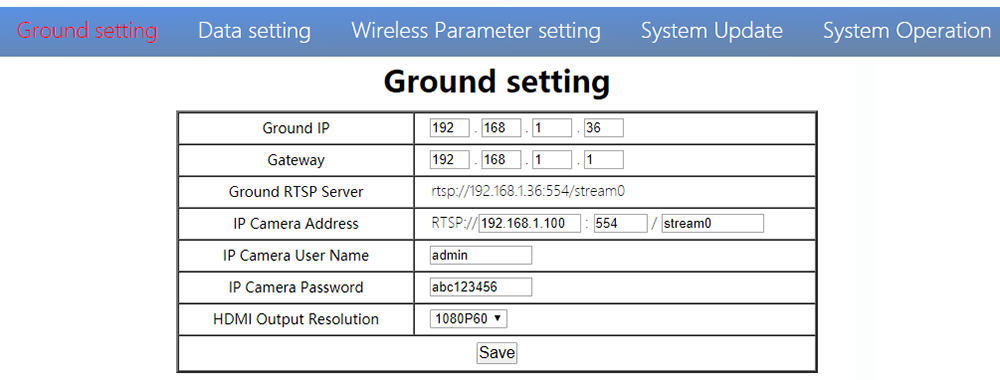
In Ground setting page, user can change air IP 、 Gateway and other parameter. You can refer to the table below.
| Parametro | Valore | Descrizione |
| Ground IP | Predefinito 192.168.1.36 | User can change |
| Gateway | Predefinito 192.168.1.1 | User can change |
| Ground RTSP Server | User can not edit. | Used to tell user RTSP server address |
| IP Camera Address | Default is 192.168.1.100,the encoder IP of air unit | Users can change to their own IP camera address |
| IP Camera User Name/Password | According to the IP camera | If the camera needs certification, please enter the right name and password |
| HDMI Output Resolution | 1080P60/1080P50/1080P30/1080P25/1080P24/1080I60/1080I50/720P60/720P50 | User can set the HDMI resolution |
If you change the device parameter, it will be in effect after rebooting. If you change IP address, please enter the new address in your browser after rebooting.
3.Data setting
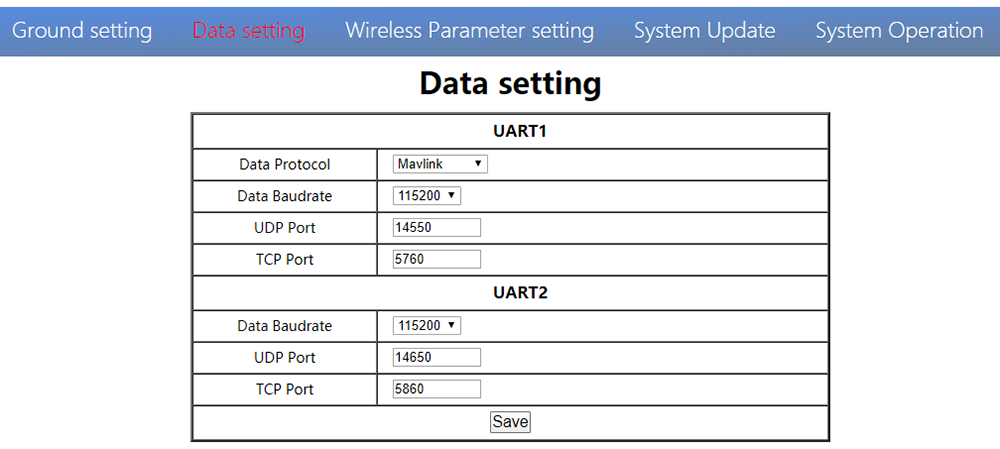
User can change parameter of UART1 and UART2 in Data setting page. UART1 supports two protocols—Mavlink (predefinito) and Transparent. User can change protocol、baud rate、UDP/TCP port easily. The UART data can be transmitted to the computer through the Ethernet of the ground unit.
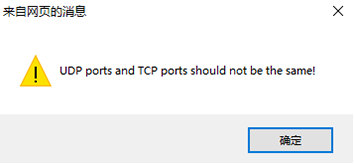
Attenzione,UDP and TCP ports of UART1 and UART2 should not be the same.
4. Wireless Parameter setting
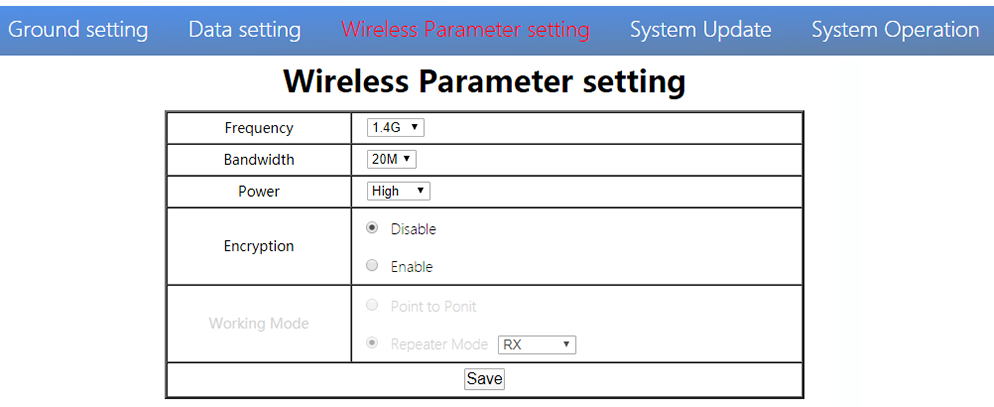
User can change wireless parameter on Wireless Parameter setting page . You can refer to the table below.
| Parametro | Valore | Descrizione |
| Frequenza | 800M/1.4G/2.4G | Opzionale |
| Larghezza di banda | 3/5/10/20M | Opzionale |
| Energia | High/Middle/low | Opzionale |
| crittografia | Disable/Enable | Opzionale |
| Modalità di lavoro | Synchronize automatically | Turn grey |
When you configure parameter through Web UI, It will be in effect after rebooting
5. Aggiornamento del sistema
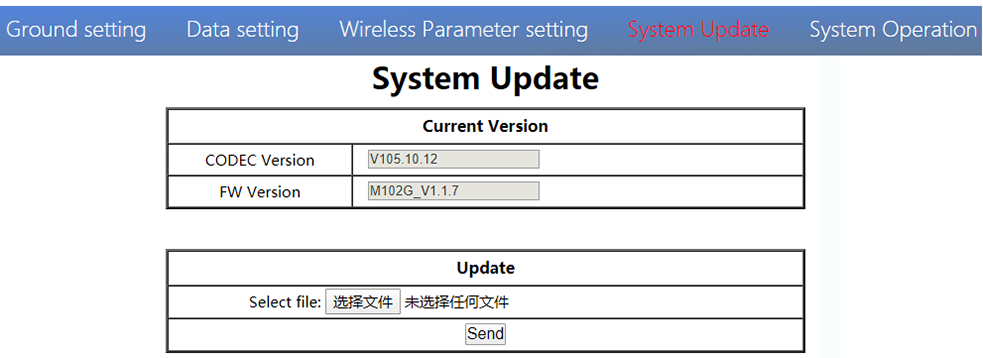
Both ground and air unit are upgraded in the same way. Please refer to other parts of this document.
6. System Operation
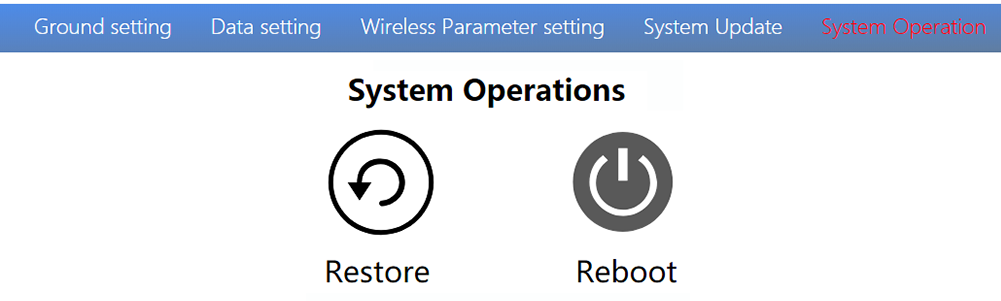
Both ground and air unit system operation are in the same way. Please refer to other parts of this document.
specificazione
| Banda di frequenza | 800MHz/1,4 GHz/2,4 GHz |
| Intervallo di frequenze | 800MHz:806MHz ~ 825 MHz 1,4 GHz:1427MHz ~ 1447 MHz 2,4 GHz:2408MHz~2480MHz |
| Larghezza della banda | 3MHz/5 MHz/10 MHz/20 MHz |
| modo di modulazione | OFDM |
| km-trasmettitore-video-wireless-ricevitore-trasmissione hdmi | 25dBm ± 1dB |
| sensibilità | ≤-92dBm |
| Gamma | 17km*1 |
| Bitrate video | 500k~5Mbps |
| DC 9 ~ 28V (Battery 3S~6S) | |
| Aria | 6.5W |
| Terreno | 5W |
| Antenna | Air 2*MMCX ,Ground 2*SMA |
| UART | TTL 3.3V,1 bit di start, 8 bit di dati, 1 bit di stop, nessuna parità. |
| UART1and UART2 | |
| Baud rate 115200 (predefinito),57600, 38400, 19200, 9600 | |
| HDMI (Digitare un) | 1 |
| SBUS | 1 |
| Porta di rete | 1 (Air GH1.25 4Pin) |
| 1(Ground RJ45) | |
| USB (Digitare un) | 1 (Terreno) |
| CVBS | 1(Air GH1.25 2Pin) |
| Risoluzione | 1080P60 backward compatible |
| CODEC | H.265 / H.264 |
| Bitrate video | 500kbps~5Mbps |
| Video delay | below 250ms |
| Interfaccia | MMCX |
| Tipo | Glue stick antenna |
| tipo di polarizzazione | Verticale |
| Guadagno | 2.5dBi |
| SWR | ≤2.0 |
| Interfaccia | liceo |
| Tipo | Antenna in fibra di vetro |
| tipo di polarizzazione | Verticale |
| Guadagno | 7dBi |
| SWR | ≤2.0 |
| Temperatura di lavoro | -40℃ ~ + 70 ℃ |
| Temperatura di conservazione | -40℃ ~ + 85 ℃ |
| Umidità | 5~ 95%,senza condensa |
| Dimensione | Aria 93.5 X 54.5 X 17 mmGround 112 X 63.5 X 19 mm |
| peso | Air 105gGround 143g |
*1 km-trasmettitore-video-wireless-ricevitore-trasmissione hdmi.
Nota:The explanation right of the above product specification belongs to Shenzhen Mainlink Aero communication Technology Co., LTD.
FAQ
| 1 Descrizione | The power indicator light is not on after powering up |
| soluzioni: 1. Check the wiring order of the power cable. 2. Check the DC power range. | |
| 2 Descrizione | Link indicator light is not on after powering up. |
| soluzioni: 1. Check that the RF cable is connected properly. 2. Check that the BW shortcut keys of the air and ground are in the same position. 3. Check the antenna is OK. | |
| 3 Descrizione | The air and ground link is OK, but no HDMI output. |
| soluzioni: 1. Check that camera is work well and the cable is in good connection; 2. Check the HDMI monitor; 3. Please contact our company’s after-sales service. | |
| 4 Descrizione | DescriptionHDMI monitor output OSD“Transmitter Loss”. |
| soluzioni: 1. This OSD means the ground unit does not establish a connection with the air unit. 2. Check the antenna and the RF cable. 3. Please contact our company’s after-sales service. | |
| 5 Descrizione | HDMI monitor output OSD “No Video Source Input”。 |
| soluzioni: 1. This OSD means the ground unit has established a connection with the air unit. But the air does not add a camera or the camera can not be recognized by the air unit. 2. Check the HDMI cable or the Ethernet cable that connecting the camera and the air unit. 3. Please contact our company’s after-sales service. | |
| 6 Descrizione | The link indicator light is OK. But no data output. |
| soluzioni: 1. Check the UART cable wiring order. 2. Check the UART baud rate. 3. Please contact our company’s after-sales service. | |
| 7 Descrizione | The ground unit can’t output RTSP video streaming. |
| soluzioni: 1. Check the cable connection and wireless link is OK. 2. Check the IP address of computer is right. 3、Check the RTSP server address is correct. 4、Please contact our company’s after-sales service. | |
| 8 Descrizione | SBUS communication error. |
| soluzioni: 1.Check the wire order of the SBUS and +5V is right. 2. Please contact our company’s after-sales service. |
Nota:Per ulteriori informazioni, please check out our official video tutorial. Foreign users please check You Tube .
Fai una domanda
Grazie per la risposta. ✨