






This guide explains how to upgrade the firmware of your encoder transmitter via USB. It applies to COFDM wireless video transmitters and hardware encoder boards that support HDMI, CVBS, SDI, or AHD video inputs, as well as IP/Ethernet video streaming output. Follow the steps below to perform the firmware upgrade safely and efficiently.
Table of Contents
Step 1: Describe Your Encoder Board and Transmitter Issue
Please provide a detailed description of the issue you are experiencing with your encoder board and transmitter. Our software engineers will prepare a tailored solution for you and send the appropriate firmware upgrade.
Step 2: Prepare a USB Flash Drive
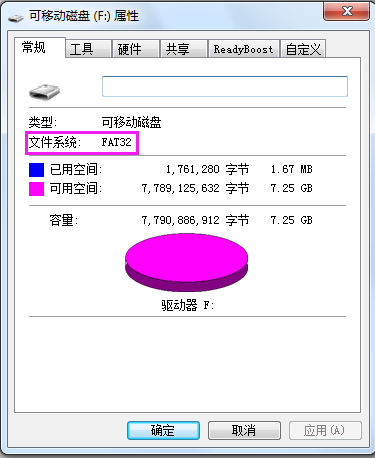
Prepare a USB flash drive with a capacity of less than 32 GB and format it to the FAT32 file system.
If your computer only offers NTFS or exFAT as formatting options, please use a third-party formatting tool to create a FAT32 partition.
Step 3: Copy the Firmware Files to the USB Drive
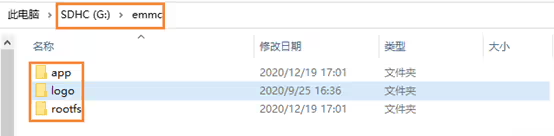
Unzip the file “TX_update_image_xx_yy.zip” and copy all extracted contents to the root directory of the USB flash drive.
Make sure the directory structure remains unchanged. The USB root directory should contain a flash folder, which includes the app and rootfs subfolders.
Step 4: Connect the USB Drive and Power On the Transmitter
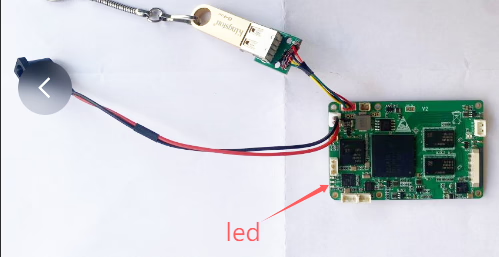
Connect the USB flash drive to the TX USB port using a USB adapter cable. Power on the transmitter and wait until the two green LEDs on the board start flashing simultaneously.
Notes:
- Under normal conditions, the firmware update will complete within 30 seconds after power-on, during which the two green LEDs will flash simultaneously.
- If the green LEDs do not flash for an extended period after power-on, please check the USB flash drive connection and try powering the device on again.
- Do not connect any video signal sources during the firmware upgrade process.
- After the upgrade is completed (both green LEDs flash simultaneously), power off the device, remove the USB flash drive, then power it on again and check the firmware version to confirm the update.
- The USB flash drive must be formatted as FAT32. exFAT is not supported.
- It is recommended to use a USB flash drive with a smaller capacity. Large-capacity USB drives are often not supported by Windows for FAT32 formatting. USB drives with a capacity of 8–16 GB can usually be formatted as FAT32 directly in Windows.
This firmware upgrade method applies to the following product models:

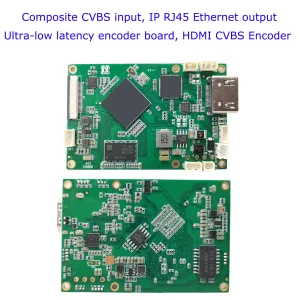
CVBS HDMI to IP Encoder
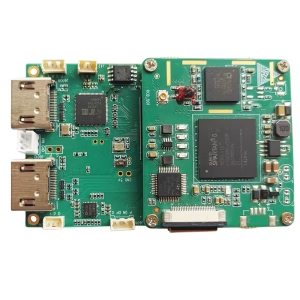

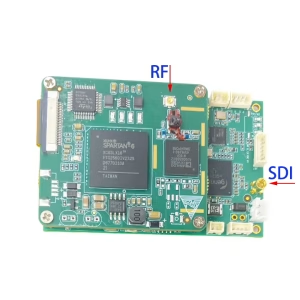
TX RX Module
COFDM DVB-T SDI Wireless Video Transmitter TX Module H.264 1080i50 2.2GHz (100-3500MHz)
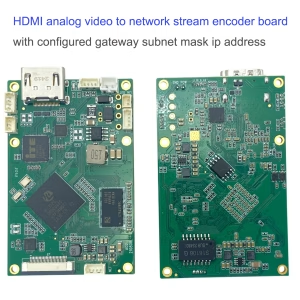
CVBS HDMI to IP Encoder
HDMI analog video to network stream encoder board with configured gateway subnet mask ip address
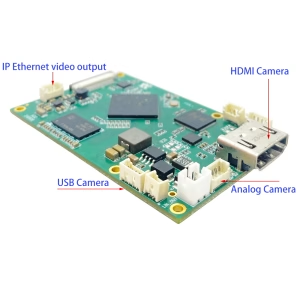
Drone Transmission

CVBS HDMI to IP Encoder
COFDM one way direction Video or Data transmission for UDP protocol transmitter and receiver


CVBS HDMI to IP Encoder
4K HDMI Video Encoder Decoder Board HDMI to Ethernet and Ethernet to HDMI RTSP UDP
Ask A Question
Thank you for your response. ✨