






FHD Video Data RC Transmission System
Zastrzeżenie
- Please read the user’s manual carefully before use. Be sure to pay attention to the warnings and understand all points completely.
- Please strictly abide by the local radio frequency management regulations.
- Please follow the installation steps in the manual to use this product. Our company and agent will not take legal responsibility for the damage of equipment or personnel caused by the installation and modification of users.
- This copyright of this manual belongs to VCAN Group Limited No one may make copies without written consent.
Uwaga
Attention to installation
1. Przed włączeniem, make sure the antenna connection is reliably . W przeciwnym razie, it will cause damage to the device.
2. Make sure that the voltage is within the range of use.
3. Please pay attention to the EMC of all the electronic equipments on your drone.
4. It is recommended that the antenna should be installed downward and keep the antenna away from the metal on the drone.
5. Make sure to use the matching antenna.
Przed użyciem
1. Make sure that all cables are connected correctly and firmly.
2. No foreign objects (np. liquids, sand, itp.) can be entered inside the device.
3. It takes 15 seconds for the device to start. Video and data cannot be transferred until the device has finished booting.
4. Please ensure that the environment in which the equipment is used is free of other electromagnetic interference.
5. When the signal weakens, you can improve the effect by changing the heading direction of the antenna.
Lista rzeczy do spakowania
Modules
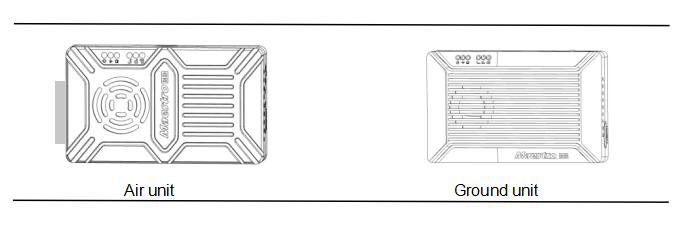
Akcesoria
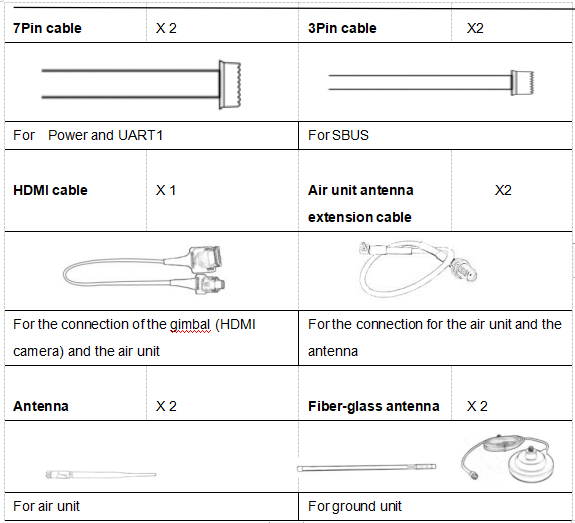
Przegląd
M50&M51, przeznaczony dla drona , is a kind of wireless FHD video and data transmission system. Ma zalety małego rozmiaru,low power consumption and long distance. System może przesyłać wideo FHD, dane kontroli lotu, dane sterujące gimbala, i dane sterujące RC jednocześnie. Dzięki kodekowi wideo H.265 i technologii modulacji OFDM, M50&M51 can achieve low latency, high resolution video transmission.
Z zaawansowaną technologią częstotliwości radiowych, M50&M51 can support three frequency bands. Użytkownicy mogą łatwo zmieniać pasma częstotliwości. Users can choose the suitable frequency band according to local regulations. The Chinese radio type approval ID is 2019DP8189(CMIIT ID:2019DP8189). Also you can choose frequency hopping or fixed mode under special conditions.
The air unit of M50&M51 system can be configured to Point-to-Point mode or Repeater mode. Users only need one more air unit and simple configuration to achieve long distance transmission. Proszę obejrzeć film instruktażowy, aby uzyskać więcej informacji!.
M50&M51 has an encryption function. Użytkownicy mogą włączyć/wyłączyć tę funkcję w razie potrzeby. It is easy to set encryption code using Maestro Assistant or Web UI.
The device has 2 UART—UART1 and UART2. Dwa protokoły, Mavlink i przezroczysty, są obsługiwane. Użytkownicy mogą go używać do transmisji danych sterowania lotem i transmisji danych sterowania gimbalem. Also the system can improve the RC control distance via the SBUS port. On the ground unit of M50&M51, jest USB 3.0 Port. User can add a USB storage device to save the FHD video.
M50&M51 support a variety of video input and output interface, takich jak HDMI, Ethernet, SDI, CVBS . Może również pasować do większości gimbali na rynku.
Model Description
M 5X H/S*:
M standing for Maestro series.
5X distance level code*.
H/S indication of air unit video interface.
*50 stands for 7km,51 stands for 17km,H stands for HDMI,S stands for SDI. Please tell us the right model when ordering.
np.:M50H standing for 7km,air unit video interface is HDMI(both with HDMI and Ethernet)。
cechy
Duży dystans Modulacja
-Up to 17km @ LOS– OFDM
video interface interfejs danych
-HDMI/Ethernet/SDI/CVBS – UART (TTL/RS232)/SBUS,
Hopping/Fixed Frequency Pasmo częstotliwości
-Naprawił: user defined – 800MHZ/1,4 GHz/2,4 GHz,
-Hopping: automatyczny Tryb pracy
BW – Air unit can be :Point to point mode
-3/5/10/20 MHz Repeater mode
CODEC szybkość transmisji wideo
– H.265 / H.264 – 500kbps~5Mbps
Temperatura pracy Power range
– 40℃ ~ + 70 ℃ – DC 9~28V Battery 3S~6S
Opis interfejsu M51
Jednostka powietrzna
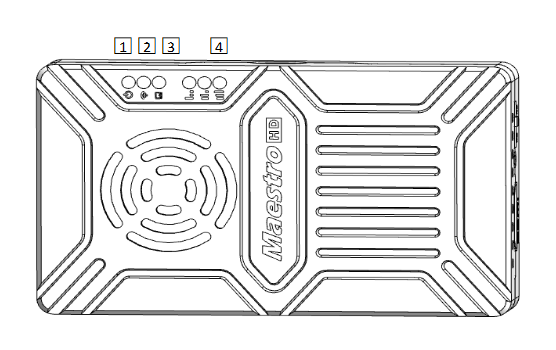
1. Wskaźnik mocy
Ten wskaźnik jest solidny zielony, gdy jednostka powietrza się uruchamia.
Kiedy zaczęła się jednostka powietrzna, Wskaźnik migra raz na sekundę, jeśli nie ma wejścia źródła wideo do HDMI. A światło wskaźnikowe będzie solidne zielone, jeśli będzie źródło wideo.
2. wskaźnik połączenia
| Opis wzoru LED |
| Ustanowiony jest solidny zielony link bezprzewodowy |
| Light Off Link jest utracony |
3. Wskaźnik stanu
| Wzór diody LED (mrugnięcie tylko podczas uruchamiania) Opis |
| Migać 3 czasy inicjalizacji OK, Częstotliwość wynosi 2,4GbLink 2 czasy inicjalizacji OK, Częstotliwość wynosi 1,4GbLink 1 inicjalizacja czasu OK, Częstotliwość wynosi 800 m |
| solid green Air unit abnormal |
4. RSSI Indicator
| LED Pattern Description |
| 3 solid green Wireless signal is strongest |
| 2 solid green Wireless signal is medium |
| 1 solid green Wireless signal is weak |
| all LED turn off No wireless signal |
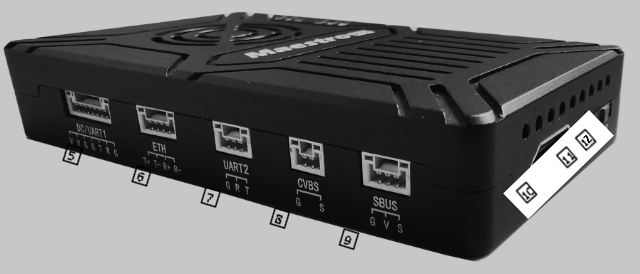
5. DC/UART1
| Numer | Character | Opis | Wejście/wyjście |
| 1,2 | V | +Vcc Power Input(9~28V) | ja |
| 3,4,7 | sol | GND | I / O |
| 5 | T | TXD(from air unit to external) | O |
| 6 | R | RXD(from external to air unit) | ja |
6. Ethernet
| Numer | Character | Opis | Wejście/wyjście |
| 1 | T+ | TX+ | O |
| 2 | T- | TX- | O |
| 3 | R+ | RX+ | ja |
| 4 | R- | RX- | ja |
7. UART2
| Numer | Character | Opis | Wejście/wyjście |
| 1 | sol | GND | I / O |
| 2 | R | RXD(from external to air unit) | ja |
| 3 | T | TXD(from air unit to external) | O |
8. CVBS video input interface
| Numer | Character | Opis | Wejście/wyjście |
| 1 | sol | GND | I / O |
| 2 | S | CVBS Video IN | ja |
9. SBUS out interface
| Numer | Character | Opis | Wejście/wyjście |
| 1 | sol | GND | O |
| 2 | V | +5V Output(Imax 1A) | O |
| 3 | S | SBUS_OUT | O |
10. Type A HDMI video input interface
11. Przycisk
Naciskać 10 sekundy, air unit will restore all parameters to factory setting。
12. Mode switch
WB is wide band,using wide wireless frequency band.
NB is narrow band,using narrow band to multi-modules transmission.
Porady: WB mode is recommended,because this mode has better performance in point-to-point transmission.
Jednostka naziemna
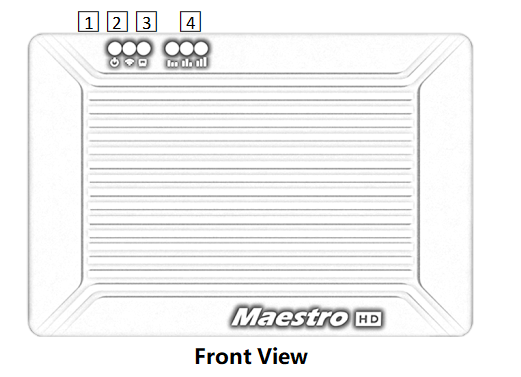
1. Wskaźnik mocy
This indicator is solid green when ground unit is power on.
2. wskaźnik połączenia
| Opis wzoru LED |
| Ustanowiony jest solidny zielony link bezprzewodowy |
| Light Off Link jest utracony |
3. Status indicator
| Opis wzoru LED |
| Migać 3 czasy inicjalizacji OK, Częstotliwość wynosi 2,4GbLink 2 czasy inicjalizacji OK, Częstotliwość wynosi 1,4GbLink 1 inicjalizacja czasu OK, Częstotliwość wynosi 800 m |
| solid green Ground unit abnormal |
4. RSSI Indicator
| Opis wzoru LED |
| 3 solid green Wireless signal is strongest |
| 2 solid green Wireless signal is medium |
| 1 solid green Wireless signal is weak |
| all LED turn off No wireless signal |
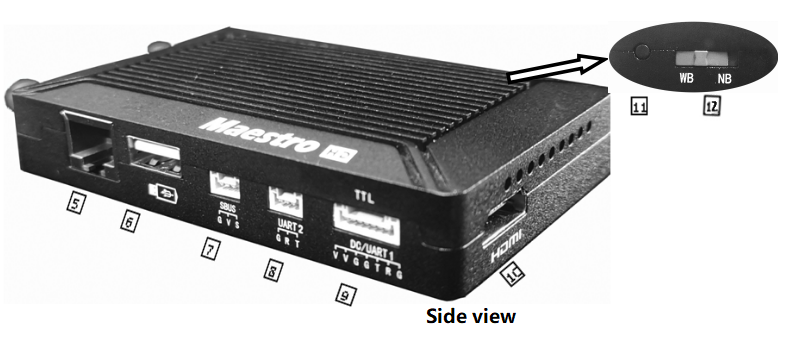
5. Ethernet port(RJ45)
Connecting to host computer. Support RTSP/TCP/UDP protocol.
6. USB port(Type A)
Connect to USB disk for video recording
7. SBUS input port
| Numer | Character | Opis | Wejście/wyjście |
| 1 | sol | GND | O |
| 2 | V | +5V wyjście | O |
| 3 | S | SBUS_IN | ja |
8. UART2
| Numer | Character | Opis | Wejście/wyjście |
| 1 | sol | GND | I / O |
| 2 | R | RXD(from external to ground unit) | ja |
| 3 | T | TXD(from ground unit to external) | O |
9. DC/UART1
| Numer | Character | Opis | Wejście/wyjście |
| 1,2 | V | +Vcc DC Input (9~28V) | ja |
| 3,4,7 | sol | GND | I / O |
| 5 | T | TXD(from ground unit to external) | O |
| 6 | R | RXD(from external to ground unit) | ja |
10. HDMI(Type A)
FHD video output port .
11. Przycisk
Hold on for 3 seconds to start video recording and then hold 3 seconds to stop recording. You need to insert USB storage device first.
Hold on for 10 seconds, ground unit will restore all parameters to factory setting。
12. Mode switch
WB is wide band,using wide wireless frequency band.
NB is narrow band,using narrow band to multi-modules transmission.
The air and ground unit should be the same direction.
Instalacja
Powietrze
1. Installing the air unit on your drone
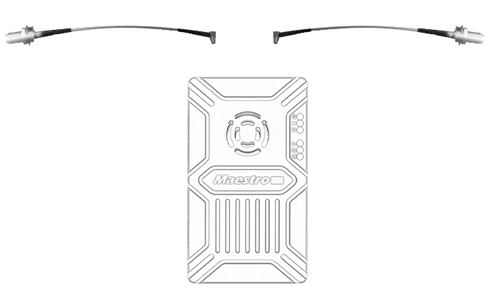
1.1 Insert the MMCX-to-SMA cable into the ports on the side of the air unit. When you hear a click, it means good connection.
1.2 Fixed the device and RF cable on your drone. Zainstaluj antenę. Pay attention to the connection of the antenna to tighten. Make the antenna downward. There is no metal or shielding within 20cm of the antenna.
2. Connect the camera (gimbal).
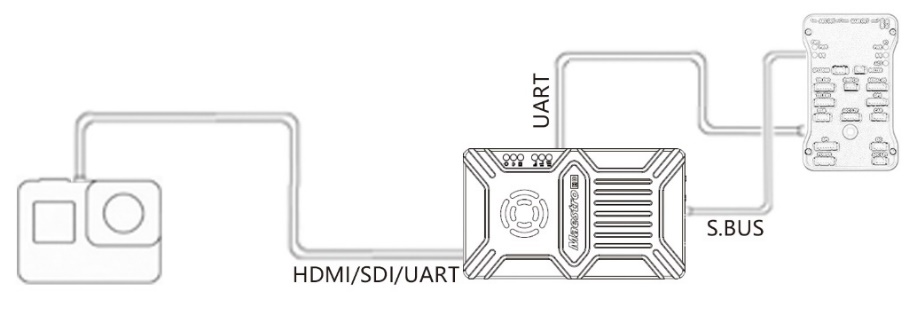
Connect the camera/gimbal to the air unit with HDMI/SDI/Ethernet cable. And connect UART1 and SBUS to the flight controller. Do not put the antenna near the motor or ESC, otherwise the device will be interfered.

Drawing of complete drone Installation
Grunt
1. Podłącz antenę
1.1 Podłącz antenę szklaną, która została dostarczona wraz z urządzeniem do uziemienia. Mają wspólny port - SMA. Pamiętaj, aby zaostrzyć staw. Plik 2 Antena ze szkła światłowodowego powinna być w odległości 1,5 m.

1.2 Podłącz kabel HDMI .
Podłącz port HDMI z kablem HDMI do monitora. Sygnał wideo FHD zostanie wyświetlony bezpośrednio na monitor.
2. Połącz się ze stacją naziemną
Stacja naziemna ma dwa sposoby połączenia z jednostką naziemną M51, do przesyłania wideo i danych.
Zdobądź wideo
1. Za pośrednictwem HDMI bezpośrednio
Jeśli stacja naziemna ma monitor HDMI, Po prostu podłącz jednostkę uziemienia do monitora bezpośrednio za pomocą kabla HDMI.
2. Przez Ethernet
Podłącz port Ethernet z kablem CAT do komputera lub stacji naziemnej. Użytkownik może używać oprogramowania innych firm do dekodowania, takie jak VLC, Planista misji.
Jeśli podłączysz kamerę IP do jednostki powietrznej M51, the ground unit can also output FHD video to monitor directly via HDMI. Please watch the video tutorial and other parts of this document.
Get data
1.You can get data from ground unit via UART1 and UART2. Maybe you need a UART to USB converter.
2. You can get data from Ethernet port using UDP/TCP protocol.
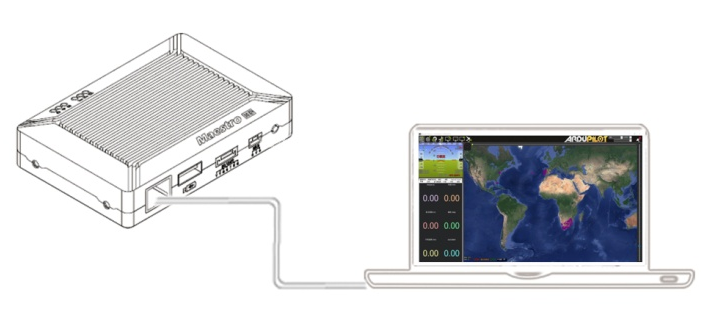
Drawing of connection on ground
M51 Instrukcja
Quick start
1. Preparing
Make sure all the connections are ready, including the antenna, HDMI cable and so on.
2. Włącz
The DC voltage is 9~28V. After power on, the POWER LED will be solid green.
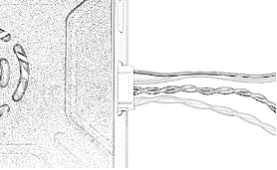
Jakieś pytania, please refer to the FAQ. It takes 15 sekundy na uruchomienie. After the system starts, the wireless transmission can be established. Video transmission will take 15 more seconds.
M51 with Mission Planner
Follow the steps to use M51 with Mission Planner:
1. Connect the UART1 of M51 air unit to flight controller, such as Pixhawk. Connect the gimbal to the M51 ETH or HDMI.
2. Make sure all the air and ground cable connection is finished. Power on the system.
3. Install Mission Planner to your computer.
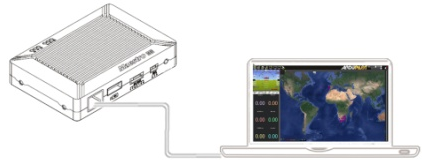
4. Set the IP address of the computer.
Open “Network and Internet”setting. Select “Internet Protocol version 4 (TCP / IPv4) properties”. Change IP address to “192.168.1.xxx”(xxx is in 0~255,z wyjątkiem 192.168.1.36 and 192.168.1.100)。
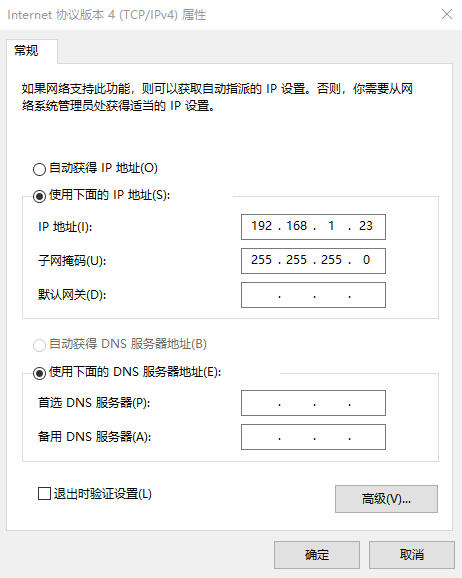
5. Get data
There are three methods to get data from M51 ground unit, using Mission Planner:
- UDP port via Ethernet;
- TCP port via Ethernet;
- UART (Com)
5.1 Get data from UDP port.
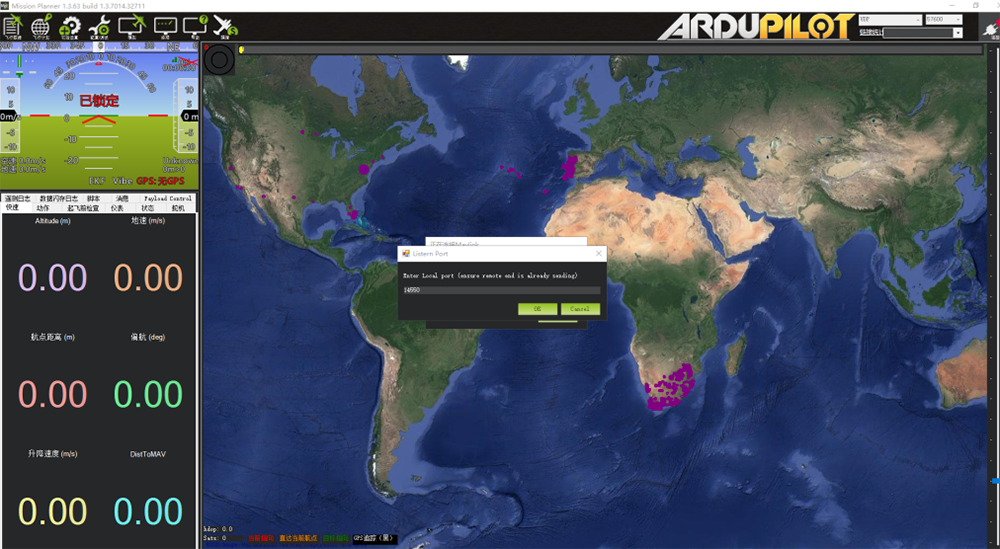
Open Mission Planner,select UDP,click the “connect” button, it will bring up a new window ‘Listen port’,change the port to 14550(If the UDP port number has been changed on the web page, please fill in the new number. Aby uzyskać więcej informacji, please go to the web page configuration).Then click “OK”, Mission Planner will get flight data。
5.2 Get data from TCP port.
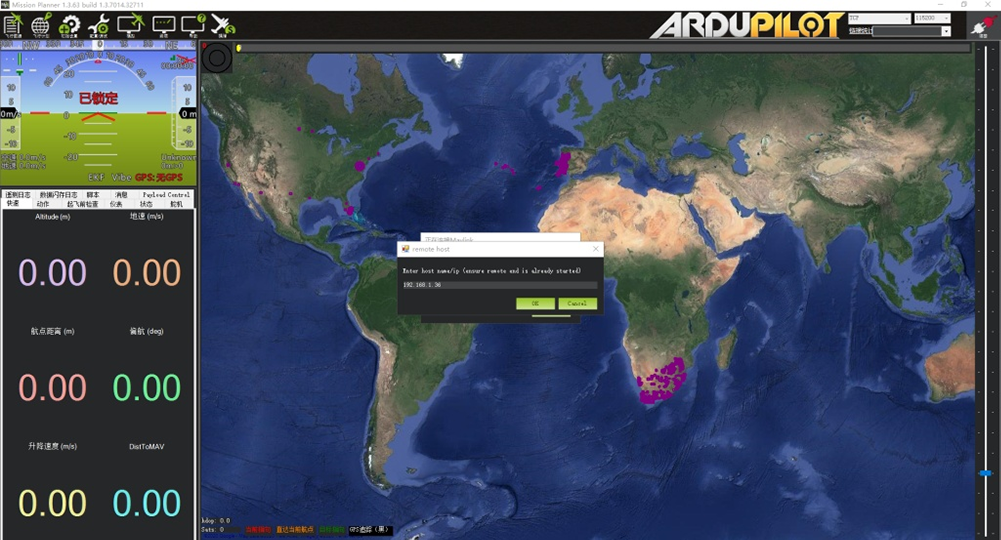
Open Mission Planner,select TCP,click the “connect” button, it will bring up a new window ‘Listen port’,fill in the blank with IP: 192.168.1.36, remote port is 5760
(If the IP address and TCP port number has been changed on the web page, please fill in the new IP and port number. Aby uzyskać więcej informacji, please go to the web page configuration).Then click “OK”, Mission Planner will get flight data.
5.3 Get data from UART(Com);
Connect the ground unit UART1 with a UART(TTL)
to USB converter to the computer. Before this, Proszę
install the driver in the computer.
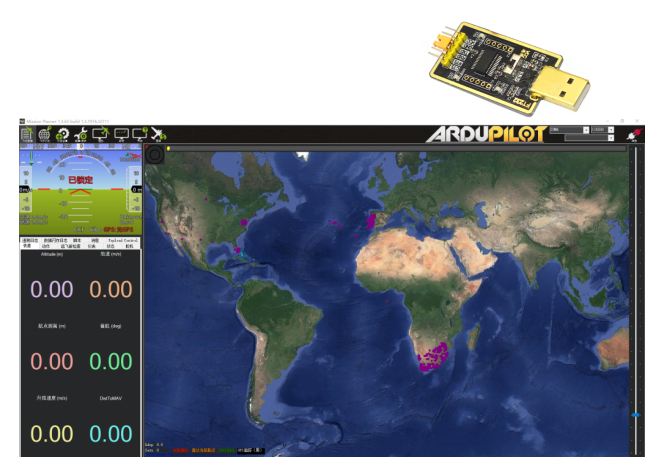
Open Mission Planner, select COM (Please check the COM number) and the right baud rate,click the “connect” button, Mission Planner will get flight data.
6. Zdobądź wideo
When you open the Mission Planner, click Video and then Set GStream Source,as show below:
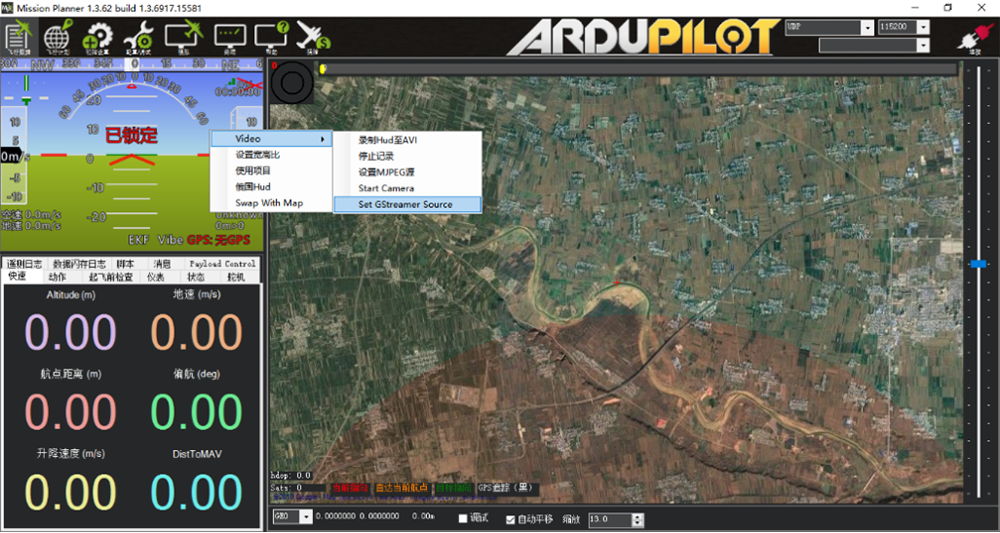
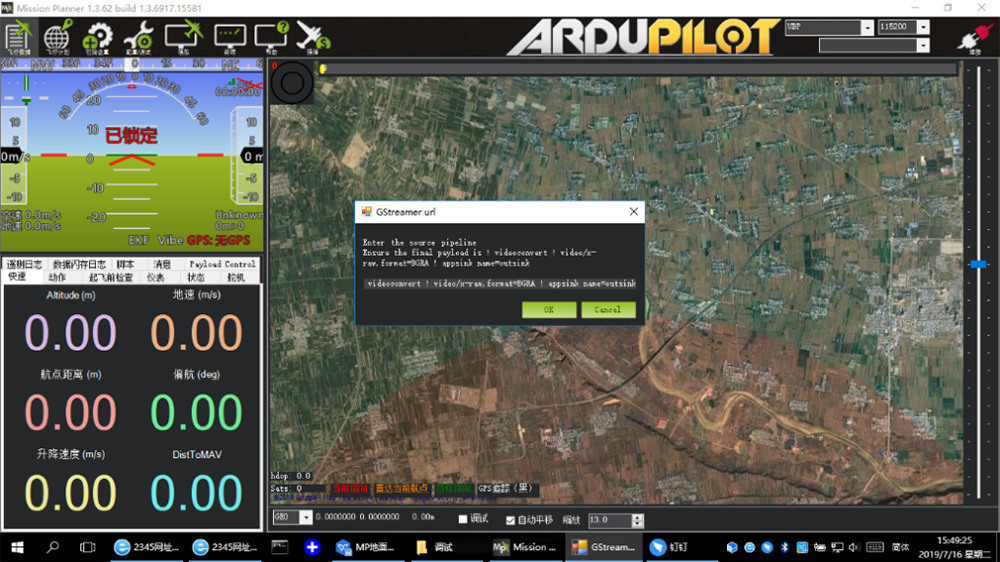
Input the address: rtspsrc location=rtsp://192.168.1.36/stream0 latency=0 ! decodebin ! videoconvert ! video/x-raw,format=BGRA ! appsink name=outsink
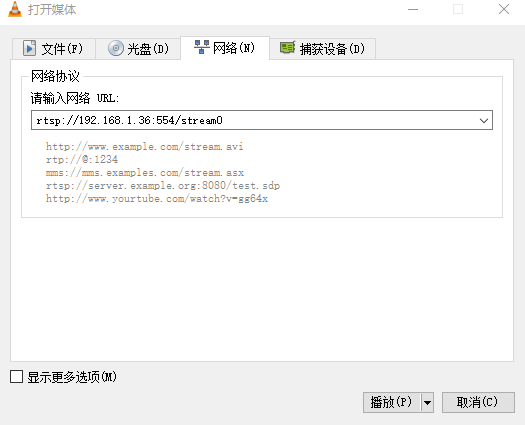
M51 with VLC
- Set the IP address of the computer as mention above. Make sure M51 is working properly.
- In the “open media” page, please input the following address:
rtsp://192.168.1.36:554/stream0
Improve RC controller distance through SBUS
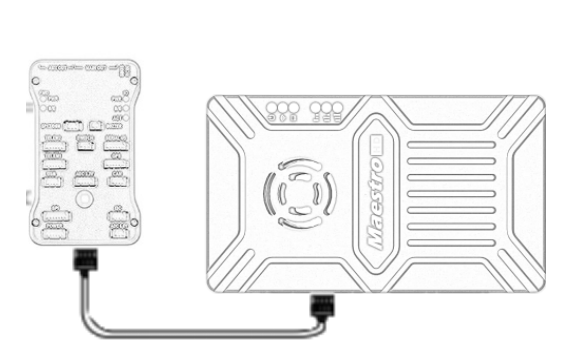
- Connect air unit SBUS to flight controller RC IN.
Using the SBUS cable in the accessory box to connect the air unit to the flight controller. The cable is 3 kołek.
Uwaga:The SBUS port of air unit is output. The maximum of +5V output current is 1A. If you don’t need the +5V, let it open. Do not take it as input. W przeciwnym razie, the stability of the system will be affected.
- Connect the RC receiver to the ground unit
Using the SBUS cable in the accessory box to connect the ground unit to the RC receiver.
Uwaga:Wprowadzono port SBUS w jednostce uziemieniowej. The maximum of +5V output current is 1A. Możesz go użyć do zasilania odbiornika RC. Zwróć większą uwagę na zamówienie linii kablowej.

Nagrywanie wideo na jednostce naziemnej
1. Włożył urządzenie pamięci USB do portu USB na jednostce naziemnej. Wyświetlacz wyjściowy HDMI „Urządzenie USB jest wstawiane”.
2. Naciśnij przycisk na jednostce uziemienia 3 sekundy, aby rozpocząć nagrywanie. Wyświetlacz wyjściowy HDMI „Nagrywanie…” i rozpocznij nagrywanie czasu.
3. Przestać nagrywać, przytrzymaj przycisk dla 3 sekundy. Wideo jest automatycznie zapisywane na urządzeniu pamięci masowej.
4. Możesz odtwarzać wideo z innymi odtwarzaczami wideo.
Asystent Maestro
Interfejs asystenta maestro
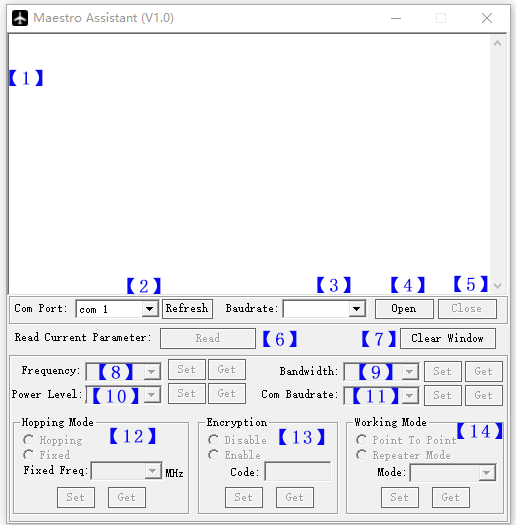
Opis funkcji:
【1】 Wyświetlanie informacji:Wyświetl informacje o stanie dla M51。
【2】 UART(Com) Wybierz:Wybierz odpowiedni numer COM komputera, aby podłączyć M51. If you want to change to another COM , please click the ‘Refresh’ button.
【3】Baud rate select:Select the right baud rate for the COM. Make it the same as M51 UART1.
【4】Open COM button.
【5】Close COM button.
【6】Read current parameter button:click this button to get the current parameter of device。
【7】Clear window button: to clear the information display.
【8】Select frequency:There are three frequency bands to be selected——800MHz/1.4GHz/2.4GHz. Choose the band you needed,and click ‘Set’ button to complete setup. Click the ‘Get’ button to get current frequency band.
【9】Select BW:There are four BW to be selected——3MHz/5MHz/10MHz/20MHz. Choose the BW you needed,and click ‘Set’ button to complete setup. Kliknij przycisk „Pobierz”, aby uzyskać bieżący BW.
【10】 Wybierz poziom mocy:Istnieje trzy poziom mocy do wybrania - - - wysoko/mid/niski Wybierz potrzebny poziom mocy,and click ‘Set’ button to complete setup. Kliknij przycisk „Pobierz”, aby uzyskać bieżący poziom zasilania.
【11】 Wybierz szybkość transmisji:W tym polu możesz wybrać odpowiednią szybkość transmisji dla M51 UART1.
Wybierz potrzebną wskaźnik transmisji,and click ‘Set’ button to complete setup. Kliknij przycisk „Pobierz”, aby uzyskać bieżącą szybkość transmisji.
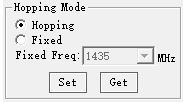
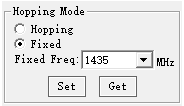
【12】 Wybierz tryb przeskakiwania: Istnieją dwa tryby do wybrania - - hopping/naprawi. Wybierz potrzebny tryb,and click ‘Set’ button to complete setup. Kliknij przycisk „Pobierz”, aby uzyskać tryb. Po wybraniu trybu ustalonego, musisz wybrać stałą częstotliwość poniżej. Stała częstotliwość jest związana z pasmem częstotliwości i BW.
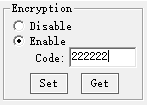
【13】 Wybierz szyfrowanie: You can disable/enable the encryption. When enable this function, you can set your private password. The password should in the range of 100000~999999. Devices with different password do not link.
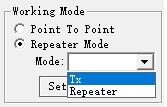
【14】Select Working mode: There are two working mode of M51——Point to Point mode and Repeater mode. Choose the working mode you needed,and click ‘Set’ button to complete setup. Click the ‘Get’ button to get current working mode. This function only needs to be set up on the M51 air unit. The ground unit can synchronize automatically. If you select Repeater mode, you need to select the air unit whether it is TX or repeater.
How to use Maestro Assistant
1. Connect M51 with Maestro Assistant。
Maestro Assistant is a Windows software that configures M50/M51. Przed konfiguracją, please connect the UART1 to computer via UART(TTL) to USB converter.
Select the right COM and baud rate. Click ‘open’ button.
2. Read current parameter。

After step1, click ‘Read’ button. All current parameter will print on the information display. Because the Working mode is only for air unit. The Working mode box will turn grey on ground unit configuration.
3. Configurations.
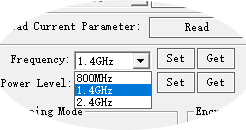
3.1 Pasmo częstotliwości
There are three frequency bands to be selected
——800MHz/1.4GHz/2.4GHz. You can choose the
suitable frequency band according to local regulations.
The specific frequencies for each band are as follow:
800MHz:806~825 MHz;
1.4GHz:1427~1447MHz;
2.4GHz:2408~2480MHz;
3.2 Pasmo
There are four BW to be selected——3MHz/
5MHz/10MHz/20MHz. The greater the BW, the more
data can be transmitted, but the weaker the
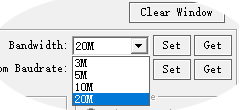
przeciwdziałanie zakłóceniom. In Fixed frequency mode, M50/M51 will have
more frequency to fix with small BW.
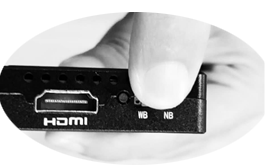
Additional, there is a shortcut key on M50/M51.
You can change BW easily. While NB is narrow band,
and WB is wide band. For both the air and ground unit,
the shortcut key should in the same place. W przeciwnym razie, they can not link.
3.3 Moc RF
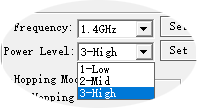
M50/M51 has three levels of power to choose.
In order to cause interference between devices, Proszę
select the appropriate transmission power. The specific
RF power values are as follow:
1-Niski:15dBm;
2-Mid:20dBm;
3-Wysoki:25dBm。
3.4 Hopping/Fixed Mode
There are two mode to be selected——Hopping
/Naprawił. In Hopping mode, M51 can automatically adjust
frequency when there is interference. In fixed mode,
the device is fixed to a special frequency . So in one
pasmo częstotliwości, up to four sets of devices can be used.
3.5 Szyfrowanie
The wireless signal can be encrypted during transmission.
When enable this function, you can set your private password.
The password should in the range of 100000~999999. Devices with different password do not link. When disable this function, different M51 air and ground can link each other.
3.6 Tryb pracy
M51 can work in Point to Point Mode and Repeater
Tryb. Only the air unit of M51 need to be set. The ground
unit can synchronize automatically. In Repeater mode, ten
air unit can be set to TX (nadajnik) or Repeater.
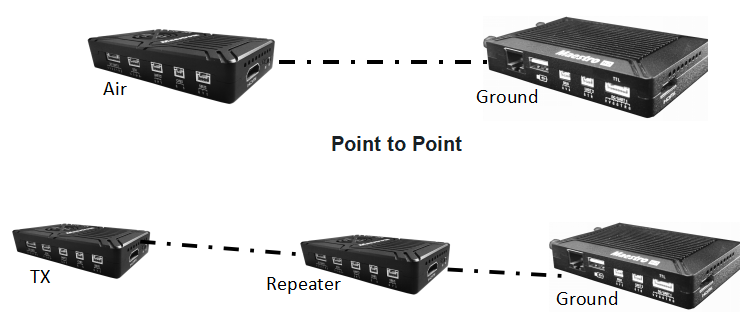
With Repeater mode, M51 can be easily used under NLOS situation. You only need to buy one more air unit and then can establish a repeater system easily.
M51 Web UI Configuration Description
Parameter of M51 can also be set through web UI. User can enter IP address through the browser to access the web UI. The air unit default IP is 192.168.1.100. The ground is 192.168.1.36. In Repeater mode. TX is 192.168.1.100. Repeater is 192.168.1.101.
If you change the device to another IP address, please access the web UI through the new IP. If you forget the IP you changed, press the button on the device for 10 seconds when the device is power on to restore to factory settings.
You need to change your computer IP to 192.168.1.X so as to access the device web UI. Jak pokazano na poniższym rysunku:
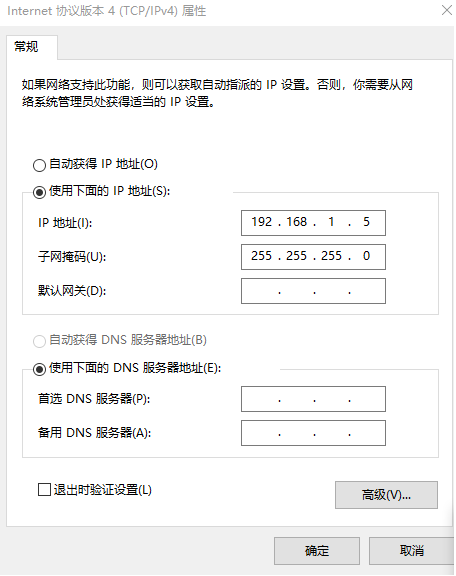
M51 Air Web UI
1. Zaloguj Się
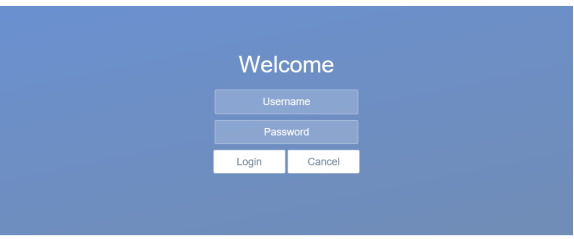
After you enter IP address 192.168.1.100 in the browser, you will see the ‘Welcome’ page. Default username is: Admin, hasło to: 123456. Then you can login.
2.Air setting
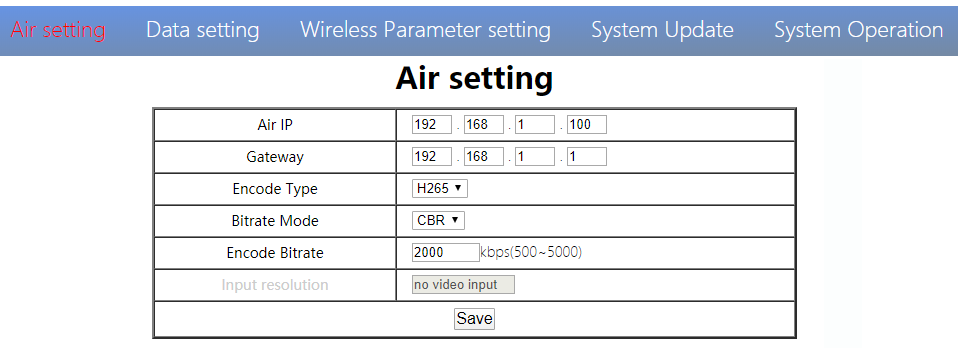
In Air setting page, user can change air IP 、 Gateway and other parameter. You can refer to the table below.
| Parametr | Wartość | Opis |
| Air IP | Zaniedbanie 192.168.1.100 | User can change |
| Wejście | Zaniedbanie 192.168.1.1 | User can change |
| Encode Type | H265/H264 | Default H265 |
| Bit rate Mode | CBR/ VBR | Default CBR |
| Encode Bit rate | 500kbps~5Mbps | User can change, default 1M |
| Input resolution | Input automatic detection | display current HDMI input resolution |
If you change the device parameter, it will be in effect after rebooting. If you change IP address, please enter the new address in your browser after rebooting.
3.Data setting
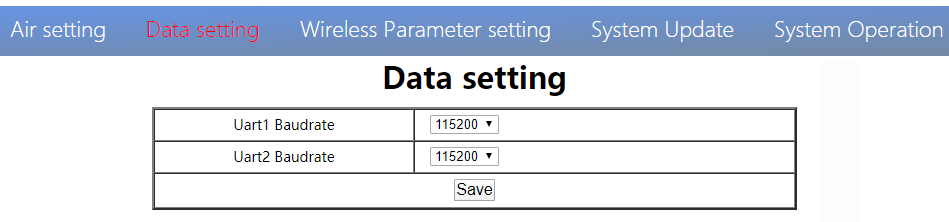
User can change Baud rate of UART1 and UART2 in Data setting page. It will be in effect after rebooting.
4. Wireless Parameter setting
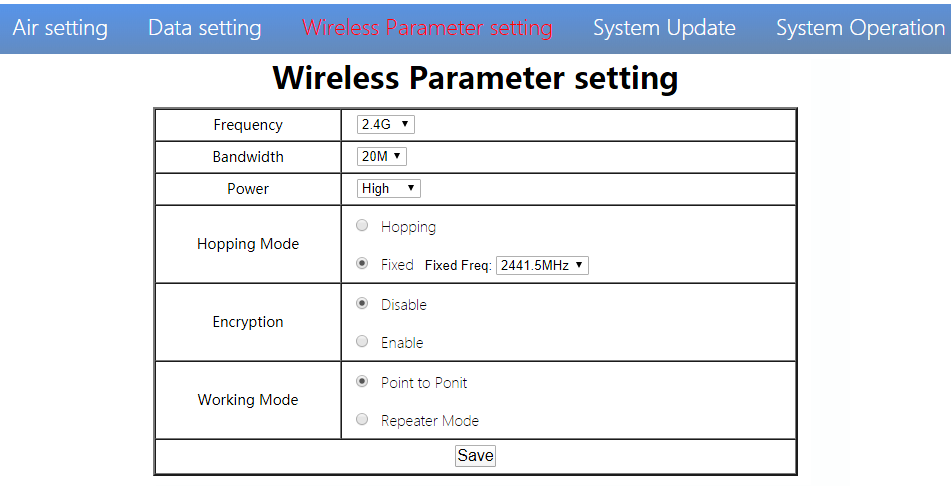
User can change wireless parameter on Wireless Parameter setting page . You can refer to the table below.
| Parametr | Wartość | Opis |
| Częstotliwość | 800M/1,4G/2,4G | Opcjonalny |
| Pasmo | 3/5/10/20M | Opcjonalny |
| Moc | High/Middle/low | Opcjonalny |
| Hopping Mode | Hopping/ Fixed | Opcjonalny |
| Szyfrowanie | Disable/ Enable | Opcjonalny |
| Tryb pracy | Point to Point Repeater Mode | Only the air unit of M51 need to be set. The ground unit can synchronize automatically |
Web UI configuration is the same as Maestro Assistant. User can check it in ‘How to use Maestro Assistant’ part 3 for more details.
When you configure parameter through Web UI, It will be in effect after rebooting
5.Aktualizacja systemu
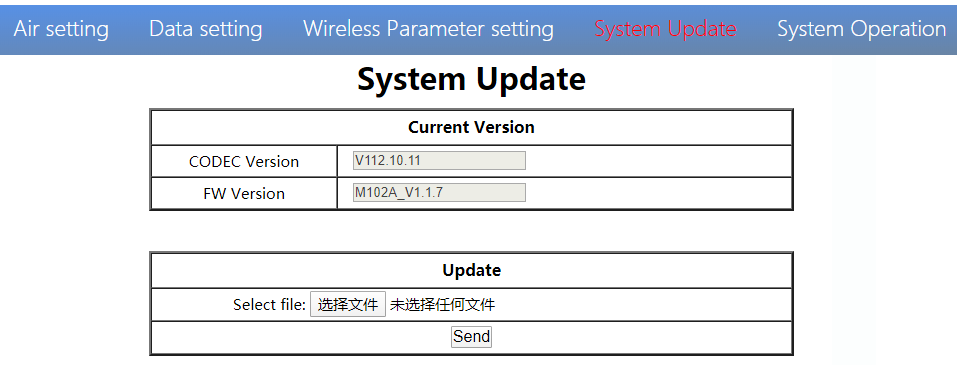
User can update CODEC version and FW version in System Update page. Before update, please download the latest software version from our website.
Click ’browse…’. Wybierz plik aktualizacji. Click ‘Send’. You will see the upgrade progress bar. The system will restart when the upgrade is complete. You can check the CODEC and FW version in this web page
Dodatkowo, CODEC Version is for video encoding. The upgrade file is large and no need to upgrade frequently. So we update the CODEC and FW files separately. Please pay attention to the version separately..
6.System Operation
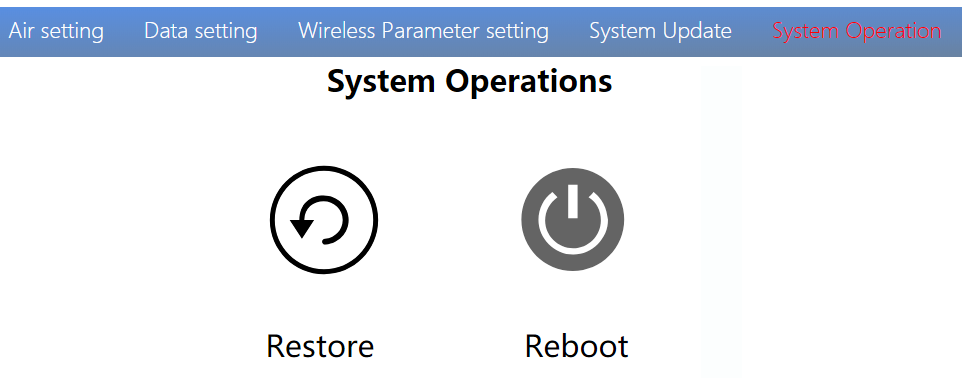
User can Restore and Reboot on System Operation page. While ‘Restore’ is to restore all parameter to factory settings。
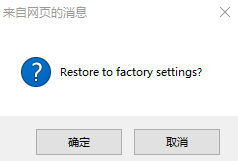
“Reboot” is used for system rebooting。
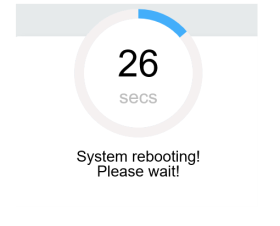
If user do not change the device IP address, it will go to the Login page after rebooting. If you change the IP address, you need to enter the new IP address in your browser after rebooting.
M51 Ground Web UI
1.Zaloguj Się
After you enter IP address 192.168.1.36 in the browser, you will see the ‘Welcome’ page. Default username is: Admin, hasło to: 123456. Then you can login.
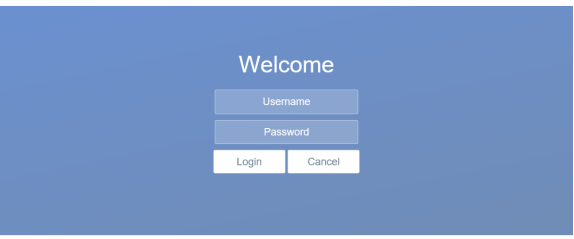
2.Ground setting
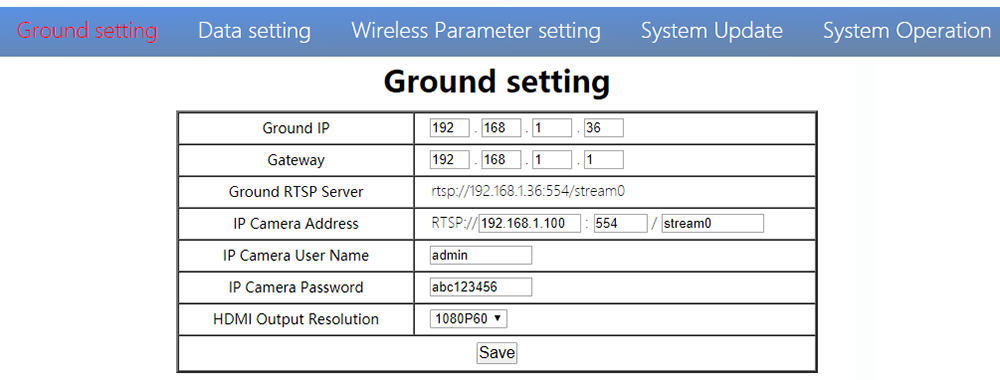
In Ground setting page, user can change air IP 、 Gateway and other parameter. You can refer to the table below.
| Parametr | Wartość | Opis |
| Ground IP | Zaniedbanie 192.168.1.36 | User can change |
| Wejście | Zaniedbanie 192.168.1.1 | User can change |
| Ground RTSP Server | User can not edit. | Used to tell user RTSP server address |
| IP Camera Address | Default is 192.168.1.100,the encoder IP of air unit | Users can change to their own IP camera address |
| IP Camera User Name/Password | According to the IP camera | If the camera needs certification, please enter the right name and password |
| HDMI Output Resolution | 1080P60/1080P50/1080P30/1080P25/1080P24/1080I60/1080I50/720P60/720P50 | User can set the HDMI resolution |
If you change the device parameter, it will be in effect after rebooting. If you change IP address, please enter the new address in your browser after rebooting.
3.Data setting
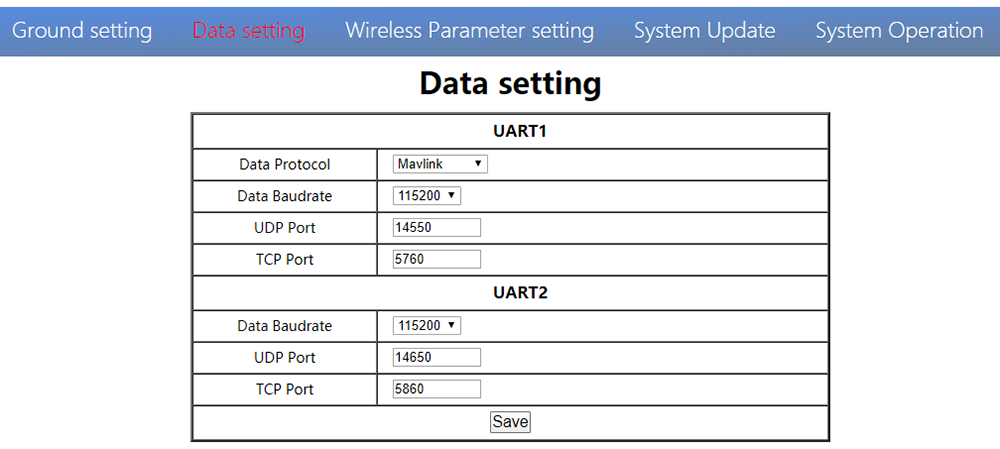
User can change parameter of UART1 and UART2 in Data setting page. UART1 supports two protocols—Mavlink (zaniedbanie) and Transparent. User can change protocol、szybkość transmisji、UDP/TCP port easily. The UART data can be transmitted to the computer through the Ethernet of the ground unit.
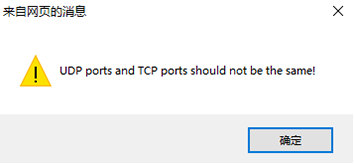
Uwaga,UDP and TCP ports of UART1 and UART2 should not be the same.
4. Wireless Parameter setting
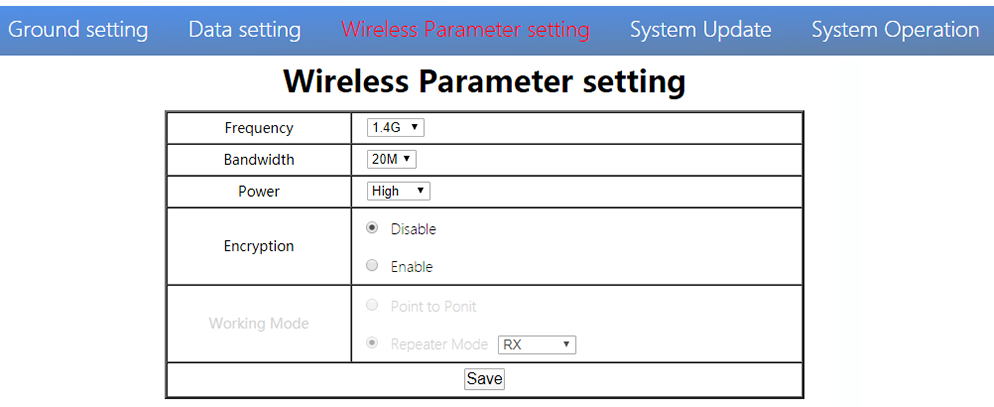
User can change wireless parameter on Wireless Parameter setting page . You can refer to the table below.
| Parametr | Wartość | Opis |
| Częstotliwość | 800M/1,4G/2,4G | Opcjonalny |
| Pasmo | 3/5/10/20M | Opcjonalny |
| Moc | High/Middle/low | Opcjonalny |
| Szyfrowanie | Disable/Enable | Opcjonalny |
| Tryb pracy | Synchronize automatically | Turn grey |
When you configure parameter through Web UI, It will be in effect after rebooting
5. Aktualizacja systemu
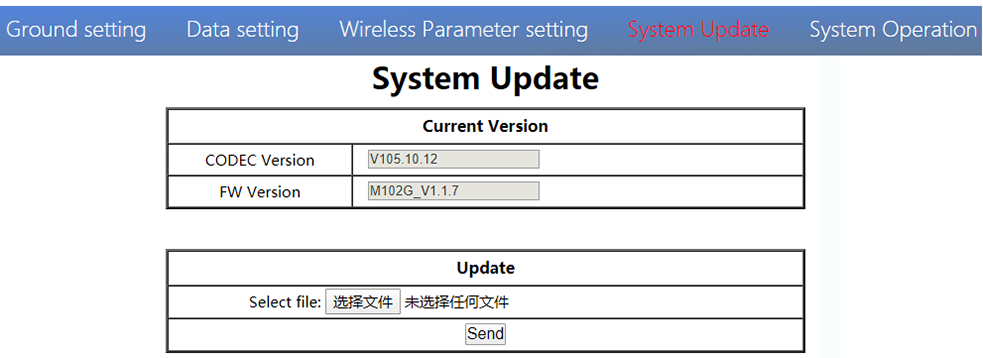
Both ground and air unit are upgraded in the same way. Please refer to other parts of this document.
6. System Operation
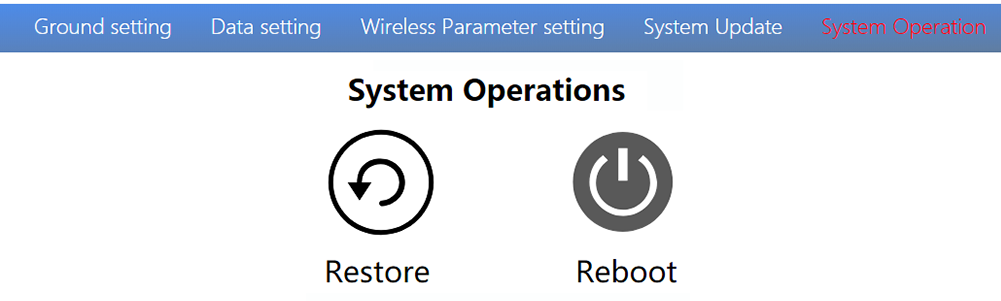
Both ground and air unit system operation are in the same way. Please refer to other parts of this document.
Specyfikacja
| Pasmo częstotliwości | 800MHZ/1,4 GHz/2,4 GHz |
| Zakres częstotliwości | 800MHz:806MHZ ~ 825 MHZ1,4GHz:1427MHz~1447MHz2.4GHz:2408MHz~2480MHz |
| Przepustowość łącza | 3MHz/5 MHz/10 MHz/20 MHz |
| tryb modulacji | OFDM |
| EIRP | 25dBm ± 1dB |
| Wrażliwość | ≤-92dBm |
| Zasięg | 17km*1 |
| szybkość transmisji wideo | 500k~5Mbps |
| DC 9 ~ 28V (Battery 3S~6S) | |
| Powietrze | 6.5W |
| Grunt | 5W |
| Antena | Air 2*MMCX ,Ground 2*SMA |
| UART | TTL 3,3 V,1 bit startu, 8 bit danych, 1 bit stopu, Brak parytetu. |
| UART1and UART2 | |
| Szybkość transmisji 115200 (domyślnie),57600, 38400, 19200, 9600 | |
| HDMI (Typ A) | 1 |
| SBUS | 1 |
| Port sieciowy | 1 (Air GH1.25 4Pin) |
| 1(Ground RJ45) | |
| USB (Typ A) | 1 (Grunt) |
| CVBS | 1(Air GH1.25 2Pin) |
| Rozkład | 1080P60 backward compatible |
| CODEC | H.265 / H.264 |
| szybkość transmisji wideo | 500kbps~5Mbps |
| Video delay | below 250ms |
| Berło | MMCX |
| Rodzaj | Glue stick antenna |
| polaryzacja | Pionowy |
| Zdobyć | 2.5dBi |
| SWR | ≤2.0 |
| Berło | Szkoła |
| Rodzaj | Fiber glass antenna |
| polaryzacja | Pionowy |
| Zdobyć | 7dBi |
| SWR | ≤2.0 |
| Temperatura pracy | -40℃ ~ + 70 ℃ |
| Temperatura przechowywania | -40℃ ~ + 85 ℃ |
| Wilgotność | 5~ 95%,bez kondensacji |
| Rozmiar | Powietrze 93.5 X 54.5 X 17 mmGround 112 X 63.5 X 19 mm |
| waga | Air 105gGround 143g |
*1 Odległość jest testowana pod warunkiem braku zakłóceń i LOS.
Uwaga:The explanation right of the above product specification belongs to Shenzhen Mainlink Aero communication Technology Co., LTD.
FAQ
| 1 Opis | The power indicator light is not on after powering up |
| Rozwiązania: 1. Check the wiring order of the power cable. 2. Check the DC power range. | |
| 2 Opis | Link indicator light is not on after powering up. |
| Rozwiązania: 1. Check that the RF cable is connected properly. 2. Check that the BW shortcut keys of the air and ground are in the same position. 3. Check the antenna is OK. | |
| 3 Opis | The air and ground link is OK, but no HDMI output. |
| Rozwiązania: 1. Check that camera is work well and the cable is in good connection; 2. Check the HDMI monitor; 3. Please contact our company’s after-sales service. | |
| 4 Opis | DescriptionHDMI monitor output OSD“Transmitter Loss”. |
| Rozwiązania: 1. This OSD means the ground unit does not establish a connection with the air unit. 2. Check the antenna and the RF cable. 3. Please contact our company’s after-sales service. | |
| 5 Opis | HDMI monitor output OSD “No Video Source Input”。 |
| Rozwiązania: 1. This OSD means the ground unit has established a connection with the air unit. But the air does not add a camera or the camera can not be recognized by the air unit. 2. Check the HDMI cable or the Ethernet cable that connecting the camera and the air unit. 3. Please contact our company’s after-sales service. | |
| 6 Opis | The link indicator light is OK. But no data output. |
| Rozwiązania: 1. Check the UART cable wiring order. 2. Check the UART baud rate. 3. Please contact our company’s after-sales service. | |
| 7 Opis | The ground unit can’t output RTSP video streaming. |
| Rozwiązania: 1. Check the cable connection and wireless link is OK. 2. Check the IP address of computer is right. 3、Check the RTSP server address is correct. 4、Please contact our company’s after-sales service. | |
| 8 Opis | SBUS communication error. |
| Rozwiązania: 1.Check the wire order of the SBUS and +5V is right. 2. Please contact our company’s after-sales service. |
Uwaga:Aby uzyskać więcej informacji, please check out our official video tutorial. Foreign users please check You Tube .
Zadać pytanie
Twoja wiadomość została wysłana