






AAT is the abbreviation of the Automatic Antenna Tracker. The good recommended AAT is Vcan1916.
It allows the flat directional antenna to always face the drone through GPS positioning, greatly improving the signal strength of the drone’s data and video transmission links and increasing the transmission distance.
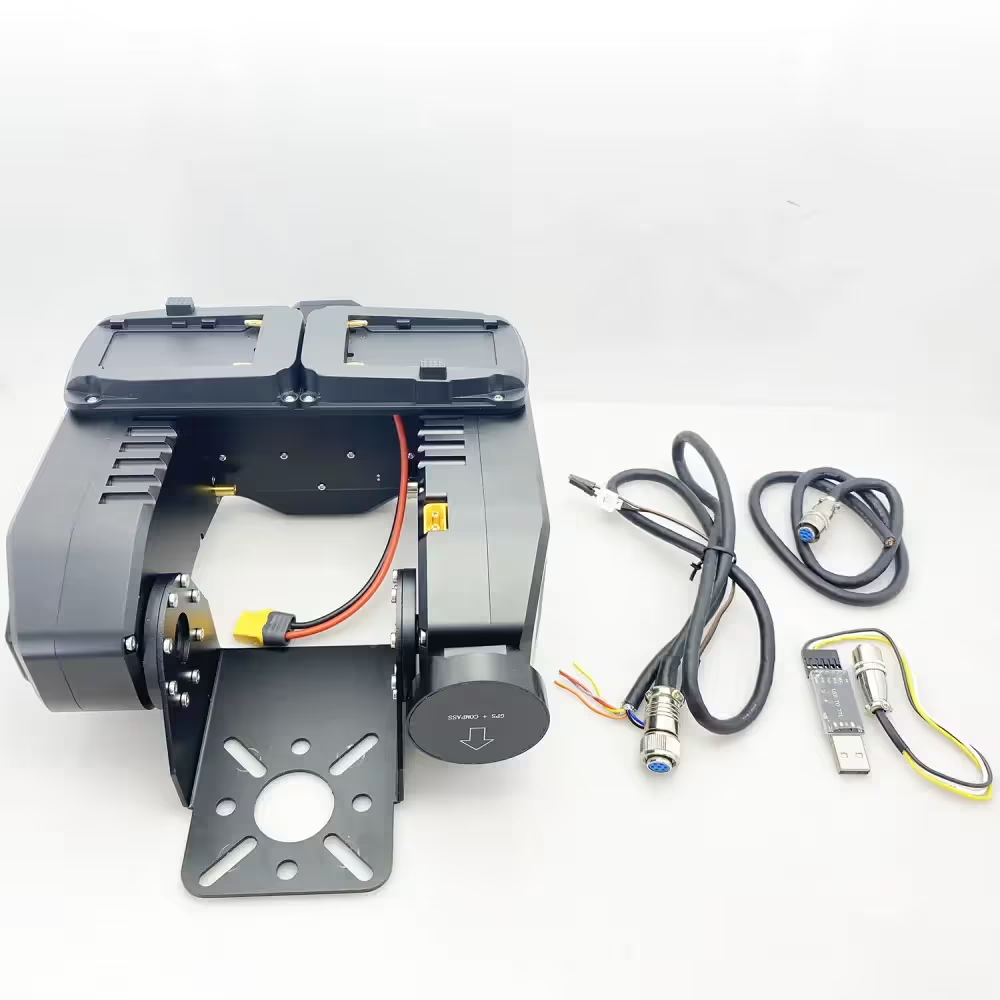
During use, customers may encounter problems of one kind or another. Customers may want to optimize or improve the integration with the GCS Ground Control Station according to their requirements or send instructions to keep a fixed angle when there is no signal in the UAV wireless video data link. These can be achieved by downloading and updating the firmware of the AAT.
How to download and upgrade the firmware of AAT automatic antenna tracker?
Please download the upgrade firmware at the below link.
Table of Contents
MFDAATV1_92A1
https://drive.google.com/file/d/1hW5GaW3ww6wrMQt6pQN6_3qxgQMnWAM6/view?usp=drive_link
MFD_Update
https://drive.google.com/file/d/1reEgXk0NAIxr7IR1WC5QVwQo5-Xt3j42/view?usp=drive_link
USB to TTL Driver (CH341SER)
https://drive.google.com/file/d/1zidiKP21VVDbeH3mgh5MtjE7cnURndIo/view?usp=drive_link
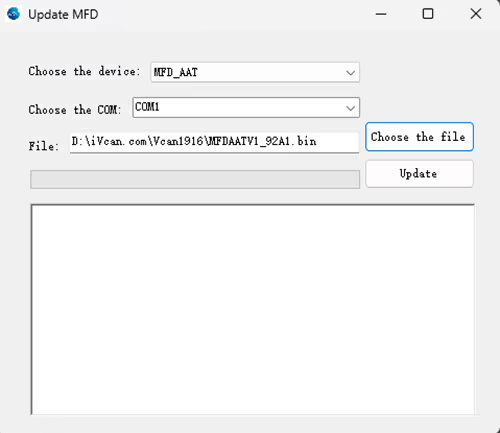
One client should download and upgrade the firmware of AAT automatic antenna tracker. Here is his process.
Client: During the update process, my connection was lost and the update failed. How i can reset the AAT? The display doesn’t show anything. When I plug in power. I can hear some bip-bip sound.
iVcan: Continue to repeat the update process, Power off the AAT, and then update again.
Client: The software cannot connect to the AAT, please check the below picture.
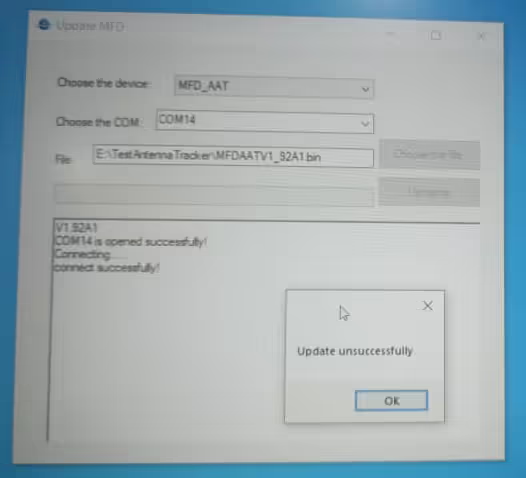
The operation step suggested by our engineer is the below:
- The operation step suggested by our engineer is the below
- Plug in the downloader and connect it to the computer.
- Turn on the power.
- Wait for the gimbal to beep 6 times
- Start the update program again.
We just did a test locally. After the update fails, you can resume the update as I said. Pay attention to checking the TTL connection line.
Client: My connection is ok. I hear a beep 6 times, After I press update I hear 1 beep, but the result is unsuccessful.
Please check them one by one, The engineer did a test on our side, and it is ok. Would you like to take your operation video? let our engineer “see” which step is wrong. We can not find the problem from text only.
The client has sent us his operation video.
Please unplug and replug the USB-TTL after your video ends and update again.
Please change our default USB TTL tool in the package accessory and test again.
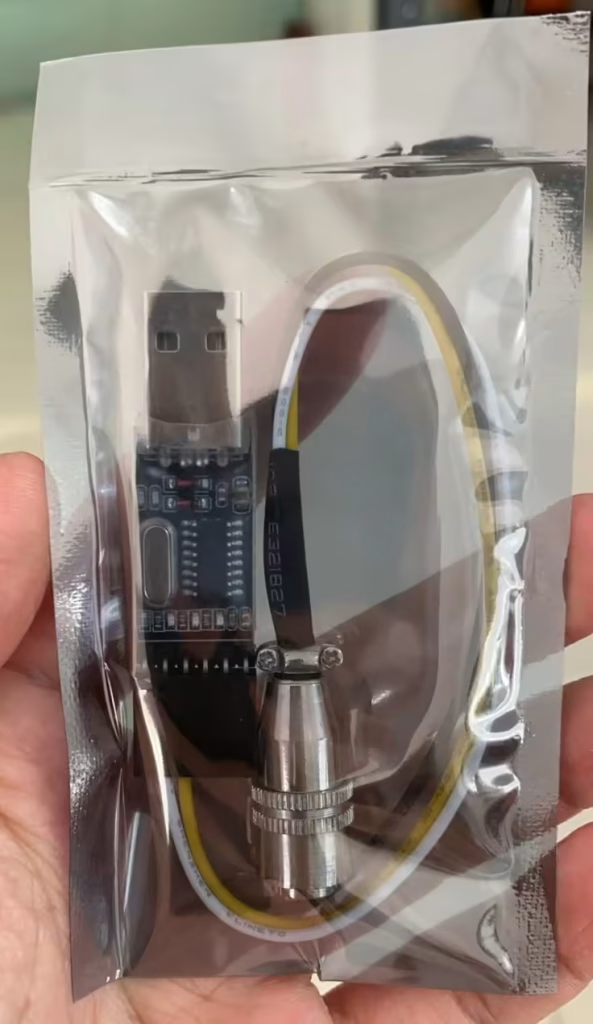
Client: Ok. I updated the firmware. And the device is ok, My TTL to USB didn’t work. The AAT work with MAVLinkProj now.
Please tell me if you have any questions about the download and upgrade of the firmware of AAT Automatic Antenna Tracker.
AAT for the flat panel directional fiberglass antenna is very useful to increase the signal strength and transmission range. As a good supplier of long-range wireless video and data transmitters and receivers, we are always online to offer you free technical support.

FAQs
Sorry, does not.
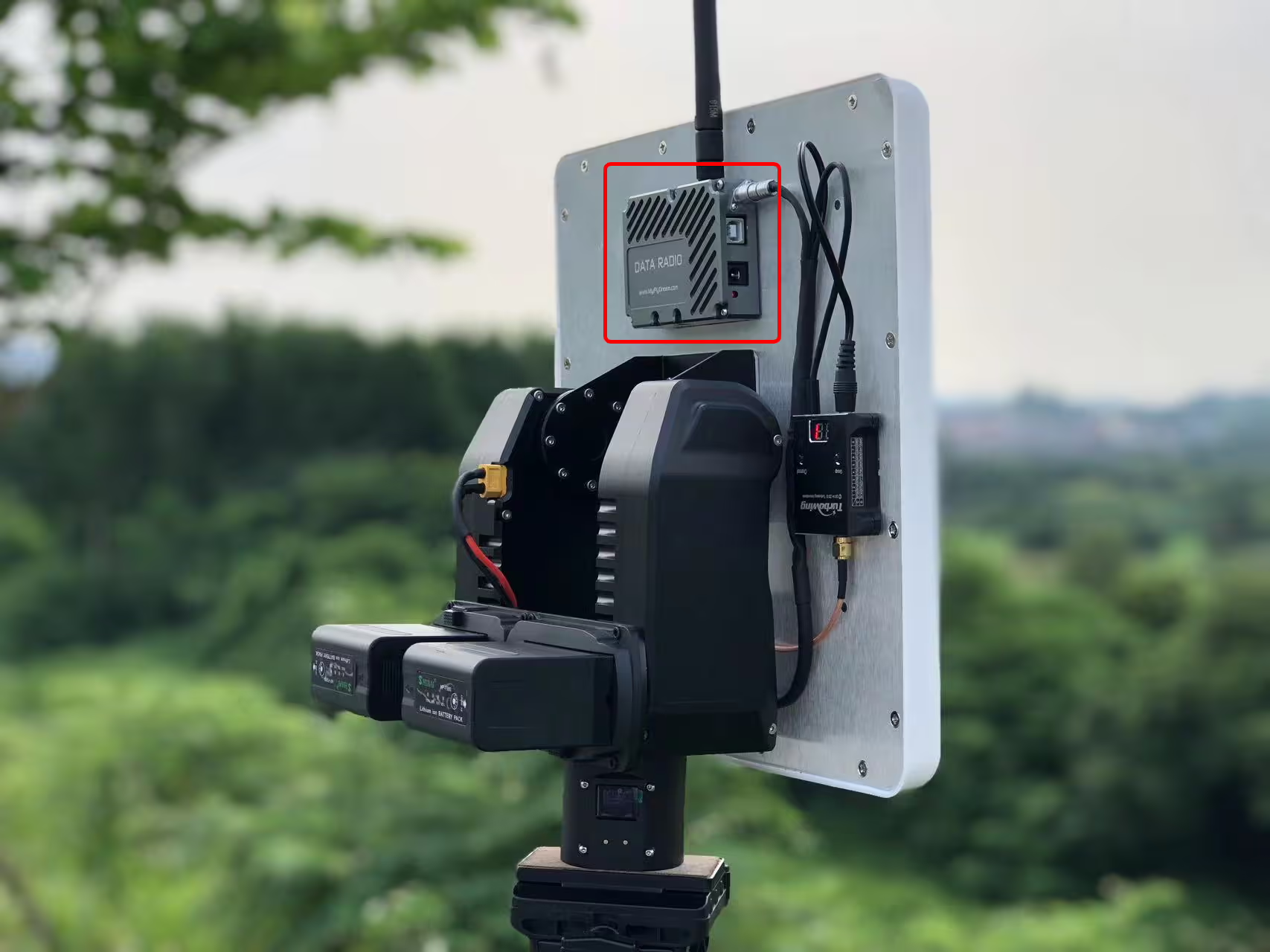
Now the automatic antenna tracker gimbal only support less 3G frequency.
If the frequency is over 3.3g, your receiver must be on a flat antenna, please check the below picture.
Q: Should I prepare rotary joint for continuously 360 rotating?
A: The gimbal has a built-in slip ring and supports 360-degree rotation.
What are the antenna parameters? (gain, hpbw, etc)
What is the interface of the tracker? How do you control the tracker?
How is zero heading made?
Q4: Is it also possible to have RSSI tracking?
A4: No, the drone sends data with GPS to the tracker, which uses GPS for tracking. The drone video data link can send RSSI to the receiver. However, the tracking is according to the GPS position to keep the antenna always facing the drone.
The directional antenna weight should be less than 2.5 kg.
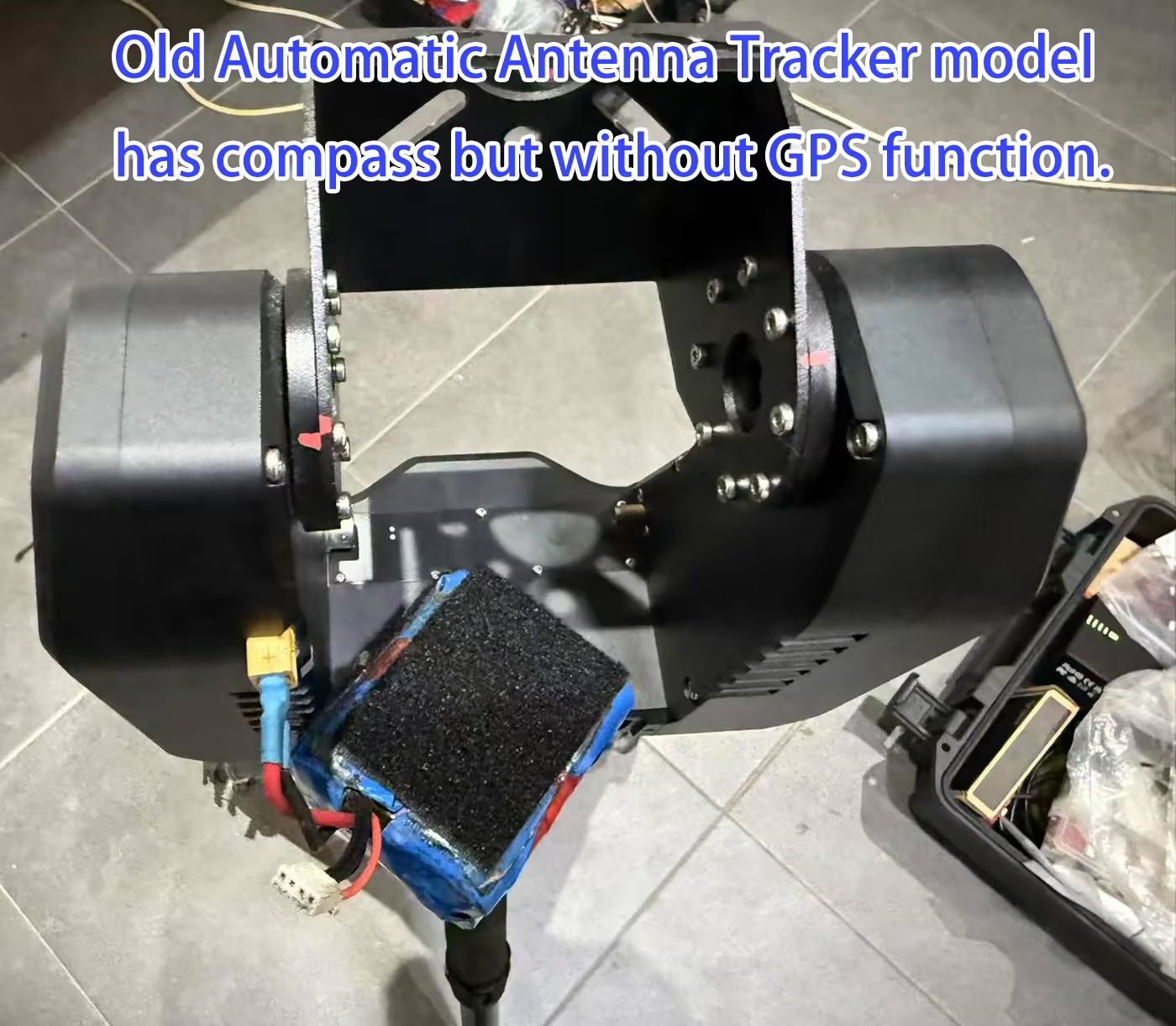
The engineer recommended purchasing our external GPS unit, adding that it would cost an additional $89.
The tracker requires both of the following MAVLink messages:
-
MAVLINK_MSG_ID_GPS_RAW_INT– Provides raw GPS data, including position and altitude. -
MAVLINK_MSG_ID_GLOBAL_POSITION_INT– Provides global position information, including latitude, longitude, and relative altitude.
⚠️ Note: Even if your flight controller sends other MAVLink messages (e.g., Heartbeat), if these two messages are missing, the tracker will display “DLink:1% msg?” to indicate that the required data is not being received.
-
Minimum frequency: 1 Hz – ensures the tracker receives basic position updates.
-
Recommended frequency: 5 Hz or higher – provides smoother and more responsive real-time tracking.
💡 Example: For ArduPilot Mega, you can search for
SR1_in Mission Planner’s parameter list and setSR1_POSITIONto 5 Hz or higher for Telemetry1 port.
-
ALT=BARO mode: Uses
GLOBAL_POSITION_INT.relative_altas the altitude source. Suitable for most ArduPilot systems and custom flight controllers. -
ALT=GPS mode: Uses altitude from the
GPS_RAW_INTmessage. Suitable for most Pixhawk flight controllers.
Users can check
FlightInfo -> ALT/BAROto view both GPS altitude and barometric altitude to confirm the tracker is using the correct data source.
How to install the Automatic Tracker Antenna AAT to your drone wireless Video Data transmitter and receiver
Automatic Antenna Tracking AAT Mavlink Protocol for Drone Video Transmitter Antenna Tracker
Automatic Antenna Tracker Gimbal Construct and Interface
Automatic Antenna Tracking AAT Mavlink Protocol for Drone Video Transmitter Antenna Tracker
Ask A Question
Thank you for your response. ✨