






Table of Contents
What is the overlay user-defined OSD menu?
When using the COFDM wireless video transmitter and receiver module, users may need to overlay some OSD information on the video screen:
- Flight control information of the sending end (GPS, flight line altitude, speed, battery power, etc.);
- Receiver information (signal strength, battery level, etc.)
To meet the above two needs of users while taking into account versatility and ease of use, We offered the following solutions:

- Our COFDM wireless video transmitter and receiver module provides 1-way unidirectional serial port transparent transmission, allowing users to transparently transmit transmitter data to the receiver through the serial port.
- The transparent serial port of our COFDM receiving module not only supports the output of transparently transmitted data from the transmitter but also supports the reception of OSD overlay data.
- The user needs to complete the independent protocol on the MCU connected to the sending module or the MCU connected to the receiving module, Which is converted and then sent to the system through the transparent transmission interface of the receiving module to complete the overlay of the user OSD information.
User-defined OSD menu h is what characters the user wants to display on the screen, such as flight data, by sending AT commands. (3pin serial port, character mode transmission, baud rate is the same as 3pin transparent serial port)
AT commands for overlay user-defined OSD menu
| Format | ATOSD$(font), $(x),$(y),$(str) _For example: ATOSD1,40,20,height: 100m_ |
| parameter | font: An integer value (the larger the value, the larger the font) x coordinate: 0~1919 y coordinate:0~1079 str: string to be displayed at the corresponding coordinates (The space symbol is used to clear the display) |
| use | Used to overlay user OSD information on the video screen |
| return value | none |
| Remark | 1. This command is exclusive to OSD. Customers need to send commands to the system through the OSD interface. The specific baud rate and verification method are determined by the ATST command and can be obtained through the ATGT command. 2. The user specifies the x and y coordinates of the OSD display according to the maximum 1920×1080 pixels, and the system will correct the coordinates according to the actual display situation. 3. The str parameter cannot contain the ‘_’ character |
Video Operation Guide
Explanation in the above video.
Do you know how to send the OSD menu flying data via the COFDM wireless video encoder transmitter and decoder board?
In this video, I will show you the operation details. Now take a transmitter with an HDMI encoder. Connect the receiver decoder board via a cable. Then the transmitter needs an HDMI signal source, the HDMI cable connecting to this computer, and then there is a display player playing the video. Now the computer acts as the HDMI video source for this camera. The computer output video is sent to this transmitter.
The signals are sent to the decoder receiver board via one cable, The decoder board then displays via HDMI output. So now you can see that the two screens show the same, The signal source is on the right, and The decoded display is on the left.
Then at the same time, the encoding board, This 3-pin transparent serial port, Then a serial port data, It is connected to this computer, This data is being sent all the time, Then on the decoder board, there is also a 3-pin serial port, It will be transparently transmitted to another laptop, You can see that the data is transparently transmitted.
Note that the display is in hexadecimal mode Because the sending side is also in hexadecimal, You can take a look, The sending here is in hexadecimal, Then the sending here needs to be changed to Character mode.
To send this OSD command, For example, if you want to display this bunch of characters at X:400 Y:200, Okay, let’s look at the upper left corner first, I specifically turned on the system’s OSD as you did, As long as we click send here, Let’s see what happens After he receives the user’s OSD, He will turn off the OSD of that system, Then at the XY coordinates specified by the user, Shows the corresponding value, Then let’s try to change this, I will modify its XY coordinates and send it again, Now you can see two, These are the two user OSD commands just sent, The positions are different, The content is the same.
Upgrade firmware to have the user-defined OSD menu function
Download the upgrade firmware
https://drive.google.com/file/d/1RP1qk-fLK1JQK9b-aD_UDStENIUhdCy2/view?usp=drive_link
The product mentioned in the video.

Chinese Character Support
To meet the needs of Chinese character superposition, the “ATOSDU” command is added, and the parameters are similar to the original “ATOSD” command:
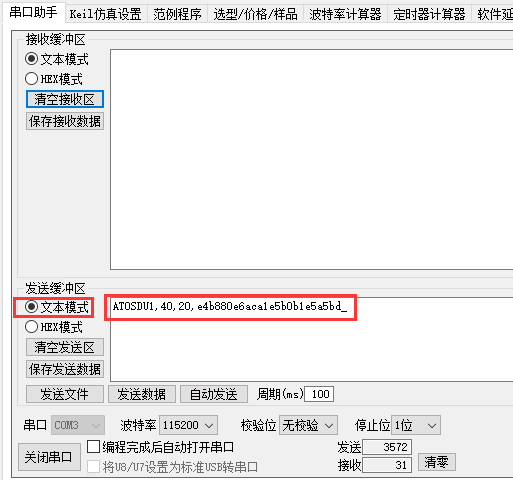
| Format | ATOSDU$(font), $(x),$(y),$(str) _For example: ATOSDU1,40,20,e4b880e6aca1e5b0b1e5a5bd_ |
| parameter | font: An Integer value (the larger the value, the larger the font) x coordinate: 0~1919 y coordinate:0~1079 str: string to be displayed at the corresponding coordinates (UTF-8 encoded ascii representation) |
| use | Used to overlay user OSD information on the video screen (Support Chinese and English characters) |
| return value | none |
| Remark | 1. This command is exclusive to OSD. Customers need to send commands to the system through the OSD interface. The specific baud rate and verification method are determined by the ATST command and can be obtained through the ATGT command. 2. The user specifies the x and y coordinates of the OSD display according to the maximum 1920×1080 pixels, and the system will correct the coordinates according to the actual display situation. 3.The str parameter takes UTF-8 encoded ASCII representation |
Regarding how to obtain the UTF-8 encoding of Chinese characters to be displayed, you can use the UltraEdit software:
- Open the UltraEdit software (a new version is recommended), and create a new file. Under the status bar at the bottom, select “Uniform Character Standard->UTF-8” from the encoding drop-down menu:

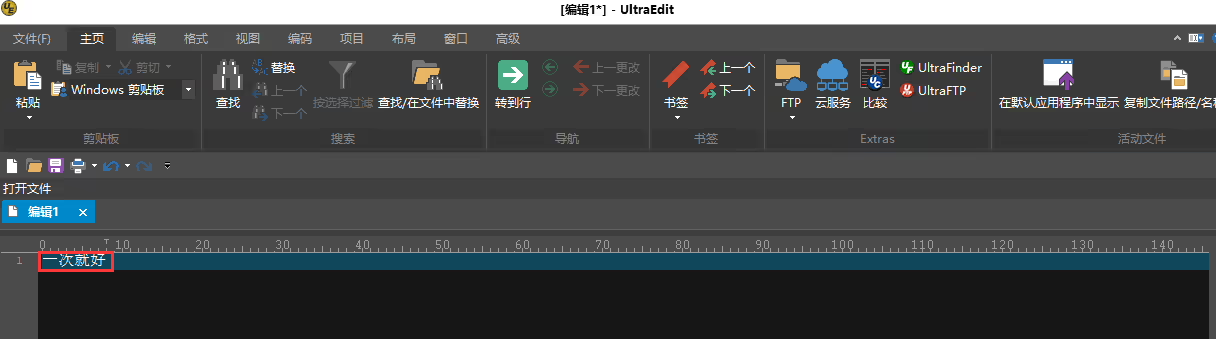
- In the new file, type the Chinese string that needs to be displayed, such as: “Just once”:
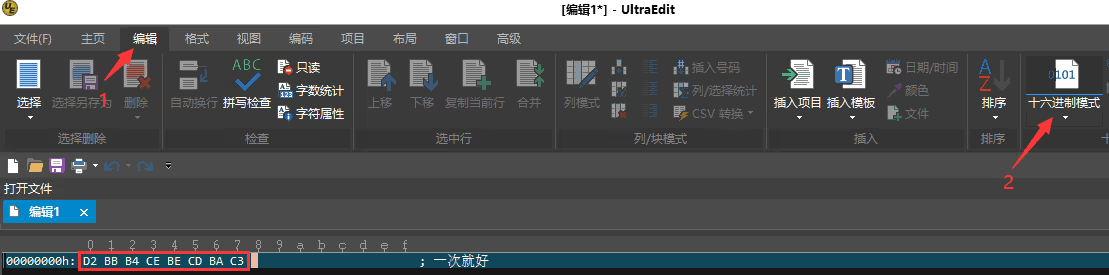
- Select “Edit” in the menu bar, then select “Hex Mode” to get the corresponding UTF-8 encoded characters:
- Through the serial port terminal, send the ATOSDU command and pass the characters obtained above (ASCII form):
[VF-202411]
Ask A Question
Thank you for your response. ✨