






فهرست مطالب
تنظیم پخش کننده UDP Stream در فرستنده و گیرنده ویدیوی بی سیم COFDM HDMI
پخش کننده استریم UDP بهترین راه حل برای رمزگذار ویدیوی آنالوگ CVBS با کمترین تأخیر است. گیرنده ویدیوی بیسیم COFDM سیستمافزار پیشفرض Vcan1776-RX از پخشکننده RTSP پشتیبانی میکند. برخی از مشتریان نیاز به استفاده از پروتکل UDP دارند.
آدرس IP و شماره پورت را می توان در صفحه وب پیکربندی کرد, HTTP://192.168.0.215 (به طور پیش فرض)
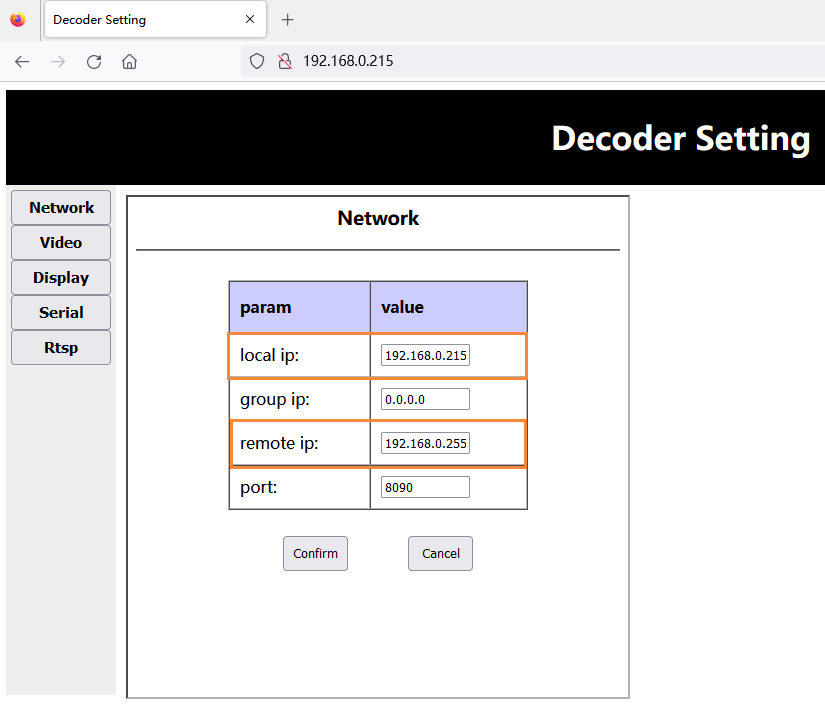
- پس از ارتقاء فریمور, انتهای دریافت کننده پارامترهای پیش فرض کارخانه را بازیابی می کند (فرکانس مرکزی: 320مگاهرتز, پهنای باند بی سیم: 6مگاهرتز, آدرس IP پورت شبکه: 192.168.0.215), مشتریان باید فرکانس مرکزی و پهنای باند را از طریق تغییر دهند ابزار صفحه پیکربندی پارامتر, و فرستنده به طور مداوم ذخیره می کند.
- مشتری از طریق صفحه وب به وب سرور گیرنده دسترسی پیدا می کند (HTTP://192.168.0.215), و آدرس IP خود و تنظیم آدرس IP انتهای رایانه ویندوز متصل به گیرنده را تغییر می دهد:
توجه داشته باشید: در میان آنها, IP محلی، آی پی خود گیرنده است, و IP از راه دور همان ip پایانی رایانه ویندوز است. مشتری می تواند آن را با توجه به وضعیت واقعی خود پیکربندی کند. توجه داشته باشید که این تغییر تنها پس از راه اندازی مجدد گیرنده اعمال می شود.
پخش کننده UDP را دانلود کنید پخش کننده
- پخش کننده UDP را دانلود کنید پخش کننده.
- Splayer_v4.2_2020.6.6
- https://drive.google.com/file/d/1ihzUhfnx2Wo3zLO8UAs1aUQeLswonJD-/view?usp=sharing
- Splayer_v4.3_2022.10.22
- https://drive.google.com/file/d/1PQc-LZ55qGnjeMsjkHYSloHfY3NEUsGH/view?usp=drive_link
- Splayer_v4.3.1_2024.4.16
- https://drive.google.com/file/d/1uv7GqP8P4r6qGOWJ5gYn0b8bZ4ptL8H6/view?usp=drive_link
- Splayer_QT_V1.0 برای Win10 یا Win11
- https://drive.google.com/file/d/1VAegQjd-PmIL2XbJf7K8dnujMxhoIuhd/view?usp=drive_link
- Splayer_QT_V1.1.1 برای Win10 یا Win11
- https://drive.google.com/file/d/1YMr2xxurGnbIBjFihc7f77afrdbOcc6l/view?usp=drive_link
- Splayer_QT_V2.0
- https://drive.google.com/file/d/1sASbARCL1lXAIsVKqkmEObRGPREbaSES/view?usp=drive_link
- پخش کننده Splayer را در رایانه شخصی ویندوز باز کنید, روی دکمه تنظیمات در گوشه سمت راست پایین کلیک کنید, و صفحه تنظیمات ظاهر می شود:
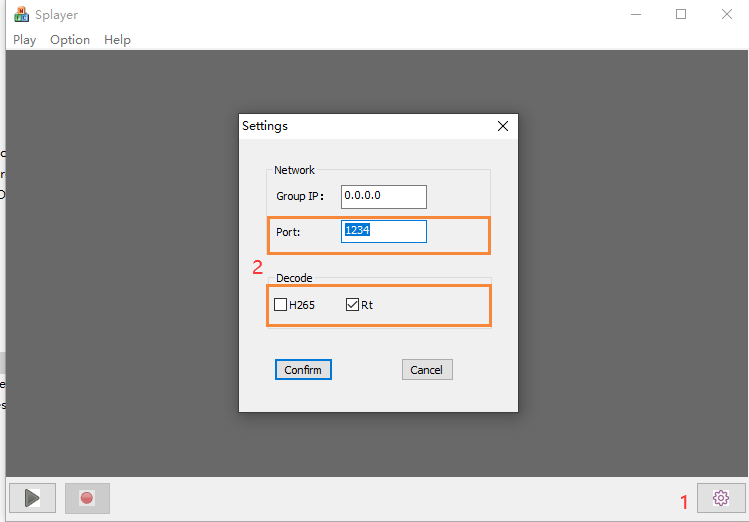
توجه داشته باشید:
- مشاهده می شود که شماره پورت پورت روی تنظیم شده است 1234, که توسط برنامه استریم UDP گیرنده کدگذاری شده است و قابل تغییر نیست;
- در ستون رمزگشایی, با توجه به ویژگی های جریان ویدیویی فعلی پیکربندی کنید, مانند پیکربندی جریان ویدیویی کم تأخیر H264 مانند بالا;
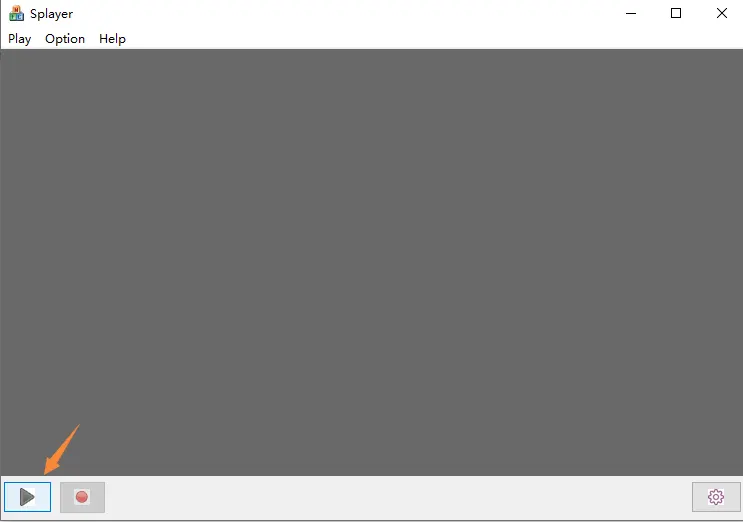
- پس از تنظیم و کلیک بر روی “تایید” دکمه ذخیره پارامترها, روی دکمه پخش در گوشه پایین سمت چپ کلیک کنید. پس از اینکه رایانه ویندوزی جریان فشار UDP را دریافت کرد, آن را رمزگشایی و پخش بلافاصله.
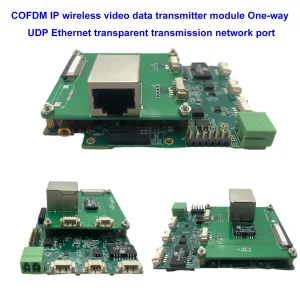
تنظیمات پخش جریان UDP بالا برای مدل زیر مناسب است.

چگونه از پخش کننده VLC لینوکس پشتیبانی می کند? پخش جریان با تاخیر کم تحت لینوکس?
سوال: اکنون جریان UDP با پخش کننده VLC بازی نمی کند. من باید این استریم UDP را تحت لینوکس بازی کنم و سعی می کنم جزئیات این استریم را بفهمم. هر اسکریپت یا کلید یا چیزهای دیگر?
من میخواهم پخشکننده خودم را تحت لینوکس بسازم و میخواهم جزئیات این جریان ویدیوی UDP را از دمدولاتور بفهمم..
اگر یک جریان ویدیویی UDP معمولی باشد, سپس سوال کنید که چرا با VLC یا OBS استودیو بازی نمی کند.
پاسخ: برای مدل Vcan1726-RX, ما دو سیستم عامل اختیاری داریم, اولین سیستم عامل برای پخش کننده RTSP از پخش کننده VLC پشتیبانی می کند, اما برخی از مشتریان ذکر کردند که تاخیر طولانی دارد, بنابراین ما سیستم عامل دوم را ساختیم, پخش UDP در Splayer, که از تاخیر کمتری پشتیبانی می کند.
این پخش صوتی و تصویری UDP فرمت سفارشی ما است, بنابراین VLC نمی تواند آن را توضیح دهد. اگر مشتری شما می خواهد پخش کننده خود را باز کند (تحت لینوکس), در حال حاضر دو گزینه وجود دارد:
- به دسترسی به جریان پیشفرض RTSP بهروزرسانی کنید (اولین سیستم عامل برای پخش کننده RTSP)
- ما کتابخانه و روال های مربوطه DEMUX را ارائه می کنیم (ما باید محیط لینوکس مشتری را درک کنیم تا بتوانیم یک فایل کتابخانه مناسب را کامپایل کنیم)
- این است “کتابخانه DEMUX و روال” توسط مهندسان ما تحت اوبونتو نوشته شده است 14.04 64سیستم بیت
نوع دوم برای مشتریان عادی بسیار دشوار است, و ما از قابلیت های توسعه پخش کننده خود مشتری شما اطلاعی نداریم.
زیرا برخی از مشتریان با مشکل تاخیر کم در پخش کننده VLC سیستم عامل ویندوز مواجه می شوند, مهم نیست چقدر اینجا تست کردیم, ما این مشکل را پیدا نکردیم. در آن زمان, برای تست از ویندوز استفاده کردی. شاید اگر به لینوکس تغییر می کرد, هیچ مشکلی در جریان RTSP وجود نخواهد داشت. لطفاً نمونه Vcan1726 را با اولین نسخه سیستم عامل در لینوکس آزمایش کنید. شاید این مشکل در سیستم عامل لینوکس نباشد.
سوال: آیا می توانید یک تصویر داکر برای این برنامه بسازید? کدام یک از پورت ها برای جریان ورودی استفاده می شود, و یک پورت دیگر برای جریان خروجی با تعدادی کدک پرکاربرد (h264)?
Splayer و UDP Stream Player چیست؟?
SPlayer یک پخش کننده رسانه ای است که از فرمت های مختلف ویدئویی پشتیبانی می کند, از جمله پخش UDP.
پخش جریانی UDP روشی برای ارسال داده های ویدیویی از طریق اینترنت با استفاده از پروتکل Datagram کاربر است (UDP), که یک پروتکل سریع و ساده است که تحویل یا سفارش بسته ها را تضمین نمی کند.
پخش UDP را می توان برای پخش زنده ویدیو یا انتقال ویدیو با تأخیر کم استفاده کرد, اما ممکن است از دست دادن بسته یا فساد نیز رنج ببرد.
با توجه به نتایج جستجوی وب, SPlayer می تواند با استفاده از مراحل زیر، استریم های UDP را پخش کند:
- SPlayer را باز کرده و روی آن کلیک کنید “URL را باز کنید” دکمه در گوشه بالا سمت راست.
- URL جریان UDP را با فرمت udp وارد کنید://@ip: بندر, که در آن ip آدرس IP سرور و پورت شماره پورت جریان است. مثلا, udp://@224.0.0.1:1234.
- کلیک کنید روی “خوب” را فشار دهید و منتظر بمانید تا جریان بارگیری شود.
چگونه Splayer برای Win10 خوب کار می کند?
سوال: ما نمی توانیم Splayer را راه اندازی کنیم 4.2 و 4.3 زیر ویندوز 10. آیا می توانید نسخه صحیح Splayer برای ویندوز را در اختیار ما قرار دهید 10 و 11?
4.2 در لحظه شروع و بسته می شود. 4.3 با پیغام خطا شروع می شود.
نام برنامه اشتباه است: Splayer.exe, نسخه: 1.0.0.1, مهر زمان: 0x646d83e2
نام ماژول خطا: dvb_demux.dll, نسخه: 1.0.0.1, مهر زمان: 0x5fe5bdbf
کد استثنا: 0xc0000005
جبران خطا: 0x0001484a
شناسه فرآیند خطا: 0x3888
خطا در زمان شروع برنامه: 0x01da1164b89c78eb
خطای مسیر برنامه: C:\UsersadminDownloadsSplayer_v4.3_2022.10.22Splayer.exe
خطای مسیر ماژول: C:\UsersadminDownloadsSplayer_v4.3_2022.10.22dvb_demux.dll
شناسه گزارش: 4af19407-045e-48e5-a0f7-86fc90c6b3d3
نام کامل بسته معیوب:
شناسه برنامه مربوط به بسته خطا دارد:
پاسخ: لطفا سعی کنید از Splayer_qt_v1.0.zip ما استفاده کنید (103.5MB).
بازخورد: نسخه جدید SPlayer در سایت مشکل با Win به خوبی کار می کند 10! متشکرم!
سوال: متوجه شدیم که تاخیر زمانی هنگام پخش ویدیو از برنامه Reciver by Splayer افزایش می یابد (جریان UDP).
اگر مفصل صحبت کنید – گیرنده با کابل اترنت مستقیماً به رایانه شخصی متصل می شود. رایانه شخصی و گیرنده در یک شبکه محلی هستند. وقتی Splayer را شروع می کنیم تاخیر زمانی طبیعی است و شمارش دقیق به ما نشان می دهد 330 msec, که کمی بیشتر از یک خروجی HDMI است که در آن مشاهده کردیم 270 msec. خوب است. اما اگر چند دقیقه بدون هیچ تغییری در محل کار صبر کنیم، شاهد افزایش مداوم تاخیر زمانی هستیم که به آن می رسد 1-1,5 ثانیه که در برنامه مشتری قابل قبول نیست.
دیروز خودم آن را روی Win تست کردم 10, و Win11 در رایانه های شخصی مختلف با خاموش کردن پیچیده Win Brandmauer با Splayer qt (آخرین نسخه از شما), و Splayer 4.3 (نسخه قدیمی). من این مشکل را هر بار در هر پیکربندی تکرار می کنم.
لطفا برای رفع این مشکل به من کمک کنید. ما به تأخیر زمانی ثابت در زمان بازی Splayer نیاز داریم که نمی تواند بیشتر از آن باشد 350 msec.
پاسخ: چنین مشکلی نباید پیش بیاید, زیرا پخش کننده در حالت تاخیر کم کش ندارد, و تأخیر کاملاً به توانایی رمزگشایی رایانه شخصی بستگی دارد. مهندسان محیط زیست را تنظیم کرده و دوشنبه آینده آن را آزمایش خواهند کرد.
نکته دیگر این است که از مشتریان بخواهید تنظیمات نرخ تازه سازی مانیتور لپ تاپ خود را بررسی کنند. مثلا, اگر دوربین 1080p60 را وارد کند, سپس نرخ تازه سازی مانیتور لپ تاپ مشتری نیز باید 60 هرتز باشد. در غیر این صورت, نمایشگر خیلی کند خواهد بود, که باعث ازدحام داده ها و ایجاد تاخیر می شود.
بازیکن Slayer تاخیر زیادی دارد, یا رمزگشایی کند است یا نمایشگر کند است, این همه توسط کامپیوتر ایجاد می شود.
رمزگذاری دوربین HDMI رمزگشایی گیرنده HDMI, خروجی به نمایشگر, و تست تاخیر پخش کامپیوتری پخش کننده Splayer
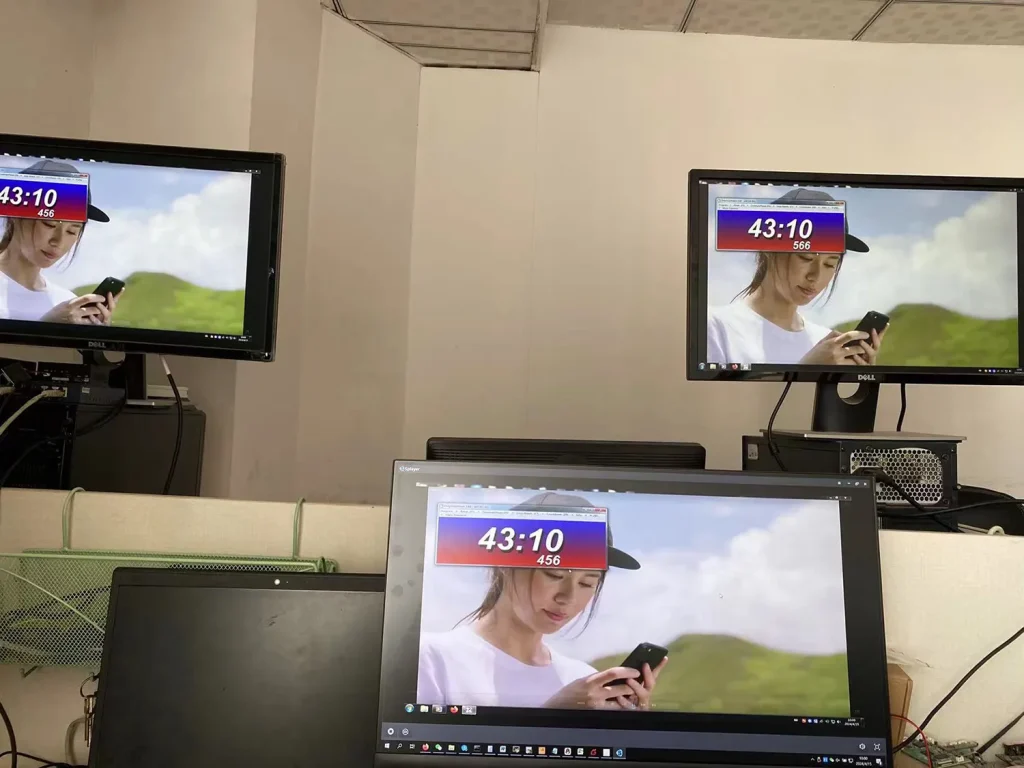
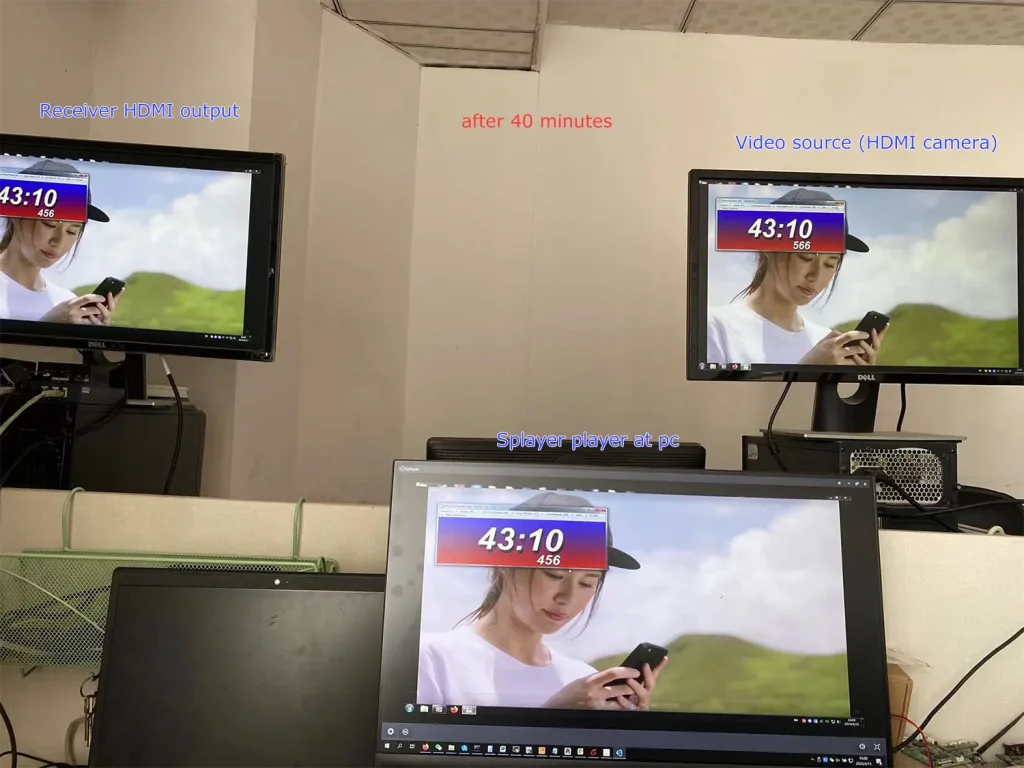
ما مشکلی را که شما ذکر کردید پیدا نکردیم.
مشاهده می شود که صفحه پخش کننده فعلی Splayer و خروجی HDMI گیرنده یکسان هستند, و تاخیر بین آنها بسیار کم است.
میشه لطفا از مشتری بپرسید, وضوح و نرخ فریم ورودی دوربین چقدر است? با فرض اینکه دوربین مشتری 1080p60 است, همچنین می توانید دو مرحله زیر را برای عیب یابی بیشتر انجام دهید:
- به مشتری اجازه دهید دوربین را به نرخ فریم کمتری برای آزمایش تغییر دهد, مانند 1080p50/30;
- میتوانید پارامترهای بخش رمزگذاری را طوری تنظیم کنید که اجازه رمزگذاری پایین فریم را بدهید. مثلا, دستور ATSO0,30_ را از طریق پورت پارامتر ارسال کنید, و خروجی کدگذاری 1080p30 برای تست.
توجه داشته باشید:
- Splayer is specifically developed for our proprietary/custom streaming protocol and currently does not support parsing or playback of standard MPEG-TS protocols.
- Splayer is currently available only on Windows. Linux and Android versions have not been developed yet and are not supported at this stage.
- علاوه بر این, it is not the mpeg-ts protocol that causes the delay to increase. Even if it is switched to our custom protocol, the delay will not be reduced (our custom protocol mainly performs CRC checks on all data packets, while the mpeg-ts protocol does not, which is the biggest difference between the protocols). The biggest impact on latency is the processing of video decoding and display in the player. Our own player Splayer will be optimized for image transmission application scenarios.
- Even if the customer gets our demux library and extracts the audio and video streams, it still has to do the video decoding and display by itself. This ordinary customer does not have this ability. Most customers will only use open source players (such as based on gstreamer), and the video delay of these open source players will not be good. If you want good video delay, you basically have to develop your own player.
- If the customer insists on the demux library and says that he has the ability to deal with the subsequent video decoding and playback, I can also cooperate with you (but we only provide the demux library and routines under Linux/android, and do not provide subsequent decoding and display-related support)
- Our custom protocol mainly enhances CRC verification to better handle transmission errors, which helps prevent unexpected video decoding issues or even player crashes caused by corrupted data packets. The demuxing protocol itself does not introduce significant latency, whether it is our custom protocol or the standard MPEG-TS protocol. The main factors affecting latency are actually the decoding and rendering stages afterward. به طور کلی:
- Since UDP streaming and player decoding/rendering are asynchronous processes, most players introduce a certain amount of buffering before starting playback. The larger the buffer, the higher the latency.
مثلا, VLC media player typically uses relatively large buffering, and its buffer size may even increase dynamically during playback. در مقابل, Splayer keeps the playback buffer intentionally very small to minimize latency. - Video decoding and frame rendering are also asynchronous processes. If rendering cannot keep up in time, decoded video frames may accumulate in the rendering queue, which introduces additional latency similar to pre-decoding buffering. Splayer is also optimized in this area to reduce frame accumulation and maintain low-latency playback.
- Since UDP streaming and player decoding/rendering are asynchronous processes, most players introduce a certain amount of buffering before starting playback. The larger the buffer, the higher the latency.
- Our custom protocol also includes several additional optimizations, which is why we ultimately decided to adopt it instead of continuing with the standard MPEG-TS protocol (which we originally used at the beginning):
- Compared with the standard MPEG-TS protocol, our custom protocol reduces redundant protocol overhead and improves wireless bandwidth utilization. This is particularly important for bandwidth-constrained wireless links such as COFDM video transmission systems.
- Our custom protocol provides greater flexibility for multiplexing different types of data. In addition to video and audio, it can conveniently encapsulate serial port data and other user-defined data streams, making it more flexible and easier to extend than standard MPEG-TS.
- Our custom protocol supports integrated AES encryption and decryption directly within the protocol layer. This is especially useful for wireless links that do not natively support AES encryption, such as standard Wi-Fi connections.
- علاوه بر این, our custom protocol is designed specifically for low-latency and high-reliability transmission scenarios, allowing tighter optimization across the entire transmission and playback pipeline compared with a general-purpose standard protocol.
نسبت فامیلی
- آیا می خواهید داده های UART را از برد رمزگذار HDMI CVBS Video UART DATA دریافت کنید?
- UDP Player SDK با تاخیر کم برای ویندوز x64
Q: آیا سیستم از Multicast پشتیبانی می کند؟? آیا می توانم یک استریم را به چندین IP خروجی بدهم؟?
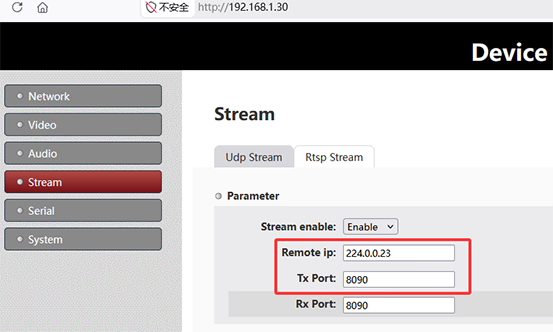
آ: بله. The system supports UDP multicast, allowing one stream to be delivered to multiple receivers simultaneously without duplicating the stream per IP.To use multicast, را تنظیم کنیدآی پی از راه دور on the sender side to a multicast address, مثلا224.0.0.23. All receivers join the same multicast group using the same address. در سمت گیرنده, configure the same multicast IP:
- پخش کننده: set Group IP to
224.0.0.23 - VLC: باز کردن
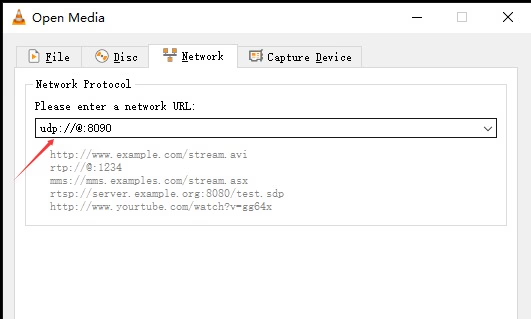
udp://@224.0.0.23:8090
Multicast enables one-to-many streaming within the same network. The actual device IP is not critical; بجای, delivery depends on network multicast support and devices joining the same group.توجه داشته باشید: Network conditions may affect performance. Environments with VPNs, virtual machines, multiple network adapters, or switches without IGMP support may impact multicast reception.
چندپخشی

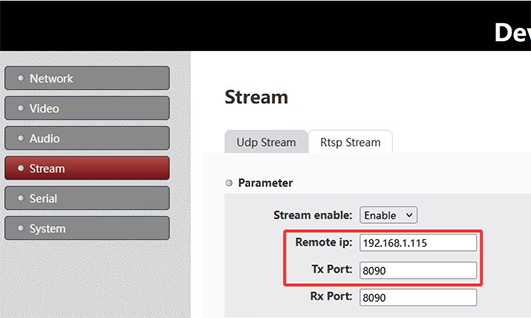
Unicast
Q: If there are multiple encoder multicast boards in the same network, should we change the port on each board to avoid conflict?
آ: لزوماً. There are two valid ways to ensure that multiple encoder streams do not conflict on the same network:
- Use different UDP multicast IP addresses for each encoder stream.
- Use different UDP port numbers for each encoder stream.
UDP streaming is distinguished by the combination of آدرس آی پی (unicast or multicast) و port number. با هم, they define a unique UDP stream identity on the network.
On the encoder board, این UDP Stream settings عبارتند از:
- آی پی از راه دور: Defines the destination IP address (if a multicast address is used, the stream becomes a UDP multicast stream).
- Tx Port: Defines the transmission port number.
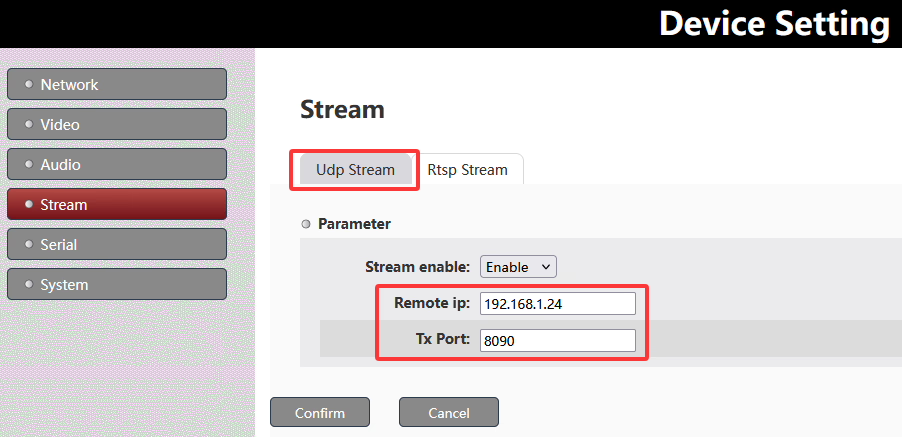
ترکیبی از آی پی از راه دور + Tx Port determines a unique UDP stream.
To avoid conflicts when multiple encoder multicast boards are deployed in the same network, you can either assign different multicast IP addresses, different UDP ports, or use both depending on the network design requirements.
Q: How do I obtain multicast IP addresses for my system?
آ: Multicast IP addresses are not automatically assigned; they are selected from the standard multicast range 224.0.0.0 به 239.255.255.255. در عمل, these addresses should be planned and allocated by the network administrator to ensure there are no conflicts with existing multicast services or devices on the network.
Q: The encoder board needs to output video over both HDMI and AV interfaces, but both streams use the same UDP address. How can we play or switch between them?
آ: When HDMI and AV streams are transmitted over the same UDP address, they are typically not separated by network ports, اما توسط internal stream identifiers, similar to an MPEG-TS (جریان حمل و نقل) ساختار.
چگونه کار می کند
- Both HDMI and AV inputs are multiplexed into a single UDP stream
- Each video source is assigned a unique stream ID (به عنوان مثال, PID / service ID)
- The receiver performs demultiplexing based on these IDs, rather than separating by IP or port
- This allows multiple video channels to coexist in one UDP stream
How Splayer handles this
با ما پخش کننده 2.0 پخش کننده UDP, the system supports this architecture natively:
- Simultaneous decoding of multiple video streams from a single UDP address
- Stream separation based on internal IDs (MPEG-TS PID/service mapping)
- Real-time switching between HDMI and AV sources without changing network settings
- Flexible multi-channel playback using a single UDP input source
This design simplifies deployment by keeping one UDP configuration, while still enabling multi-input video handling and seamless switching.
You can download پخش کننده 2.0 پخش کننده UDP اینجا: پخش کننده 2.0 UDP Player Download
سوال بپرسید
از پاسخ شما سپاسگزاریم. ✨