






Talahanayan ng nilalaman
Setting ng UDP Stream player sa transmiter at receiver ng COFDM HDMI Wireless video
Ang UDP stream player ay ang pinakamahusay na solusyon para sa pinakamababang latency CVBS analog video encoder. COFDM Wireless Video Receiver Vcan1776-RX default firmware ay sumusuporta sa RTSP player. Ang ilang mga kliyente ay kailangang gumamit ng UDP protocol.
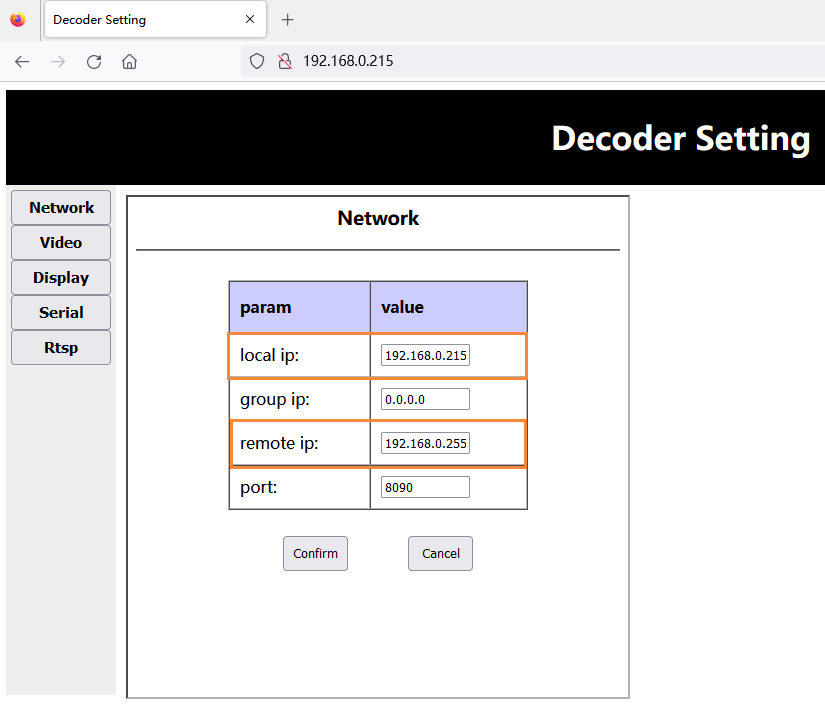
Ang IP address at port number ay maaaring i configure sa webpage, http://192.168.0.215 (default)
- Pagkatapos ng pag upgrade ng firmware, ang pagtanggap ng dulo ay ibalik ang factory default na mga parameter (dalas ng center: 320MHz, wireless bandwidth: 6MHz, network port IP address: 192.168.0.215), Kailangang baguhin ng mga customer ang dalas ng sentro at bandwidth sa pamamagitan ng Tool ng Lupon ng Pag -configure ng Parameter, at ang transmiter ay patuloy na nakakatipid.
- Ina -access ng customer ang web server ng tatanggap sa pamamagitan ng web page (HTTP://192.168.0.215), at binabago ang sarili nitong IP address at ang setting ng IP address ng Windows PC End na konektado sa tatanggap:
Tala: Kabilang sa mga ito, Ang lokal na IP ay ang sariling IP ng tatanggap, At ang remote na IP ay ang docking windows pc end ip. Maaaring i -configure ito ng customer ayon sa kanyang aktwal na sitwasyon. Tandaan na ang pagbabago ay magkakabisa lamang pagkatapos i -restart ang tatanggap.
I -download ang UDP player Splayer
- I -download ang UDP player Splayer.
- Splayer_v4.2_2020.6.6
- https://drive.google.com/file/d/1ihzUhfnx2Wo3zLO8UAs1aUQeLswonJD-/view?usp=sharing
- Splayer_v4.3_2022.10.22
- https://drive.google.com/file/d/1PQc-LZ55qGnjeMsjkHYSloHfY3NEUsGH/view?usp=drive_link
- Splayer_v4.3.1_2024.4.16
- https://drive.google.com/file/d/1uv7GqP8P4r6qGOWJ5gYn0b8bZ4ptL8H6/view?usp=drive_link
- Splayer_QT_V1.0 para sa Win10 o Win11
- https://drive.google.com/file/d/1VAegQjd-PmIL2XbJf7K8dnujMxhoIuhd/view?usp=drive_link
- Splayer_qt_v1.1.1 para sa Win10 o Win11
- https://drive.google.com/file/d/1YMr2xxurGnbIBjFihc7f77afrdbOcc6l/view?usp=drive_link
- Splayer_qt_v2.0
- https://drive.google.com/file/d/1sASbARCL1lXAIsVKqkmEObRGPREbaSES/view?usp=drive_link
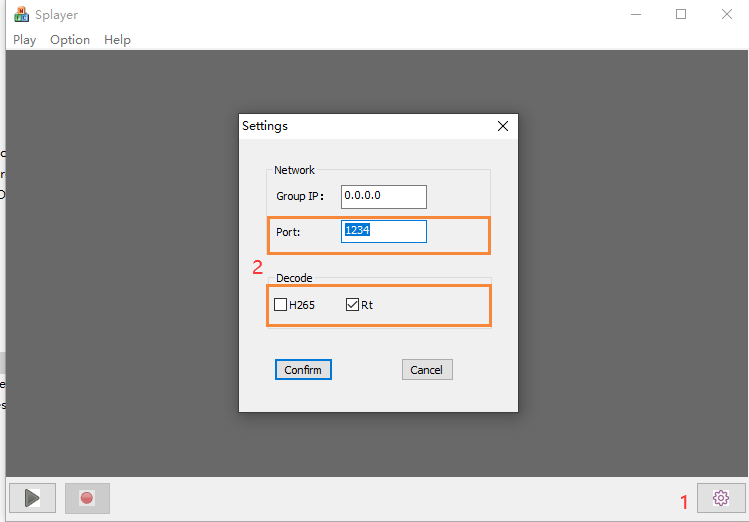
- Buksan ang splayer player sa Windows PC, I -click ang pindutan ng setting sa ibabang kanang sulok, At ang pahina ng setting ay mag -pop up:
Tala:
- Makikita na nakatakda ang numero ng port port 1234, na kung saan ay hard-coded ng UDP streaming program ng tatanggap at hindi mababago;
- Sa haligi ng decode, I -configure ayon sa kasalukuyang mga katangian ng stream ng video, tulad ng pagsasaayos ng H264 low-latency na stream ng video tulad ng nasa itaas;
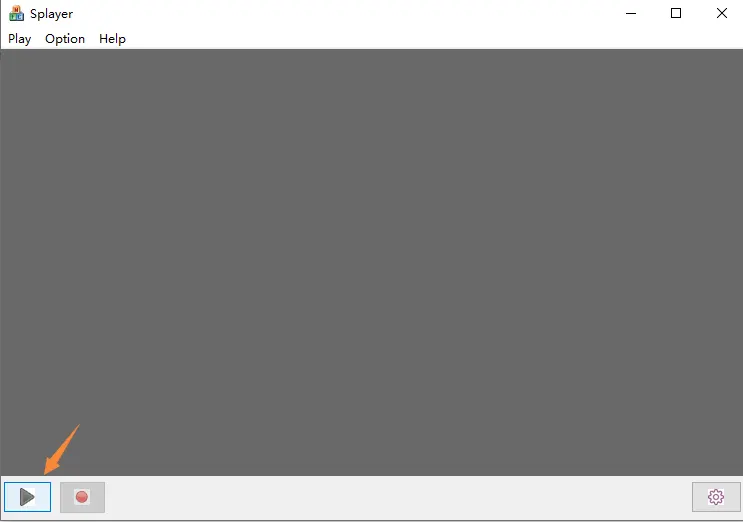
- Matapos ang pagtatakda at pag -click sa “Kumpirmahin” pindutan upang i -save ang mga parameter, I -click ang pindutan ng pag -play sa ibabang kaliwang sulok. Matapos matanggap ng Windows PC ang UDP push stream, Ito ay mababawas at maglaro kaagad.
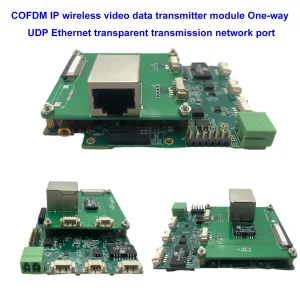
Ang nasa itaas na setting ng stream ng UDP stream ay angkop para sa modelo sa ibaba.

Paano ito sumusuporta sa Linux VLC player? Pag play ng mababang pagkaantala stream sa ilalim ng Linux?
Tanong: Ngayon ang stream ng UDP ay hindi maglaro sa VLC player. Kailangan kong i -play ang UDP stream na ito sa ilalim ng linux at sinubukan kong maunawaan ang mga detalye ng stream na ito. Anumang scripting o mga susi o iba pang mga bagay?
Nais kong gumawa ng aking sariling manlalaro sa ilalim ng Linux at nais kong maunawaan ang mga detalye ng stream ng video na UDP na ito mula sa demodulator.
Kung ito ay isang regular na stream ng video ng UDP, Pagkatapos ay tanungin kung bakit hindi ito maglaro sa VLC o OBS Studio.
Ang sagot: Para sa Model Vcan1726-RX, Mayroon kaming dalawang firmware para sa opsyonal, Ang unang firmware para sa RTSP player ay sumusuporta sa VLC player, Ngunit ang ilang mga kliyente ay nabanggit na ito ay may mahabang latency, Kaya ginawa namin ang pangalawang firmware, Ang broadcast ng UDP sa Splayer, na sumusuporta sa mas mababang latency.
Ang UDP audio at video stream na ito ay ang aming pasadyang format, Kaya hindi maipaliwanag ito ng VLC. Kung nais ng iyong customer na buksan ang kanilang sariling player (sa ilalim ng linux), Mayroong kasalukuyang dalawang pagpipilian:
- I -update sa default na pag -access ng stream ng RTSP (Unang firmware para sa RTSP player)
- Nagbibigay kami ng kaukulang library ng Demux at mga gawain (Kailangan nating maunawaan ang kapaligiran ng Linux ng customer upang makatipon ang isang angkop na file ng library)
- Ito ang “Demux Library at Rutin” Sinulat ng aming mga inhinyero sa ilalim ng Ubuntu 14.04 64Bit system
Ang pangalawang uri ay napakahirap para sa mga ordinaryong customer, At hindi namin alam ang mga kakayahan sa pag -unlad ng sariling manlalaro ng iyong customer.
Dahil ang ilang mga kliyente ay nakakatugon sa mababang problema sa latency sa Windows OS VLC player, Hindi mahalaga kung paano kami nasubukan dito, Hindi namin nakita ang problemang ito. Sa oras na iyon, Gumamit ka ng windows upang subukan. Siguro kung ito ay nabago sa Linux, Walang problema sa streaming ng RTSP. Mangyaring subukang subukan ang halimbawang VCan1726 na may unang bersyon ng firmware sa Linux. Siguro hindi ito isang problema sa Linux OS.
Tanong: Maaari ka bang bumuo ng isang imahe ng Docker para sa application na ito? Aling isang port ang ginagamit para sa papasok na stream, at isa pang port para sa papalabas na stream na may ilang malawak na ginamit na codec (H264)?
Ano ang Splayer at ang UDP Stream Player?
Ang Splayer ay isang media player na sumusuporta sa iba't ibang mga format ng video, Kasama ang UDP streaming.
Ang UDP Streaming ay isang paraan ng pagpapadala ng data ng video sa internet gamit ang protocol ng gumagamit ng datagram (UDP), na kung saan ay isang mabilis at simpleng protocol na hindi ginagarantiyahan ang paghahatid o pagkakasunud -sunod ng mga packet.
Ang streaming ng UDP ay maaaring magamit para sa live na pag-broadcast ng video o paghahatid ng video na mababa ang latency, Ngunit maaari rin itong magdusa mula sa pagkawala ng packet o katiwalian.
Ayon sa mga resulta ng paghahanap sa web, Ang Splayer ay maaaring maglaro ng mga stream ng UDP sa pamamagitan ng paggamit ng mga sumusunod na hakbang:
- Buksan ang Splayer at mag -click sa “Buksan ang URL” Button sa kanang kanang sulok.
- Ipasok ang URL ng UDP stream sa format na UDP://@ip: port, Kung saan ang IP ang IP address ng server at port ay ang port number ng stream. Halimbawa, UDP://@224.0.0.1:1234.
- Mag -click sa “OK” Button at hintayin na mag -load ang stream.
Paano gumagana nang maayos ang Splayer para sa Win10?
Tanong: Hindi namin masimulan ang splayer 4.2 at 4.3 Sa ilalim ng Windows 10. Maaari mo bang ibigay sa amin ang tamang bersyon ng Splayer para sa Windows 10 at 11?
4.2 Nagsisimula at magsara sa ngayon. 4.3 nagsisimula sa mensahe ng error.
Pangalan ng Application ng Faulting: Splayer.exe, bersyon: 1.0.0.1, Selyo ng oras: 0x646d83e2
Faulting Module name: dvb_demux.dll, bersyon: 1.0.0.1, Selyo ng oras: 0x5fe5bdbf
Code ng Pagbubukod: 0XC0000005
Fault offset: 0x0001484a
Faulting Proseso ID: 0x3888
Pagkakamali ng oras ng pagsisimula ng application: 0X01DA1164B89C78EB
FaLing Application Path: C:\Users\admin\Downloads\Splayer_v4.3_2022.10.22\Splayer.exe
Faulting Module Path: C:\Users\admin\Downloads\Splayer_v4.3_2022.10.22\dvb_demux.dll
Iulat ang ID: 4AF19407-045E-48E5-A0F7-86FC90C6B3D3
Faulting package buong pangalan:
Faulting Package-Relative Application ID:
Ang sagot: Mangyaring subukang gamitin ang aming splayer_qt_v1.0.zip (103.5Libingan).
Feedback: Ang bagong bersyon ng Splayer ay gumagana nang maayos sa site ng problema na may panalo 10! Salamat!
Tanong: Natagpuan namin ang pagtaas ng pagkaantala ng oras habang nilalaro ang video mula sa programa ng Reciver by Splayer (Stream ng UDP).
Kung makipag -usap nang detalyado – Nag -uugnay ang tatanggap sa isang Ethernet cable nang direkta sa PC. Ang PC at tatanggap ay nasa parehong lokal na network. Kapag sinimulan namin ang splayer ang pagkaantala ng oras ay normal at ang tumpak na bilang ay nagpapakita sa amin 330 msec, na kung saan ay medyo higit pa sa isa mula sa output ng HDMI kung saan namin napansin 270 msec. Mabuti ito. Ngunit kung maghintay tayo ng ilang minuto nang walang anumang mga pagbabago sa lugar ng trabaho ay napapansin natin ang isang patuloy na pagtaas sa pagkaantala ng oras na umaabot 1-1,5 SEC na hindi katanggap -tanggap sa application ng customer.
Kahapon sinubukan ko ito mismo sa panalo 10, at Win11 sa iba't ibang mga PC na may kumplikadong turn-off win Brandmauer kasama ang Splayer QT (Huling bersyon mula sa iyo), at splayer 4.3 (lumang bersyon). Inuulit ko ang problemang ito sa bawat oras sa anumang pagsasaayos.
Mangyaring tulungan akong ayusin ang problemang ito. Kailangan namin ng patuloy na pagkaantala ng oras sa oras mula sa paglalaro ng splayer na maaaring hindi hihigit sa 350 msec.
Ang sagot: Ang ganitong problema ay hindi dapat mangyari, Dahil ang player ay walang cache sa low-latency mode, at ang pagkaantala ay ganap na nakasalalay sa kakayahan ng pag -decode ng PC. Itatakda ng mga inhinyero ang kapaligiran at subukan ito sa susunod na Lunes.
Ang isa pang punto ay upang hilingin sa mga customer na suriin ang setting ng rate ng pag -refresh ng kanilang monitor ng laptop. Halimbawa, Kung ang mga input ng camera 1080p60, Kung gayon ang pag -refresh rate ng monitor ng laptop ng customer ay dapat ding 60Hz. Kung hindi man, Ang display ay magiging masyadong mabagal, na kung saan ay magiging sanhi din ng kasikipan ng data at ipakilala ang mga pagkaantala.
Ang manlalaro ng Slayer ay may malaking pagkaantala, either mabagal ang decoding or mabagal ang display, lahat ito ay sanhi ng PC.
HDMI camera encoding HDMI receiver decoding, output sa display, at computer playback delay test ng Splayer player
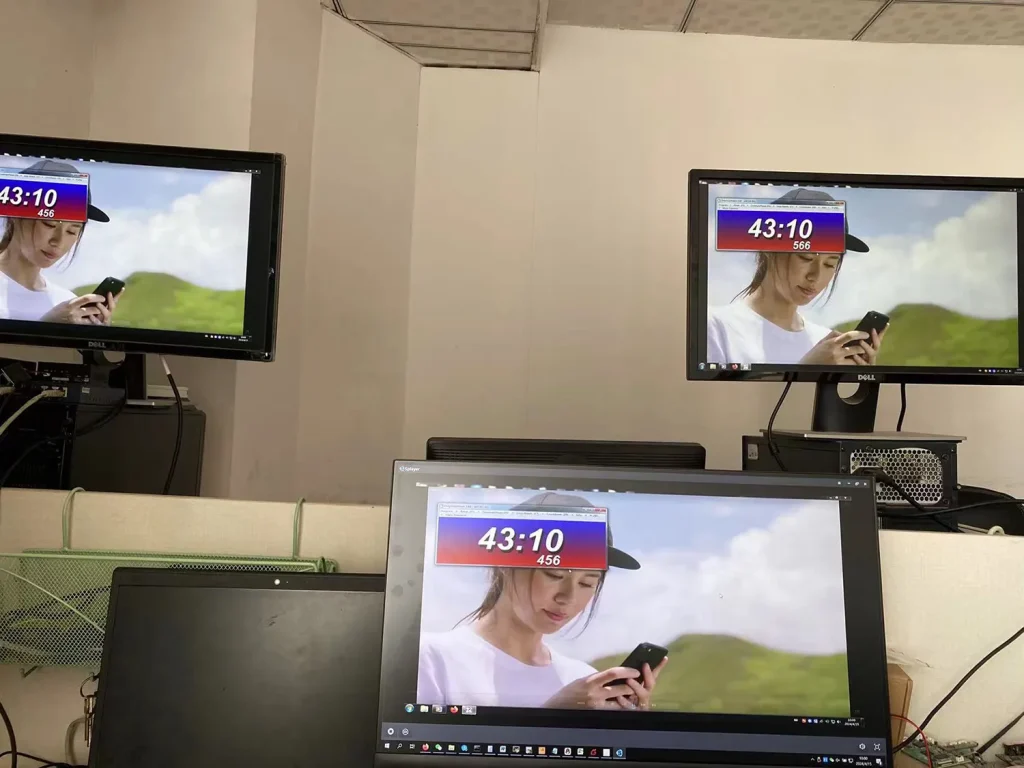
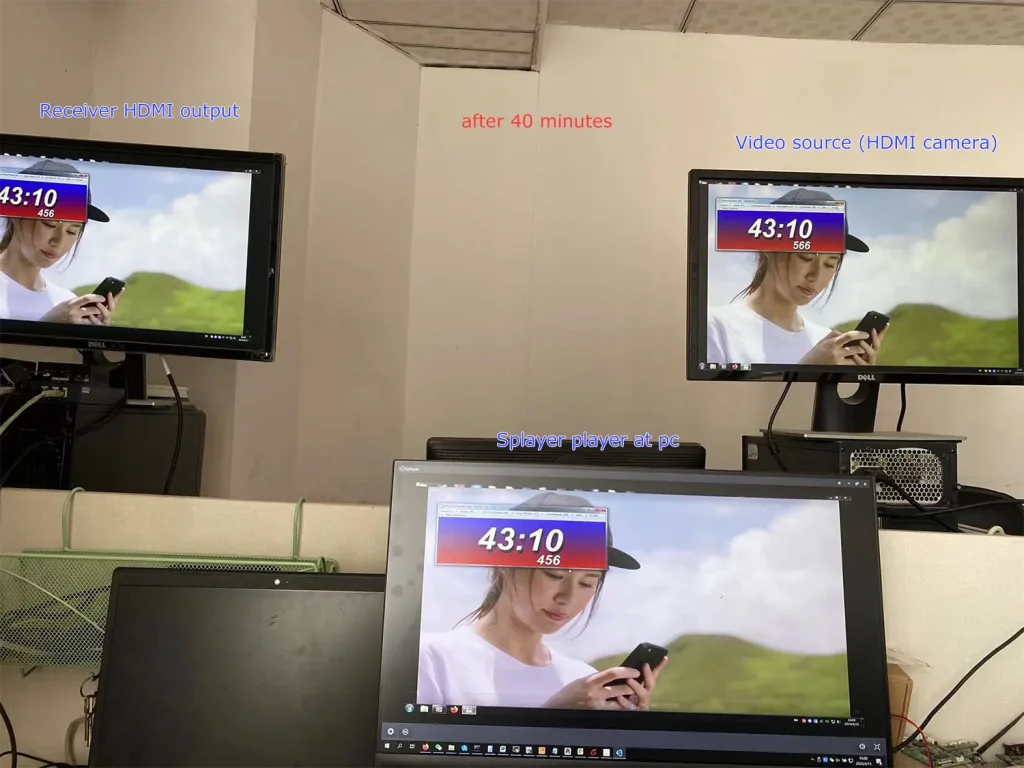
Hindi namin mahanap ang problemang nabanggit mo.
Makikita na ang kasalukuyang screen ng player ng Splayer at ang output ng receiver HDMI ay pare pareho, at ang pagkaantala sa pagitan nila ay napakababa.
Pwede po bang magtanong sa customer, ano po ang resolution at frame rate ng input ng camera? Assuming na 1080p60 ang camera ng customer, Maaari mo ring gawin ang sumusunod na dalawang hakbang upang higit pang i troubleshoot ang problema:
- Hayaan ang customer na baguhin ang camera sa isang mas mababang rate ng frame para sa pagsubok, tulad ng 1080p50/30;
- Maaari mong itakda ang mga parameter ng segment ng pag encode upang ipaalam ito sa pag encode ng down frame. Halimbawa, Ipadala ang utos ng ATSO0,30_ sa pamamagitan ng port ng parameter, at ang pag -encode ng mga output 1080p30 para sa pagsubok.
Tala:
- Splayer is specifically developed for our proprietary/custom streaming protocol and currently does not support parsing or playback of standard MPEG-TS protocols.
- Splayer is currently available only on Windows. Linux and Android versions have not been developed yet and are not supported at this stage.
- Sa karagdagan, it is not the mpeg-ts protocol that causes the delay to increase. Even if it is switched to our custom protocol, the delay will not be reduced (our custom protocol mainly performs CRC checks on all data packets, while the mpeg-ts protocol does not, which is the biggest difference between the protocols). The biggest impact on latency is the processing of video decoding and display in the player. Our own player Splayer will be optimized for image transmission application scenarios.
- Even if the customer gets our demux library and extracts the audio and video streams, it still has to do the video decoding and display by itself. This ordinary customer does not have this ability. Most customers will only use open source players (such as based on gstreamer), and the video delay of these open source players will not be good. If you want good video delay, you basically have to develop your own player.
- If the customer insists on the demux library and says that he has the ability to deal with the subsequent video decoding and playback, I can also cooperate with you (but we only provide the demux library and routines under Linux/android, and do not provide subsequent decoding and display-related support)
- Our custom protocol mainly enhances CRC verification to better handle transmission errors, which helps prevent unexpected video decoding issues or even player crashes caused by corrupted data packets. The demuxing protocol itself does not introduce significant latency, whether it is our custom protocol or the standard MPEG-TS protocol. The main factors affecting latency are actually the decoding and rendering stages afterward. Sa pangkalahatan:
- Since UDP streaming and player decoding/rendering are asynchronous processes, most players introduce a certain amount of buffering before starting playback. The larger the buffer, the higher the latency.
Halimbawa, VLC media player typically uses relatively large buffering, and its buffer size may even increase dynamically during playback. Sa kaibahan, Splayer keeps the playback buffer intentionally very small to minimize latency. - Video decoding and frame rendering are also asynchronous processes. If rendering cannot keep up in time, decoded video frames may accumulate in the rendering queue, which introduces additional latency similar to pre-decoding buffering. Splayer is also optimized in this area to reduce frame accumulation and maintain low-latency playback.
- Since UDP streaming and player decoding/rendering are asynchronous processes, most players introduce a certain amount of buffering before starting playback. The larger the buffer, the higher the latency.
- Our custom protocol also includes several additional optimizations, which is why we ultimately decided to adopt it instead of continuing with the standard MPEG-TS protocol (which we originally used at the beginning):
- Compared with the standard MPEG-TS protocol, our custom protocol reduces redundant protocol overhead and improves wireless bandwidth utilization. This is particularly important for bandwidth-constrained wireless links such as COFDM video transmission systems.
- Our custom protocol provides greater flexibility for multiplexing different types of data. In addition to video and audio, it can conveniently encapsulate serial port data and other user-defined data streams, making it more flexible and easier to extend than standard MPEG-TS.
- Our custom protocol supports integrated AES encryption and decryption directly within the protocol layer. This is especially useful for wireless links that do not natively support AES encryption, such as standard Wi-Fi connections.
- Sa karagdagan, our custom protocol is designed specifically for low-latency and high-reliability transmission scenarios, allowing tighter optimization across the entire transmission and playback pipeline compared with a general-purpose standard protocol.
Kamag-anak
- Nais mo bang makuha ang data ng UART mula sa HDMI CVBS Video UART Data Encoder Board?
- Mababang Latency UDP Player SDK para sa Windows x64
Q: Sinusuportahan ba ng system ang multicast? Maaari ba akong mag-output ng isang stream sa maraming mga IP?
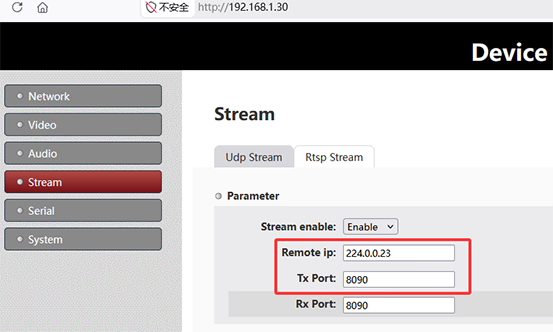
A: Oo. The system supports UDP multicast, allowing one stream to be delivered to multiple receivers simultaneously without duplicating the stream per IP.To use multicast, itakda angRemote IP on the sender side to a multicast address, halimbawa224.0.0.23. All receivers join the same multicast group using the same address. Sa panig ng tatanggap, configure the same multicast IP:
- Splayer: set Group IP to
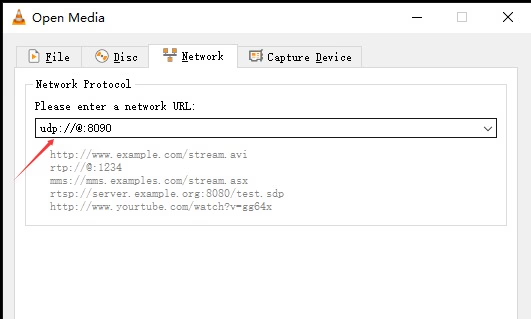
224.0.0.23 - VLC: Buksan
udp://@224.0.0.23:8090
Multicast enables one-to-many streaming within the same network. The actual device IP is not critical; sa halip, delivery depends on network multicast support and devices joining the same group.Tala: Network conditions may affect performance. Environments with VPNs, virtual machines, multiple network adapters, or switches without IGMP support may impact multicast reception.
Multicast

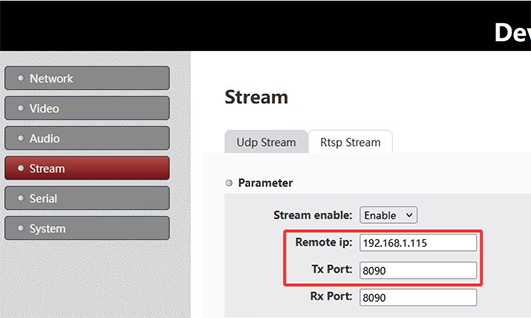
Unicast
Q: If there are multiple encoder multicast boards in the same network, should we change the port on each board to avoid conflict?
A: Hindi kinakailangan. There are two valid ways to ensure that multiple encoder streams do not conflict on the same network:
- Use different UDP multicast IP addresses for each encoder stream.
- Use different UDP port numbers for each encoder stream.
UDP streaming is distinguished by the combination of IP address (unicast or multicast) at port number. Magkasama, they define a unique UDP stream identity on the network.
On the encoder board, ang UDP Stream settings isama ang:
- Remote IP: Defines the destination IP address (if a multicast address is used, the stream becomes a UDP multicast stream).
- Tx Port: Defines the transmission port number.
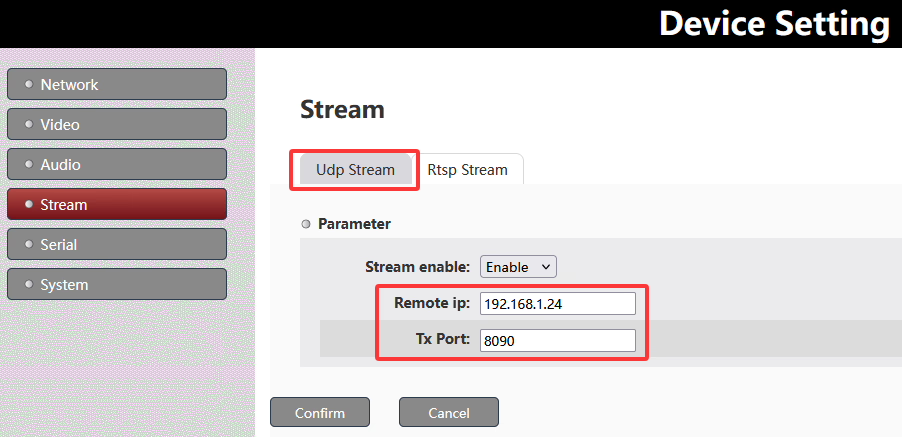
Ang kumbinasyon ng Remote IP + Tx Port determines a unique UDP stream.
To avoid conflicts when multiple encoder multicast boards are deployed in the same network, you can either assign different multicast IP addresses, different UDP ports, or use both depending on the network design requirements.
Q: How do I obtain multicast IP addresses for my system?
A: Multicast IP addresses are not automatically assigned; they are selected from the standard multicast range 224.0.0.0 upang 239.255.255.255. Sa pagsasanay, these addresses should be planned and allocated by the network administrator to ensure there are no conflicts with existing multicast services or devices on the network.
Magtanong ng isang katanungan
Ipinadala ang iyong mensahe