






目次
COFDM HDMI ワイヤレスビデオ送信機および受信機の UDP ストリーム プレーヤーの設定
UDP ストリーム プレーヤーは、遅延が最も低い CVBS アナログ ビデオ エンコーダーにとって最適なソリューションです. COFDM ワイヤレス ビデオ レシーバー Vcan1776-RX のデフォルト ファームウェアは RTSP プレーヤーをサポートします. 一部のクライアントは UDP プロトコルを使用する必要があります.
IPアドレスとポート番号はWebページで設定できます。, HTTP://192.168.0.215 (デフォルト)
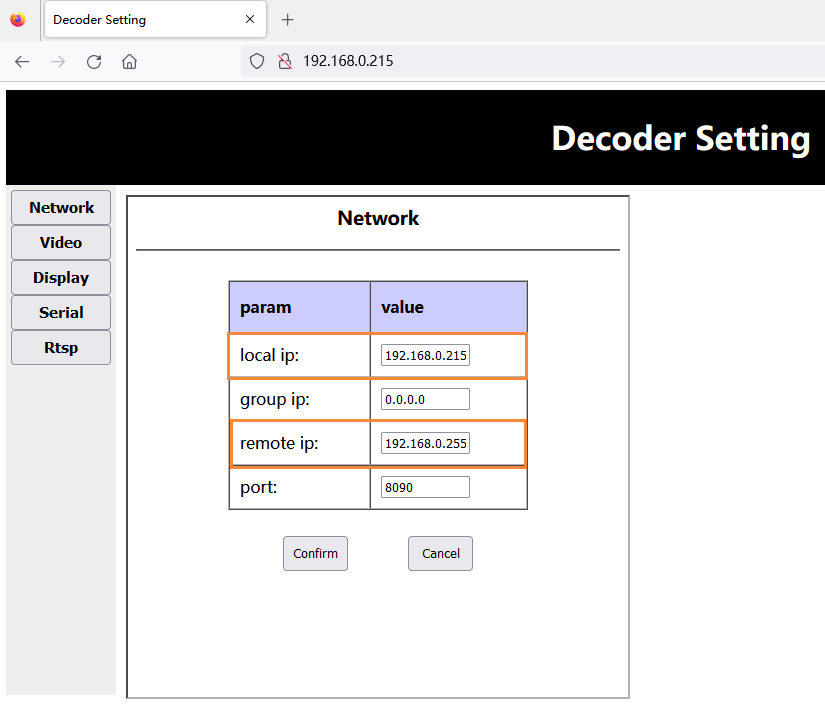
- ファームウェアのアップグレード後, 受信側は工場出荷時のデフォルトパラメータを復元します (中心周波数: 320メガヘルツ, 無線帯域: 6メガヘルツ, ネットワークポートのIPアドレス: 192.168.0.215), 顧客は、中心周波数と帯域幅を変更する必要があります。 パラメータ設定ボードツール, 送信機は一貫して保存します.
- 顧客は Web ページを通じて受信側 Web サーバーにアクセスします。 (HTTP://192.168.0.215), 自身の IP アドレスと、受信機に接続されている Windows PC 側の IP アドレスの設定を変更します。:
注意: その中で, ローカルIPは受信者自身のIPです, リモート IP はドッキング Windows PC のエンド IP です。. お客様は実際の状況に応じて設定できます. 変更は受信機を再起動した後にのみ有効になることに注意してください.
UDPプレーヤーをダウンロードする スプレイヤー
- UDPプレーヤーをダウンロードする スプレイヤー.
- スプレイヤー_v4.2_2020.6.6
- https://drive.google.com/file/d/1ihzUhfnx2Wo3zLO8UAs1aUQeLswonJD-/view?usp=sharing
- スプレイヤー_v4.3_2022.10.22
- https://drive.google.com/file/d/1PQc-LZ55qGnjeMsjkHYSloHfY3NEUsGH/view?usp=drive_link
- スプレイヤー_v4.3.1_2024.4.16
- https://drive.google.com/file/d/1uv7GqP8P4r6qGOWJ5gYn0b8bZ4ptL8H6/view?usp=drive_link
- スプレイヤー_QT_V1.0 Win10またはWin11の場合
- https://drive.google.com/file/d/1VAegQjd-PmIL2XbJf7K8dnujMxhoIuhd/view?usp=drive_link
- スプレイヤー_QT_V1.1.1 Win10またはWin11の場合
- https://drive.google.com/file/d/1YMr2xxurGnbIBjFihc7f77afrdbOcc6l/view?usp=drive_link
- スプレイヤー_QT_V2.0
- https://drive.google.com/file/d/1sASbARCL1lXAIsVKqkmEObRGPREbaSES/view?usp=drive_link
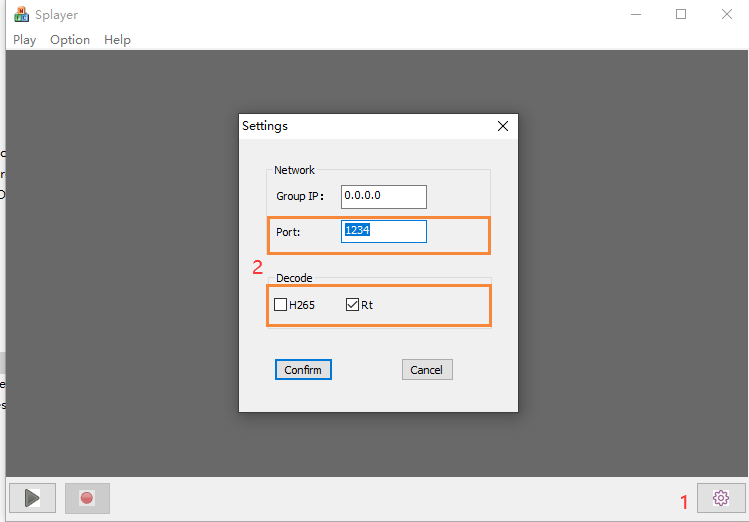
- Windows PC で Splayer プレーヤーを開きます, 右下の設定ボタンをクリックします, 設定ページが表示されます:
注意:
- Port のポート番号が に設定されていることがわかります。 1234, これは受信機の UDP ストリーミング プログラムによってハードコードされており、変更できません;
- デコード列, 現在のビデオ ストリームのプロパティに従って設定する, 上記の H264 低遅延ビデオ ストリーム構成など;
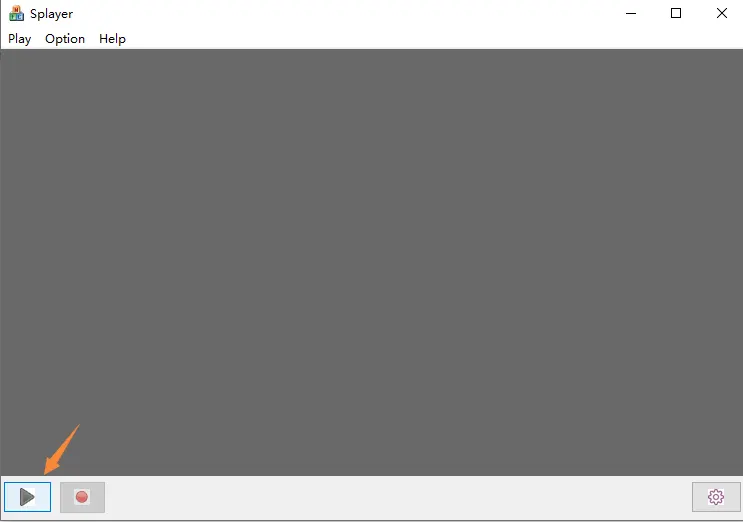
- 設定してクリックすると、 “確認” パラメータを保存するボタン, 左下隅にある再生ボタンをクリックします. Windows PC が UDP プッシュ ストリームを受信した後, デコードしてすぐに再生されます.
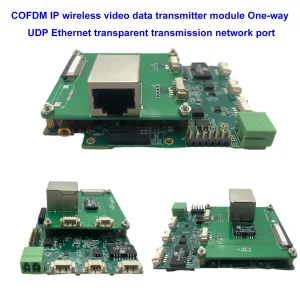
上記の UDP ストリーム プレーヤーの設定は、以下のモデルに適しています.

Linux VLC プレーヤーはどのようにサポートされますか? Linux で低遅延ストリームを再生する?
質問: UDP ストリームが VLC プレーヤーで再生されなくなりました. Linux でこの UDP ストリームを再生する必要があり、このストリームの詳細を理解しようとしています. スクリプト、キー、その他のもの?
Linux 上で独自のプレーヤーを作成したいと考えており、復調器からのこの UDP ビデオ ストリームの詳細を理解したいと考えています。.
通常の UDP ビデオ ストリームの場合, 次に、VLC または OBS Studio で再生できない理由を疑問に思います.
回答: モデル Vcan1726-RX の場合, オプションのファームウェアが 2 つあります, RTSP プレーヤーの最初のファームウェアは VLC プレーヤーをサポートします, しかし、一部のクライアントは遅延が長いと述べています, そこで2番目のファームウェアを作成しました, スプレーヤーでの UDP ブロードキャスト, 低遅延をサポートします.
この UDP オーディオおよびビデオ ストリームはカスタム形式です, VLCでは説明できないので. 顧客が独自のプレーヤーを開きたい場合 (Linux 上で), 現在 2 つのオプションがあります:
- デフォルトの RTSP ストリーム アクセスへの更新 (RTSP プレーヤーの最初のファームウェア)
- 対応する DEMUX ライブラリとルーチンを提供します (適切なライブラリ ファイルをコンパイルするには、お客様の Linux 環境を理解する必要があります)
- これは、 “DEMUX ライブラリとルーチン” 当社のエンジニアが Ubuntu で作成した 14.04 64ビットシステム
2 番目のタイプは一般のお客様には難しすぎます, そして私たちはあなたの顧客自身のプレーヤーの開発能力を知りません.
一部のクライアントは Windows OS VLC プレーヤーでの低遅延の問題を解決するため, ここでどのようにテストしたとしても, この問題は見つかりませんでした. その時, Windows を使用してテストしました. Linuxに変えたらたぶん, RTSP ストリーミングの問題は発生しません. Linux 上のファームウェアの最初のバージョンで Vcan1726 サンプルをテストしてみてください。. Linux OS では問題ないかもしれません.
質問: このアプリケーション用の Docker イメージを構築できますか? 受信ストリームにどのポートが使用されるか, および、広く使用されているコーデックを使用した送信ストリーム用の別のポート (h264)?
スプレーヤーと UDP ストリーム プレーヤーとは何ですか?
SPlayer は、さまざまなビデオ形式をサポートするメディア プレーヤーです。, UDPストリーミングを含む.
UDP ストリーミングは、ユーザー データグラム プロトコルを使用してインターネット上でビデオ データを送信する方法です。 (UDP), これは高速でシンプルなプロトコルですが、パケットの配信や順序は保証されません。.
UDP ストリーミングは、ライブ ビデオ ブロードキャストまたは低遅延ビデオ送信に使用できます。, ただし、パケット損失や破損が発生する可能性もあります.
ネット検索結果によると, SPlayer は、次の手順を使用して UDP ストリームを再生できます。:
- SPlayer を開き、 “URLを開く” 右上隅のボタン.
- UDP ストリームの URL を udp 形式で入力します。://@ip: ポート, ここで、ip はサーバーの IP アドレス、port はストリームのポート番号です。. 例えば, udp://@224.0.0.1:1234.
- をクリックしてください “[OK]” ボタンを押してストリームが読み込まれるまで待ちます.
Win10 でスプレーヤーはどのように機能しますか?
質問: スプレイヤーを起動できません 4.2 そして 4.3 Windows下で 10. Windows 用の正しいバージョンの Splayer を提供していただけますか 10 そして 11?
4.2 現時点で開始および終了します. 4.3 エラーメッセージから始まります.
障害が発生しているアプリケーション名: スプレイヤー.exe, バージョン: 1.0.0.1, タイムスタンプ: 0x646d83e2
障害が発生しているモジュール名: dvb_demux.dll, バージョン: 1.0.0.1, タイムスタンプ: 0x5fe5bdbf
例外コード: 0xc0000005
故障オフセット: 0x0001484a
障害が発生しているプロセス ID: 0x3888
アプリケーションの開始時間に障害が発生しました: 0x01da1164b89c78eb
障害のあるアプリケーション パス: C:\Users\admin\Downloads\Splayer_v4.3_2022.10.22\Splayer.exe
障害が発生しているモジュール パス: C:\Users\admin\Downloads\Splayer_v4.3_2022.10.22\dvb_demux.dll
レポートID: 4af19407-045e-48e5-a0f7-86fc90c6b3d3
障害が発生しているパッケージのフルネーム:
障害が発生しているパッケージに関連するアプリケーション ID:
回答: Splayer_qt_v1.0.zip を使用してみてください。 (103.5Mbの).
フィードバック: SPlayer の新しいバージョンは、Win の問題箇所でうまく機能します。 10! ありがとう!
質問: Reciper by Splayer プログラムからビデオを再生すると、遅延時間が増加することがわかりました。 (UDPストリーム).
詳しく話すなら – 受信機はイーサネット ケーブルで PC に直接接続します. PC と受信機が同じローカル ネットワーク内にある. スプレイヤーを開始すると、遅延時間は正常であり、正確なカウントが表示されます。 330 ミリ秒, これは、私たちが観察した HDMI 出力の 1 より少し多いです。 270 ミリ秒. いいですね. しかし、職場に何も変化がないまま数分待っていると、時間遅延が継続的に増加し、 1-1,5 顧客のアプリケーションでは受け入れられない秒.
昨日、Win で自分でテストしました 10, 複雑な電源オフ機能を備えた別の PC 上の Win11、Splayer qt を使用した Win Brandmauer (あなたからの最後のバージョン), とスプレイヤー 4.3 (古いバージョン). どのような構成でも毎回この問題を繰り返します.
この問題を解決するのを手伝ってください. スプレイヤーのプレイから一定の時間遅延が必要ですが、これを超えてはなりません。 350 ミリ秒.
回答: そんな問題は起きるべきではない, 低遅延モードではプレーヤーにキャッシュがないため, 遅延は完全に PC のデコード能力に依存します. エンジニアは環境をセットアップし、来週の月曜日にテストします.
もう 1 つのポイントは、お客様にラップトップ モニターのリフレッシュ レート設定を確認するよう依頼することです。. 例えば, カメラが 1080p60 を入力している場合, その場合、顧客のラップトップ モニターのリフレッシュ レートも 60Hz である必要があります. さもないと, 表示が遅すぎるでしょう, これによりデータの混雑が発生し、遅延が発生します。.
Slayer プレイヤーの遅延が大きい, デコードが遅いか表示が遅いかのどちらかです, それはすべてPCが原因です.
HDMI カメラのエンコード HDMI レシーバーのデコード, ディスプレイに出力する, Splayer プレーヤーのコンピューター再生遅延テスト
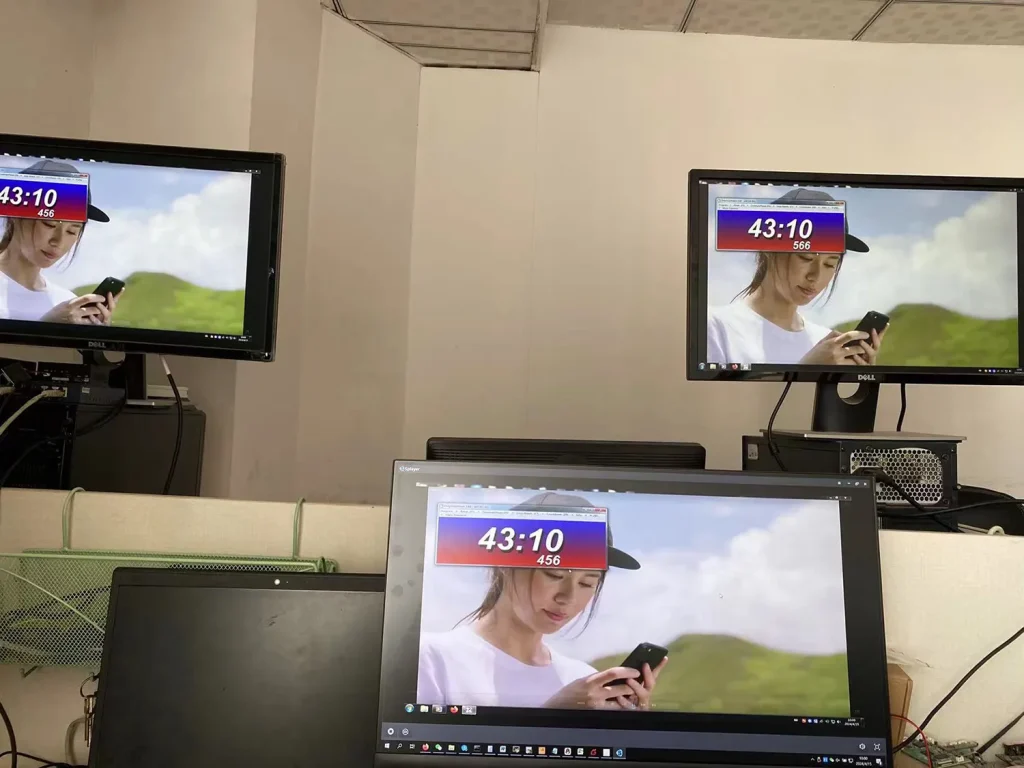
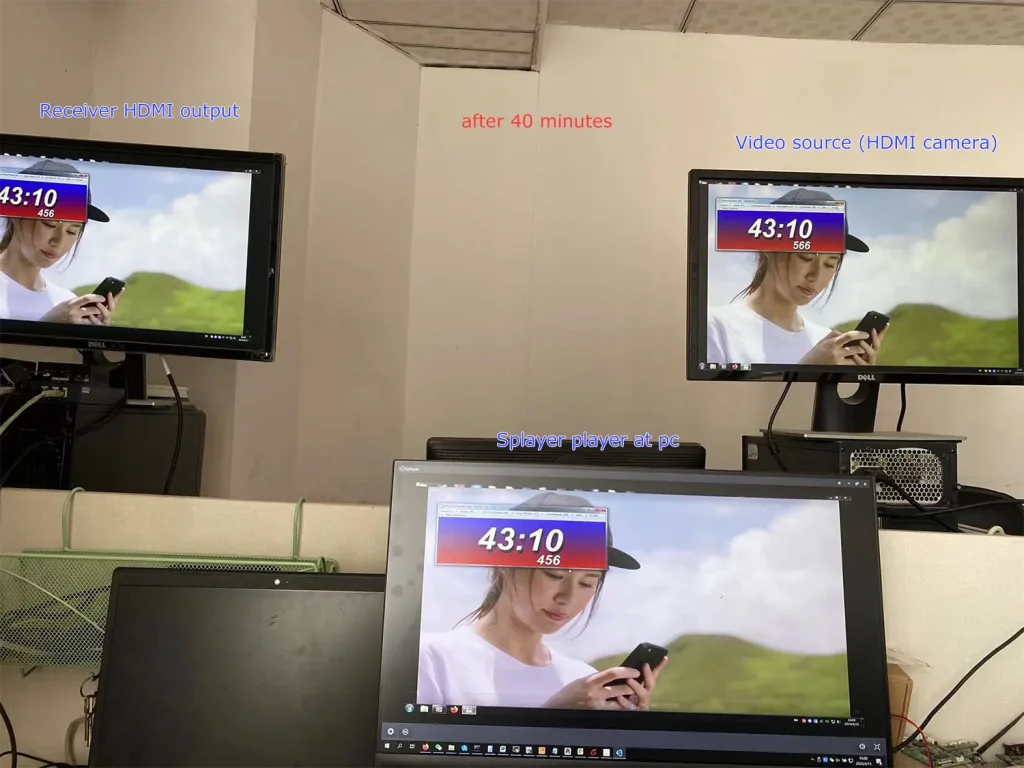
あなたが指摘した問題は見つかりませんでした.
現在の Splayer プレーヤー画面と受信機の HDMI 出力が一致していることがわかります。, それらの間の遅延は非常に低いです.
お客様に聞いていただけますか, カメラ入力の解像度とフレームレートは何ですか? お客様のカメラが 1080p60 であると仮定すると、, 次の 2 つの手順を実行して、問題をさらにトラブルシューティングすることもできます。:
- お客様にテストのためにカメラを低いフレーム レートに変更してもらいます, 1080p50/30など;
- エンコードセグメントパラメータを設定して、ダウンフレームエンコードを行うことができます。. 例えば, ATSO0,30_コマンドをパラメータポート経由で送信します。, エンコーディングはテスト用に 1080p30 を出力します.
注意:
- Splayer is specifically developed for our proprietary/custom streaming protocol and currently does not support parsing or playback of standard MPEG-TS protocols.
- Splayer is currently available only on Windows. Linux and Android versions have not been developed yet and are not supported at this stage.
- 加えて, it is not the mpeg-ts protocol that causes the delay to increase. Even if it is switched to our custom protocol, the delay will not be reduced (our custom protocol mainly performs CRC checks on all data packets, while the mpeg-ts protocol does not, which is the biggest difference between the protocols). The biggest impact on latency is the processing of video decoding and display in the player. Our own player Splayer will be optimized for image transmission application scenarios.
- Even if the customer gets our demux library and extracts the audio and video streams, it still has to do the video decoding and display by itself. This ordinary customer does not have this ability. Most customers will only use open source players (such as based on gstreamer), and the video delay of these open source players will not be good. If you want good video delay, you basically have to develop your own player.
- If the customer insists on the demux library and says that he has the ability to deal with the subsequent video decoding and playback, I can also cooperate with you (but we only provide the demux library and routines under Linux/android, and do not provide subsequent decoding and display-related support)
- Our custom protocol mainly enhances CRC verification to better handle transmission errors, which helps prevent unexpected video decoding issues or even player crashes caused by corrupted data packets. The demuxing protocol itself does not introduce significant latency, whether it is our custom protocol or the standard MPEG-TS protocol. The main factors affecting latency are actually the decoding and rendering stages afterward. 一般的に:
- Since UDP streaming and player decoding/rendering are asynchronous processes, most players introduce a certain amount of buffering before starting playback. The larger the buffer, the higher the latency.
例えば, VLC media player typically uses relatively large buffering, and its buffer size may even increase dynamically during playback. 対照的に, Splayer keeps the playback buffer intentionally very small to minimize latency. - Video decoding and frame rendering are also asynchronous processes. If rendering cannot keep up in time, decoded video frames may accumulate in the rendering queue, which introduces additional latency similar to pre-decoding buffering. Splayer is also optimized in this area to reduce frame accumulation and maintain low-latency playback.
- Since UDP streaming and player decoding/rendering are asynchronous processes, most players introduce a certain amount of buffering before starting playback. The larger the buffer, the higher the latency.
- Our custom protocol also includes several additional optimizations, which is why we ultimately decided to adopt it instead of continuing with the standard MPEG-TS protocol (which we originally used at the beginning):
- Compared with the standard MPEG-TS protocol, our custom protocol reduces redundant protocol overhead and improves wireless bandwidth utilization. This is particularly important for bandwidth-constrained wireless links such as COFDM video transmission systems.
- Our custom protocol provides greater flexibility for multiplexing different types of data. In addition to video and audio, it can conveniently encapsulate serial port data and other user-defined data streams, making it more flexible and easier to extend than standard MPEG-TS.
- Our custom protocol supports integrated AES encryption and decryption directly within the protocol layer. This is especially useful for wireless links that do not natively support AES encryption, such as standard Wi-Fi connections.
- 加えて, our custom protocol is designed specifically for low-latency and high-reliability transmission scenarios, allowing tighter optimization across the entire transmission and playback pipeline compared with a general-purpose standard protocol.
相対的
Q: システムはマルチキャストをサポートしていますか? 1つのストリームを複数のIPに出力できますか?
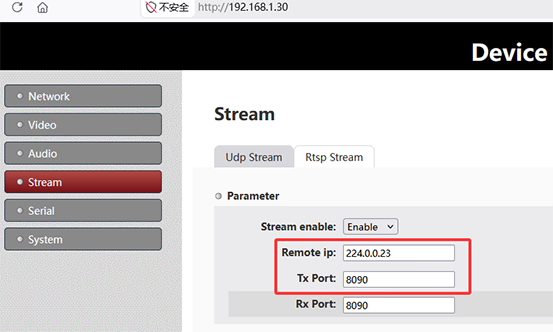
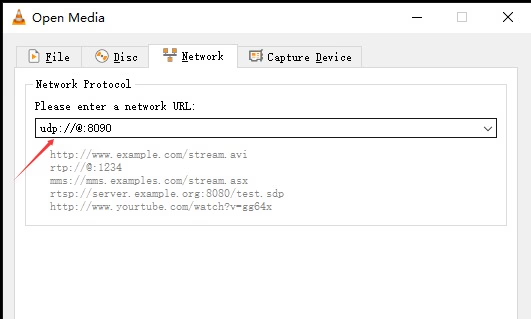
A: はい. The system supports UDP multicast, allowing one stream to be delivered to multiple receivers simultaneously without duplicating the stream per IP.To use multicast, をセットするリモートIP on the sender side to a multicast address, 例えば224.0.0.23. All receivers join the same multicast group using the same address. 受信側, configure the same multicast IP:
- スプレイヤー: set Group IP to
224.0.0.23 - VLC: 開ける
udp://@224.0.0.23:8090
Multicast enables one-to-many streaming within the same network. The actual device IP is not critical; 代わりは, delivery depends on network multicast support and devices joining the same group.注意: Network conditions may affect performance. Environments with VPNs, virtual machines, multiple network adapters, or switches without IGMP support may impact multicast reception.
マルチキャスト

ユニキャスト
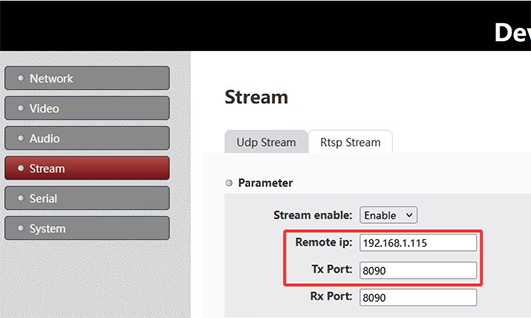
Q: If there are multiple encoder multicast boards in the same network, should we change the port on each board to avoid conflict?
A: 必ずしもではありません. There are two valid ways to ensure that multiple encoder streams do not conflict on the same network:
- Use different UDP multicast IP addresses for each encoder stream.
- Use different UDP port numbers for each encoder stream.
UDP streaming is distinguished by the combination of IPアドレス (unicast or multicast) そして port number. 一緒, they define a unique UDP stream identity on the network.
On the encoder board, インクルード UDP Stream settings 含む:
- リモートIP: Defines the destination IP address (if a multicast address is used, the stream becomes a UDP multicast stream).
- Tx Port: Defines the transmission port number.
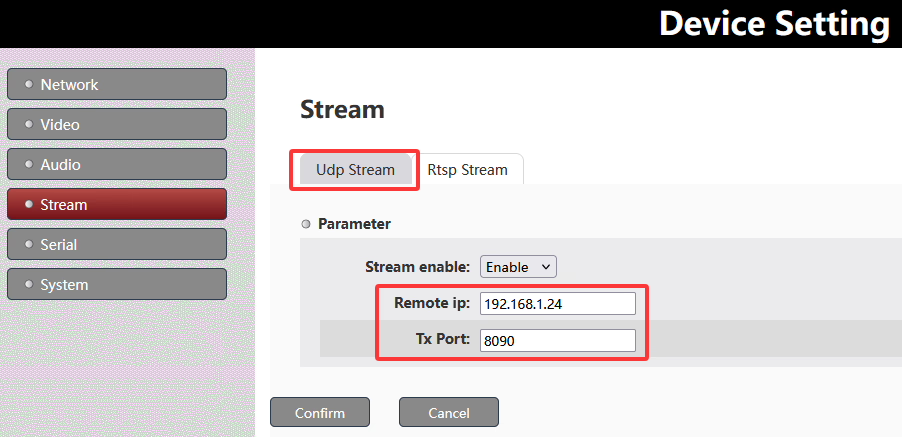
の組み合わせ リモートIP + Tx Port determines a unique UDP stream.
To avoid conflicts when multiple encoder multicast boards are deployed in the same network, you can either assign different multicast IP addresses, different UDP ports, or use both depending on the network design requirements.
Q: How do I obtain multicast IP addresses for my system?
A: Multicast IP addresses are not automatically assigned; they are selected from the standard multicast range 224.0.0.0 に 239.255.255.255. 実際に, these addresses should be planned and allocated by the network administrator to ensure there are no conflicts with existing multicast services or devices on the network.
Q: The encoder board needs to output video over both HDMI and AV interfaces, but both streams use the same UDP address. How can we play or switch between them?
A: When HDMI and AV streams are transmitted over the same UDP address, they are typically not separated by network ports, しかし、によって internal stream identifiers, similar to an MPEG-TS (トランスポートストリーム) 構造.
それがどのように機能するか
- Both HDMI and AV inputs are multiplexed into a single UDP stream
- Each video source is assigned a unique stream ID (例えば, PID / service ID)
- The receiver performs demultiplexing based on these IDs, rather than separating by IP or port
- This allows multiple video channels to coexist in one UDP stream
How Splayer handles this
私たち スプレイヤー 2.0 UDPプレーヤー, the system supports this architecture natively:
- Simultaneous decoding of multiple video streams from a single UDP address
- Stream separation based on internal IDs (MPEG-TS PID/service mapping)
- Real-time switching between HDMI and AV sources without changing network settings
- Flexible multi-channel playback using a single UDP input source
This design simplifies deployment by keeping one UDP configuration, while still enabling multi-input video handling and seamless switching.
You can download スプレイヤー 2.0 UDPプレーヤー ここに: スプレイヤー 2.0 UDP Player Download
質問する
ご回答をありがとうございました。 ✨