






Σημείωση: Αφού συνδέσετε πρώτα την κεραία, turn on the power and start software configuration and debugging. After the antenna is connected, the parameters can be monitored in real time.
Σταθμός εδάφους (DC10~30V power supply)
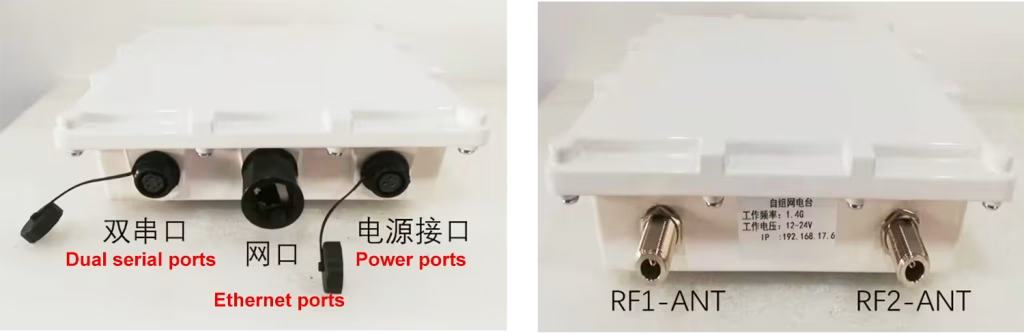
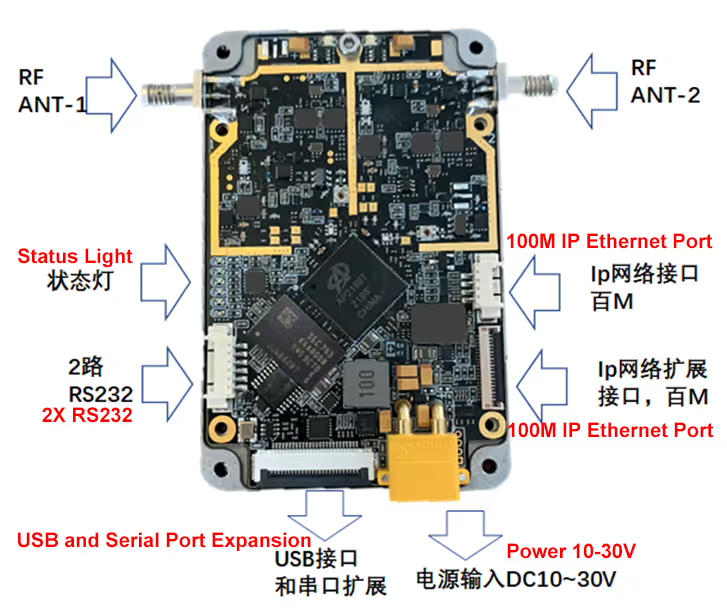
Airborne interface description
Πίνακας περιεχομένων
1. Computer settings
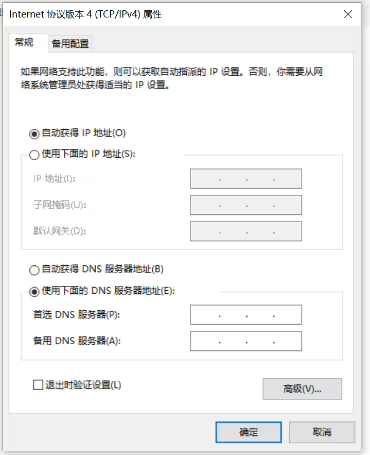
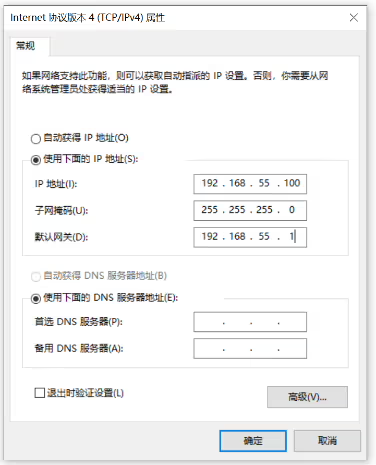
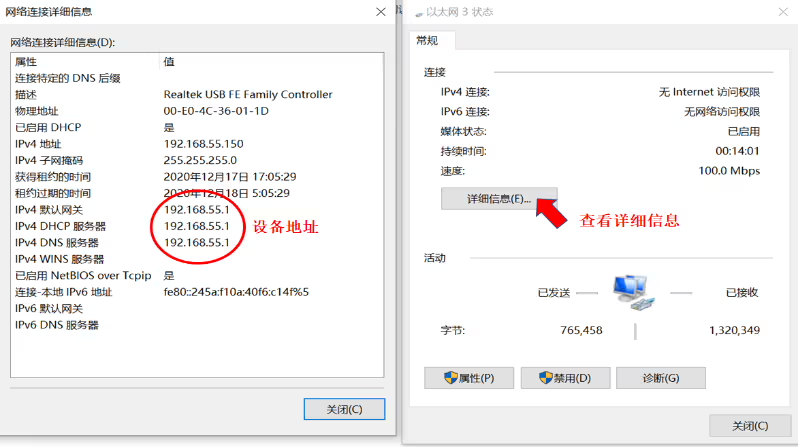
Connect the device to the computer, check the device IP address in the computer’s network connection and the same network segment as the device address (below pictures). If you do not know the device computer, you can set the computer to automatically obtain IP, then check the computer network connection status for the device IP address, and then set On the same network segment, it is best to turn off the Windows Firewall on computers.
2. Run parameter configuration software
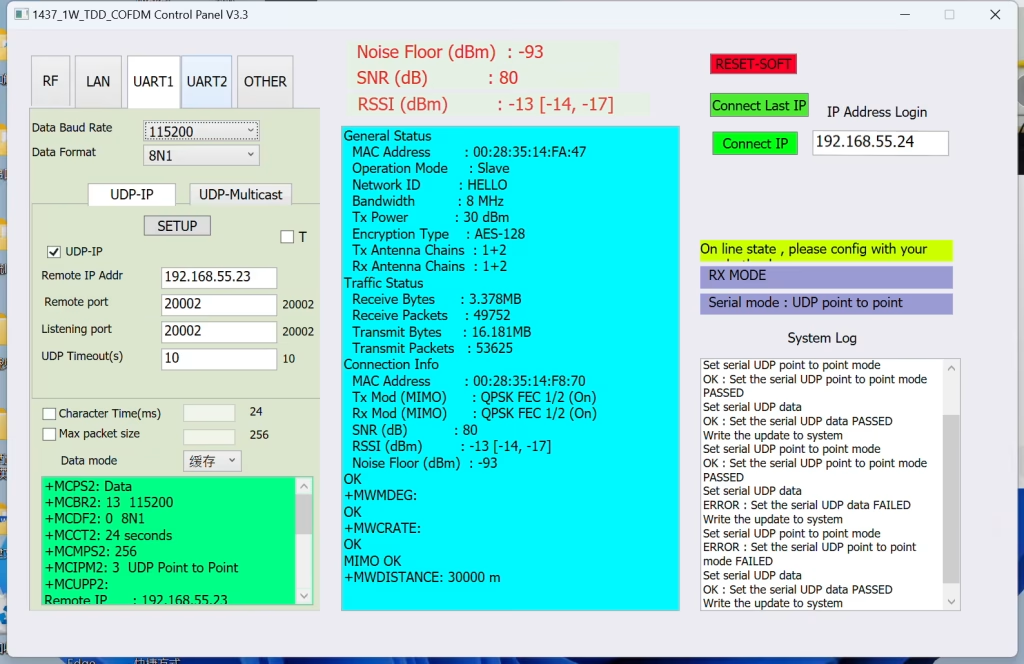
After opening the 1400_TDD_COFDM_ConfigV3.3 λογισμικό, the main interface appears:
2.1 Power on the device and connect it to the computer
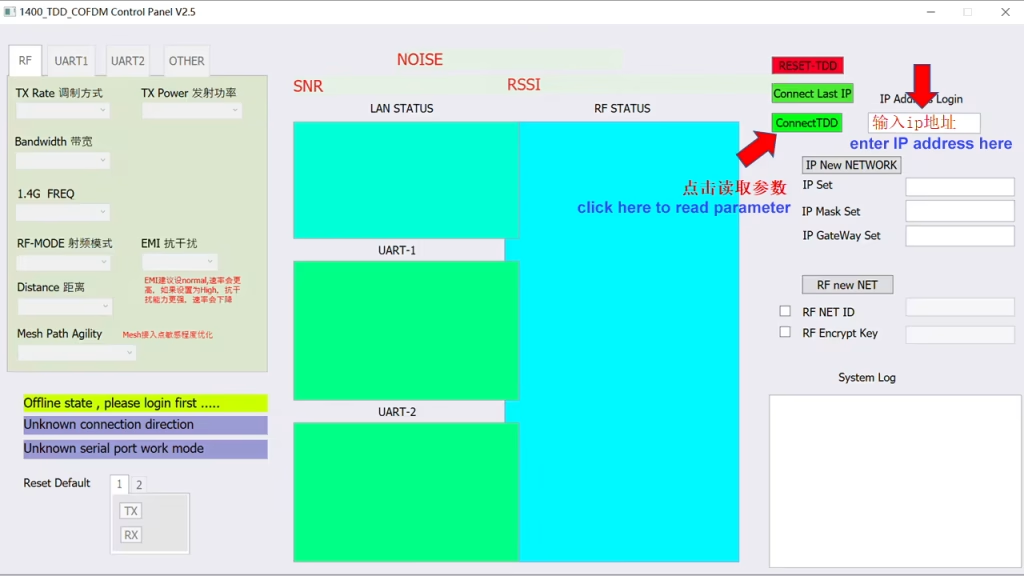
Enter the device’s IP address in the IP Address Login window on the right.
Here you can enter the IP address of the local device or the IP of the remote device. After multiple devices are successfully connected, the IP of any terminal can be used.
Click ConnectTDD to connect. Or directly click Connect last IP to log in quickly.
Read channel parameters after logging in
2.2 Login and network settings
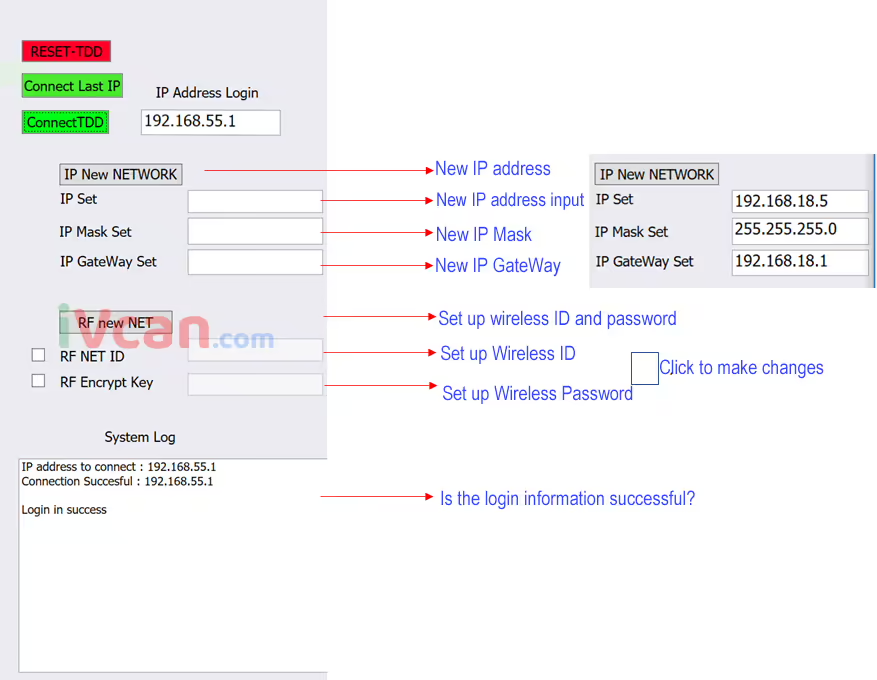
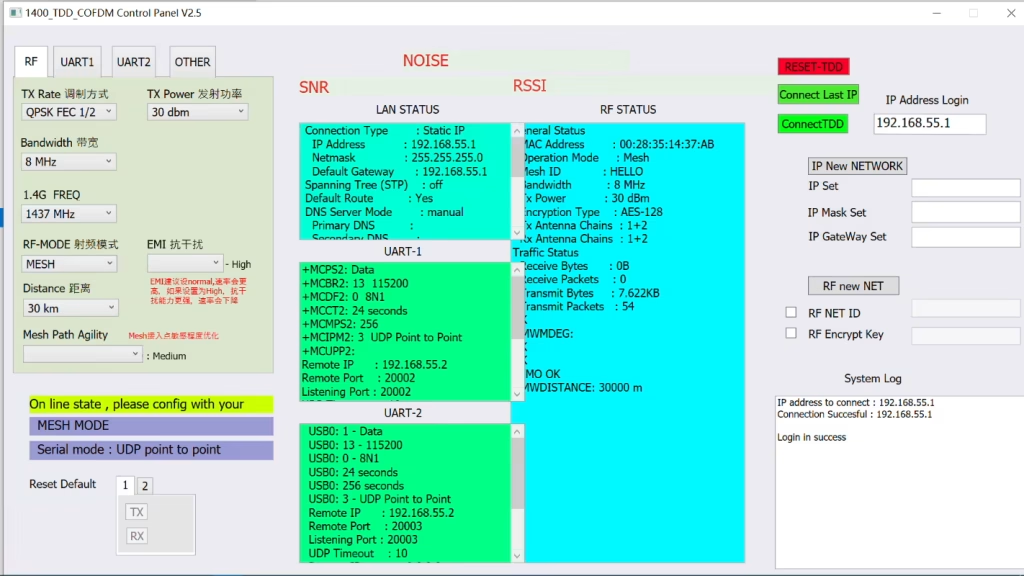
Σημείωση: It takes about 3~5 seconds for the device to start up after powering on. Μετά το κλικ connectTDD,
| Login success information | Login failure information |
| IP address to connect : 192.168.55.1 | Προειδοποίηση , now no need to connect again , system is working …. |
| Connection successful: 192.168.55.1 | IP address to connect : 192.168.55.1,Device not connected |
| Login in success |
Red font REST-TDD, restart the program
2.3 Monitoring information
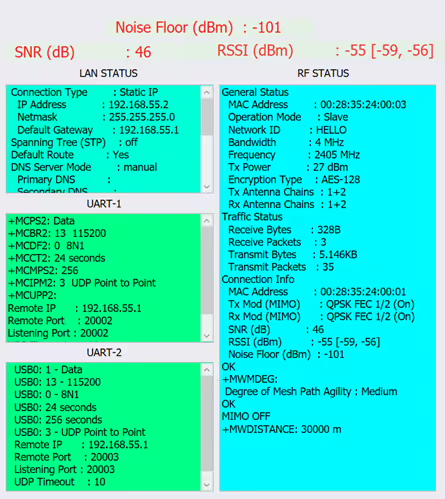
- Before setting parameters, you need to look at the frequency electromagnetic environment. The lower the noise floor, το καλύτερο. The terminal access field strength and signal-to-noise ratio.
- After the parameters are successfully set, they will be displayed in the corresponding column. You can check whether the setting mode is correct.
- Displays the signal-to-noise ratio of the connection, ισχύς σήματος (κεραία 1, κεραία 2) and background noise.
- If the background noise is too loud, it means the interference is serious and you need to change the frequency band.
- You can carry a spectrum analyzer with you to test interference on site.
- Note that the data here is one-to-one, data in master-slave mode. For detailed data on each terminal in one-to-many or MESH mode, please refer to RF STATUS related data.
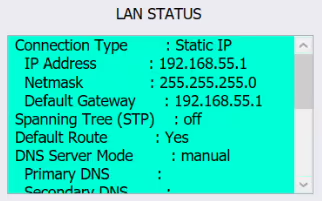
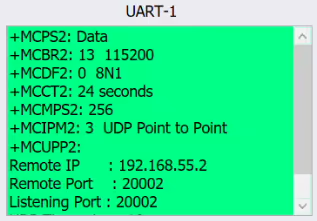
Display wireless related data:
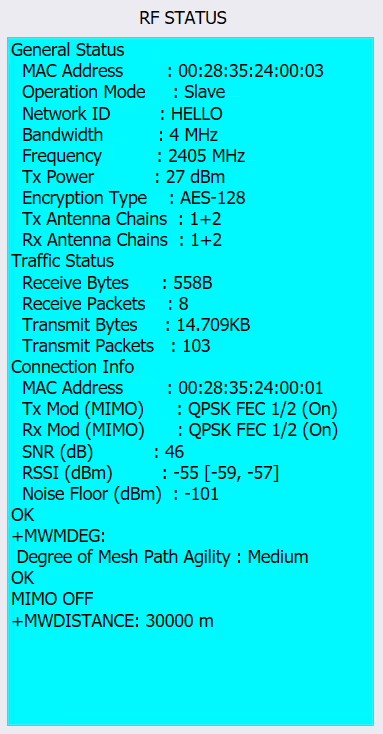
Τρόπος, ID number, εύρος ζώνης, συχνότητα, power and other data. Data related to the connected device, device number, SNR, RSSI, Noise Floor and other data.

- Displays the signal-to-noise ratio of the connection, ισχύς σήματος (κεραία 1, κεραία 2) and background noise.
- If the background noise is too loud, it means the interference is serious and you need to change the frequency band.
- You can carry a spectrum analyzer with you to test interference on site.
- Note that the data here is one-to-one, data in master-slave mode. For detailed data on each terminal in one-to-many or MESH mode, please refer to RF STATUS related data.
3. Ρυθμίσεις παραμέτρων

Μετά τη σύνδεση, you can display and set device-related data.
- Set the modulation method, εξουσία, εύρος ζώνης, συχνότητα, απόσταση, and mode.
- Εύρος ζώνης διαμόρφωσης: 2, 4, 8MHz
- Frequency setting: 1430-1444
- μέθοδος διαμόρφωσης: BPSK FEC 1/2, QPSK FEC 1/2, QPSK FEC 3/4, 16-QAM 1/2, 16QAM 3/4, 64QAM 2/3, 64QAM 3/4, 64QAM 5/6, ΑΥΤΟ (usually set to BPSK FEC 1/2, QPSK FEC during movement 1/2)
- Setting a higher modulation method will transmit a larger amount of data, but the sensitivity will be lower. If the host sends a large amount of data and the slave has a small amount of data, the host can set 16-QAM, the slave BPSK, and asymmetric settings. If the data amount is not known, How big can be set to AUTO. It may be more stable if you specify the modulation method.
- Wireless Distance: The distance between terminals. This value is very important, especially for long-distance transmission. The corresponding value should be filled in. Εάν το SNR και άλλα δεδομένα είναι κανονικά αλλά ο ρυθμός είναι χαμηλός, μπορείτε να αυξήσετε αυτή την τιμή.
- RF-MODE: Κύριος (πλήθος) Δούλος (δούλος) ΣΕ ΑΥΤΟ (αναμετάδοση) ΠΛΕΓΜΑ (χωρίς δικτύωση κέντρων)
- Λειτουργία Master-Slave: Ένας κύριος αντιστοιχεί σε έναν σκλάβο (λειτουργία ένας προς έναν) ή ένας κύριος μπορεί να αντιστοιχεί σε πολλαπλούς slaves (λειτουργία ένα προς πολλά).
- Λειτουργία AD-HOC: Ένας κεντρικός υπολογιστής αντιστοιχεί σε πολλαπλούς υποτελείς AD-HOC. Οι σκλάβοι AD-HOC μπορούν επίσης να επικοινωνούν μεταξύ τους. Ο αριθμός των αναμονής είναι μεγαλύτερος από αυτόν της λειτουργίας MESH, και η καθυστέρηση και η ποσότητα των δεδομένων που μεταδίδονται είναι μικρότερα από αυτά της λειτουργίας MESH.
- Ένας κεντρικός υπολογιστής αντιστοιχεί σε πολλαπλούς υποτελείς AD-HOC, και μετά αντιστοιχεί σε πολλαπλούς σκλάβους, σχηματίζοντας ένα μικτό δίκτυο.
- Λειτουργία MESH: Δίκτυο χωρίς κέντρο, πολλαπλή δικτύωση τερματικού MESH (λειτουργία πολλών προς πολλά)
- MESH Path Agility: Βελτιστοποίηση σταθερότητας διαδρομής δικτύου, μπορεί να ρυθμιστεί σε High; Μέσον; Χαμηλός,
- Όταν ένας κόμβος δικτύου ανακαλύπτει μια νέα διαδρομή δικτύου, a path table will be created at each node and automatically optimized.
- Ωστόσο, adding or reducing nodes will cause some problems, όπως: the connection needs to be re-established and the path table updated, and the link may be temporarily interrupted.
- Από τη μια πλευρά, the entire link needs to retain the stability of the original link, and on the other hand, the path table needs to be refreshed to adapt to the changing network. Επομένως, this parameter is used when a new network is added or the signal of a single network is poor. The sensitivity of the path update path table. Medium is generally set, and is actually set according to engineering experience. The internal parameters can be seen in the RF STATUS on the right.
- Narrow-band data (serial port data) ρυθμίσεις
UART setting page, Set UART serial port related data here:
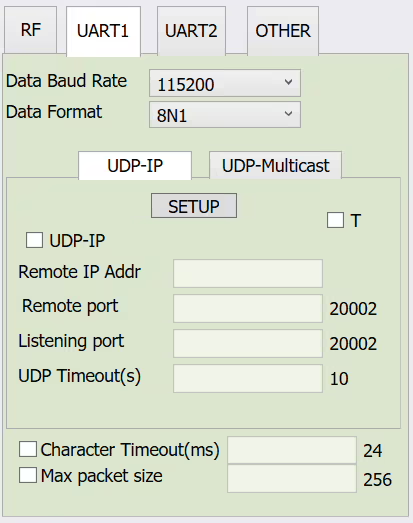
Data Baud Rate: Set the baud rate of the serial port, από 300 προς την 921600
Here is the data to set COM1
Μορφή δεδομένων: 8N1 8E1 8O1, verification parameters
Serial UDP-IP transmission mode: (This mode is one-to-one, unicast mode, suitable for point-to-point transmission)
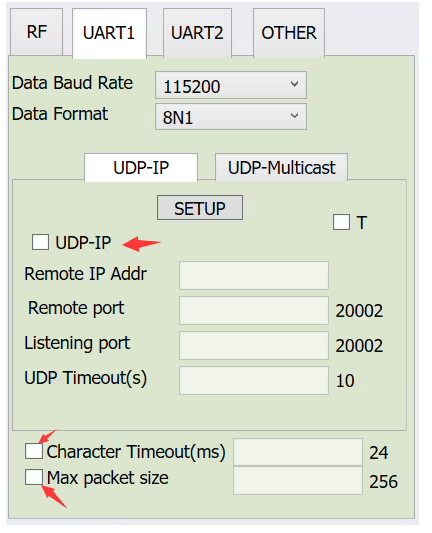
- Tick the box and select the parameters for the corresponding settings
- Remote IP Addr: The other party’s IP address (για παράδειγμα, 192.168.55.2)
- Remote port: Αριθμός θύρας (fill in the following 20002, or you can customize it)
- Listening port: Αριθμός θύρας (fill in the following 20002, or you can customize it)
- UDP Timeout: timeout (fill in the default value 10 παρακάτω)
- Character Timeout: Data timeout (fill in the default value 24 later)
- Max packet size: Data packet size (fill in the following default value of 256)
- After filling in, click SETUP.
- Relevant internal parameters can be viewed in the right window UART-1
Serial UDP-Multicast transmission mode: (one-to-many multicast mode)
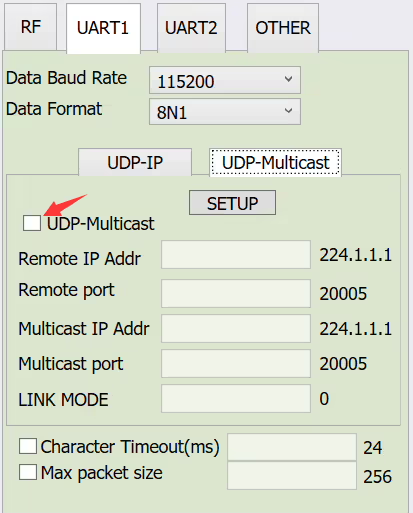
- Tick the box and select the parameters for the corresponding settings
- Remote IP Addr: IP address for receiving (listening) multicast
- Remote port: port for receiving (listening) multicast
- Multicast IP Addr: IP address for sending (listening) multicast
- Multicast port: Port for sending (listening) multicast
- LINK MODE: Mode selection, 0 είναι η προεπιλεγμένη τιμή, 1 is bridge mode. Just use the default value
- Σημείωση: UART2 settings are the same as UART1, some motherboards do not have UART2
- The serial port data of this product is loaded on the network port for transmission, and supports serial port to network port and network port to serial port.
Κάνε μια ερώτηση
Το μήνυμά σας έχει σταλεί