





Catatan: Setelah menghubungkan antena terlebih dahulu, nyalakan daya dan mulai konfigurasi perangkat lunak dan debugging. Setelah antena terhubung, parameternya dapat dipantau secara real time.
Stasiun bumi (Catu daya DC10~30V)
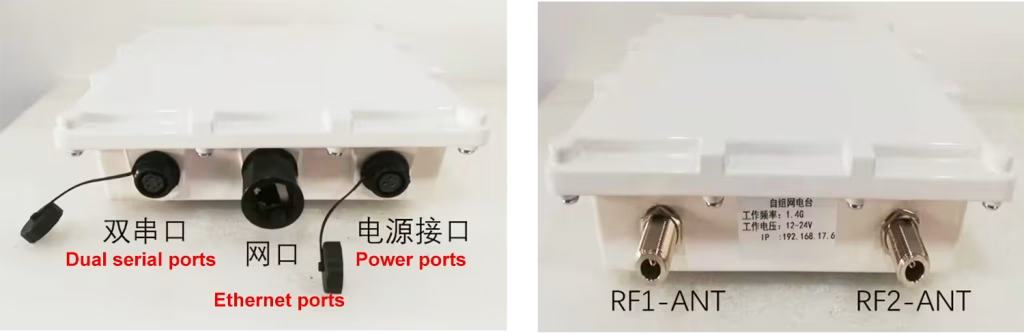
Deskripsi antarmuka lintas udara
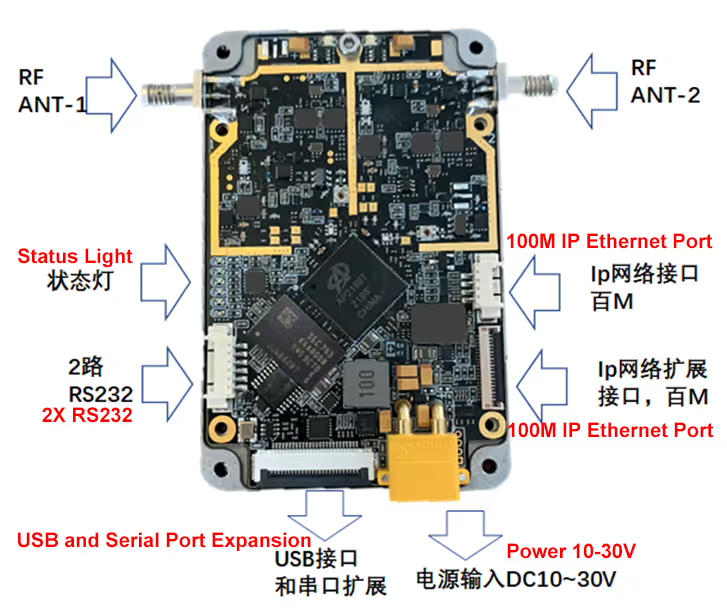
Daftar isi
1. Pengaturan komputer
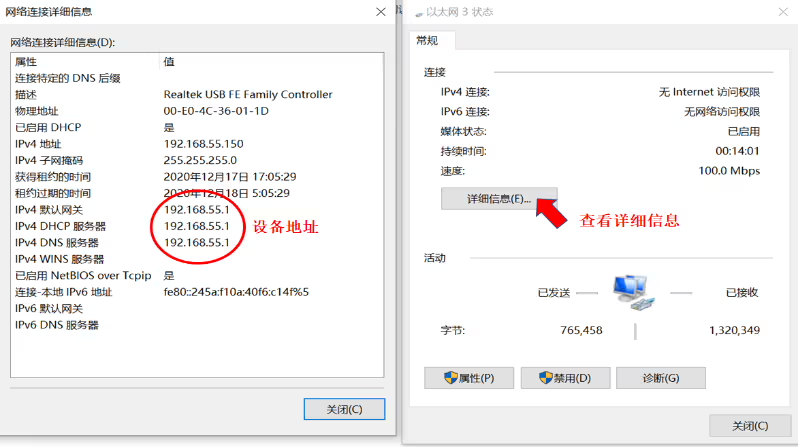
Hubungkan perangkat ke komputer, periksa alamat IP perangkat di koneksi jaringan komputer dan segmen jaringan yang sama dengan alamat perangkat (gambar di bawah ini). Jika Anda tidak mengetahui perangkat komputer, Anda dapat mengatur komputer untuk mendapatkan IP secara otomatis, lalu periksa status koneksi jaringan komputer untuk alamat IP perangkat, lalu atur Pada segmen jaringan yang sama, yang terbaik adalah mematikan Windows Firewall di komputer.
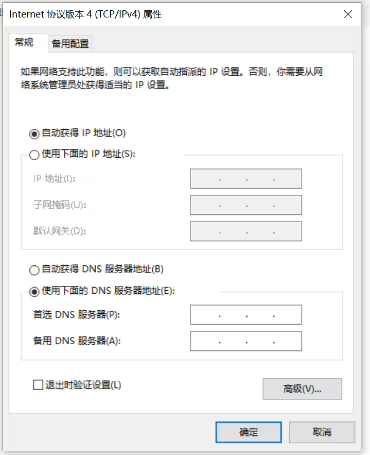
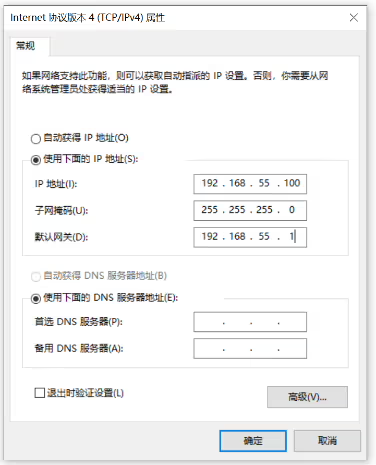
2. Jalankan perangkat lunak konfigurasi parameter
Setelah membuka 1400_TDD_COFDM_ConfigV3.3 perangkat lunak, antarmuka utama muncul:
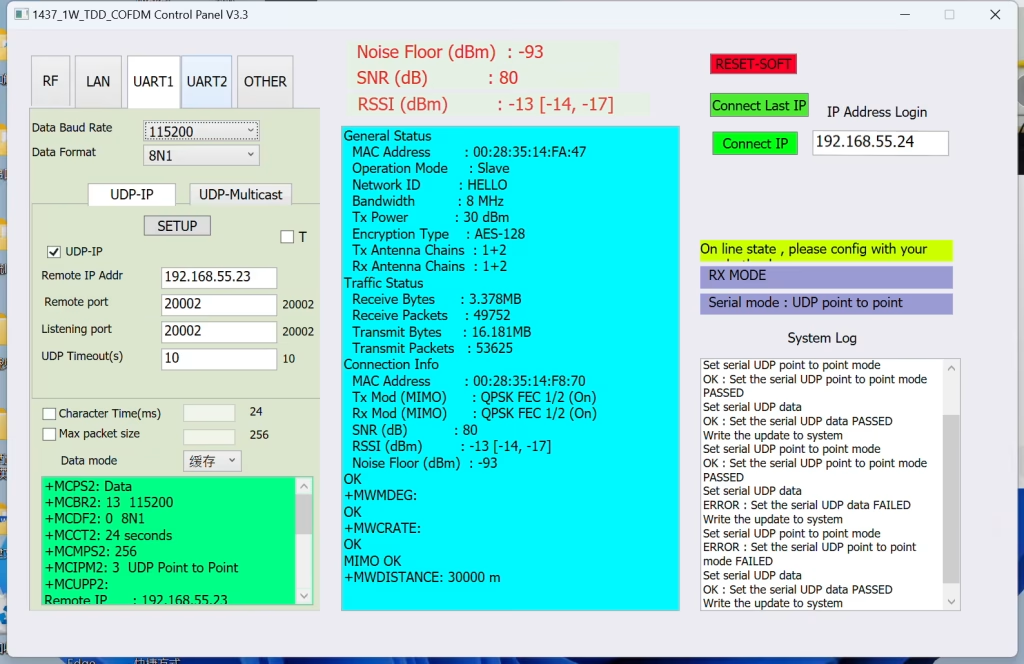
2.1 Nyalakan perangkat dan sambungkan ke komputer
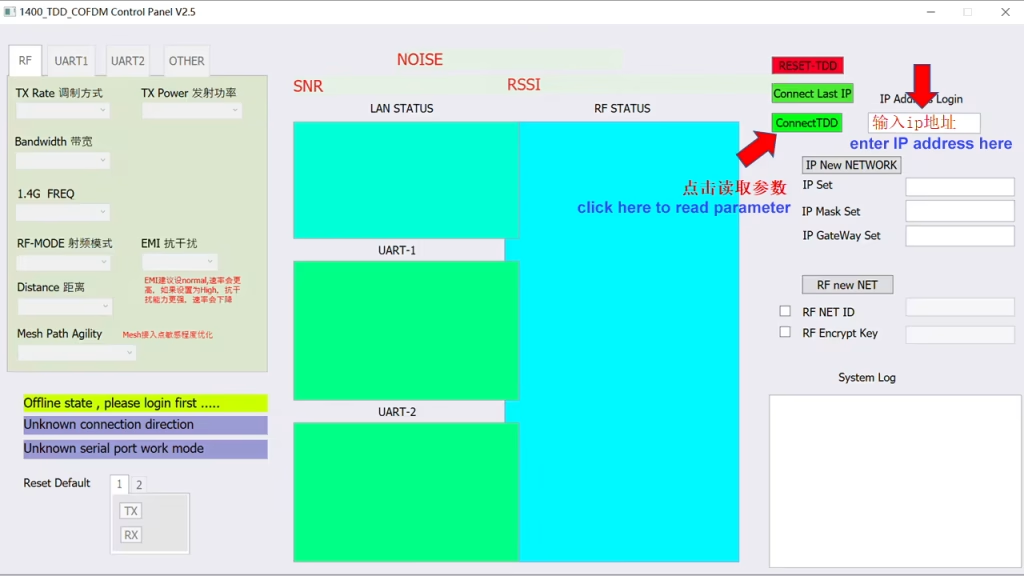
Masukkan alamat IP perangkat di jendela Login Alamat IP di sebelah kanan.
Di sini Anda dapat memasukkan alamat IP perangkat lokal atau IP perangkat jarak jauh. Setelah beberapa perangkat berhasil terhubung, IP terminal mana pun dapat digunakan.
Klik ConnectTDD untuk menghubungkan. Atau langsung klik Hubungkan IP terakhir untuk login dengan cepat.
Baca parameter saluran setelah masuk
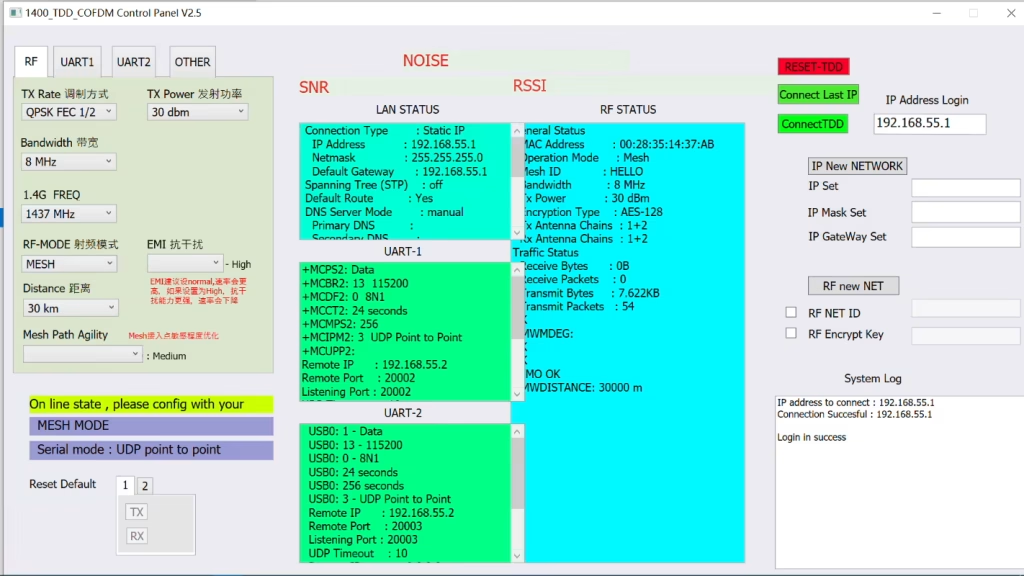
2.2 Pengaturan masuk dan jaringan
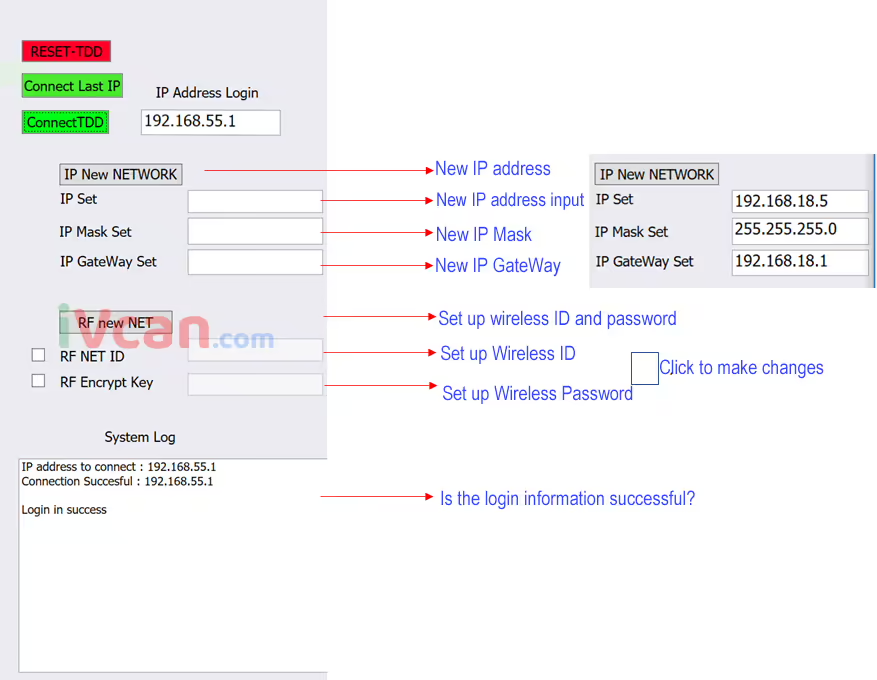
Catatan: Diperlukan waktu sekitar 3~5 detik agar perangkat menyala setelah dihidupkan. Setelah mengklik sambungkanTDD,
| Informasi keberhasilan masuk | Informasi kegagalan masuk |
| Alamat IP untuk terhubung : 192.168.55.1 | Peringatan , sekarang tidak perlu terhubung lagi , sistem berfungsi …. |
| Koneksi berhasil: 192.168.55.1 | Alamat IP untuk terhubung : 192.168.55.1,Perangkat tidak terhubung |
| Masuk dengan sukses |
Fonta merah REST-TDD, memulai ulang program
2.3 Memantau informasi
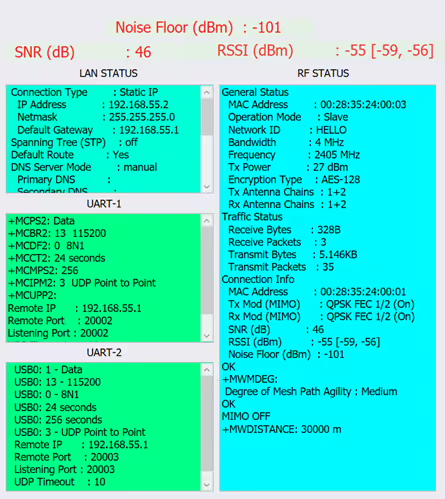
- Sebelum mengatur parameter, Anda perlu melihat frekuensi lingkungan elektromagnetik. Semakin rendah tingkat kebisingannya, semakin baik. Kekuatan medan akses terminal dan rasio signal-to-noise.
- Setelah parameter berhasil diatur, mereka akan ditampilkan di kolom yang sesuai. Anda dapat memeriksa apakah mode pengaturan sudah benar.
- Menampilkan rasio signal-to-noise koneksi, kekuatan sinyal (antena 1, antena 2) dan kebisingan latar belakang.
- Jika kebisingan latar belakang terlalu keras, itu berarti interferensinya serius dan Anda perlu mengubah pita frekuensi.
- Anda dapat membawa penganalisis spektrum untuk menguji interferensi di lokasi.
- Perhatikan bahwa data di sini adalah satu-ke-satu, data dalam mode master-slave. Untuk data rinci pada setiap terminal dalam mode satu-ke-banyak atau MESH, silakan merujuk ke data terkait STATUS RF.
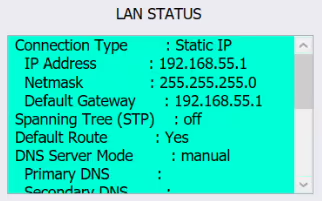
Menampilkan data terkait nirkabel:
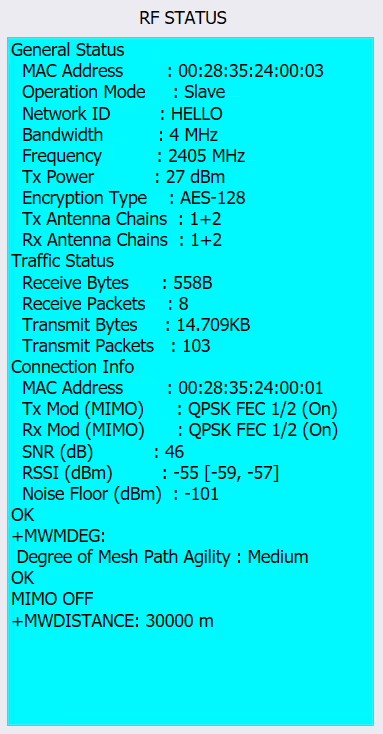
Mode, nomor identitas, lebar pita, frekuensi, daya dan data lainnya. Data terkait dengan perangkat yang terhubung, nomor perangkat, SNR, RSSI, Lantai Kebisingan dan data lainnya.

- Menampilkan rasio signal-to-noise koneksi, kekuatan sinyal (antena 1, antena 2) dan kebisingan latar belakang.
- Jika kebisingan latar belakang terlalu keras, itu berarti interferensinya serius dan Anda perlu mengubah pita frekuensi.
- Anda dapat membawa penganalisis spektrum untuk menguji interferensi di lokasi.
- Perhatikan bahwa data di sini adalah satu-ke-satu, data dalam mode master-slave. Untuk data rinci pada setiap terminal dalam mode satu-ke-banyak atau MESH, silakan merujuk ke data terkait STATUS RF.
3. Pengaturan parameter

Setelah masuk, Anda dapat menampilkan dan mengatur data terkait perangkat.
- Atur metode modulasi, kekuatan, lebar pita, frekuensi, jarak, dan modus.
- Bandwidth modulasi: 2, 4, 8MHz
- Pengaturan frekuensi: 1430-1444
- Metode modulasi: BPSK FEC 1/2, FEC QPSK 1/2, FEC QPSK 3/4, 16-QAM 1/2, 16QAM 3/4, 64QAM 2/3, 64QAM 3/4, 64QAM 5/6, MOBIL (biasanya diset ke BPSK FEC 1/2, QPSK FEC selama pergerakan 1/2)
- Menyetel metode modulasi yang lebih tinggi akan mengirimkan jumlah data yang lebih besar, tetapi sensitivitasnya akan lebih rendah. Jika host mengirimkan data dalam jumlah besar dan budak memiliki data dalam jumlah kecil, tuan rumah dapat mengatur 16-QAM, budak BPSK, dan pengaturan asimetris. Jika jumlah datanya tidak diketahui, Besarannya bisa diatur ke AUTO. Mungkin lebih stabil jika Anda menentukan metode modulasi.
- Jarak Nirkabel: Jarak antar terminal. Nilai ini sangat penting, terutama untuk transmisi jarak jauh. Nilai yang sesuai harus diisi. Jika SNR dan data lainnya normal tetapi rate-nya rendah, Anda dapat meningkatkan nilai ini.
- MODE RF: Menguasai (tuan rumah) Budak (budak) AD-HOC (menyampaikan) jala (tidak ada jaringan pusat)
- Mode master-budak: Satu tuan sama dengan satu budak (modus satu lawan satu) atau satu master dapat berkorespondensi dengan banyak budak (mode satu-ke-banyak).
- Modus AD-HOC: Satu host berhubungan dengan beberapa budak AD-HOC. Budak AD-HOC juga dapat berkomunikasi satu sama lain. Jumlah siaga lebih banyak dibandingkan mode MESH, dan penundaan serta jumlah data yang dikirimkan lebih sedikit dibandingkan mode MESH.
- Satu host berhubungan dengan beberapa budak AD-HOC, dan kemudian berhubungan dengan banyak budak, membentuk jaringan campuran.
- Modus jala: Jaringan tanpa pusat, beberapa jaringan terminal MESH (mode banyak ke banyak)
- Kelincahan Jalur MESH: Optimalisasi stabilitas jalur jaringan, dapat diatur ke Tinggi; Sedang; Rendah,
- Ketika node jaringan menemukan jalur jaringan baru, tabel jalur akan dibuat di setiap node dan dioptimalkan secara otomatis.
- Namun, menambah atau mengurangi node akan menyebabkan beberapa masalah, seperti: koneksi perlu dibuat kembali dan tabel jalur diperbarui, dan tautannya mungkin terputus untuk sementara.
- Di satu sisi, seluruh tautan harus menjaga stabilitas tautan asli, dan di sisi lain, tabel jalur perlu disegarkan untuk beradaptasi dengan perubahan jaringan. Karena itu, parameter ini digunakan ketika jaringan baru ditambahkan atau sinyal satu jaringan buruk. Sensitivitas tabel jalur pembaruan jalur. Medium umumnya sudah diatur, dan sebenarnya diatur berdasarkan pengalaman teknik. Parameter internal dapat dilihat pada STATUS RF di sebelah kanan.
- Data pita sempit (data port serial) pengaturan
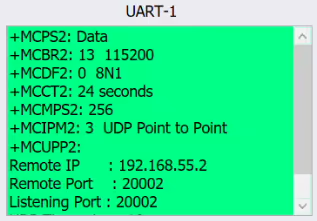
Halaman pengaturan UART, Atur data terkait port serial UART di sini:
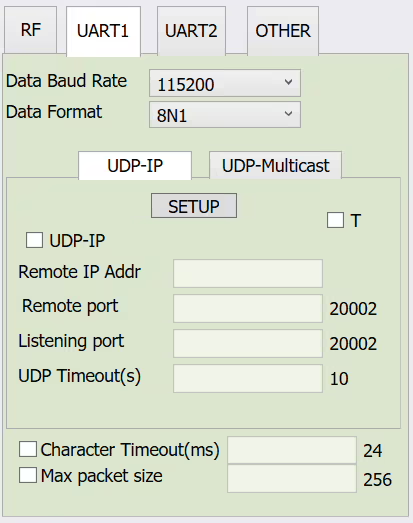
Tingkat Baud Data: Atur baud rate port serial, dari 300 untuk 921600
Berikut adalah data untuk mengatur COM1
Format Data: 8N1 8E1 8O1, parameter verifikasi
Mode transmisi serial UDP-IP: (Mode ini adalah satu-ke-satu, mode unicast, cocok untuk transmisi point-to-point)
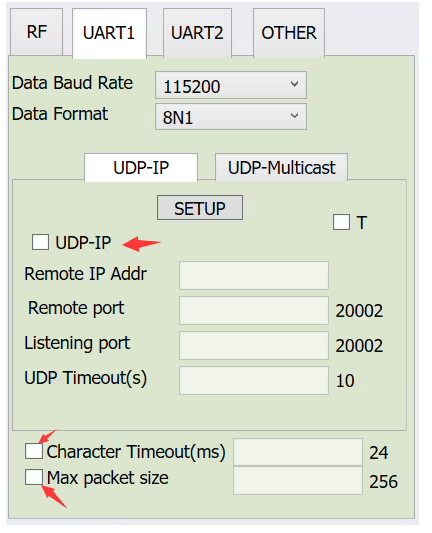
- Centang kotak dan pilih parameter untuk pengaturan yang sesuai
- Alamat IP Jarak Jauh: Alamat IP pihak lain (for example, 192.168.55.2)
- Pelabuhan jarak jauh: Nomor pelabuhan (isi berikut ini 20002, atau Anda dapat menyesuaikannya)
- Pelabuhan mendengarkan: Nomor pelabuhan (isi berikut ini 20002, atau Anda dapat menyesuaikannya)
- Batas Waktu UDP: batas waktu (isi nilai default 10 di bawah)
- Batas Waktu Karakter: Batas waktu data habis (isi nilai default 24 Nanti)
- Ukuran paket maksimal: Ukuran paket data (isi nilai default berikut 256)
- Setelah mengisi, klik PENYIAPAN.
- Parameter internal yang relevan dapat dilihat di jendela kanan UART-1
Mode transmisi serial UDP-Multicast: (mode multicast satu-ke-banyak)
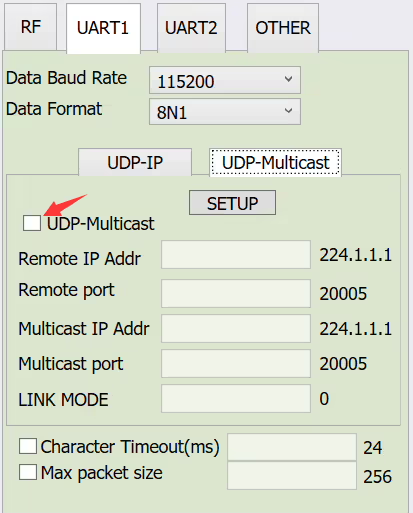
- Centang kotak dan pilih parameter untuk pengaturan yang sesuai
- Alamat IP Jarak Jauh: Alamat IP untuk menerima (mendengarkan) multicast
- Pelabuhan jarak jauh: port untuk menerima (mendengarkan) multicast
- Alamat IP Multicast: Alamat IP untuk pengiriman (mendengarkan) multicast
- Pelabuhan multicast: Port untuk mengirim (mendengarkan) multicast
- MODE TAUTAN: Pemilihan modus, 0 adalah nilai default, 1 adalah mode jembatan. Cukup gunakan nilai default
- Catatan: Pengaturan UART2 sama dengan UART1, beberapa motherboard tidak memiliki UART2
- Data port serial produk ini dimuat pada port jaringan untuk transmisi, dan mendukung port serial ke port jaringan dan port jaringan ke port serial.
Berikan pertanyaan
Terima kasih atas tanggapan Anda. ✨