





how to use AI Tracking Flight Control Module

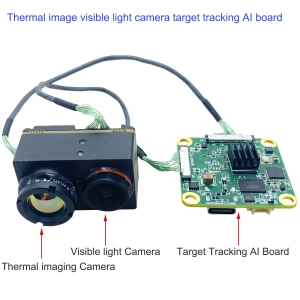

Telecamera IP AI
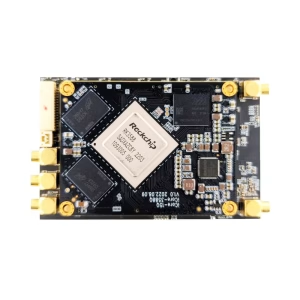
Telecamera IP AI
Scheda di monitoraggio video abilitata AI con doppio SDI CVBS IO
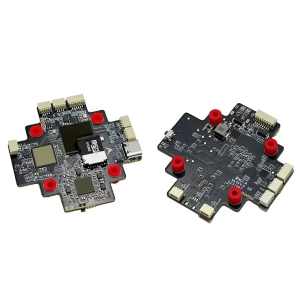
Telecamera FPV
Sommario
AI Tracking Function Setup and Usage
Wiring Diagram
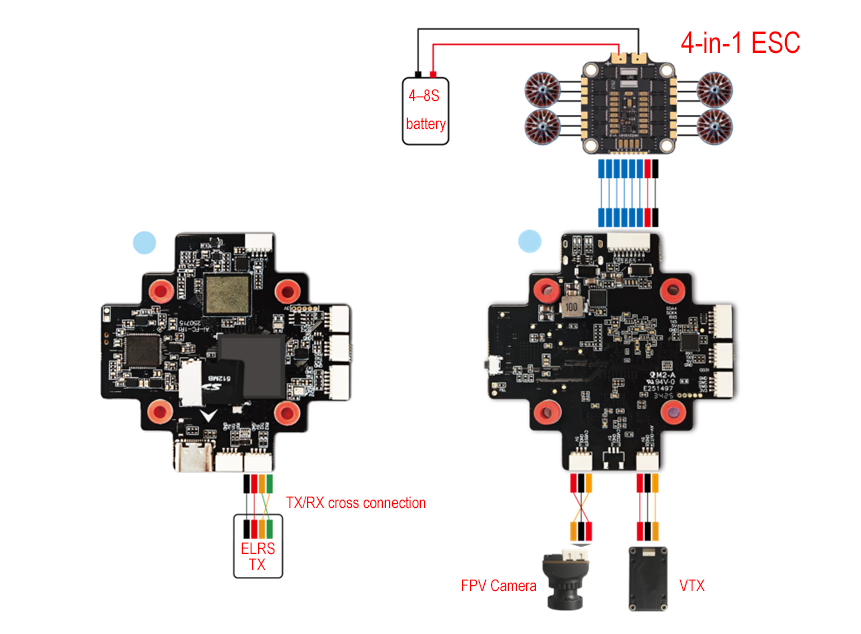
Precauzioni
UN. Supports camera installation angles from 0–30°, with a recommended angle of 10–15°.
B. Supports CVBS camera type; supported CVBS video formats: NTSC (strongly recommended) and PAL.
C. Supports focal lengths from 2.1 mm to 6 mm; 4 mm is recommended for the best image quality.
D. After changing the camera or video format, please restart the flight controller.
Ricevitore: SupportaELRS only.
Trasmissione video: Supportaanalog video transmission only.
ESC: Supportaquadrotor DSHOT300 protocol.
Ground control station setup for AI flight controller board
- InstallareQGroundControl (QGC) on your computer. Download it from https://qgroundcontrol.com/.
- After installing QGC, connect the flight controller board to the computer via the TYPE-C port using a USB cable.
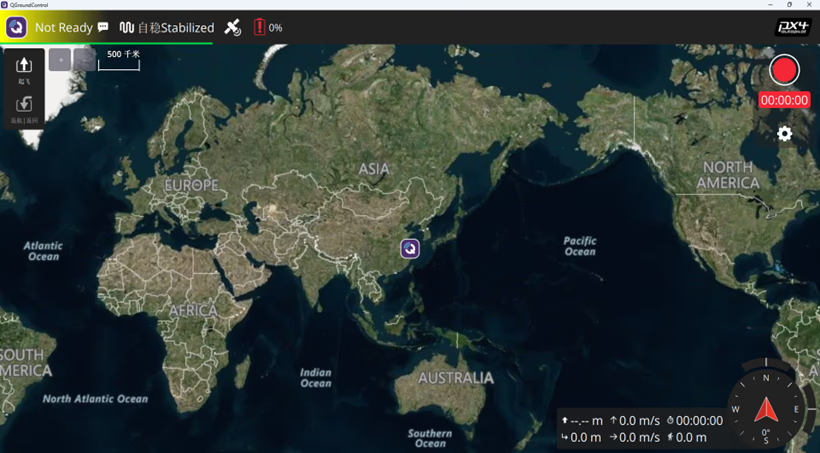
Launch the QGC software and wait for the progress bar to complete loading (circa20 secondi).
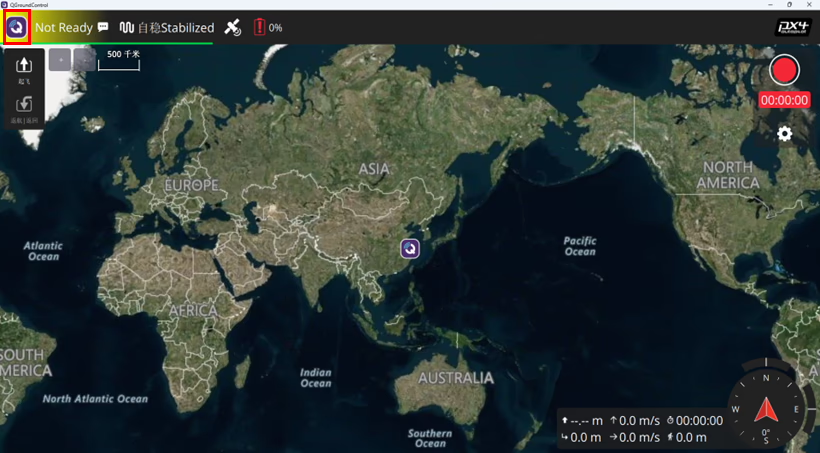
- Fare clic su“QGC” logo in the upper-left corner to enter the configuration menu.
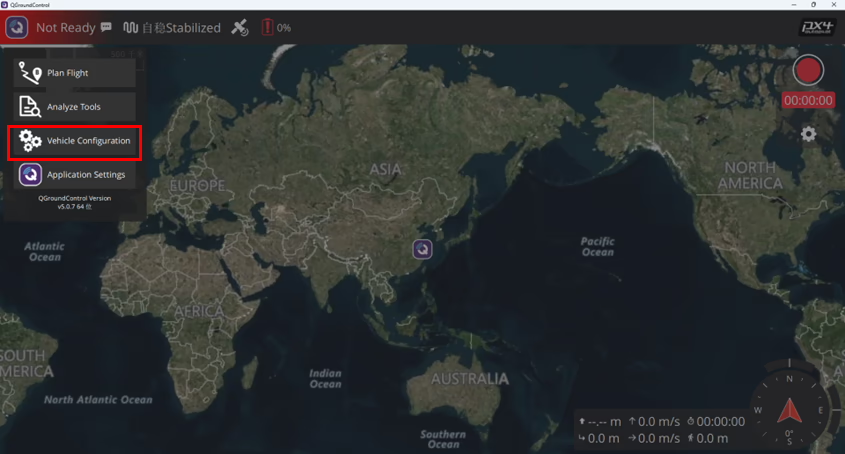
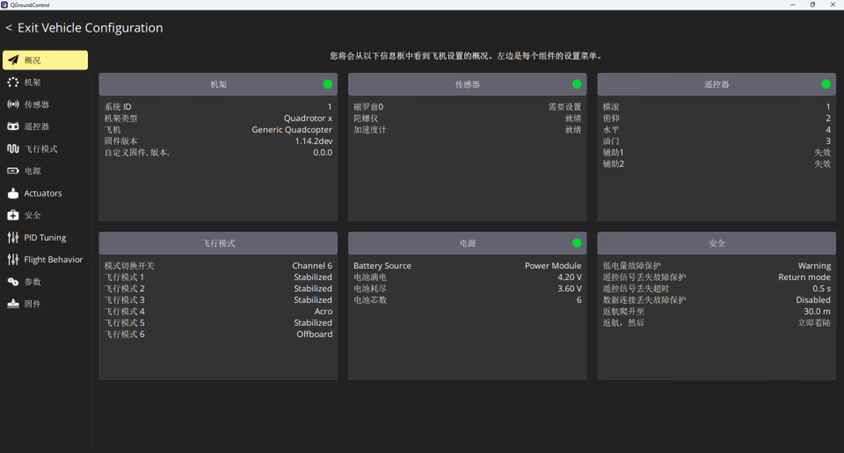
- Click the vehicle configuration

- Enter the vehicle configuration menu

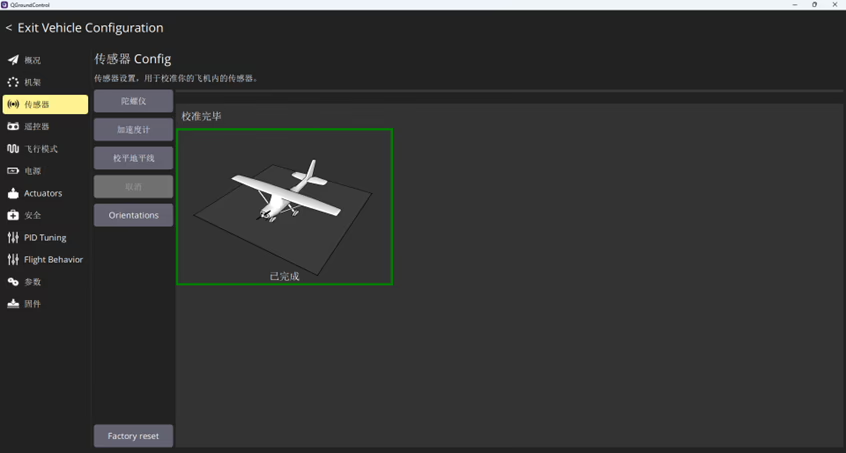
- Select the “Sensors” configuration menu, and calibrate the gyroscope, accelerometer, Ehorizon leveling rispettivamente. For detailed instructions, please refer to “Reference Video 1”.

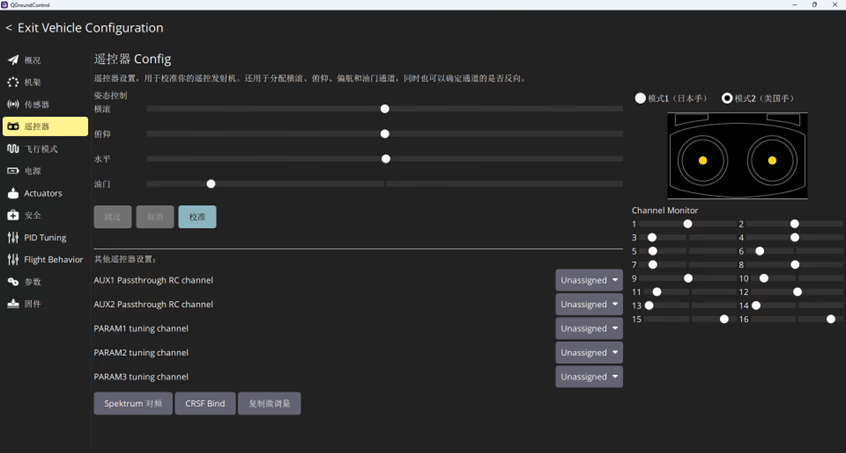
- Remote Controller Calibration
Click to enter the Controller remoto configuration menu. With the remote controller powered on, connect the flight controller to the receiver (receiver connected to the RX2 port), and then perform the remote controller calibration. For detailed instructions, please refer to “Reference Video 2”. - Configure Flight Modes, Arm Switch, and Emergency Stop Switch
- Set the flight mode switch channel (by default, Stabilized mode is selected; Acro/Manual mode is also available)
Nota:- In Stabilized modalità, the motors start spinning after arming, and the aircraft takes off when throttle is applied.
- In Acro modalità, the motors do not spin after arming; the aircraft takes off immediately when throttle is applied.
- Set the Arm (unlock) switch channel
- Set the Emergency Kill (motor stop) switch channel
- Set the flight mode switch channel (by default, Stabilized mode is selected; Acro/Manual mode is also available)
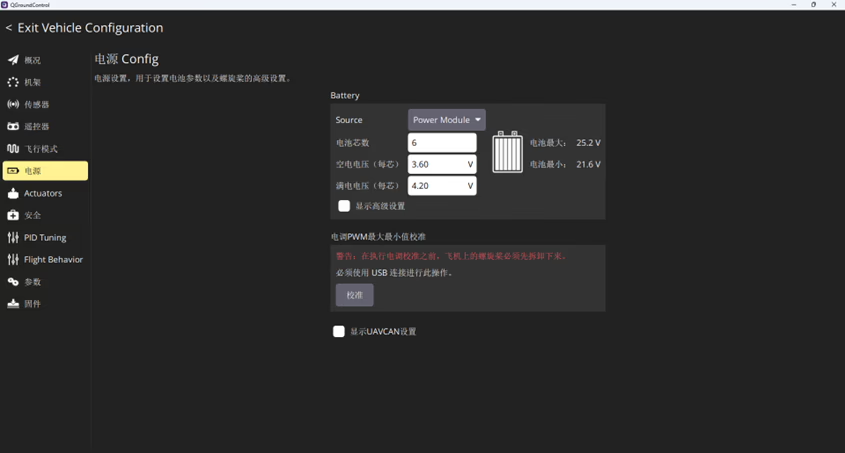
- Battery Configuration (Nota: Incorrect configuration may prevent the aircraft from taking off)
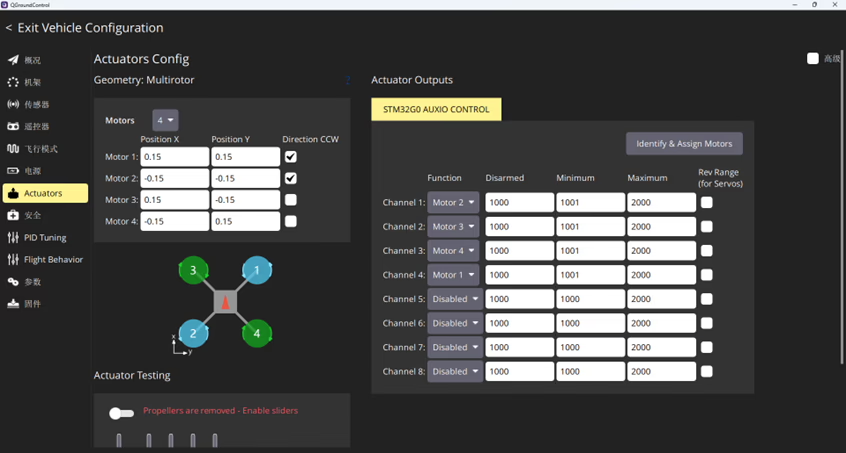
- Motor Configuration
Connect the battery and calibrate the sequence of the four motors.
Nota: Remove the propellers during this process to avoid injury.

Configure AI Switch on the Remote Controller
- Assign two toggle switch channels (10 E 11) on the remote controller as AI control switches.
IlAI-FC-1 flight controller supports two lock modes:- Canale 10: Smart lock or unlock with the AI bounding box, supports fine-tuning the bounding box position after locking.
- Canale 11: Forced lock or unlock with the crosshair in the bounding box, supports fine-tuning the bounding box position after locking.
- During FPV drone flight, simply align the bounding box in the video feed with the target, then toggle either channel 10 O 11 according to your preference.
- This will lock onto the target and approach it automatically.
- Even if the signal is lost, the AI flight controller will continue the subsequent actions.
- After AI lock, the bounding box can be fine-tuned using the roll/pitch sticks. For detailed instructions, Vedere“Reference Video 3”.
- After unlocking, the drone will return to the flight mode prior to locking.
Suggerimenti:
- Switching flight modes during AI lock tracking will also exit the lock.
- Using the Emergency Kill switch while locked will force the motors to stop.
Solution for QGC Not Connecting to the Flight Controller
- Install the latest version of QGroundControl (QGC). Download it from https://qgroundcontrol.com.
- Delete the QGC cache folders located at:
C:\Users\%USERPROFILE%\AppData\Local\QG***C:\Users\%USERPROFILE%\AppData\Local\cache\QG***
- Restart the QGC software.
Telecamera IP AI
Telecamera IP AI
Scheda di monitoraggio video abilitata AI con doppio SDI CVBS IO
Telecamera FPV
Controller di volo AI BetaFlight 2 in 1 Guida rapida per l'utente
The document displayed below is a compressed version for faster online viewing. If you need the complete manual with high-resolution images, wiring diagrams, installation instructions, configuration settings, and AI target tracking setup details, please download the full PDF guide.
✅ Flight Controller Installation Guide
✅ BetaFlight Configuration Instructions
✅ AI Target Tracking Setup
✅ FPV Drone Wiring Diagram
✅ Firmware Upgrade Guide
👉 Download the Full AI BetaFlight 2-in-1 Flight Controller User Manual (PDF)
Fai una domanda
Grazie per la risposta. ✨