






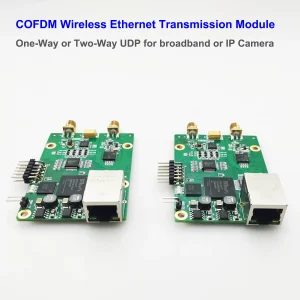
6GHZ COFDM Wireless Ethernet -Transceivermodul Der übertragene Frequenzbereich beträgt 50 MHz bis 6000 MHz. Die Firmware der Menükonfigurationsplatine muss ebenfalls aktualisiert werden, um maximal 6000 MHz zu unterstützen.
Vcan1886-Menüplatine-Firmware-Upgrade-Anleitung
Aktivieren 6 GHz-Übertragungsunterstützung
Laden Sie das Upgrade-Tool und Firmware herunter.
https://drive.google.com/file/d/1vdNIZ7SpLi3EiC3UxL4pOooL5RxaaXMI/view?usp=drive_link
Inhaltsverzeichnis
1. Hintergrund
Das 1886 Der bidirektionale COFDM-Transceiver unterstützt nativ50 MHz – 6000 MHz. aber, Ältere Menükarten werden mit einer Firmware-Kappe auf ausgeliefert2500 MHz (2.5 GHz), anzeigen „2“ als maximale Frequenzeinstellung (≈2000 MHz). In dieser Anleitung wird der Firmware-Aktualisierungsprozess zum vollständigen Entsperren detailliert beschrieben 6 GHz-Unterstützung.
2. Überprüfung vor dem Upgrade
- Schalten Sie die Menütafel ein
- Navigieren Sie zu den Frequenzeinstellungen
- Bestätigen Sie die Einschränkung:
- Maximal angezeigter Wert: „2“ (2000 MHz)
- Auswahl nicht möglich 3000 MHz oder höher
3. Upgrade-Anforderungen
| Hardware | Software/Dateien |
|---|---|
| • 1886 Menütafel • USB-zu-RS232-Seriell-Adapter • Computer | • STC ISP-Programmiertool • RX_Pad.hex (Hauptfirmware)• eeprom.bin (EEPROM-Daten) |
4. Hardware-Verbindung
⚠️ Führen Sie alle Anschlüsse VOR dem Einschalten durch
Schließen Sie den seriellen Adapter an die Menüplatine an:
| Serieller Adapter | Menütafel |
|---|---|
| GND (Boden) | GND (Boden) |
| TX (Übertragen) | RX (Erhalten) |
| RX (Erhalten) | TX (Übertragen) |
📌Kritischer Hinweis: TX und RX müssen über Kreuz verbunden sein. Eine falsche Verkabelung verhindert die Kommunikation.
5. Verfahren zur Firmware-Aktualisierung
- Starten Sie STC ISP auf Ihrem Computer
- Konfigurieren Sie die Einstellungen:
- MCU-Modell: Wählen STC11F32XE
- COM-Port: Wählen Sie den Port Ihres Adapters (z.B., COM3)
💡 Tipp: Überprüfen Sie den Port im Geräte-Manager
- Dateien laden:
- Programmdatei: Offen
RX_Pad.hex - EEPROM-Datei: Offen
eeprom.bin
- Programmdatei: Offen
- Programmierung einleiten:
- Klicken „Download/Programm“ (oder „Neu programmieren“)
- Sofort einschalten die Menütafel
- Beobachten Sie den Fortschrittsbalken → „Vorgang abgeschlossen“ (10-30 Sekunde)
- Trennen Sie die Stromversorgung nach erfolgreichem Flash
6. Überprüfung nach dem Upgrade
- Starten Sie die Menüleiste neu
- Greifen Sie auf die Frequenzeinstellungen zu:
- Erfolgreiche Upgrade-Indikatoren:
- Werte „3“ (3000 MHz), „4“ (4000 MHz), „5“ (5000 MHz) wählbar
- Maximalwert „5999“ (5999 MHz) bestätigt
- Erfolgreiche Upgrade-Indikatoren:
- Vergleichen Sie den Zustand vor dem Upgrade (max „2“ Konfigurierbare Faltungscodierungsverhältnisse 2000 MHz)
✅Erfolgskriterien: Der Frequenzeinstellbereich reicht darüber hinaus 2500 MHz 5990 MHz.
7. Fehlerbehebung
| Ausgabe | Lösung |
|---|---|
| Verbindung fehlgeschlagen | 1. Überprüfen Sie die TX/RX-Kreuzverbindung 2. Probieren Sie einen anderen USB-Anschluss aus 3. Installieren Sie die seriellen Treiber neu |
| Die Programmierung bleibt stehen 0% | 1. Nach dem Klicken GENAU einschalten „Herunterladen“ 2. Ersetzen Sie den seriellen Adapter |
| Immer noch begrenzt 2500 MHz | 1. Reflash mit korrekter FunktionRX_Pad.hex2. Bestätigen Sie das MCU-Modell STC11F32XE |
Revisionshinweise:
- 2025-06-07 v1.0: Erstveröffentlichung
- Erforderliche Dateien:
RX_Pad.hex,eeprom.bin - Tool-Version: STC ISP v6.88+ empfohlen
Support-Kontakt:
Für ungelöste Probleme, bieten:
- Screenshot des STC-ISP-Fehlerprotokolls
- Hardware-Revisionscode (Unten auf der Menüleiste)
- Serielles Adaptermodell
⚠️Warnung: Die Verwendung falscher Firmware-Dateien kann Ihr Gerät beschädigen. Überprüfen Sie vor dem Flashen die Dateikompatibilität.
Untertitel in Videos
So aktualisieren Sie die Firmware des drahtlosen 6-GHz-COFDM-Ethernet-Transceiver-Moduls?
So aktualisieren Sie das 1886 Menüplatinen-Firmware zur Unterstützung 6 GHz-Übertragungsfrequenz.
Denn unser 1886 Der bidirektionale COFDM-Funkübertragungs-Transceiver unterstützt 50 MHz bis 6000 MHz.
aber, Das Menü-Konfigurationstool-Board hat seine Firmware nicht rechtzeitig aktualisiert und unterstützt nur 2500 MHz, 2.5GHz.
Werfen wir zunächst einen Blick auf die Situation vor dem Upgrade.
Schauen Sie hier.
Die maximale Einstellung ist 2
Dies bedeutet, dass die maximale Übertragungsfrequenz 2000 MHz plus beträgt und 3000 MHz nicht erreichen kann.
Jetzt werden wir dieses Board aktualisieren.
und es kann 6000 MHz bis 6 GHz erreichen.
Wie das Upgrade?
Schließen Sie nicht zuerst den Strom an.
Diese Menüplatine wird an RS232 angeschlossen.
USB-zu-RS232-Seriell-Port-Tool
Verbinden Sie dann Masse mit der Masse der Menütastenplatine
Verbinden Sie dann TX mit dem RX der Menütastenplatine
Der RX von RS232 ist mit dem TX der Menütastenplatine verbunden.
Nach der Verbindung wie folgt,
Dann am Computer bedienen
Führen Sie das Tool STC ISP aus
Öffnen Sie das Tool.
Wählen Sie hier den MCU-Typ aus.
Modell MCU.
Dann finden Sie es hier.
Wählen Sie STC11F32XE
Wählen Sie dann das Tool für die serielle Schnittstelle aus.
Entsprechend dem tatsächlichen Port Ihres Geräts
Nach der Auswahl hier,
Öffnen Sie die Codedatei
Wählen Sie RX_Pad.hex
Offen.
Wählen Sie die EEPROM-Datei aus
Wählen Sie eeprom.bin
Klicken Sie auf Öffnen, und wählen Sie dieses aus.
Neu programmieren
Nach der Auswahl hier,
Macht auf.
Schalten Sie es ein und schauen Sie hier.
Das Upgrade wird gestartet.
Okay, es stoppt nach dem Upgrade.
Nach dem Upgrade, Wir werden die Menükonfigurationskarte bedienen, um zu sehen, ob sie 6 GHz unterstützt.
Wir drücken auf das Menü, um das Menü zu überprüfen.
Wir konnten es vorher nur auf 2000Mhz plus einstellen.
Jetzt können wir es auf drei einstellen, vier, fünf.
und das Maximum kann auf fünfhundertneunundneunzig eingestellt werden.
Dies bedeutet, dass das Upgrade erfolgreich war. Vielen Dank fürs Zuschauen.
Stelle eine Frage
Vielen Dank für deine Antwort. ✨