






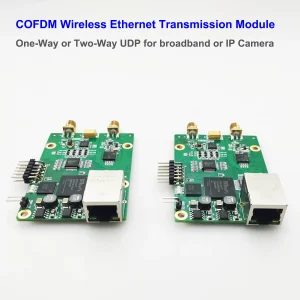
6Ghz COFDM โมดูลรับส่งสัญญาณอีเธอร์เน็ตไร้สายช่วงความถี่ส่งจาก 50Mhz ถึง 6000Mhz. The menu configuration board firmware also needs to upgrade to support maximum 6000Mhz.
Vcan1886 Menu Board Firmware Upgrade Guide
Enabling 6 GHz Transmission Support
Download the upgrade tool and firwmare.
https://drive.google.com/file/d/1vdNIZ7SpLi3EiC3UxL4pOooL5RxaaXMI/view?usp=drive_link
สารบัญ
1. พื้นหลัง
NS 1886 COFDM bidirectional transceiver natively supports50 เมกะเฮิรตซ์ – 6000 เมกะเฮิรตซ์. อย่างไรก็ตาม, older menu boards ship with firmware capped at2500 เมกะเฮิรตซ์ (2.5 GHz), displaying “2” as the maximum frequency setting (≈2000 MHz). This guide details the firmware upgrade process to unlock full 6 GHz support.
2. Pre-Upgrade Verification
- Power on the menu board
- Navigate to frequency settings
- Confirm limitation:
- Maximum displayed value: “2” (2000 เมกะเฮิรตซ์)
- Cannot select 3000 MHz or higher
3. Upgrade Requirements
| ฮาร์ดแวร์ | Software/Files |
|---|---|
| • 1886 Menu Board • USB-to-RS232 Serial Adapter • Computer | • STC ISP Programming Tool • RX_Pad.hex (Main firmware)• eeprom.bin (EEPROM data) |
4. การเชื่อมต่อฮาร์ดแวร์
⚠️ Perform all connections BEFORE powering on
Connect the serial adapter to the menu board:
| Serial Adapter | Menu Board |
|---|---|
| GND (พื้น) | GND (พื้น) |
| เท็กซัส (ส่ง) | RX (รับ) |
| RX (รับ) | เท็กซัส (ส่ง) |
📌Critical Note: TX and RX must be cross-connected. Incorrect wiring will prevent communication.
5. Firmware Upgrade Procedure
- Launch STC ISP บนคอมพิวเตอร์ของคุณ
- Configure Settings:
- MCU Model: เลือก STC11F32XE
- COM Port: Choose your adapter’s port (เช่น, COM3)
💡 Tip: Verify port in Device Manager
- Load Files:
- Program File: เปิด
RX_Pad.hex - EEPROM File: เปิด
eeprom.bin
- Program File: เปิด
- Initiate Programming:
- คลิก “Download/Program” (หรือ “Re-program”)
- Immediately power on the menu board
- Observe progress bar → “Operation Completed” (10-30 วินาที)
- Disconnect power after successful flash
6. Post-Upgrade Verification
- Reboot the menu board
- Access frequency settings:
- Successful upgrade indicators:
- ค่า “3” (3000 เมกะเฮิรตซ์), “4” (4000 เมกะเฮิรตซ์), “5” (5000 เมกะเฮิรตซ์) เลือกได้
- Maximum value “5999” (5999 เมกะเฮิรตซ์) confirmed
- Successful upgrade indicators:
- Compare to pre-upgrade state (สูงสุด “2” การคำนวณอัตราการส่งข้อมูลของระบบส่งสัญญาณไร้สาย COFDM 2000 เมกะเฮิรตซ์)
✅Success Criteria: Frequency adjustment range extends beyond 2500 เมกะเฮิรตซ์ถึง 5990 เมกะเฮิรตซ์.
7. การแก้ไขปัญหา
| Issue | สารละลาย |
|---|---|
| Connection failed | 1. Verify TX/RX cross-connection 2. Try different USB port 3. Reinstall serial drivers |
| Programming stalls at 0% | 1. Power on EXACTLY after clicking “ดาวน์โหลด” 2. Replace serial adapter |
| Still capped at 2500 เมกะเฮิรตซ์ | 1. Reflash using correctRX_Pad.hex2. Confirm MCU model STC11F32XE |
Revision Notes:
- 2025-06-07 v1.0: การเปิดตัวครั้งแรก
- Required files:
RX_Pad.hex,eeprom.bin - Tool version: STC ISP v6.88+ recommended
Support Contact:
For unresolved issues, จัดเตรียม:
- Screenshot of STC ISP error log
- Hardware revision code (bottom of menu board)
- Serial adapter model
⚠️การเตือน: Using incorrect firmware files may brick your device. Verify file compatibility before flashing.
Subtitles in videos
how to upgrade firmware of 6Ghz COFDM wireless Ethernet transceiver module?
How to upgrade the 1886 menu board firmware to support 6 GHz transmission frequency.
Because our 1886 COFDM bidirectional wireless transmission transceiver supports from 50Mhz to 6000Mhz.
อย่างไรก็ตาม, the Menu configuration tool board has not updated its firmware in time and only supports 2500Mhz, 2.5Ghz.
Let us first take a look at the situation before the upgrade.
Look here.
The maximum setting is 2
This means that the maximum transmission frequency is 2000Mhz plus and cannot reach 3000Mhz.
Now we will upgrade this board.
and it can reach 6000Mhz 6Ghz.
วิธีการอัพเกรด?
Don’t connect the power firstly.
This menu board is connecting to RS232.
USB to RS232 serial port tool
Then connect Ground to the Ground of the menu button board
Then connect TX to the RX of the menu button board
the RX of RS232 is connected to the TX of the menu button board.
After connecting like this,
Then operate on the computer
Run the tool STC ISP
Open the tool.
Select MCU type here.
MCU model.
Then find it here.
select STC11F32XE
Then select the serial port tool.
According to the actual port of your device
After selecting here,
open the code file
choose RX_Pad.hex
เปิด.
Select EEPROM file
choose eeprom.bin
Click Open, and select this one.
Re-program
After selecting here,
เปิดเครื่อง.
Power on and look here.
the upgrade will start.
ตกลง, it will stop after the upgrade.
หลังการอัปเกรด, we will operate the menu configuration board to see if it supports 6Ghz.
We press the menu to verify the menu.
We could only adjust it to 2000Mhz plus before.
Now we can adjust it to three, four, five.
and the maximum can be adjusted to five hundred ninety-nine.
This means the upgrade was successful. ขอบคุณสำหรับการรับชม.
ถามคำถาม
ข้อความของคุณถูกส่งแล้ว