






Daftar isi
Steps to Transfer Serial Port Data to Network Port via UDP on Skydroid H12 Remote Control and flight control pixhawk.
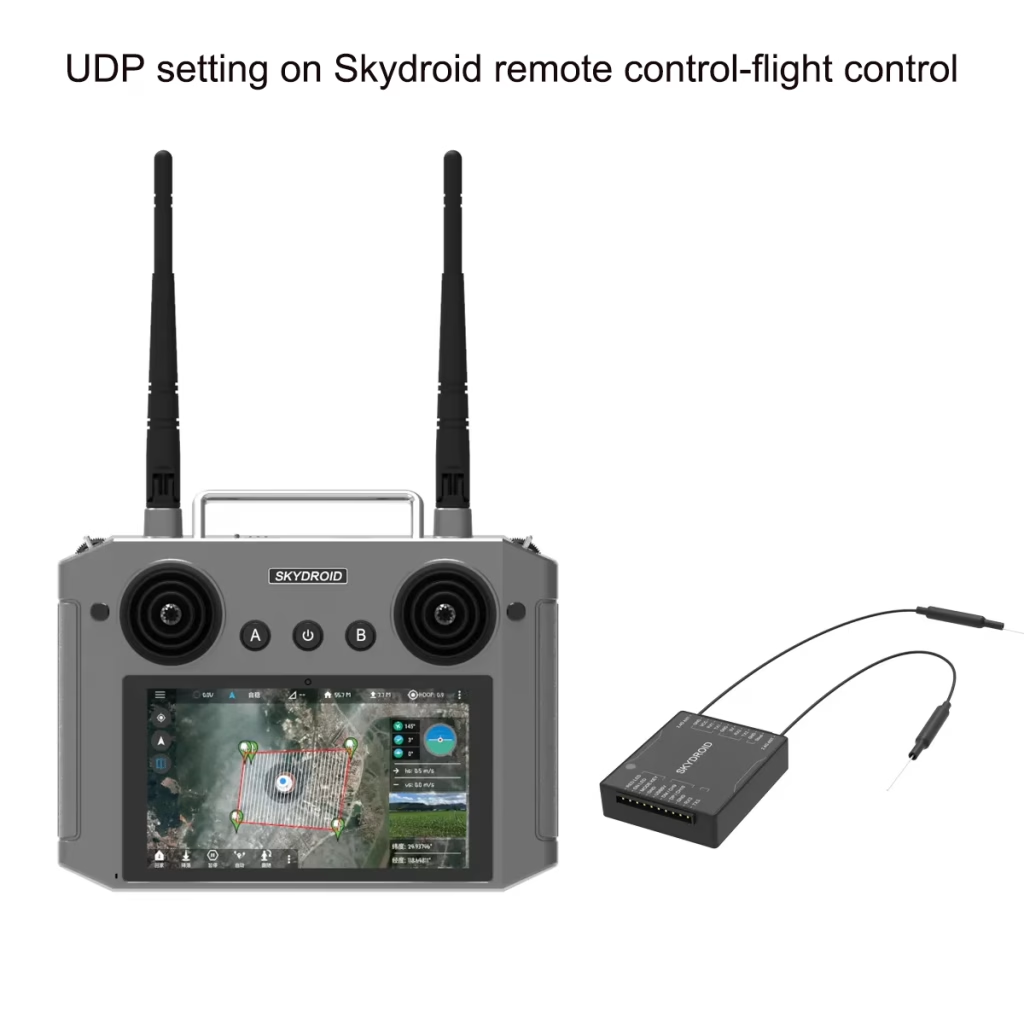
1. Hardware Connections
Satuan Udara (Drone Side):
- Connect the flight controller to the air unit via theD3 TTL serial port.
- Connect an IP camera to the air unit’sport Ethernet.
Unit darat (Remote Control Side):
- Connect the Skydroid 2.4G transmitter to the ground unit’sport jaringan (no serial port used).
- Use a wired Ethernet cable to link the Skydroid remote control to a computer (optional for debugging).
2. Konfigurasi Jaringan
Air Unit Configuration
- Access the Air Unit’s web interface (IP bawaan:
192.168.1.12). - Navigate to theSerial Port Settings:
- MemilihUART3 (connected to the flight controller).
- SetIP jarak jauh to the Skydroid remote control’s IP (e.g.,
192.168.1.100).- Original default IP for ground unit:
192.168.1.11.
- Original default IP for ground unit:
- Reboot the air unit to apply changes.
Skydroid Remote Control Configuration
- Disable Wi-Fi to avoid interference with the 2.4G/1.4G wireless links.
- Set astatic Ethernet IP address:
- Menetapkan
192.168.1.100to ensure it is on the same subnet as the air unit (192.168.1.xxx).
- Menetapkan
3. Network Validation
- Connect the remote control to a computer via Ethernet.
- Menggunakanping commands to verify connectivity across all devices:
- ping 192.168.1.100 # Kontrol Jarak Jauh
- ping 192.168.1.12 # Satuan Udara
- ping 192.168.1.11 # Unit darat
- ping 192.168.1.64 # Kamera IP
- Confirm all devices are reachable within the same LAN.
4. Qgroundcontrol (Qgc) Pengaturan
- Open QGroundControl andcreate a new UDP connection:
- Protokol: UDP
- Pelabuhan:
8090(must match the air unit’s sending port).
- Verify data reception:
- Ensure QGC displays real-time flight controller data over UDP.
5. Streaming Video
- MenggunakanH12ProTool perangkat lunak:
- Enter the IP camera’s address (e.g.,
192.168.1.64) to pull the video stream.
- Enter the IP camera’s address (e.g.,
- Confirm the remote control can access the camera’s feed.
Catatan utama
- IP Consistency: All devices must be on the
192.168.1.xxxsubnet. - Port Matching: Both the air unit and QGC must use UDP port
8090. - Reboot After Configuration: Restart the air unit/software for settings to take effect.
- Physical Connections: Ensure stable Ethernet and serial port links.
Dengan mengikuti langkah-langkah ini, serial data from the flight controller (via the air unit) will be transmitted over UDP to the Skydroid remote control’s network port, enabling real-time telemetry and video streaming.
How to use UDP to transfer serial port data to network port on Skydroid remote control?
Air unit of drone video data link, TX900 atau Vcan 1681 need to connect the flight control Pixhawk via TTL port. TX900 three data ports default setting is D1 RS232, D2 Sbus and D3 TTL. We not recommended that to use D1 as TTL port. That will have a video delay on the living video.
Except that data connection of the drone video data link air unit, Ethernet port is connecting an IP camera. Di unit darat, We use one net cable on one of their network port. Silakan periksa, We don’t use any serial port to output the data. This time, we want to transfer the flight control data to the ethernet port over UDP, which is serial port on air unit to network port on ground unit.
Here we use the serial port to connect the flight control on the air unit side. On the ground unit side, we use the network port. The network cable is connected to the skydroid 2.4G transmitter. And then the video and data are sent to the skydroid remote control via skydroid 2.4G wireless transmission system.
The remote control is connected to the computer via a wired network. We have a wired network cable connection here. You also can don’t need it. Why should you use the network cable to connect a computer and skydroid remote control? Because of that we do some operations, such like ping commands, modify the wireless video data link’s configuration on their webpage, Check whether the network is connected or not, dll.
Di komputer, you can run ping commands to these four IPs to check whether these four IPs are connected. (Remote Control IP is 192.168.100, Ground Unit IP is 192.168.1.11, Air unit IP is 192.168.1.12 and ethernet camera IP 192.168.1.64).
Oke, let’s take a look on computer. Because it is a serial data to ethernet over UDP, So some settings need to change at the air unit IP address, memasuki 192.168.1.12 at the computer’s browser, at the serial tab webpage and choose UART3, check the the remote IP, please enter the IP of the remote control. (Di sini adalah 192.168.1.100 as example), Later, we will show you how to modify this IP address on the remote control.
If you don’t need to use a remote control, The remote IP of the air unit just use the ground units’ aku p, 192.168.1.11. And then visit the ground unit webpage, the ground unit IP 192.168.1.11 does not need to be changed. These haven’t changed. It’s exactly the same as before. We only need to configure the air unit. And set the Remote IP to the IP of the remote control.
That means at the webpage of air unit, 192.168.1.12, Remote IP should enter the remote control IP address. It’s equivalent on the air unit, it receives the Flight Control serial data. It will send it to the Remote IP (Skydroid IP address). The Remote IP was previously was ground unit IP before, 192.168.1.11.
And now change to the IP of remote control to 192.168.1.100. Remember here. After changing these parameters, you need to reboot the software to take effect. Now that we have changed it, we won’t reboot it. After changing something on the webpage, you need to reboot it.
Then look at the remote control. There are some things to note. Pertama, the network here. It’s recommended to turn off the WiFi here. Because the remote control itself is 2.4Ghz. and our drone video data link is 1.4Ghz. There are already two wireless links. So we need to turn off the Wi-Fi of the remote control.
Here we choose Ethernet you need to configure the IP address we mentioned earlier. Change it to 192.168.1.100, which is equivalent to sending this IP from the air unit. It should be in the same network segment, 192.168.1.xxx.
Let’s look at the PC side. We already used a network cable to connecte to the remote control.
There is such an advantage. Pertama, we can access two wireless video data links to view the web page
to modify its parameters. Through this network cable, we connect to the computer, we can access air
satuan, or access ground unit. So now, at this network, it is including air unit, ip camera, ground unit and remote control. They are all in a local area network. They can access each other.
Let’s demonstrate it. Sebagai contoh, for the remote control. We can ping remote control, It can be connected. And our air unit is 192.168.1.12, That means each one can be connected. if customers have any problems, simply use the ping command, he can know, which one node is not online. We even have an IP camera, itu adalah 192.168.1.64, which can also be connected. Sekarang Kamera IP, two wireless links,
the remote control, and computer are all on the same local area network. And they can access each other.
Sebagai tambahan, If we need to see video here, click H12ProTool, choose video viewing, we can see camera’s video. Di Sini, remember to enter the camera’s IP, This place needs to be changed. Change it to the customer’s camera IP address. Now the remote control, through this connection, it can already access this IP camera. So it can directly pull the stream, and you can directly watch it. let me move the IP camera, you see, we can see the living video on the remote control.
Let’s take a look at QGC, Qgroundcontrol, click QGroundControl application, Choose Application Setting.
Because we are using the serial to Ethernet over UDP, so when connecting here, we will disconnect and delete it first, we will create a new link to show you the operation details.
Click Add button, Here we need to select UDP. This is a key point. And then the second place, Pelabuhan 8090.
Let me explain again. Why do we set it like this? Let’s back PC, This is the configuration of the air unit.
the configuration of air unit 192.168.1.12, the serial data will send to this remote IP, This is the IP of the remote control. It will be sent to this port 8090. They send data to this port.
On the remote control. The port also be 8090. klik OK, kemudian, Now it prompts that UDP is connecting to port 8090. Wait for the connection, It’s already collecting data. Now move the flight control, It’s connected. There is living data.
If you have any questions on the connection on the UDP, or contact us for further technical support, maybe you also can try the TCP protocol.
Berikan pertanyaan
Terima kasih atas tanggapan Anda. ✨