





目次
How to test the data transmission on HDMI to the ethernet encoder board?
Please check the below video on YouTube.

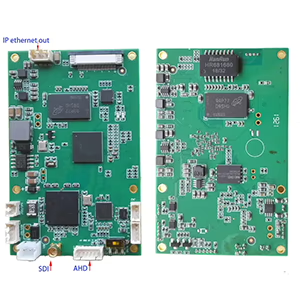
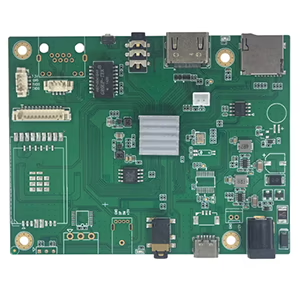
This is our video, オーディオ, and serial data encoder board, 1746, an HDMI + CVBS or SDI + AHD + CVBS + serial port data input, ethernet rj45 output encoder board, for h264 or h265, with low latency yes / no switch model.
The serial port is connected to the computer, we will use one serial port tool software as the serial port data source. The computer will send data to this board through the serial port. This board also connects to HDMI video and audio input. Its ethernet output cable is connected to the same computer. We will use another computer software as the serial port data receiver. In this test video, the receiver software is Windows OS, we also can offer you Linux or other operating systems.
The encoder board’s ethernet cable and serial cable are connected to the computer. Now let’s take a look at the parameter configuration, type the encoder default IP address (192.168.1.30) to open the web server page. Local IP is his own IP address. ここ, enter a multicast address. Just to show you the function, you’ll know why it’s set up like this later.
Then the UDP port he sent, It will send the data to this multicast address later. Under this port, and through the UDP protocol, which is our custom protocol.
Now this coding board, You can see that he detects the current 1080P HDMI input, showing 1080P 60 ビデオ入力. Here we choose H265,
low latency we choose no. All other options are automatic
わかりました, this is my serial port tool software, now the communication port is COM3 on my computer. The baud rate is 115200, and select Hexadecimal and Loop Send, one hundred millimeters period.
At the text area, we type some data, I want to send from the serial port data encoder to the computer receiver. The right window on my computer is the test program for receiving data.
Now let me explain these parameters. This is the command for the test program.
がある 4 parameters here, explain the first parameter, and I’ll go back to the program and take a look. The first parameter corresponds to H264 or H265. So look at the web page configuration. It means that the configuration of the encoding board is the same as the receiving parameters.
Here are the parameters. The first one you need to enter is 1, which means H265, For the second one, 入力 0, 0 means low latency is no.
The third is the UDP port number, just say which port to receive data from, and the encoding board is 8090. The fourth parameter is his receiving IP address. The multicast address should be the same as the encoding board’s, Then these parameters are ready.
Now let’s start testing, The serial port tool sends it in a loop, Then on the receiving window, we are receiving. It keeps sending this aa, Then it shows here aa.
Now we add data on the transmitter side, You can see that the data has been added here. It is real-time. This proves that the data is a transparent transmission. ご質問がございましたら, ぜひご連絡ください.
In this coming video, I will show you how to use the encoder board to transmit serial data except the video.
初め, let’s take a look at this command. It has four parameters. This command can specify a maximum of four variable parameters. 全て 4 can be specified, Or I can specify only 3 like now, I can even specify two or one. If you don’t specify, it will be used by default. If I don’t specify the last parameter. The result is that it will not be able to receive the serial port data.
Look, this serial port tool is constantly sending data. Although it is sent, you will find that no data is received here. The reason is that you did not specify the multicast address. So it can’t receive the data.
This is for demonstration purposes only. I specifically set a multicast address on the parameter page. When the encoding board is set to send to the multicast address. The fourth parameter of the command, this multicast address must be entered, Otherwise you won’t receive the data.
I use a unicast address here, I specify the IP address of my current computer, Just change the target address to my computer’s IP,
Then you need to restart the software. Then let’s come back and take a look. When the code board completes the restart, The data should be received on the right window, Look, data is being received here.
If you modify other parameters in the encoder board’s page parameter settings, the command parameters on the receiving end must also be changed accordingly.
例えば, you don’t use H265 encoding, but H264, Let me try it too, 超低遅延, select yes here this time, I modified the parameters of the encoding board. You will find that no data is received on the right side.
The reason is that when the parameters are modified on the coding board, they take effect immediately. If you don’t modify the receiving end, it will prompt an error.
So how can I modify it? The first parameter is H264, so you have to change it to 0. The second one is low latency, you need to change to 1
, After setting the parameters, run it again and the data will be received well. This is a program that runs under Windows. So it means that the parameters of the receiving program must be consistent with the parameters set on the encoding board parameter page.
The corresponding relationship is these four parameters, The first one is H264 or H265, The second is low-latency, The third is the UDP port number, The fourth is the IP address.
Let’s look at the source program again, Let’s modify it first. This is the annotation. Let’s turn on the comments first. Now he will print out the decoded video. Here we also print out the decoded audio.
Here we will debug directly. If you have this software, You don’t have to type in commands at all. Use this software directly, You can adjust it to get the data you want, Because it runs it directly here, It doesn’t have those four parameters. Sometimes it uses the default parameters.
So to change the default H265, Look, the results are shown.
Let’s see what it shows. This is video data, This is the size, Then this indicates whether it is a key frame. This video is divided into i frame and p frame, The latter is the timestamp, This is increasing. You will find that this one is bigger than that one.
Then this is the audio it decoded, This is the size, Then this is its sampling rate 48K, Dual channel, This is the decoded audio.
Then this is the decoded serial port data, つまり, the data we transmit with UDP, It will package the video, オーディオ, and serial data together and transmit it, Then you take our program, You can explain it separately, Then you go back to do video and audio decoding. You can also do the serial port data analysis.
This is the video, オーディオ, and data that can be obtained completely using UDP.
If you have any questions about the data transmission on HDMI to ethernet encoder, お気軽にお問い合わせください.
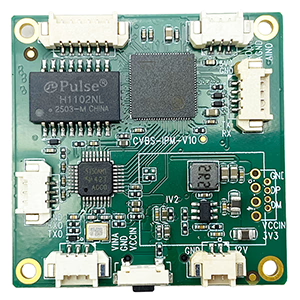
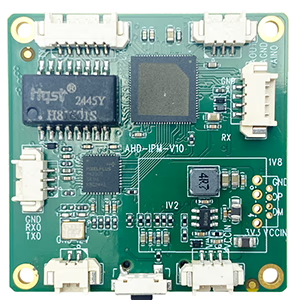
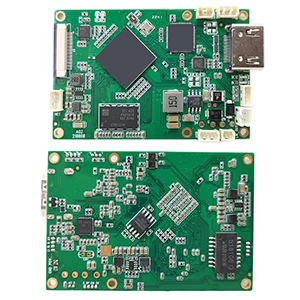
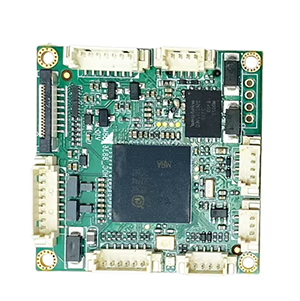
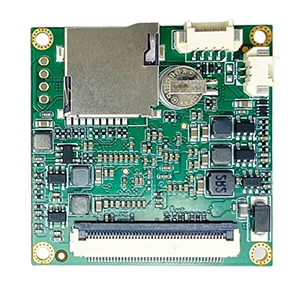
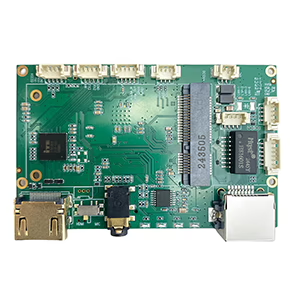
エンコーダモジュールボード
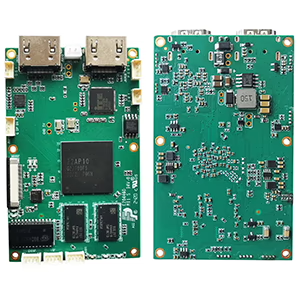
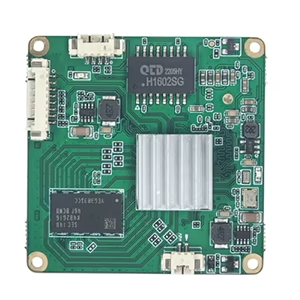
デコーダモジュールボード
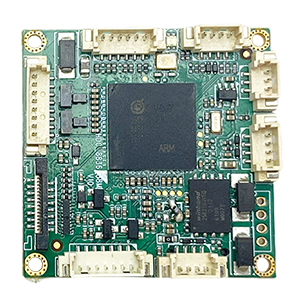
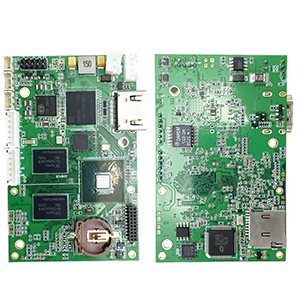
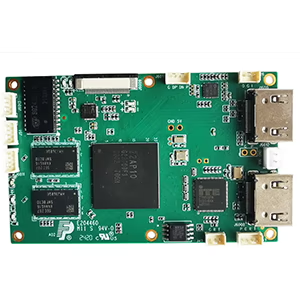
カスタマイズ可能
新しいエンコーダ製品
| いいえ. | 製品名 | Configuration | 主な特長 | 状態 |
|---|---|---|---|---|
| 1 | デュアルチャンネル USB UVC 可視光ビデオ エンコーダ | 2× USB入力 | デュアルUSBカメラビデオエンコーディングをサポート, およびRTSPストリーミング; ローカルCVBS/HDMI出力; 切り替え可能な表示モード | Mass Production |
| 2 | デュアルチャンネルエンコーダー (1× USB可視光 + 1× USB Thermal Imaging camera) | 2× USB入力 | デュアルUSBカメラをサポート (見える + 熱) 捕獲, エンコーディング, およびRTSPストリーミング; ローカルCVBS/HDMI出力; 切り替え可能な表示モード | Mass Production |
| 3 | RTSP デコーダ HDMI/CVBS ディスプレイ モジュール | HDMI + CVBS出力 | 最大 4×1080P@30fps の RTSP ストリーム デコードをサポート; ビデオストリーミングプロトコル転送をサポート; HDMI/CVBS output display | サンプルあり |
| 4 | RTSP デコーダ HDMI/CVBS ディスプレイ モジュール 4.3"/5" 液晶 | HDMI出力 + 液晶画面 | 最大 4×1080P@30fps の RTSP ストリーム デコードをサポート; プロトコル転送; HDMI/CVBS output display | デバッグ |
| 5 | デュアルチャンネルエンコーダー (1× USB可視光 + 1× CVBSアナログ) | 1× CVBS + 1× USB UVC入力 | デュアルビデオ (USB + CVBS), エンコードとRTSPストリーミング; ローカルCVBS/HDMI出力; 切り替え可能な表示モード | デバッグ |
| 6 | デュアルチャンネルエンコーダー (1× USB UVC + 1× AHDアナログ) | 1× AHD + 1× USB UVC入力 | デュアルビデオキャプチャ (USB + AHD), エンコードとRTSPストリーミング; ローカルCVBS/HDMI出力; 切り替え可能な表示モード | デバッグ |
| 7 | デュアルチャンネルエンコーダー (1× CVBS + 1× AHDアナログビデオ) | CVBS + AHD 2 ビデオ入力 | デュアルアナログビデオキャプチャ, エンコードとRTSPストリーミング; ローカルCVBS/HDMI出力; 切り替え可能な表示モード | デバッグ |
| 8 | デュアルチャンネルエンコーダー (1× CMOSカメラ + 1× USB Thermal Imaging camera) | 1× USBインターフェース | CMOSをサポート + USBサーマルカメラキャプチャ, エンコードとRTSPストリーミング; ローカルCVBS/HDMI出力; 切り替え可能な表示モード | Mass Production |
For customized video input/output conversion solutions not listed in our products, OEM/ODMサポートについてはお問い合わせください. お客様のご要望に合わせた製品の開発が可能です.
質問する
ご回答をありがとうございました。 ✨