





When setting up an AV Video to IP Converter Board (such as an HDMI/AV/SDI to IP encoder), many users encounter the issue:
“My computer cannot connect to the encoder board.”
大多数情况下, the root cause is very simple:
your computer and the AV-to-IP converter board are not in the same subnet.
This article explains why this happens, how to check it, and how to resolve the issue quickly.
Table of Contents
Why the Same Subnet Is Required
An AV Video to IP Converter Board provides video streams through:
- Web configuration page
- RTSP流
- UDP multicast/unicast
- ONVIF (如果支持的话)
All these methods require the computer to reach the board’s IP address directly.
If the converter board and your computer are in different network segments, the computer cannot locate the device.
例如:
- Encoder board IP: 192.168.1.188
- Computer IP: 192.168.0.188
These two IP addresses are in different subnets.
The third octet (1 与 0) does not match, so the devices cannot communicate.
Correct configuration should be:
- Encoder board: 192.168.1.188
- Computer: 192.168.1.50
- Subnet mask: 255.255.255.0
Now both devices can communicate normally.
How to Check If They Are in the Same Subnet
With the most common subnet mask 255.255.255.0, simply compare the first three numbers:
| 设备 | IP地址 |
|---|---|
| AV → IP Encoder Board | 192.168.1.188 |
| Computer | 192.168.1.x |
If the first three octets match, they are in the same subnet.
如果不, they cannot connect directly.
Common Real-World Scenarios
1. The Encoder Board Uses a Default Static IP
Most converter boards ship with a static IP such as:
- 192.168.1.168
- 192.168.1.100
- 192.168.0.155
If your computer is using DHCP and gets an address like 192.168.0.55, you will not be able to access the board.
解决方案:
Temporarily assign your computer a static IP such as 192.168.1.50, log in to the board, and reconfigure it if needed.
2. The Encoder Board Is Connected to a Router
If both the board and the computer are connected to the same router, the router normally assigns IPs in the same subnet.
例子:
- Encoder board → 192.168.31.40
- Computer → 192.168.31.80
在这种情况下, they are already in the same network and should connect without modification.
Quick Troubleshooting Steps
1. Ping the Encoder Board
Open a command prompt and type:
ping 192.168.x.x
If it does not respond, subnet mismatch is likely.
2. Check Your Computer’s IP
- 视窗: 跑步
ipconfig - macOS: Check Network Preferences
Compare it to the encoder board’s default IP address.
3. Adjust Your Computer’s IP if Necessary
If the networks don’t match, set a temporary static IP in the encoder’s subnet.
4. If You Changed the Encoder’s IP and Forgot It
If you previously modified the IP address of the AV Video to IP Converter Board and later forgot it, you can still recover it easily. Connect the encoder board directly to your computer using an Ethernet cable, then download an IP搜索工具 (sometimes called Device Search, IP Scanner, or Encoder Finder). Run the software and click 搜索.
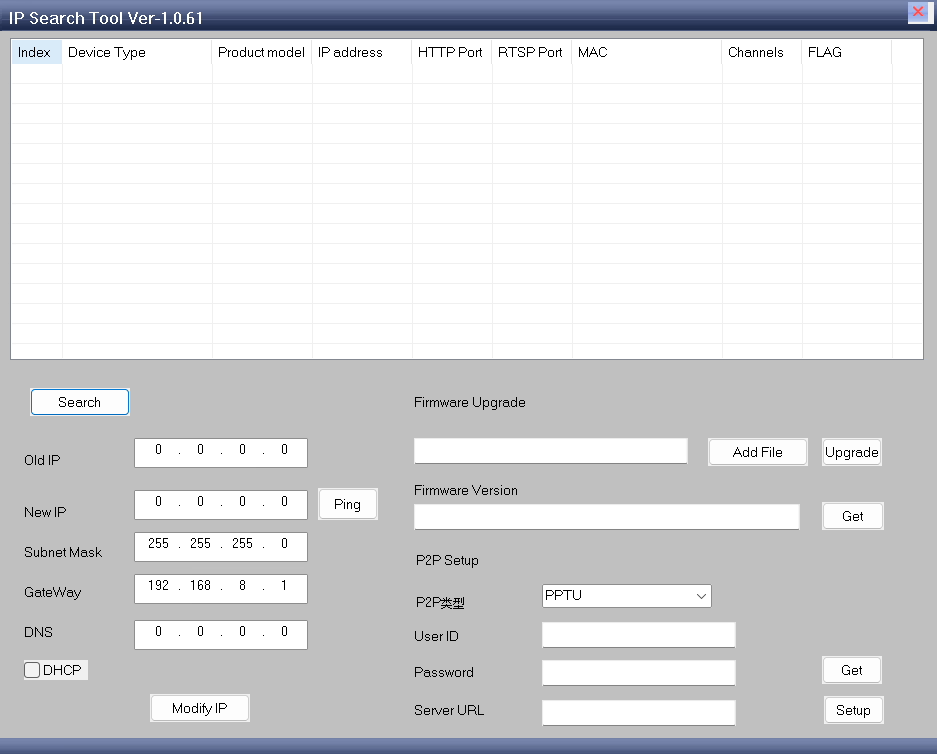
If the encoder is powered on and properly connected, the tool should display its hardware information, including the current IP address of the board.
Practical Tips for Setup
- Some encoder boards include a search/config tool that auto-detects devices even in different subnets.
- Avoid IP conflicts by ensuring each device has its own unique IP.
- If using multiple boards, label them with IP addresses for easier management.
结论
Yes — your computer must be in the same subnet as your AV Video to IP Converter Board in order to access:
- Web configuration page
- RTSP流
- UDP video
- ONVIF services
If you cannot connect, the fastest solution is:
- Compare both IP addresses
- Check if the first three segments match
- Adjust your computer’s IP to the same subnet as the encoder board
Once both devices share the same network segment, the converter board will be easily accessible and all video streams will work normally.
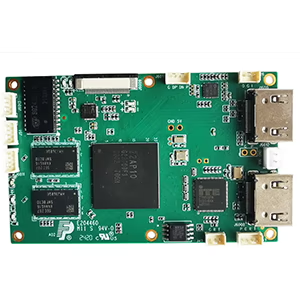
Encoder Modules Boards
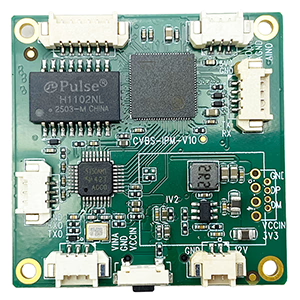
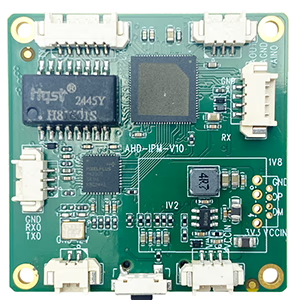
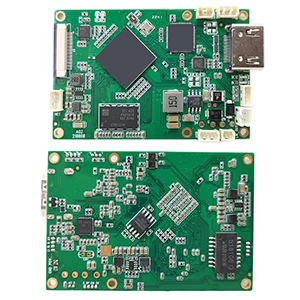
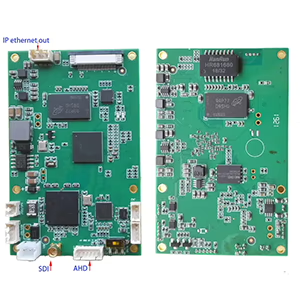
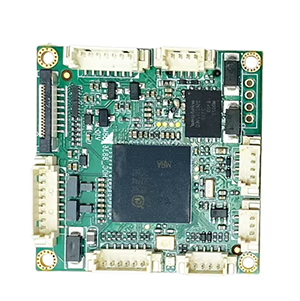
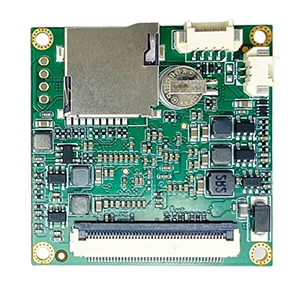
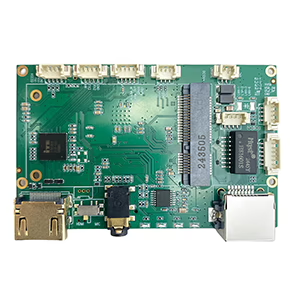
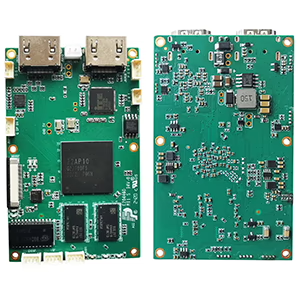
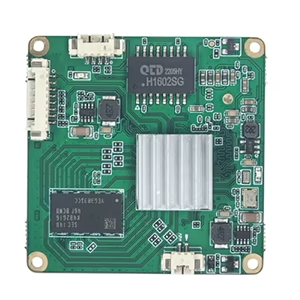
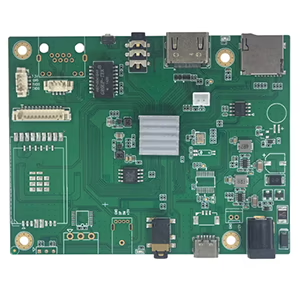
Decoder Modules Boards
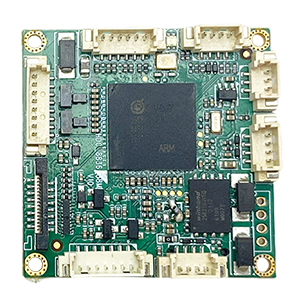
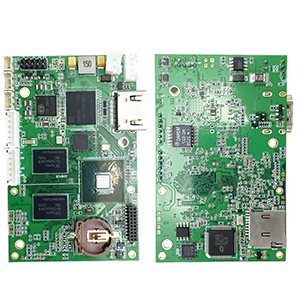
Available for Customization
新编码器产品
| 不. | 产品名称 | Configuration | 主要特点 | 地位 |
|---|---|---|---|---|
| 1 | 双通道 USB UVC 可见光视频编码器 | 2× USB 输入 | 支持双USB摄像头视频编码, 和 RTSP 流媒体; 本地CVBS/HDMI输出; 可切换显示模式 | 量产 |
| 2 | 双通道编码器 (1× USB 可见光 + 1× USB Thermal Imaging camera) | 2× USB 输入 | Supports dual USB camera (可见的 + 热的) 捕获, 编码, 和 RTSP 流媒体; 本地CVBS/HDMI输出; 可切换显示模式 | 量产 |
| 3 | RTSP 解码器 HDMI/CVBS 显示模块 | HDMI + CVBS输出 | 最高支持4×1080P@30fps RTSP码流解码; 支持视频流协议转发; HDMI/CVBS output display | 提供样品 |
| 4 | RTSP 解码器 HDMI/CVBS 显示模块 4.3"/5" 液晶显示屏 | HDMI输出 + 液晶屏 | 最高支持4×1080P@30fps RTSP码流解码; 协议转发; HDMI/CVBS output display | 调试 |
| 5 | 双通道编码器 (1× USB 可见光 + 1× CVBS 模拟) | 1× CVBS + 1× USB UVC 输入 | 双视频 (USB + CVBS), 编码和 RTSP 流媒体; 本地CVBS/HDMI输出; 可切换显示模式 | 调试 |
| 6 | 双通道编码器 (1× USB UVC + 1× AHD 模拟) | 1× AHD + 1× USB UVC 输入 | Dual video capture (USB + AHD), 编码和 RTSP 流媒体; 本地CVBS/HDMI输出; 可切换显示模式 | 调试 |
| 7 | 双通道编码器 (1× CVBS + 1× AHD 模拟视频) | CVBS + AHD 2 视频输入 | Dual analog video capture, 编码和 RTSP 流媒体; 本地CVBS/HDMI输出; 可切换显示模式 | 调试 |
| 8 | 双通道编码器 (1× CMOS 相机 + 1× USB Thermal Imaging camera) | 1× USB 接口 | 支持CMOS + USB thermal camera capture, 编码和 RTSP 流媒体; 本地CVBS/HDMI输出; 可切换显示模式 | 量产 |
对于我们产品中未列出的定制视频输入/输出转换解决方案, 请联系我们获取 OEM/ODM 支持. 我们可以根据您的要求开发定制产品.
Ask A Question
感谢您的回复。 ✨