





Table of Contents
Complete Setup Guide for Video Transmission and Telemetry in QGroundControl
Integrating a reliable drone communication system is essential for long-range UAV operations. A stable radio link allows real-time telemetry transmission, drone control, and live video streaming between the aircraft and the ground station.
在本指南中, we will explain how to connect a drone radio link system with the SIYI MK32 ground station, including hardware wiring, network configuration, telemetry setup, and video streaming configuration in Q地面控制 (QGC).
This tutorial is useful for UAV developers, drone integrators, and robotics engineers building custom drone communication systems.
系統概述
This solution enables a two-way wireless communication system between the drone and the ground control station.
The drone radio link supports:
- Long-range wireless communication
- Anti-interference transmission
- Real-time telemetry data
- Remote drone control
- Live video streaming
The system uses a dual-link communication architecture:
Downlink transmission
- Drone camera video
- Telemetry data from the flight controller
Uplink transmission
- Control commands from the ground station
System Hardware Components
The system consists of several hardware modules.
Aircraft Side
On the drone side, the main device is the radio link air unit, which connects to:
- Flight controller
- Drone camera
- Power system
The air unit is responsible for transmitting telemetry and video data back to the ground station.
Ground Side
On the ground side, the system includes:
- Radio link ground unit
- SIYI MK32 ground station
- Video monitoring interface in QGroundControl
The radio link ground unit communicates with the MK32 transmitter module through wired connections.
Hardware Connection Setup
Before configuring the software, all hardware connections must be completed.
Power Supply Requirements
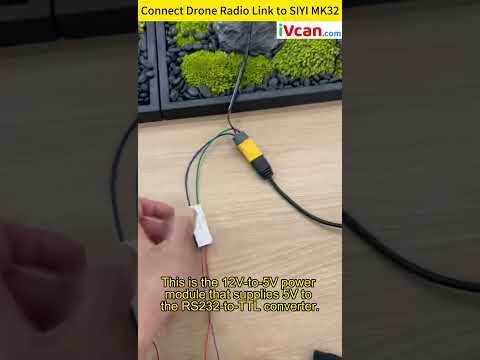
兩者都 radio link ground unit 和 MK32 transmitter module require an independent 12電源電壓.
另外, 這 RS232-to-TTL converter module requires a 5電源電壓, which can be provided by a 12V-to-5V power module.
SBUS Connection
這 SBUS接口 is used for control signal transmission.
In this system:
- 這 MK32 SBUS port acts as the transmitter
- 這 radio link ground unit acts as the receiver
Only a one-way connection 是必須的.
Connection rule:
MK32 SBUS TX → Ground Unit SBUS RX
This connection typically uses a single signal wire.
Serial Port Connection
這 radio link ground unit outputs an RS232 signal, 而 MK32 transmitter module uses a TTL serial interface.
所以, 一個 RS232-to-TTL protocol converter must be used.
Connection path:
Radio Link Ground Unit (RS232)
↓
RS232-to-TTL Converter
↓
MK32 Transmitter Module (TTL Serial Port)
Ethernet Connection
The Ethernet interface is used for network communication.
For the Ethernet connection, simply follow the standard TX/RX matching rules.
Grounding Requirement
It is important that all interfaces share a common ground.
Any interface that requires a ground connection must be properly grounded to ensure stable communication.
網路設定
After the hardware is connected, the next step is IP configuration.
Three devices must be configured in the same network segment:
- SIYI MK32 ground station
- SIYI airborne module
- Drone camera
All three IP addresses must be on the same subnet for the system to function correctly.
Recommended IP Address Range
According to the SIYI MK32 user manual, the recommended subnet is:
192.168.144.x
Example configuration:
| 裝置 | Example IP |
|---|---|
| MK32 Ground Station | 192.168.144.10 |
| Airborne Module | 192.168.144.12 |
| Drone Camera | 192.168.144.20 |
Data Transmission Settings
下一個, configure the data transmission parameters in the MK32 system.
Two settings are critical.
連接類型
The connection type must be set to:
UDP協定
UDP provides low-latency communication, which is ideal for drone telemetry transmission.
串口波特率
這 serial port baud rate must be set to 57600.
This baud rate must match the following components:
- Flight controller telemetry port
- Radio link ground unit serial port
- MK32 transmitter module
It is essential that all ports use the same baud rate to ensure proper communication.
QGroundControl Connection Configuration
After the MK32 settings are completed, the next step is configuring Q地面控制 (QGC).
打開 Communication Links settings in QGC.
There are several key parameters to configure.
連接類型
The connection type should remain:
UDP協定
This allows QGroundControl to receive telemetry data through the radio link.
Port Number and Server Address
The next parameters are:
- Port number
- Server address
這 Server Address refers to the IP address of the SIYI airborne module.
例子:
192.168.144.12
All values should be configured according to the SIYI MK32 manual.
Video Streaming Configuration (即時傳輸協定)
The final step is configuring the 視訊串流 so the drone camera feed appears in QGroundControl.
QGroundControl supports RTSP video streams.
RTSP URL Configuration
The most important parameter is the RTSP 網址.
This URL determines where QGC pulls the video stream from.
Example format:
即時傳輸協定://192.168.144.20/居住
這 IP address and path must follow the exact format provided by the camera manufacturer.
Important Configuration Notes
When entering the RTSP URL:
- The address must be entered exactly as provided
- No characters can be missing
- No extra spaces are allowed
- The entire field must be complete
Even a small formatting error can prevent the video stream from loading.
Final Result
After completing all configurations:
- The drone telemetry will appear in Q地面控制
- The drone camera video will be displayed in the QGC video panel
- The ground station can send control commands to the drone
This creates a fully functional drone communication and video transmission system using SIYI MK32.
結論
By integrating a drone radio link system with the SIYI MK32 ground station, you can build a powerful UAV communication solution capable of long-range telemetry transmission and real-time video monitoring.
This system is widely used in:
- Industrial drone platforms
- Custom UAV development
- Robotics research
- Autonomous aerial systems
If you are developing a custom drone communication solution, the SIYI MK32 provides a flexible and reliable integration platform.
Q: Can I view the camera video stream on my PC? How can I do it?
A:
Yes, you can view the video stream from the camera on your PC.
You can use any RTSP-compatible software, 例如:
VLC播放器
輕鬆播放器
任務規劃師
Q地面控制 (QGC)
Simply enter the RTSP stream address of the camera into the software to start the video stream.
Example in VLC播放器:
打開 VLC播放器
點選 Media → Open Network Stream
輸入 RTSP 網址
點選 玩
Q: I tried using VLC Player and entered the RTSP URL, but the video does not appear.
My PC IP address is 192.168.10.20, and the SIYI camera IP address is 192.168.144.25.
A:
第一的, please check whether your computer can ping the camera’s IP address.
例如, open the Command Prompt and type:
平 192.168.144.25
If the ping fails, it means the computer cannot communicate with the camera.
The issue is likely caused by the IP addresses being in different network segments.
Your PC IP address: 192.168.10.20
Camera IP address: 192.168.144.25
These two addresses are in different subnets, so they cannot communicate directly.
Q: How do I fix the network issue?
You need to set your computer’s IP address to the same subnet as the camera.
例如:
攝影機IP:
192.168.144.25
Your computer should use an IP such as:
192.168.144.10
Example configuration:
相機: 192.168.144.25
個人電腦: 192.168.144.10
Subnet Mask: 255.255.255.0
After configuring the PC IP address:
嘗試 pinging the camera again
If the ping is successful, 打開 VLC播放器
輸入 RTSP stream URL
The video stream should now display normally.
Q: What should I check if it still does not work?
Please confirm the following:
這 PC and camera are connected to the same network
這 IP addresses are in the same subnet
這 RTSP URL is correct
Ping to the camera IP is successful
如果問題仍然存在, 請提供:
這 RTSP URL you are using
A screenshot of your PC network settings
這 ping test result
so we can assist you further.
Ask A Question
感謝你的回應。 ✨