






How to add add a wireless video relay into a drone video data air uinit and ground unit
SSS: uzun menzilli veya engelli arazilerde drone iletişim bağlantısı için kablosuz video rölesi ekleyin
Bir müşteri sordu, Bir ünitenin röle olarak kullanılma olasılığını kontrol etmek istedim. Drone'umuzu uçurmak istediğimiz lokasyonda, yüksek arazi var, iletişimi bozan şey. Aktarıcı görevi görecek üçüncü bir ünite kullanabilir miyiz??


Kablosuz Video İletim
1740-1840MHZ 2WPA 30km uzunluğunda drone video vericisi ve sbus ttl ile alıcı

Kablosuz Video İletim
8 Watts Güç Amplifikatörü 100km Drone Video Video Radyo Bağlantısı
Q1: Ünitelerden biri arazi engellerinin üstesinden gelmek ve iletişim aralığını genişletmek için röle olarak kullanılabilir mi??
bir: Evet, Drone ile yer kontrol istasyonu arasındaki doğrudan görüş hattını engelleyen yüksek arazi veya diğer engeller bulunan alanlarda iletişimi iyileştirmek için ünitelerden birini bir röle düğümü olarak yapılandırmak mümkündür..
Q2: Röle kurulumu nasıl çalışır??
bir: The relay setup method depends on the software version installed on your device. There are two different versions:
- Point-to-Point Version
- Point-to-Multipoint Version
Each version uses a different configuration method for relay setup.
To determine which version your device is using, Lütfen kontrol edin Web UI interface style of your firmware. The layout and design of the Web UI will indicate whether your firmware is the isteğe bağlı mesafe derecesi veya isteğe bağlı mesafe derecesi versiyon.
Once you identify the firmware version through the Web UI style, follow the corresponding relay setup instructions for that version.
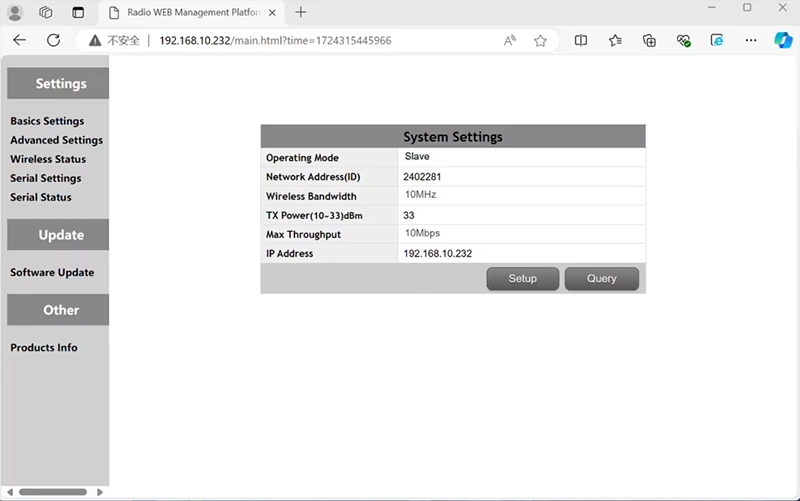

In the standard Point to Point (P2P) konfigürasyon:
- The Yer Kontrol İstasyonu (GCS) olarak hareket eder ana düğüm (usta).
- The Uçan göz (hava ünitesi) olarak hareket eder alt düğüm (köle).
Aktarma işlevini etkinleştirmek için, ağ topolojisinin değiştirilmesi gerekiyor:
- Dönüştür orijinal yer kontrol istasyonu (ana düğüm) bir içine röle düğümü.
- Eklemek bir alt düğüm daha olarak hizmet etmek yeni yer kontrol istasyonu terminali.
Bu nedenle yeni kurulumda üç düğüm:
- düğüm 1 (erkek arı) - Slave node (havaya ait)
- düğüm 2 (isteğe bağlı mesafe derecesi) - Repeater node (yere sabitlenmiş, genellikle yüksek araziye veya orta noktaya yerleştirilir)
- düğüm 3 (Yer Kontrol İstasyonu) - Ana düğüm düğüm (operatör tarafı)
- Drone Unit 8W – 192.168.10.252 (Köle)
- Relay Unit 8W- 192.168.10.250 (Tekrarlayıcı)
- Ground Unit 2W – 192.168.10.124 (Usta)
In the standard Point to Multi-Points configuration:
- The Yer Kontrol İstasyonu (GCS) olarak hareket eder ana düğüm (usta).
- The Uçan göz (hava ünitesi) olarak hareket eder alt düğüm (köle).
Aktarma işlevini etkinleştirmek için, ağ topolojisinin değiştirilmesi gerekiyor:
- Dönüştür orijinal yer kontrol istasyonu (ana düğüm) bir içine röle düğümü.
- Eklemek bir alt düğüm daha olarak hizmet etmek yeni yer kontrol istasyonu terminali.
Bu nedenle yeni kurulumda üç düğüm:
- düğüm 1 (erkek arı) - Slave node (havaya ait)
- düğüm 2 (isteğe bağlı mesafe derecesi) - Ana düğüm (yere sabitlenmiş, genellikle yüksek araziye veya orta noktaya yerleştirilir)
- düğüm 3 (Yer Kontrol İstasyonu) - Slave node (operatör tarafı)
Bu konfigürasyon, sinyallerin drone'dan röleye gitmesine olanak tanır, ve ardından röleden operatöre, Doğrudan yol tepeler veya binalar tarafından kapatıldığında bile istikrarlı ve sürekli bir bağlantı sağlanması.
Q3: Bu röle kurulumunun avantajları nelerdir??
- Etkili iletim mesafesini uzatır.
- Karmaşık arazilerde bile istikrarlı drone iletişim bağlantısını korur.
- Sinyal kaybını ve video kesintilerini azaltır.
- Kapsamı optimize etmek için rölenin esnek yerleştirilmesine olanak tanır.
S4: Hangi değişiklikler veya yapılandırmalar gerekli??
Çalışma modunu röle olarak değiştirin. Her üç cihazın kimlikleri aynı olmalıdır. Mühendislik ekibimiz, röle işlevini etkinleştirmek için ürün yazılımını ve parametreleri ayarlayabilir. Bize sadece planladığınız kurulum hakkında bilgi vermeniz yeterli (örneğin, mesafeler, arazi tipi, montaj yüksekliği), ve uygun konfigürasyon dosyalarını ve bağlantı şemasını sağlayacağız.
S5: Röle ünitesi taşınabilir mi yoksa araca monte edilebilir mi??
Evet. Röle düğümü olabilir:
- Sabit monteli (örneğin, bir tepenin veya kulenin üzerinde), veya
- Taşınabilir (araçla taşınan, veya güç kaynağı olan bir tripod üzerine monte edilmiş).
Röle muhafazasını ve güç arayüzünü uygulama senaryonuza göre özelleştirebiliriz.
S6: Röle ekstra gecikme sağlıyor mu??
Ek gecikme minimum düzeydedir (genellikle 10–20 ms'den az) ve gerçek zamanlı video ve kontrol performansı üzerinde çok az etkisi vardır.
Q7: Röle modunu kendim kurabilir miyim veya değiştirebilir miyim??
Doğru düğüm adreslemesini ve frekans planlamasını sağlamak amacıyla ilk yapılandırma için teknik destek ekibimizle iletişime geçmenizi öneririz.. Kurulumdan sonra, normal mod ile röle modu arasında geçiş, konfigürasyon yazılımı veya önceden tanımlanmış profiller aracılığıyla yapılabilir.
Q8: Why can’t I connect to the relay node?
bir: If the relay and slave nodes are roughly the same distance from the master node, and the master node receives roughly the same amount of power, the relay node might not be able to join the network. When the master node determines that the received power of the two nodes is similar, it will prioritize connecting directly to the slave node.
S9: The three nodes cannot connect to each other. It is necessary to check the wireless transmit/receive status of each node to identify potential issues.
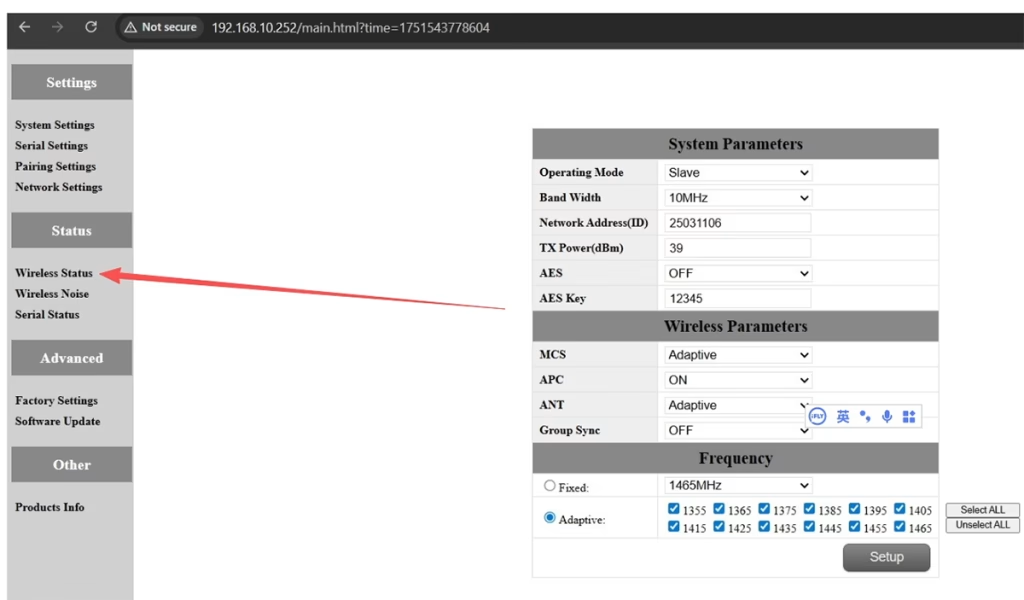
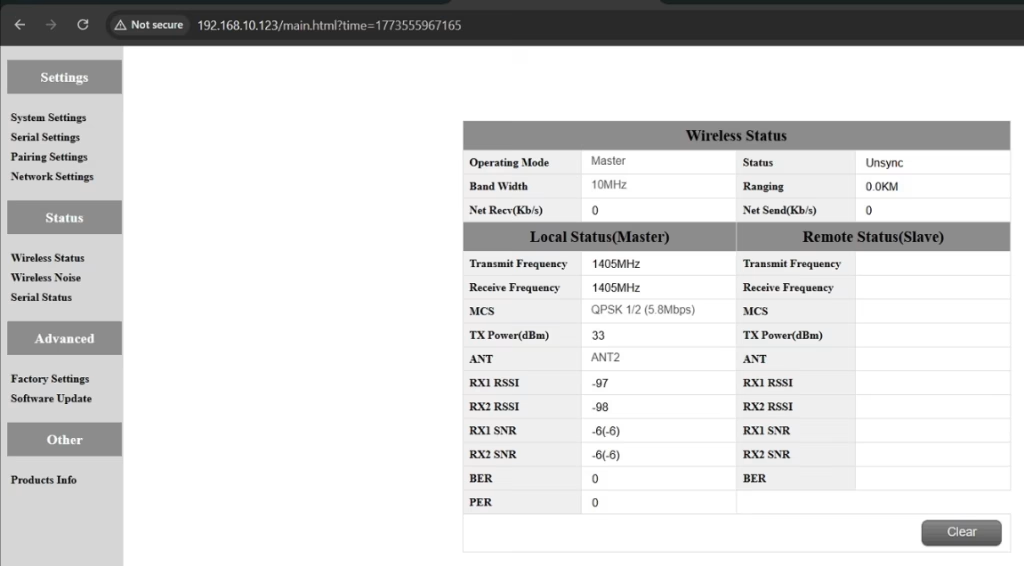
bir: Please do the below test firstly.
Attempt Remote Access
Try to access each node through the management interface or remote tool to check the wireless status.
If remote access fails, proceed to step 2.
Connect Directly via Ethernet
Use an Ethernet cable to connect your computer directly to each node.
Access the node’s management interface or wireless status page.
Check Wireless Transmit/Receive Status
Review the current wireless transmit/receive status, including signal strength, bağlantı durumu, and any error indicators.
Take a screenshot of the current status for each node, ensuring all relevant information is visible.
Send Screenshots to Engineers
Organize the screenshots and send them to the engineering team.
Engineers will analyze the wireless transmit/receive data to determine which node may have an issue.
notlar:
Label each screenshot with the corresponding node for easy comparison.
Ensure screenshots include key data such as signal strength, connection status, ve kanal bilgileri.
Q10: Does the relay unit only require antennas and power to operate? Is an Ethernet connection necessary?
bir: Yok hayır. The relay unit only requires the antennas and a power supply to operate. öyle değil require an Ethernet connection. The relay automatically forwards data between the aircraft side and the ground side, enabling seamless communication without the need for a network port connection.
S11: what is this sync unsync on the wireless status?
bir: These are the parameters seen on the relay node. The “senkronize etmek” at the beginning indicates the connection status between the master node and the relay node, which is currently connected. The “unsync” at the end indicates the connection status between the relay node and the slave node, which is currently not connected.
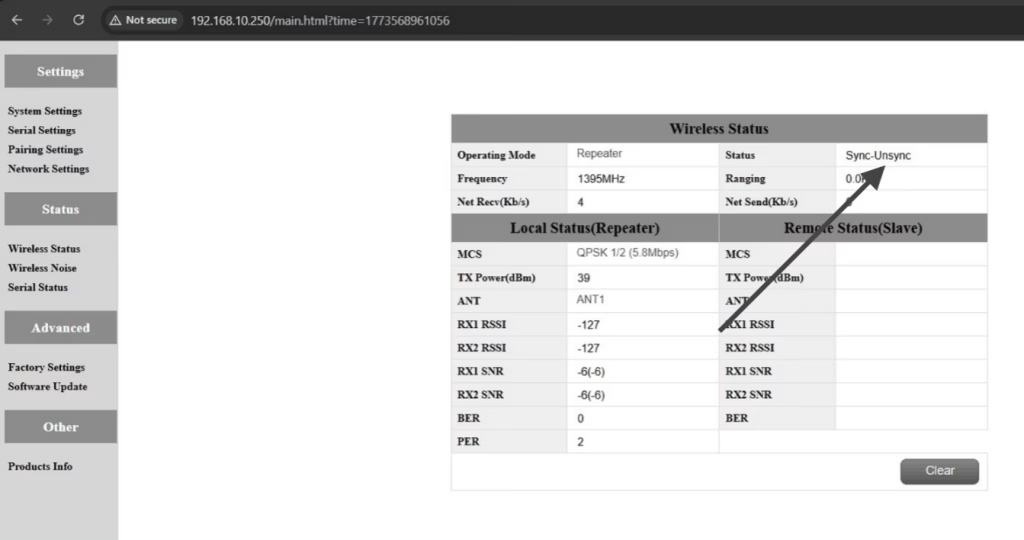
S12: Why can’t my Slave, Tekrarlayıcı, or Master nodes connect? How to fix it?
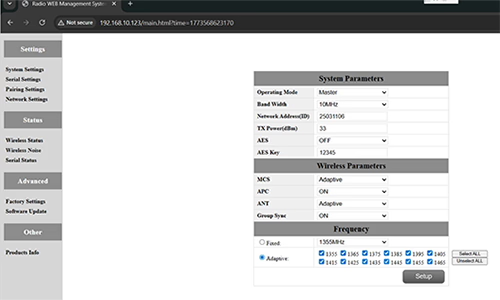
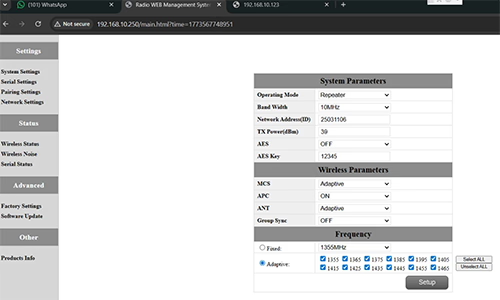
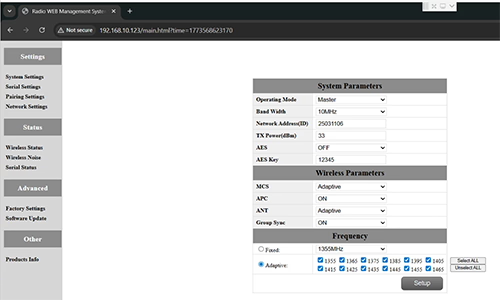
bir: This usually happens when nodes are not properly configured or the Group Sync settings are inconsistent.
- Connect each node directly to a computer using an Ethernet cable.
- Open the system parameter settings page and take a screenshot to share with technical support if needed.
- Kontrol edin Group Sync Ayarlar:
- Eğer Group Sync Master is On, ve Slave Node ve Tekrarlayıcı are Off, set Group Sync için kapalı for all nodes.
- After all nodes are connected successfully, you can enable Master / Köle / Repeater Group Sync as needed.
Sonuç:
Following these steps has successfully resolved connection issues for other customers.
S13: In what order should these three devices be powered on?
bir: The correct power-on sequence is critical to ensure proper system connectivity and prevent equipment damage. Follow these steps:
- Power on the Ground Unit first
- This includes the master control station or ground control equipment.
- Ensure all communication interfaces and power supplies are stable.
- Sonraki, power on the Repeater Node (Relay Unit)
- Wait for the repeater to complete self-checks and establish a connection with the ground unit.
- Verify connection success via status indicators or LEDs.
- Nihayet, power on the Drone or Slave Node
- Make sure the ground unit and repeater node are fully ready before powering the drone.
- Güç açıldıktan sonra, check the communication status between the drone and the repeater/ground units.
⚠️ Notes:
- Always follow the sequence Ground → Repeater → Drone to avoid initialization failures.
- If there are multiple slave nodes or repeaters, power on one at a time and confirm each connection before proceeding.
- Avoid powering all nodes simultaneously to prevent bus conflicts or voltage spikes.
Özet:
✅ Röle işlevi – destekli
✅ Değişiklik gerektirir – Evet, bir düğüm röle olarak yeniden yapılandırıldı
✅ Önerilen düğüm sayısı – 3 (erkek arı / isteğe bağlı mesafe derecesi / GCS)
✅ Gecikme eklendi – <20 MS
✅ Şunlar için uygundur: Dağlık alanlar, uzun mesafe operasyonları, veya NLOS koşulları
Bir soru sor
Yanıtınız için teşekkür ederiz. ✨