






How to add add a wireless video relay into a drone video data air uinit and ground unit
คำถามที่พบบ่อย: เพิ่มรีเลย์วิดีโอไร้สายสำหรับการเชื่อมต่อการสื่อสารด้วยโดรนในภูมิประเทศระยะไกลหรือสิ่งกีดขวาง
ลูกค้าถาม, ฉันต้องการตรวจสอบความเป็นไปได้ในการใช้หนึ่งยูนิตเป็นรีเลย์. ในตำแหน่งที่เราอยากจะบินโดรนของเรา, มีภูมิประเทศสูง, ซึ่งทำให้การสื่อสารหยุดชะงัก. เราสามารถใช้หน่วยที่สามทำหน้าที่เป็นรีเลย์ได้หรือไม่?


ส่งวิดีโอไร้สาย
1740-1840MHZ 2WPA ระยะยาว 30 กม. เครื่องส่งสัญญาณเสียงพึมพำและตัวรับสัญญาณด้วย SBUS TTL

ส่งวิดีโอไร้สาย
8 Watts Power Amplifier 100km Drone Video Data Data Radio ลิงค์
ไตรมาสที่ 1: สามารถใช้ยูนิตใดยูนิตหนึ่งเป็นรีเลย์เพื่อเอาชนะอุปสรรคภูมิประเทศและขยายระยะการสื่อสารได้?
ก: ใช่, สามารถกำหนดค่าหน่วยใดหน่วยหนึ่งเป็นโหนดรีเลย์เพื่อปรับปรุงการสื่อสารในพื้นที่ที่มีภูมิประเทศสูงหรือสิ่งกีดขวางอื่น ๆ ที่ปิดกั้นแนวการมองเห็นโดยตรงระหว่างโดรนและสถานีควบคุมภาคพื้นดิน.
ไตรมาสที่ 2: การตั้งค่ารีเลย์ทำงานอย่างไร?
ก: The relay setup method depends on the software version installed on your device. There are two different versions:
- Point-to-Point Version
- Point-to-Multipoint Version
Each version uses a different configuration method for relay setup.
To determine which version your device is using, กรุณาตรวจสอบ Web UI interface style of your firmware. The layout and design of the Web UI will indicate whether your firmware is the เกรดระยะทางที่เลือกได้ หรือ เกรดระยะทางที่เลือกได้ รุ่น.
Once you identify the firmware version through the Web UI style, follow the corresponding relay setup instructions for that version.
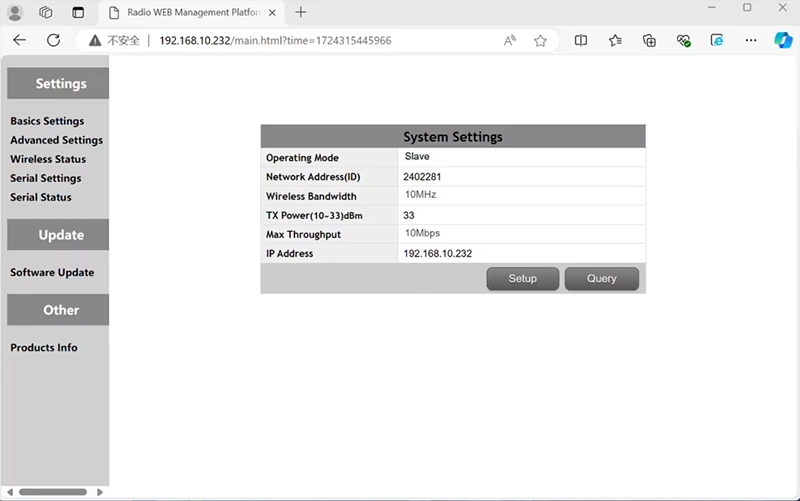

In the standard Point to Point (พีทูพี) การกำหนดค่า:
- NS สถานีควบคุมภาคพื้นดิน (GCS) ทำหน้าที่เป็น โหนดหลัก (ผู้เชี่ยวชาญ).
- NS เสียงพึมพำ (หน่วยอากาศ) ทำหน้าที่เป็น โหนดย่อย (ทาส).
เพื่อเปิดใช้งานฟังก์ชันรีเลย์, จำเป็นต้องแก้ไขโทโพโลยีเครือข่าย:
- แปลง สถานีควบคุมภาคพื้นดินเดิม (โหนดหลัก) เข้าไปใน โหนดรีเลย์.
- เพิ่ม อีกหนึ่งโหนดย่อย เพื่อทำหน้าที่เป็น สถานีควบคุมภาคพื้นดินแห่งใหม่.
ดังนั้นการตั้งค่าใหม่ก็จะมี สามโหนด:
- โหนด 1 (เสียงหึ่งๆ) - Slave node (ทางอากาศ)
- โหนด 2 (เกรดระยะทางที่เลือกได้) - Repeater node (แก้ไขบนพื้นดิน, โดยทั่วไปจะวางไว้ที่พื้นที่สูงหรือจุดกึ่งกลาง)
- โหนด 3 (สถานีควบคุมภาคพื้นดิน) - โหนดหลัก โหนด (ด้านผู้ปฏิบัติงาน)
- Drone Unit 8W – 192.168.10.252 (ทาส)
- Relay Unit 8W- 192.168.10.250 (ทบทวน)
- Ground Unit 2W – 192.168.10.124 (ผู้เชี่ยวชาญ)
In the standard Point to Multi-Points configuration:
- NS สถานีควบคุมภาคพื้นดิน (GCS) ทำหน้าที่เป็น โหนดหลัก (ผู้เชี่ยวชาญ).
- NS เสียงพึมพำ (หน่วยอากาศ) ทำหน้าที่เป็น โหนดย่อย (ทาส).
เพื่อเปิดใช้งานฟังก์ชันรีเลย์, จำเป็นต้องแก้ไขโทโพโลยีเครือข่าย:
- แปลง สถานีควบคุมภาคพื้นดินเดิม (โหนดหลัก) เข้าไปใน โหนดรีเลย์.
- เพิ่ม อีกหนึ่งโหนดย่อย เพื่อทำหน้าที่เป็น สถานีควบคุมภาคพื้นดินแห่งใหม่.
ดังนั้นการตั้งค่าใหม่ก็จะมี สามโหนด:
- โหนด 1 (เสียงหึ่งๆ) - Slave node (ทางอากาศ)
- โหนด 2 (เกรดระยะทางที่เลือกได้) - โหนดหลัก (แก้ไขบนพื้นดิน, โดยทั่วไปจะวางไว้ที่พื้นที่สูงหรือจุดกึ่งกลาง)
- โหนด 3 (สถานีควบคุมภาคพื้นดิน) - Slave node (ด้านผู้ปฏิบัติงาน)
การกำหนดค่านี้ช่วยให้สัญญาณเดินทางจากโดรนไปยังรีเลย์ได้, แล้วจากรีเลย์ไปยังผู้ปฏิบัติงาน, สร้างความมั่นใจในการเชื่อมโยงที่มั่นคงและต่อเนื่องแม้ว่าเส้นทางตรงจะถูกปิดกั้นโดยเนินเขาหรืออาคารก็ตาม.
ไตรมาสที่ 3: ข้อดีของการตั้งค่ารีเลย์นี้คืออะไร?
- ขยายระยะการส่งข้อมูลที่มีประสิทธิภาพ.
- รักษาการเชื่อมต่อการสื่อสารด้วยโดรนที่มั่นคงแม้ในภูมิประเทศที่ซับซ้อน.
- ลดการสูญเสียสัญญาณและการหยุดชะงักของวิดีโอ.
- ช่วยให้สามารถวางตำแหน่งรีเลย์ได้อย่างยืดหยุ่นเพื่อเพิ่มประสิทธิภาพการครอบคลุม.
ไตรมาสที่ 4: ต้องมีการปรับเปลี่ยนหรือกำหนดค่าอะไรบ้าง?
เปลี่ยนโหมดการทำงานเป็นรีเลย์. ID ของอุปกรณ์ทั้งสามเครื่องจะต้องเหมือนกัน. ทีมวิศวกรของเราสามารถปรับเฟิร์มแวร์และพารามิเตอร์เพื่อเปิดใช้งานฟังก์ชันรีเลย์ได้. คุณจะต้องแจ้งให้เราทราบถึงการตั้งค่าที่คุณต้องการเท่านั้น (เช่น, ระยะทาง, ประเภทภูมิประเทศ, ความสูงในการติดตั้ง), และเราจะจัดเตรียมไฟล์การกำหนดค่าและแผนภาพการเชื่อมต่อที่เหมาะสม.
Q5: ชุดรีเลย์สามารถพกพาหรือติดตั้งในรถยนต์ได้?
ใช่. โหนดรีเลย์สามารถ:
- แบบติดตั้งคงที่ (เช่น, บนยอดเขาหรือหอคอย), หรือ
- แบบพกพา (ดำเนินการโดยยานพาหนะ, หรือติดตั้งบนขาตั้งกล้องพร้อมแหล่งจ่ายไฟ).
เราสามารถปรับแต่งกล่องรีเลย์และอินเทอร์เฟซระบบจ่ายไฟตามสถานการณ์การใช้งานของคุณได้.
คำถาม 6: รีเลย์ทำให้เกิดการหน่วงเวลาพิเศษหรือไม่?
เวลาแฝงเพิ่มเติมนั้นน้อยมาก (โดยทั่วไปจะน้อยกว่า 10–20 ms) และมีผลกระทบเพียงเล็กน้อยต่อวิดีโอแบบเรียลไทม์และประสิทธิภาพการควบคุม.
คำถามที่ 7: สามารถตั้งค่าหรือสลับโหมดรีเลย์ได้เองหรือไม่?
เราขอแนะนำให้คุณติดต่อทีมสนับสนุนด้านเทคนิคของเราเพื่อกำหนดค่าเริ่มต้นเพื่อให้แน่ใจว่าการกำหนดที่อยู่โหนดและการวางแผนความถี่ถูกต้อง. หลังจากตั้งค่าแล้ว, การสลับระหว่างโหมดปกติและโหมดรีเลย์สามารถทำได้ผ่านซอฟต์แวร์กำหนดค่าหรือโปรไฟล์ที่กำหนดไว้ล่วงหน้า.
Q8: Why can’t I connect to the relay node?
ก: If the relay and slave nodes are roughly the same distance from the master node, and the master node receives roughly the same amount of power, the relay node might not be able to join the network. When the master node determines that the received power of the two nodes is similar, it will prioritize connecting directly to the slave node.
คำถามที่ 9: The three nodes cannot connect to each other. It is necessary to check the wireless transmit/receive status of each node to identify potential issues.
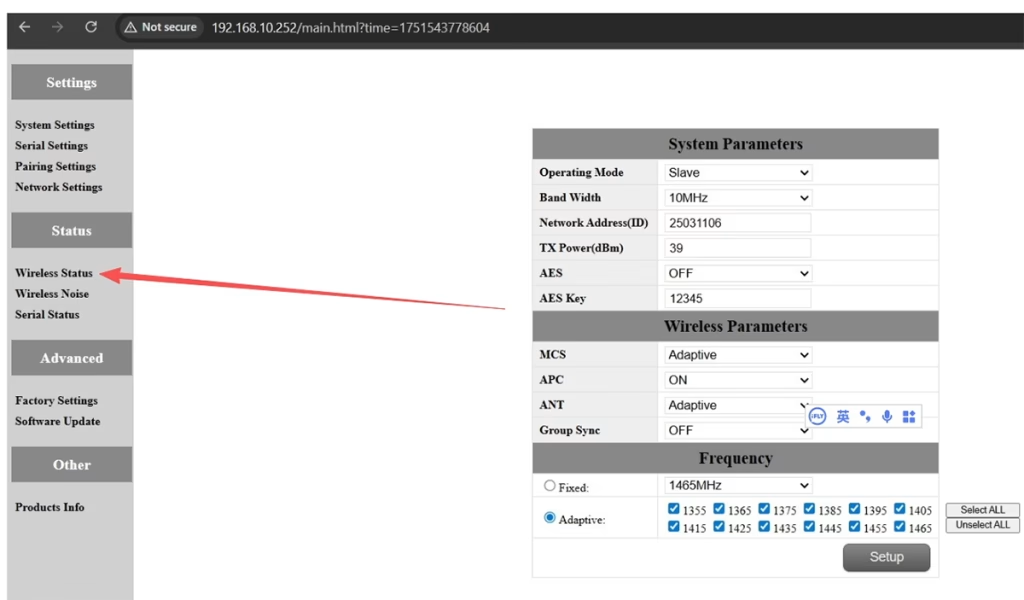
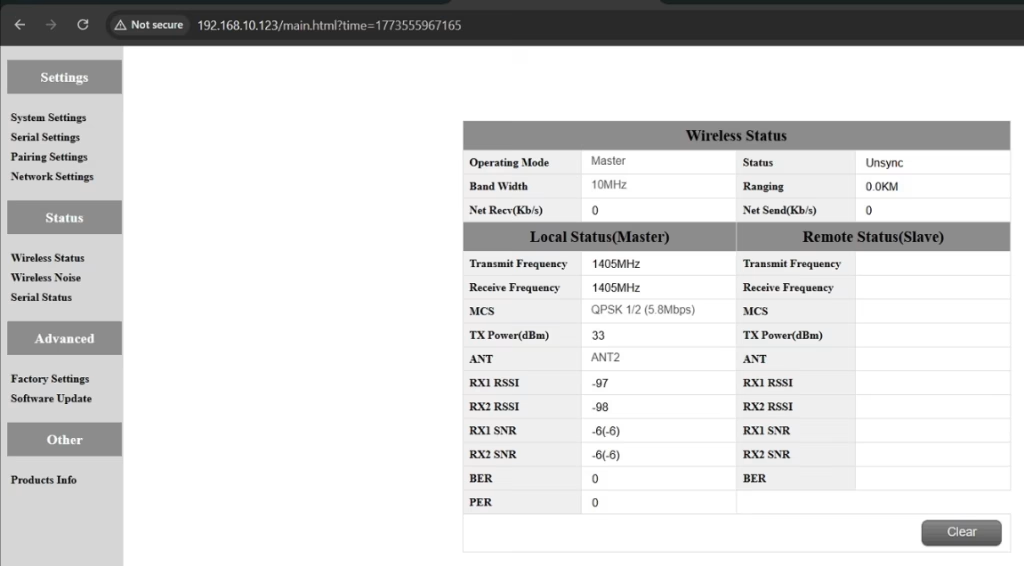
ก: Please do the below test firstly.
Attempt Remote Access
Try to access each node through the management interface or remote tool to check the wireless status.
If remote access fails, proceed to step 2.
Connect Directly via Ethernet
Use an Ethernet cable to connect your computer directly to each node.
Access the node’s management interface or wireless status page.
Check Wireless Transmit/Receive Status
Review the current wireless transmit/receive status, including signal strength, สถานะการเชื่อมโยง, and any error indicators.
Take a screenshot of the current status for each node, ensuring all relevant information is visible.
Send Screenshots to Engineers
Organize the screenshots and send them to the engineering team.
Engineers will analyze the wireless transmit/receive data to determine which node may have an issue.
หมายเหตุ:
Label each screenshot with the corresponding node for easy comparison.
Ensure screenshots include key data such as signal strength, connection status, และข้อมูลช่องทาง.
คำถามที่ 10: Does the relay unit only require antennas and power to operate? Is an Ethernet connection necessary?
ก: ไม่. The relay unit only requires the antennas and a power supply to operate. มันทำ ไม่ require an Ethernet connection. The relay automatically forwards data between the aircraft side and the ground side, enabling seamless communication without the need for a network port connection.
คำถามที่ 11: what is this sync unsync on the wireless status?
ก: These are the parameters seen on the relay node. NS “การซิงค์” at the beginning indicates the connection status between the master node and the relay node, which is currently connected. NS “unsync” at the end indicates the connection status between the relay node and the slave node, which is currently not connected.
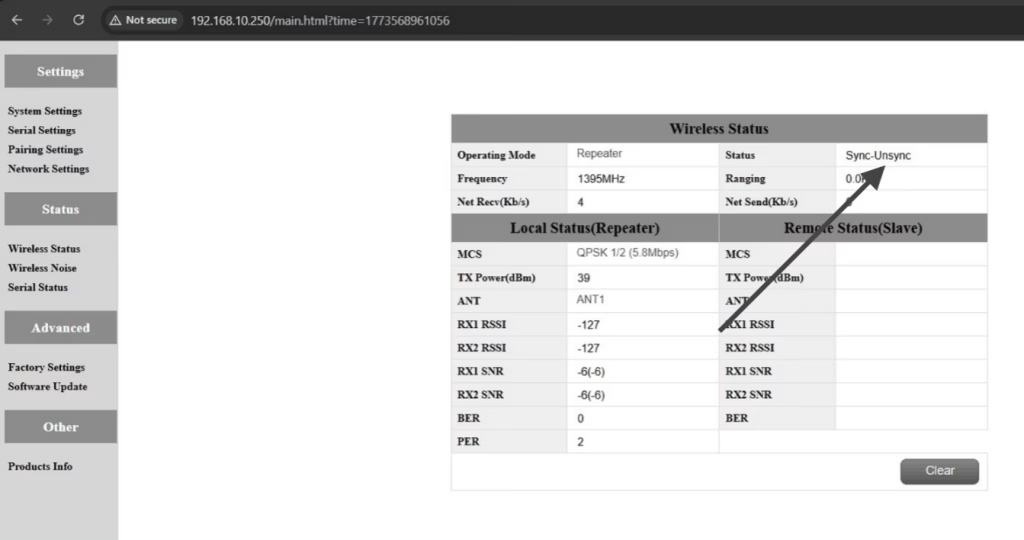
คำถามที่ 12: Why can’t my Slave, ทบทวน, or Master nodes connect? How to fix it?
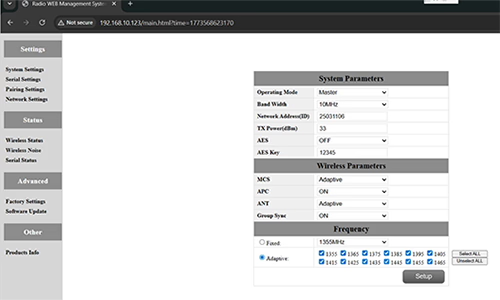
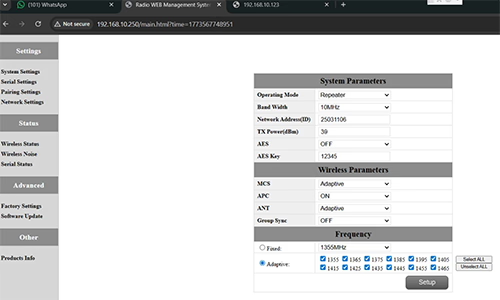
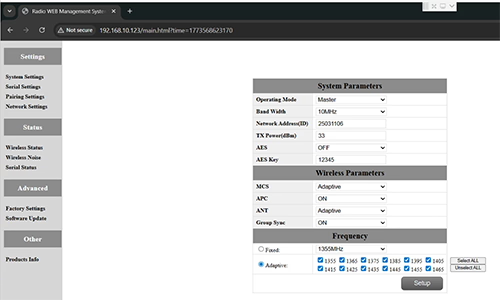
ก: This usually happens when nodes are not properly configured or the Group Sync settings are inconsistent.
- Connect each node directly to a computer using an Ethernet cable.
- Open the system parameter settings page and take a screenshot to share with technical support if needed.
- ตรวจสอบ Group Sync การตั้งค่า:
- ถ้า Group Sync Master is On, และ Slave Node และ ทบทวน are Off, ชุด Group Sync ไปยัง ปิด for all nodes.
- After all nodes are connected successfully, you can enable Master / ทาส / Repeater Group Sync as needed.
ผลลัพธ์:
Following these steps has successfully resolved connection issues for other customers.
คำถามที่ 13: In what order should these three devices be powered on?
ก: The correct power-on sequence is critical to ensure proper system connectivity and prevent equipment damage. Follow these steps:
- Power on the Ground Unit first
- This includes the master control station or ground control equipment.
- Ensure all communication interfaces and power supplies are stable.
- ต่อไป, power on the Repeater Node (Relay Unit)
- Wait for the repeater to complete self-checks and establish a connection with the ground unit.
- Verify connection success via status indicators or LEDs.
- ในที่สุด, power on the Drone or Slave Node
- Make sure the ground unit and repeater node are fully ready before powering the drone.
- หลังจากเปิดเครื่องแล้ว, check the communication status between the drone and the repeater/ground units.
⚠️ Notes:
- Always follow the sequence Ground → Repeater → Drone to avoid initialization failures.
- If there are multiple slave nodes or repeaters, power on one at a time and confirm each connection before proceeding.
- Avoid powering all nodes simultaneously to prevent bus conflicts or voltage spikes.
สรุป:
✅ ฟังก์ชั่นรีเลย์ – ได้รับการสนับสนุน
✅ต้องมีการแก้ไข – ใช่, โหนดหนึ่งได้รับการกำหนดค่าใหม่เป็นรีเลย์
✅ จำนวนโหนดที่แนะนำ – 3 (เสียงหึ่งๆ / เกรดระยะทางที่เลือกได้ / GCS)
✅ เพิ่มเวลาแฝง – <20 นางสาว
✅เหมาะสำหรับ – พื้นที่ภูเขา, การดำเนินงานทางไกล, หรือเงื่อนไข NLOS
ถามคำถาม
ข้อความของคุณถูกส่งแล้ว