





When setting up an AV Video to IP Converter Board (such as an HDMI/AV/SDI to IP encoder), many users encounter the issue:
“My computer cannot connect to the encoder board.”
در اکثر موارد, the root cause is very simple:
your computer and the AV-to-IP converter board are not in the same subnet.
This article explains why this happens, how to check it, and how to resolve the issue quickly.
Table of Contents
Why the Same Subnet Is Required
An AV Video to IP Converter Board provides video streams through:
- Web configuration page
- جریان RTSP
- UDP multicast/unicast
- ONVIF (در صورت پشتیبانی)
All these methods require the computer to reach the board’s IP address directly.
If the converter board and your computer are in different network segments, the computer cannot locate the device.
به عنوان مثال:
- Encoder board IP: 192.168.1.188
- Computer IP: 192.168.0.188
These two IP addresses are in different subnets.
The third octet (1 در مقابل 0) does not match, so the devices cannot communicate.
Correct configuration should be:
- Encoder board: 192.168.1.188
- Computer: 192.168.1.50
- Subnet mask: 255.255.255.0
Now both devices can communicate normally.
How to Check If They Are in the Same Subnet
With the most common subnet mask 255.255.255.0, simply compare the first three numbers:
| دستگاه | IP Address |
|---|---|
| AV → IP Encoder Board | 192.168.1.188 |
| Computer | 192.168.1.x |
If the first three octets match, they are in the same subnet.
اگر نه, they cannot connect directly.
Common Real-World Scenarios
1. The Encoder Board Uses a Default Static IP
Most converter boards ship with a static IP such as:
- 192.168.1.168
- 192.168.1.100
- 192.168.0.155
If your computer is using DHCP and gets an address like 192.168.0.55, you will not be able to access the board.
راه حل:
Temporarily assign your computer a static IP such as 192.168.1.50, log in to the board, and reconfigure it if needed.
2. The Encoder Board Is Connected to a Router
If both the board and the computer are connected to the same router, the router normally assigns IPs in the same subnet.
مثال:
- Encoder board → 192.168.31.40
- Computer → 192.168.31.80
در این مورد, they are already in the same network and should connect without modification.
Quick Troubleshooting Steps
1. Ping the Encoder Board
Open a command prompt and type:
ping 192.168.x.x
If it does not respond, subnet mismatch is likely.
2. Check Your Computer’s IP
- ویندوز: اجرا کنید
ipconfig - macOS: Check Network Preferences
Compare it to the encoder board’s default IP address.
3. Adjust Your Computer’s IP if Necessary
If the networks don’t match, set a temporary static IP in the encoder’s subnet.
4. If You Changed the Encoder’s IP and Forgot It
If you previously modified the IP address of the AV Video to IP Converter Board and later forgot it, you can still recover it easily. Connect the encoder board directly to your computer using an Ethernet cable, then download an ابزار جستجوی IP (sometimes called Device Search, IP Scanner, or Encoder Finder). Run the software and click Search.
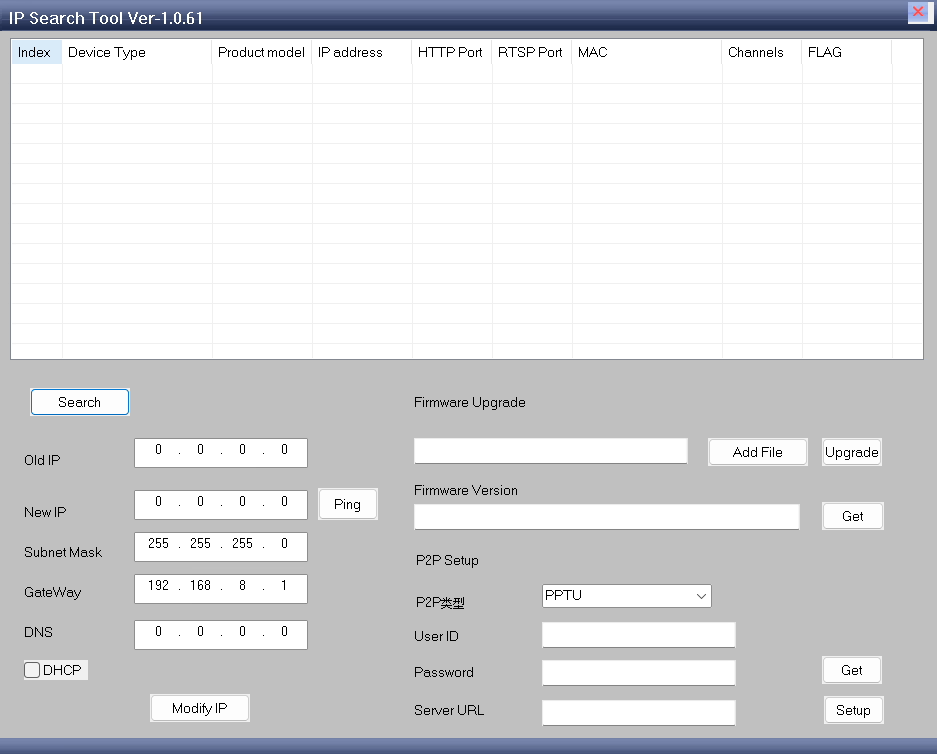
If the encoder is powered on and properly connected, the tool should display its hardware information, including the current IP address of the board.
Practical Tips for Setup
- Some encoder boards include a search/config tool that auto-detects devices even in different subnets.
- Avoid IP conflicts by ensuring each device has its own unique IP.
- If using multiple boards, label them with IP addresses for easier management.
نتیجه گیری
Yes — your computer must be in the same subnet as your AV Video to IP Converter Board in order to access:
- Web configuration page
- جریان RTSP
- UDP video
- ONVIF services
If you cannot connect, the fastest solution is:
- Compare both IP addresses
- Check if the first three segments match
- Adjust your computer’s IP to the same subnet as the encoder board
Once both devices share the same network segment, the converter board will be easily accessible and all video streams will work normally.
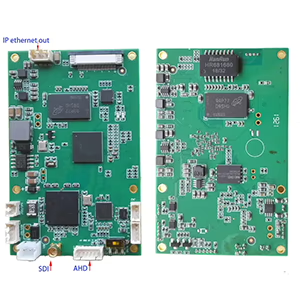
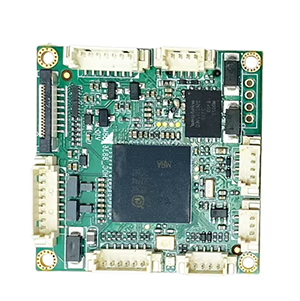
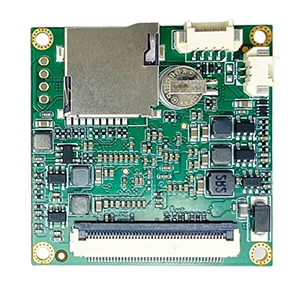
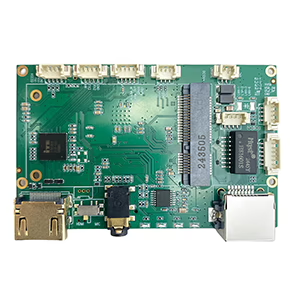
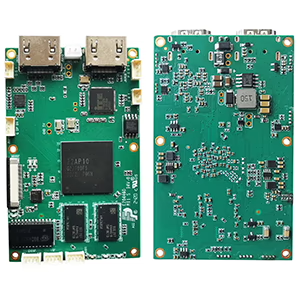
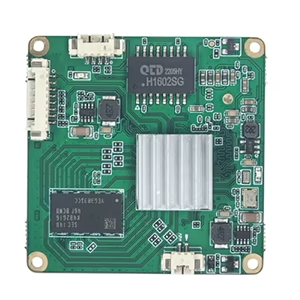
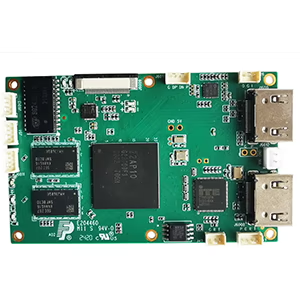
تابلوهای ماژول های رمزگذار
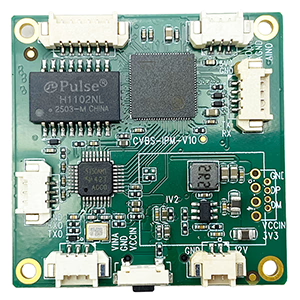
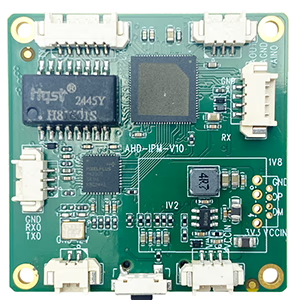
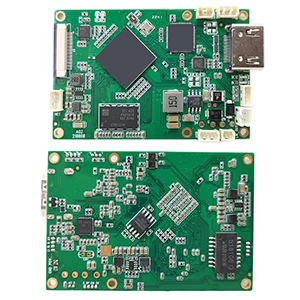
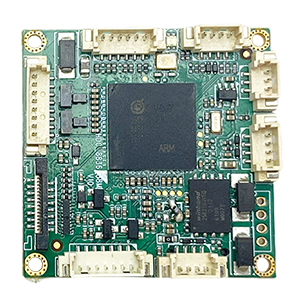
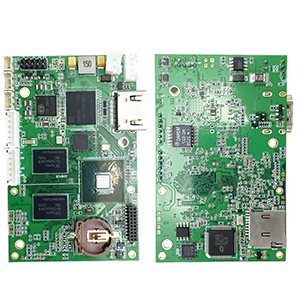
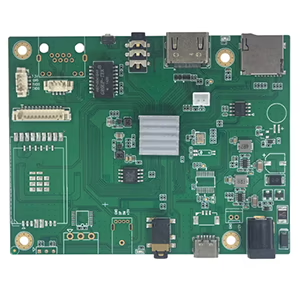
تابلوهای ماژول های رمزگشا
برای سفارشی سازی موجود است
محصولات رمزگذار جدید
| No. | نام محصول | پیکربندی | Key Features | وضعیت |
|---|---|---|---|---|
| 1 | رمزگذار ویدئویی نور مرئی UVC دو کاناله USB | 2× ورودی USB | پشتیبانی از کدگذاری ویدئویی با دوربین دوگانه USB, و RTSP جریان; خروجی محلی CVBS/HDMI; حالت های نمایش قابل تغییر | تولید انبوه |
| 2 | رمزگذار دو کاناله (1× نور مرئی USB + 1× دوربین تصویربرداری حرارتی USB) | 2× ورودی USB | پشتیبانی از دوربین دوگانه USB (قابل مشاهده است + حرارتی) گرفتن, رمزگذاری, و RTSP جریان; خروجی محلی CVBS/HDMI; حالت های نمایش قابل تغییر | تولید انبوه |
| 3 | ماژول نمایش HDMI/CVBS رسیور RTSP | HDMI + خروجی CVBS | پشتیبانی از رمزگشایی جریان RTSP تا 4×1080P@30fps; پشتیبانی از ارسال پروتکل جریان ویدئو; نمایشگر خروجی HDMI/CVBS | نمونه موجود است |
| 4 | ماژول نمایش HDMI/CVBS رسیور RTSP با 4.3"/5" ال سی دی | خروجی HDMI + صفحه نمایش LCD | پشتیبانی از رمزگشایی جریان RTSP تا 4×1080P@30fps; ارسال پروتکل; نمایشگر خروجی HDMI/CVBS | اشکال زدایی |
| 5 | رمزگذار دو کاناله (1× نور مرئی USB + 1× CVBS آنالوگ) | 1× CVBS + 1× USB UVC input | ویدئوی دوگانه (USB + CVBS), رمزگذاری و جریان RTSP; خروجی محلی CVBS/HDMI; حالت های نمایش قابل تغییر | اشکال زدایی |
| 6 | رمزگذار دو کاناله (1× USB UVC + 1× AHD آنالوگ) | 1× AHD + 1× USB UVC input | فیلمبرداری دوگانه (USB + AHD), رمزگذاری و جریان RTSP; خروجی محلی CVBS/HDMI; حالت های نمایش قابل تغییر | اشکال زدایی |
| 7 | رمزگذار دو کاناله (1× CVBS + 1× ویدئو آنالوگ AHD) | CVBS + AHD 2 ورودی ویدیو | فیلمبرداری دوگانه آنالوگ, رمزگذاری و جریان RTSP; خروجی محلی CVBS/HDMI; حالت های نمایش قابل تغییر | اشکال زدایی |
| 8 | رمزگذار دو کاناله (1× دوربین CMOS + 1× دوربین تصویربرداری حرارتی USB) | 1× رابط USB | پشتیبانی از CMOS + ضبط دوربین حرارتی USB, رمزگذاری و جریان RTSP; خروجی محلی CVBS/HDMI; حالت های نمایش قابل تغییر | تولید انبوه |
برای راه حل های تبدیل ورودی/خروجی ویدیویی سفارشی شده که در محصولات ما ذکر نشده است, لطفا برای پشتیبانی OEM/ODM با ما تماس بگیرید. ما می توانیم محصولات متناسب با نیاز شما را توسعه دهیم.
Ask A Question
از پاسخ شما سپاسگزاریم. ✨