





目錄
To resolve issues with the DVB-T24 4 天線 (DVB-T2) not starting and freezing on the logo, a firmware upgrade is required.
The model mentioned in this upgrade solution is DVB-T24.
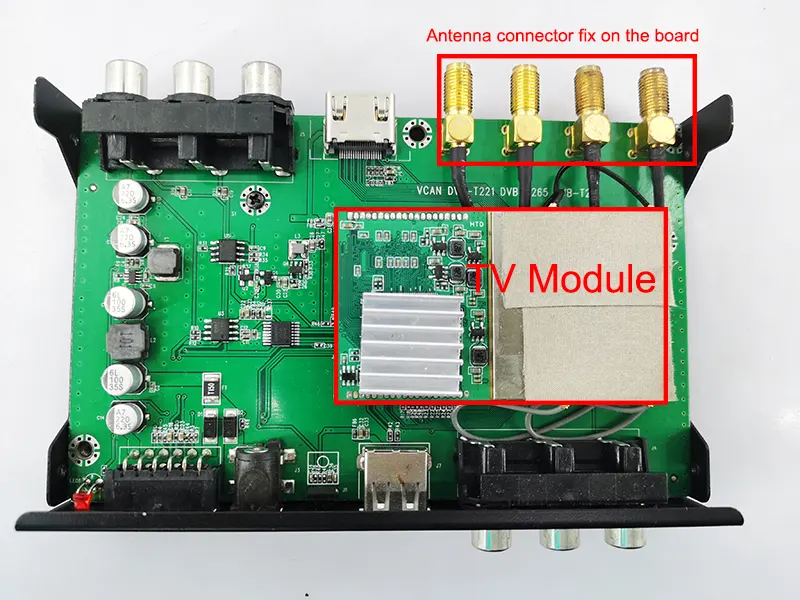
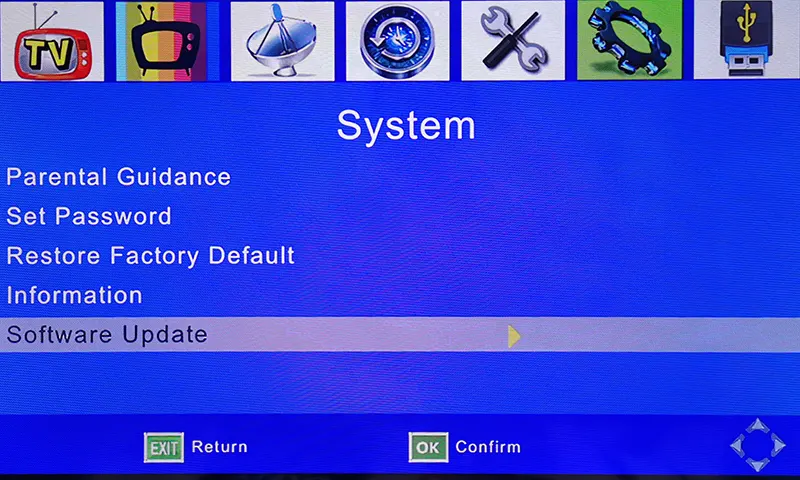
首先, please confirm that your tv box has the same as the below picture. OSD menu and PCBA picture.
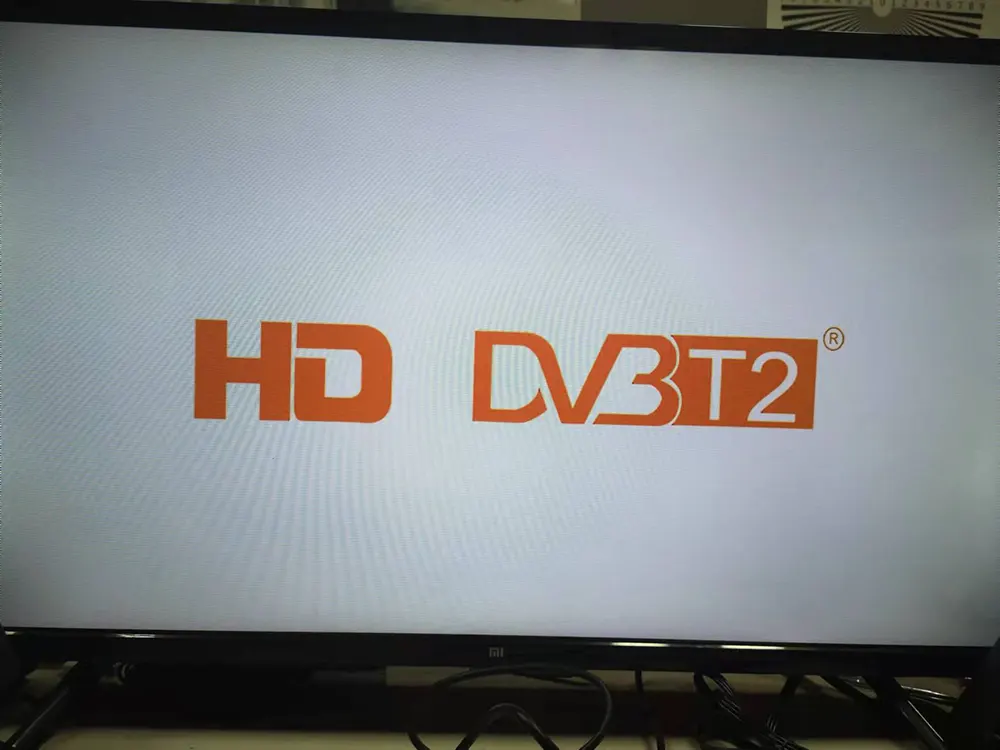
If your TV box is frozen like the image below, you won’t be able to access the TV or OSD menu.
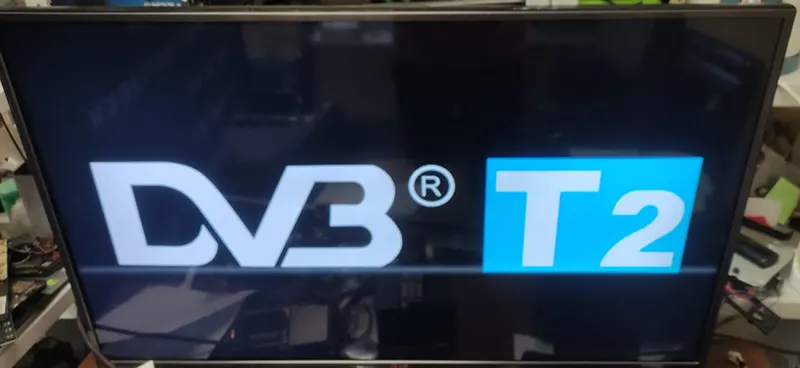
This software does NOT support another four antenna model whose starting logo is below.
Automatically Update the firmware from the USB disk, no need for remote control operation

以下韌體是為我們現有客戶列出的, 如果您需要升級或修理您的機器, 請確認硬體與我們的相同或要求我們先檢查. 若硬體故障,無確認升級操作可能會失去遙控器功能或再次無法開機。 (晶片組) 是不同的, 最後的解決方案是更換電視盒生產工廠的正確韌體 IC.
因為韌體與普通電腦軟體不同, 軟體大多時候不需要考慮硬體. The firmware is working only on the right and is the same model as the main chipset. It controls the I/O and saved the remote controller code in the firmware. 不同的工廠或供應商使用完全不同的韌體, and even the box looks the same. 他們可能會使用不同的晶片組和遙控器代碼.
Upgrade Steps
- Please download and unzip the file, it should be flash.bin.
- Copy it to the USB disk, it is better to keep only flash.bin in the USB root directory.
- Plug the USB disk into the TV box
- Give the TV box power supply
- It will upgrade it automatically (always keep the power supply, otherwise it will lose the firmware)
- Until the upgrade is successful, it will auto-start.
- The software version will be the same as the below picture.
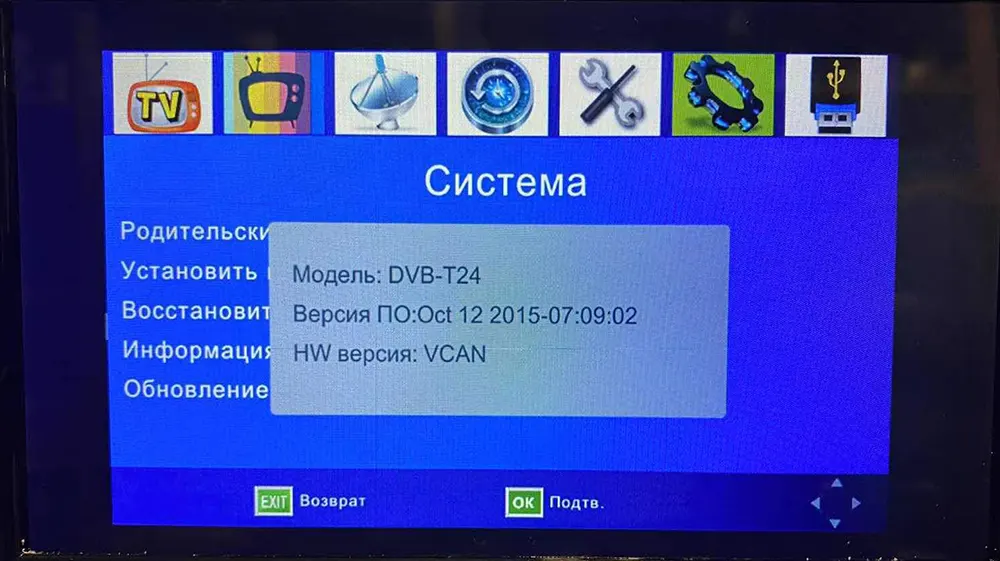
After Automatically upgrading, now you can enter the tv box, and the remote control has full function. You can upgrade another firmware to get the Multi-PLP function
Upgrade Steps
- 確保韌體適合您的機上盒.
- 解壓升級韌體. (*.bin)
- 將其複製到 USB 隨身碟. (U盤根目錄下最好沒有其他文件)
- Operate the remote controller, 選擇軟體升級 from the OSD選單 of your set-top box.
- 升級期間, 請保持電源開啟至升級完成 100% 完成的. 否則, the firmware will lose forever from the 晶片組 and the set-top box can be not powered on again.
- 升級後, please auto-search the channel and test again.
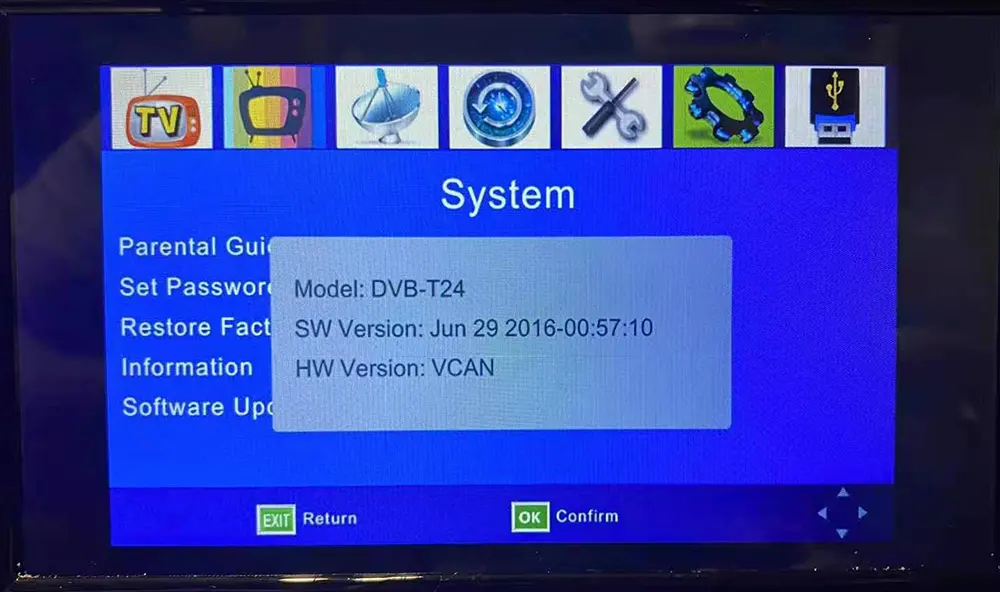
- The software version will be the same as the below picture.
問一個問題
感謝你的回應。 ✨