





When setting up an AV Video to IP Converter Board (such as an HDMI/AV/SDI to IP encoder), many users encounter the issue:
“My computer cannot connect to the encoder board.”
Trong hầu hết các trường hợp, the root cause is very simple:
your computer and the AV-to-IP converter board are not in the same subnet.
This article explains why this happens, how to check it, and how to resolve the issue quickly.
Table of Contents
Why the Same Subnet Is Required
An AV Video to IP Converter Board provides video streams through:
- Web configuration page
- luồng RTSP
- UDP multicast/unicast
- ONVIF (nếu được hỗ trợ)
All these methods require the computer to reach the board’s IP address directly.
If the converter board and your computer are in different network segments, the computer cannot locate the device.
Ví dụ:
- Encoder board IP: 192.168.1.188
- Computer IP: 192.168.0.188
These two IP addresses are in different subnets.
The third octet (1 vs 0) does not match, so the devices cannot communicate.
Correct configuration should be:
- Encoder board: 192.168.1.188
- Computer: 192.168.1.50
- Subnet mask: 255.255.255.0
Now both devices can communicate normally.
How to Check If They Are in the Same Subnet
With the most common subnet mask 255.255.255.0, simply compare the first three numbers:
| Thiết bị | Địa chỉ IP |
|---|---|
| AV → IP Encoder Board | 192.168.1.188 |
| Computer | 192.168.1.x |
If the first three octets match, they are in the same subnet.
If not, they cannot connect directly.
Common Real-World Scenarios
1. The Encoder Board Uses a Default Static IP
Most converter boards ship with a static IP such as:
- 192.168.1.168
- 192.168.1.100
- 192.168.0.155
If your computer is using DHCP and gets an address like 192.168.0.55, you will not be able to access the board.
Giải pháp:
Temporarily assign your computer a static IP such as 192.168.1.50, log in to the board, and reconfigure it if needed.
2. The Encoder Board Is Connected to a Router
If both the board and the computer are connected to the same router, the router normally assigns IPs in the same subnet.
Ví dụ:
- Encoder board → 192.168.31.40
- Computer → 192.168.31.80
Trong trường hợp này, they are already in the same network and should connect without modification.
Quick Troubleshooting Steps
1. Ping the Encoder Board
Open a command prompt and type:
ping 192.168.x.x
If it does not respond, subnet mismatch is likely.
2. Check Your Computer’s IP
- cửa sổ: Chạy
ipconfig - macOS: Check Network Preferences
Compare it to the encoder board’s default IP address.
3. Adjust Your Computer’s IP if Necessary
If the networks don’t match, set a temporary static IP in the encoder’s subnet.
4. If You Changed the Encoder’s IP and Forgot It
If you previously modified the IP address of the AV Video to IP Converter Board and later forgot it, you can still recover it easily. Connect the encoder board directly to your computer using an Ethernet cable, then download an Công cụ tìm kiếm IP (sometimes called Device Search, IP Scanner, or Encoder Finder). Run the software and click Search.
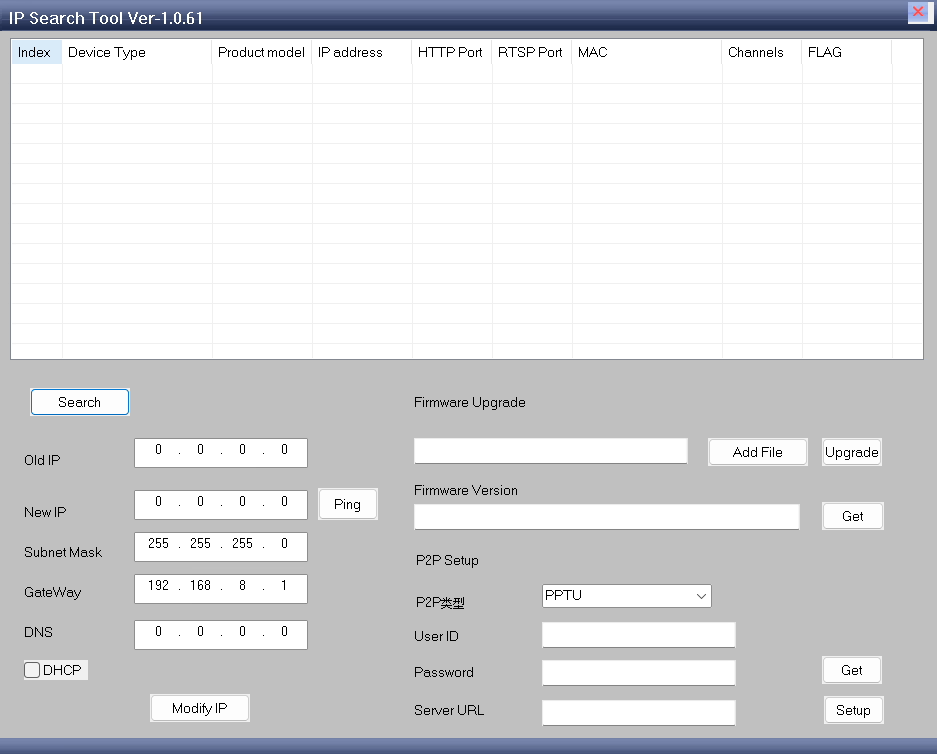
If the encoder is powered on and properly connected, the tool should display its hardware information, including the current IP address of the board.
Practical Tips for Setup
- Some encoder boards include a search/config tool that auto-detects devices even in different subnets.
- Avoid IP conflicts by ensuring each device has its own unique IP.
- If using multiple boards, label them with IP addresses for easier management.
Phần kết luận
Yes — your computer must be in the same subnet as your AV Video to IP Converter Board in order to access:
- Web configuration page
- luồng RTSP
- UDP video
- ONVIF services
If you cannot connect, the fastest solution is:
- Compare both IP addresses
- Check if the first three segments match
- Adjust your computer’s IP to the same subnet as the encoder board
Once both devices share the same network segment, the converter board will be easily accessible and all video streams will work normally.
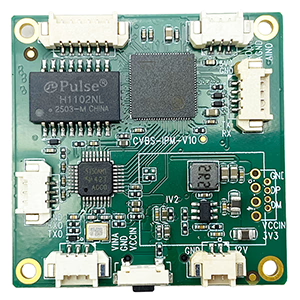
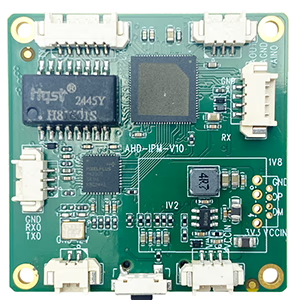
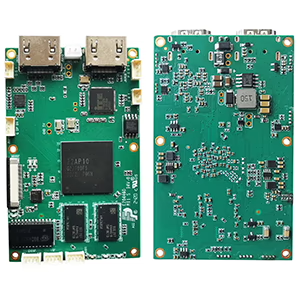
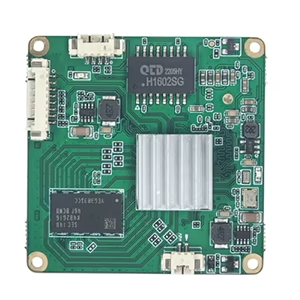
Bảng mô-đun bộ mã hóa
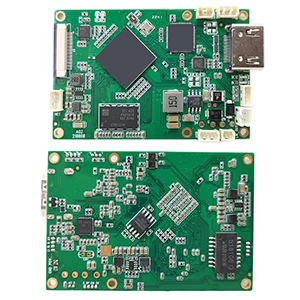
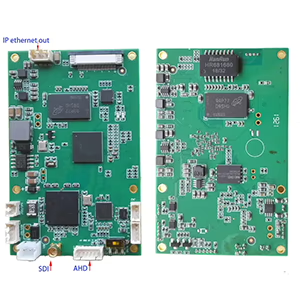
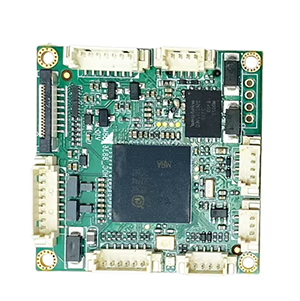
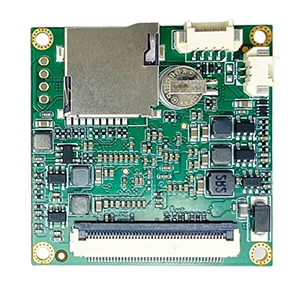
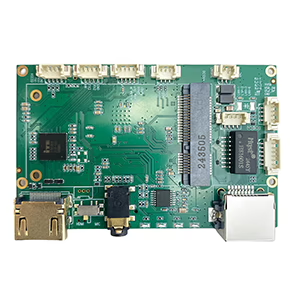
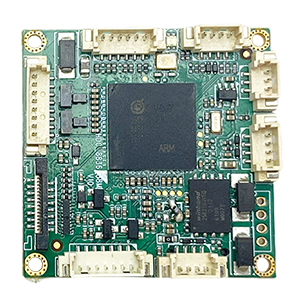
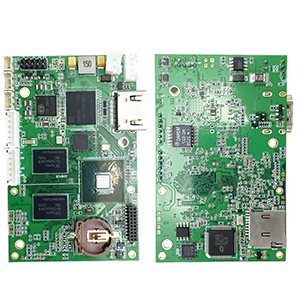
Bảng mô-đun giải mã
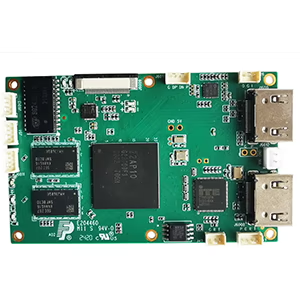
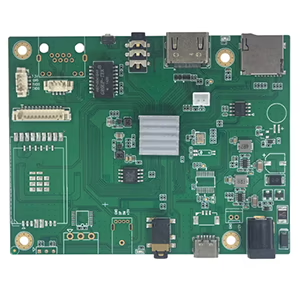
Có sẵn để tùy chỉnh
Sản phẩm mã hóa mới
| KHÔNG. | Tên sản phẩm | Cấu hình | Các tính năng chính | Trạng thái |
|---|---|---|---|---|
| 1 | Bộ mã hóa video ánh sáng nhìn thấy USB UVC hai kênh | 2× đầu vào USB | Hỗ trợ mã hóa video camera USB kép, và truyền phát RTSP; đầu ra CVBS/HDMI cục bộ; chế độ hiển thị có thể chuyển đổi | Sản xuất hàng loạt |
| 2 | Bộ mã hóa kênh đôi (1× Đèn nhìn thấy được USB + 1× Camera chụp ảnh nhiệt USB) | 2× đầu vào USB | Hỗ trợ camera USB kép (dễ thấy + nhiệt) chiếm lấy, mã hóa, và truyền phát RTSP; đầu ra CVBS/HDMI cục bộ; chế độ hiển thị có thể chuyển đổi | Sản xuất hàng loạt |
| 3 | Mô-đun hiển thị HDMI/CVBS của bộ giải mã RTSP | HDMI + Đầu ra CVBS | Hỗ trợ giải mã luồng RTSP lên tới 4×1080P@30fps; Hỗ trợ chuyển tiếp giao thức truyền phát video; Màn hình đầu ra HDMI/CVBS | Mẫu có sẵn |
| 4 | Mô-đun hiển thị HDMI/CVBS Bộ giải mã RTSP với 4.3"/5" LCD | Đầu ra HDMI + màn hình LCD | Hỗ trợ giải mã luồng RTSP lên tới 4×1080P@30fps; chuyển tiếp giao thức; Màn hình đầu ra HDMI/CVBS | Gỡ lỗi |
| 5 | Bộ mã hóa kênh đôi (1× Đèn nhìn thấy được USB + 1× CVBS Tương tự) | 1× CVBS + 1× Đầu vào USB UVC | Video kép (USB + CVBS), mã hóa và truyền phát RTSP; đầu ra CVBS/HDMI cục bộ; chế độ hiển thị có thể chuyển đổi | Gỡ lỗi |
| 6 | Bộ mã hóa kênh đôi (1× USB UVC + 1× AHD Tương tự) | 1× AHD + 1× Đầu vào USB UVC | Quay video kép (USB + AHD), mã hóa và truyền phát RTSP; đầu ra CVBS/HDMI cục bộ; chế độ hiển thị có thể chuyển đổi | Gỡ lỗi |
| 7 | Bộ mã hóa kênh đôi (1× CVBS + 1× Video tương tự AHD) | CVBS + AHD 2 đầu vào video | Quay video analog kép, mã hóa và truyền phát RTSP; đầu ra CVBS/HDMI cục bộ; chế độ hiển thị có thể chuyển đổi | Gỡ lỗi |
| 8 | Bộ mã hóa kênh đôi (1× Máy ảnh CMOS + 1× Camera chụp ảnh nhiệt USB) | 1× Giao diện USB | Hỗ trợ CMOS + Chụp ảnh nhiệt USB, mã hóa và truyền phát RTSP; đầu ra CVBS/HDMI cục bộ; chế độ hiển thị có thể chuyển đổi | Sản xuất hàng loạt |
Dành cho các giải pháp chuyển đổi đầu vào/đầu ra video tùy chỉnh không được liệt kê trong các sản phẩm của chúng tôi, vui lòng liên hệ với chúng tôi để được hỗ trợ OEM/ODM. Chúng tôi có thể phát triển các sản phẩm phù hợp dựa trên yêu cầu của bạn.
Ask A Question
Tin nhắn của bạn đã được gửi