





When setting up an AV Video to IP Converter Board (such as an HDMI/AV/SDI to IP encoder), many users encounter the issue:
“My computer cannot connect to the encoder board.”
В большинстве случаев, the root cause is very simple:
your computer and the AV-to-IP converter board are not in the same subnet.
This article explains why this happens, how to check it, and how to resolve the issue quickly.
Table of Contents
Why the Same Subnet Is Required
An AV Video to IP Converter Board provides video streams through:
- Web configuration page
- RTSP-поток
- UDP multicast/unicast
- ОНВИФ (если поддерживается)
All these methods require the computer to reach the board’s IP address directly.
If the converter board and your computer are in different network segments, the computer cannot locate the device.
Например:
- Encoder board IP: 192.168.1.188
- Computer IP: 192.168.0.188
These two IP addresses are in different subnets.
The third octet (1 против 0) does not match, so the devices cannot communicate.
Correct configuration should be:
- Encoder board: 192.168.1.188
- Computer: 192.168.1.50
- Subnet mask: 255.255.255.0
Now both devices can communicate normally.
How to Check If They Are in the Same Subnet
With the most common subnet mask 255.255.255.0, simply compare the first three numbers:
| Устройство | IP Address |
|---|---|
| AV → IP Encoder Board | 192.168.1.188 |
| Computer | 192.168.1.х |
If the first three octets match, they are in the same subnet.
Если не, they cannot connect directly.
Common Real-World Scenarios
1. The Encoder Board Uses a Default Static IP
Most converter boards ship with a static IP such as:
- 192.168.1.168
- 192.168.1.100
- 192.168.0.155
If your computer is using DHCP and gets an address like 192.168.0.55, you will not be able to access the board.
Решение:
Temporarily assign your computer a static IP such as 192.168.1.50, log in to the board, and reconfigure it if needed.
2. The Encoder Board Is Connected to a Router
If both the board and the computer are connected to the same router, the router normally assigns IPs in the same subnet.
Пример:
- Encoder board → 192.168.31.40
- Computer → 192.168.31.80
В этом случае, they are already in the same network and should connect without modification.
Quick Troubleshooting Steps
1. Ping the Encoder Board
Open a command prompt and type:
ping 192.168.x.x
If it does not respond, subnet mismatch is likely.
2. Check Your Computer’s IP
- Окна: Бегать
ipconfig - macOS: Check Network Preferences
Compare it to the encoder board’s default IP address.
3. Adjust Your Computer’s IP if Necessary
If the networks don’t match, set a temporary static IP in the encoder’s subnet.
4. If You Changed the Encoder’s IP and Forgot It
If you previously modified the IP address of the AV Video to IP Converter Board and later forgot it, you can still recover it easily. Connect the encoder board directly to your computer using an Ethernet cable, then download an Инструмент поиска IP (sometimes called Device Search, IP Scanner, or Encoder Finder). Run the software and click Search.
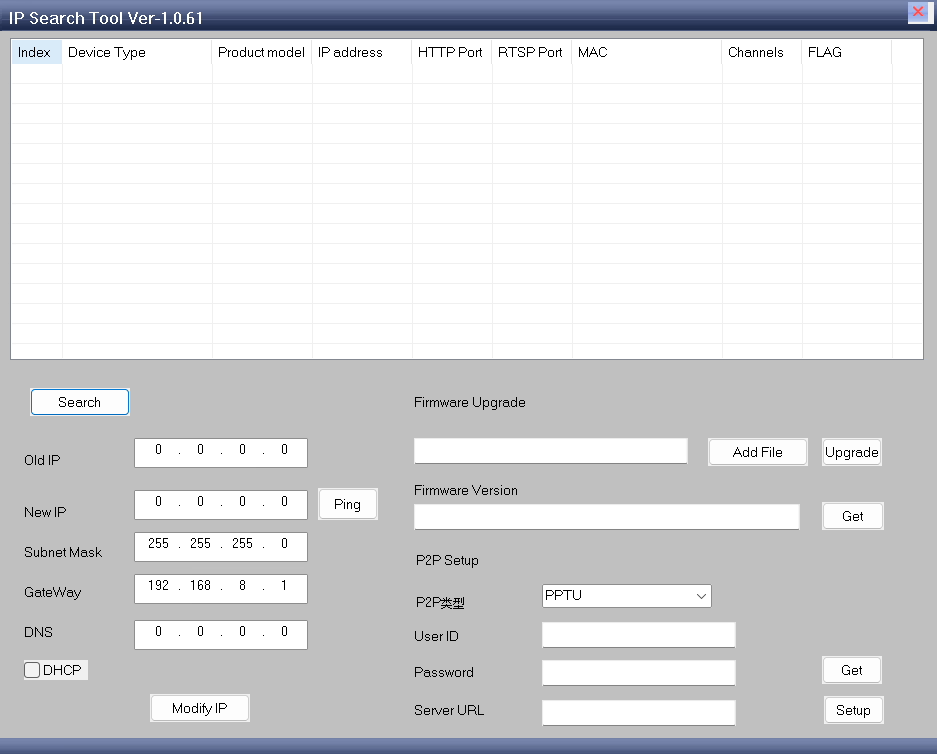
If the encoder is powered on and properly connected, the tool should display its hardware information, including the current IP address of the board.
Practical Tips for Setup
- Some encoder boards include a search/config tool that auto-detects devices even in different subnets.
- Avoid IP conflicts by ensuring each device has its own unique IP.
- If using multiple boards, label them with IP addresses for easier management.
Заключение
Yes — your computer must be in the same subnet as your AV Video to IP Converter Board in order to access:
- Web configuration page
- RTSP-поток
- UDP video
- ONVIF services
If you cannot connect, the fastest solution is:
- Compare both IP addresses
- Check if the first three segments match
- Adjust your computer’s IP to the same subnet as the encoder board
Once both devices share the same network segment, the converter board will be easily accessible and all video streams will work normally.
Encoder Modules Boards
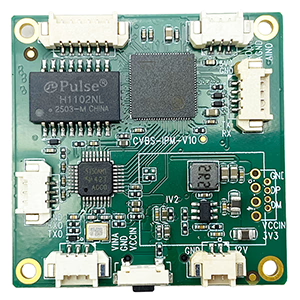
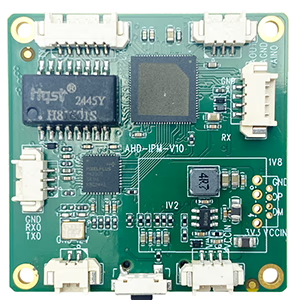
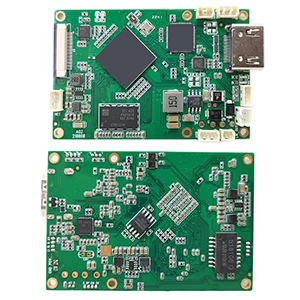
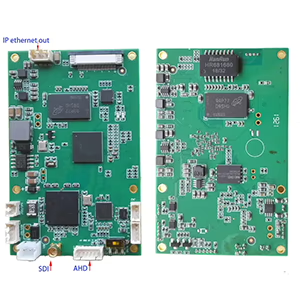
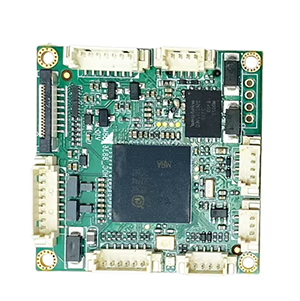
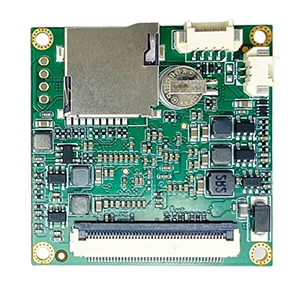
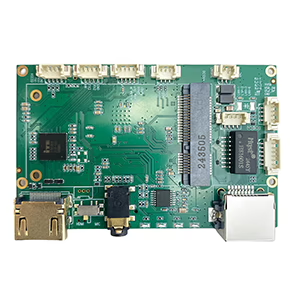
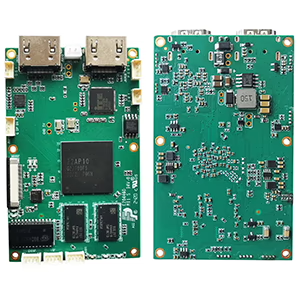
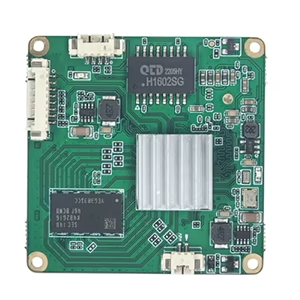
Платы модулей декодеров
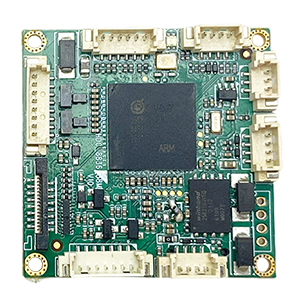
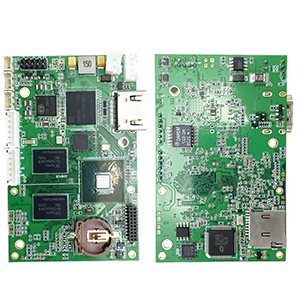
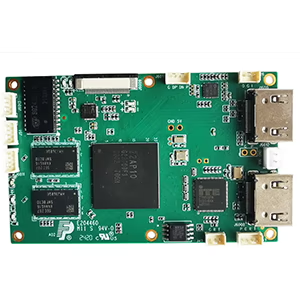
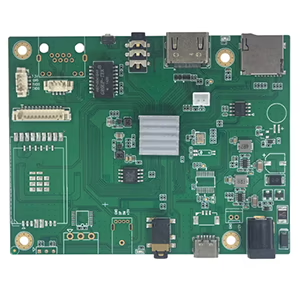
Доступно для настройки
Новые продукты кодировщиков
| No. | Название продукта | Конфигурация | Key Features | Статус |
|---|---|---|---|---|
| 1 | Двухканальный USB-видеокодер видимого света UVC | 2× USB-вход | Поддержка кодирования видео с двойной USB-камеры., and RTSP streaming; локальный выход CVBS/HDMI; переключаемые режимы отображения | Mass Production |
| 2 | Dual-Channel Encoder (1× USB-видимый свет + 1× USB-тепловизор) | 2× USB-вход | Поддерживает двойную USB-камеру (видимый + термический) захватывать, кодирование, and RTSP streaming; локальный выход CVBS/HDMI; переключаемые режимы отображения | Mass Production |
| 3 | Декодер RTSP Модуль дисплея HDMI/CVBS | HDMI + CVBS-выход | Supports up to 4×1080P@30fps RTSP stream decoding; Support video streaming protocol forwarding; Выходной дисплей HDMI/CVBS | Sample Available |
| 4 | Декодер RTSP Модуль дисплея HDMI/CVBS с 4.3"/5" ЖК-дисплей | HDMI-выход + ЖК-экран | Supports up to 4×1080P@30fps RTSP stream decoding; protocol forwarding; Выходной дисплей HDMI/CVBS | Отладка |
| 5 | Dual-Channel Encoder (1× USB-видимый свет + 1× Аналог CVBS) | 1× ЦВБС + 1× USB-вход UVC | Двойное видео (USB + CVBS), кодирование и потоковая передача RTSP; локальный выход CVBS/HDMI; переключаемые режимы отображения | Отладка |
| 6 | Dual-Channel Encoder (1× USB УФС + 1× Аналоговый AHD) | 1× ЭХД + 1× USB-вход UVC | Двойной захват видео (USB + AHD), кодирование и потоковая передача RTSP; локальный выход CVBS/HDMI; переключаемые режимы отображения | Отладка |
| 7 | Dual-Channel Encoder (1× ЦВБС + 1× Аналоговое видео AHD) | CVBS + AHD 2 video input | Двойной аналоговый видеозахват, кодирование и потоковая передача RTSP; локальный выход CVBS/HDMI; переключаемые режимы отображения | Отладка |
| 8 | Dual-Channel Encoder (1× КМОП-камера + 1× USB-тепловизор) | 1× USB-интерфейс | Поддерживает КМОП + USB-термокамера захвата, кодирование и потоковая передача RTSP; локальный выход CVBS/HDMI; переключаемые режимы отображения | Mass Production |
Для индивидуальных решений по преобразованию видеовхода/выхода, не перечисленных в наших продуктах, пожалуйста, свяжитесь с нами для поддержки OEM/ODM. We can develop tailored products based on your requirements.
Ask A Question
Спасибо за ответ. ✨