






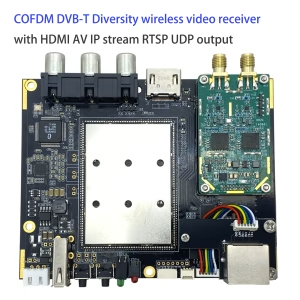
COFDM Receiver Configuration and Streaming Protocol Guide for vcan1776-RX.

Obsah
já. Preparation
- Download the upgrade firmware of COFDM receiver, which is support three firmware for three different streaming protocol. Download Here.
- After upgrading the firmware, the receiver will restore factory default parameters:
- Center Frequency: 320 MHz
- Wireless Bandwidth: 6 MHz
- Ethernet Port IP Address: 192.168.0.215
- Please use the LCD parameter configuration board to adjust the center frequency and bandwidth so that they match the transmitter’s saved settings.
- Customers can access the receiver’s web server interface to modify:
- The receiver’s own IP address. (Local IP)
- The Windows PC IP address that the receiver will connect to. (Remote IP)
 Poznámky:
A) Remote IP refers to your Windows PC IP. Configure it according to your actual setup.
b) Port refers to the UDP streaming port, výchozí 1234.
c) After making changes, restart the receiver for the settings to take effect.
- Select the required Ethernet output protocol.
 Poznámky: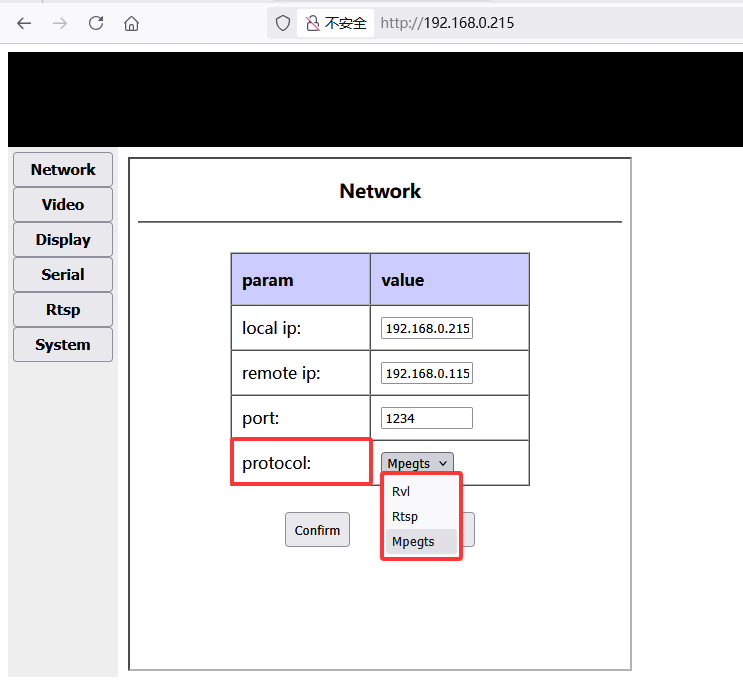
II. Protocol Overview
1. Rvl Protocol
Rvl is a custom protocol used between the COFDM transmitter and receiver. It streams video directly over UDP. The PC can only decode and play this stream using Splayer.
A) Splayer Configuration
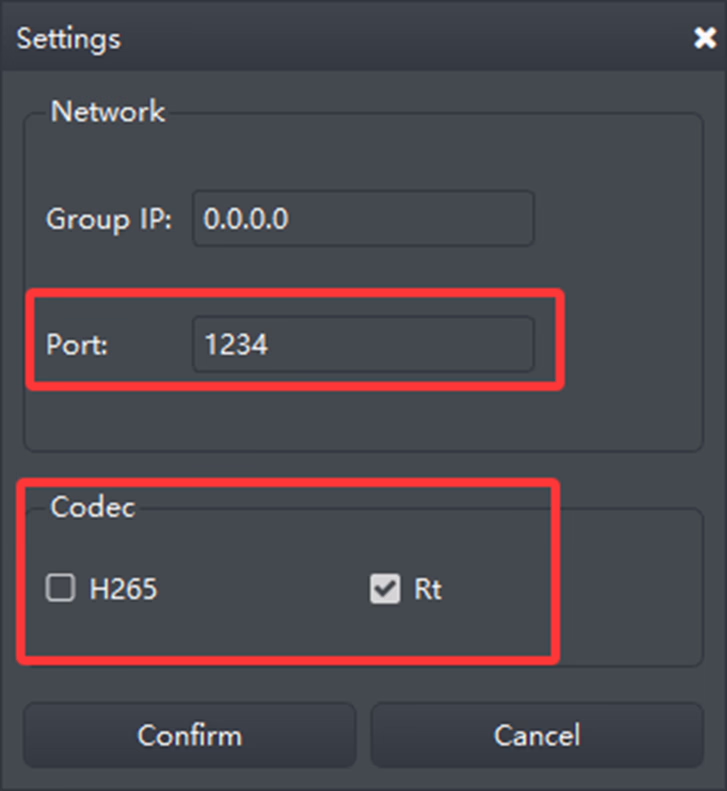
Poznámky:
- Ensure the Port is set to 1234, consistent with the web server settings.
- Configure the kodek according to the video stream type. Například, for H.264 low-latency video, use the corresponding codec settings.
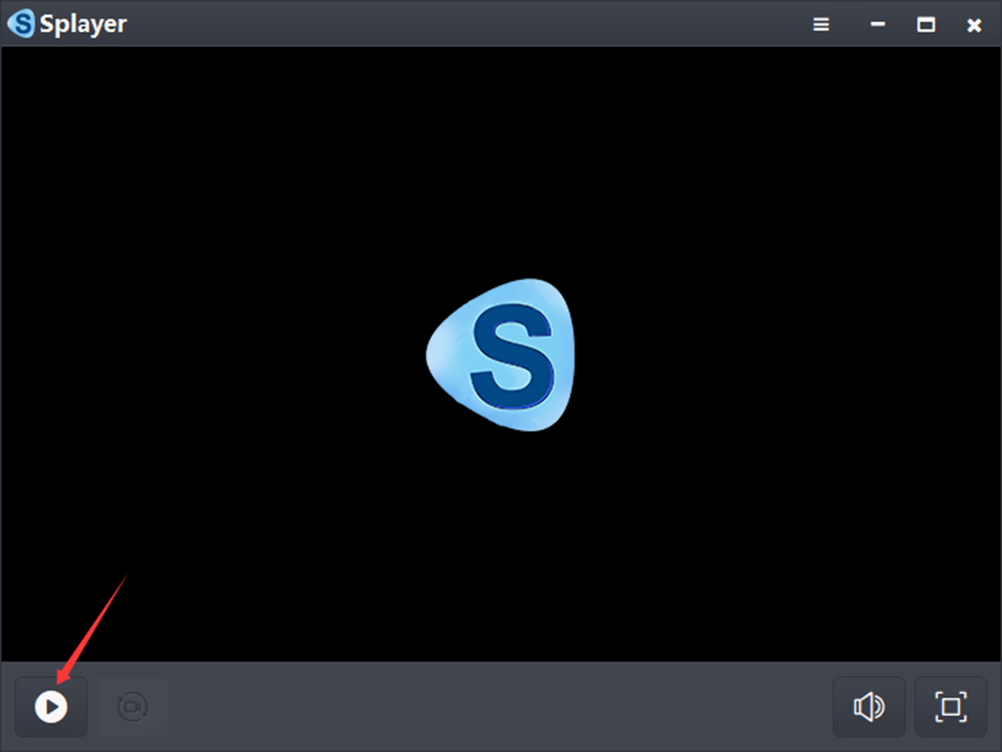
b) Po konfiguraci, click the “Confirm” button to save the settings. Then press the play button (bottom left). The Windows PC will begin decoding and playing the UDP stream immediately upon receiving it.
2. RTSP Protocol
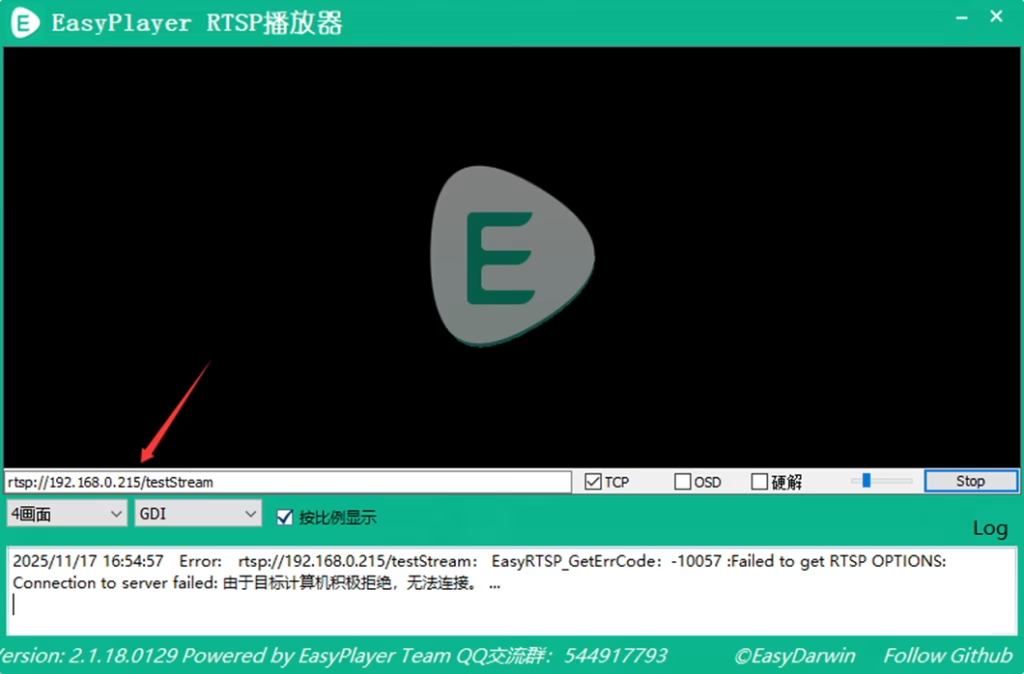
RTSP streaming is supported and can be played using VLC, EasyPlayer, and other RTSP-capable players.
A) The RTSP streaming URL can be found on the receiver’s web server RTSP page.
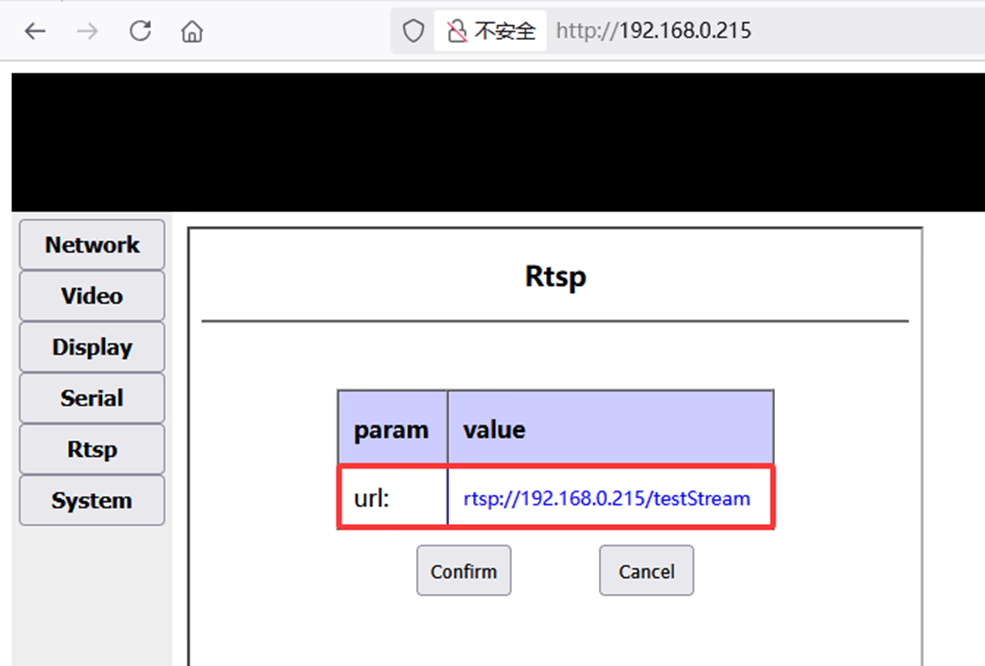
b) In EasyPlayer, simply enter the corresponding RTSP URL to start streaming.
3. MPEG-TS Protocol
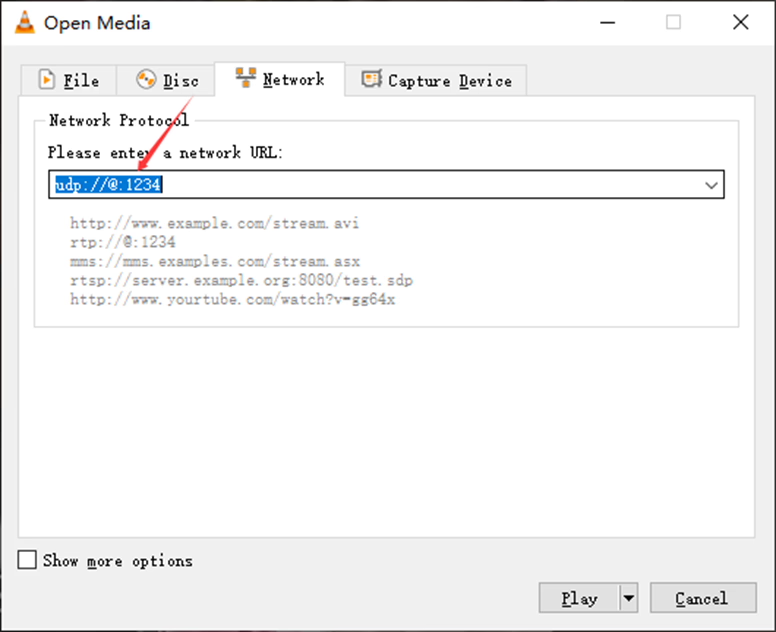
MPEG-TS is a standard TS protocol streamed over UDP. The PC can decode and play the stream using VLC or similar players.
A) In VLC, enter the corresponding URL and click “Play”. The Windows PC will begin decoding and displaying the UDP stream immediately.

Položit otázku
Děkujeme za Vaši odpověď. ✨