






Бездротове відео & Обладнання для передачі даних
1. Відмова від відповідальності
Thank you very much for using our products!
Please use this product in accordance with local laws and regulations. We will not bear any legal liability for any result or loss caused by unauthorized use, установка, or refit of this product, і т.д.. Please use this product carefully according to the procedures and precautions mentioned in this manual. No refund or exchange support and free-maintenance services will be provided if this product is damaged due to disassembly, impact, misoperation, and other reasons.
This manual is copyrighted by Shenzhen Vcan Group Limited. Reproduction in any form is not allowed without permission.
2. Запобіжні заходи
In order to ensure the correct and best use of this product, before the operation, please read this manual carefully and follow the relevant procedures and precautions for fear of damage to the device or poor performance due to misoperation or improper use. The operator should have some basic knowledge of communication electronics. When installing and using this product, please pay attention to the following.
Installation precautions:
- Before the device is powered on, loads such as an antenna or an attenuator must be installed to the antenna interface, інакше, the power amplifier module inside the device will be damaged.
- When replacing the antenna, the power must be cut off first, інакше, the power amplifier module inside the device will be damaged.
- The antenna connection matching the device frequency should be selected, інакше, the power amplifier module inside the device may be damaged.
- Please use a DC power supply of dc12v ~ dc30v to supply power to the device, інакше, the circuit may be damaged or the device may work abnormally.
- The antenna of the device should be exposed in the air as far as possible and obstacles should be avoided in order to prevent shortened communication distance.
- The antenna should be installed as far away from large metal parts as possible.
- The device should be kept at a certain distance from another electronic device as far as possible to reduce electromagnetic interference between devices.
Operation precautions:
- Make sure that all interfaces of the device are correctly connected and tightened with intact wiring.
2. After powering it on, wireless data transmission can be realized in about 20 секунд.
3.High-power co-frequency interference in the surroundings will lead to the normal communication of the device. The problem can be solved by changing the working frequency of the device or cutting off the co-frequency interference source.
4.The IP network segment of the computer should be consistent with that of the device, інакше, the configured software will not be opened normally.
5. Протягом the connection test, a distance of over 3m between the devices should be kept in order to avoid power saturation and may damage to the RF devices.
3. Огляд продукту
Operation precautions:
The Video & Data wireless transmission device is characterized by small size, низьке енергоспоживання, and long communication distance, і т.д.. It supports the simultaneous transmission of network data, дані управління польотом, PTZ control data, and remote control data encoded by HD cameras.
The central node can be used under a point-to-point or a point-to-multipoint mode. Two devices are subject to the point-to-point mode, while three or more devices must be subject to the point-to-multipoint mode. тому, only a slave node is needed to expand the application of the device. It has been provided with an encryption function, so channel encryption keys can be set independently.
This device supports the transparent transmission protocol and can be used to transmit flight control and other mounted data simultaneously. The ground end can be used to exchange data with the ground station through a serial port or network port (UDP/TCP). It supports serial port and SBUS transmission functions, and thus the distance of the UAV control link can be extended.
4. Особливості продукту
- Supporting multiple frequency ranges and bandwidths.
- Having multiple control interfaces.
- High carrier-to-noise ratio
- Wide input voltage range, supporting DC12~30V voltage input.
- Низьке енергоспоживання.
- Макс. downlink rate: 30Мбіт/с, пропускна здатність: 20МГц;
- Макс. uplink rate: 26Мбіт/с, пропускна здатність: 20МГц.
- Support OTA / local/remote upgrade.
- Supporting point-to-multipoint mode and multiple purposes.
5. Product functions
- Working frequency ranges: 800МГц / 1.4ГГц / 2.4GHz for free choice.
- Adjustable bandwidth among 3MHz, 5МГц, 10MHz and 20MHz.
- Adjustable mapping mode among QPSK, 16QAM and 64AQM.
- Supporting three serial ports and one SBUS.
- Supporting simultaneous transmission of at most 3 мережеві порти.
- Support AES128 encryption
6. Технічні параметри
| Пункт | Spec/Parameters |
| Повітряний блок / Наземний блок | |
| Operation Voltage | DC12V~DC30V,Standard input DC12V |
| Споживана потужність | ≤11W @ 33dBm |
| модуляція | OFDM |
| Інтерфейс даних | UART(TTL/RS232)/SBUS |
| Частота | 1428~1448 МГц |
| Channel rate | Uplink(Макс): 30Мбіт/с,Downlink(Макс):26Мбіт/с |
| Пропускна здатність | 3/5/10/20МГц |
| Затримка | ≤15ms |
| Потужність передачі | ≤33dBm(Adjustable) |
| Робоча температура | -30℃ ~ 60 ℃ |
| Температура зберігання | -40℃ ~ 75 ℃ |
| антена | 6дБі / 12дБі |
| Communication Protocol | IEEE802.3, Transparent serial data |
| спілкування | Від точки до точки, Point to Multi-Points relay mode |
| Діапазон | 3~10Km |
| розміри | 115*92*28мм |
| вага | ≤260g |
7. Physical picture and the dimension of the transmission device
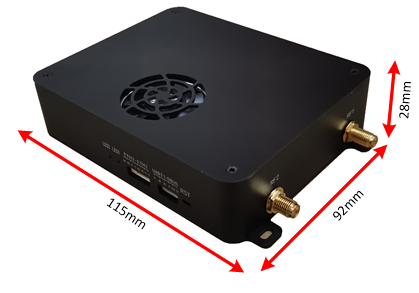
Fig. 4.1Physical picture and the dimension
Інтерфейс пристрою
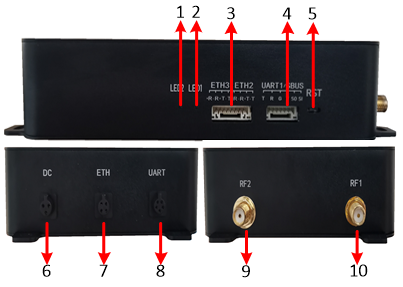
Fig. 4.2 Фізичний інтерфейс
①Signal strength indicator light (зелений: сильний, blue: medium, червоний: weak);
②Frequency range indicator light (зелений: 2.4Г, blue: 1.4Г, червоний: 800М);
③ Two standby network ports are provided, the air end can connect 3 камери, and the ground end can connect at most 3 computers for monitoring;
④SBUS interface / standby data serial port: one end is connected to the SBUS interface on the ground end, and the other is connected to the coaching interface of the remote controller;
⑤Reset: the device can be restarted by pressing it down for 1~2s; the factory settings can be restored by pressing it down for more than 5s;
⑥ Power interface, діапазон напруги: DC12V~DC30V;
⑦Network interface: the video output interface (наземний кінець) can be connected to PC or the ground station; the video input interface (повітряний кінець) can be connected to the camera;
⑧Serial port (UART): Послідовний порт 2 is a data serial port, Послідовний порт 3 is a multiplex serial port (a default data serial port, configuration mode can be selected and exited by inputting “#cfg#” і “#ext#”, відповідно). UART level standard: TTL-3.3V/RS232;
⑨ Secondary antenna interface;
⑩ Main antenna interface.
8.Installation instructions
Air end installation

Fig. 5.1 Schematic diagram of air end installation and connection
Ground-end installation
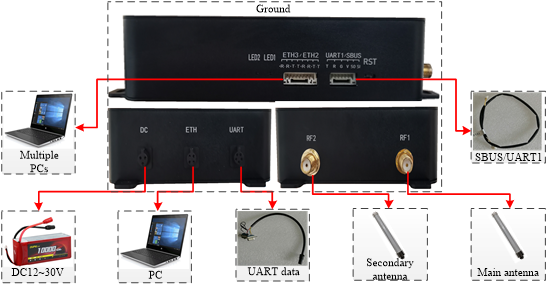
Fig. 5.2 Schematic diagram of ground end installation and connection
The installation at the air end is consistent with that at the ground end.
The air end and ground end of the XK-F303E two-way Video & Data integrated device are shown in Fig. 5.1 і 5.2. Detailed installation steps:
① Connect the main and secondary antennas of the corresponding frequency points to Port RF1 and RF2 first, and make sure that the connection is tight;
② Connect the air end network interface to the pod, and the ground end network interface to the computer/ground station;
③ SBUS interface: connect the air end to the aircraft flight controller and the ground end to the remote controller. Make sure that the connection is correct;
④ If the user’s serial data is needed to be transmitted, use a USB serial cable to connect it to the PC end;
⑤ Finally, power on.
9. Web page configuration
- 9.1 Login Interface
Input the device IP on the web page to enter the interface shown in Fig. 9.1.

Fig. 9.1 Login interface
The parameter setting page can be shown by entering Account: “адмін” and Password: “адмін”. китайський / English pages are supported.
- 9.2 “Wireless Parameter Setting” інтерфейс
The central node parameter setting involves master-slave setting, frequency range setting, frequency hopping setting, power setting, bandwidth setting, uplink/downlink setting, мережевий режим, and encryption setting.

Fig. 9.2.1 “Wireless Parameter Setting” інтерфейс (майстер)
The parameter setting of access node involves master-slave setting, frequency range setting, power setting and encryption setting.
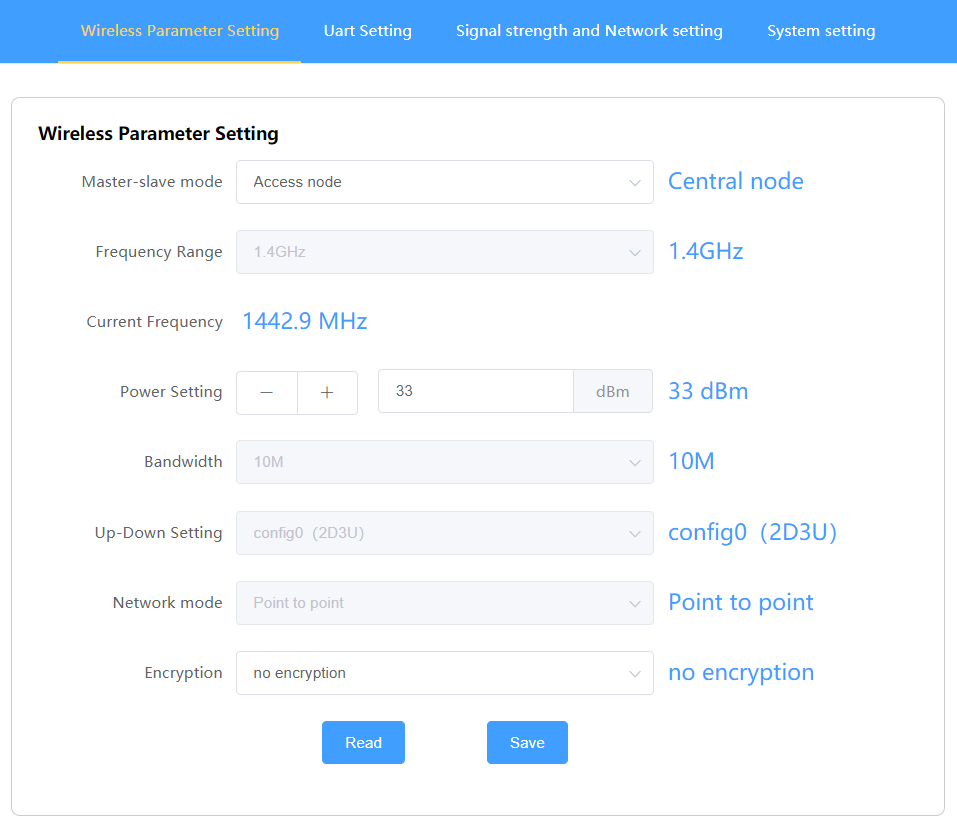
Fig. 9.2.2 “Wireless Parameter Setting” інтерфейс (раб)
- Master-slave setting
The “Центральний вузол” і “Вузол доступу” can be set. More than two devices are required to form a successful link, and there can only be one central node.
- Frequency hopping setting
Стрибкоподібні зміни частоти: When setting the frequency hopping, the frequency point of the device changes automatically.
Frequency fixing: the frequency points in the list can be set manually. Наприклад, 1.4G frequency range includes the following frequency points:
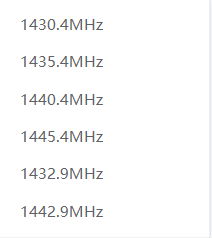
Fig.9.2.3 Dropdown option of “Frequency Range Fixing Point”
- Power setting
Setting range: 0~33dBm
- Bandwidth setting
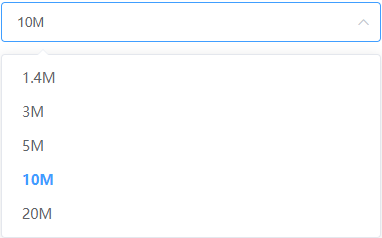
Fig. 9.2.4 Dropdown option of “Bandwidth Setting”
The bandwidth settings are 1.4Mhz, 3МГц, 5МГц, 10МГц, and 20MHz.
The wider the bandwidth is, the higher the transmission rate / the shorter the transmission distance will become; The farther the transmission distance is, the lower the transmission rate will become.
- Uplink/downlink setting
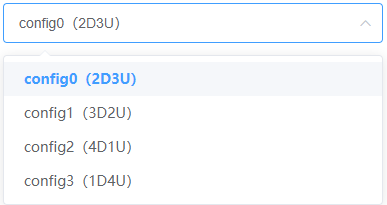
Fig. 9.2.5 Dropdown option of “Uplink / Downlink Setting”
The uplink/downlink settings are config0, config1, config2, and config3.
When the time slot ratio is set under different bandwidths, the quality of the transmitted image will change, so an appropriate time slot ratio is needed. The UL rate is the speed of the access node sent to the central node. The DL rate is the speed of the central node sent to the access node, which is similar to the 4G base station mode, тобто. the center node is the base station, and the access node is the transmission of the mobile terminal.
The set parameters are shown in Fig. 9.2.6:

Fig. 9.2.6 Time slot ratio reference
- Режим роботи в мережі
Підтримуючи “Точка-точка” і “Точка-багато точок”.
- Encryption setting
Supporting AES128 encryption, до 16 bits allowed.
- 9.3 “Serial port setting” інтерфейс

Fig. 9.3.1 “Serial port setting” інтерфейс
Two serial ports are provided to support serial data network forwarding and UDP data flow.

Fig. 9.3.2
Settable serial ports (2 RS232 and 1 TTL) are provided. The settable baud rates are 9600, 19200, 38400, 57600, і 115200.

Fig. 9.3.3 Dropdown option of “Baud Rate Setting”
- “Signal strength and network setting” інтерфейс
В тому числі: “Signal Strength Status” і “Network Parameter Setting”
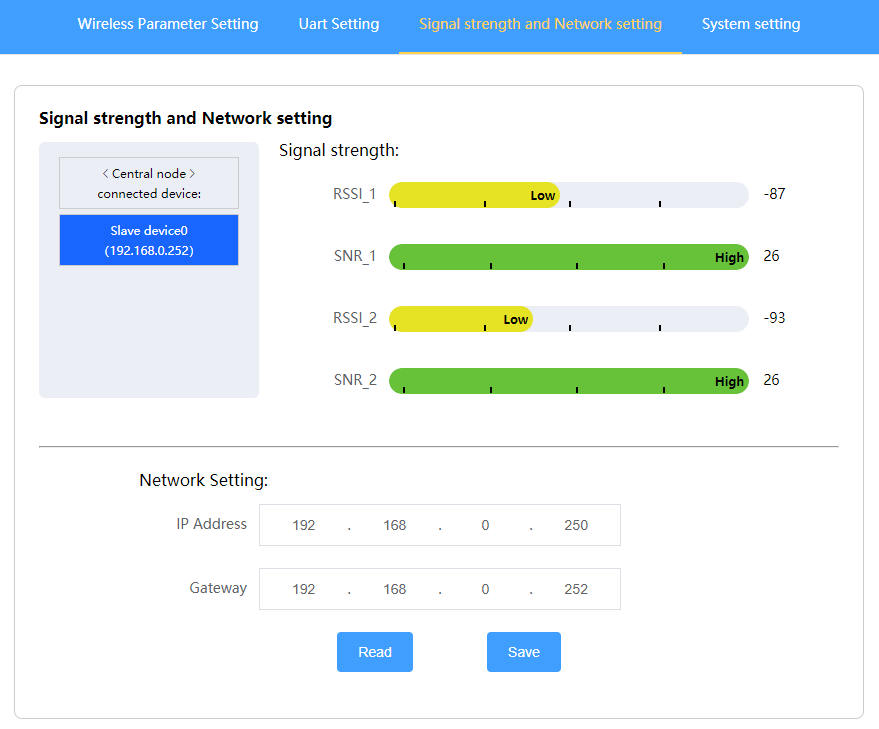
Fig. 9.4.1 “Signal strength and network setting” інтерфейс
- Signal strength and network setting
The list on the left shows the networking information of the device:
All-access nodes in the network can be observed after entering the central node network configuration page, while on the access node network configuration interface, only the central node can be observed.
Сила сигналу: indicating the wireless signal strength of the equipment. The signal strength “-141 ~ -44” is from weak to strong in turn. The higher the SNR is, the better the quality of the wireless signal is.
- Network parameter setting
The local IP indicates the IP address of the device. The IP destination should be set as follows:
Точка-точка: the IP destination address of the central node should be set with the IP address of the access node with which the network is established, and the IP destination address of the access node should also be set with the IP address of the central node with which the network is established.
Точка-багато точок: the IP destination of the central node can be set with the IP address of any slave node with which the network is established, проте, all access nodes should be set with the IP address of the central node (set flexibly according to the actual application. The destination address of this device is the IP address of this device transmitted from the serial port to another device. The two terminal devices are specified to form the serial port link).
Примітка: all networking devices should be kept within the same network segment!
- “System setting” interface
Including device model, device temperature, версія прошивки, baseband version, webpage version, і т.д..

Fig. 9.5 “System Setting” interface
Supporting versions upgraded in a real-time way for the sake of easy operation; Supporting soft restart and restoring factory settings.
10. PC IP setting

Fig. 10.1.1 Network connection

Fig. 10.1.2 PC IP address setting
The PC IP address network segment should be consistent with that of the network camera! The IP address should not change, інакше, a connection failure will be caused.
11. Network camera setting
перше, log in to the network camera page to learn how to set the IP address parameters of the network camera. The parameter selection of different types of webcams is a little different. The setting is shown below:
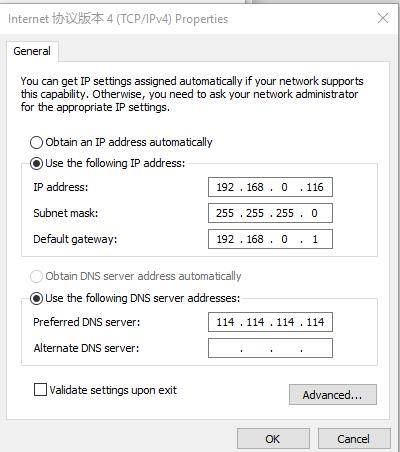
Fig. 11.2 Network setting of network camera
The network segment of the camera should be the same as that of the PC IP address. Наприклад, the above configuration is 192.168.0.X, проте, the two IP addresses cannot be the same, інакше, a failure will be caused.
12. Network decoding
Enter the IP address of the camera in the browser player to observe the decoding effect. Other decoding software can also be used, enter the RTSP streaming address and port number.
задавати питання
Дякуємо за вашу відповідь. ✨