





When setting up an AV Video to IP Converter Board (such as an HDMI/AV/SDI to IP encoder), many users encounter the issue:
“My computer cannot connect to the encoder board.”
W większości przypadków, the root cause is very simple:
your computer and the AV-to-IP converter board are not in the same subnet.
This article explains why this happens, how to check it, and how to resolve the issue quickly.
Table of Contents
Why the Same Subnet Is Required
An AV Video to IP Converter Board provides video streams through:
- Web configuration page
- Strumień RTSP
- UDP multicast/unicast
- ONVIF (jeśli jest obsługiwany)
All these methods require the computer to reach the board’s IP address directly.
If the converter board and your computer are in different network segments, the computer cannot locate the device.
Na przykład:
- Encoder board IP: 192.168.1.188
- Computer IP: 192.168.0.188
These two IP addresses are in different subnets.
The third octet (1 vs 0) does not match, so the devices cannot communicate.
Correct configuration should be:
- Encoder board: 192.168.1.188
- Computer: 192.168.1.50
- Subnet mask: 255.255.255.0
Now both devices can communicate normally.
How to Check If They Are in the Same Subnet
With the most common subnet mask 255.255.255.0, simply compare the first three numbers:
| Urządzenie | IP Address |
|---|---|
| AV → IP Encoder Board | 192.168.1.188 |
| Computer | 192.168.1.X |
If the first three octets match, they are in the same subnet.
W przeciwnym razie, they cannot connect directly.
Common Real-World Scenarios
1. The Encoder Board Uses a Default Static IP
Most converter boards ship with a static IP such as:
- 192.168.1.168
- 192.168.1.100
- 192.168.0.155
If your computer is using DHCP and gets an address like 192.168.0.55, you will not be able to access the board.
Rozwiązanie:
Temporarily assign your computer a static IP such as 192.168.1.50, log in to the board, and reconfigure it if needed.
2. The Encoder Board Is Connected to a Router
If both the board and the computer are connected to the same router, the router normally assigns IPs in the same subnet.
Przykład:
- Encoder board → 192.168.31.40
- Computer → 192.168.31.80
W tym przypadku, they are already in the same network and should connect without modification.
Quick Troubleshooting Steps
1. Ping the Encoder Board
Open a command prompt and type:
ping 192.168.x.x
If it does not respond, subnet mismatch is likely.
2. Check Your Computer’s IP
- Okna: Run
ipconfig - macOS: Check Network Preferences
Compare it to the encoder board’s default IP address.
3. Adjust Your Computer’s IP if Necessary
If the networks don’t match, set a temporary static IP in the encoder’s subnet.
4. If You Changed the Encoder’s IP and Forgot It
If you previously modified the IP address of the AV Video to IP Converter Board and later forgot it, you can still recover it easily. Connect the encoder board directly to your computer using an Ethernet cable, then download an Narzędzie do wyszukiwania adresów IP (sometimes called Device Search, IP Scanner, or Encoder Finder). Run the software and click Search.
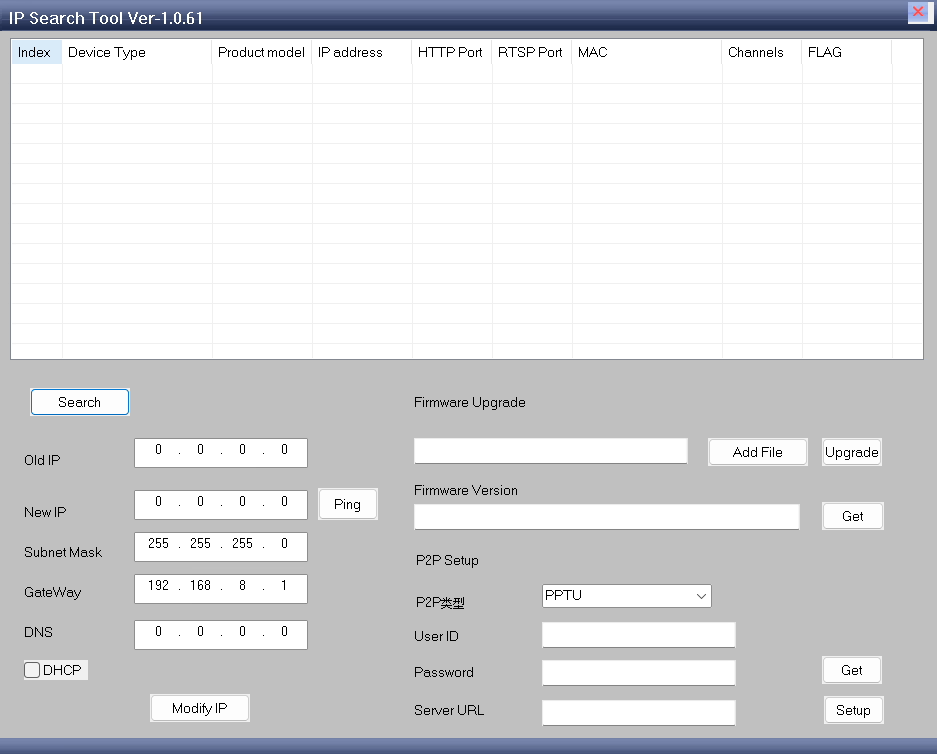
If the encoder is powered on and properly connected, the tool should display its hardware information, including the current IP address of the board.
Practical Tips for Setup
- Some encoder boards include a search/config tool that auto-detects devices even in different subnets.
- Avoid IP conflicts by ensuring each device has its own unique IP.
- If using multiple boards, label them with IP addresses for easier management.
Wniosek
Yes — your computer must be in the same subnet as your AV Video to IP Converter Board in order to access:
- Web configuration page
- Strumień RTSP
- UDP video
- ONVIF services
If you cannot connect, the fastest solution is:
- Compare both IP addresses
- Check if the first three segments match
- Adjust your computer’s IP to the same subnet as the encoder board
Once both devices share the same network segment, the converter board will be easily accessible and all video streams will work normally.
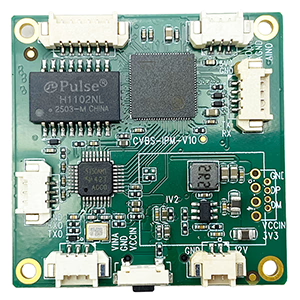
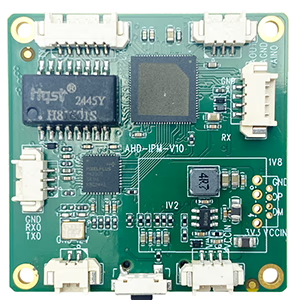
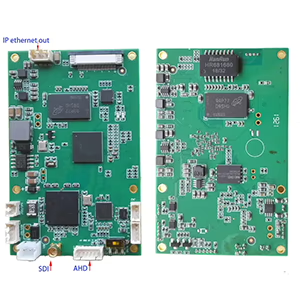
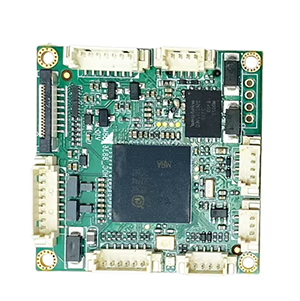
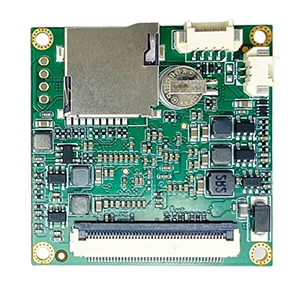
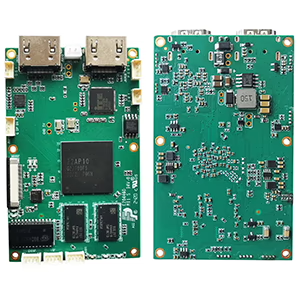
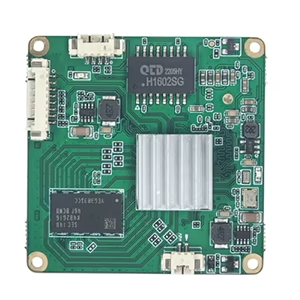
Płytki modułów enkoderów
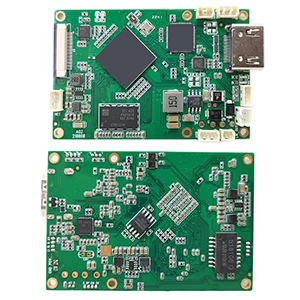
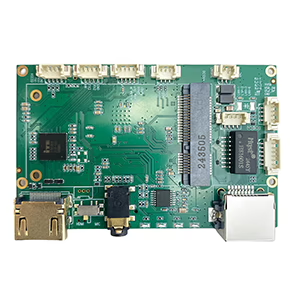
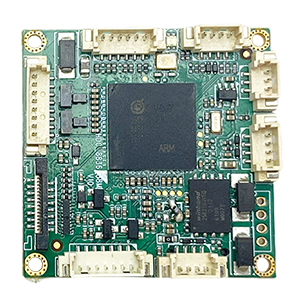
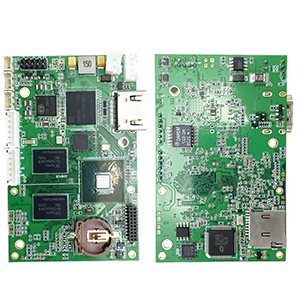
Płytki modułów dekodera
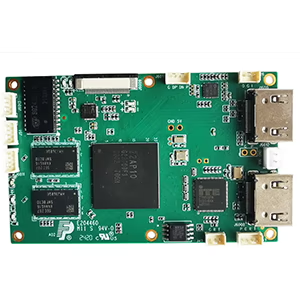
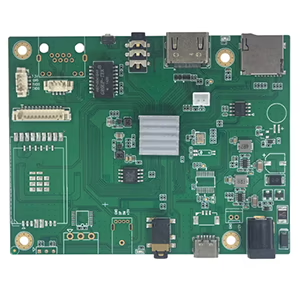
Dostępne do personalizacji
Nowe produkty kodujące
| No. | Nazwa produktu | Konfiguracja | Key Features | Status |
|---|---|---|---|---|
| 1 | Dwukanałowy koder wideo USB UVC w świetle widzialnym | 2× Wejście USB | Obsługuje kodowanie wideo z podwójnej kamery USB, i strumieniowanie RTSP; lokalne wyjście CVBS/HDMI; przełączalne tryby wyświetlania | Produkcja masowa |
| 2 | Enkoder dwukanałowy (1× Światło widzialne USB + 1× Kamera termowizyjna USB) | 2× Wejście USB | Obsługuje podwójną kamerę USB (widoczny + termiczny) schwytać, kodowanie, i strumieniowanie RTSP; lokalne wyjście CVBS/HDMI; przełączalne tryby wyświetlania | Produkcja masowa |
| 3 | Dekoder RTSP Moduł wyświetlacza HDMI/CVBS | HDMI + Wyjście CVBS | Obsługuje dekodowanie strumienia RTSP do 4×1080p przy 30 klatkach na sekundę; Obsługa przesyłania protokołu przesyłania strumieniowego wideo; Wyświetlacz wyjścia HDMI/CVBS | Próbka dostępna |
| 4 | Dekoder RTSP Moduł wyświetlacza HDMI/CVBS z 4.3"/5" LCD | Wyjście HDMI + Ekran LCD | Obsługuje dekodowanie strumienia RTSP do 4×1080p przy 30 klatkach na sekundę; przekazywanie protokołu; Wyświetlacz wyjścia HDMI/CVBS | Debugowanie |
| 5 | Enkoder dwukanałowy (1× Światło widzialne USB + 1× CVBS Analog) | 1× CVBS + 1× Wejście USB UVC | Podwójne wideo (USB + CVBS), kodowanie i strumieniowanie RTSP; lokalne wyjście CVBS/HDMI; przełączalne tryby wyświetlania | Debugowanie |
| 6 | Enkoder dwukanałowy (1×USB UVC + 1× Analog AHD) | 1× AHD + 1× Wejście USB UVC | Podwójne przechwytywanie wideo (USB + AHD), kodowanie i strumieniowanie RTSP; lokalne wyjście CVBS/HDMI; przełączalne tryby wyświetlania | Debugowanie |
| 7 | Enkoder dwukanałowy (1× CVBS + 1× Wideo analogowe AHD) | CVBS + AHD 2 wejście wideo | Podwójne analogowe przechwytywanie wideo, kodowanie i strumieniowanie RTSP; lokalne wyjście CVBS/HDMI; przełączalne tryby wyświetlania | Debugowanie |
| 8 | Enkoder dwukanałowy (1× Kamera CMOS + 1× Kamera termowizyjna USB) | 1× Interfejs USB | Obsługuje CMOS + Przechwytywanie obrazu z kamery termowizyjnej USB, kodowanie i strumieniowanie RTSP; lokalne wyjście CVBS/HDMI; przełączalne tryby wyświetlania | Produkcja masowa |
W przypadku niestandardowych rozwiązań konwersji wejścia/wyjścia wideo, które nie są wymienione w naszych produktach, skontaktuj się z nami, aby uzyskać wsparcie OEM/ODM. Możemy opracować produkty dostosowane do Twoich wymagań.
Ask A Question
Twoja wiadomość została wysłana