




Daftar isi
pengantar
Ini UDP multicast video streaming troubleshooting guide!! explains how to configure multicast streaming, verify camera detection, and resolve common playback issues when using UDP MPEG-TS streams with VLC or SPlayer.
It is designed to help you quickly identify configuration mistakes and network-related problems during testing.
Q: Does the system support multicast? Can I output one stream to multiple IPs?
SEBUAH: iya nih.
The system fully supports UDP multicast video streaming, allowing one video stream to be delivered to multiple receivers at the same time without duplicating streams for each IP address.
This is a one-to-many streaming mechanism within the same network.
How UDP Multicast Works
To enable multicast mode:
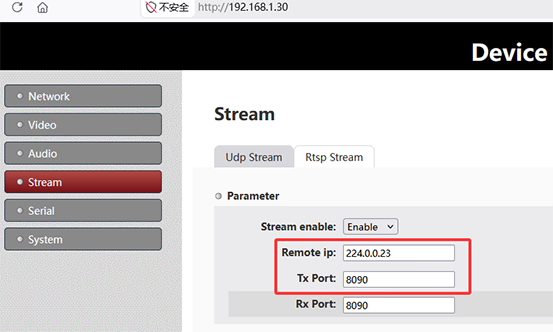
- Set the IP jarak jauh on the sender (pembuat enkode) side to a multicast address
Contoh:224.0.0.23 - All receivers must join the same multicast group using the same IP address
Receiver Configuration Examples

Pemain voli:
- Set Group IP:
224.0.0.23
VLC Media Player:
- Open network stream:
udp://@224.0.0.23:8090
Catatan Penting
- The actual device IP is not important in multicast mode
- Stream delivery depends on whether the network supports multicast
- All devices must join the same multicast group
- Performance depends heavily on network stability and configuration
Remote IP Setting Example (Encoder Side)
Remote IP setting on multicast of SDI/AHD to IP encoder board:
- Set output mode: UDP Multicast
- Set multicast IP:
224.0.0.23 - Set port: misalnya.
8090 - Save configuration and reboot the encoding board
⚠️ Penting: The encoder must be power-cycled (rebooted) for changes to take effect.
VLC Network URL Setting Example
VLC network URL setting for multicast streaming:
- Open VLC
- Klik Media → Open Network Stream
- Memasuki:
udp://@224.0.0.23:8090 - Click Play
Camera and Encoder Check (Very Important)
Before testing multicast streaming:
- Periksa webserver video page
- Ensure the camera is detected correctly
- If the camera is not detected, no video stream will be output
- Verify encoding parameters
- Correct resolution and bitrate settings
- Ensure UDP output is enabled
- Reboot encoder after configuration changes
UDP Multicast Video Streaming Troubleshooting Guide!!
If multicast does not work, follow this troubleshooting checklist:
1. Network Environment Issues
- Router/switch does not support multicast
- IGMP Snooping enabled but no IGMP Querier exists
- Devices are on different VLANs or subnets
- Wi-Fi network blocks multicast traffic
- VPN or virtual network interference
2. komputer / VLC Issues
- Windows firewall blocks UDP traffic
- Antivirus software blocks multicast packets
- VLC is bound to the wrong network interface
- Multiple network adapters causing routing conflicts
- Incorrect network stream format used in VLC
3. Encoder Configuration Issues
- Camera not detected → no stream output
- Wrong multicast IP or port configuration
- Encoder not rebooted after changes
- Incorrect stream format (must be MPEG-TS for VLC compatibility)
4. Protokol & Multicast Behavior Issues
- Multicast TTL too low to pass network devices
- Switch does not support Layer 2 multicast forwarding
- IGMP join not registered properly
- Network does not forward multicast packets correctly
5. Recommended Debug Steps
If you still cannot receive the stream:
- Test unicast first to confirm encoder output works
- Try VLC on a different PC or network interface
- Disable firewall temporarily for testing
- Connect encoder and PC directly via switch (same subnet)
- Check router/switch multicast settings (enable IGMP support)
Ringkasan
Itu UDP multicast video streaming troubleshooting guide!! helps you:
- Configure multicast streaming correctly
- Set encoder and VLC parameters
- Understand multicast network requirements
- Quickly diagnose common failures
Multicast is powerful but highly dependent on network support. Correct configuration of both encoder and network infrastructure is essential for stable video delivery.
Q: RTSP latency is too high in our application, while UDP unicast works well with low latency.
Namun, we have not been able to configure UDP multicast successfully. As an alternative, is it possible to configure multiple UDP unicast destination addresses so that the same stream can be sent to multiple receivers simultaneously?
SEBUAH: Technically, your requirement is exactly what UDP multicast is designed for, and multicast remains the standard and recommended solution for distributing the same video stream to multiple receivers with minimal bandwidth overhead.
If multicast is currently not working, the issue is usually related to network configuration rather than the encoder itself. Typical causes include:
- IGMP snooping or multicast filtering settings on switches/routers
- VLAN or subnet configuration issues
- Receiver-side multicast permissions
- Wireless AP multicast handling limitations
As a workaround, it is technically possible to create a customized firmware version that supports multiple UDP unicast destination addresses simultaneously. Misalnya, the web interface could be modified to allow configuration of several target IP addresses, and the encoder would transmit separate UDP streams to each destination.
Namun, this approach is generally not recommended because it introduces significant bandwidth overhead.
Misalnya:
- 1 destination = normal bandwidth usage
- 2 destinations = approximately 2× bandwidth usage
- 3 destinations = approximately 3× bandwidth usage
This is especially important in wireless transmission environments, where available throughput is limited. Multiple unicast streams can quickly consume the available wireless bandwidth and reduce overall system stability and performance.
This is precisely why multicast exists: it allows multiple receivers to share the same stream without multiplying network bandwidth consumption.
Karena itu, we strongly recommend resolving the multicast network configuration rather than implementing multiple parallel unicast outputs whenever possible.
Berikan pertanyaan
Terima kasih atas tanggapan Anda. ✨