






How to troubleshoot approach for a COFDM wireless video receiver with no HDMI or CVBS output:
Verify RF Lock and Signal Parameters
- Check receiver status indicators
- Look for “RF Lock” or “Signal Lock” LEDs or on‑screen messages. If there’s no lock, the RF link is likely the issue.
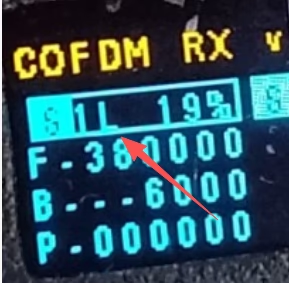 NS एस 1एल parameter on the receiver’s configuration board indicates signal lock.
 - From the picture below, you can see that the version number of the receiver has a टी letter, indicating that the current receiver uses standard DVB-T software and does not use special ultra-low latency software. इसके अतिरिक्त, AES video encryption and decryption and non-standard bandwidth will cause problems. The bandwidth of DVB-T is 6 7 8एमबी, while the bandwidth of customized COFDM software supports 2,4Mb.
- Match frequency and modulation settings
- Ensure the receiver matches the transmitter’s frequency, बैंडविड्थ, FFT size, modulation type, विन्यास योग्य आरएफ आउटपुट पावर (FEC), and guard interval.
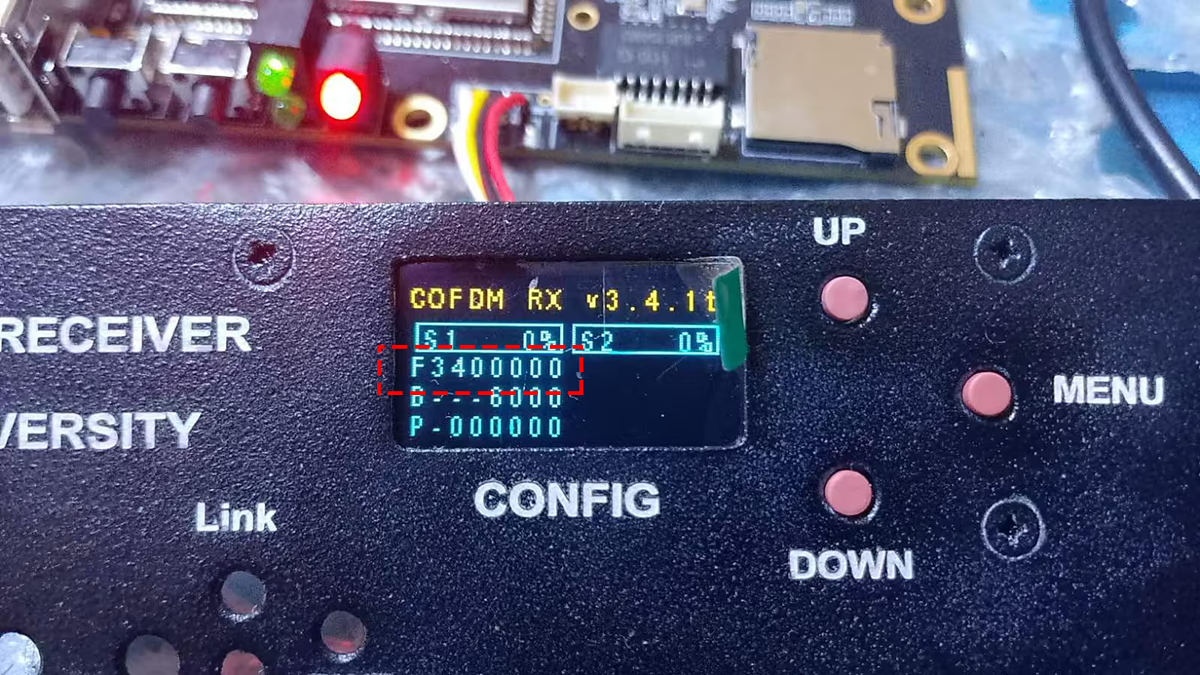
- Please use the parameter configuration board to connect the COFDM video receiver, see his current configuration, in the working frequency column, and see that his configuration is F3400000 in the picture. Here he thinks it is 340Mhz, but it is actually 3400MHz, which causes the receiver frequency to be unable to match at 340MHz and cannot receive the signal.
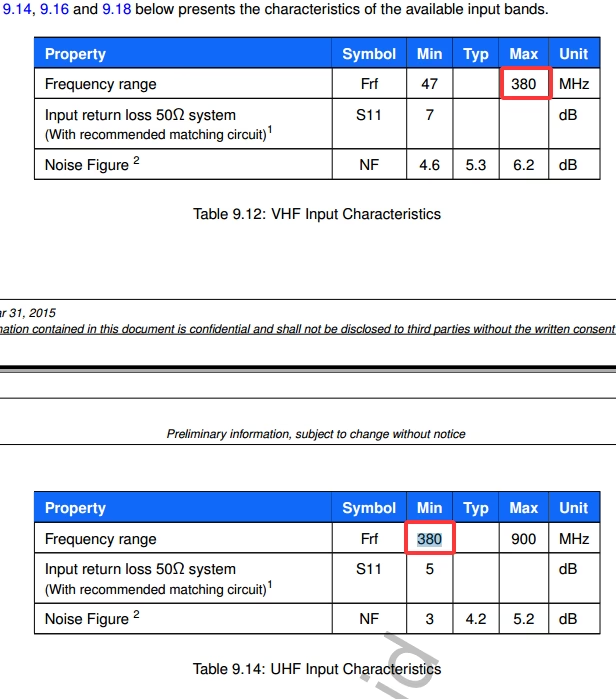
- If the COFDM wireless receiver’s tuner chip is Dibcom9090, please avoid using 380MHz as the wireless transmission frequency, as this frequency is the boundary between the VHF and UHF bands for Dibcom9090.
- Measure signal quality
- Use MER (मॉड्यूलेशन त्रुटि अनुपात) and BER (Bit Error Rate) readings. Low MER or high BER can prevent video decoding even if RF is locked.
- In the picture above, the signal strength of the two antennas in S1 and S2 is 0%, which is abnormal, because the COFDM wireless video receiver can receive any clutter when connected to the antenna, so the signal strength is not zero. The antenna may not be connected well. The receiving antenna needs to be checked, and there will be no problems or failures between the two antennas at the same time.
Confirm Video Decoding Path
- Check the transmitter’s video input
- Connect a monitor directly to the transmitter’s source to confirm it’s outputting a valid signal.
- Our Vcan1776 wireless video transmitter needs to be activated when there is a video signal (HDMI / CVBS / एएचडी / SDI) इनपुट. Without a signal input, it will not start working, which will also cause the COFDM receiver to not lock the transmitted signal normally.
- Verify codec compatibility
- Some receivers only support H.264, not H.265. A mismatch will result in no video output.
- H264 can achieve lower delay. Vcan1776 supports H264 and two video stream video encoding firmware. वीकैन2070 supports H264 and H265 both video encodec.
- Resolution and frame rate
- Ensure the transmitter’s video format is within the receiver’s decoding capability (जैसे, avoid sending 4K to a 1080p‑only decoder).
- If your signal source is a 4K HDMI signal, remember to use our COFDM 4K HDMI video encoding board.
Inspect Output Interfaces and Settings
- Test the physical ports
- Use a multimeter or oscilloscope to check for signal activity on HDMI/CVBS pins.
- For HDMI, an HDMI analyzer can confirm TMDS signal presence.
- Vcan1776-RX has ethernet IP video output, please check its RTSP or UDP video output if works well or not.
- Check menu/firmware settings
- Some receivers allow disabling certain outputs (जैसे, HDMI off, IP only). Make sure HDMI/CVBS is enabled.
- Firmware reset/update
- Restore factory defaults or update firmware to rule out software glitches.
Eliminate External Factors
- Power supply stability
- Low voltage or excessive ripple can cause decoder instability.
- Interference and multipath
- While COFDM is robust, extreme interference or poor antenna placement can still cause decoding failure.
- Swap test
- Test with another identical receiver to isolate whether the fault is in the unit or the link.
Advanced Diagnostics (for signal‑savvy users)
- परिवहन स्ट्रीम (टीएस) analysis
- If the receiver supports IP or ASI output, capture the TS and inspect it with tools like TSReader to check for valid video PIDs.
- Spectrum analysis
- Use a spectrum analyzer to confirm the presence and characteristics of the COFDM signal.
- Segmented link testing
- Test over a short, direct RF path to rule out long‑range attenuation or environmental issues.
- Receiver starts debugging information analysis
- Connect the TTL UART tool through USB, connect the receiver’s Debug interface to the computer, and restart the receiver through the UART serial port assistant software to get the parameters of the debug interface. Please copy all the information to the text document and send it to our engineer to analyze whether there are any defects in the receiver software.
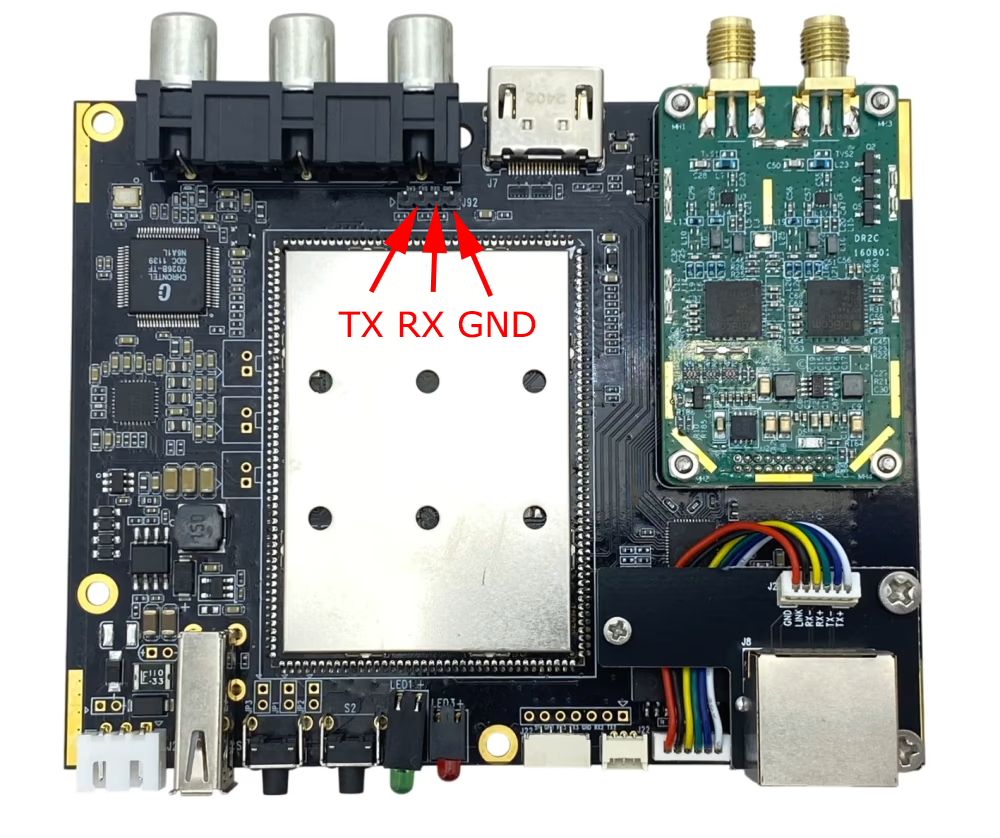
- Recommended to use SecureCRT software for Windows OS
- Connect the TTL UART tool through USB, connect the receiver’s Debug interface to the computer, and restart the receiver through the UART serial port assistant software to get the parameters of the debug interface. Please copy all the information to the text document and send it to our engineer to analyze whether there are any defects in the receiver software.

मूल कीमत थी: $490.00.$390.00वर्तमान कीमत है: $390.00.

प्रश्न पूछें
आपका संदेश भेज दिया गया है