






Bij gebruik van de COFDM -transceivermodule (of zender en ontvanger complete set), it may be necessary to modify the configuration parameters of the module. For the convenience of customers, We have developed the LCD panel board for parameter configuration, the details are as follows:
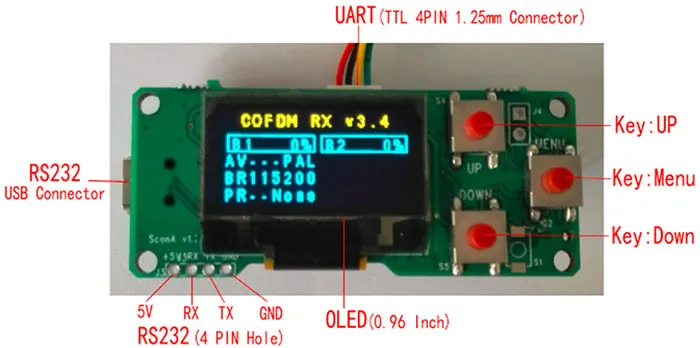
Parameter configuration panel Quick Operation Guide
Inhoudsopgave
1 Introductie van de gebruikersinterface
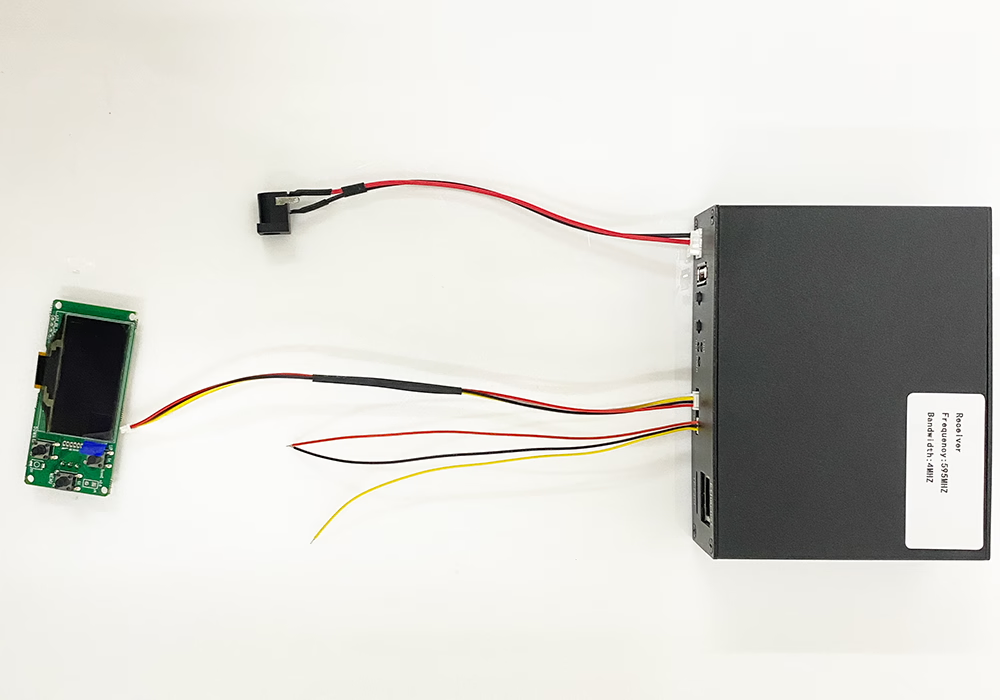
1.1 OLED-schermweergave:
This configuration panel board is equipped with a 0.96-inch OLED display, which is used to display the parameters of the COFDM transceiver module (center frequency point, bandbreedte, enz.) for users to query and modify.
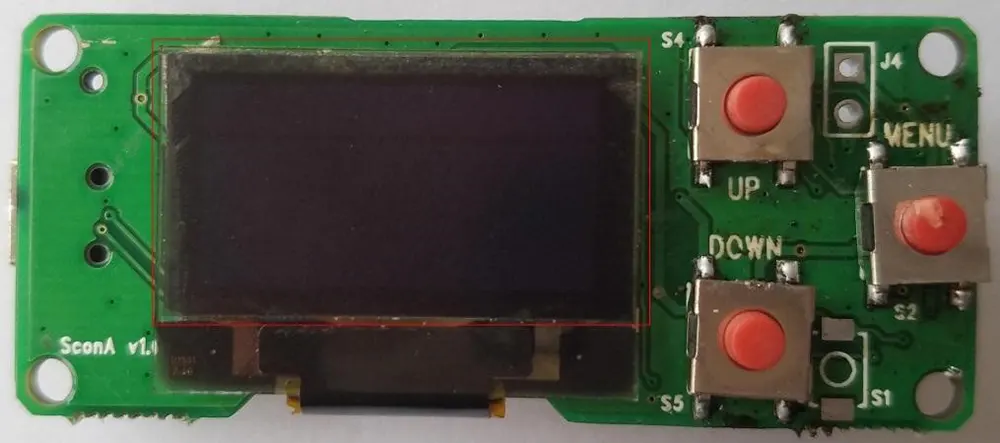
1.2 Input buttons:
The configuration panel board has 3 functieknoppen, which are used to switch parameter display or edit and modify parameter values as needed.
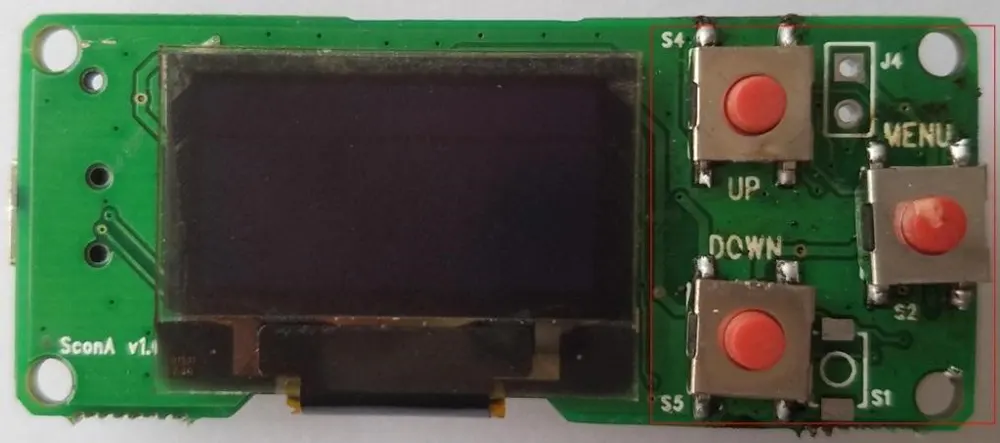
| keyword | functie |
| MENU | enter/exit editing mode (lang indrukken)Edit mode: switch the high and low bits of the parameter to be edited (kort indrukken) |
| UP | normal mode: switch primary parameter or advanced parameter screen (kort indrukken)Edit mode: add parameter Use for value (kort indrukken); switch the parameter to be edited (lang indrukken) |
| DOWN in | normal mode: switch primary parameter or advanced parameter screen (kort indrukken) in edit mode: used for decreasing parameter value (kort indrukken); switch to edit Parameter (lang indrukken) |
2 Hoe te gebruiken
2.1 Parameterweergave:
When it is powered on, the LCD will display “Connect To Target Device”.
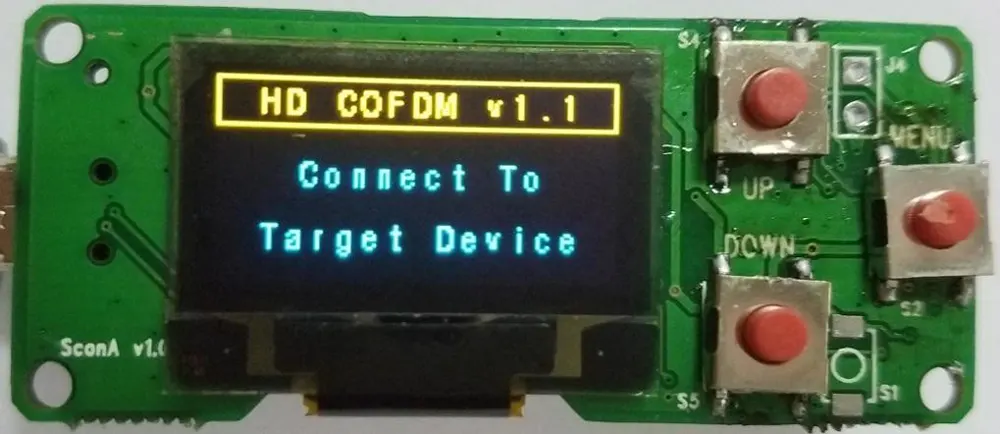
When the configuration Panel board and COFDM transceiver module communicate successfully, the monitor will display the acquired parameter value of the transceiver module. Standaard wordt de basisparameterpagina weergegeven, and then short pressing the “UP” of “OMLAAG” switch to the advanced parameter page.
3. Zenderinterface
3.1 basic parameter page of the
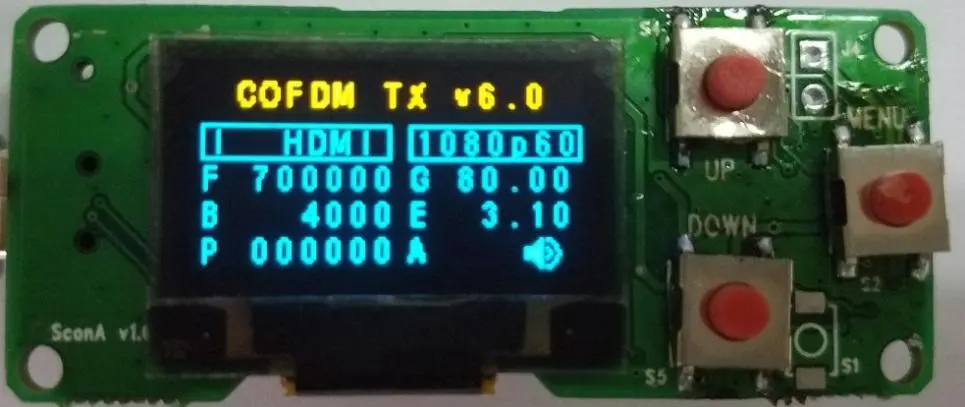
COFDM TX V xx
| ik HDMI/SDI/CVBS | 1080p60/vriend (displayed —- als de signaalbron abnormaal is) |
| F frequentie (kHz) | G verdienen (dB) |
| B bandbreedte (kHz) | E bit tarief (Mbps) |
| P 6-cijferig wachtwoord (with password display ——, without password display 000000) | EEN Audio-schakelaar |
3.2 advanced parameter page
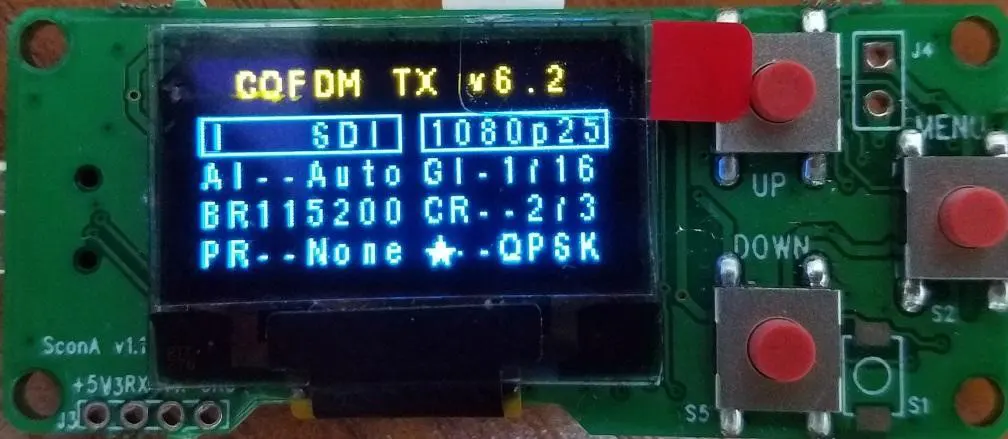
COFDM TX V xx
| ik HDMI/SDI/CVBS | 1080p60/vriend (displayed —- als de signaalbron abnormaal is) |
| AI (Auto, Engels), | GI guard interval (1/32, 1/16, 1/8, 1/4)1200 |
| BR baud rate (2400, 4800, 9600, 19200, 38400, 57600, 115200) | CR convolutional code Rate (1/2, 2/3, 3/4, 5/6, 7/8) |
| PR rekening (Geen, Vreemd, Zelfs) | QAM modulation constellation (QPSK, QAM16, QAM64) |
4. Ontvangerinterface
4.1 basic parameter page
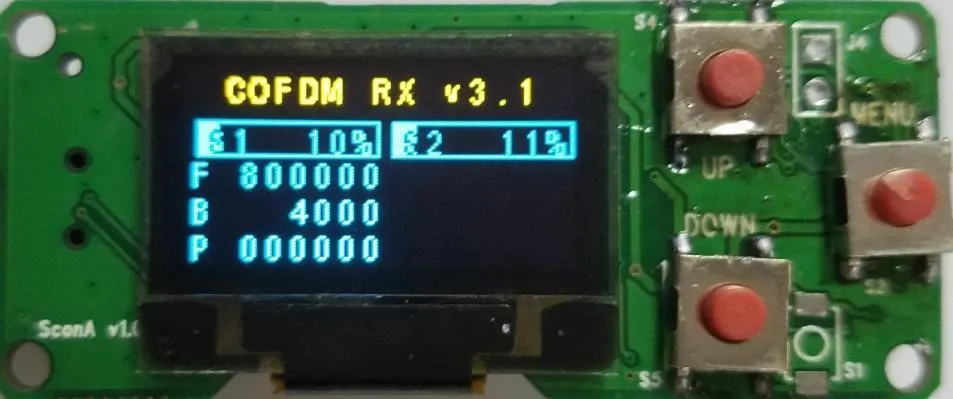
| COFDM RX V xx | |
| S1 Antenna 1 signaalsterkte (0~ 100%) | S2 Antenna 2 signaalsterkte (0~ 100%) |
| F Frequency (kHz) | |
| B Bandwidth (kHz) | |
| P 6-digit password (with password display ——, no password Display 000000) |
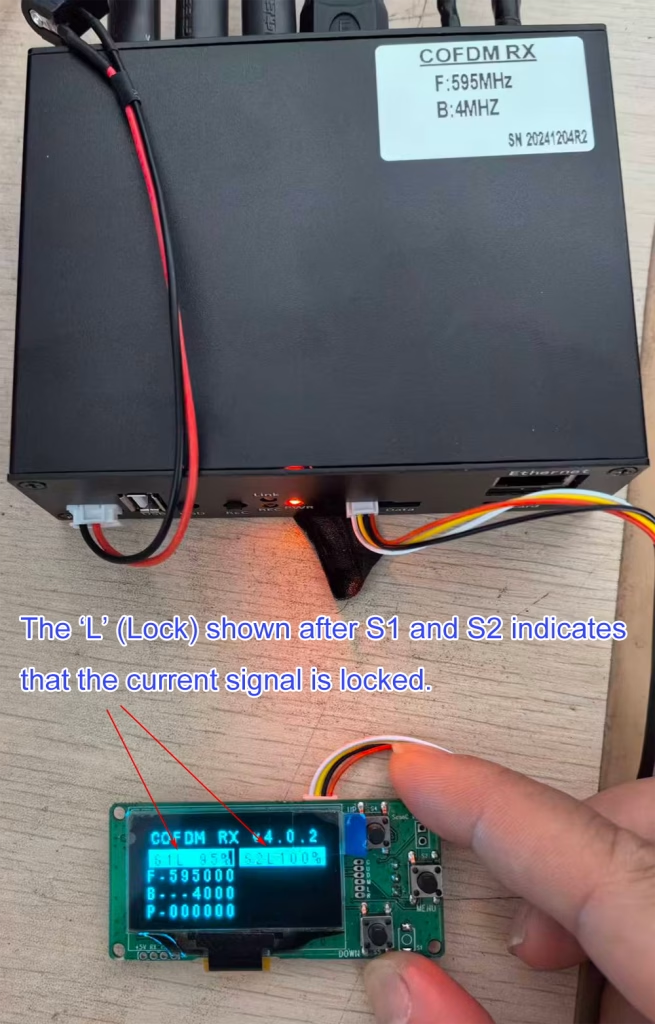
4.2 Geavanceerde parameterpagina
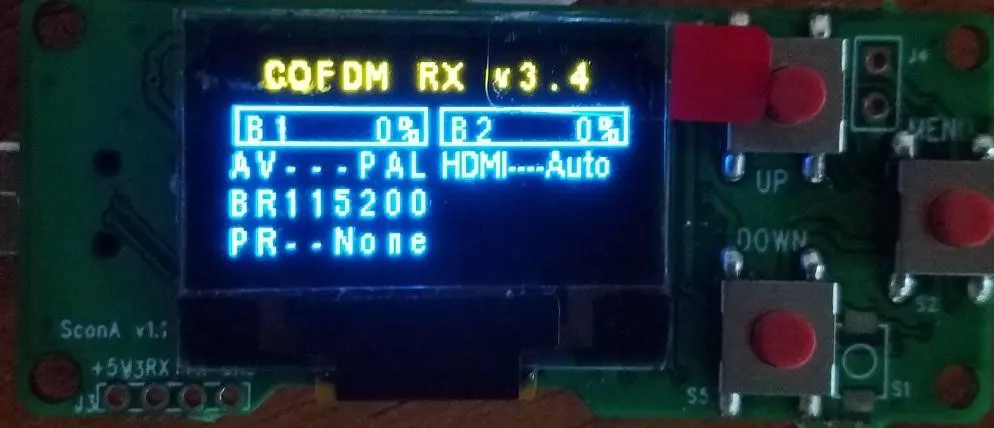
| COFDM RX V xx | |
| B1 Antenna 1-bit error rate (0~ 100%) | B2 Antenna 2-bit error rate (0~ 100%) |
| VAN AV-uitvoerformaat (VRIEND, NTSC) | HDMI (Auto, 720p50, 720p60, 1080p24, 1080p25, 1080p30, 1080p50, 1080p60) |
| BR baud rate (1200, 2400, 4800, 9600, 19200, 38400, 57600, 115200) | |
| PR verification (Geen, Vreemd, Zelfs) |
5. Parameter Modification:
Standaard wordt de basisparameterpagina weergegeven, If users need to view or modify advanced parameters, they can short press the “UP” of “OMLAAG” button to switch to the advanced parameter page.
In de standaardmodus, only the parameters can be previewed. If the user needs to modify the parameters, please long-press the “MENU” button to enter the parameter editing mode.
In the edit mode, the edited parameter value will flash and prompt, if the customer needs to switch the parameter, long-press the “UP” of “OMLAAG” button to switch. If you don’t need to switch parameters, you can short press the “MENU” button to switch the high and low bits of the parameter to be edited, the corresponding edited bit will flash and prompt, en druk vervolgens op “UP” of “OMLAAG” button to increase or decrease the value of the corresponding bit of the parameter.
Na het wijzigen van de parameters (allowing to change multiple parameters at once), Long-press the “MENU” button, and the current parameters will all flash ( parameter name and parameter value flash together), then release the “MENU” button to complete the editing and exit the editing mode, The new parameter value will be written into the COFDM transceiver module.
6. Input and switch the most used frequency points
At Default mode, press and hold the “UP” en “DOWN“ two buttons for 2-3 seconden, then enter the most used frequency point input page (Allow to set 4 most used frequency points):
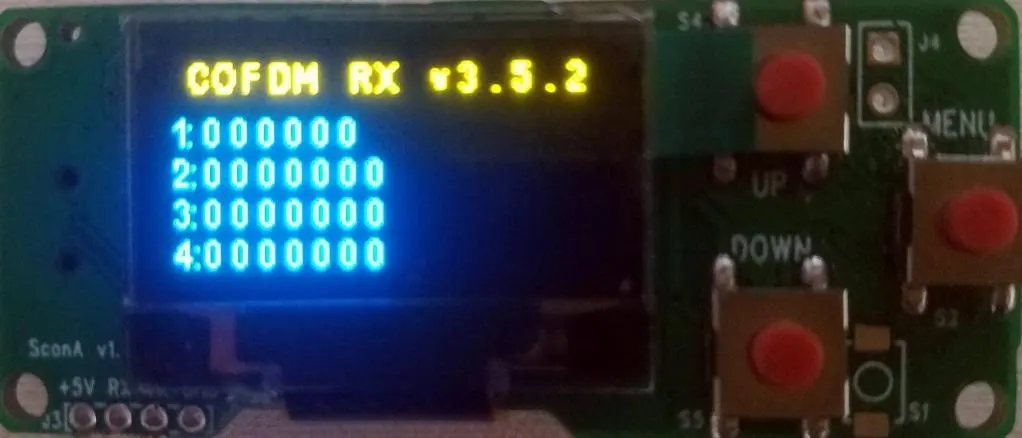
| COFDM TX/RX V xx |
| 1: Frequentie (kHz) |
| 2: Frequentie (kHz) |
| 3: Frequentie (kHz) |
| 4: Frequentie (kHz) |
If you have not entered common frequency points before, then all common frequency points will be displayed as 000000 (representing Not set); if common frequency points have been set before, de waarde van het overeenkomstige frequentiepunt wordt weergegeven.
In the most used frequency point input page, the edited frequency point parameter will flash and prompt if the customer needs to switch the frequency point, long press the “UP” of “OMLAAG” button to switch. If you do not need to switch the frequency point, you can short press the “MENU” button to switch the high and low digits of the frequency point parameter that needs to be edited, the edited digit will flash and prompt, en druk vervolgens op “UP” of “OMLAAG” button to increase or decrease the digit of the parameter (If you want to cancel a frequency point, change the parameter of the frequency point to 000000).
Na het wijzigen van de frequentieparameters (Allowing to modify of multiple parameters at one time), Long-press the “MENU” knop, and all current parameters will flash ( parameter name and parameter value flash together), then release the “MENU” button to complete the editing and exit the most used frequency point input page, return to the basic parameter page, and the new frequency point parameter value will be recorded in the configuration panel.
7. Switch the most used frequency point
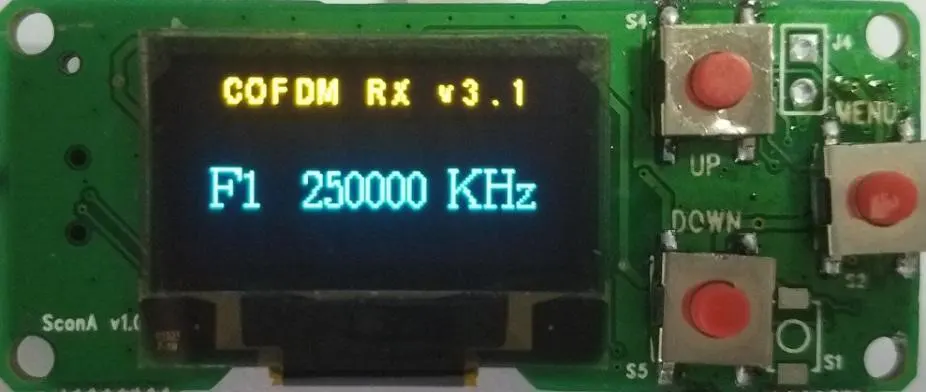
At default mode, long-press the “UP” of “OMLAAG” knop, and it will switch the pre-set entered the most used frequency points. (allowed to switch at up to 4 most used frequency points ), and the current switch will be displayed on the screen To the frequency point (displayed in the center and in large font), and return to the basic parameter page after staying for 5 seconden:
Een vraag stellen
Bedankt voor je reactie. ✨