






VCAN1776-rx အတွက် CofDM receiver configuration နှင့် streaming protocol လမ်းညွှန်.

မာတိကာ
ငါ. ပြင်ဆင်မှု
- Upgrade firmware ကို cofdm လက်ခံသူကို download လုပ်ပါ, အရာသုံးကွဲပြားခြားနားသော streaming protocol ကိုသုံးဘို့ firmware သုံးခုကိုထောက်ပံ့သည်. ဒေါင်းလုပ်လုပ်ပါ.
- firmware ကိုအဆင့်မြှင့်ပြီးနောက်, လက်ခံသူသည်စက်ရုံမှပုံမှန် parameters များကိုပြန်လည်ထူထောင်လိမ့်မည်:
- Center Frequency: 320 MHz
- ကြိုးမဲ့ bandwidth: 6 MHz
- Ethernet Port IP လိပ်စာ: 192.168.0.215
- ကျေးဇူးပြုပြီးသုံးပါ LCD Parameter သည် configuration board သူတို့က transmitter ရဲ့သိမ်းဆည်းထားတဲ့ settings နဲ့လိုက်ဖက်တဲ့စင်တာအကြိမ်ရေနဲ့ bandwidth ကိုညှိဖို့.
- ဖောက်သည်များသည်လက်ခံသူ၏လက်ခံနိုင်သည် Web Server Interface ပြုပြင်ရန်:
- လက်ခံသူ၏ကိုယ်ပိုင် IP လိပ်စာ. (ဒေသတွင်း IP)
- လက်ခံသူသည်ချိတ်ဆက်မည့် Windows PC IP လိပ်စာ. (အဝေးထိန်း IP)
 မှတ်စုများ:
တစ်ဦး) အဝေးထိန်း IP သင်၏ Windows PC IP ကိုရည်ညွှန်းသည်. သင့်ရဲ့အမှန်တကယ် setup ကိုအရသိရသည် configure.
ခ) ဆိပ်ကမ်း UDP streaming port ကိုရည်ညွှန်းသည်, ပျက်ကွက် 1234.
ဂ) အပြောင်းအလဲများကိုအောင်ပြီးနောက်, လက်ခံသူကို restart လုပ်ပါ အကျိုးသက်ရောက်မှုယူရန် setting များအတွက်.
- လိုအပ်သည့်ကိုရွေးပါ Ethernet output protocol.
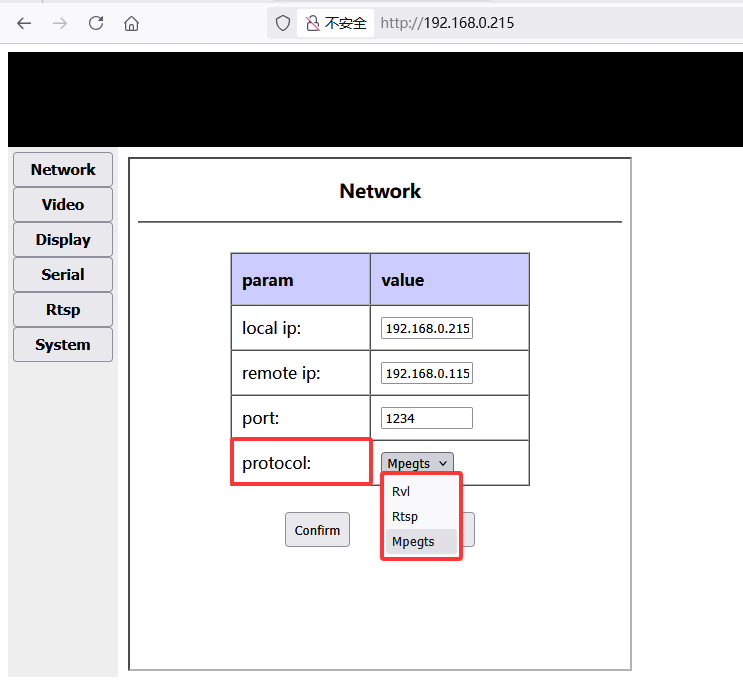
II ကို. protocol ခြုံငုံသုံးသပ်ချက်
1. rvl protocol
RVL သည် CUFDM transmitter နှင့် receiver တို့အကြားအသုံးပြုသောစိတ်ကြိုက် protocol ဖြစ်သည်. UDP အပေါ်မှာဗီဒီယိုကိုတိုက်ရိုက်လွှင့်ပစ်လိုက်တယ်. PC သည်သာ အသုံးပြု. ဤစမ်းချောင်းကိုသာဖွင့်နိုင်သည် ကစားသူ.
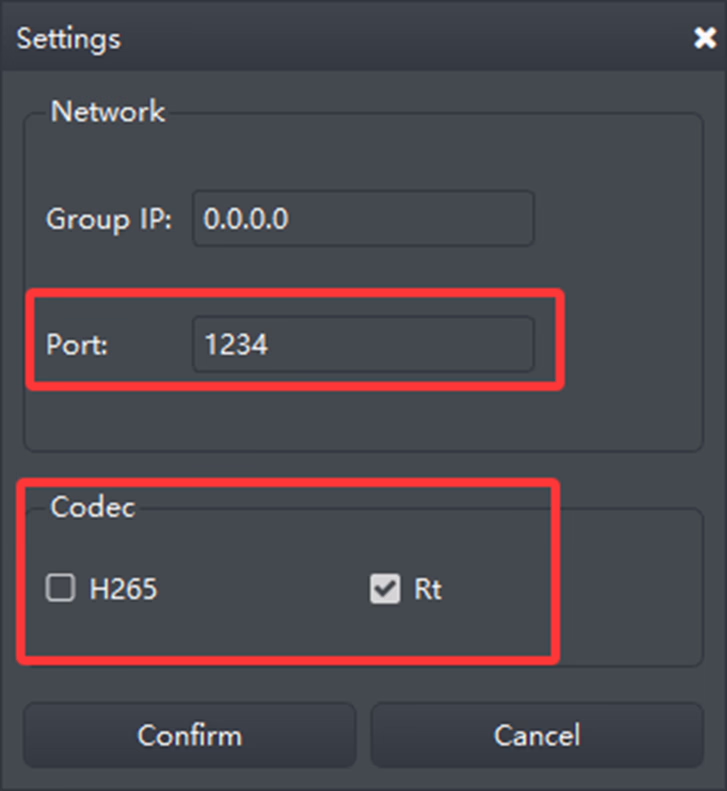
တစ်ဦး) splayer configuration ကို
မှတ်စုများ:
- သေချာအောင်လုပ်ပါ ဆိပ်ကမ်း သတ်မှတ်ထားသည် 1234, ဝဘ်ဆာဗာဆက်တင်များနှင့်ကိုက်ညီသည်.
- configure Codec ဗီဒီယို stream အမျိုးအစားအရသိရသည်. ဥပမာ, H.264 အနိမ့်လတ်ဆတ်သောဗွီဒီယိုအတွက်, သက်ဆိုင်ရာ codec ချိန်ညှိချက်များကိုသုံးပါ.
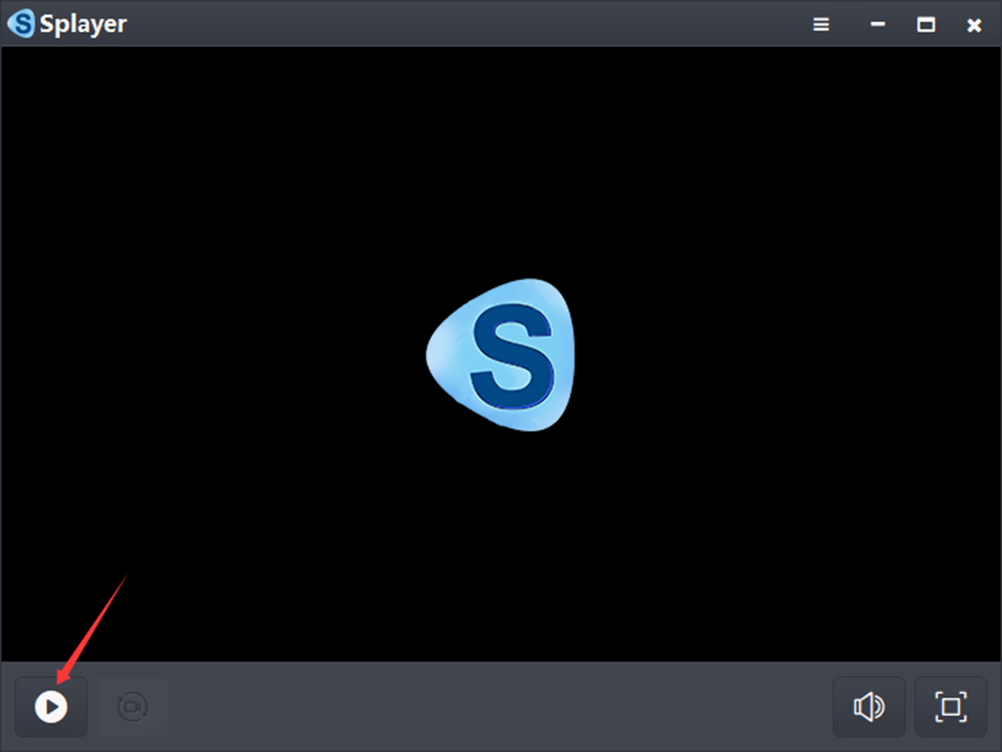
ခ) ဖွဲ့စည်းမှုပြီးနောက်, ချိန်ညှိချက်များကိုသိမ်းဆည်းရန် "Confirm" ခလုတ်ကိုနှိပ်ပါ. ထို့နောက် Play ခလုတ်ကိုနှိပ်ပါ (ဘယ်ဘက်အောက်). Windows PC သည်၎င်းကိုလက်ခံတွေ့ဆုံပြီးနောက်ချက်ချင်းပင် UDP Stream ကိုချက်ချင်းဖွင့ ်. ဖွင့်ပြလိမ့်မည်.
2. RTSP protocol
RTSP streaming ကိုထောက်ပံ့ထားပြီးအသုံးပြုနိုင်သည် VLC, Easyplayer, နှင့်အခြား RTSP- နိုင်စွမ်းကစားသမား.
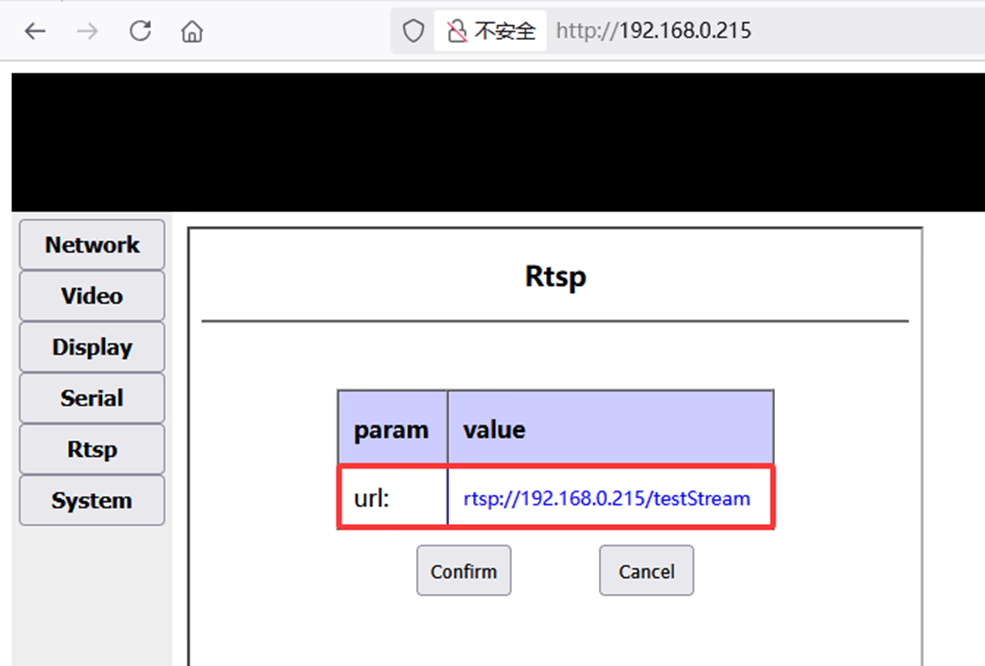
တစ်ဦး) RTSP streaming url ကိုလက်ခံသူ၏အပေါ်တွင်တွေ့နိုင်သည် Web Server RTSP စာမျက်နှာ.
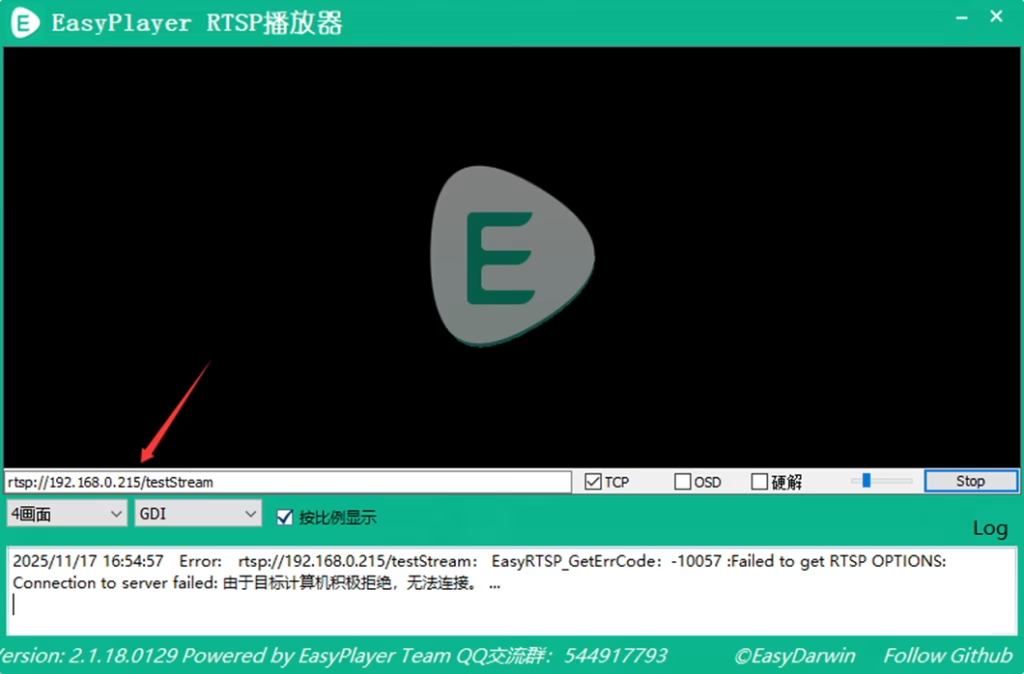
ခ) EasyPlayer ၌တည်၏, streaming စတင်ရန်သက်ဆိုင်ရာ RTSP URL ကိုသာရိုက်ထည့်ပါ.
3. MPEG-TS protocol
MPEG-TS သည် UDP အပေါ် standard ts protocol ကို streamed. PC သည် decode လုပ်ပြီးစီးကို အသုံးပြု. စမ်းကြည့်နိုင်သည် VLC သို့မဟုတ်အလားတူကစားသမား.
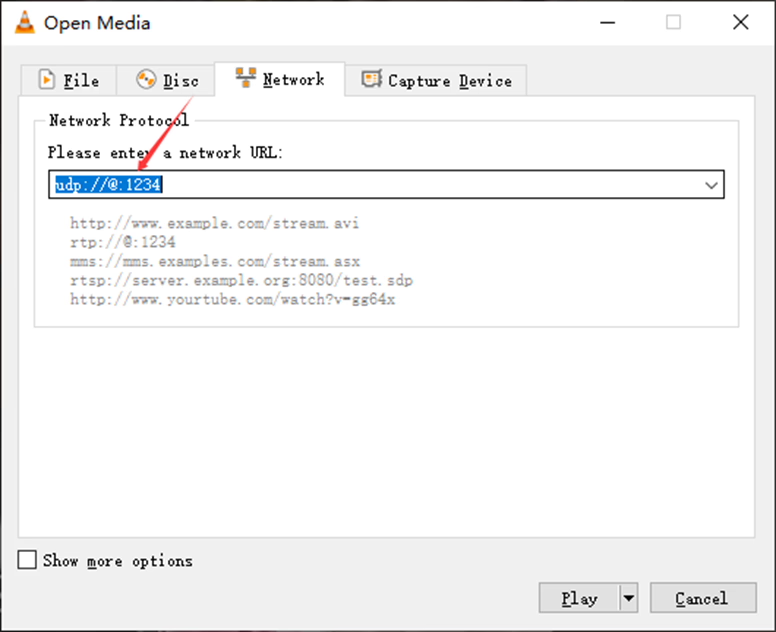
တစ်ဦး) VLC တွင်, သက်ဆိုင်ရာ URL ကိုရိုက်ထည့်ပြီးနှိပ်ပါ "Play". Windows PC သည် UDP Stream ကိုချက်ချင်းပြသရန်နှင့်ပြသသည်.

မေးခွန်းတစ်ခုမေး
သင့်စာကို ပို့ပြီးပါပြီ။